
How to set up DMARC/DKIM/SPF for Mail2World

For a Mail2World custom domain, authorize the account's outbound servers in SPF, ask Mail2World to enable DKIM signing with your domain, and publish a DMARC TXT record at _dmarc. Start a new DMARC deployment with p=none. Verify actual messages before enforcing a stronger policy. If DKIM signing is unavailable for your service, SPF can pass DMARC on direct delivery, but it is insufficient for a reliable p=reject deployment.
I start by checking who controls the sending domain. Mail2World separates personal email accounts from business hosting. These DNS changes apply to a domain you own. If your address uses a provider-owned domain, its administrator must configure authentication.
Add your domain
Use your Mail2World business administrator or reseller account to provision the domain. Mail2World documents an Admin Control Center, but its public help does not establish a universal domain verification wizard. I use the provisioning instructions supplied for the actual service.
- Provision the domain: Ask the Mail2World administrator or reseller to add your sending domain to the hosted service. If it is already hosted, confirm that the intended mailbox and sending aliases are active.
- Verify ownership: Complete the ownership check requested by that administrator. If it requires DNS, publish the exact supplied name and value, then request confirmation that verification succeeded.
- Keep mail routing: Use the MX records supplied for your account only when moving inbound hosting. Adding SPF, DKIM, or DMARC does not itself require changing MX records.
- Select the identity: For an additional sending identity, open Settings > Identities & Aliases > Create A New Identity/Alias. Enter the authorized account details and save. Select that identity in the compose window when testing.
An identity changes the address displayed in the From field. Creating one does not prove domain ownership or activate DKIM signing. Have Mail2World confirm that the domain is provisioned before using its addresses.
The identity screen below illustrates the documented Mail2World workflow after provisioning. Your reseller's branding and available fields depend on the hosted service.
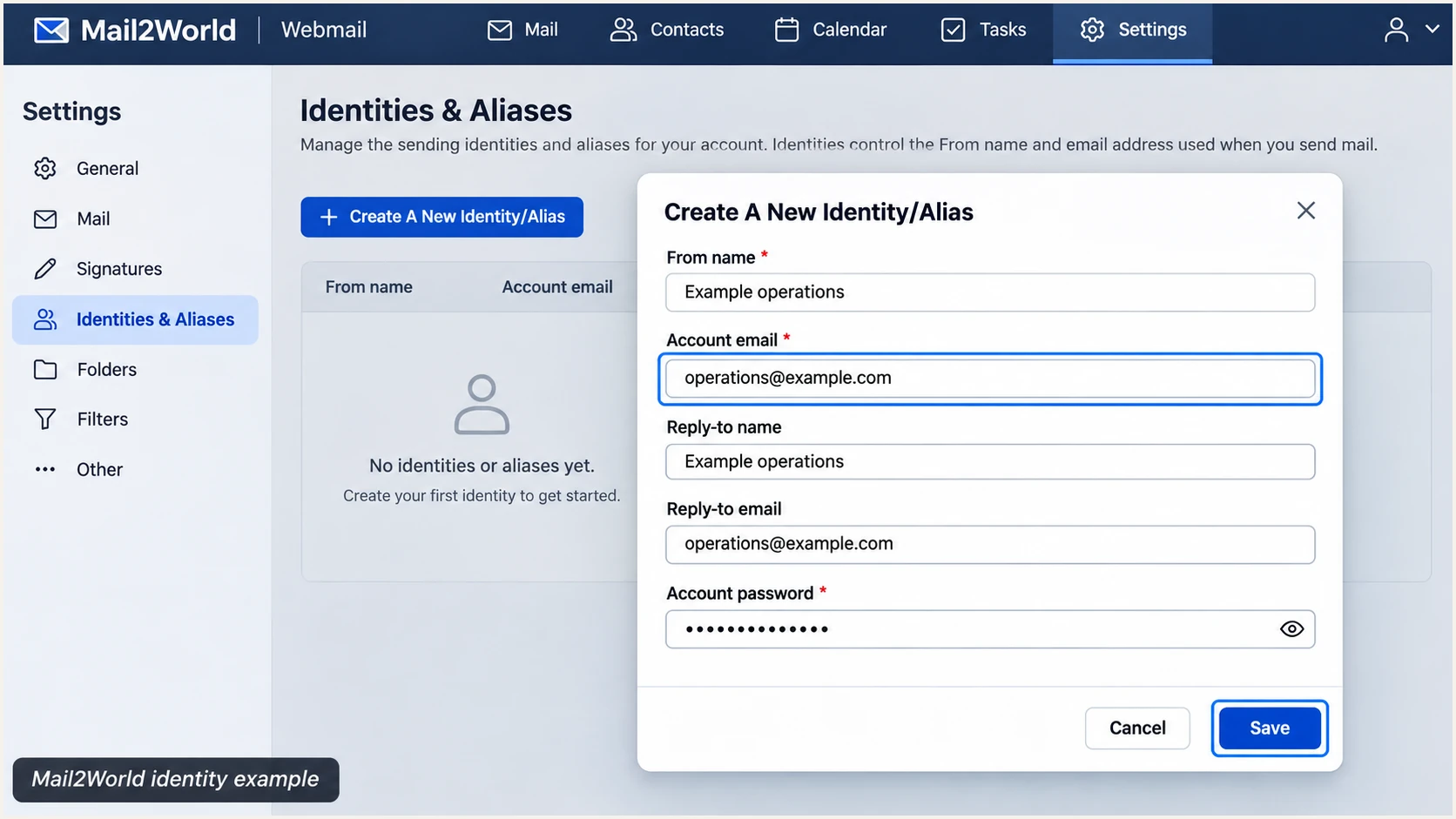
Mail2World identity settings for an already provisioned domain.
Send a message to an external mailbox and inspect the delivered Return-Path. Mail2World supports Return-Path alignment; verify that your account actually uses your domain or an appropriate subdomain.
Keep the visible From domain, envelope sender domain, and any DKIM signing domain with your setup notes. Those values determine which DNS records receivers check.
Set up SPF
SPF checks the SMTP envelope sender, normally visible in Return-Path after delivery. Publish authorization at that domain. A record at example.com does not automatically apply to bounce.example.com.
- Confirm authorization: Obtain the current SPF include or outbound IP instructions from Mail2World or your reseller. Use the conditional example below only if they confirm include:spf.mail2world.com for your account.
- Edit one record: At your authoritative DNS host, find the TXT record beginning v=spf1. Merge the confirmed authorization before its final all mechanism, preserving other legitimate senders and the existing ending.
- Match the envelope: Have Mail2World configure the envelope sender under your domain if the test message uses a provider-owned Return-Path. Changing Reply-To or the visible From address does not change this domain.
- Check lookup limits: Keep SPF evaluation within 10 DNS-querying terms, including nested includes. Save the change and wait for the previous DNS TTL to expire before retesting.
SPF example, only if Mail2World confirms this includetext
v=spf1 include:spf.mail2world.com ~all
For a new record used only by Mail2World, the example belongs at the envelope sender domain as a TXT value. If support supplies a different include, substitute that exact value. Do not copy Mail2World's own domain record or authorize a guessed IP range.
Enter the envelope sender domain in the SPF checker below. Check that the include resolves to a valid SPF policy, the domain has one SPF record, and evaluation stays within the lookup limit.
SPF checker
Find SPF syntax issues, lookup limits, and weak records.
?/16tests passed
A DNS lookup validates the published policy. Send another message to confirm that its actual sending IP passes SPF and its envelope sender has the required relationship to the visible From domain.
If the account still uses a Mail2World-owned envelope domain, adding an include to your own domain does not fix SPF alignment. Ask Mail2World to enable the supported custom Return-Path. An SPF alignment failure is compatible with a DMARC pass when a valid DKIM signature has matching domain identity.
Set up DKIM
Mail2World must sign outgoing messages using a private key; DNS holds the corresponding public key. I do not guess a selector or generate an unrelated key. The public Mail2World material checked does not provide a universal custom-domain DKIM selector or activation procedure.
- Confirm signing support: Ask Mail2World or your reseller whether your hosted service supports DKIM signing with your own domain. Request the signing domain, selector, DNS record type, full record name, and exact value.
- Publish the record: Add the supplied TXT public key or CNAME delegation at your authoritative DNS host. Preserve the complete value. Avoid appending your domain twice when the DNS editor expects a relative name.
- Activate signing: Have Mail2World confirm DNS verification and enable signing for your domain. Publishing the record alone does not make Mail2World add signatures.
- Verify a message: Send a fresh external message. Check the receiver's dkim=pass result and the DKIM-Signature d= domain. Read s= for the selector, then query that selector under the signing domain.
Look up the selector supplied by Mail2Worldbash
dig +short CNAME SELECTOR._domainkey.example.com
dig +short TXT SELECTOR._domainkey.example.com
Replace SELECTOR and example.com with the actual selector and signing domain. A successful DNS lookup confirms publication; only a received-message test confirms that the signature validates.
Under relaxed DMARC alignment, a signing domain such as mail.example.com matches a visible From domain of example.com. A valid signature using d=mail2world.com does not authenticate your example.com identity for DMARC.
If custom-domain DKIM is unavailable
Ask Mail2World to confirm the limitation for your service. DNS changes cannot add signing to a platform that is not signing your messages. SPF with a matching envelope domain can pass DMARC on direct delivery, but forwarding often breaks SPF. Resolve the signing limitation before moving this sending stream to p=reject.
Set up DMARC
Create a TXT record at _dmarc.example.com, replacing example.com with your visible From domain. For a new deployment, use p=none while collecting reports. If you already use p=quarantine or p=reject, keep that policy and correct the Mail2World configuration.
- Read the current policy: Query _dmarc for the sending domain before editing DNS. Update an existing record instead of publishing a second DMARC record at the same name.
- Set the host: Choose TXT and enter _dmarc if the DNS editor appends your domain automatically. Otherwise enter the full _dmarc.example.com name.
- Choose reporting: Replace the example reporting address with a mailbox that accepts aggregate XML reports, or your assigned reporting destination. Preserve existing reporting recipients that are still needed.
- Check external authorization: When reports go to a different domain, make sure that destination authorizes reporting for your domain. Use the reporting service's exact instructions.
Initial DMARC TXT value at _dmarc.example.comtext
v=DMARC1; p=none; rua=mailto:dmarc@example.com
The record above is an example. Replace dmarc@example.com before publication; it is not an operational reporting mailbox. With no strict alignment tags specified, relaxed alignment is the default.
Use the DMARC record generator to construct the record with your real reporting address. After saving DNS, enter the visible From domain in the checker below.
DMARC checker
Look up a domain's DMARC record and catch policy issues.
?/7tests passed
Confirm that the checker finds one valid DMARC record with the intended policy and reporting address. Check a sending subdomain separately rather than assuming that a root-domain lookup proves its configuration.
A p=none policy requests no DMARC enforcement action. It enables monitoring without requesting quarantine or rejection for DMARC failures; recipients still apply their own filtering. Reports usually arrive daily, so a test message gives faster configuration feedback.
Verify and troubleshoot
I test a message sent through Mail2World itself, then repeat the test for each distinct sending route. A DNS record can be correct while a desktop client sends through a different SMTP service.
- Open the tester: Use the email tester below and copy the recipient address it displays.
- Send through Mail2World: Open Mail2World Webmail, click Compose, choose the intended From identity, enter the test recipient, and click Send. Use a simple message without attachments.
- Repeat real routes: Test your authenticated SMTP client and any application that sends through Mail2World. Include aliases or sending subdomains that use different identities.
- Keep the evidence: Save the test result and full received headers. For support, include the sending time with time zone, Message-ID, From address, Return-Path, and receiver authentication results.
Mail2World's public help documents the From identity dropdown in the compose interface and the Send control. The example below shows where to select the domain identity used for the test.
Use the recipient address generated by the tester, rather than an address copied from an illustration. Send a new message after each DNS or signing change.
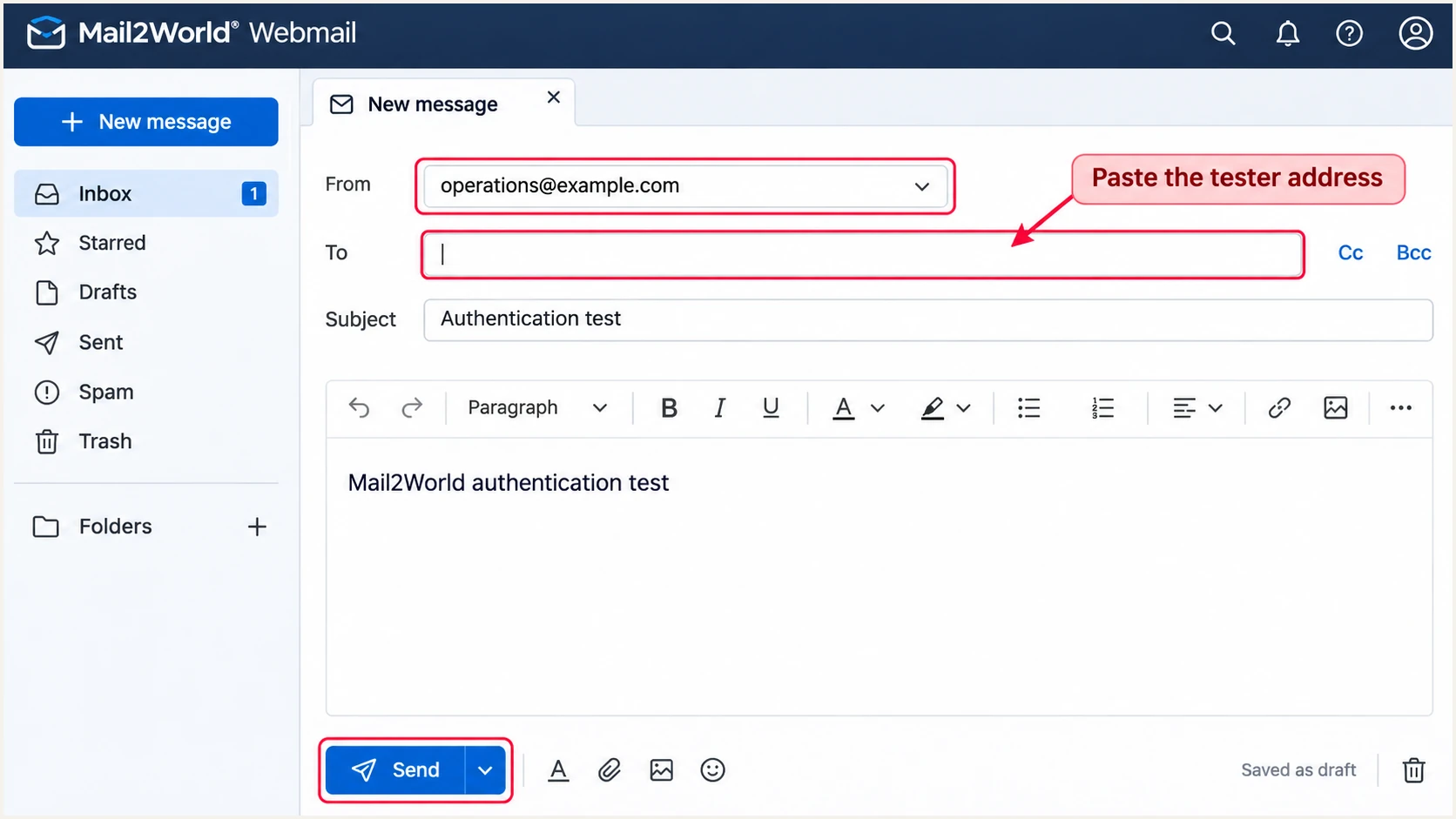
Select the Mail2World From identity and send to the tester address.
A received-message test checks the actual delivery path and signature. The tester provides a diagnosis of authentication and other delivery checks after it receives the message.
For DMARC, inspect both the pass result and the domain identity used for that result. Successful SPF or DKIM authentication under an unrelated provider domain is insufficient.
Email tester
Send a real email to this address. Suped shows a results button when the test is ready.
?/43tests passed
Investigate failures using the receiver's Authentication-Results header or the tester diagnosis. Use results added by the receiving service, rather than trusting an authentication header copied into the message by a sender.
Check these fields first. The fixes apply to the domain shown in the message, which is not always the domain you initially edited.
|
|
|
|---|---|---|
SPF | Pass | Envelope domain; include |
SPF alignment | Matching domain | Custom Return-Path |
DKIM | Pass; matching domain | Signing; selector; key |
DMARC | Pass | Policy; domain identity |
Checks for a delivered Mail2World test message.
If SPF returns permerror, check duplicate SPF records and lookup limits. If DKIM returns none, ask whether signing is enabled. For a DKIM failure, check the published key and whether a later system changed signed content.
If authentication passes but DMARC fails, compare the authenticated domains with the visible From domain. Review any existing aspf=s or adkim=s tags, because strict alignment requires an exact domain match.
Authentication without matching identity
For mail with From: operations@example.com, SPF passing for a Mail2World-owned envelope domain does not satisfy DMARC. DKIM passing only with d=mail2world.com does not satisfy it either.
Authentication with matching identity
SPF passing for example.com, or a valid DKIM signature with d=example.com, can produce a DMARC pass. A matching subdomain also works under relaxed alignment. Aim for both mechanisms to pass.
Get alerted when it breaks
Suped is our DMARC reporting platform. For ongoing Mail2World monitoring, it connects authentication failures to sending sources and provides issue notifications with steps to fix. The Mail2World sending configuration remains with Mail2World.
- Check report flow: Confirm that your active DMARC reporting destination delivers reports into Suped and that recent Mail2World traffic is visible. Retain your enforcement policy.
- Verify the source: Review the Mail2World source and compare its domains and sending IPs with your known traffic. Mark it verified only after confirming that the traffic is authorized.
- Enable notifications: In Suped notification settings, enable Issues detected and Sending sources need verification. Enable DMARC summary emails for periodic review.
- Investigate changes: Open the reported issue, inspect its steps to fix, and filter Data view by source or IP. Use Detail view for authentication diagnostics and DNS history to identify record changes.
I use DMARC monitoring to catch failures outside the small set of messages sent during setup. Suped groups the reported evidence so an administrator can distinguish a broken Mail2World stream from an unfamiliar sender.
DMARC alerts depend on report arrival and processing; they are not live observation of every message. After an urgent configuration change, send another tester message immediately and use subsequent reports to confirm the wider result.
Secure your domain with p=reject
Move to p=reject after legitimate sending streams pass DMARC reliably and custom-domain DKIM works. I do not use a high overall pass rate as the only approval criterion: failures on a low-volume business system still need investigation.
- Inventory all senders: Use Suped source reporting to identify every authorized sender using the domain. Check Mail2World alongside billing systems, web applications, and other legitimate senders.
- Resolve legitimate failures: Use Suped issue diagnostics to fix SPF and DKIM problems. Confirm valid DKIM with matching domain identity before enforcement; do not rely solely on SPF for p=reject.
- Observe normal usage: Include infrequent mail and forwarding. For general staff email, allow at least a month of monitoring and a comparable quarantine period to assess mailing-list impact.
- Stage enforcement: Move a new deployment to p=quarantine, inspect reports and delivery complaints, then use p=reject when legitimate traffic is ready. Keep reporting enabled throughout.
- Control the change: With Suped Hosted DMARC already configured, manage policy in the dashboard. Otherwise edit the existing DNS TXT record. Confirm the effective policy and retest Mail2World after each change.
Our Hosted DMARC controls let administrators stage policy changes while reviewing source reports and detected issues in Suped. Hosted policy management does not enable Mail2World DKIM or repair its outbound signing configuration.
Keep a record of the previous policy and actual reporting destination. The example below shows the final policy shape; preserve your real reporting address when applying it.
Example final DMARC TXT valuetext
v=DMARC1; p=reject; rua=mailto:dmarc@example.com
Review inherited subdomain policy and any explicit subdomain records before enforcement. For staff who use external mailing lists, investigate modified messages before deciding that reject is appropriate for the whole domain.
A reject policy requests rejection of messages that fail DMARC, subject to receiver policy. It reduces unauthorized use of your exact From domain; it does not authenticate lookalike domains or guarantee inbox placement.
Frequency asked questions
Use the current authorization supplied by Mail2World or your reseller for your envelope sender domain. If they confirm include:spf.mail2world.com, merge that mechanism into your single SPF TXT record. The example in the SPF section is conditional; verify that the supplied include resolves and covers your actual outbound route.
The public material checked does not establish a universal custom-domain signing procedure. Ask Mail2World or your reseller to confirm signing support for your service and supply the selector, signing domain, and DNS value. If signing is unavailable, adding a public key yourself does not enable DKIM.
Yes, when SPF passes for an envelope sender domain with the required relationship to the visible From domain. Mail2World supports Return-Path alignment, but verify it on your actual messages. Forwarding often breaks SPF, so enable valid custom-domain DKIM before relying on a reject policy.
SPF authenticates the envelope sender domain. If that domain is Mail2World-owned and your visible From uses your own domain, SPF does not satisfy DMARC alignment. Configure the custom Return-Path or obtain a valid DKIM signature with matching domain identity. Reply-To changes do not fix this.
The mail2world.com suffix is associated with Mail2World infrastructure. A hostname alone does not identify the customer or prove that a message is authorized. Confirm the sending IP and current PTR result, compare the forward DNS, and inspect SPF and DKIM domain identities before approving the source.
Only the domain administrator can publish its SPF, DKIM, and DMARC records. A personal mailbox or added identity does not grant DNS control. Ask the domain owner or service provider to resolve authentication failures for an address on their domain.




