
How to set up DMARC/DKIM/SPF for Loopia

To set up email authentication for Loopia, authorize its servers with include:spf.loopia.se, keep Loopia's automatically generated DKIM record, and configure a reporting address in your _dmarc TXT record. I check existing records first, then test an email sent through the actual mailbox or website application.
DMARC passes when SPF passes with a matching envelope-sender domain, or DKIM passes with a matching signing domain. Configure both for Loopia mail, and confirm that website messages use the same authenticated sending path.
Add your domain
I start in Loopia Kundzon with the domain that appears in the email's visible From address. If it is already listed, open it and check its existing mail settings.
- Add the domain: Choose 'Köpa eller lägga till domännamn', then 'Lägg till befintligt domännamn'. Enter your domain and click 'Lägg till domännamn'. The domain holder must match the account holder.
- Create a mailbox: Under 'Vad vill du göra?', choose 'Skapa en e-postadress'. Select a full mailbox, choose the domain, enter the mailbox name and password, then click 'Verkställ'.
- Confirm access: Check that the domain appears under 'Domännamn' and that the mailbox can sign in to Loopia webmail. An email alias does not provide SMTP login credentials.
- Find authoritative DNS: Open the domain's 'DNS-editor'. Check public NS records before editing: if another provider hosts authoritative DNS, publish the authentication records there.
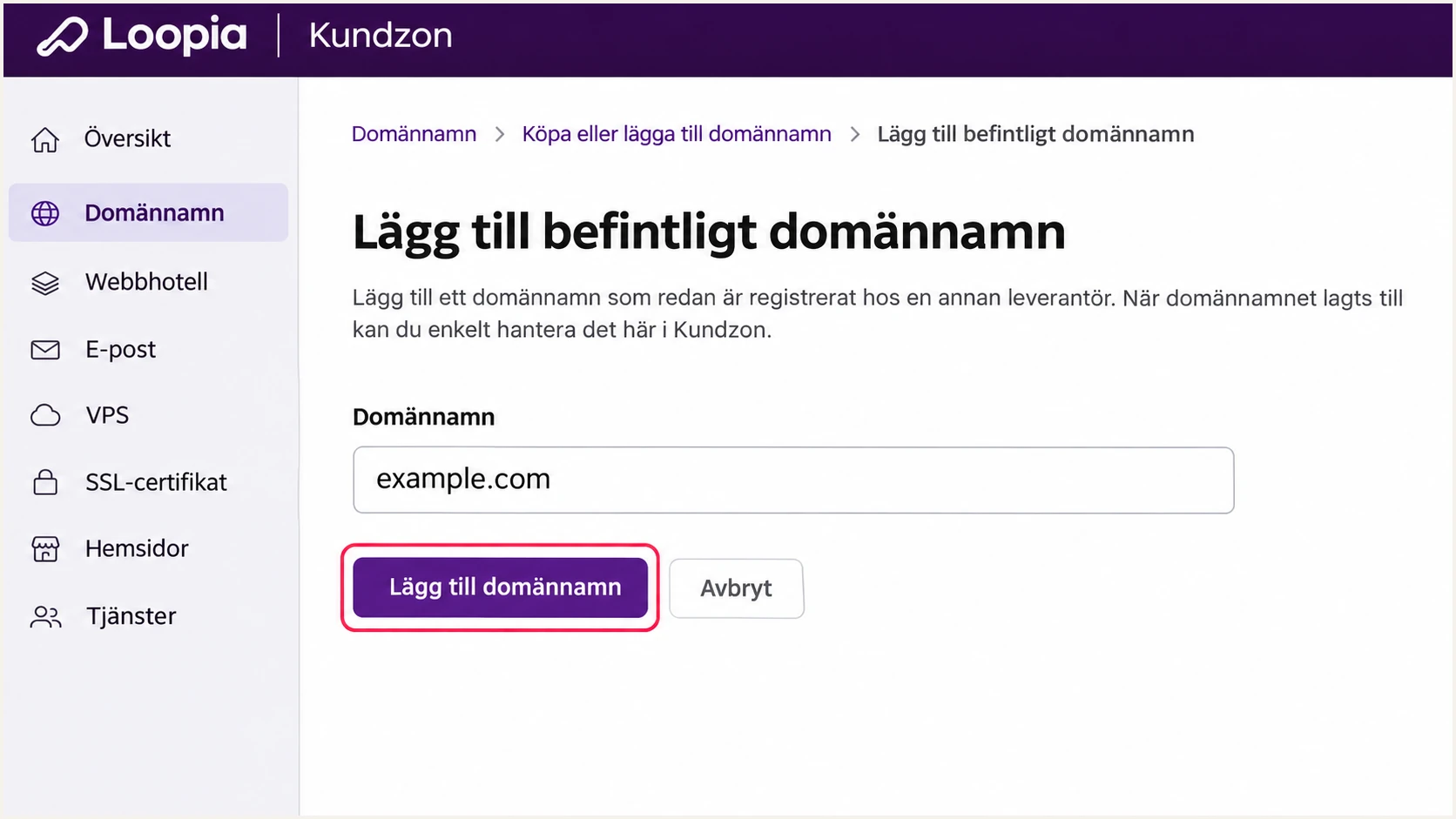
Add an existing domain in Loopia Kundzon.
Adding a domain to the account does not prove that its public DNS records are correct. I verify the records at the authoritative DNS host and then check a delivered message.
For website mail, use an existing Loopia mailbox on your sending domain. Configure mailcluster.loopia.se on port 587 with STARTTLS, or port 465 with implicit TLS, using the full email address and mailbox password.
Set up SPF
Loopia's published SPF authorization is include:spf.loopia.se. I add it to the SPF record for the envelope-sender domain, which is normally visible in the delivered message's Return-Path.
- Inspect the record: In 'DNS-editor', find the TXT record under '@' beginning with v=spf1. Edit that record; never create a second SPF record at the same name.
- Authorize Loopia: For Loopia-only sending, use the value below. If other services send for this domain, preserve their authorizations and add include:spf.loopia.se before the final all mechanism.
- Save the TXT value: Choose TXT with TTL 300 or 3600. Loopia's Data field requires straight double quotes around the value. Save the existing record, or choose 'Lägg till record' if none exists.
- Check the envelope sender: Set your application's envelope sender to a mailbox on your domain where supported. Send a test and confirm the Return-Path domain matches the visible From domain under your DMARC alignment mode.
SPF for a domain sending only through Loopiatext
Subdomain: @
Type: TXT
TTL: 3600
Data: "v=spf1 include:spf.loopia.se -all"
Use this complete value only when Loopia is the domain's sole sender. Keep one v=spf1 declaration and one terminal all mechanism when combining authorized senders.
Validate the complete SPF evaluation, including nested includes. SPF permits at most 10 DNS-querying mechanisms and modifiers during evaluation; exceeding that limit produces permerror.
SPF checker
Find SPF syntax issues, lookup limits, and weak records.
?/16tests passed
Run the check against the domain used in Return-Path. Checking only the website's root domain misses an SPF record published on a separate envelope-sender subdomain.
Loopia supports return-path alignment, so check it on your actual sending path. A passing SPF result for an unrelated provider domain does not authenticate your visible From domain for DMARC.
Set up DKIM
Loopia creates DKIM keys when you create the domain's first mailbox. I keep that generated key and verify that outgoing messages actually carry a valid signature for the sending domain.
- Find the generated key: Open the domain's 'DNS-editor'. Locate the generated TXT record at a subdomain ending in ._domainkey. Keep its exact selector and complete public-key value.
- Publish at external DNS: If authoritative DNS is elsewhere, copy Loopia's exact DKIM hostname and TXT value there. Avoid appending the domain twice when the DNS editor automatically supplies the zone name.
- Verify signing: Send through Loopia's authenticated SMTP server. In the delivered message, inspect DKIM-Signature: d= is the signing domain and s= is the selector used for the DNS lookup.
- Recover missing keys: Loopia documents creating another mailbox on the domain to recreate deleted DKIM keys. Contact Loopia support if the key remains missing or signed messages still fail validation.
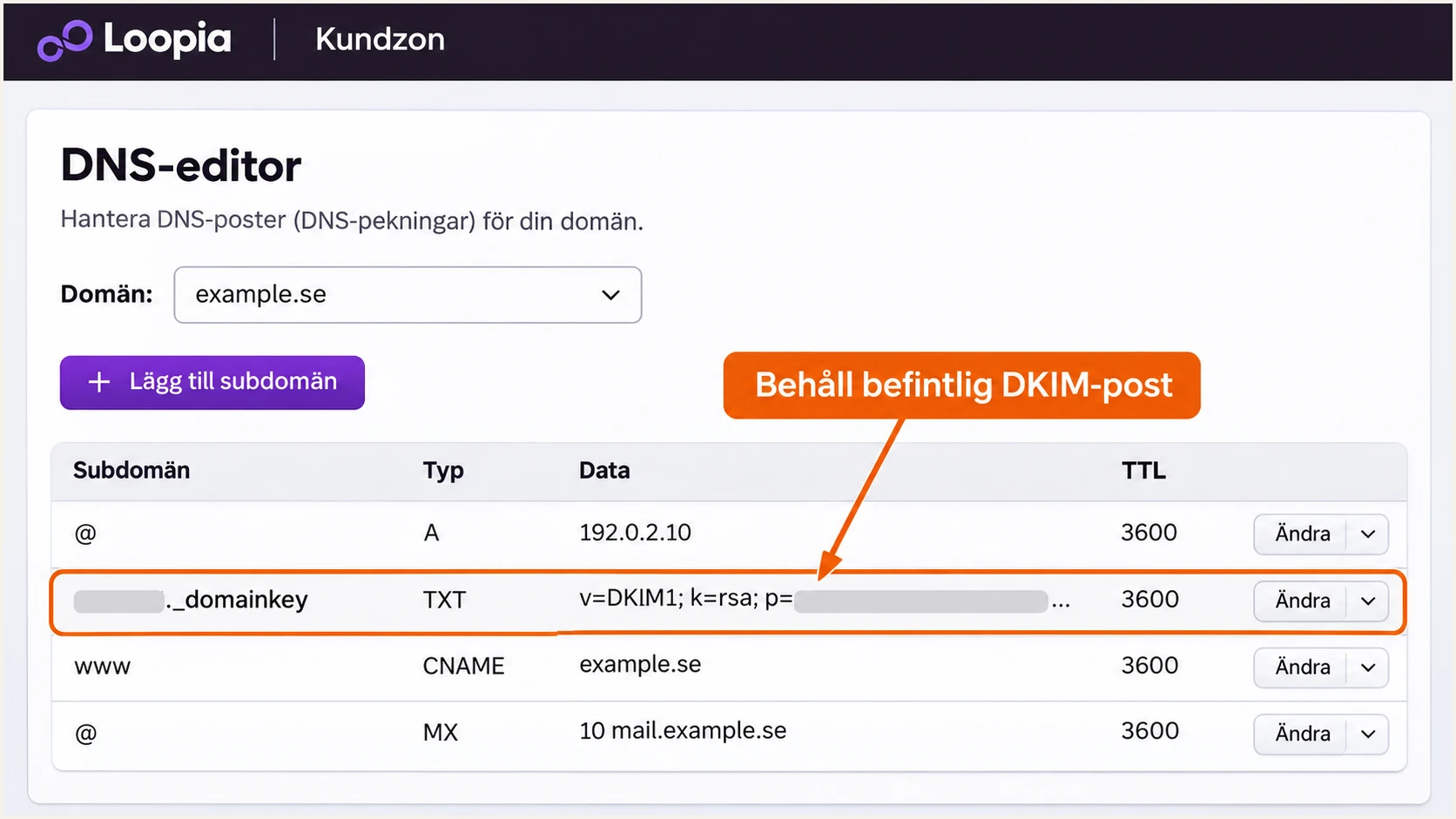
Locate and retain Loopia's generated DKIM TXT record.
There is no selector value to guess or reuse across domains. Query the selector named in a delivered message at selector._domainkey.signing-domain, using the actual s= and d= values.
A DNS key alone does not sign a message. The application must send through the system holding the matching private key; publishing a newly invented key cannot repair Loopia's signing.
Mailbox messages
Use Loopia webmail or authenticated SMTP. Preserve the generated DKIM record and check the recipient's dkim=pass result.
Check that the validated signing domain matches your From domain, rather than accepting a pass for an unrelated domain.
Website messages
Configure authenticated SMTP to mailcluster.loopia.se. Loopia recommends this route instead of the web server's direct send-mail function.
Use your own address in From and the visitor's address in Reply-To. Test the form itself after changing the sending configuration.
I test mailbox mail and application mail separately. A passing message sent in webmail does not establish that a contact form uses the same DKIM signing path.
With default relaxed DMARC alignment, a signing subdomain and the visible From domain can share the same organizational domain. Strict alignment requires an exact domain match.
Set up DMARC
Loopia documents a default p=none record for domains with hosted email. I inspect the existing _dmarc TXT record and add reporting without weakening an established quarantine or reject policy.
- Find the policy: Open 'DNS-editor' and locate '_dmarc'. Edit its existing DMARC TXT record. If it is absent, use 'Lägg till subdomän' with the name '_dmarc' and type TXT.
- Choose the policy: Start a new deployment with p=none and the record below. If your current policy is p=quarantine or p=reject, keep that policy while adding or correcting reporting.
- Use a real report address: Replace dmarc@example.com with a mailbox you control or your assigned aggregate-report destination. The example address is not a working destination for your reports.
- Save one record: Use TTL 300 and put straight double quotes around the Data value in Loopia. Save one DMARC record at _dmarc, then query public DNS to confirm it.
Initial DMARC record, replace the example reporting addresstext
Subdomain: _dmarc
Type: TXT
TTL: 300
Data: "v=DMARC1; p=none; rua=mailto:dmarc@example.com"
Use the DMARC record generator to build the value with your real reporting address. Preserve existing policy settings when updating a record already in production.
The rua destination receives aggregate XML reports. A destination on another domain needs external reporting authorization from that domain; a reporting service normally supplies this authorization.
DMARC checker
Look up a domain's DMARC record and catch policy issues.
?/7tests passed
Check the exact domain in your visible From address. Confirm that policy discovery returns the intended record and that only one DMARC policy record exists at that DNS name.
A valid p=none record requests monitoring without a DMARC enforcement action. Adding rua makes report collection possible; it does not enable rejection of messages that fail authentication.
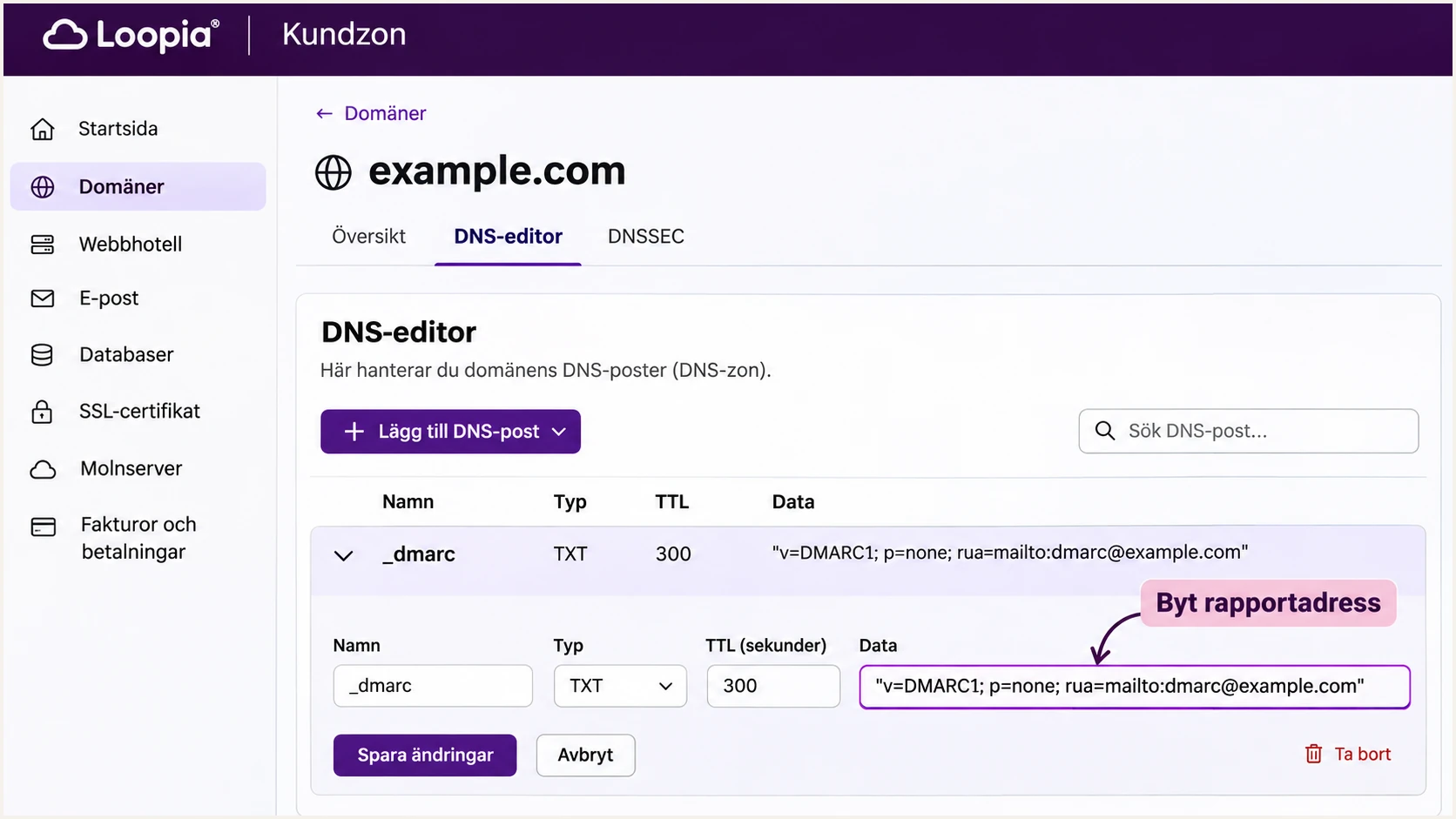
Edit Loopia's existing DMARC record and replace the reporting address.
Loopia says DNS changes take 5 minutes to 24 hours to appear. I check public DNS after saving, then allow for resolver caching before diagnosing an unchanged result as a configuration error.
Keep the reporting address active during later policy changes. Aggregate reports usually arrive on a daily cycle, so a successful DNS lookup and an incoming report confirm different parts of the setup.
Verify and troubleshoot
I send a real message through every Loopia path that matters, including the website form and order-confirmation workflow. The email tester prompts you to send a message and returns a full diagnosis.
- Send a fresh test: Use the destination shown by the widget below. Trigger the message through your actual application or Loopia mailbox after the DNS changes are public.
- Inspect SPF alignment: Compare the authenticated smtp.mailfrom domain with the visible From domain. If they differ outside the permitted organizational-domain match, fix the application's envelope sender.
- Inspect DKIM alignment: Confirm dkim=pass and inspect the signing domain. If the key is missing, check the exact selector at authoritative DNS; if the signature fails, test authenticated SMTP again.
- Confirm DMARC: Check dmarc=pass for the visible From domain. Recheck application sender settings if mailbox mail passes but website mail fails.
Email tester
Send a real email to this address. Suped shows a results button when the test is ready.
?/43tests passed
A passing SPF authentication result alone does not establish SPF alignment. The table refers to a passing authentication result with the required domain match, not simply an SPF or DKIM pass somewhere in the headers.
Forwarding commonly breaks SPF. Valid DKIM with a matching signing domain can preserve a DMARC pass when the forwarded message retains its signed content.
|
|
|
|---|---|---|
Pass | Pass | Pass |
Fail | Pass | Pass |
Pass | Fail | Pass |
Fail | Fail | Fail |
DMARC passes when at least one authentication method passes with alignment.
Some other sending services cannot use your domain in Return-Path. Adding their SPF include at your domain cannot fix that mismatch. In those cases, an SPF alignment failure is acceptable for DMARC when DKIM passes with the required domain match.
For Loopia, investigate an unexpected Return-Path mismatch because return-path alignment is supported. Keep DKIM working even when SPF passes, particularly before adopting p=reject.
Get alerted when it breaks
For ongoing checks, I recommend DMARC monitoring in Suped, our platform. It combines source-level authentication results with detected issues so changes to Loopia mail do not depend on someone remembering to send another test.
- Keep reports flowing: Use your assigned reporting destination in the existing rua setting. Check recent report dates and Loopia message volume before relying on the dashboard.
- Review sending sources: Verify expected Loopia traffic against your mailbox and website inventory. Investigate unexpected sources instead of treating a Loopia rDNS suffix as proof of authorization.
- Enable issue alerts: In Suped's Notifications settings, enable 'Issues detected' and 'Sending sources need verification'. Enable summary emails for regular review of authentication results.
- Fix at the source: Open an affected record for SPF and DKIM diagnostics, compare DNS history, then correct the record in Loopia or the sending application's SMTP settings. Verify the change afterward.
Suped's issue notifications are useful when an SPF edit removes Loopia authorization or a DNS change removes a DKIM key. The supplied diagnostic steps help identify the record that needs repair.
Allow for report delays
DMARC aggregate reports are delayed observations, not a live feed of every message. Alerts depend on available reports and detected issues. Send an immediate test after a change while waiting for aggregate data.
I use Suped's source verification to distinguish an authorized website change from an unfamiliar sender. Shared hosting infrastructure needs that review because a recognizable server name does not identify your application.
After a repair, confirm a fresh test passes and check subsequent reports for recurring failures. Keep alerts enabled after the domain reaches an enforced DMARC policy.
Secure your domain with p=reject
I move to p=reject after reports and real-message tests establish that legitimate sending works. Suped's source verification and detailed failure records provide the checklist for that decision.
- Cover the sending cycle: Review several weeks of reports and include infrequent workflows such as monthly invoices. Investigate failures for every legitimate sender; a high overall pass rate can hide a broken application.
- Require working DKIM: Ensure legitimate Loopia messages have valid DKIM with the required domain match. Do not rely solely on SPF before p=reject, since forwarding can break SPF.
- Stage enforcement: Change the existing Loopia _dmarc TXT value to p=quarantine after resolving legitimate failures. Review Suped reports and delivery errors before proceeding to rejection.
- Apply rejection: Replace p=quarantine with p=reject in the same record and retain rua. Check subdomain policies and any sp setting so intended sending domains remain covered.
- Verify and maintain: Run fresh tests and monitor Suped's issue alerts after enforcement. If legitimate mail fails, repair its signing or sender configuration and reassess the policy while resolving the incident.
Successive values for the same DMARC TXT recordtext
# Stage 1: replace the existing value after verification
"v=DMARC1; p=quarantine; rua=mailto:dmarc@example.com"

# Stage 2: replace it again after reviewing enforcement
"v=DMARC1; p=reject; rua=mailto:dmarc@example.com"
Replace the reporting address in both examples. Publish only the value for your current stage, keeping one DMARC record. Default relaxed alignment is usually appropriate; stricter matching needs separate testing.
A reject policy requests rejection of mail that fails DMARC, subject to the receiver's local handling. Continue reviewing Suped's verified sources whenever a website deployment or DNS change alters Loopia sending.
Frequency asked questions
Loopia creates DKIM keys when you create the domain's first mailbox. Keep its generated DNS record. If authoritative DNS is elsewhere, publish the exact public record there and verify a delivered message's DKIM result.
Use the s= value from a DKIM-Signature header on a message sent through your Loopia account. Combine it with the d= signing domain to find selector._domainkey.signing-domain. Do not guess a universal selector.
An rDNS hostname ending in .loopia.se identifies Loopia infrastructure, including servers used for hosted email and website applications. It does not prove that the message is authorized for your domain. Check the source IP, authentication results, and your own sending inventory.
Yes. Publish SPF and DMARC at your authoritative DNS provider and copy Loopia's generated DKIM hostname and complete public-key value there. Editing an inactive DNS zone in Loopia does not update the records recipients query.
SPF authenticates the envelope-sender domain. If that domain does not match the visible From domain under your alignment settings, SPF does not provide a DMARC pass. A valid, matching DKIM signature is the other route to passing DMARC.
Loopia states that DNS updates take 5 minutes to 24 hours. DMARC aggregate reports usually arrive on a daily cycle after receivers process mail. Check public DNS and send a fresh test first, then review incoming reports.




