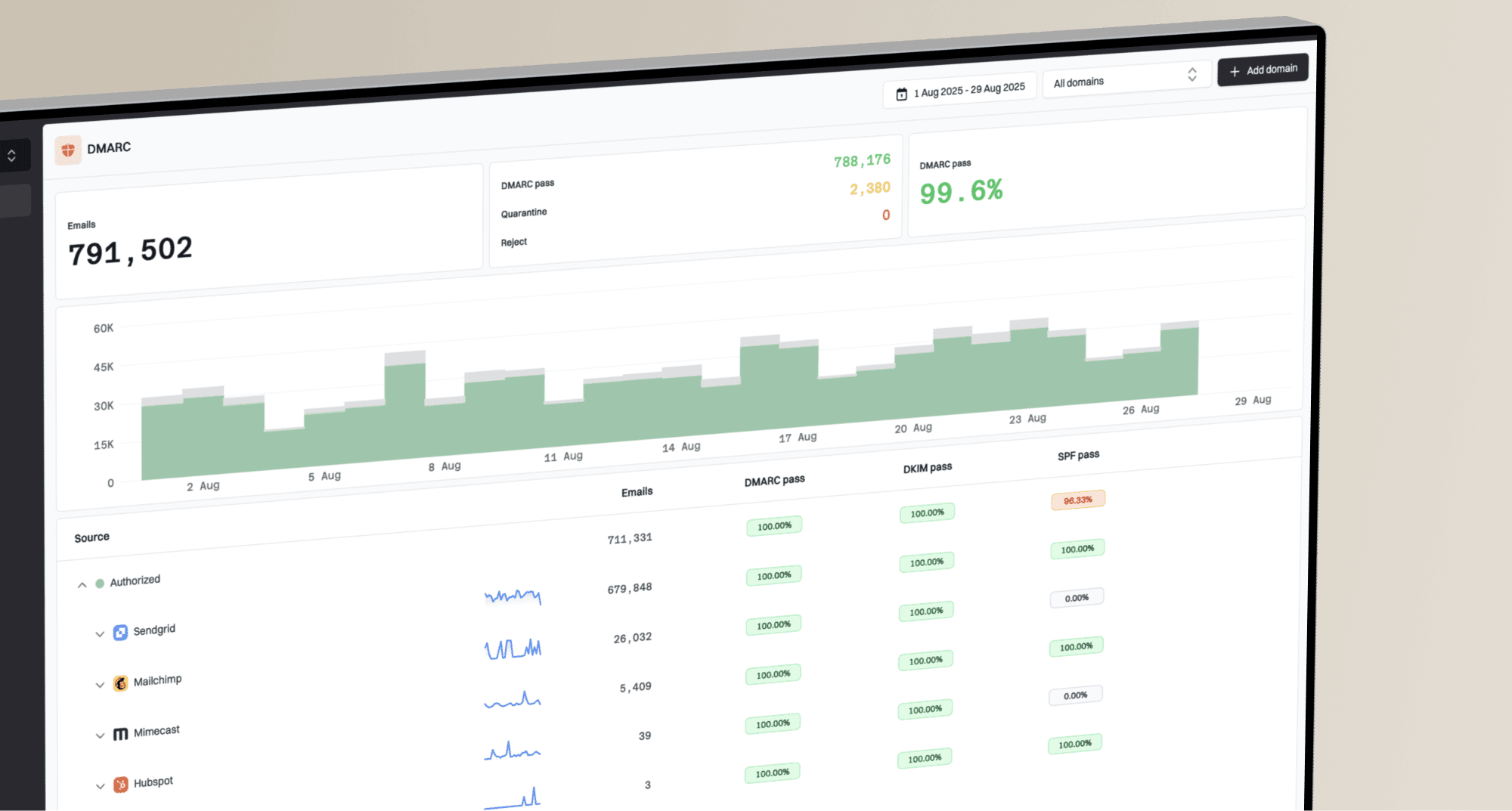
How to set up DMARC/DKIM/SPF for Little Apple Technologies

Published 22 Nov 2026
Updated 22 Nov 2026
12 min read
Summarize with
To set up DMARC, DKIM, and SPF for Little Apple Technologies, confirm your custom domain with its support team, publish its account-specific SPF and DKIM records, then add a DMARC TXT record at _dmarc on your domain. Start with p=none if you have no enforcement policy. Keep p=quarantine or p=reject if either is already in place.
I start with the actual sending account: SPF must authorize its outbound servers, and DKIM must sign with your domain for DKIM-based DMARC authentication. Little Apple Technologies supports Return-Path alignment, so request that configuration too. DMARC passes when either SPF or DKIM passes with domain alignment to the visible From address.
Add your domain
Use a domain you control. If your email address uses a domain owned by Little Apple Technologies, its administrators control the authentication records; you cannot publish DMARC for that domain yourself.
- Confirm ownership: Identify the domain in your visible From address and who manages its authoritative DNS. Export existing TXT records before changing anything.
- Open support: Select Get support on the Little Apple Tech Webmail login page, or use Contact Us on the provider website. Ask support to provision or confirm your custom email domain.
- Request exact values: Ask for the outbound SPF include or IP ranges, custom Return-Path configuration, and DKIM selector with its TXT value or CNAME target. Ask support to confirm custom-domain DKIM availability for your account.
- Verify activation: Complete any ownership challenge supplied by support, request confirmation that the domain is active, then send a message using the authorized mailbox and configured outbound service.
I found no public Little Apple Technologies authentication walkthrough specifying a universal SPF include or DKIM selector. Treat those values as account-specific until support confirms them. The public webmail page is a login screen, so these instructions use support rather than undocumented domain-management menus.
The provider website has a Contact Us route and lists (406) 284-3174. Keep the support response with your DNS change record so future server or key changes are traceable.
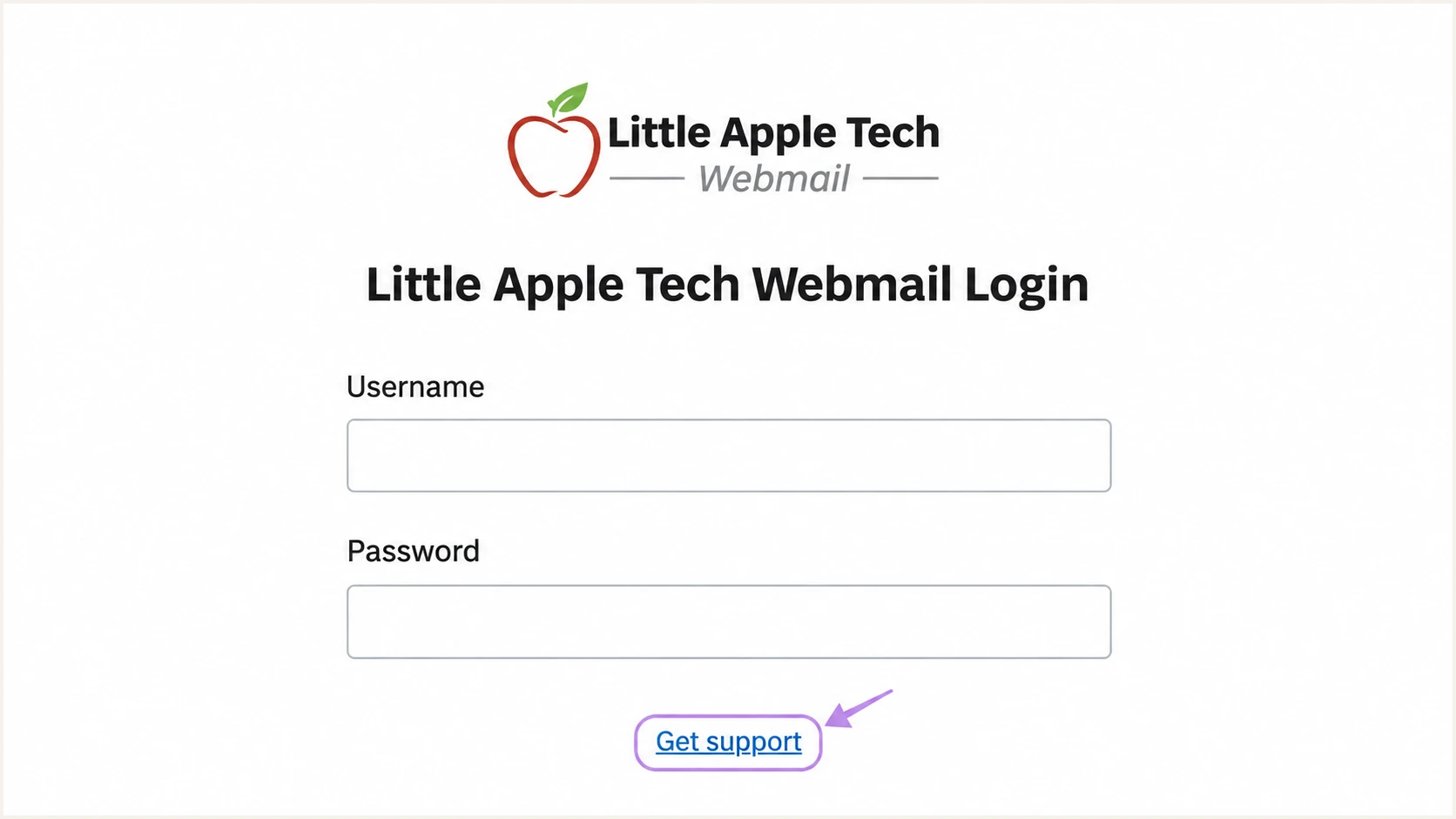
Illustrated Little Apple Tech Webmail login showing the Get support link.
Ask support to return this information before you edit DNS. A webmail login proves mailbox access; it does not prove that outgoing messages pass SPF, DKIM, or DMARC.
Set up SPF
SPF is evaluated against the SMTP MAIL FROM domain, usually visible in the delivered Return-Path. Publish the authorization on that domain, which is not necessarily your visible From domain.
- Confirm the Return-Path: Ask Little Apple Technologies to configure your domain or a dedicated bounce subdomain as the envelope sender. Request any DNS records needed for that configuration.
- Use confirmed senders: Obtain the current outbound SPF include or exact sending IP ranges from support. Do not copy littleappletech.com's own SPF record, authorize its entire network, or assume an incoming MX server sends your mail.
- Edit one record: At the actual MAIL FROM domain, merge the approved authorization into its existing v=spf1 TXT record before the terminal all mechanism. Preserve other legitimate senders and keep one SPF record at each DNS name.
- Check the lookup budget: Keep DNS-querying SPF terms within the 10-term evaluation limit, including nested includes. Then send through Little Apple Technologies and verify spf=pass and the evaluated envelope domain.
For a From address at example.com, bounce.example.com has relaxed SPF domain alignment with example.com. With strict SPF alignment, the domains must match exactly. I keep the default relaxed setting unless there is a documented requirement for strict matching.
Use the SPF checker below on the confirmed MAIL FROM domain. It validates the published authorization and lookup budget; a delivered test message is still necessary to prove which envelope domain the service actually uses.
SPF checker
Find SPF syntax issues, lookup limits, and weak records.
?/16tests passed
If a specific account cannot use a custom Return-Path, adding SPF at your visible From domain will not fix SPF domain alignment. An SPF alignment warning is acceptable for DMARC only when DKIM passes with domain alignment. SPF failures remain worth investigating even when DKIM supplies the DMARC pass.
Set up DKIM
DKIM requires signing on the Little Apple Technologies outbound server and a matching public key in DNS. Publishing a key without configuring the server does not enable signing.
- Enable domain signing: Ask support to enable DKIM for your custom domain and confirm the signing domain. Request a 2048-bit RSA key where supported.
- Publish the selector: Create the exact selector DNS name and TXT value or CNAME target supplied by support. Avoid adding your domain twice if the DNS editor automatically appends it.
- Confirm activation: Ask support to validate the published key and enable signing if activation is a separate step. Keep the private key on the signing server; only the public key belongs in DNS.
- Inspect a fresh message: Check the DKIM-Signature header for d= and s=. Confirm the receiving server reports dkim=pass and that the d= domain has DMARC alignment with your visible From domain.
The selector comes from support or a real message's s= value, not a guessed name such as default. DNS publication is only one check: the server must use the matching private key, and the message must reach the recipient with a valid signature.
A passing signature under littleappletech.com does not provide DKIM domain alignment for a From address at example.com. I check the signing domain as carefully as the pass result.
Your domain signs
From domain: example.com. DKIM d= domain: example.com. A valid signature provides DKIM-based DMARC authentication.
A signing subdomain under example.com also works with relaxed DKIM alignment.
Only the provider signs
From domain: example.com. DKIM d= domain: littleappletech.com. The signature authenticates the provider domain.
Request custom-domain signing. Until it is available, DMARC depends on passing SPF with domain alignment, which is vulnerable to ordinary forwarding.
If custom-domain DKIM is unavailable, document that limitation before increasing DMARC enforcement. Do not create an arbitrary key and assume Little Apple Technologies will sign with it.
Set up DMARC
Publish DMARC at _dmarc on the domain used in your visible From address. For a new deployment without enforcement, use the monitoring record below and replace the example reporting address with your real destination.
- Check the current policy: Look up the existing DMARC TXT record first. Keep an existing quarantine or reject policy, and preserve its reporting destinations and intentional settings.
- Choose report delivery: Use a monitored aggregate-report destination. If reports go to another domain, complete any external reporting authorization required by that destination.
- Publish one policy: Create or update the single DMARC TXT record at _dmarc.example.com for mail using example.com in From. Use _dmarc in editors that append the domain automatically.
- Validate and send: Check the published policy below, then send a fresh message through Little Apple Technologies. Confirm dmarc=pass in the recipient's Authentication-Results header.
Use the DMARC record generator to build the record with your actual reporting address. The address below is an example, not a Suped reporting destination.
The p=none policy requests monitoring without asking receivers to quarantine or reject DMARC failures. It does not make failing messages pass, and it does not protect against unauthorized use of your domain through enforcement.
New monitoring policy at _dmarc.example.comtext
v=DMARC1; p=none; rua=mailto:dmarc@example.com
Replace dmarc@example.com before publishing and make sure the destination accepts aggregate reports. Save the value as one logical TXT record without extra surrounding quote characters added to its content.
The checker below validates DNS publication, syntax, and policy settings. It cannot confirm that Little Apple Technologies signs your messages or uses the expected Return-Path; those checks require an email test.
DMARC checker
Look up a domain's DMARC record and catch policy issues.
?/7tests passed
Keep reporting enabled throughout the rollout. Reports describe traffic observed by participating receivers, typically arriving on a daily cycle rather than immediately after a test message.
Verify and troubleshoot
I verify DNS first, then the message received through the actual Little Apple Technologies sending path. A successful login, a working inbox, or a published TXT record is insufficient on its own.
- Check public DNS: Query the MAIL FROM domain for SPF, the supplied DKIM selector for its key or CNAME, and the visible From domain for DMARC. Compare each result with the support response.
- Use the email tester: Send to the unique address generated by the widget below using your normal Little Apple Technologies mailbox or application. Review the full authentication diagnosis.
- Check domain matching: Inspect Return-Path, DKIM-Signature, and the recipient's Authentication-Results. DMARC needs at least one passing mechanism with domain alignment.
- Retest affected paths: Test each application or mailbox route that sends for the domain, including automated messages. Send another test after support activates signing or DNS caches expire.
These commands are examples, not lookup results. Replace example.com, bounce.example.com, and selector-from-support with your actual domains and the selector supplied by Little Apple Technologies.
For a delegated DKIM selector, inspect both the CNAME and the TXT record at its target. If the answer is stale, compare the authoritative DNS response and wait for the previous record's TTL before retesting.
Inspect the published authentication recordsbash
dig +short TXT example.com
dig +short TXT bounce.example.com
dig +short TXT selector-from-support._domainkey.example.com
dig +short CNAME selector-from-support._domainkey.example.com
dig +short TXT _dmarc.example.com
DNS errors and message errors need different fixes. A missing selector is a DNS or selector-name problem; a passing signature under the wrong domain needs a change to the sending configuration.
Use the compact checks below to route the failure. Include the message headers and sending time when escalating a server-side issue to support.
|
|
|
|---|---|---|
SPF permerror | Duplicate or over limit | Merge and count lookups |
SPF domain mismatch | Provider Return-Path | Request custom MAIL FROM |
DKIM key missing | Wrong selector or DNS | Compare selector and record |
DKIM domain mismatch | Provider-only signing | Request domain signing |
DMARC failure | No matching pass | Check both mechanisms |
Common authentication failures and the next check.
The email tester is the quickest end-to-end check here: it gives you a destination address and diagnoses the message you send. Use the same outbound service as production mail so the result tests the relevant server configuration.
A passing result proves that tested message passed. Keep checking aggregate reports for other sending paths, because a single test does not cover every application or server.
Email tester
Send a real email to this address. Suped shows a results button when the test is ready.
?/43tests passed
If authentication passes but delivery still fails, inspect the receiving server's SMTP response. Reputation or content filtering needs a separate investigation; DMARC authentication does not guarantee inbox placement.
Get alerted when it breaks
Suped is our DMARC and email authentication platform. Its DMARC monitoring identifies failing sources and provides issue-specific fix steps, so a Little Apple Technologies server change does not depend on someone manually reading XML reports.
- Enable issue notifications: Use Suped's Issues detected notifications to flag authentication problems. Enable Sending sources need verification so unfamiliar traffic gets reviewed.
- Verify the sender: Confirm that each Little Apple Technologies source belongs to your account before marking it verified. Compare the sending IP and message headers with support's information.
- Investigate the failure: Open the affected record's detail view to inspect SPF, DKIM, DMARC, and rDNS results. Use DNS history to check whether a record change preceded the problem.
- Confirm the repair: Apply the specific DNS or server fix, send another test, and check subsequent reports. Use summary emails to review persistent failures and sending volume.
For ongoing operations, Suped puts source verification beside the authentication diagnosis and the steps to fix it. Little Apple Technologies still manages its outbound servers; send server-side signing or Return-Path issues to its support team.
Configure notifications for the people responsible for email DNS and the sending service. A notification needs an owner who can investigate the source and coordinate a repair.
Report-based alerts follow incoming data
Suped alerts on the data it receives. DMARC aggregate reports are delayed, so do not expect a report-based alert at the moment a message fails. Use the email tester for immediate verification of a configuration change.
For delivery incidents, Suped also combines authentication data with deliverability insights and blocklist (blacklist) monitoring. A blocklist listing is a separate signal and does not establish an SPF, DKIM, or DMARC configuration error.
Secure your domain with p=reject
Move to p=reject after every legitimate sending path has dependable DMARC authentication. I use evidence from normal sending activity, including infrequent automated mail, rather than a fixed waiting period.
- Inventory legitimate traffic: Review mailbox mail, website forms, invoices, and device-generated messages. Confirm ownership of each source and fix legitimate failures before tightening the policy.
- Make DKIM dependable: Verify custom-domain DKIM on Little Apple Technologies mail and test important forwarding paths. Ordinary forwarding often breaks SPF, so direct-delivery SPF success alone is insufficient evidence.
- Stage enforcement: Use p=quarantine before p=reject when starting with monitoring. Check reports and delivery errors after each change. Keep an existing stricter policy while repairing an individual source.
- Keep operational control: Retain reporting and review subdomain policies before enforcement. Use Suped's source diagnostics and issue verification to confirm repairs, then keep alerts active after reaching reject.
Suped's Hosted DMARC lets you stage and manage policy changes through our dashboard after its DNS setup. Combine policy management with verified sources and report diagnostics so each enforcement change has evidence behind it.
For a directly managed TXT policy, the example below requests rejection of messages that fail DMARC. Preserve your real reporting destination and any other intentional policy tags when updating the existing record.
Enforcement policy at _dmarc.example.comtext
v=DMARC1; p=reject; rua=mailto:dmarc@example.com
Replace the example reporting address before use. Review explicit DMARC records on sending subdomains because those policies take precedence over an inherited parent policy.
The reject policy is a request to receivers, which retain their own handling rules. It addresses unauthorized use of your exact domain; it does not stop display-name impersonation or lookalike domains.
Frequency asked questions
Get the current include or outbound IP ranges from Little Apple Technologies support for your account. No universal customer SPF include was verified in its public documentation. Do not copy its corporate SPF record or guess an include hostname.
Little Apple Technologies supports Return-Path alignment. Ask support to confirm and configure it for your account, publish the supplied DNS records, then verify the delivered Return-Path. With relaxed alignment, a bounce subdomain under your From domain works.
Yes. A valid DKIM signature with domain alignment is sufficient for DMARC to pass. An SPF alignment warning is acceptable for DMARC when DKIM supplies that pass. Confirm the signing domain, because dkim=pass under a provider domain alone is insufficient.
An rDNS hostname ending in littleappletech.com suggests Little Apple Technologies infrastructure. Treat that as a clue, not proof of an authorized sender or a documented outbound hostname pattern. Confirm the sending IP with support and compare message headers. The public webmail hostname mail.littleappletech.com does not establish the PTR name used by outbound mail.
No. Little Apple Technologies must configure its outbound server to sign with the matching private key. Publish the selector and public record supplied by support, then verify a fresh message. If custom-domain signing is unavailable for your account, assess that limitation before increasing enforcement.
Keep an existing p=reject or p=quarantine policy. Repair the affected SPF, DKIM, or sending configuration while retaining enforcement. The p=none recommendation is for a new deployment without an existing enforcement policy.