
How to set up DMARC/DKIM/SPF for LevelBlue Email Security

Set up LevelBlue Email Security by verifying your domain in MailMarshal Cloud, adding the SPF include for your service region, publishing and activating its DKIM key, and creating a DMARC TXT record. Then send an external test message through the gateway and check the recipient's authentication results.
I start by confirming that the account uses MailMarshal Cloud Gateway mode, formerly SEG Cloud. The regional SPF and routing values below apply to that mode. For M365 Integrated mode, follow the provisioning settings for that deployment instead of copying Gateway values.
Add your domain
I confirm the service region and DNS access before changing mail flow. LevelBlue documents domain management in the MailMarshal Cloud Customer Guide and Fusion ownership verification in KB Q21166.
- Open the domain list. Sign in to your regional MailMarshal Cloud Console. Go to System Configuration > Domains. Click Add for a new sending domain, or select an existing domain and click Edit.
- Publish the challenge. During provisioning, copy the ownership TXT name and unique value displayed for the domain into authoritative DNS. Use TTL 3600 or the DNS provider default.
- Verify ownership. For Fusion provisioning, return to the verification screen and select Verify. Retry after DNS propagation until Verify Status has a check mark, then click OK. Complete this for each domain being provisioned.
- Check relay access. In System Configuration > Relays, confirm that the originating mail server is permitted. Ask LevelBlue or your reseller to change restricted relay settings when your login cannot edit them.
Domain ownership verification does not publish SPF, enable DKIM signing, or route outbound messages. I finish those checks before sending production traffic through the gateway.
Keep the mailbox delivery destination recorded during onboarding. An incorrect inbound delivery route disrupts mail independently of authentication.
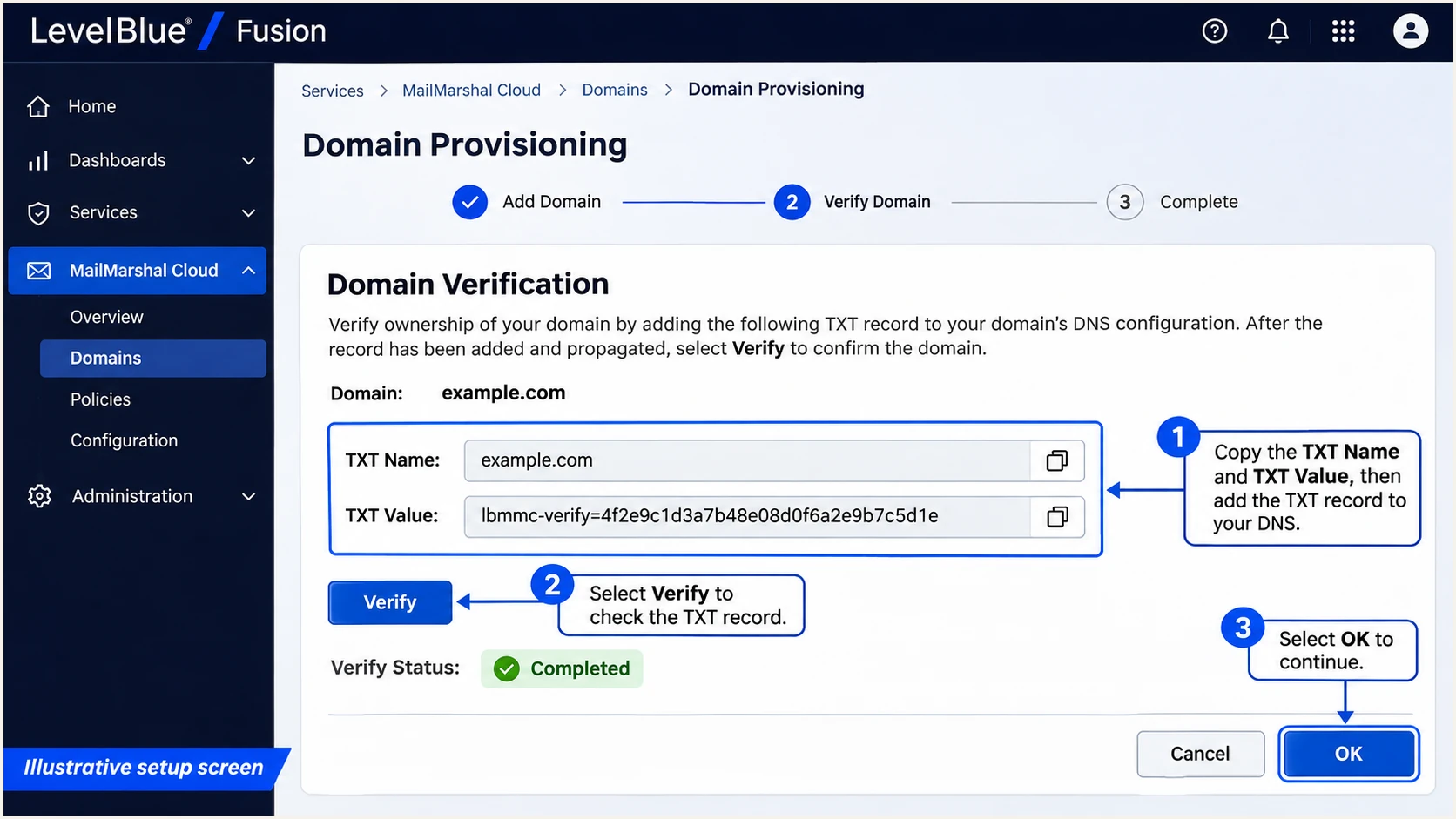
Illustration of LevelBlue Fusion domain ownership verification.
Set up SPF
Use the SPF include for the region assigned to your account. LevelBlue publishes these values in KB Q21095 for the US, Q21149 for Australia, and Q21148 for Europe.
|
|
|
|---|---|---|
US | include:spf.us.mailmarshal.cloud | Q21095 |
Australia | include:spf.au.mailmarshal.cloud | Q21149 |
Europe | include:spf.eu.mailmarshal.cloud | Q21148 |
Gateway mode values. Use the region provisioned for your account.
- Find the existing record. Look up TXT records for the SMTP MAIL FROM domain. For ordinary mail using sender@example.com, start with example.com. Edit its existing v=spf1 record rather than creating a second SPF record.
- Merge the include. Insert the regional include before the final all mechanism. Keep other authorized senders and preserve an existing -all policy. For Exchange Online, LevelBlue also requires include:spf.protection.outlook.com.
- Check SPF limits. Keep evaluation within the 10 DNS lookup term limit, including nested includes. Do not authorize MailMarshal Cloud with the mx mechanism: its outbound addresses differ from its inbound MX addresses.
- Check the envelope sender. Use a MAIL FROM domain that matches your visible From domain under your DMARC settings. Publish SPF at that actual domain; an SPF record at example.com does not automatically cover bounce.example.com.
US Gateway example, only when it is the sole authorized sendertext
v=spf1 include:spf.us.mailmarshal.cloud ~all
This gateway supports Return-Path matching for DMARC. I verify the actual MAIL FROM domain in a delivered message rather than assuming a valid SPF record proves that matching is correct.
Enter that domain in the SPF checker. Confirm there is one SPF record, the correct regional include, and no lookup-limit error. Retain your existing authorized senders when adapting the example.
SPF checker
Find SPF syntax issues, lookup limits, and weak records.
?/16tests passed
An SPF pass authorizes the connecting IP for the envelope domain. DMARC additionally compares that domain with the visible From domain. Adding LevelBlue to an unrelated domain's SPF cannot fix that comparison.
With default relaxed matching, bounce.example.com and example.com share an organizational domain. With aspf=s, their names must match exactly. Forwarded mail still needs working DKIM because the forwarding IP changes.
Set up DKIM
MailMarshal Cloud creates a DKIM key and selector when a domain is added. I retrieve that key from the console and activate it after public DNS verification, following LevelBlue KB Q21085.
- Copy the public record. Open System Configuration > Domains > Edit > DKIM. Select the generated key and click Properties. Copy DNS Name and DNS Record exactly.
- Publish the TXT value. Add a DNS TXT record at the copied selector name. If your DNS provider appends the zone name, enter only the relative hostname. Publish the public key, never the private key.
- Verify DNS retrieval. Reopen the DKIM key after propagation. Confirm the status reads "DNS Record successfully retrieved". Preserve the complete public key if your DNS provider splits it into quoted strings.
- Activate signing. Select the key on the domain's DKIM tab and click Toggle Active. Confirm the outbound DKIM Sign Email rule applies. Repeat for every sending domain.
Use a 2048-bit RSA key. Multiple quoted strings within one TXT record are valid; separate TXT records containing fragments of the key are not.
I keep the previous selector published during rotation until messages signed with it have cleared delivery queues. A new DNS key alone does not switch the active signer.
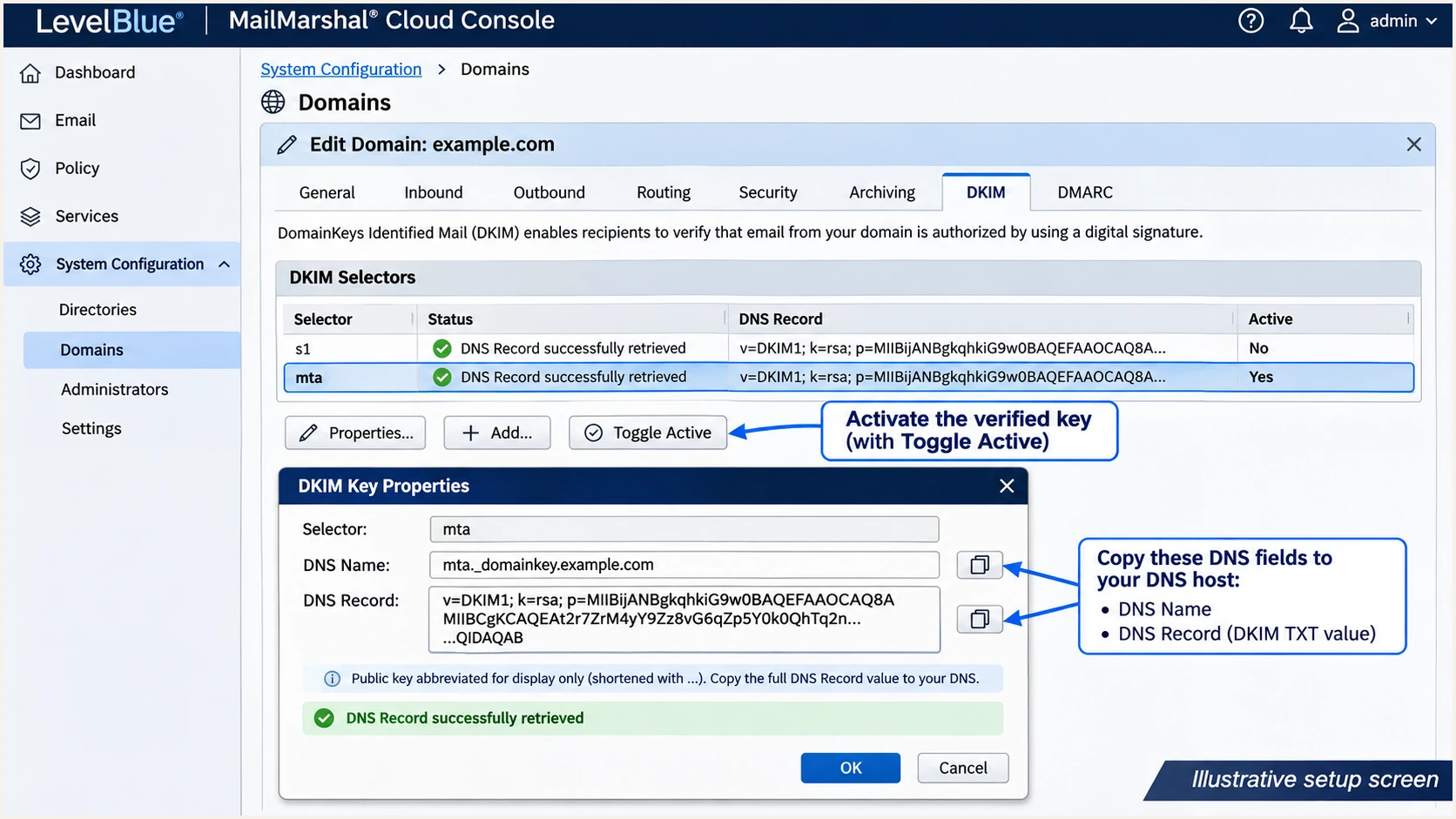
Illustration of MailMarshal Cloud DKIM verification and activation.
Set up DMARC
Publish DMARC in your domain's authoritative DNS. I start a new deployment with p=none while validating mail flow. If the domain already uses p=quarantine or p=reject, keep that policy while adding LevelBlue.
- Choose the hostname. For From addresses at example.com, use _dmarc.example.com. In a DNS editor that appends example.com, enter _dmarc as the name.
- Create one policy record. Add a TXT record with the value below, or edit the existing DMARC record. Keep only one DMARC policy record at that hostname.
- Set the reporting address. Replace dmarc@example.com with a working mailbox or your assigned aggregate reporting address. An external reporting destination also needs the destination domain's reporting authorization in DNS.
- Keep matching practical. Leave aspf and adkim omitted for default relaxed matching unless an existing policy deliberately requires strict matching. Test subdomains against the policy that actually applies to them.
Initial DMARC TXT value at _dmarc.example.comtext
v=DMARC1; p=none; rua=mailto:dmarc@example.com
Build the TXT value with the DMARC record generator. Replace the example reporting address before publishing it; the example does not create a mailbox.
After saving DNS, check the visible From domain below. The checker validates the published policy and reporting syntax. A valid DNS result still needs a test email to confirm authentication on the actual delivery route.
DMARC checker
Look up a domain's DMARC record and catch policy issues.
?/7tests passed
A monitoring policy requests reports without requesting DMARC-based quarantine or rejection. It does not override other recipient filtering decisions.
Allow DNS caches to expire before interpreting a different result at another receiver. I also confirm that the reporting mailbox accepts aggregate report attachments.
Separate DNS policy from gateway processing
LevelBlue KB Q21181 also directs administrators to System Configuration > Domains > Edit > DMARC after verifying DNS. Configure DMARC processing there for the gateway's handling of mail. That setting does not replace the outbound domain's public DMARC TXT record.
Verify and troubleshoot
I test the route that production mail actually uses. For Gateway mode, changing DNS without routing outbound messages through MailMarshal Cloud leaves the gateway's signing configuration untested.
- Confirm outbound routing. Set your mailbox server's outbound connector or smart host to smtp-outbound.us.mailmarshal.cloud, smtp-outbound.au.mailmarshal.cloud, or smtp-outbound.eu.mailmarshal.cloud for your region. Allow SMTP on port 25 and confirm relay permission.
- Inspect the final headers. Send to an external recipient. In that recipient's Authentication-Results, check spf=pass and its smtp.mailfrom domain, dkim=pass with your signing domain, and dmarc=pass. Inspect the recipient-added result rather than an earlier internal result.
- Trace the message. Open Messages > Message History. Filter by date, domain, and outbound direction, then click Search. Select the test message and use View to inspect available processing logs.
- Repair the failed check. For SPF, check the region and MAIL FROM domain. For missing DKIM, check the active key and outbound signing rule. For a bad DKIM signature, check public-key integrity and changes made after signing.
Illustrative recipient authentication resultstext
Authentication-Results: receiver.example.net;
  spf=pass smtp.mailfrom=example.com;
  dkim=pass header.d=example.com;
  dmarc=pass header.from=example.com
For a quicker end-to-end check, use the email tester below. It provides a destination address for a test message and returns an authentication diagnosis.
Send a normal message using your real From address through LevelBlue, including the usual outbound processing. A direct message that bypasses the gateway does not verify its DKIM signer.
Email tester
Send a real email to this address. Suped shows a results button when the test is ready.
?/43tests passed
If SPF matching fails but DKIM passes with a matching signing domain, DMARC can still pass. Keep investigating unexpected envelope changes on this gateway, but do not treat an SPF matching failure alone as a DMARC failure.
The MailMarshal Cloud Customer Guide allows up to 20 minutes for console policy changes to take effect. Wait for that application window and DNS propagation, then send a fresh test message.
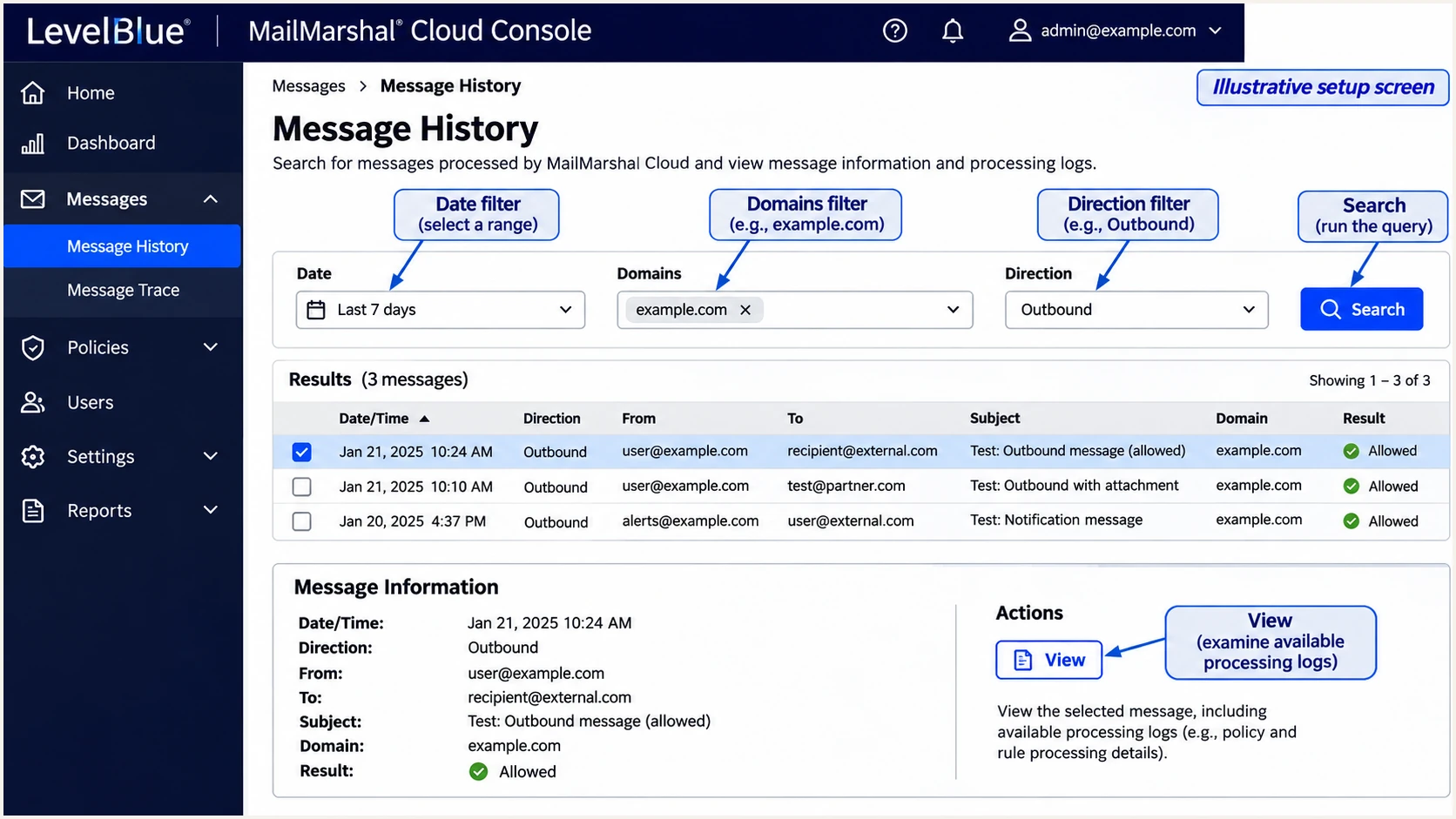
Illustration of tracing an outbound test in MailMarshal Cloud Message History.
Test each sending domain separately. Repeat after a connector change or a DKIM rotation, even when the first domain is already passing.
Get alerted when it breaks
Suped is our DMARC platform. I use its DMARC monitoring to track LevelBlue authentication after setup, with issue detection and fix instructions tied to reported sending sources.
- Confirm reports arrive. Keep aggregate reporting enabled and use the Suped reporting destination assigned to the domain. Check that new report data includes the expected gateway traffic.
- Enable issue alerts. In Suped Settings > Notifications, enable Issues detected. Enable Sending sources need verification so an unfamiliar source prompts investigation.
- Investigate the source. Verify LevelBlue as authorized only after checking your routing and test headers. Inspect failing records in Detail view to compare SPF, DKIM, and DMARC results with the sending IP.
- Verify each repair. Use the issue's Steps to fix instructions, retest mail through the gateway, and confirm recovery in subsequent reports. Enable DMARC summary emails for ongoing review.
Aggregate reports are commonly delivered daily. Suped can notify when new data exposes a problem; this workflow is not an instant alert for every individual message.
I check whether failures affect one selector or an entire source before changing DNS. Suped's DNS history helps compare record changes with the start of a regression.
Keep the investigation tied to real traffic
Use the sending IP, MAIL FROM domain, and DKIM signing domain together. This gives the DNS owner a specific correction to make and a fresh test to run.
Secure your domain with p=reject
I move to p=reject after every legitimate mail stream passes DMARC reliably. I use Suped's source-level results and unresolved issues to decide whether enforcement is ready, rather than judging readiness by the overall pass rate alone.
- Inventory all senders. Review LevelBlue alongside mail that bypasses it, such as application notifications and invoicing systems. Cover a complete business sending cycle, including infrequent messages.
- Require working DKIM. Confirm a matching DKIM signature survives normal delivery and important forwarding paths. Do not rely on SPF alone before rejection. Check mailing-list traffic before enforcing a user mailbox domain.
- Stage enforcement. For a new monitoring deployment, move to p=quarantine after fixing legitimate failures. Review affected traffic before changing to p=reject. Keep an existing enforced policy while resolving LevelBlue setup issues.
- Review subdomains. Check explicit subdomain DMARC records and the parent policy's sp setting. A parent enforcement change affects subdomains that inherit its policy.
- Apply and monitor. With Suped Hosted DMARC configured, stage policy changes in its dashboard. For a standard TXT setup, update authoritative DNS. Keep reporting active and investigate legitimate failures after each change.
Suped's Hosted DMARC manages policy in the dashboard after its initial DNS configuration. It keeps policy changes alongside the report data and issue workflow used to approve them.
A quarantine stage has no fixed duration that proves readiness. For domains with mailing-list use, allow enough observation to identify indirect delivery failures before considering rejection.
Monitoring with p=none
Collect reports and identify legitimate failures. Recipients are not asked to quarantine or reject mail because of this DMARC policy.
Enforcement with p=reject
Request rejection of mail that fails DMARC. Recipient handling also depends on local policy. Legitimate mail must retain matching authentication.
Keep the existing reporting destination when changing the policy. The value below is an example for a domain that has completed its validation work.
Use your working report mailbox or assigned reporting address in place of dmarc@example.com. Maintain the same SPF and DKIM checks after enforcement.
Enforced DMARC TXT value at _dmarc.example.comtext
v=DMARC1; p=reject; rua=mailto:dmarc@example.com
Frequency asked questions
MailMarshal Cloud Gateway mode uses include:spf.us.mailmarshal.cloud for the US, include:spf.au.mailmarshal.cloud for Australia, and include:spf.eu.mailmarshal.cloud for Europe. Use the provisioned region and merge its include into the existing SPF record.
SPF authenticates the SMTP MAIL FROM domain. DMARC also requires that domain to match the visible From domain under the published matching mode, or a passing DKIM signature with a matching signing domain. An SPF pass for an unrelated envelope domain is insufficient.
Publishing the public key does not activate signing. Verify DNS retrieval, select the key, and click Toggle Active in the domain's DKIM tab. Also confirm the outbound signing rule applies and the message actually traverses MailMarshal Cloud.
MailMarshal Cloud is LevelBlue's hosted email gateway, formerly SEG Cloud, and mailmarshal.cloud is associated with that infrastructure. I verify the sending IP against the regional SPF record and inspect the Received chain before attributing traffic. rDNS alone does not identify a customer or prove authorization.
No. The domain's DMARC tab controls gateway processing. Publish the DMARC TXT record separately in authoritative DNS, and verify it at the hostname for your visible From domain.
Keep an existing p=reject or p=quarantine policy while configuring LevelBlue. Publish the correct regional SPF include, activate DKIM, and verify test mail before routing production traffic. The p=none starting record is for a new monitoring deployment.




