
How to set up DMARC/DKIM/SPF for Leaseweb

Published 22 Nov 2026
Updated 22 Nov 2026
11 min read
Summarize with
For Leaseweb's managed mail service, add the regional Leaseweb SPF include to your sending domain, enable DKIM under Manage Mailboxes, and publish a DMARC TXT record at _dmarc. Set your application's envelope sender to your own domain and verify a delivered message before enforcing DMARC.
I first check whether mail leaves through Leaseweb's managed SMTP service or directly through a VPS or dedicated server. Direct sending needs your server's actual outbound IP addresses and its own DKIM signing configuration. A Leaseweb hosting account alone does not authenticate email.
Add your domain
For managed mail, use the domain attached to your Leaseweb Web Hosting pack or existing Email pack. For a self-managed server, configure the domain in your mail server instead; the Customer Portal mailbox controls do not configure that server.
- Attach the domain: If it is not provisioned, enter your existing domain under 'Link your domain name to our package' during the Web Hosting order. Choose the hosting location. Domain registration can stay with your current registrar.
- Create the mailbox: Open Hosting > Domain, Hosting & Email. Find the domain, select Manage Mailboxes > Add mailbox, choose Domain, then Create mailbox. Set its password and save the settings.
- Confirm DNS access: Check the domain's authoritative nameservers. If Leaseweb hosts DNS, open Manage DNS for that domain. Otherwise, publish the authentication records at the external DNS provider. Confirm your changes with public DNS queries.
- Configure the application: Use your regional Leaseweb SMTP host, SMTP authentication and the full mailbox address as the username. Use port 587 with STARTTLS or port 465 with implicit TLS. For NL, the SMTP host is smtp.leaseweb.com.
Confirm the mailbox appears under the intended domain and SMTP authentication succeeds. Keep existing MX records unless you are deliberately moving incoming mail. Leaseweb's 'Web Hosting Overview' and 'Configuring Email Settings' document domain attachment and SMTP settings.
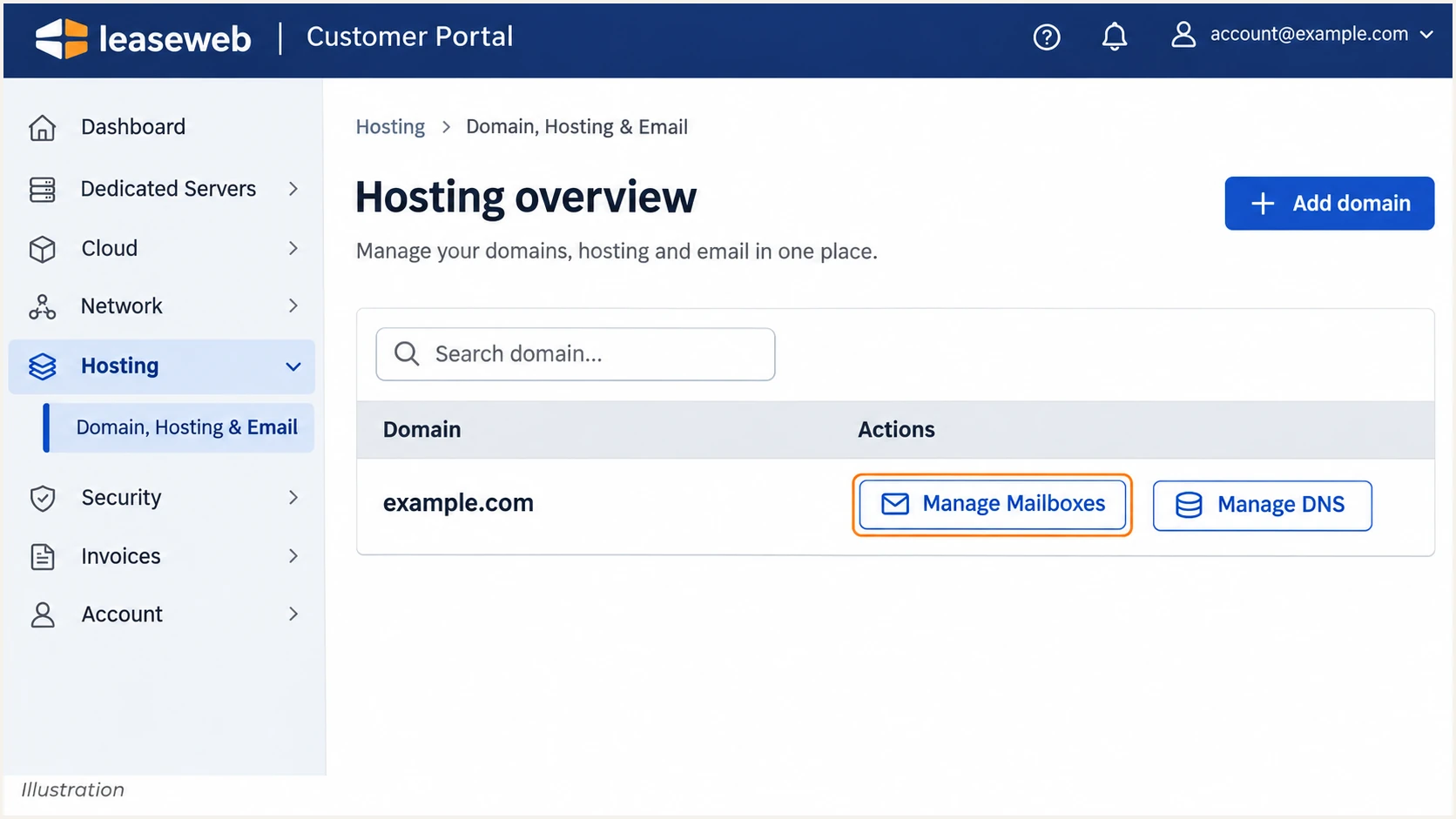
Illustrated Leaseweb Hosting overview with Manage Mailboxes and Manage DNS.
Set up SPF
Authorize the infrastructure that makes the final SMTP connection. Leaseweb's 'Email Hosting Overview' lists six regional includes for managed mail. Select the region of your mail service, then verify the actual outbound route with a test message.
I check the existing SPF record first so I can preserve other authorized senders. Publish one TXT record beginning with v=spf1 at each envelope sender domain. SPF does not inherit automatically into a bounce subdomain.
SPF checker
Find SPF syntax issues, lookup limits, and weak records.
?/16tests passed
Use the SPF checker on the domain in the message's Return-Path. For bounces@example.com, check example.com; for bounces@bounce.example.com, check bounce.example.com. The visible From address alone does not identify the SPF lookup domain.
The records below are alternatives for managed mail. Use one appropriate regional include, preserve any other required senders in that same record, and keep one final all mechanism.
Managed mail SPF values, choose your service regiontext
# NL
v=spf1 include:mh-spf.leaseweb.com ~all
# US
v=spf1 include:mh-spf.leaseweb.us ~all
# DE
v=spf1 include:mh-spf.leaseweb.de ~all
# CA
v=spf1 include:mh-spf.leaseweb.ca ~all
# UK
v=spf1 include:mh-spf.leaseweb.uk ~all
# SG
v=spf1 include:mh-spf.leaseweb.sg ~all
- Publish the value: In Manage DNS, edit the existing SPF TXT record. If none exists, click Add, enter the root domain name and select TXT, then Continue. Save the value, Save Recordset, and the page-level Save. Follow your DNS provider's host-name convention.
- Set the Return-Path: Configure the application's envelope sender or bounce address as bounces@example.com. Leaseweb supports your own Return-Path domain. Check the delivered header because an application or relay can rewrite it. With default relaxed DMARC alignment, a bounce subdomain of example.com also qualifies.
- Authorize direct sending: For a VPS or dedicated server delivering directly, authorize only its real public egress IPs with ip4 and ip6. The managed-mail includes do not automatically authorize your server. The example IP below is documentation-only and must be replaced.
- Check the limit: Keep SPF evaluation within 10 DNS-querying terms, including nested includes. Do not add every regional include or publish a second SPF record. A softfail from ~all does not itself require spam-folder placement.
Direct server SPF example, replace the documentation IPtext
v=spf1 ip4:192.0.2.10 ~all
Set up DKIM
Enable signing for the domain used in your visible From address. Leaseweb's 'Managing DKIM' documents automatic DNS publication for Leaseweb-hosted DNS and manual publication for external DNS.
- Open domain DKIM: In Hosting > Domain, Hosting & Email, find the domain and click Manage Mailboxes. Open Domain DKIM. The documentation also calls the external-DNS view DKIM Record.
- Enable signing: Click Enable to generate and enable DKIM. If Leaseweb manages the authoritative DNS, it adds the public DKIM record automatically.
- Publish external DNS: If DNS is elsewhere, copy the exact record name, type and complete public value displayed by Leaseweb. Publish them there. Use Leaseweb's selector and key; do not substitute an independently generated key.
- Test the sending path: Send from the real application through authenticated Leaseweb SMTP. Confirm d= uses your From domain or a qualifying subdomain. A website sending through a separate local mail server needs its own signing configuration.
I read the selector from the delivered DKIM-Signature header rather than guessing it. If s= is selector1 and d= is example.com, query selector1._domainkey.example.com. Those names are examples, not a universal Leaseweb selector.
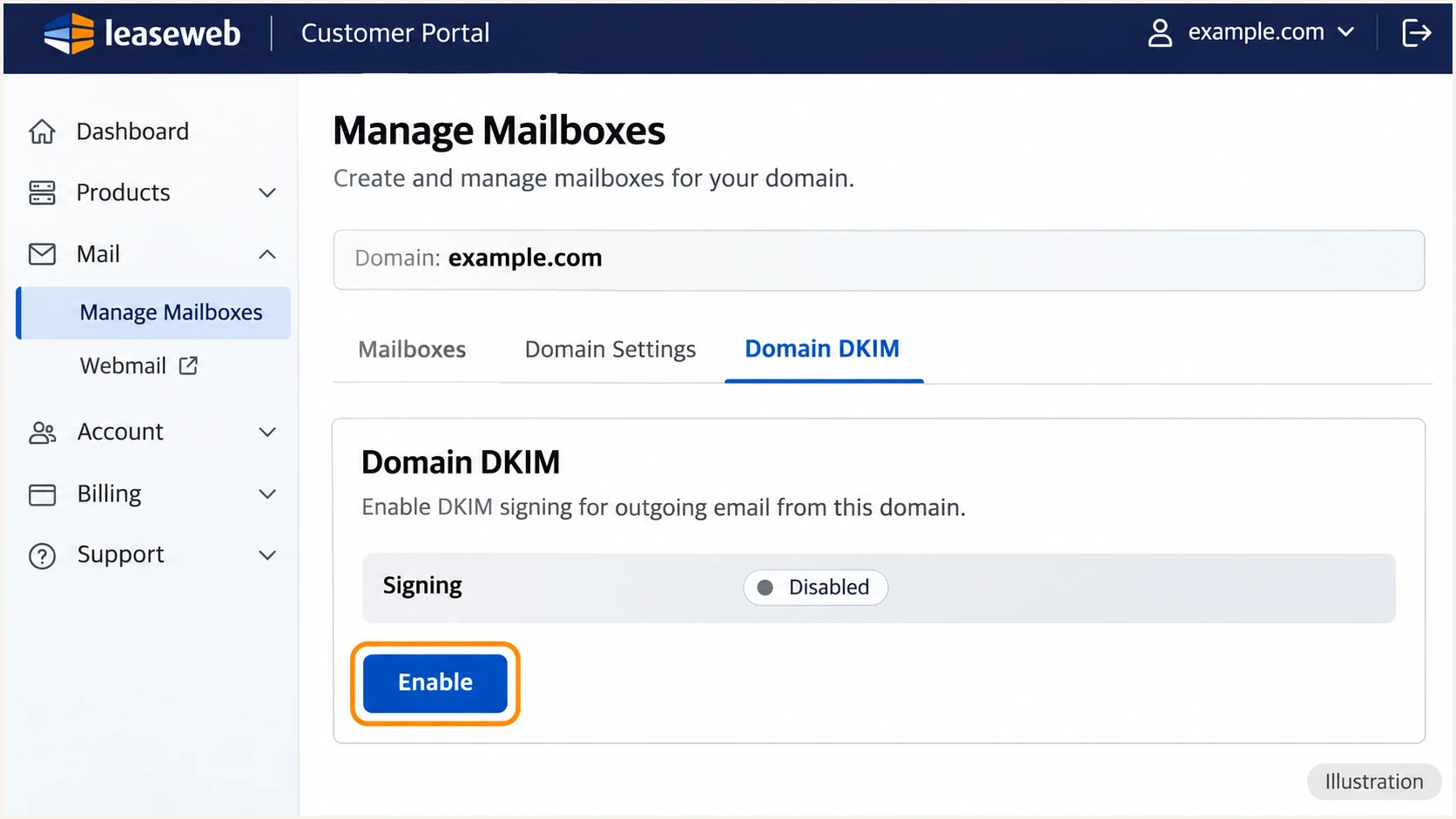
Illustrated Leaseweb Domain DKIM view with the Enable control.
For a self-managed mail server, generate a domain-specific DKIM key pair, keep the private key on the server, publish the public key under your chosen selector, and enable signing for all outbound application mail. Use a 2048-bit RSA key where supported and test the signature after signing is active.
Set up DMARC
Publish DMARC for the domain in the visible From address, regardless of where Leaseweb hosts your server or mailbox. For a domain without enforcement, start with p=none and a working aggregate-report destination.
Keep existing enforcement
If your domain already uses p=quarantine or p=reject, keep that policy while fixing Leaseweb authentication. Do not replace it with the monitoring example below. Edit the existing DMARC record rather than adding another one.
- Prepare reporting: Create a monitored report mailbox or use the reporting address assigned by your reporting platform. Replace dmarc@example.com with that real destination before publishing.
- Create the TXT record: In Leaseweb Manage DNS, click Add, set the name to _dmarc for the current zone and type to TXT, then Continue. Enter the value below, save the entry and Recordset, then save the page. Use external DNS instead if it is authoritative.
- Keep relaxed defaults: Leave adkim and aspf unset initially. Default relaxed alignment permits qualifying subdomains. Publish exactly one DMARC policy record at this name.
Initial DMARC TXT value at _dmarc.example.comtext
v=DMARC1; p=none; rua=mailto:dmarc@example.com
Use the DMARC record generator to construct the value. p=none requests reporting without requesting DMARC-based quarantine or rejection; it does not guarantee delivery.
Check the published From domain below. A DNS pass confirms that the policy is discoverable and valid. A delivered message is still needed to prove SPF or DKIM passes with the required domain relationship.
DMARC checker
Look up a domain's DMARC record and catch policy issues.
?/7tests passed
If the check returns no policy, confirm the authoritative zone and record name. Avoid accidentally publishing _dmarc.example.com.example.com in an editor that appends the zone name. Wait for the previous TTL to expire before treating a cached result as a failed change.
If aggregate reports go to another domain, that reporting domain must authorize external reporting. Use the address and DNS authorization supplied by that reporting service. Reports commonly arrive on a daily cycle, not immediately after publication.
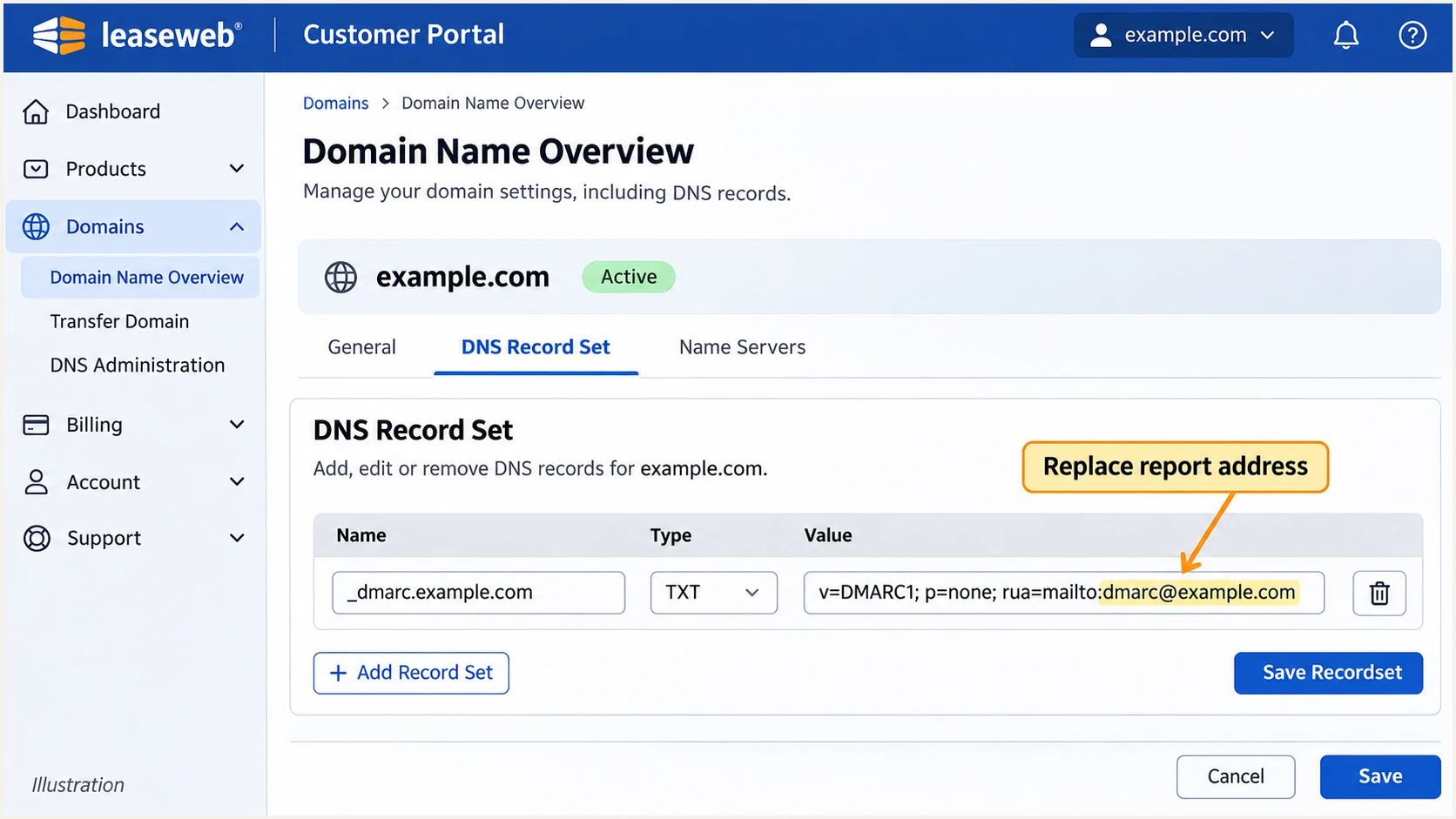
Illustrated Leaseweb DNS editor with a monitoring DMARC record.
Verify and troubleshoot
I test the actual website, application and mailbox routes separately. A successful mailbox test does not prove that a web application uses the same SMTP server or DKIM signer.
Send a new message to the address shown by the email tester below. It provides a full diagnosis of the received message, including authentication. Use a real application-generated message so the test covers the production sending path.
Email tester
Send a real email to this address. Suped shows a results button when the test is ready.
?/43tests passed
Inspect the receiver's Authentication-Results together with Return-Path and DKIM-Signature. Expect SPF pass for the envelope sender domain, DKIM pass for a qualifying signing domain, and DMARC pass for your visible From domain.
DMARC passes when either SPF or DKIM passes with alignment. If a route uses a provider-owned Return-Path, an SPF alignment failure is acceptable when DKIM passes with alignment. Adding an include at your From domain does not repair an unrelated Return-Path.
- Fix SPF failures: Compare the connecting IP and smtp.mailfrom domain with the SPF policy. Check the service region, extra SPF records, nested lookup errors and IPv6 delivery.
- Fix DKIM failures: Look up the selector reported in s= under the domain in d=. Confirm the complete public key is present, signing is enabled and the message was not changed after signing.
- Fix direct-server DNS: Create an A or AAAA record for your mail hostname pointing to the sending IP. For a dedicated server, open Dedicated Server > server ID > Details > IP Addresses, edit Reverse DNS and set that hostname. Use a consistent SMTP EHLO hostname. Shared-hosting PTR records are managed by Leaseweb.
- Separate reputation issues: If authentication passes but delivery fails, inspect SMTP rejection codes, sending behavior and the sending IP's blocklist (blacklist) status. DMARC pass does not guarantee inbox placement.
DNS checks, replace the domain, selector and documentation IPbash
dig +short NS example.com
dig +short TXT example.com
dig +short TXT _dmarc.example.com
dig +short TXT selector1._domainkey.example.com
dig +short -x 192.0.2.10
dig +short A mail.example.com
|
|
|---|---|
SPF permerror | Duplicate SPF or lookup limit |
DKIM missing | SMTP route and signing switch |
DKIM fail | Selector, key and message changes |
DMARC fail | From-domain alignment |
PTR mismatch | Forward DNS and Reverse DNS |
Get alerted when it breaks
Suped is our DMARC platform for detecting changes after setup. Its DMARC monitoring connects aggregate reports with source-level diagnostics, issue notifications and DNS history, so a new server or broken signing configuration has a clear investigation path.
- Keep reports flowing: Retain the assigned aggregate-report destination in rua when editing the Leaseweb DNS record. Without incoming reports, source-level DMARC monitoring has no new receiver data.
- Enable notifications: In Suped's notification settings, enable Issues detected, Sending sources need verification, and DMARC summary emails for the team responsible for outbound mail.
- Investigate the source: Review new Leaseweb IPs and unexpected senders. Compare the reported IP, SPF domain and DKIM domain with your application inventory before verifying a source as legitimate.
- Confirm the repair: Use the issue's fix steps, inspect DNS history after configuration changes, and send another application test. Then confirm that subsequent receiver reports show the expected authentication results.
I treat issue alerts as a trigger to inspect the sending path, not as a reason to authorize an unfamiliar IP. DMARC alerts depend on receiver reports arriving; they do not provide an immediate signal for every individual message.
Secure your domain with p=reject
Move to enforcement after every legitimate sending route has a passing, aligned authentication method. I review enough reporting history to cover infrequent application jobs and confirm that real transactional messages pass before changing policy.
- Inventory every sender: Use Suped's source table to identify Leaseweb managed mail, direct servers and other authorized applications. Investigate unknown sources instead of adding their IPs to SPF automatically.
- Repair legitimate failures: Use Suped's detailed SPF and DKIM diagnostics to fix signing and envelope-domain problems. Test infrequent jobs and any forwarded mail paths that matter to the business.
- Stage enforcement: Change an existing monitoring policy to p=quarantine, observe legitimate traffic across a full sending cycle, then use p=reject. Keep rua reporting active. Address subdomain policies deliberately and retain relaxed alignment unless stricter matching is required.
- Monitor each change: Keep Suped issue notifications enabled and review source results after each policy change. Investigate legitimate failures before continuing the rollout. Keep a known-good DNS value available for a targeted rollback.
Suped's Hosted DMARC manages policy changes through our dashboard after its DNS setup. That puts policy staging alongside report analysis and issue detection. With a regular TXT record, make the same staged changes in Leaseweb Manage DNS or your authoritative DNS provider.
Monitoring policy
p=none requests reports without requesting enforcement. Use it to identify legitimate sources and repair authentication before a new rollout.
Enforcement policy
p=reject requests rejection of messages that fail DMARC. Receivers retain local discretion. Keep reporting and alerts active after deployment.
Final DMARC TXT value, use your working report destinationtext
v=DMARC1; p=reject; rua=mailto:dmarc@example.com
Keep a working DKIM signature on mail that relies on forwarding, because SPF often fails after forwarding. Enforcement protects the authenticated From domain; it does not prevent display-name impersonation or lookalike domains.
Check separately published subdomain DMARC records before changing the root policy. A root-domain p=reject does not override a subdomain's own DMARC record. Review any explicit sp policy so subdomains receive the intended protection.
Frequency asked questions
Leaseweb documents hosted-by.leaseweb.com as its standard default reverse DNS value. It identifies Leaseweb infrastructure, not a particular customer's application or proof that a message is authorized. Check the sending IP, DKIM domain and message headers before classifying the source.
mh-spf.leaseweb.com belongs to Leaseweb managed mail. Its documented regional alternatives are mh-spf.leaseweb.us, mh-spf.leaseweb.de, mh-spf.leaseweb.ca, mh-spf.leaseweb.uk and mh-spf.leaseweb.sg. Choose the documented include for your managed mail region. Direct VPS or dedicated-server sending needs authorization for its actual egress IP instead.
Open Manage Mailboxes > Domain DKIM or DKIM Record and copy the displayed DNS record. In a delivered message, s= gives the selector and d= gives the signing domain. Query selector._domainkey.signing-domain using those actual values; do not assume a fixed Leaseweb selector.
SPF authenticates the envelope sender domain. If it is unrelated to the visible From domain, SPF does not satisfy DMARC. Configure your own Return-Path and its SPF record, or ensure DKIM passes with alignment to the From domain. A qualifying DKIM pass is sufficient for DMARC even when SPF alignment fails.
Treat DMARC as a separate DNS change. Inspect _dmarc at your visible From domain, preserve an existing quarantine or reject policy, and publish one record if none exists. Leaseweb's documented automatic DKIM DNS publication does not establish that DMARC reporting or enforcement is configured.




