
How to set up DMARC/DKIM/SPF for KnownHost

Set up KnownHost email authentication by publishing your domain's SPF and DKIM values, then adding a DMARC TXT record at _dmarc.example.com. Start a new deployment with p=none, test actual messages, and move to p=reject after every legitimate sending source passes DMARC. Keep quarantine or reject if it is already active.
I check the outbound sending route before changing DNS. These steps use KnownHost's cPanel hosting. DirectAdmin servers have different menus, but the same DNS records and message checks apply. Website hosting alone does not prove that KnownHost sends your application's email.
Add your domain
Add the sending domain to your KnownHost hosting account before creating its mailbox or DKIM key. Skip domain creation if it is already listed in cPanel.
- Open cPanel: Use the hosting login details supplied by KnownHost. Open Domains > Domains and check whether your sending domain is present.
- Create the domain: Click Create A New Domain. Select Registered Domain if shown, enter example.com, choose the document root and click Submit. Clear Share document root when the domain needs a separate website.
- Create a mailbox: Open Email > Email Accounts > Create. Select the domain, enter a username and password, then click Create. Use this address for authenticated application sending.
- Verify access: Confirm the domain appears in Email Deliverability, then send a mailbox message to an independent inbox. Test an incoming reply too if KnownHost handles incoming mail. Check authentication separately below.
Creating a domain in cPanel is hosting configuration. It does not transfer its registration or change its authoritative nameservers. If your plan does not permit another domain, ask KnownHost to confirm the account's domain limit.
Keep existing nameservers when DNS is managed elsewhere, and publish authentication records there. Preserve existing MX records unless you are deliberately moving incoming email to KnownHost.
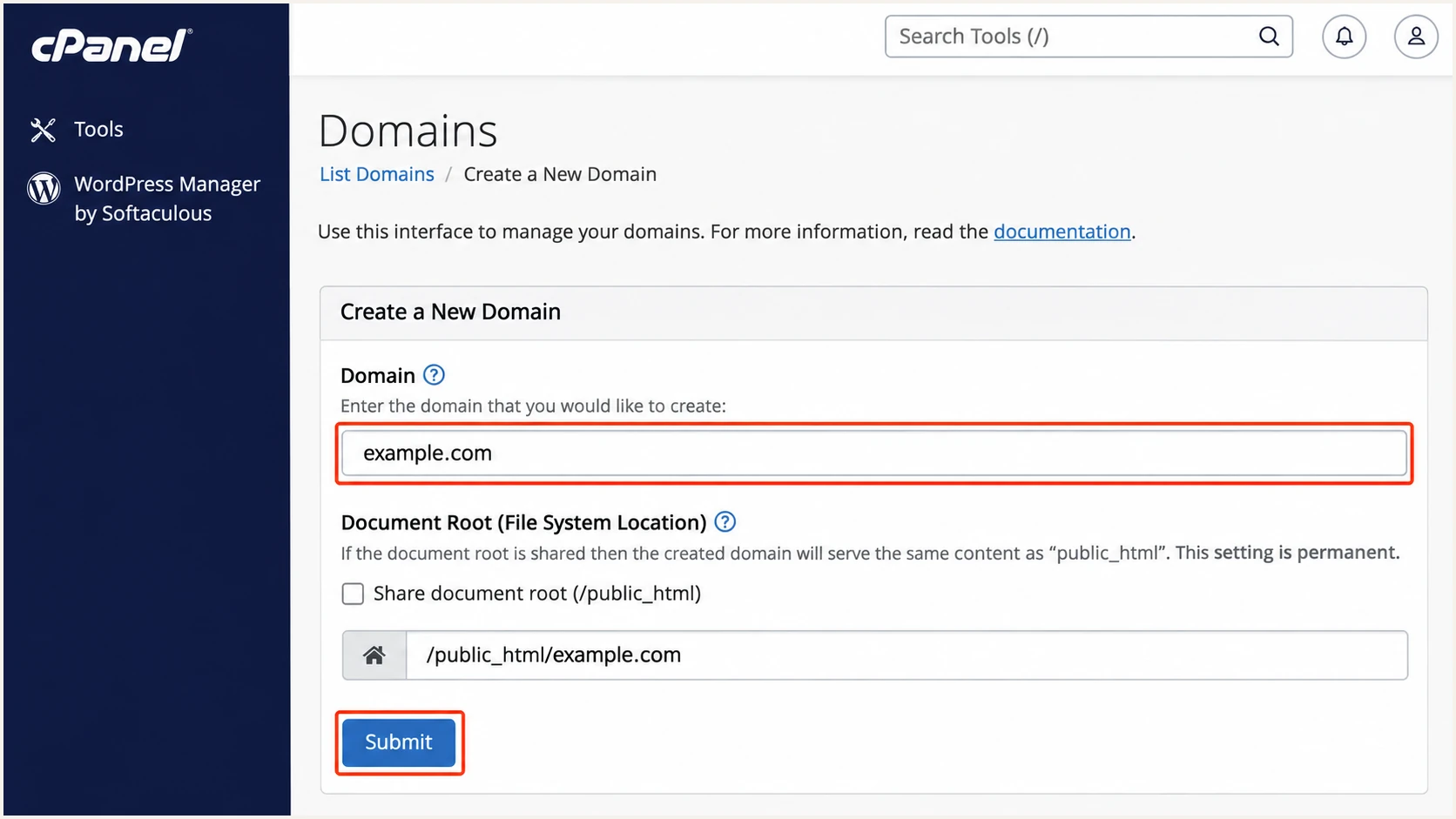
Illustrated cPanel domain creation screen for a KnownHost hosting account.
Set up SPF
SPF authorizes the outbound server for the SMTP envelope sender, which normally appears in the delivered Return-Path. Use the values generated for your KnownHost account and its actual sending route.
I check the existing public SPF record first so a hosting repair does not remove another legitimate sender. The authoritative DNS host is where the final merged value belongs.
- Find the record: Open Email > Email Deliverability > Manage beside your domain. Copy the Name and Value under Suggested SPF (TXT) Record.
- Edit public DNS: At the authoritative DNS host, edit the existing SPF TXT record for that hostname. In cPanel, use Domains > Zone Editor > Manage > Edit. Use Add Record > TXT only when no SPF record exists.
- Preserve other senders: Merge KnownHost's required mechanisms into the existing record before its final all mechanism. Keep the entries needed by other authorized senders.
- Confirm the route: For direct delivery, authorize the actual outbound IP, including IPv6 when used. For a configured outbound relay, retain the relay include supplied for that account.
Publish one SPF record per hostname
Two separate TXT records beginning with v=spf1 produce an SPF permanent error. Review a proposed cPanel Repair before accepting it so existing authorized senders are retained.
This minimal example is for direct sending through one IPv4 address. It is an illustration, not a universal KnownHost record.
The TXT record name is example.com, or @ in DNS interfaces that use @ for the zone root. Copy the generated account-specific value rather than guessing an include for knownhost.com.
Illustrative SPF value, replace the documentation IPtext
v=spf1 ip4:192.0.2.10 ~all
192.0.2.10 is a documentation address. Replace it with the confirmed outbound IP and retain all required sender mechanisms. Keep an existing -all ending if the sender inventory is already complete.
SPF permits at most ten DNS-lookup-causing terms during evaluation, including nested includes. The ip4 and ip6 mechanisms do not consume that allowance. Check the final public record after saving.
SPF checker
Find SPF syntax issues, lookup limits, and weak records.
?/16tests passed
This lookup validates published SPF syntax and dependencies. It cannot tell which envelope sender your application actually uses.
KnownHost supports a return path on your own domain. Configure the application's SMTP envelope sender accordingly and verify the delivered Return-Path. A bounce subdomain needs its own SPF record; SPF does not inherit the parent domain's record.
Set up DKIM
I use the DKIM key generated by the sending server. Publishing an unrelated public key does not enable KnownHost to sign messages with the matching private key.
- Open DKIM: Go to Email > Email Deliverability > Manage for the domain. If no key exists, use Generate Local DKIM Key when available, or ask KnownHost to enable domain signing.
- Copy the public record: Copy the DKIM Name and Value. The usual cPanel selector is default, giving default._domainkey.example.com. Use the selector actually shown for your account.
- Publish the key: If cPanel controls authoritative DNS, use its Repair workflow after reviewing the change. Otherwise, add the exact public TXT record at your external DNS host. Keep the private key on the server.
- Verify a signature: Send through the real mailbox and application. Check that DKIM passes and its d= domain matches the visible From domain, or shares its organizational domain under relaxed DMARC settings.
A long DKIM TXT value can contain multiple quoted character strings within one DNS record. Keep the complete public key intact; do not create separate TXT records for its pieces.
A valid DNS key does not prove that a website signs its outgoing mail. If mailbox messages pass but application messages lack a signature, configure authenticated SMTP through that mailbox and test again.
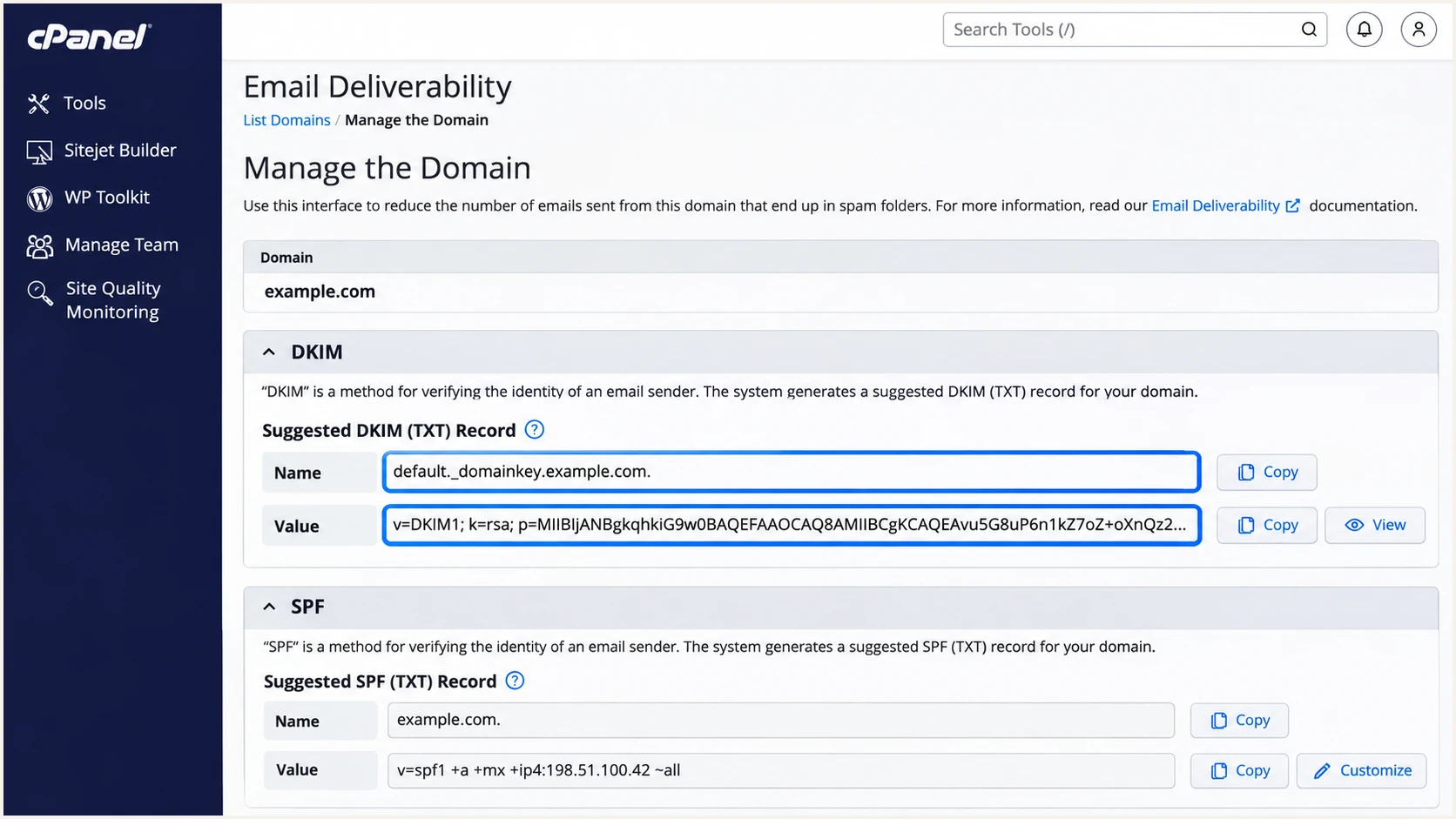
Illustrated cPanel Email Deliverability screen showing where to copy KnownHost DKIM values.
After a hosting migration or key rotation, check the new server's selector and public key against DNS. An old DNS key paired with a new signing key causes verification failures.
Set up DMARC
For a new DMARC deployment, start with p=none. If the domain already uses p=quarantine or p=reject, keep that policy while correcting KnownHost authentication.
- Open the DNS zone: In cPanel, choose Domains > Zone Editor > Manage. If DNS is external, open that provider's authoritative zone instead.
- Create or edit TXT: Use Add Record > TXT and set the name to _dmarc.example.com, or _dmarc when the interface appends the domain. Edit an existing DMARC record instead of adding a second one.
- Build the value: Use the DMARC record generator to set the policy and reporting destination. For a new deployment, use the monitoring record below with your actual reporting mailbox.
- Save the record: Keep the zone's normal TTL and click Save Record. Confirm the final name is _dmarc.example.com, without the domain appended twice.
DMARC passes when either SPF or DKIM passes with the required domain match. Both methods should work for direct KnownHost sending, but DMARC does not require both to pass on every message.
Publish this value at _dmarc.example.com as a TXT record. Replace the example reporting address before saving it in your live domain.
Initial DMARC monitoring recordtext
v=DMARC1; p=none; rua=mailto:dmarc@example.com
The rua mailbox must accept aggregate reports, usually XML attachments. A reporting destination on another domain also needs external reporting authorization, normally published by the report receiver.
Participating receivers generally send aggregate reports daily. Allow roughly 24-48 hours after real traffic starts before investigating missing reports; report coverage is not universal.
DMARC checker
Look up a domain's DMARC record and catch policy issues.
?/7tests passed
A successful DNS lookup confirms that the policy is discoverable. It does not prove that messages sent by your website pass DMARC.
I test a new message immediately after the record becomes visible. Policy none requests monitoring without quarantine or rejection based on DMARC, so it is a starting point for observation.
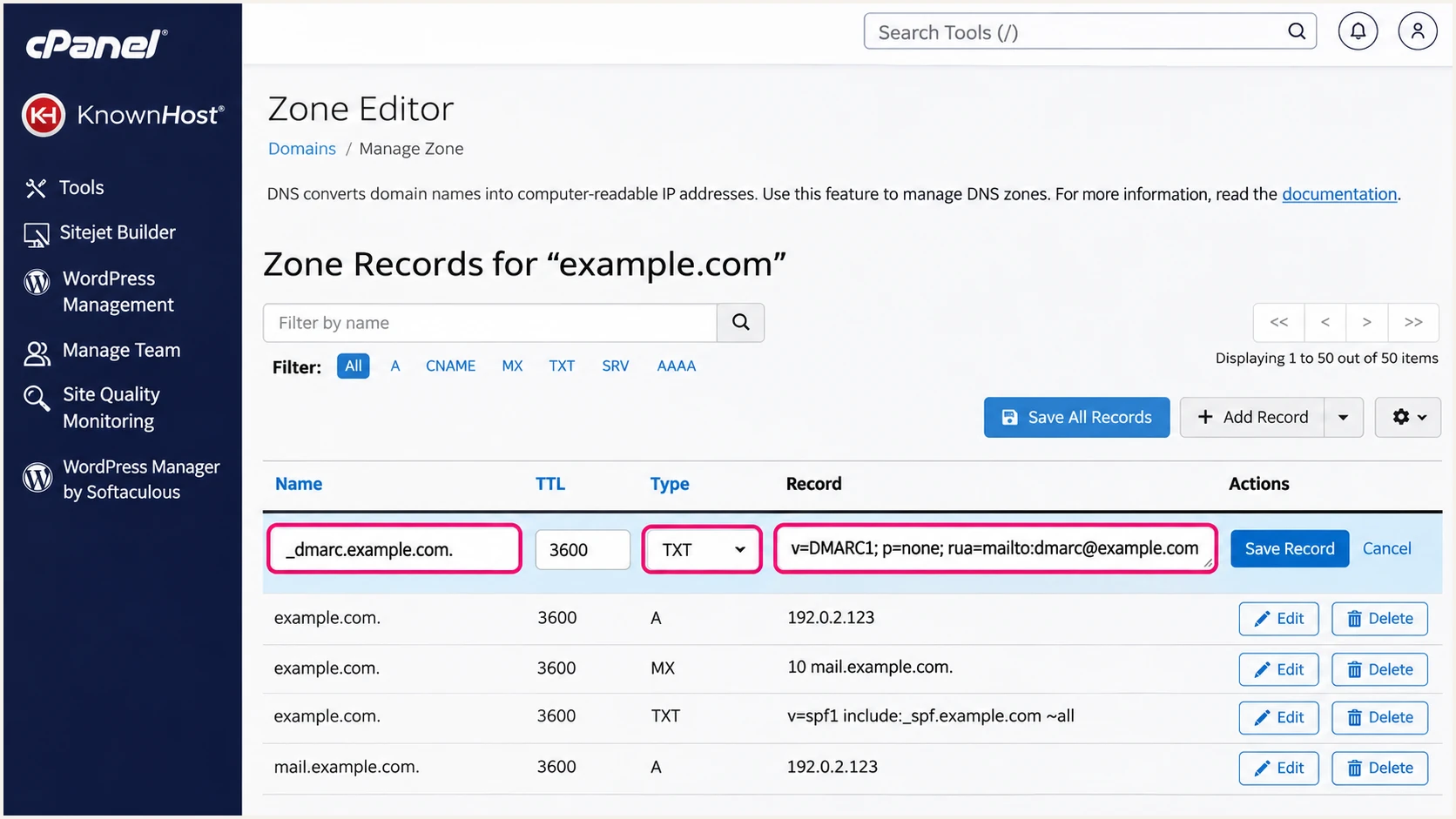
Illustrated cPanel Zone Editor form for an initial KnownHost DMARC record.
Verify and troubleshoot
I test each sending path separately. A successful mailbox test does not establish that contact forms or scheduled application jobs use the same sender identity.
- Trigger real messages: Send one mailbox message and trigger each application workflow, including a contact form and password reset where applicable. Use an address on your domain as From; put a visitor's address in Reply-To.
- Inspect results: Read the receiving system's Authentication-Results header. Expect spf=pass and dkim=pass for direct sending, plus dmarc=pass for the visible From domain.
- Check domain matching: Compare Return-Path with From for SPF alignment, and the DKIM d= domain with From for DKIM alignment. Changing a displayed From address alone does not fix the envelope sender.
- Trace delivery: In cPanel, open Email > Track Delivery, enter Recipient Email and click Run Report. Open the message's action details and inspect any rejection or deferral. Accepted means the next server accepted it, not that it reached the inbox.
Check public DNS as well as the local cPanel zone. Use the domain's returned nameservers to identify where updates belong, and allow previously cached answers to expire according to their TTL.
Replace example.com below and substitute the selector found in the message's DKIM s= value if it is not default. Adjacent quoted chunks in a single TXT answer are parts of one record.
Check nameservers and authentication recordsbash
dig +short NS example.com
dig +short TXT example.com
dig +short TXT default._domainkey.example.com
dig +short TXT _dmarc.example.com
The quickest message-level check is the email tester below. Send to the address it provides through your actual KnownHost mailbox or application to receive a full diagnosis.
Run separate tests for mailbox mail and website mail. Compare their authentication results before changing more DNS records; this isolates a signing or sender configuration problem.
Email tester
Send a real email to this address. Suped shows a results button when the test is ready.
?/43tests passed
If SPF alignment fails but DKIM passes with the required domain match, DMARC can still pass. For direct KnownHost mail, correct the envelope sender when possible. With forwarded mail, preserve a valid matching DKIM signature instead of authorizing unrelated forwarding IPs.
Authentication does not guarantee inbox placement. For PTR errors, ask KnownHost to check the outbound IP's reverse DNS and matching forward address. For blocklist (blacklist) rejections, investigate the listed IP and the actual bounce separately.
|
|
|
|---|---|---|
SPF permerror | Duplicate or complex SPF | Merge; check lookups |
DKIM none | Unsigned sending route | Use signed SMTP |
DKIM fail | Key mismatch or edits | Check key and message |
DMARC fail | No matching pass | Fix sender domains |
DNS unchanged | Wrong zone or cache | Check authoritative DNS |
Common failures and the next corrective action.
Get alerted when it breaks
Suped is our DMARC reporting and email authentication platform. For ongoing KnownHost checks, its DMARC monitoring connects sending-source reports to detected issues and fix instructions. I keep monitoring active after the initial test because migrations and application changes can alter authentication.
- Route reports: Use the reporting destination assigned to your domain in Suped in the existing record's rua value. Preserve your active DMARC policy and keep a single DMARC record.
- Enable notifications: Open Settings > Notifications and enable Issues detected and Sending sources need verification. Enable DMARC summary emails for periodic review.
- Verify KnownHost traffic: Match the reported source IP and authentication domains to your hosting account and test messages before marking the source verified. A recognizable rDNS suffix alone is insufficient.
- Resolve the cause: Open the detected issue's fix instructions, inspect its SPF and DKIM diagnostics, and correct authoritative DNS or the KnownHost sending configuration. Send another test message and verify the issue is resolved.
Suped's DNS history helps compare records before and after a failure. Use the record detail view to distinguish a changed public key from a different outbound IP or envelope sender.
Keep KnownHost's operational server notifications active too. Authentication reports do not replace alerts for a stopped mail service or a growing delivery queue.
DMARC alerts depend on report arrival
DMARC aggregate reports arrive in batches. Suped detects issues in the data it receives; these alerts are not an instant notification for each SMTP message. Use a fresh email test when checking a change immediately.
Secure your domain with p=reject
I move to reject after every authorized sending workflow has demonstrated a DMARC pass. A high overall pass rate can hide a failing, low-volume password reset or invoice sender.
- Inventory every source: Review KnownHost mailbox mail, website forms, scheduled jobs and any separate business sending systems in Suped. Investigate unverified sources before treating them as authorized.
- Fix legitimate failures: Correct missing IP authorization or DKIM signing and confirm the required domain match. Test infrequent workflows directly rather than waiting for their next scheduled run.
- Stage enforcement: Change the existing policy to quarantine, review reports and delivery complaints, then use reject after legitimate traffic remains authenticated. Keep reporting enabled at both stages.
- Check subdomains: Review inherited policy and any explicit sp setting or subdomain DMARC record. Keep relaxed SPF and DKIM matching unless strict matching is an intentional requirement.
Collect evidence over a representative sending cycle, including infrequent jobs. There is no fixed waiting period or percentage that proves every legitimate source is ready.
The values below retain reporting while changing enforcement. Replace the example mailbox, and edit your current record rather than publishing either value alongside it.
Quarantine stage
Requests suspicious treatment for DMARC failures. Review legitimate traffic before increasing enforcement.
DMARC quarantine valuetext
v=DMARC1; p=quarantine; rua=mailto:dmarc@example.com
Reject stage
Requests rejection of DMARC failures. Receivers retain control over their final delivery decisions.
DMARC reject valuetext
v=DMARC1; p=reject; rua=mailto:dmarc@example.com
Suped's Hosted DMARC supports policy staging in the dashboard after the initial DNS delegation. Keep the KnownHost source diagnostics and notifications active while changing policy so legitimate failures have a clear fix path.
A reject policy protects use of your domain in the visible From address. It does not stop lookalike domains or display-name impersonation, and it does not guarantee inbox placement.
Frequency asked questions
No. Copy the SPF value generated for your domain and confirm the actual outbound route. Direct server delivery needs the sending IP authorized; a configured relay needs its supplied include. Do not assume that including knownhost.com authorizes your account.
KnownHost's cPanel documentation uses default, giving default._domainkey.example.com. Confirm the selector in Email Deliverability and the s= value of a real DKIM-Signature header. A server migration or customized configuration can use a different selector.
The cPanel zone is not necessarily authoritative for your domain. Check its public NS records, then publish the authentication values at the DNS host those nameservers identify. A local zone edit does not update external authoritative DNS.
Yes, if DKIM passes with the required domain match. KnownHost supports a return path on your own domain, so check the application envelope sender for direct mail. Forwarding often breaks SPF; a preserved matching DKIM signature can keep DMARC passing.
KnownHost documents hostnames under knownhost.com and privatesystems.net in its infrastructure examples. Treat these suffixes as clues to the hosting network, not proof of a particular application or authorized sender. Compare the source IP and message headers with your KnownHost account; customer servers also use custom hostnames.
No. MX records control incoming mail routing. SPF, DKIM and DMARC are published separately. Keep existing MX records unless you intend to move incoming email; authenticate the service that actually sends each outgoing message.




