
How to set up DMARC/DKIM/SPF for KnowBe4

Published 21 Nov 2026
Updated 21 Nov 2026
10 min read
Summarize with
To set up DMARC, DKIM, and SPF for KnowBe4, verify your domain in the KSAT console, authorize KnowBe4 in SPF, configure its Return-Path to use your sender address, and publish the custom DKIM TXT record it generates. Publish DMARC in your domain's DNS, then test a simulation and a training notification separately.
I check the visible From domain against the authenticated domains on a delivered message. DMARC passes when either SPF or DKIM passes with a matching domain under your DMARC settings. A KnowBe4 delivery exception does not prove that authentication passes.
Add your domain
Start in KnowBe4 with an administrator account and access to your domain's authoritative DNS. I verify ownership before creating a custom DKIM selector.
- Open domains: Select your email address > Account Settings > Account Information > Organization Information > Allowed Domains.
- Add the root: Select + New Allowed Domain > New Root Domain. Enter example.com in Domain Name.
- Publish ownership proof: Copy the account-specific TXT value shown by KnowBe4. Add it at the DNS name requested by the console, without replacing existing TXT records.
- Finish verification: Select Verify Now, then Submit. If the domain remains Pending Verification, check the public TXT answer and retry after cached DNS expires.
In the newer KnowBe4 Platform interface, open Organization Settings > Allowed Domains and use + Add Allowed Domain. Domain verification and email authentication are separate tasks; a Verified domain still needs the SPF and DKIM settings below.
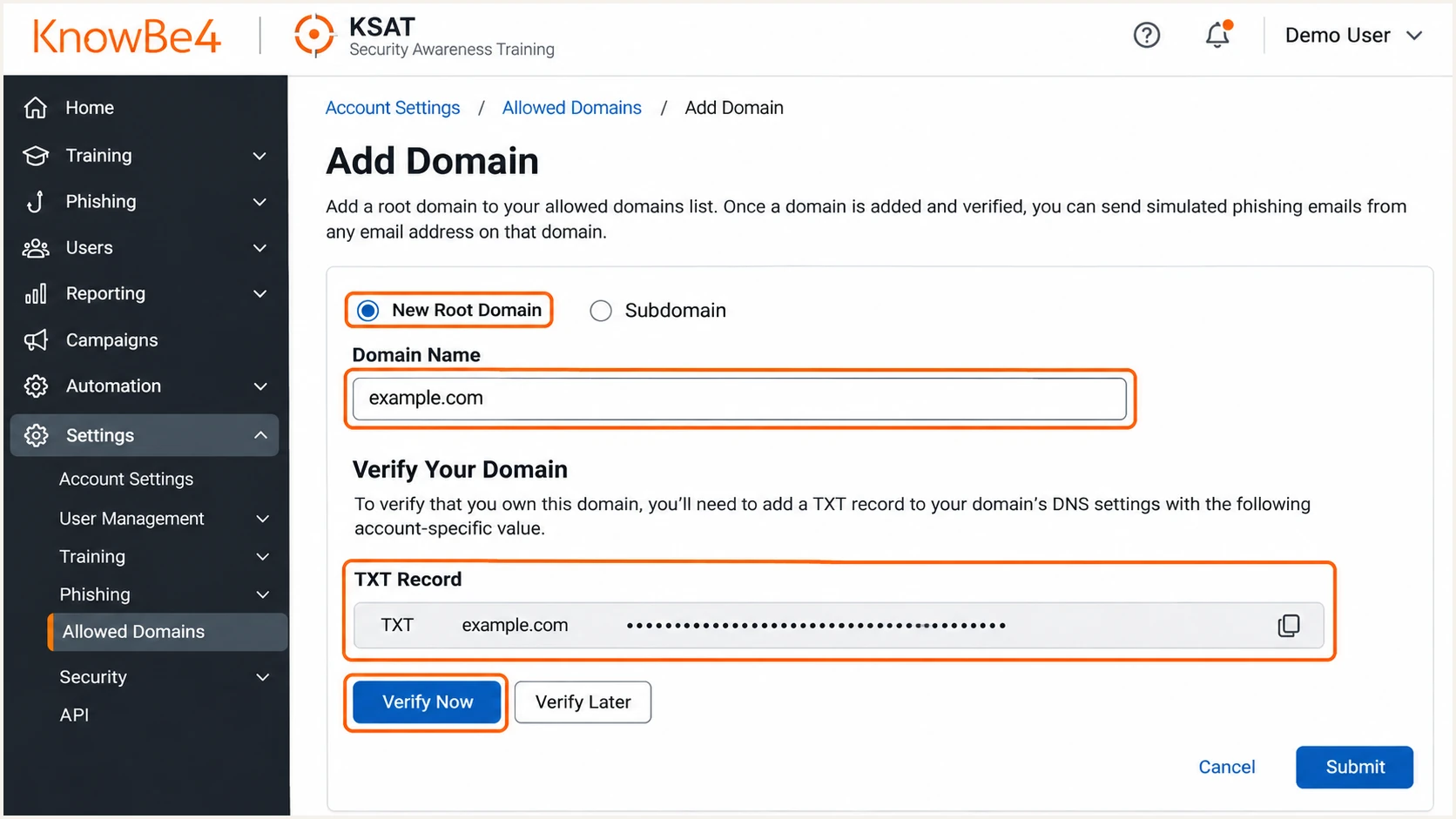
Illustrative KnowBe4 screen for adding and verifying a root domain.
Keep the ownership TXT record after verification. Add a sending subdomain through the allowed-domain controls when you need to select that subdomain for signing.
Set up SPF
KnowBe4 supports SPF domain matching by replacing its fixed Return-Path with the sender address. I configure the SPF record and the Return-Path together, since the default psm.knowbe4.com Return-Path does not match your own From domain.
- Edit one SPF record: At the exact domain used by the envelope sender, add include:_spf.psm.knowbe4.com before the final all mechanism. Merge it into the existing SPF TXT record; do not create a second SPF record.
- Preserve other senders: Keep existing authorized services and the current ~all or -all ending. The example below assumes Google Workspace is already authorized.
- Check DNS lookups: Keep SPF within the 10 DNS-lookup limit, including nested includes. Remove unused authorizations or review the current KnowBe4 regional IP requirements before using explicit IP entries.
- Change simulation headers: Open Account Settings > Phishing Settings > Phishing Email Headers. Enable Overwrite Fixed Return-path Address with Sender Address and click Save Changes.
- Change training headers: For training notifications sent using your domain, enable the equivalent setting under Training Settings > Training Email Headers. Save and test this message type separately.
Example SPF TXT value with existing Google Workspace authorizationtext
v=spf1 include:_spf.google.com include:_spf.psm.knowbe4.com ~all
Enter the domain used by the actual Return-Path into the SPF checker. A subdomain needs its own SPF authorization; it does not inherit the root domain's SPF record.
Resolve duplicate records, lookup-limit errors, and syntax failures before sending the next test. A valid DNS record still needs a delivered-message check.
SPF checker
Find SPF syntax issues, lookup limits, and weak records.
?/16tests passed
After saving the header setting, send a fresh message and confirm that its Return-Path uses the intended sender domain. Reply-to simulation settings can also change the envelope sender, so test those campaigns separately.
If you retain KnowBe4's fixed Return-Path, SPF can pass for KnowBe4 while SPF domain matching fails for your domain. That is acceptable for DMARC when a custom DKIM signature passes and matches your From domain. Adding an SPF include alone does not change the Return-Path.
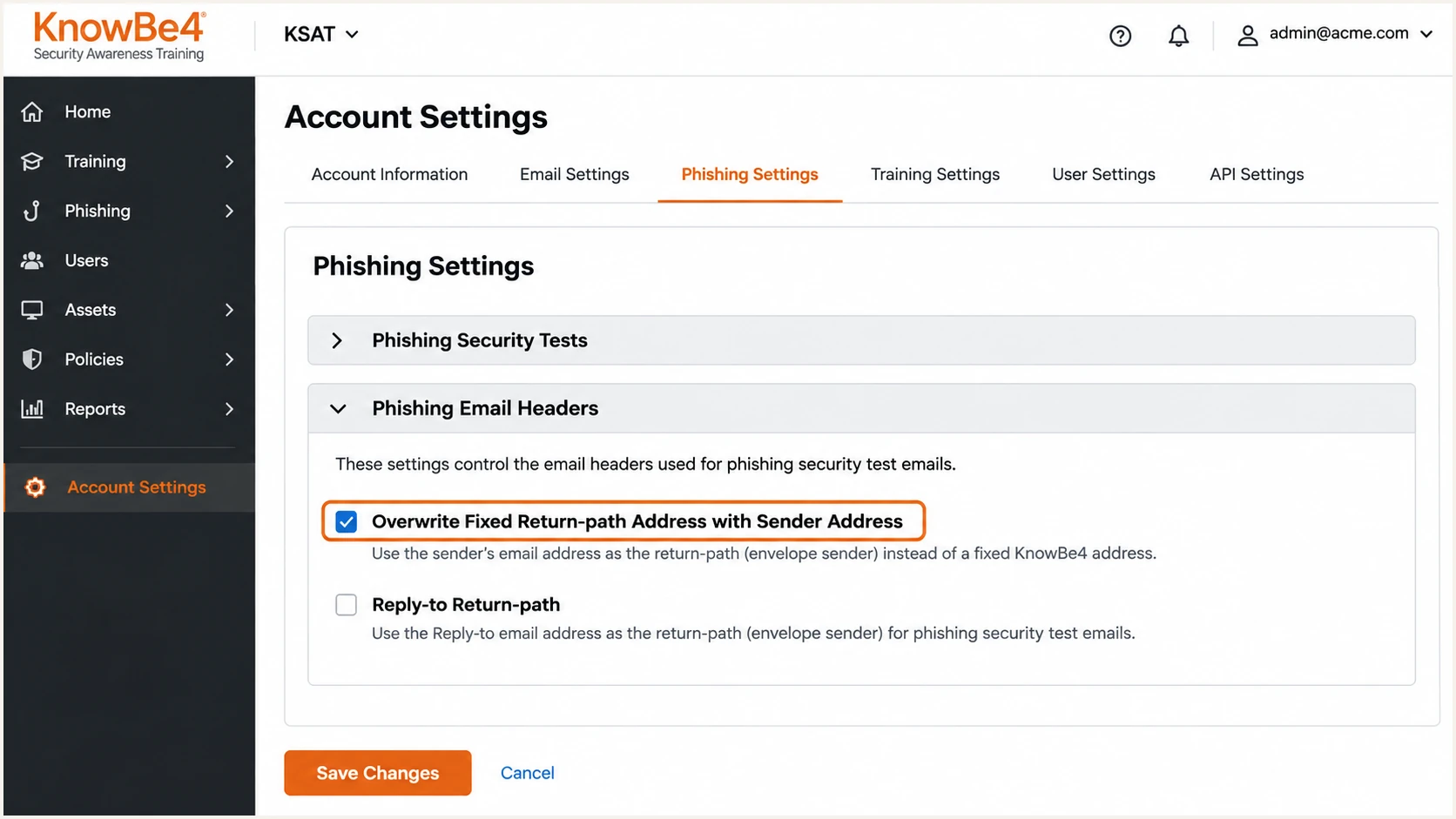
Illustrative KnowBe4 Return-Path setting for SPF domain matching.
Set up DKIM
I configure a custom signing domain when KnowBe4 sends with our domain in From. Enabling a signature with KnowBe4's own signing domain does not establish DKIM domain matching for our domain.
- Enable signing: Open Account Settings > Phishing Settings and enable Enable DKIM Signature.
- Choose your domain: Select Use Your Own Signing Domain, choose your allowed domain, and click Create a DKIM Selector for This Domain.
- Publish the key: Copy the supplied hostname and value into a DNS TXT record. Use the generated selector and full public key; do not substitute a generic selector.
- Validate and save: Click Validate the DNS TXT record for this DKIM selector, then OK and Save Changes.
- Configure training: Under Training Settings, enable Enable Custom DKIM Signature. Select your domain, generate its selector, publish its TXT record, validate, and save.
The signing domain must match the campaign's From domain under your DMARC domain-matching rules. With default relaxed matching, subdomains of the same organizational domain qualify. With strict DKIM matching, the domains must be identical.
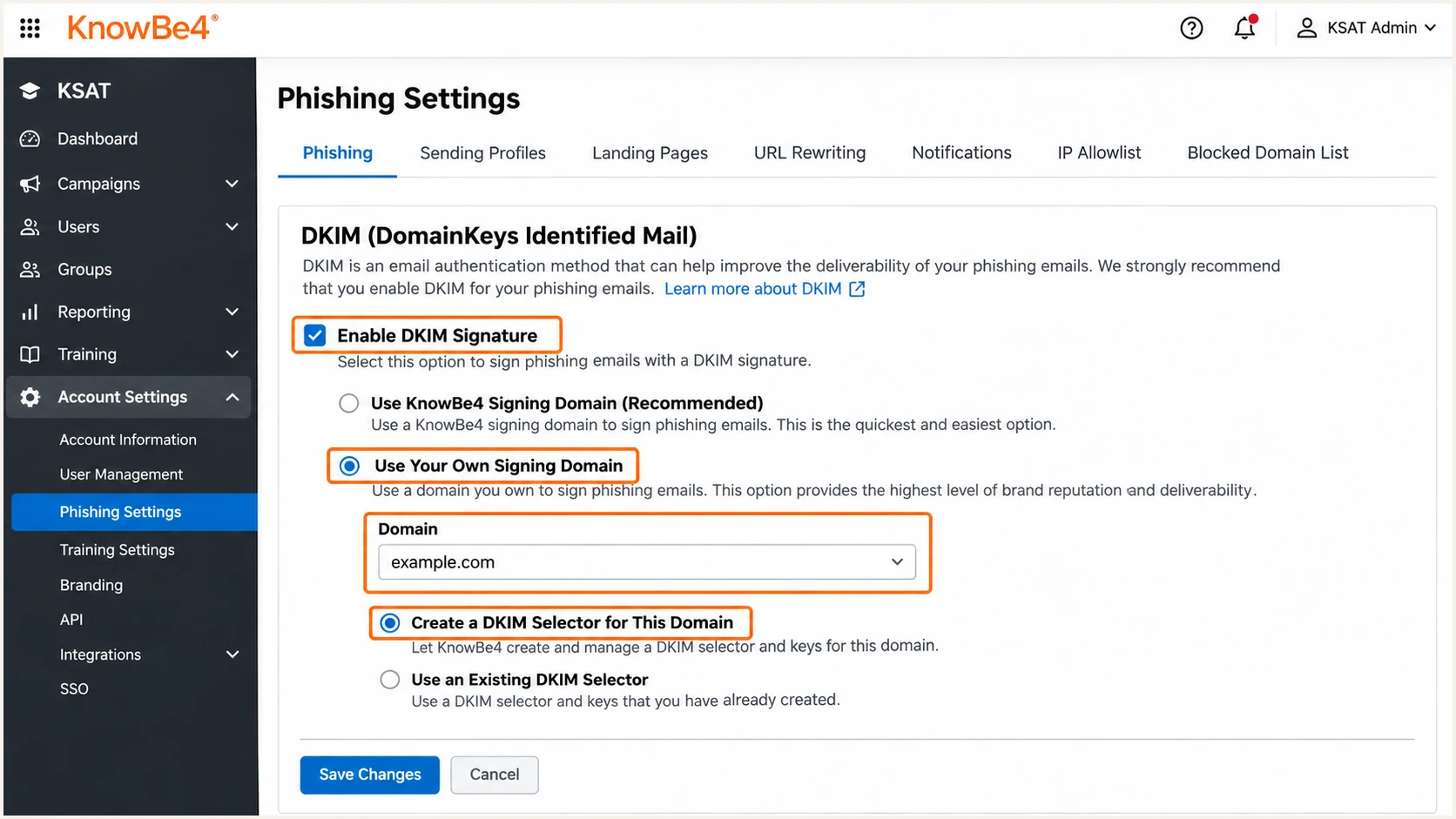
Illustrative KnowBe4 controls for creating a custom DKIM selector.
Preserve existing DKIM selectors used by other senders. If your DNS host splits a long TXT value into quoted chunks, those chunks must remain parts of one TXT record.
After DNS publication, inspect a fresh message for the actual signing domain and selector. A successful DNS validation does not prove that KnowBe4 has selected that domain for every campaign.
Check Microsoft 365 advanced delivery first
KnowBe4's Microsoft Defender advanced delivery instructions specify Use KnowBe4's Signing Domain. If you follow that delivery method, retain its required signing domain rather than changing the simulation configuration blindly. Use matching SPF for your own From domain where applicable, and validate the delivered message.
Simulation delivery exceptions and DMARC authentication are separate controls. Keep exceptions specific to authorized KnowBe4 simulations; do not disable domain-wide DMARC enforcement to deliver a test.
Set up DMARC
DMARC is a DNS policy for the domain in the visible From address. There is no separate DMARC switch to enable in KnowBe4. I inspect the existing policy before publishing anything.
- Check the policy: Look up TXT at _dmarc.example.com. For a From subdomain, check its own DMARC name and the organizational domain policy that applies if no subdomain record exists.
- Start with monitoring: If you have no existing policy, publish the p=none record below. Replace the example report mailbox with a destination you control.
- Keep enforcement: If p=quarantine or p=reject is already deployed, keep it. Repair KnowBe4 authentication instead of downgrading your domain's policy.
- Keep one record: Edit the existing DMARC record rather than adding another. Retain working reporting destinations and confirm that any external report destination authorizes your domain.
Initial DMARC TXT value at _dmarc.example.comtext
v=DMARC1; p=none; rua=mailto:dmarc@example.com
Use the DMARC record generator to build the TXT value for your real domain and reporting destination. The example mailbox is a placeholder, and p=none requests monitoring without DMARC-based enforcement.
Check the published policy after saving DNS. Keep relaxed domain matching unless you have confirmed that every legitimate sender supports your stricter requirements.
DMARC checker
Look up a domain's DMARC record and catch policy issues.
?/7tests passed
The checker validates the DNS policy. The next step verifies whether real KnowBe4 messages satisfy it.
Verify and troubleshoot
I test a simulation and a training notification with the same From domain planned for production. Use an authorized test recipient, then read the receiving system's original message headers.
- Send fresh tests: Use a small KnowBe4 campaign and a separate training notification. Repeat for each From domain and any Reply-to campaign variant.
- Read receiver results: Look for spf=pass, dkim=pass, and dmarc=pass in the receiving system's Authentication-Results header. DMARC needs one passing mechanism with the required domain match.
- Check the DKIM key: Read d= and s= in DKIM-Signature. Query the TXT record at the selector under _domainkey on that signing domain, and compare it with the generated record.
- Separate delivery failures: Inspect rejection codes and message traces. Authentication does not guarantee delivery of security training content, and an allowlisted delivery does not guarantee a DMARC pass.
Illustrative results with matching SPF and DKIM domainstext
From: training@example.com
Return-Path: <training@example.com>
Authentication-Results: receiver.example;
  spf=pass smtp.mailfrom=example.com;
  dkim=pass header.d=example.com;
  dmarc=pass header.from=example.com
|
|
|---|---|
SPF passes, DMARC fails | Return-Path domain |
DKIM key missing | Selector and DNS name |
DKIM signature fails | Key and message changes |
DMARC passes, mail blocked | Delivery policy and trace |
Use the original received message to select the next check.
The email tester gives you a destination address and a full diagnosis after receiving a test message. It is a quick verification route when the sending account permits that destination as an authorized recipient.
KnowBe4 restricts recipients to allowed domains. If it cannot send directly to the generated address, use your verified test mailbox and inspect its original headers. Forwarding that message to the tester changes the SPF delivery path.
Email tester
Send a real email to this address. Suped shows a results button when the test is ready.
?/43tests passed
For Direct Message Injection, inbox arrival is not a test of normal SMTP authentication. Validate the delivery method you actually use, and run an SMTP test when you need to prove SPF and DKIM behavior.
Get alerted when it breaks
I keep monitoring after a successful test because DNS changes and campaign settings can break authentication later. Suped is our DMARC reporting and email authentication platform for tracking those failures and investigating the affected source.
- Identify KnowBe4: Inspect source IPs, DKIM domains, and Return-Path domains in Suped's source and detail views. Verify the source only after confirming that it belongs to your authorized campaigns.
- Enable issue emails: Turn on Issues detected notifications so new authentication problems reach the team responsible for DNS and KnowBe4 settings.
- Review new sources: Enable Sending sources need verification notifications. Investigate unfamiliar infrastructure before treating it as legitimate KnowBe4 traffic.
- Track recurring changes: Enable DMARC summary emails. Compare failures with campaign dates and use DNS history to investigate SPF, DKIM, or policy changes.
Suped's DMARC monitoring connects report data with issue diagnostics and fix steps. For this workflow, that gives the team ongoing evidence beyond the initial KnowBe4 test.
DMARC aggregate reports arrive on receiver schedules, commonly daily. Notifications based on those reports follow ingestion and detection; they do not provide an instant alert for every failed message.
Check report coverage
Not every receiver sends DMARC reports. Keep KnowBe4 delivery tests and receiver message traces alongside Suped's report-based monitoring, particularly for internal simulations or injected messages.
Secure your domain with p=reject
I move to p=reject after legitimate sending paths pass DMARC, including the KnowBe4 message types that use our domain. Suped supports that decision with source verification, failure details, and policy management.
- Inventory every sender: Review all services sending with your domain, not only KnowBe4. Verify the authorized sources and investigate their domain-matching failures.
- Cover real activity: Observe a complete business sending cycle, including infrequent notifications. Require passing, matching SPF or DKIM for each legitimate path instead of waiting for all unauthorized traffic to pass.
- Stage enforcement: Move a new monitoring policy to quarantine after fixing legitimate failures. Re-test KnowBe4 simulations, training notifications, and Reply-to variants before moving to reject.
- Review subdomains: Check explicit subdomain policies and the sp setting. Confirm the policy that applies to each actual From domain.
- Keep reporting active: Retain rua when changing p. Investigate new legitimate failures after enforcement rather than removing protection for the whole domain.
Authenticated company-domain mail
A passing SPF or DKIM result with the required From-domain match satisfies DMARC. This includes correctly configured KnowBe4 mail using your own domain.
Intentional simulation exceptions
A simulation using an unrelated From domain is governed by that domain's policy. Use the mail provider's scoped simulation delivery controls; changing your domain's DMARC record does not authenticate that external domain.
Suped's Hosted DMARC lets the team stage policy changes through the dashboard after the initial DNS setup. Use the source evidence to decide when to change policy, then verify the published result and fresh KnowBe4 messages.
If you manage DMARC directly in DNS, update the existing TXT record. The example below assumes all legitimate paths have been validated and the report mailbox has been replaced.
Enforcement DMARC TXT value at _dmarc.example.comtext
v=DMARC1; p=reject; rua=mailto:dmarc@example.com
Frequency asked questions
KnowBe4 uses psm.knowbe4.com and region-specific infrastructure names including ispservices.org, ispservices.co.uk, ispservices.net, mailserver-status.com, and online-login-portal.com. These names appear in its published simulation delivery guidance. Confirm the source IP and message headers against your account's current regional requirements; an rDNS name alone is not authorization.
DMARC passes with a passing DKIM signature whose signing domain matches the From domain under your policy. SPF domain matching is then optional for DMARC. If you keep KnowBe4's default Return-Path, expect SPF domain-matching failures for your own From domain even when SPF itself passes.
SPF checks the envelope sender, usually shown in Return-Path. A pass for psm.knowbe4.com does not authenticate example.com in From. Enable the sender-address Return-Path setting and authorize KnowBe4 in the relevant SPF record, or configure a passing custom DKIM signature that matches your From domain.
No. The ownership TXT record verifies domain control. Custom DKIM requires its own generated selector and TXT record, followed by validation and saving the KnowBe4 settings. Configure simulations and training notifications separately.
Keep an existing reject or quarantine policy. Fix authentication for messages using your domain, and use the receiving platform's specific simulation delivery controls where needed. Test the configured delivery route; do not treat a delivered, allowlisted simulation as proof of DMARC authentication.




