
How to set up DMARC/DKIM/SPF for Kit

Published 21 Nov 2026
Updated 21 Nov 2026
10 min read
Summarize with
Set up Kit's Verified Sending Domain, publish the CNAME records it generates for SPF and DKIM, then add one DMARC TXT record for your sending domain. Kit supports a custom Return-Path, so SPF can pass with your own domain. You do not need a Kit include in your root SPF record for this setup.
I check the DNS records and a delivered message before changing DMARC enforcement. A verified domain in Kit and passing authentication on real mail are separate checks.
Add your domain
Use a domain you control and open the DNS account responsible for its authoritative nameservers.
- Confirm the sender. Open Settings > Email > Add From Address. Enter your sender name and address, then click the verification link Kit emails to that address.
- Open domain setup. In Settings > Email, find Verified Sending Domains. Choose Set up your Verified Sending Domain, or Add a Verified Sending Domain for an additional domain.
- Enter the domain. Use the domain after the @ in your From address, such as example.com or news.example.com. Click Next.
- Choose the setup. Use Set this up for me for automatic DNS configuration, or copy the generated records for manual setup. Publish every required record, then click Validate in Kit.
The navigation follows Kit setup instructions. Confirming a From address does not authenticate its domain.
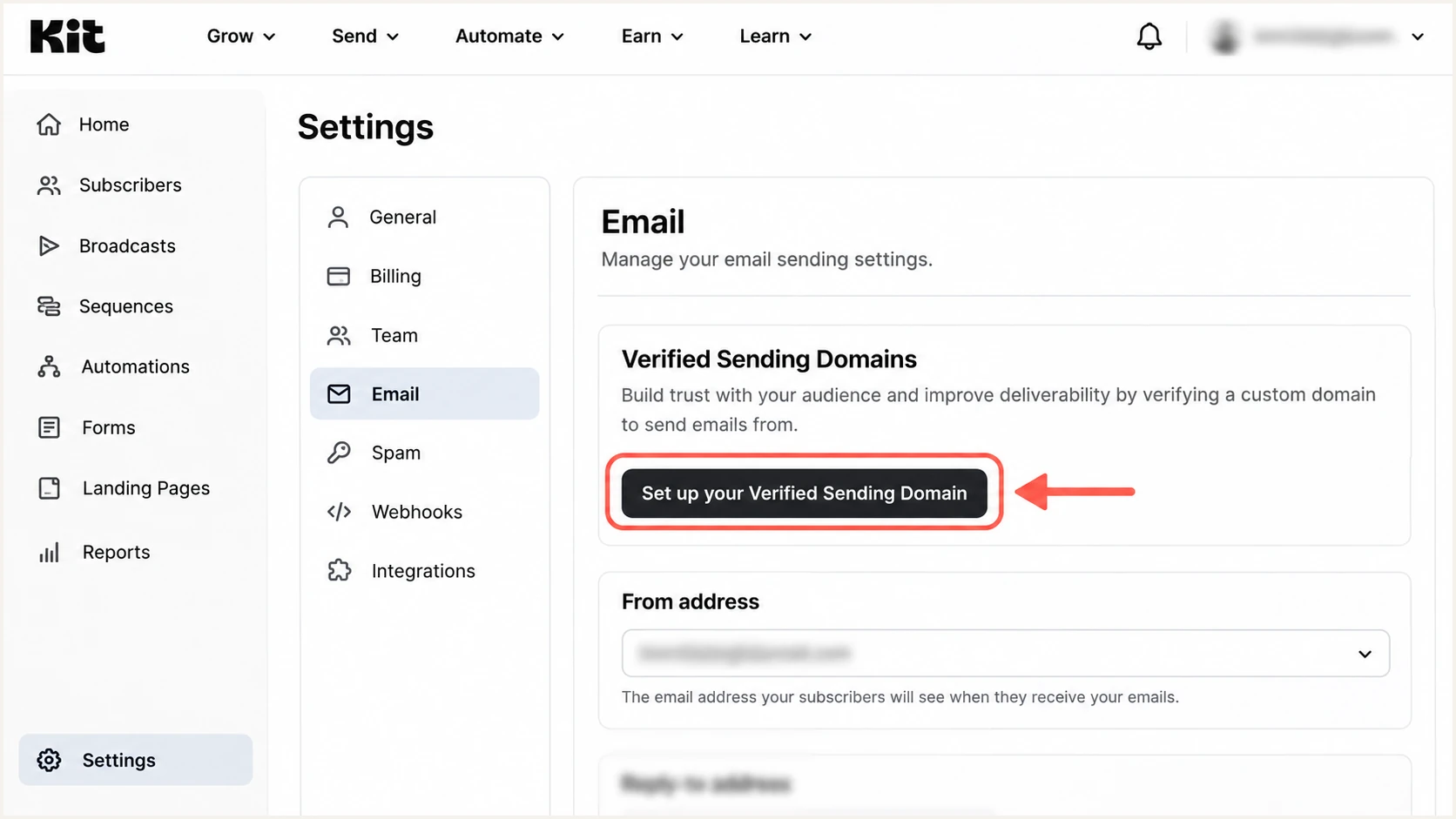
Illustrated Kit Email settings with the Verified Sending Domains setup action.
A Newsletter Site custom domain is a separate setting. Configure the sending domain under Email even when your Kit pages already use your domain.
Set up SPF
Kit delegates SPF through a CNAME on its custom Return-Path hostname. Keep your existing root SPF record for other senders.
- Copy the SPF row. Use the CNAME name and target generated in your Kit account. A documented hostname example is ckespa.example.com; your setup screen is authoritative.
- Publish the CNAME. At your DNS host, paste the target exactly. If the host appends example.com automatically, enter ckespa as the name. Keep the record DNS only if proxying is available.
- Avoid TXT conflicts. Do not add an SPF TXT record at a hostname that already has the Kit CNAME. Do not add a second SPF record at the root.
- Check the Return-Path. After validation, inspect a delivered message. Use its smtp.mailfrom domain for the SPF lookup, rather than assuming SPF is checked against your visible From domain.
Enter the Return-Path domain below, such as ckespa.example.com when that is what your message uses. The lookup should follow the CNAME to the SPF policy.
SPF checker
Find SPF syntax issues, lookup limits, and weak records.
?/16tests passed
This checks published SPF configuration. A received message is still needed to confirm that the actual sending IP passes SPF.
I keep relaxed SPF domain matching unless there is a specific requirement for strict matching. A Return-Path subdomain and a root From domain match under relaxed SPF alignment.
Set up DKIM
Publish Kit's generated DKIM CNAME records so receivers can retrieve the public key. Kit manages signing and the private key.
- Copy every selector. Add each DKIM row shown in your account. Kit documents cka._domainkey as one hostname example; use any additional selectors your account provides.
- Preserve the target. Use CNAME, copy the full target, and retain existing selectors used by other senders. Do not generate a replacement key for Kit.
- Validate in Kit. Return to Settings > Email and click Validate after DNS publication. Keep the CNAME records in place after verification.
- Inspect a signature. On delivered mail, check the DKIM-Signature d= domain and the receiver's dkim=pass result. The signing domain must match your From domain under your DMARC matching mode.
The selector in the signature's s= value identifies the DNS name to query. Do not assume a selector name when diagnosing a particular message.
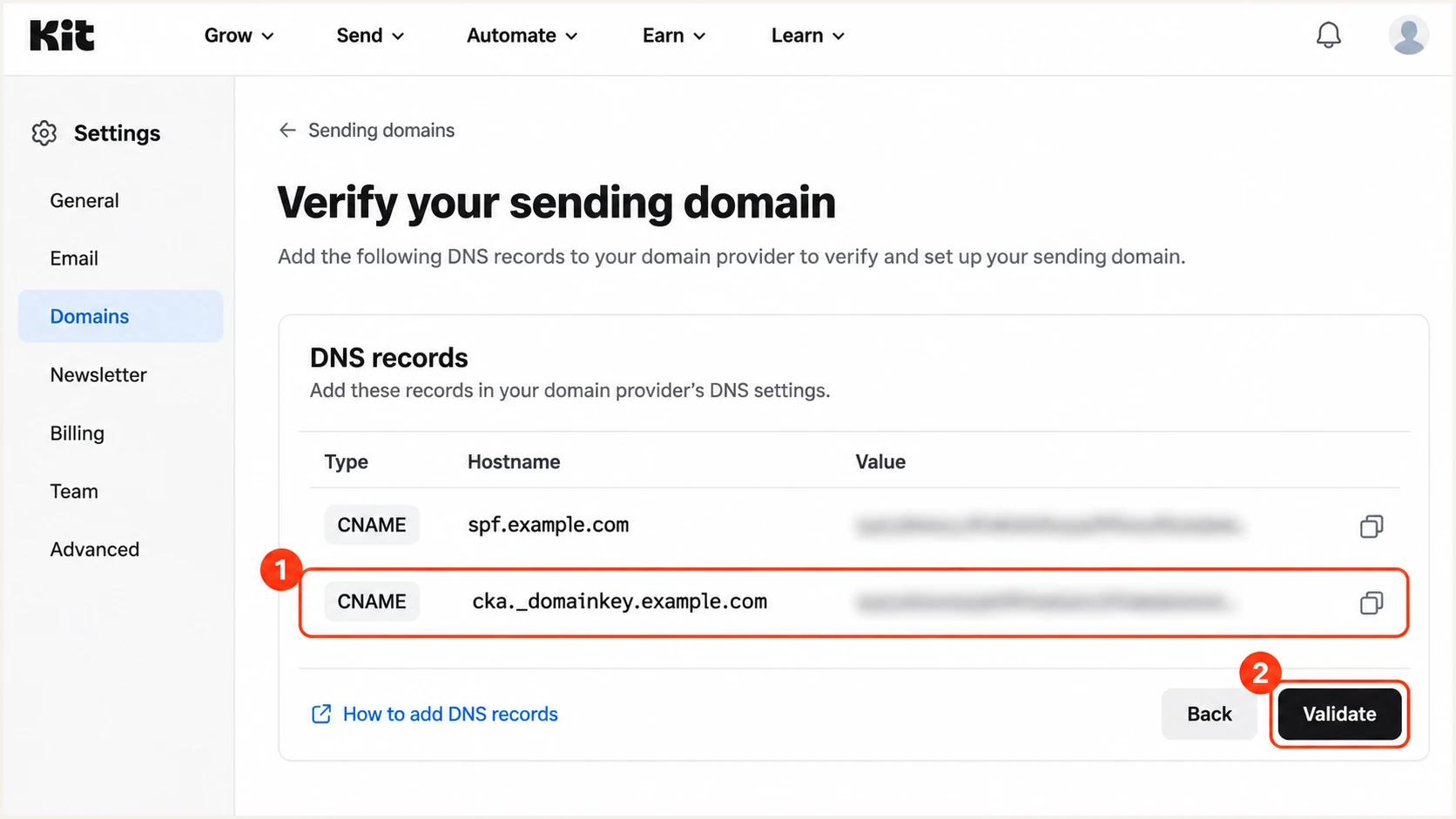
Illustrated Kit sending-domain screen highlighting a DKIM CNAME and Validate.
A passing signature on an unrelated domain does not satisfy DMARC for your domain. Check the signing domain as well as the pass result.
For multiple signatures, one passing signature with the required domain match is enough for the DKIM route to DMARC.
Set up DMARC
DMARC belongs in your DNS and applies to every sender using the covered From domain, including Kit.
- Check the current policy. Look up the existing DMARC record first. Keep p=quarantine or p=reject if already deployed; do not weaken an established policy to connect Kit.
- Start with monitoring. For a domain without DMARC, publish the p=none example below. Replace the example reporting mailbox with a working destination you control.
- Use the correct name. For From addresses at example.com, use _dmarc.example.com. For news.example.com, use _dmarc.news.example.com when publishing a separate subdomain policy.
- Keep one record. Edit an existing DMARC TXT record instead of creating another. In Kit, Show DNS records reveals the setup values; an omitted DMARC row can indicate an existing policy.
Initial DMARC record for example.comtext
Type: TXT
Name: _dmarc.example.com
Value: v=DMARC1; p=none; rua=mailto:dmarc@example.com
The exact starter value is illustrative: example.com is reserved for documentation. Create a real reporting mailbox or use the aggregate-report address assigned by your reporting service.
Use the visible From domain below to check the policy receivers discover. Subdomains without their own record can inherit an organizational-domain policy.
DMARC checker
Look up a domain's DMARC record and catch policy issues.
?/7tests passed
Return to Kit and click Validate after publication. Kit documents a 24-48 hour allowance for DMARC DNS changes to become visible.
A p=none policy requests reporting without requesting quarantine or rejection for DMARC failures. It is the observation stage before enforcement.
Verify and troubleshoot
I verify a message sent through Kit after DNS validation. This catches sender-domain mistakes that a DNS lookup alone misses.
- Create a test. Open Broadcasts > + New Broadcast. Add a short subject and body, then use Preview email to send a test to the address supplied by the email tester below.
- Confirm the sender. Check that the selected From address uses your verified domain. If the preview path differs, send a small Broadcast restricted to controlled test subscribers.
- Check the results. Require dmarc=pass. For Kit, also confirm spf=pass on its custom Return-Path and dkim=pass with the expected signing domain.
- Retest other mail. Repeat for a Sequence and any separate From domains you use. Do not assume one Broadcast proves every automated message uses the same configuration.
In Kit's Broadcast editor, Preview email opens the test-send flow. Keep tests restricted to addresses you control.
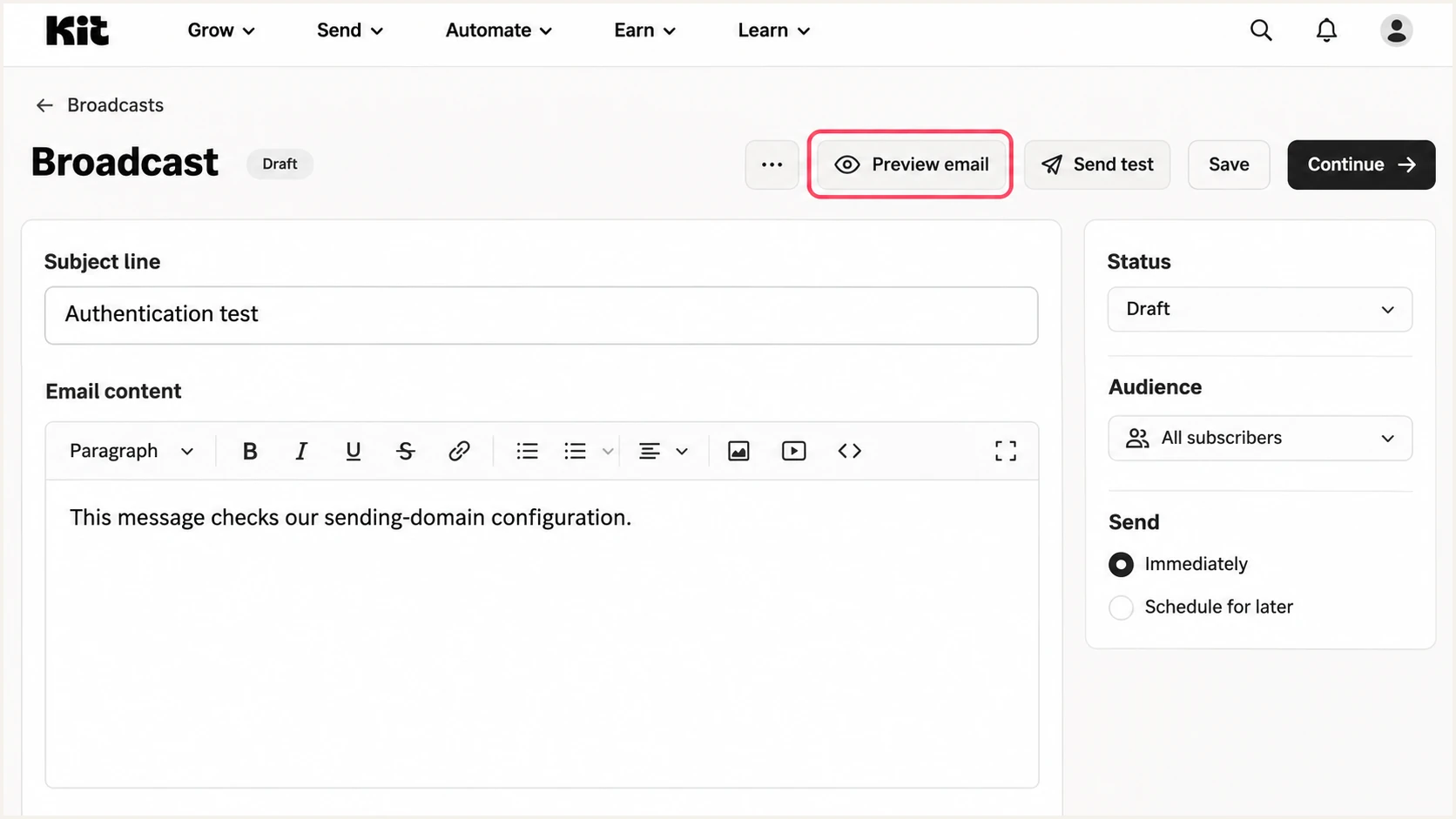
Illustrated Kit Broadcast editor showing the Preview email action.
The email tester prompts you to send a message to a unique test address and returns a full diagnosis of the received message.
Use that result to inspect authentication and domain matching together. This is the quickest check that the configuration works on a message sent through Kit.
Email tester
Send a real email to this address. Suped shows a results button when the test is ready.
?/43tests passed
If DNS validation fails, query the published names directly. Replace example.com and the selector below with the actual sending domain and signature selector.
A CNAME query checks the delegation. A TXT query checks the policy or key reached through it; neither command verifies a message signature.
Inspect the published authentication recordsbash
dig +short CNAME ckespa.example.com
dig +short TXT ckespa.example.com
dig +short CNAME cka._domainkey.example.com
dig +short TXT cka._domainkey.example.com
dig +short TXT _dmarc.example.com
Check for a duplicated domain suffix, a mistyped target, conflicting records, or proxying. Publish changes at the authoritative DNS host.
Treat authentication failures and delivery outcomes separately. A message that passes DMARC still faces reputation and content filtering.
|
|
|
|---|---|---|
Validation fails | DNS host and names | Correct CNAMEs |
SPF mismatch | Return-Path domain | Check delegation |
DKIM fails | Signature selector | Restore its CNAME |
DMARC fails | From domain match | Fix sender identity |
Pass, still spam | Engagement and complaints | Review list quality |
Common Kit authentication symptoms and the next check.
If a direct Kit send uses the shared Return-Path unexpectedly, revisit domain verification. Adding Kit to root SPF does not change the Return-Path domain.
Get alerted when it breaks
Kit validation checks setup at that moment. Our DMARC platform, Suped, uses ongoing aggregate reports to detect authentication problems after setup.
- Confirm reporting. Ensure your live rua destination routes aggregate reports into Suped. Keep Kit's authentication CNAMEs in place.
- Review Kit traffic. Find the Kit source, inspect SPF and DKIM results, and verify the source only after confirming it is authorized.
- Enable notifications. Turn on Issues detected and Sending sources need verification notifications. Enable DMARC summary emails for regular review.
- Investigate changes. Open the affected records, compare failing domains and selectors, then review DNS history. Restore changed records and test again through Kit.
Suped's DMARC monitoring brings source review, issue diagnosis, and notification workflows into one place.
Report timing matters
DMARC aggregate reports usually arrive daily. Suped can notify you when it detects an issue in available data; report-based alerts are not a live feed of every message.
I keep a baseline for legitimate Kit traffic so a new failure has context. Review individual sources when the domain-wide pass rate changes.
After a repair, send a fresh Kit test immediately, then confirm the improvement in subsequent aggregate reports.
Secure your domain with p=reject
Move to enforcement after legitimate senders consistently pass DMARC. Kit's verification status alone does not establish readiness for the whole domain.
- Audit every sender. Use Suped's source view to review Kit and every other service sending with the covered domain. Resolve failures before changing policy.
- Cover a full cycle. Include regular newsletters, automated messages, and less frequent legitimate mail. Choose the observation period around actual sending activity.
- Stage enforcement. Move through p=quarantine, monitor legitimate mail, then use p=reject. With Suped Hosted DMARC configured, manage these policy stages in the dashboard.
- Check domain matching. Keep relaxed matching unless strict matching is required and tested. A custom Return-Path subdomain does not exactly match a root From domain under aspf=s.
Our Hosted DMARC keeps policy changes and report review in the same workflow once the hosted DNS configuration is active.
Monitoring with p=none
Use aggregate reports to identify authorized sources and diagnose failures.
Receivers apply their own filtering; this policy requests no DMARC enforcement.
Enforcement with p=reject
Request rejection of messages that fail DMARC after legitimate sources are ready.
Keep reporting active and investigate new failures before changing policy again.
For a directly managed TXT record, preserve your reporting destination when changing p=. Check inherited subdomain coverage and any separate subdomain policies.
Publish the final example only after replacing its reporting address and confirming legitimate traffic passes. Do not create an additional DMARC record.
Final DMARC policy after successful validationtext
Type: TXT
Name: _dmarc.example.com
Value: v=DMARC1; p=reject; rua=mailto:dmarc@example.com
A p=reject policy requests rejection of failing mail; the receiving server still controls final handling. Passing DMARC does not guarantee inbox delivery.
Keep Suped notifications enabled after enforcement so new senders or DNS changes trigger investigation while the stricter policy remains in place.
Frequency asked questions
No. For the Verified Sending Domain setup, publish the generated SPF CNAME for Kit's custom Return-Path. Keep the root SPF record for services that actually use that domain as their SPF identity.
Yes. DMARC passes when DKIM passes with a signing domain that matches your From domain under the configured matching mode. SPF mismatch alone does not make DMARC fail. Kit supports a custom Return-Path, so investigate unexpected SPF mismatches; forwarding and strict SPF matching also affect the result.
Keep the existing policy. Authenticate Kit before sending through it, preserve your reporting destination, and edit the current record only when needed. Adding a second DMARC record is an error.
Kit, formerly ConvertKit, uses mail.kit.com for some sending-server reverse DNS names. Kit's August 2026 IP warming notice documents the pattern esp-pool-<pool_id>.ip[n].mail.kit.com. I use rDNS as an identification clue, then check the source IP and authentication results before treating traffic as authorized. Kit manages PTR records for its sending IPs.
Yes. Kit supports root domains and subdomains as Verified Sending Domains. Verify the domain used in your From address, publish its generated records, and check which DMARC policy covers that domain.
Authentication confirms domain authorization and message integrity checks. Inbox placement also depends on sender reputation and recipient behavior. Review complaints and inactive subscribers, and increase sending gradually after a domain change.




