
How to set up DMARC/DKIM/SPF for Kinsta


Publish DMARC in your domain's DNS, check Kinsta's SPF authorization, and verify the DKIM identity on a real message. Kinsta's built-in MailChannels relay signs email automatically but does not support DMARC alignment for your custom From domain. To pass DMARC as your domain, configure a separate SMTP sending connection with custom-domain authentication.
I start by checking which connection actually sends the WordPress email. These steps cover Kinsta's built-in transactional mail, not an SMTP plugin's separate sending service. Keep an existing quarantine or reject policy while fixing the sending connection.
Add your domain
If your site already has its custom domain configured, skip the website setup. I keep DNS at the existing authoritative provider unless a DNS migration is needed.
- Add: In MyKinsta, open Sites > your site > Domains > Add domain. Enter your domain and save.
- Verify: For a live-site migration, choose Avoid downtime. Publish the exact TXT and CNAME verification records MyKinsta supplies at your DNS provider. Confirm they show Detected.
- Point: Complete Point domain with the site-specific records shown. Confirm the checkmark in MyKinsta. Set the preferred website hostname as the primary domain if needed.
- Locate DNS: Check the domain's nameservers. Use MyKinsta > DNS management only when Kinsta hosts the authoritative zone; otherwise edit records at the current DNS provider.
Website verification does not verify a DKIM signing domain. Keep the site's domain verification records separate from the email authentication records below.
Preserve existing MX records and mail authentication records. Moving a website does not require moving its mailbox service or changing its nameservers.
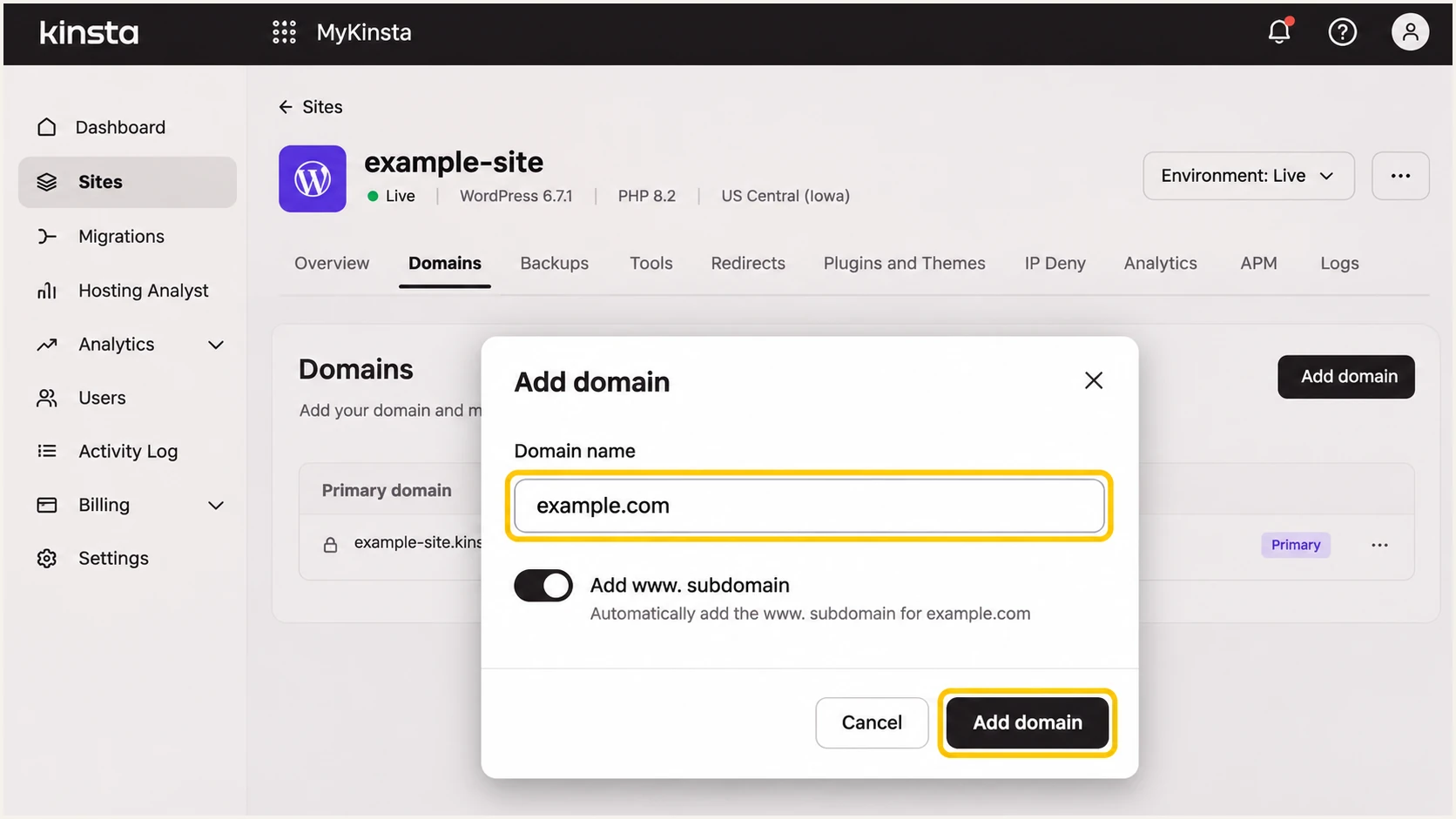
Add the website domain in MyKinsta before completing its verification steps.
Set up SPF
Kinsta's built-in relay has a fixed, provider-owned envelope sender, visible in Return-Path. SPF checks that domain. Adding Kinsta to your own SPF record cannot make the two domains match.
- Inspect: Find the existing TXT value beginning v=spf1 at the sending domain. Keep one SPF record per hostname.
- Authorize: Kinsta documents include:relay.kinstamailservice.com. If following that guidance, merge this term into the existing policy before its final all mechanism. Preserve other authorized senders.
- Publish: In MyKinsta DNS management, select the zone and edit its existing SPF TXT record, or use Add a DNS Record > TXT for a new one. Target the correct root or subdomain hostname.
- Validate: Check the resulting record for syntax errors and the 10 DNS-querying-term limit, including nested includes. Do not replace a working multi-sender policy with the example below.
Kinsta's documented SPF example, for a new policy onlytext
v=spf1 a mx include:relay.kinstamailservice.com ~all
An SPF change is not required to obtain a DMARC pass through matching DKIM. For Kinsta's fixed return path, I expect SPF alignment failures even when SPF authentication passes.
Use this lookup to inspect the domain's published policy. It checks DNS configuration; it cannot change the envelope sender used by Kinsta.
SPF checker
Find SPF syntax issues, lookup limits, and weak records.
?/16tests passed
A green SPF result does not establish DMARC compliance. Compare the actual message's envelope sender with its visible From domain before treating SPF as a passing DMARC mechanism.
Once a separate sending connection provides valid DKIM for your From domain, the remaining SPF alignment failure is acceptable for DMARC. That condition does not describe Kinsta's default custom-domain mail.
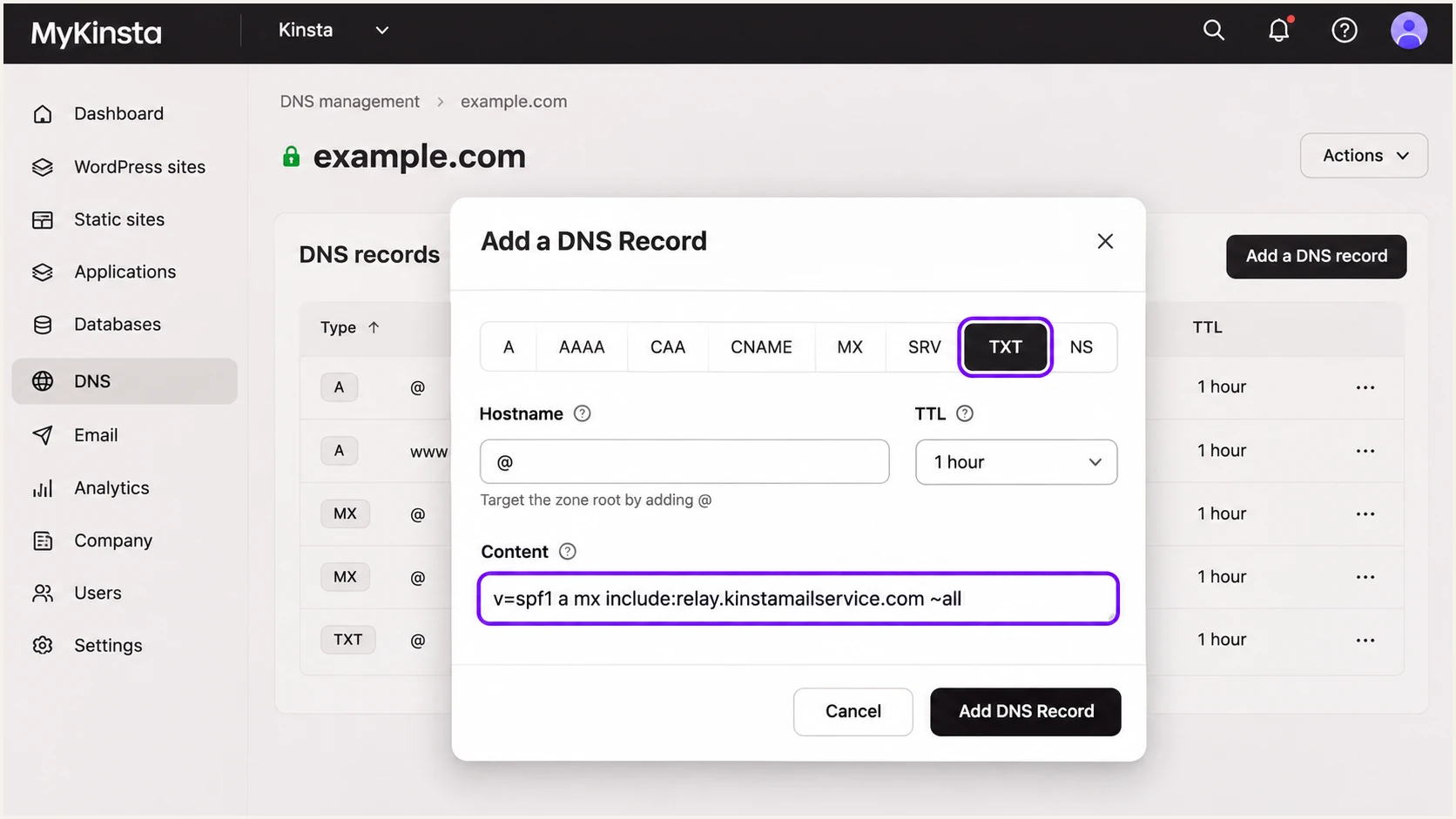
Create a new SPF TXT policy only when no SPF record already exists.
Set up DKIM
Kinsta enables DKIM automatically for its built-in relay. There is no custom-domain DKIM selector to activate in MyKinsta for that connection. I verify the signing domain rather than assuming that DKIM pass means DMARC pass.
- Send: Trigger a real WordPress message and inspect its DKIM-Signature header. Read d= for the signing domain and s= for the selector.
- Compare: Check d= against the visible From domain. A passing signature under kinstamailservice.com does not authenticate From: notifications@example.com for DMARC.
- Change transport: Use an SMTP account that supports DKIM with your domain. Enter its SMTP host, port, encryption mode, and credentials in the site's SMTP integration. Set From to your verified domain.
- Publish its key: Add the SMTP provider's exact DKIM TXT or CNAME records at your authoritative DNS host, complete verification there, and retest a message sent by the website.
With default relaxed DMARC settings, a DKIM signing subdomain under the same organizational domain also satisfies the domain relationship. Strict DKIM settings require an exact domain match.
Generating a DNS key alone does not make Kinsta sign with it. The sending system must hold the matching private key and use your domain in its signature.
Built-in Kinsta relay
Automatic DKIM and a fixed return path. Kinsta documents no custom-domain DMARC alignment for this route.
Custom-domain SMTP connection
Verify domain ownership and enable the sender's custom DKIM. Confirm a real website message passes DMARC before enforcement.
Retest password resets and any plugin that sets its own sender address after changing the transport. A plugin's test message alone does not prove that every WordPress workflow uses that connection.
Keep existing DKIM selectors for other senders. Multiple selectors are normal and do not conflict simply because they authenticate the same domain.
Keep working authentication records
Do not remove DKIM records or weaken an enforced DMARC policy to accommodate the default relay. Fix the site's sending connection so its messages authenticate with your domain.
Set up DMARC
I begin with monitoring for a domain that has no DMARC policy. If the domain already has p=quarantine or p=reject, retain that policy and update reporting without downgrading enforcement.
- Inspect: Look for the TXT record at _dmarc.example.com, replacing example.com with the visible From domain. Edit an existing record rather than adding another policy at the same name.
- Create: In MyKinsta DNS management, select the zone, click Add a DNS Record, select TXT, and enter _dmarc in Hostname for the root domain. For mail from a subdomain, use _dmarc followed by that subdomain label.
- Configure: For a new policy, use the monitoring record below. Replace dmarc@example.com with a working aggregate-report destination you control, then save.
- Confirm: Query the published hostname and verify that one valid DMARC policy is returned. Preserve existing tags when modifying an established configuration.
New DMARC TXT value at _dmarc.example.comtext
v=DMARC1; p=none; rua=mailto:dmarc@example.com
The example reporting mailbox is a placeholder. Aggregate reports are XML data; use a destination that accepts and processes them. An external reporting domain also needs the required reporting authorization.
Use our DMARC record generator to construct the TXT value, then check what DNS actually publishes below. Leave relaxed domain matching in place unless your organization deliberately requires strict matching.
DMARC checker
Look up a domain's DMARC record and catch policy issues.
?/7tests passed
A valid record confirms that receivers can discover your policy. It does not prove that the website's email passes DMARC; that requires a valid SPF or DKIM result with the required domain relationship.
The p=none policy requests monitoring without DMARC enforcement. It does not turn a failing message into a pass or guarantee that a recipient accepts it.
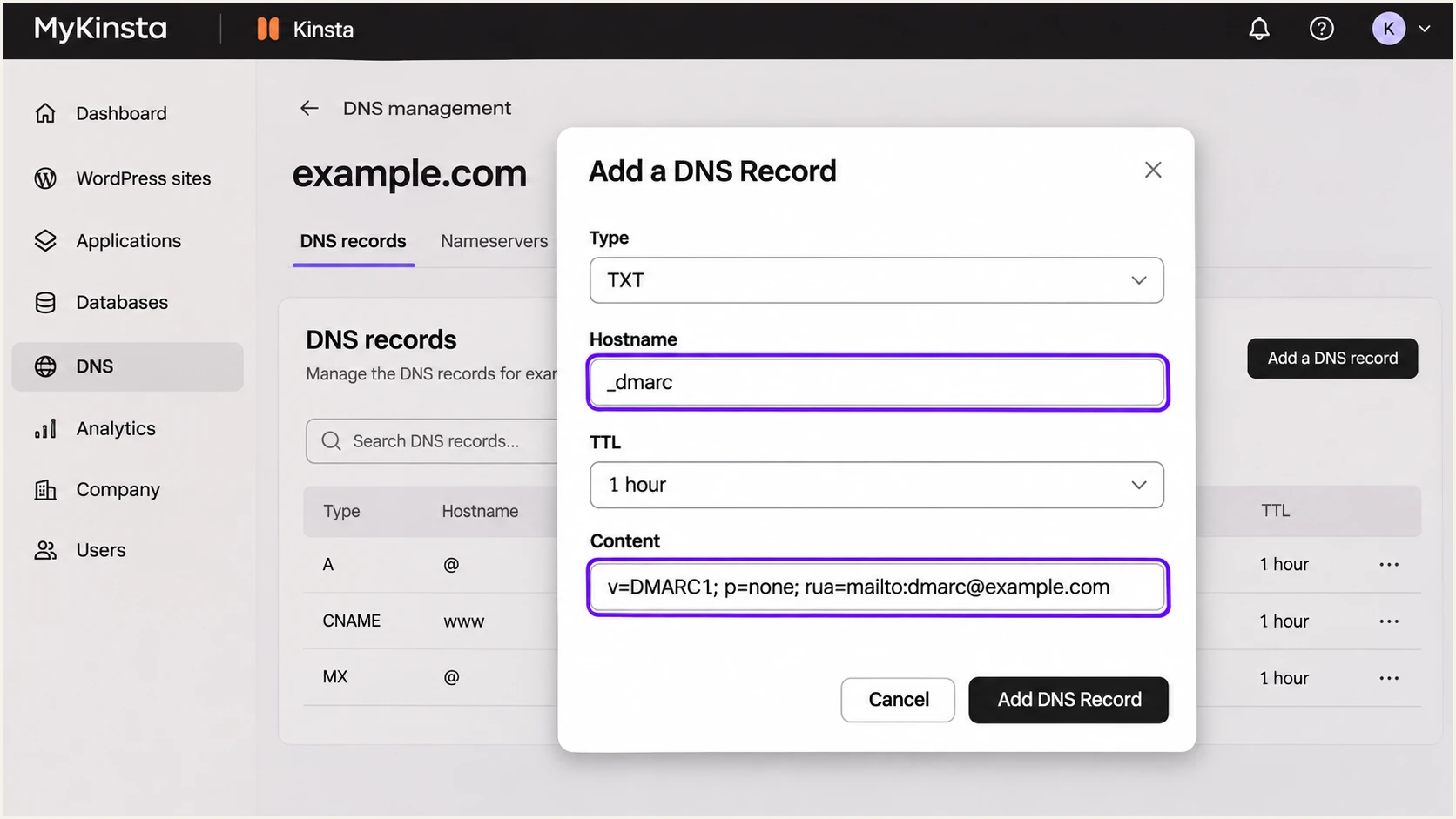
Add the monitoring DMARC TXT record at the _dmarc hostname.
Verify and troubleshoot
I check DNS first, then test the actual WordPress sending path. Replace example.com and selector in these commands with the domain and DKIM selector from your message.
- Query DNS: Confirm the authoritative nameservers and inspect SPF and DMARC TXT values. For DKIM, query selector._domainkey under the signature's d= domain.
- Test workflows: Send a password reset and a contact-form notification. For forms, use your own domain in From and put the visitor's address in Reply-To.
- Read results: Inspect the receiving server's Authentication-Results. Check SPF authentication, DKIM authentication, and the final DMARC result separately.
- Retest changes: Allow the previous DNS TTL to expire before testing again. Check the production site as well as staging if both send email.
DNS checks, substitute your actual namesbash
dig +short NS example.com
dig +short TXT example.com
dig +short TXT _dmarc.example.com
dig +short TXT selector._domainkey.example.com
dig +short CNAME selector._domainkey.example.com
The quickest message-level check is the email tester below. It gives you a destination address; send to it through the site's actual mail workflow to receive an authentication diagnosis.
Use that result to identify the sending domain and the DKIM identity together. Sending manually from your normal mailbox tests a different connection and does not verify Kinsta's WordPress mail.
Email tester
Send a real email to this address. Suped shows a results button when the test is ready.
?/43tests passed
For an SMTP route using custom DKIM, expect DKIM and DMARC to pass. SPF can authenticate the provider's envelope domain while failing the DMARC domain comparison; matching DKIM is sufficient.
For Kinsta's default relay, SPF and DKIM passes with provider-owned domains still leave a custom From domain failing DMARC. Repeated DNS edits cannot correct that transport limitation.
|
|
|
|---|---|---|
SPF permerror | Duplicate policies | Merge SPF records |
DKIM fail | Wrong key or selector | Check sender records |
DMARC fail | Domain mismatch | Fix signing domain |
No reports | Reporting destination | Check rua address |
Old DNS value | Cached record | Wait for prior TTL |
Match each symptom to the configuration that needs attention.
Get alerted when it breaks
Our platform, Suped, turns incoming aggregate reports into source-level authentication checks and issue notifications. I use those results to catch a website falling back to Kinsta's default relay after an SMTP configuration change.
- Enable notifications: Turn on Issues detected and Sending sources need verification notifications for the reporting domain. Add a DMARC summary for periodic review.
- Identify the source: Review the source table and verify known senders. Correlate unexpected sources with the site's mail configuration rather than relying on an IP address alone.
- Investigate: Open the affected records in Data view or Detail view. Compare the DKIM domain, envelope domain, and authentication results with a known-good website message.
- Resolve: Follow the detected issue's fix steps, correct DNS or the sending connection, and send another test. Check subsequent reports for recovery.
Suped's DMARC monitoring keeps the source history and diagnostics together, so a new failure can be compared with the connection that previously passed. This is useful after plugin changes or site migrations.
Aggregate reports arrive on the receiver's schedule, commonly daily. Alerts based on those reports are not instant notifications for every outgoing message; use a fresh test email to verify a repair immediately.
Monitor the expected failure pattern
A fixed return path is an expected SPF alignment failure. For a sender relying on custom-domain DKIM, investigate a lost DKIM pass or DMARC pass instead of broadening SPF authorization.
Secure your domain with p=reject
Move to p=reject only after every legitimate sending workflow has a verified path to DMARC pass. Kinsta's default relay must be replaced for custom-domain mail before that traffic can satisfy this requirement.
- Inventory: In Suped, review each sending source across a representative business cycle, including infrequent scheduled mail. Verify ownership before treating any source as legitimate.
- Repair: Move website mail to a connection with passing custom-domain DKIM. Retest plugin-specific From addresses and eliminate unintended fallback to the built-in relay.
- Stage: For a domain starting at none, use quarantine as an intermediate policy when needed. Review legitimate failures and business workflows before advancing; no single pass-rate percentage proves readiness.
- Enforce: Change the existing policy to reject, retain reporting, and review subdomain coverage. With Suped's Hosted DMARC, manage policy changes after its DNS delegation is configured.
- Watch: Keep Suped issue notifications enabled and inspect new sources before allowing them. If a legitimate workflow breaks, correct its authentication and repeat the message-level test.
Final policy example, after verifying all legitimate senderstext
v=DMARC1; p=reject; rua=mailto:dmarc@example.com
Replace the example reporting address with your real destination. Retain any intentional subdomain policy and domain-matching settings from the existing record rather than copying over them blindly.
Suped's Hosted DMARC connects policy management with the source data used to justify each change. I require verified sending behavior before advancing enforcement, including after a Kinsta migration.
Frequency asked questions
Kinsta documents that its built-in transactional relay does not support custom-domain DMARC alignment. Use a separate SMTP connection with verified custom-domain DKIM, then test email sent through WordPress.
No. The documented include authorizes Kinsta in the SPF policy where you publish it, but it does not change the fixed envelope sender. SPF is evaluated against that envelope domain, so this edit cannot fix the custom From domain mismatch.
Yes, when a valid DKIM signature uses your From domain or satisfies its configured DMARC domain relationship. DMARC needs one passing mechanism with the required domain match. Provider-domain DKIM alone does not satisfy that requirement for your brand domain.
Keep working DKIM selectors and retain existing quarantine or reject enforcement. Change the website's sending connection so it authenticates correctly. Removing DNS keys does not make a provider-owned signing domain match your domain.
No. It requests monitoring without DMARC enforcement. The message still fails DMARC if neither SPF nor DKIM passes with the required domain relationship, and receiving systems still apply their own filtering rules.




