
How to set up DMARC/DKIM/SPF for Joker.com

Published 22 Nov 2026
Updated 22 Nov 2026
11 min read
Summarize with
For Joker Mailboxes, verify the automatically created SPF and DKIM records, or publish the mailbox records manually at your DNS host. Then add a DMARC TXT record at _dmarc for your sending domain. Start a new policy with p=none; keep an existing quarantine or reject policy.
I check the actual sending service first. A domain registered at Joker.com still needs the authentication records of whichever server sends its email. The mailbox values below apply to Joker Mailboxes, including applications that send through its authenticated SMTP service.
Add your domain
Use the domain already in your Joker.com dashboard. The published mailbox setup uses mailbox provisioning and DNS records, with no separate sender-verification token. If the domain is absent, complete its registration or transfer before ordering Joker Mailboxes.
- Open the domain. Sign in and locate its dashboard row. Open DNS to manage records, or Mailbox to manage its email service.
- Create a mailbox. If needed, choose Mailbox, Create, a plan and mailbox name, Add, Checkout, then Order. Skip this purchase for an existing mailbox.
- Check DNS authority. Run dig +short NS example.com. Edit records at the active DNS host if it is outside Joker.com; changing registrar settings alone will not publish them.
- Verify access. In Mailbox management, set the mailbox password. Sign in to Joker webmail and confirm you can send using the intended From address.
Joker.com's mailbox instructions describe automatic SPF and DKIM publication on its nameservers, with manual intervention for existing conflicting records. Its Joker.com FAQ also documents DNS management.
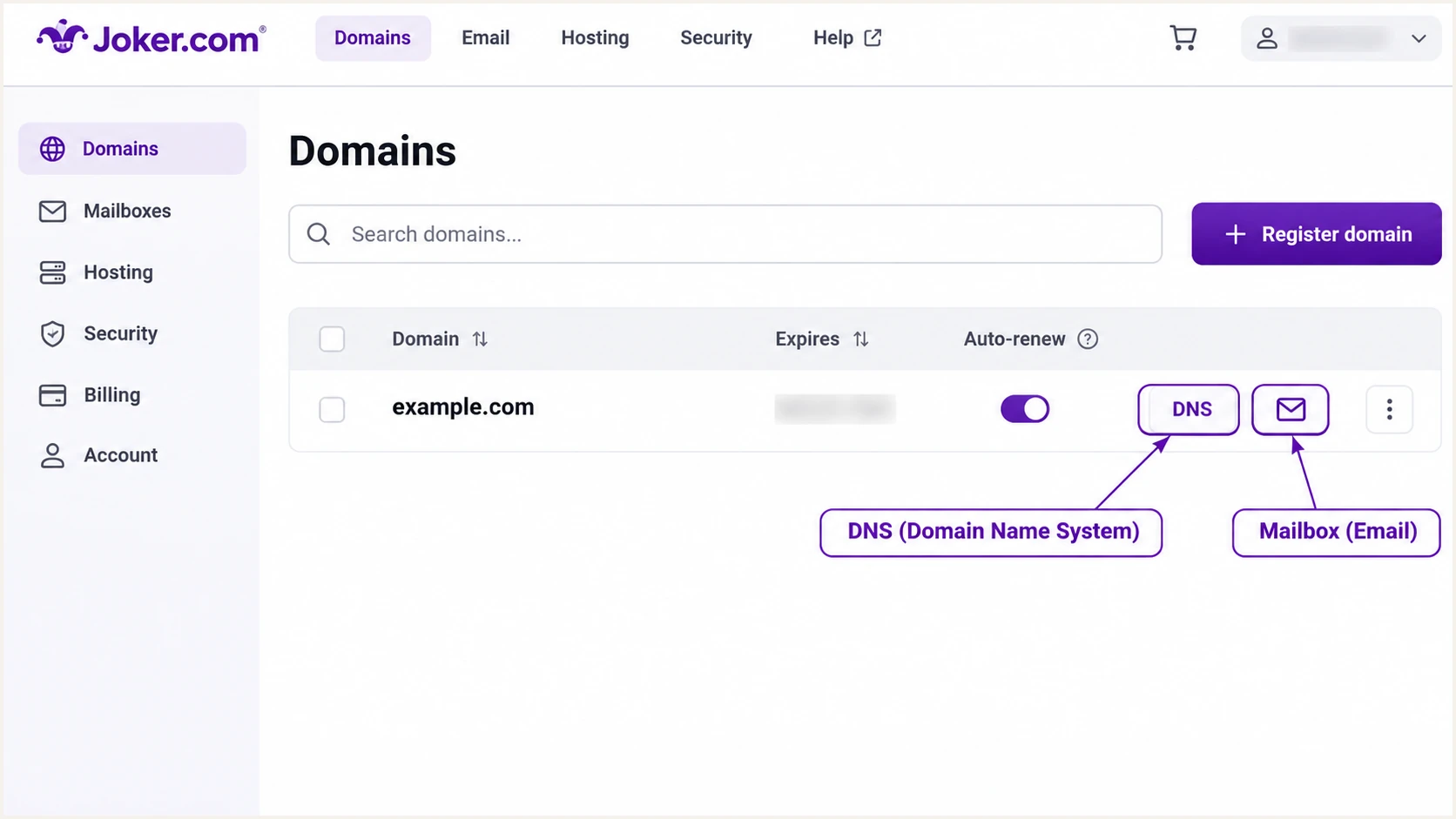
Open DNS or Mailbox beside your domain in Joker.com.
For a planned move of incoming email to Joker Mailboxes, its documented MX destination is smtp.joker.email with priority 10. Publish it only after confirming the mailbox is ready and the previous inbox migration is complete.
MX record for a planned Joker Mailboxes migrationdns
example.com. IN MX 10 smtp.joker.email.
An MX change routes incoming email. Adding SPF, DKIM or DMARC to an existing sending setup does not require replacing its MX records or changing nameservers.
Set up SPF
Joker Mailboxes uses include:_spf.joker.email. Joker.com's general nameservice instructions mention include:_spf.joker.com for separate Joker.com mail handling. Use the mailbox-specific value for this setup.
- Find the policy. Open DNS and inspect the TXT records at the domain root. Keep exactly one record beginning v=spf1 at each name.
- Update the TXT. For Joker Mailboxes only, use the value below. With other active senders, add the mailbox include to the existing policy before its final all mechanism.
- Save the change. For a new root TXT record, leave the subdomain empty, enter the Content, click Add, then Save changes. Edit the existing row when a policy already exists.
- Set the envelope sender. If your application exposes SMTP MAIL FROM, use your authorized mailbox address on the From domain. Check the received Return-Path to confirm the relay used it; do not add a Return-Path header manually.
- Check the limit. Keep SPF evaluation within 10 DNS-querying terms, including nested includes. A record that exceeds the limit returns permerror.
Root TXT record when Joker Mailboxes is the only senderdns
example.com. IN TXT "v=spf1 include:_spf.joker.email -all"
I preserve other authorized senders when editing SPF. Replacing their policy with the Joker-only example would remove their authorization. Keep one final all mechanism, and retain the existing ending while reviewing a shared policy.
Enter the domain in the SPF checker after saving. Check its syntax and recursive lookup count, then confirm the actual Return-Path domain in a test message. SPF is evaluated against that domain, rather than automatically against the visible From address.
SPF checker
Find SPF syntax issues, lookup limits, and weak records.
?/16tests passed
A successful DNS check confirms publication. A real email test confirms whether the sending IP is authorized by the policy evaluated for that message.
For SPF to count toward DMARC, its authenticated domain must match the visible From domain under the DMARC domain-matching rules. If that match fails, a passing DKIM signature with the required domain match can still make DMARC pass.
Set up DKIM
Joker Mailboxes delegates DKIM through two CNAME selectors. Check both entries, including when Joker.com created them automatically. Publishing a public key unrelated to the mailbox signing key will not authenticate its messages.
- Open DNS. Inspect the existing jokermail1._domainkey and jokermail2._domainkey entries before adding anything.
- Publish both aliases. Create the two CNAME records below if missing. Enter the selector host relative to your domain when the editor appends the domain automatically.
- Remove conflicts. A CNAME owner cannot also have a TXT record. Resolve a conflict at that exact selector without deleting unrelated DKIM selectors.
- Verify signing. Send a message and inspect DKIM-Signature. Check its s= selector and d= domain, then confirm dkim=pass in the receiving server's Authentication-Results.
DKIM CNAME records for Joker Mailboxesdns
jokermail1._domainkey.example.com. IN CNAME jokermail1._domainkey.joker.email.
jokermail2._domainkey.example.com. IN CNAME jokermail2._domainkey.joker.email.
Use the two targets exactly as shown, with your domain on the left side. In a DNS editor that appends the zone name, the host is only jokermail1._domainkey or jokermail2._domainkey.
I verify the signature on an outgoing message after checking DNS. The CNAME records let receivers find Joker's public keys; the sending server must also sign the message with the matching private key.
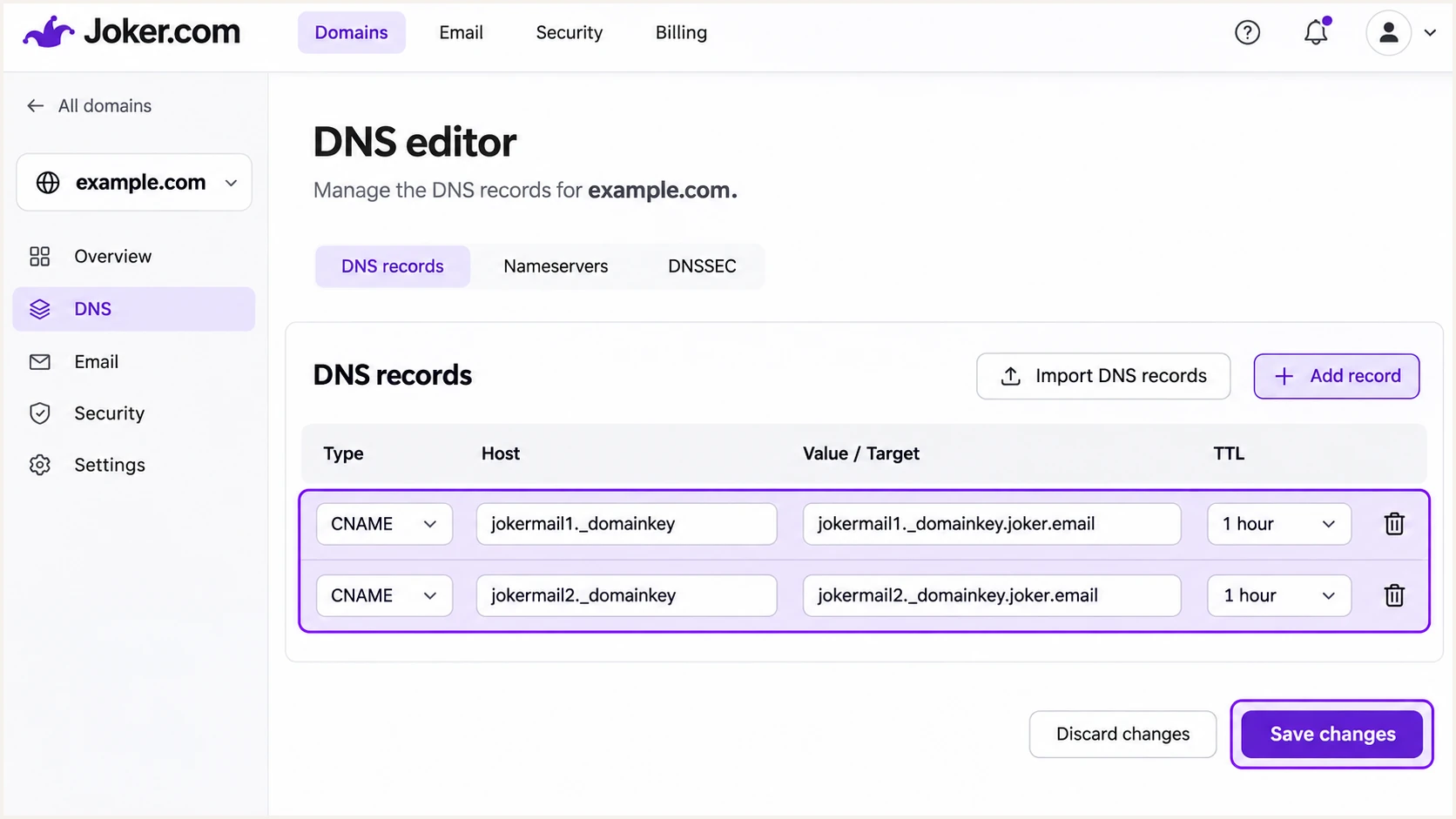
Verify both Joker Mailboxes DKIM CNAME records in the DNS editor.
For a message with From: hello@example.com, look for a passing signature whose d= domain matches example.com under your DMARC settings. A valid signature using an unrelated provider domain is insufficient for DMARC.
A website using a different SMTP server needs that server's DKIM setup. The domain's registrar and DNS host do not determine which private key signs an application's email.
Joker Mailboxes
Use the mailbox CNAMEs above. Send through Joker webmail or its authenticated SMTP service so the mailbox infrastructure handles signing.
Another sending server
Use the actual sender's selector records and enable signing there. Publish those records in Joker DNS only when Joker.com hosts the authoritative zone.
Set up DMARC
Publish DMARC for the domain in the visible From address. I check its existing policy before editing: preserve p=quarantine or p=reject when either is already working.
- Check for duplicates. Look up TXT records at _dmarc.example.com. Edit the existing DMARC policy instead of publishing a second one.
- Create the host. In Joker DNS, select TXT, enter _dmarc as the subdomain and paste the policy into Content. Click Add, then Save changes.
- Start monitoring. For a domain without an existing policy, start with the exact example below and replace its reporting address before publishing.
- Generate the value. Use the DMARC record generator to configure the policy and reporting destination.
Starting DMARC TXT value at _dmarc.example.comdns
v=DMARC1; p=none; rua=mailto:dmarc@example.com
Replace dmarc@example.com with a reporting mailbox or collection address you control. The example address is a placeholder. An external reporting destination also needs authorization by the destination domain where required.
The p=none policy requests monitoring without DMARC enforcement. It does not make authentication pass, and receivers still apply their own spam and abuse controls.
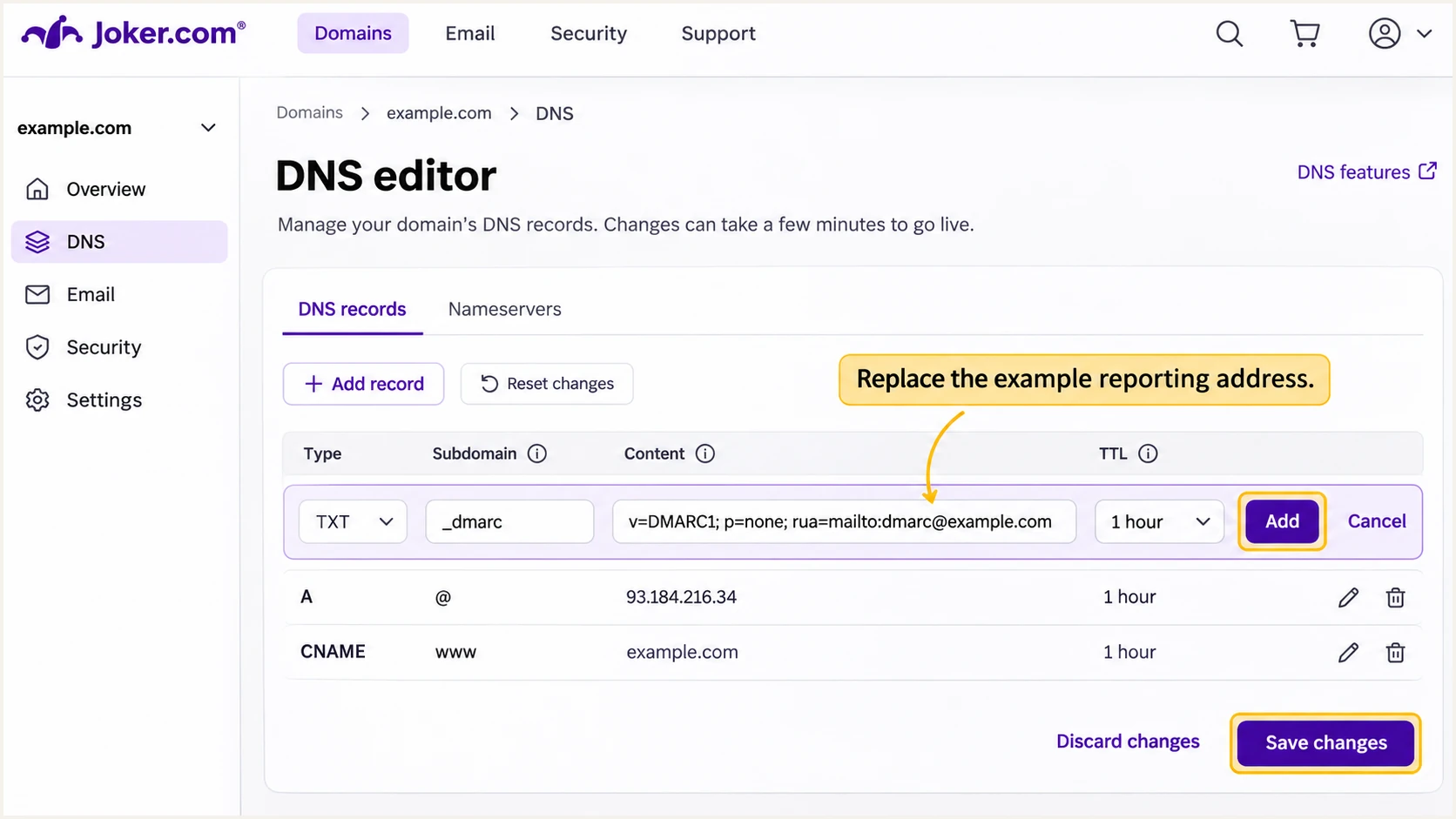
Add a DMARC TXT record under _dmarc and save the DNS change.
Verify that the saved host resolves as _dmarc.example.com. An editor that appends the domain automatically must not receive _dmarc.example.com as a relative host, which would create a duplicated domain name.
Run the DMARC checker against the sending domain once the change is visible in DNS. Check that it finds one valid policy and the intended reporting destination.
DMARC checker
Look up a domain's DMARC record and catch policy issues.
?/7tests passed
A passing checker result validates the published policy. It does not prove that messages sent by your mailbox or application pass DMARC.
DMARC passes when at least one of SPF or DKIM passes and its authenticated domain matches the From domain under the policy's domain-matching rules. Both mechanisms do not have to pass for every message.
Verify and troubleshoot
I send a test through the same mailbox or application used in production. A successful webmail test does not validate a contact form that sends through a different server.
- Check published DNS. Run the commands below using your domain. Confirm the SPF policy, both DKIM aliases and the DMARC record.
- Check application SMTP. For applications using Joker Mailboxes, use smtp.joker.email on port 587 with STARTTLS and the mailbox credentials. Avoid unintentionally sending through the web server's local mail service.
- Inspect received results. Use the trusted receiving server's Authentication-Results. Require dmarc=pass and identify which matching SPF or DKIM result produced it.
- Test each path. Repeat for mailbox aliases and application notifications. Recheck after cached DNS answers expire if results still show old values.
DNS verification commandsbash
dig +short TXT example.com
dig +short CNAME jokermail1._domainkey.example.com
dig +short CNAME jokermail2._domainkey.example.com
dig +short TXT _dmarc.example.com
The email tester is the quickest message-level check here. It prompts you to send a test email and returns an authentication diagnosis for that message.
Send to its generated address through the real production path. This checks the delivered message, including the signing domain and Return-Path, rather than relying on DNS configuration alone.
Email tester
Send a real email to this address. Suped shows a results button when the test is ready.
?/43tests passed
If SPF domain matching fails but matching DKIM passes, DMARC can still pass. Keep DKIM working, particularly for forwarded mail, where SPF often fails after the sending IP changes.
Aggregate reports arrive asynchronously after receivers process traffic. Confirm the reporting address works and review incoming reports; a new policy does not immediately produce a complete sender inventory.
|
|
|
|---|---|---|
SPF permerror | Duplicates or limits | Merge and recount |
DKIM fail | Key or message issue | Selector and signature |
DMARC fail | No matching pass | From-domain match |
No reports | Delay or bad address | Reporting destination |
Common authentication failures and the next check.
Get alerted when it breaks
Suped is our DMARC and email authentication platform. For a Joker.com setup, it turns received reports into source-level issues and fix steps, so you can catch a broken selector or an unexpected sender after the initial DNS work.
- Enable issue notifications. In Suped's Notifications settings, enable Issues detected emails and confirm the notification recipients.
- Review unfamiliar sources. Enable Sending sources need verification notifications. Check an unfamiliar source against your actual applications and message headers before verifying it.
- Trace DNS changes. Use Suped's DNS history to compare previous and current records when authentication deteriorates after a Joker DNS edit.
- Keep a recurring review. Enable DMARC summary emails. Investigate persistent failures for known senders even when the overall pass rate looks healthy.
Our DMARC monitoring workflow combines these reports with automated issue detection. I investigate failures for verified sending sources first, then separate them from unauthorized traffic.
Reporting has a delay
DMARC aggregate reports are not an instant feed of individual messages. Notifications based on those reports follow their arrival. Use a new test email to check a suspected outage immediately.
Keep the fix in the system responsible for it: Joker DNS for published records, Joker Mailboxes for signing problems, or your application for SMTP configuration. Use Suped's detailed authentication checks to verify the result after the change.
Secure your domain with p=reject
Move to p=reject once every legitimate sending path is accounted for and passes DMARC. I wait for reports that cover normal operations and infrequent sending before tightening the policy.
- Verify legitimate sources. Use Suped's source view to identify authorized mailbox and application traffic. Investigate unknown sources before granting them trust.
- Fix known failures. Use Suped's issue details to resolve missing selectors or SPF problems. Confirm a passing mechanism with the required From-domain match for each legitimate path.
- Stage enforcement. For a new deployment, change p=none to p=quarantine and review the effect across a complete sending cycle. Preserve stronger policies already in place.
- Apply rejection. Change the existing policy to p=reject after legitimate failures are resolved. Review subdomain sending and any sp setting before enforcement.
- Monitor after rollout. Keep issue alerts enabled in Suped and retest when applications or mailbox routes change. Do not authorize unexplained traffic just to increase a pass rate.
Reject policy after legitimate traffic is verifieddns
v=DMARC1; p=reject; rua=mailto:dmarc@example.com
Review subdomains before rejection
A parent-domain reject policy can affect subdomain mail without its own overriding policy. Test those sending paths and review the subdomain policy before making the change. Receiver handling remains subject to local policy.
Keep your actual reporting destination when changing the policy. Edit the existing TXT record rather than adding another, and confirm the updated value in DNS before considering the rollout complete.
For policy management after the initial DNS delegation, our Hosted DMARC lets your team manage the policy in Suped. Source verification and failure diagnostics provide the evidence for each enforcement step.
Frequency asked questions
For Joker Mailboxes using Joker nameservers, the mailbox setup creates the required records unless existing settings require manual changes. With external DNS, publish the displayed records at that DNS host and verify an actual outgoing message.
Use _spf.joker.email for Joker Mailboxes. The general Joker.com nameservice instructions mention _spf.joker.com for separate Joker.com mail handling. A domain's registration at Joker.com alone is not a reason to add either include.
SPF authenticates the envelope sender domain. If that domain does not match the visible From domain under DMARC's rules, SPF cannot provide a DMARC pass. A passing DKIM signature with the required domain match can satisfy DMARC instead.
A public mail operator report identifies mailout1.joker.csl.de as a Joker.com registrar mail host. Treat the suffix as an identification clue, rather than authorization for your domain. Check the actual sending IP and authentication results before verifying that source; registrar notices are separate from customer mailbox traffic.
Keep a new deployment in monitoring until reports cover a complete sending cycle and all legitimate paths are verified. Include infrequent application mail before tightening the policy. Do not downgrade an existing working quarantine or reject policy to restart monitoring.
No. DMARC is a TXT record, and MX records route incoming email. Change MX only for a planned change of receiving service, such as moving inboxes to Joker Mailboxes.




