
How to set up DMARC/DKIM/SPF for IONOS

Published 22 Nov 2026
Updated 22 Nov 2026
12 min read
Summarize with
For IONOS Mail Basic and Mail Business, authorize IONOS in one SPF TXT record, confirm its three DKIM CNAME records, and publish a DMARC TXT record at _dmarc. Start a new DMARC deployment with p=none and reporting, then test actual outgoing messages before enforcing p=reject. Keep an existing quarantine or reject policy in place.
I check the sending route first. These records cover IONOS mailbox and SMTP sending, including applications using that SMTP service. A domain registered at IONOS can use another email provider, and an independently operated VPS needs its own server authentication configuration.
Add your domain
I use the domain already attached to the IONOS mail contract. If it is listed under Domains & SSL, skip external domain setup and confirm that the sending mailbox exists.
- Open the domain: Sign in to IONOS and open Menu > Domains & SSL. For an externally registered domain, choose Set up external domain under Quick Links, enter the domain, and select the appropriate contract.
- Choose DNS hosting: To retain current DNS hosting, select Domain provider's existing name server. Copy the ownership confirmation code supplied by IONOS.
- Verify ownership: At the authoritative DNS provider, add the supplied code as a TXT record at @ with TTL 3600. Return to IONOS and click Check status.
- Create the mailbox: Open Menu > Email and select the contract if prompted. Click Create another mailbox and choose Mail Basic or Mail Business. Enter the mailbox name, select your domain, set its password, and click I agree and save.
- Confirm access: Sign in to IONOS Webmail with the full email address and mailbox password. Send a message to confirm that the account works.
Check the domain's nameservers before editing authentication records. Changes must be made at the authoritative DNS provider; registration at IONOS alone does not establish where DNS is hosted.
For IONOS-hosted DNS, open the domain's Actions menu and choose DNS. Keep existing MX records unless you are deliberately changing the service that receives email.
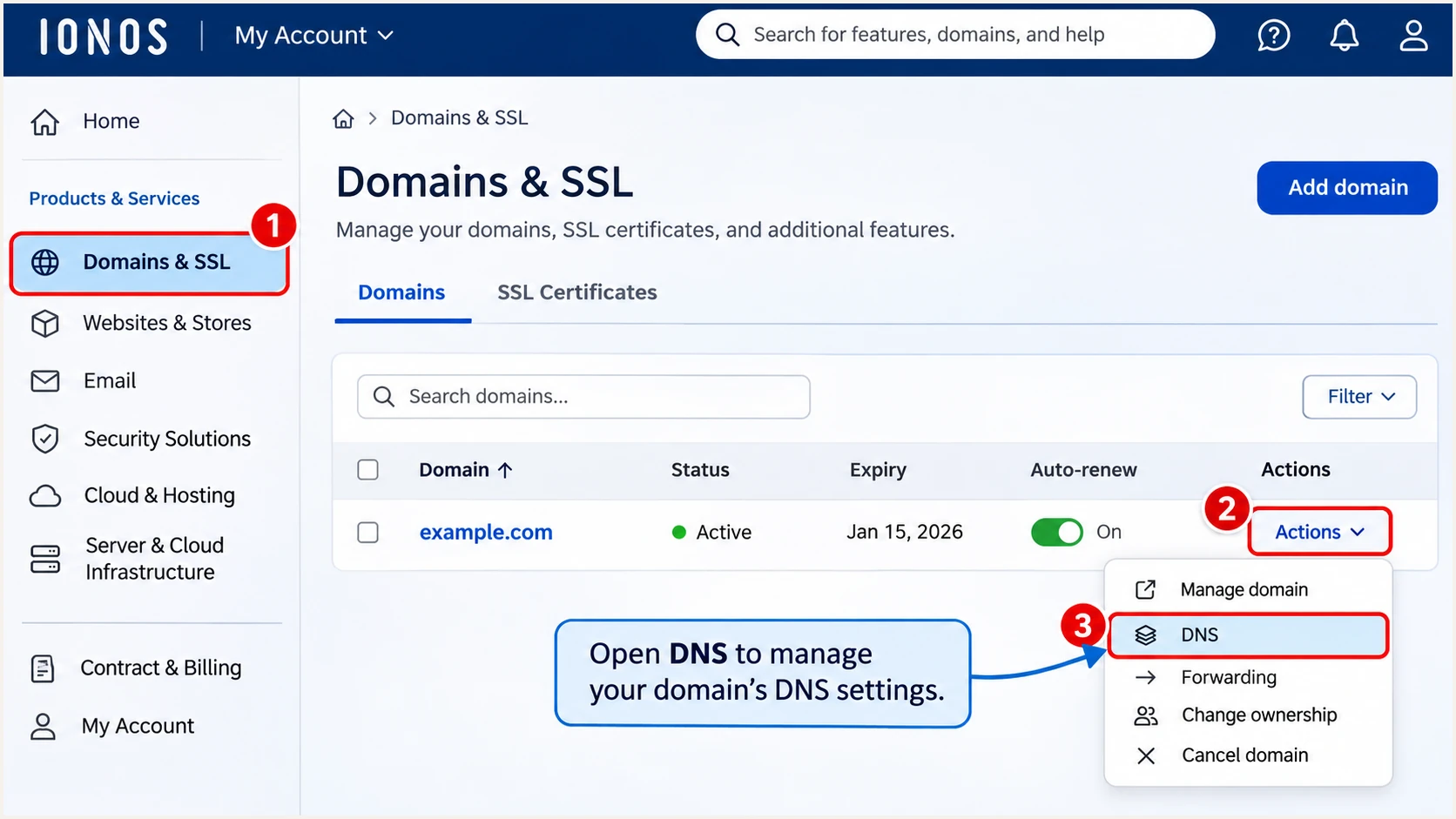
Example IONOS navigation: Domains & SSL > Actions > DNS.
Set up SPF
IONOS's 'Using IONOS SPF to Improve Email Delivery' documentation says SPF is enabled by default for IONOS-hosted domains. I inspect the existing TXT record before adding anything.
- Open DNS: Go to Domains & SSL > your domain > DNS. Find the TXT record beginning v=spf1.
- Restore the preset: If IONOS sends your mail and its authorization is missing, click Add Record > IONOS SPF (TXT) > Save. Inspect the resulting record, including any existing sender entries.
- Use the regional value: For external DNS, publish the include documented for your IONOS account. The US help center specifies _spf-us.ionos.com; the UK help center specifies _spf-eu.ionos.com.
- Keep one record: Merge the required include into the existing SPF record before its final all mechanism. Preserve other legitimate senders and the existing ending. Do not publish both regional examples as separate records.
IONOS-only SPF examples: choose the appropriate regional valuetext
; Type: TXT. Host: @. US documentation:
v=spf1 include:_spf-us.ionos.com ~all

; Type: TXT. Host: @. UK documentation:
v=spf1 include:_spf-eu.ionos.com ~all
Choose the account's documented include, rather than the country of your recipients. These examples authorize only IONOS; an existing record must retain authorization for every other service that sends using this SPF domain.
Enter the domain in the SPF checker to inspect the published record and its lookup limits. SPF evaluation allows at most 10 DNS-querying terms, including nested includes; exceeding the limit produces permerror.
SPF checker
Find SPF syntax issues, lookup limits, and weak records.
?/16tests passed
A valid SPF record is only the DNS check. In a delivered message, inspect smtp.mailfrom in Authentication-Results and compare its domain with the visible From domain. SPF contributes to DMARC only when SPF passes and domain alignment passes.
For application mail, I use an IONOS mailbox on the sending domain for SMTP authentication and the envelope sender. Confirm the resulting Return-Path in a test message. A Return-Path under an unrelated provider domain does not gain alignment by adding an include to your From domain.
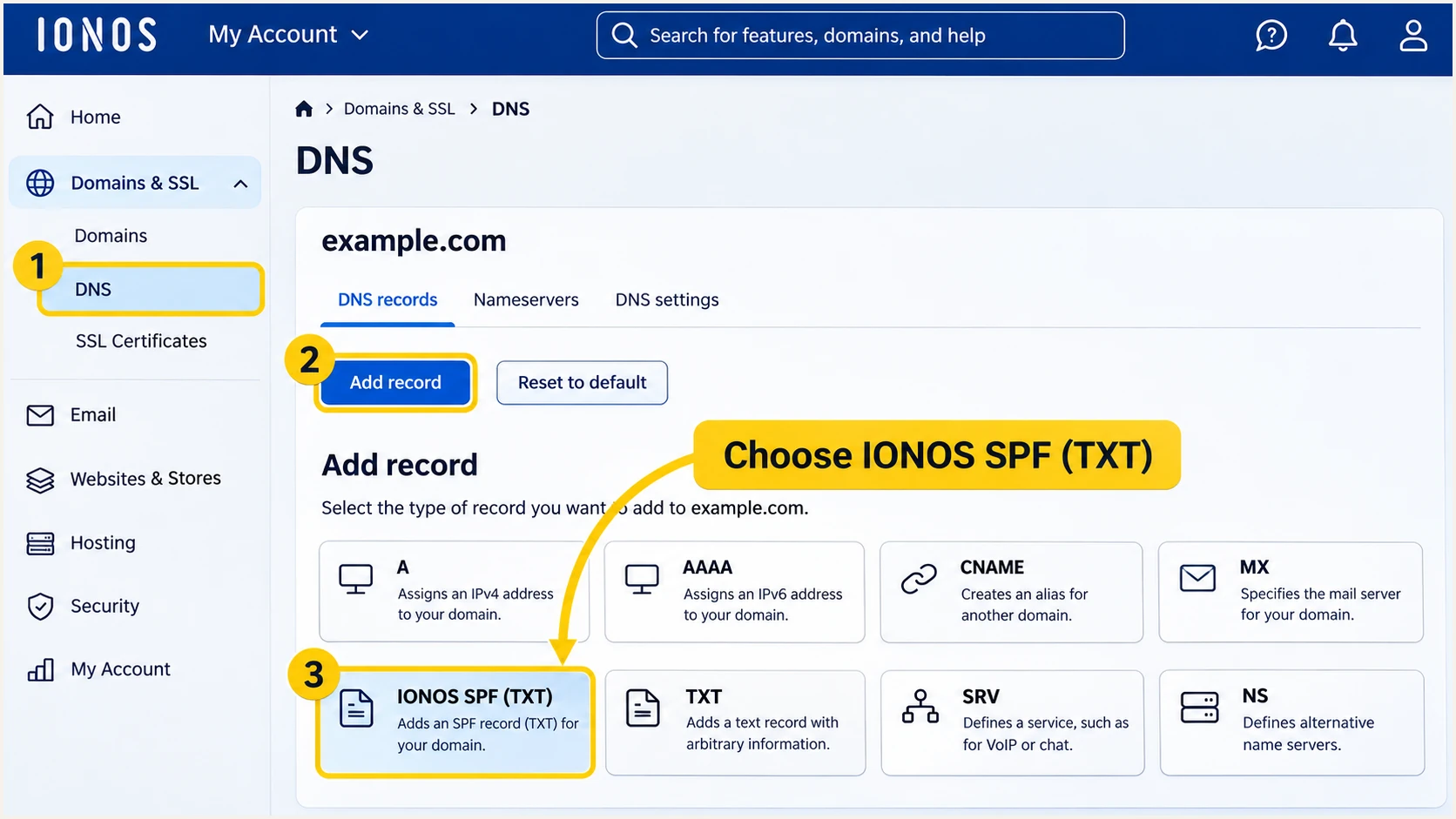
IONOS SPF preset in the DNS Add Record screen.
Set up DKIM
IONOS's 'Email Authentication with DKIM' documentation lists the CNAMEs below. IONOS configures them automatically when its nameservers are used. With external DNS, create them at that provider.
- Inspect selectors: Check the three names below. Keep correct existing entries.
- Add missing CNAMEs: In DNS, select Add record > CNAME. Enter each relative Hostname and its matching Points to target. Set TTL to one hour and save each record.
- Check the sending domain: For mail sent as user@news.example.com, publish the selectors beneath news.example.com. In the example.com zone, use names such as s1-ionos._domainkey.news.
- Verify signing: Send through the IONOS mailbox or SMTP route. Confirm dkim=pass and that the signature's d= domain has DMARC alignment with the From domain.
IONOS DKIM CNAME records for example.comdns
s1-ionos._domainkey.example.com. 3600 IN CNAME s1.dkim.ionos.com.
s2-ionos._domainkey.example.com. 3600 IN CNAME s2.dkim.ionos.com.
s42582890._domainkey.example.com. 3600 IN CNAME s42582890.dkim.ionos.com.
The records above are zone-file notation. In the IONOS editor, enter only the relative Hostname, such as s1-ionos._domainkey, rather than pasting the whole line.
DNS records alone cannot sign messages. If a message lacks DKIM, confirm the sending route and ask IONOS to investigate signing. Keep all three selectors for rotation.
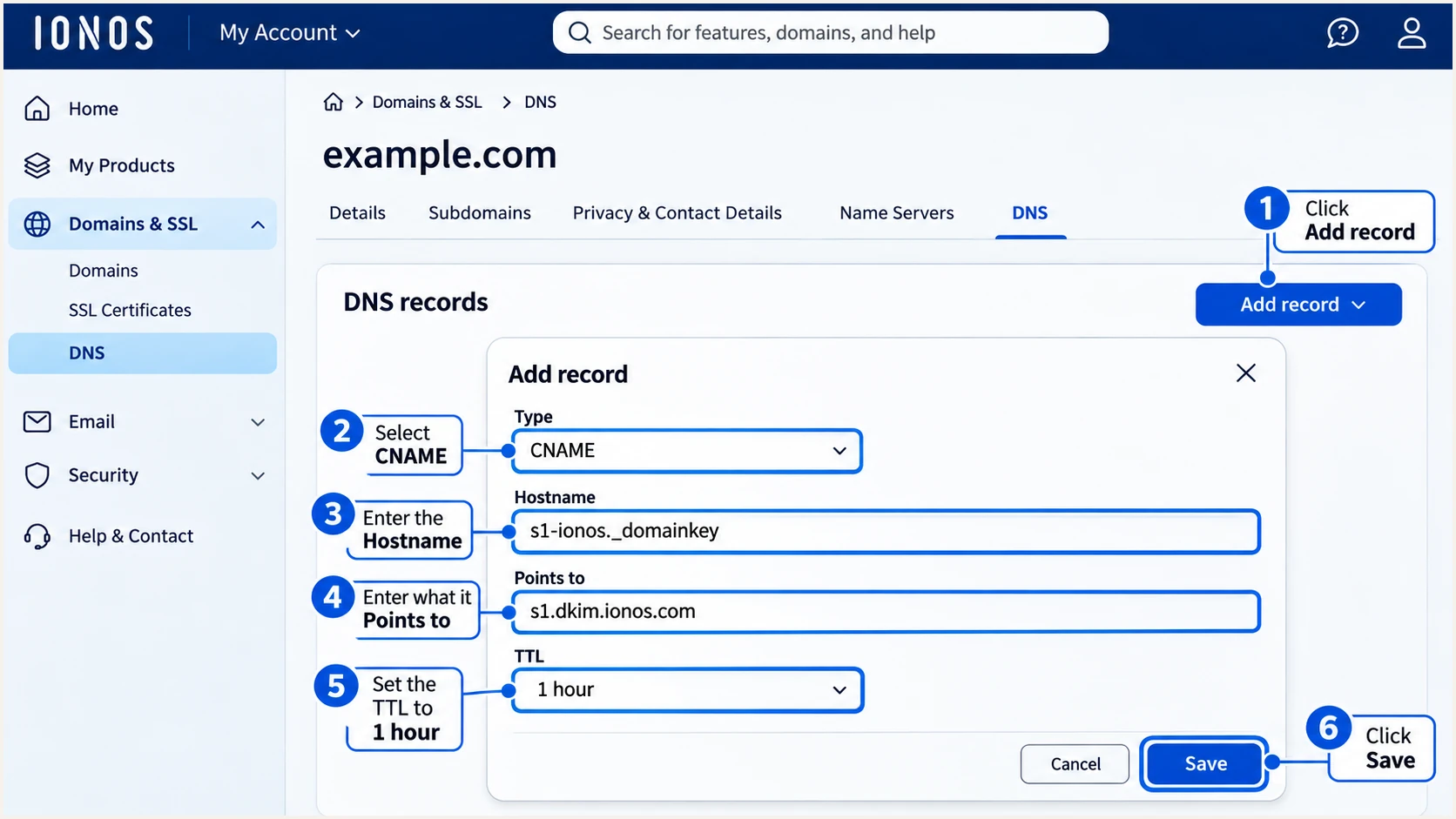
Example IONOS CNAME editor for the first DKIM selector.
Set up DMARC
I add DMARC after checking the existing policy. A new deployment starts with the monitoring record below; a domain already using p=quarantine or p=reject keeps that protection while authentication is verified.
- Check the existing record: Look for a TXT record at _dmarc. Edit that record if it exists; do not add a second DMARC record at the same name.
- Publish the policy: In IONOS DNS, click Add Record > TXT. Enter _dmarc in Host name, paste the TXT value, set TTL to one hour, and click Save. Use your actual DNS provider if DNS is external.
- Set the report destination: Replace dmarc@example.com with a working report mailbox or your assigned aggregate report address before publishing. The example address is a placeholder.
- Verify public DNS: Check _dmarc.your-domain using the widget below. Confirm the intended policy and reporting destination are visible.
Initial DMARC TXT value at _dmarc.example.comtext
v=DMARC1; p=none; rua=mailto:dmarc@example.com
Use the DMARC record generator to build the value with your actual reporting address. DMARC evaluates the visible From domain and requires a passing SPF result with domain alignment or a passing DKIM signature with domain alignment.
The DMARC checker validates the published policy. It does not send mail, inspect your application's SMTP settings, or prove that outgoing messages pass DMARC.
DMARC checker
Look up a domain's DMARC record and catch policy issues.
?/7tests passed
A p=none policy requests reporting without requesting enforcement against messages that fail DMARC. Receiving systems still apply their normal spam and security decisions.
If the report destination belongs to another domain, its operator must authorize external reporting where required. Aggregate reports arrive after receivers process mail, commonly on a daily schedule; publishing a record does not produce an immediate report.
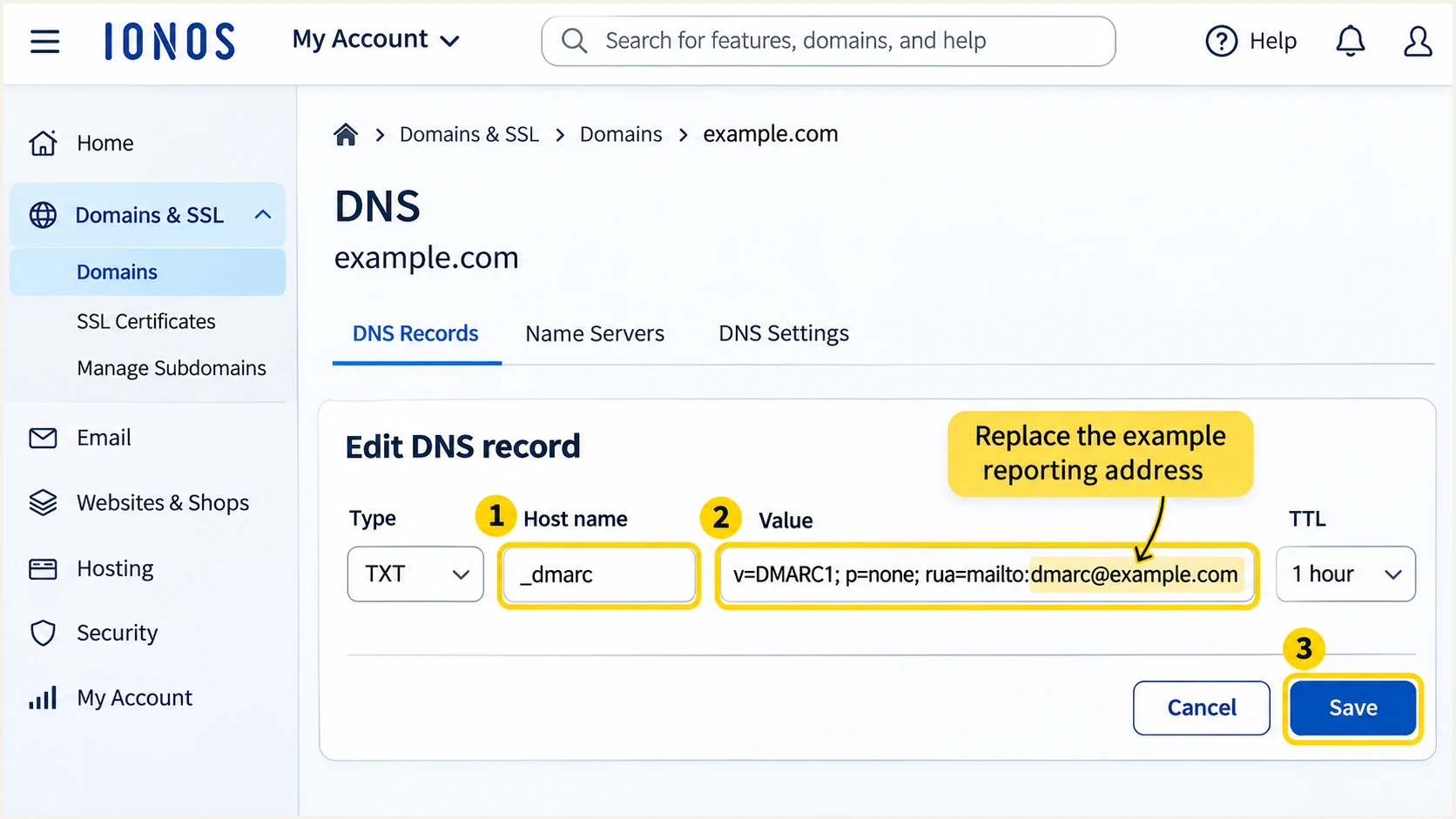
Example IONOS TXT editor for a monitoring DMARC policy.
Verify and troubleshoot
I test each real sending route separately. A successful Webmail test does not establish that a website form or background application uses the same authentication configuration.
- Test the application: Trigger its normal contact-form message, password reset, or invoice email. Send to the test address shown by the email tester below.
- Use authenticated SMTP: For US IONOS Mail, use smtp.ionos.com on port 465 with SSL/TLS, or port 587 with STARTTLS. Authenticate with the full mailbox address and its password. Use the regional server shown by your IONOS account.
- Fix the From address: IONOS requires the SMTP sender domain to match the authenticated mailbox's domain. For contact forms, use your mailbox as From and the visitor's address as Reply-To.
- Read receiver results: Confirm spf=pass, dkim=pass, and dmarc=pass in the receiving system's Authentication-Results. Inspect the domains too; an authentication pass for an unrelated domain does not establish DMARC alignment.
Illustrative receiver headers for successful IONOS SMTP sendingtext
From: Website <website@example.com>
Return-Path: <website@example.com>
Authentication-Results: receiver.example;
    spf=pass smtp.mailfrom=example.com;
    dkim=pass header.d=example.com header.s=s1-ionos;
    dmarc=pass header.from=example.com
The email tester provides the quickest practical check: send a message to its test address and inspect the authentication diagnosis. Use the production sending route so the result covers the settings your users actually rely on.
The header example is illustrative. Actual IONOS messages use the active selector and envelope address for their route. Treat the receiver's results on your message as the evidence.
Email tester
Send a real email to this address. Suped shows a results button when the test is ready.
?/43tests passed
If SPF fails after forwarding, DKIM can still provide the passing authentication with domain alignment required for DMARC. For IONOS's direct SMTP route, investigate an unexpected SPF alignment failure rather than assuming it is unavoidable.
Retest after DNS caches expire. IONOS documents up to 48 hours for SPF propagation. A missing record after that interval warrants checking the authoritative nameservers and exact record name.
|
|
|
|---|---|---|
SPF permerror | Duplicate or limit | One record; lookup count |
DKIM missing | Wrong sending route | SMTP route; signature |
DKIM key missing | Selector DNS error | CNAME name and target |
DMARC fail | Domain mismatch | From; MailFrom; DKIM d= |
Sender rejected | Mailbox domain mismatch | SMTP login; From |
No reports | Destination or traffic | rua; authorization; wait |
Common symptoms and the next check.
Get alerted when it breaks
One successful test covers one message. I keep ongoing monitoring in place because an application change or deleted DNS record can break authentication after setup. Our Suped platform turns aggregate reports into source-level issues and fix steps.
- Enable issue emails: In Suped's notification settings, enable Issues detected so reported authentication problems reach the people responsible for IONOS DNS and application configuration.
- Review new sources: Enable Sending sources need verification. Verify IONOS and other legitimate sources after checking an actual message and the application's owner.
- Read summaries: Enable DMARC summary emails to track sending volume and authentication changes across reporting periods.
- Investigate failures: Open the affected source and record details. Compare SPF, DKIM, and DMARC results, follow the issue's fix steps, and send a fresh application test after the change.
Suped's DMARC monitoring connects report analysis with issue notifications. Aggregate-report alerts depend on reports arriving from receivers, so they are not an immediate notification for every failed message.
I also check reputation when authentication passes but delivery still suffers. Suped includes domain and IP blocklist monitoring (blacklist monitoring), alongside deliverability insights, so authentication results have delivery context.
Keep reporting active
Retain the correct rua destination when changing the policy. Without incoming reports, source-level monitoring loses visibility into new IONOS authentication failures.
Secure your domain with p=reject
I move to enforcement when every legitimate sending route has been reviewed. IONOS is only one source: a working IONOS mailbox does not validate another service sending with the same From domain.
- Inventory legitimate mail: Use Suped's source table to review IONOS, website mail, and every other authorized source. Investigate unverified sources before changing the policy.
- Fix legitimate failures: Use source-level diagnostics and issue fix steps to resolve authentication errors. Verify DKIM domain alignment for every route, including routes affected by forwarding.
- Observe a full cycle: Include infrequent invoices and scheduled campaigns. Test mailing-list and forwarding paths before enforcement. Judge readiness by known legitimate mail, rather than the overall pass percentage.
- Stage the policy: Change none to quarantine, review subsequent reports and delivery complaints, and then use reject after legitimate failures are resolved. Keep existing stricter policies while adding IONOS.
- Check subdomains: Review explicit subdomain DMARC records and the parent sp policy. Do not assume a change to the parent p value overrides a separate subdomain policy.
- Keep monitoring: Retain reporting and alerts after enforcement. Investigate new legitimate failures promptly and repeat an application test after each fix.
Our Hosted DMARC lets teams manage policy changes through Suped after the required DNS configuration. Combined with verified sources and issue diagnostics, it makes each enforcement decision reviewable. With a manually managed TXT record, update the existing _dmarc record at the DNS host.
For domains whose users post to mailing lists, take extra time before reject. RFC 9989 recommends at least a month of monitoring followed by an equally long quarantine assessment for those domains. Receivers retain their own handling decisions.
Quarantine stage
Assess delivery impact while keeping aggregate reports flowing. Replace the example report address before use.
DMARC TXT valuetext
v=DMARC1; p=quarantine; rua=mailto:dmarc@example.com
Reject stage
Publish after legitimate sources pass and indirect mail paths have been assessed. Keep monitoring active.
DMARC TXT valuetext
v=DMARC1; p=reject; rua=mailto:dmarc@example.com
A reject policy communicates that DMARC failures are unauthorized use of the domain. It does not guarantee inbox placement or prevent impersonation using another domain.
After the change, send fresh IONOS Webmail and application tests. Confirm dmarc=pass and review the next available reports for a change in legitimate failures.
Frequency asked questions
IONOS lists mout.kundenserver.de and mout.perfora.net among its shared outbound mail servers in 'IP Addresses of the IONOS Mail Servers'. Related names include mout-xforward and mout-bounce. These hostnames help identify infrastructure, but I check the actual IP and message authentication before treating a sender as authorized.
These SPF includes are associated with IONOS. Its US setup documentation specifies include:_spf-us.ionos.com, while its UK documentation specifies include:_spf-eu.ionos.com. Use the value documented for your account and merge it into one existing SPF record. An include's association with a provider alone is not a reason to add it.
IONOS documents automatic DKIM configuration when its nameservers are used. With external DNS, publish its three CNAME records. Confirm signing on a real outgoing message; a domain registered at IONOS does not establish that another sending service uses IONOS DKIM.
Yes. A passing DKIM signature with domain alignment is sufficient for DMARC even when SPF alignment fails. IONOS supports sending with your domain in the Return-Path, so investigate unexpected failures on direct SMTP mail. Forwarding can break SPF while leaving DKIM intact.
No. A VPS delivering mail directly needs SPF authorization for its outbound IP and a DKIM signing configuration for its mail server. It also needs appropriate reverse DNS. The IONOS mailbox CNAMEs do not make that server sign messages. Applications relaying through authenticated IONOS Mail SMTP should be tested as that route.
Keep the existing reject policy while configuring and testing IONOS. The p=none example is for a new monitoring deployment. Fix the sending route's authentication before putting it into production, and preserve reporting when editing the existing DMARC record.




