
How to set up DMARC/DKIM/SPF for InMotion Hosting

Published 21 Nov 2026
Updated 21 Nov 2026
11 min read
Summarize with
For InMotion Hosting email, publish the SPF and DKIM TXT values supplied by cPanel, add a DMARC TXT record at _dmarc.example.com, and test a message sent through your actual mailbox or website. Start a new DMARC setup with p=none; keep an existing quarantine or reject policy.
I start in cPanel > Email Deliverability > Manage for the sending domain. InMotion's authentication instructions describe this workflow. These steps cover cPanel-hosted email; a website using a separate SMTP service needs that service's authentication records.
Add your domain
I first confirm that the sending domain exists in the correct InMotion Hosting cPanel account. The primary domain is already present; add another domain only when it is missing.
- Open cPanel. Sign in to the Account Management Panel (AMP), find your hosting account, and launch cPanel.
- Add the domain. Open Domains > Create A New Domain, enter your domain, and click Submit. For a separate website, deselect Share document root and use its own directory.
- Create a mailbox. Open Email Accounts > Create. Select the domain, create notifications@example.com, set its password, and save.
- Verify the account. Confirm the domain appears under Domains and Email Deliverability. Use Check Email beside the mailbox to confirm that webmail opens.
Check the domain's authoritative nameservers before editing DNS. If DNS is hosted elsewhere, publish the authentication records there. Adding a domain in cPanel does not publish records at an external DNS provider.
Keep existing MX records when another system receives your email. SPF, DKIM, and DMARC setup does not require moving incoming mail or changing nameservers.
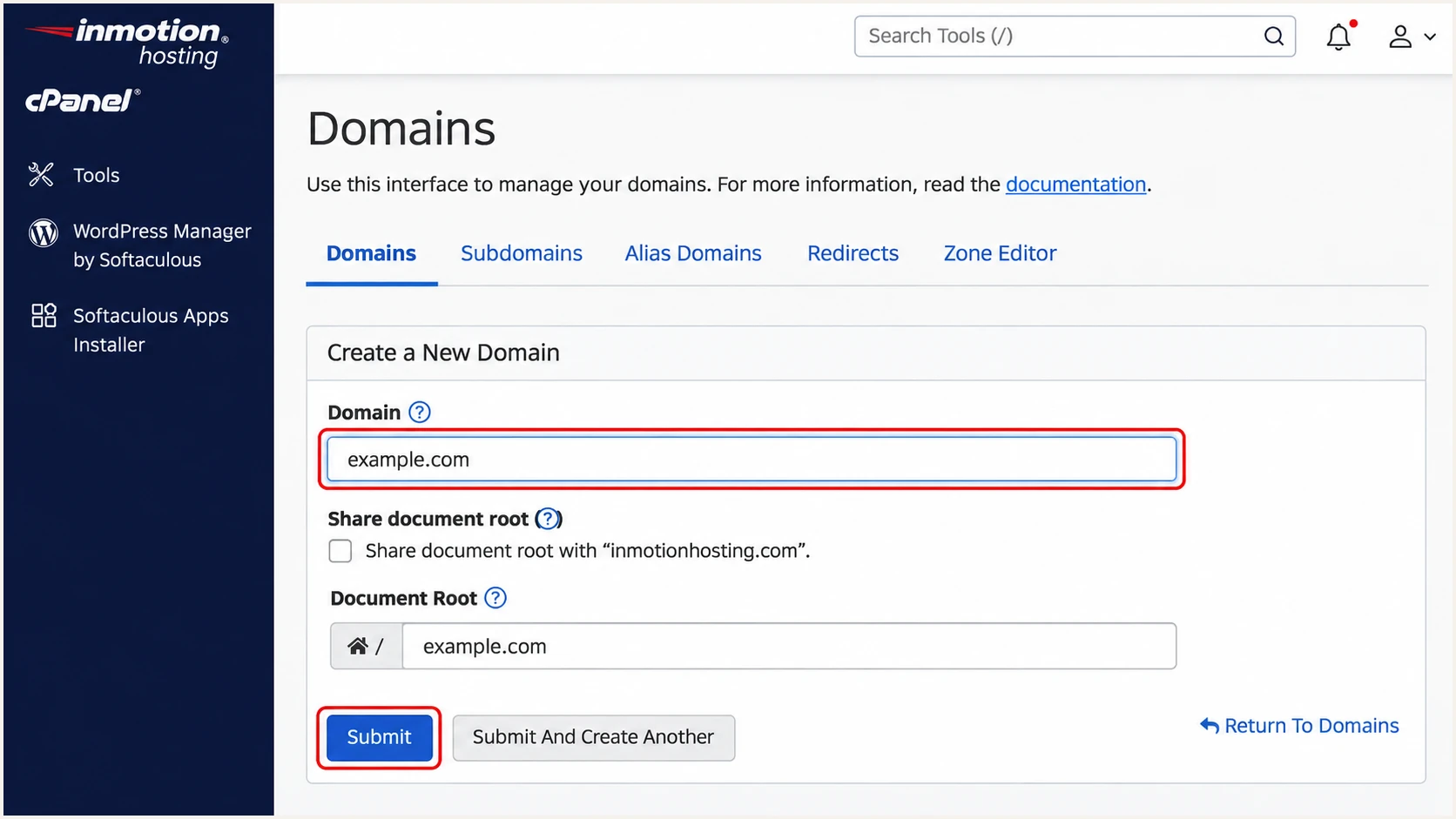
Illustrative InMotion Hosting cPanel form for adding a separate domain.
Set up SPF
I use the current SPF recommendation for the account. InMotion Hosting's outgoing route varies by hosting plan and relay configuration, so a copied SPF string from another account is unreliable.
- Find the value. Open Email Deliverability > Manage beside your domain. Locate Suggested SPF (TXT) Record and copy its Name and Value.
- Publish one record. If cPanel controls public DNS, review and install the suggested record. Otherwise edit the existing SPF TXT record at your authoritative DNS provider.
- Preserve senders. Merge required mechanisms for other authorized senders before the final all mechanism. Keep one v=spf1 record per hostname and stay within SPF's limit of 10 terms that trigger DNS lookups, including nested includes.
- Configure the envelope. For application mail, use authenticated InMotion SMTP and set the SMTP envelope sender to an address on your sending domain. Check the delivered Return-Path to confirm the server retained it.
For SMTP settings, open Email Accounts > Connect Devices and copy the Secure SSL/TLS outgoing server. Use the full mailbox address as the username, its mailbox password, and port 465 with SSL/TLS as displayed.
Include the current outbound relay requirements supplied for your account. Authorizing only the website's IP is insufficient when a relay makes the final connection to the recipient.
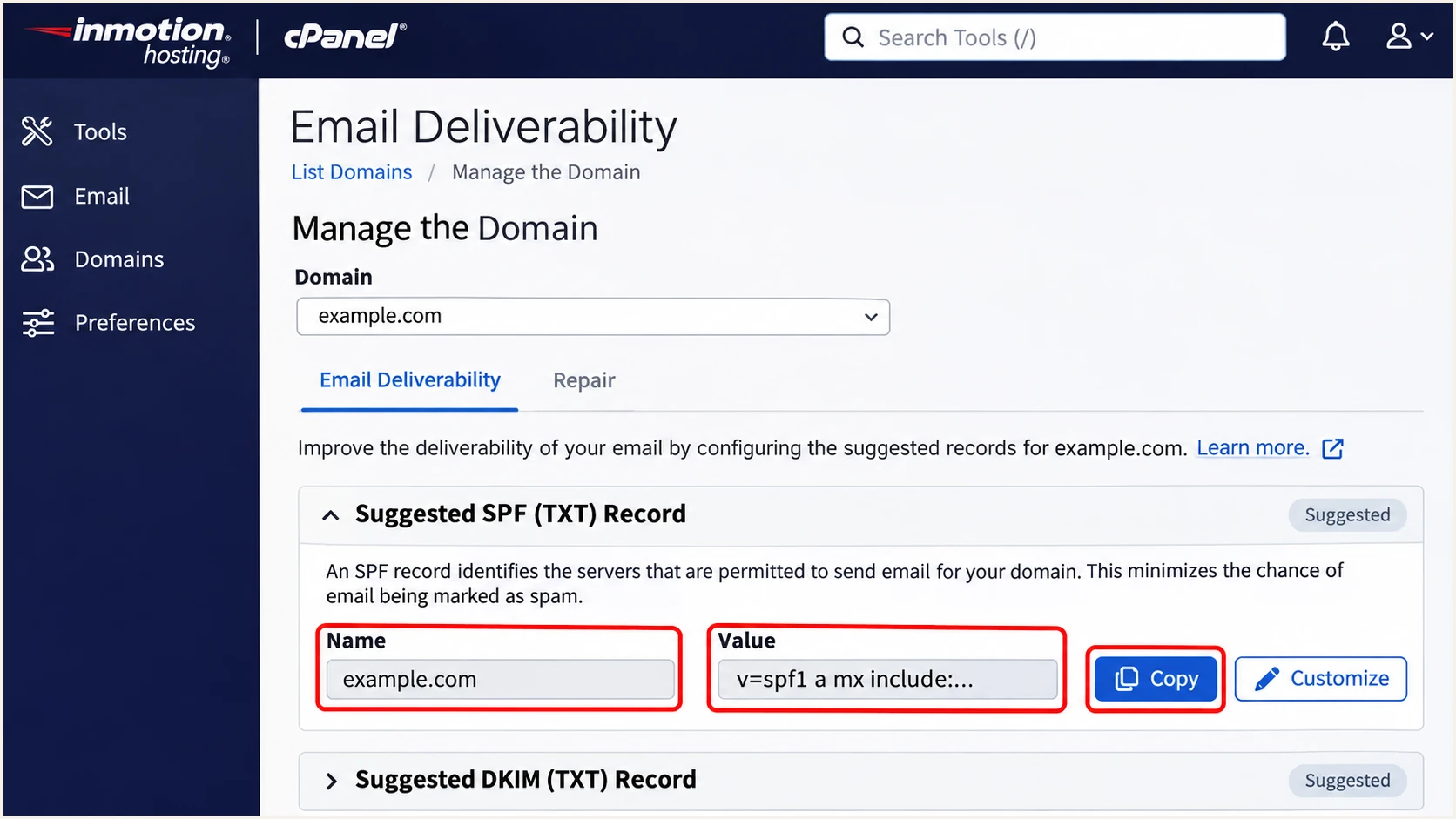
Illustrative InMotion Hosting cPanel location of the account-specific SPF value.
InMotion supports a domain-matching Return-Path, but the application must use it. SPF checks the envelope sender domain; a matching visible From address alone is insufficient.
Check the domain actually used in the Return-Path below. If it is a subdomain, that hostname needs its own SPF record; SPF does not inherit the parent domain's record.
SPF checker
Find SPF syntax issues, lookup limits, and weak records.
?/16tests passed
Set up DKIM
I publish the public key generated for this domain and keep its private key on the sending server. A key created separately will not verify signatures made with cPanel's existing private key.
The selector is commonly default, giving the DNS name default._domainkey.example.com. Use the exact name cPanel supplies; the delivered DKIM-Signature header identifies the active selector in s= and signing domain in d=.
- Open DKIM. Go to Email Deliverability > Manage for the domain and locate Suggested DKIM (TXT) Record.
- Generate if absent. If no key exists and Generate Local DKIM Key is offered, use it. Ask InMotion support to enable domain signing if the controls are unavailable.
- Publish the public key. Copy Name and the full Value. Install the suggested record when cPanel controls DNS, or add the TXT record at your authoritative DNS provider.
- Check a signature. Send a fresh message. Require dkim=pass and a d= domain that matches the visible From domain under your DMARC alignment mode.
A long DKIM value can occupy multiple quoted character strings within one TXT record. Keep the complete public key in one record, with no extra spaces inside the key. Never publish the private key.
Test website-generated mail separately. PHP mail can leave the server without the expected domain signature; authenticated SMTP through the configured mailbox gives you a sending path to verify.
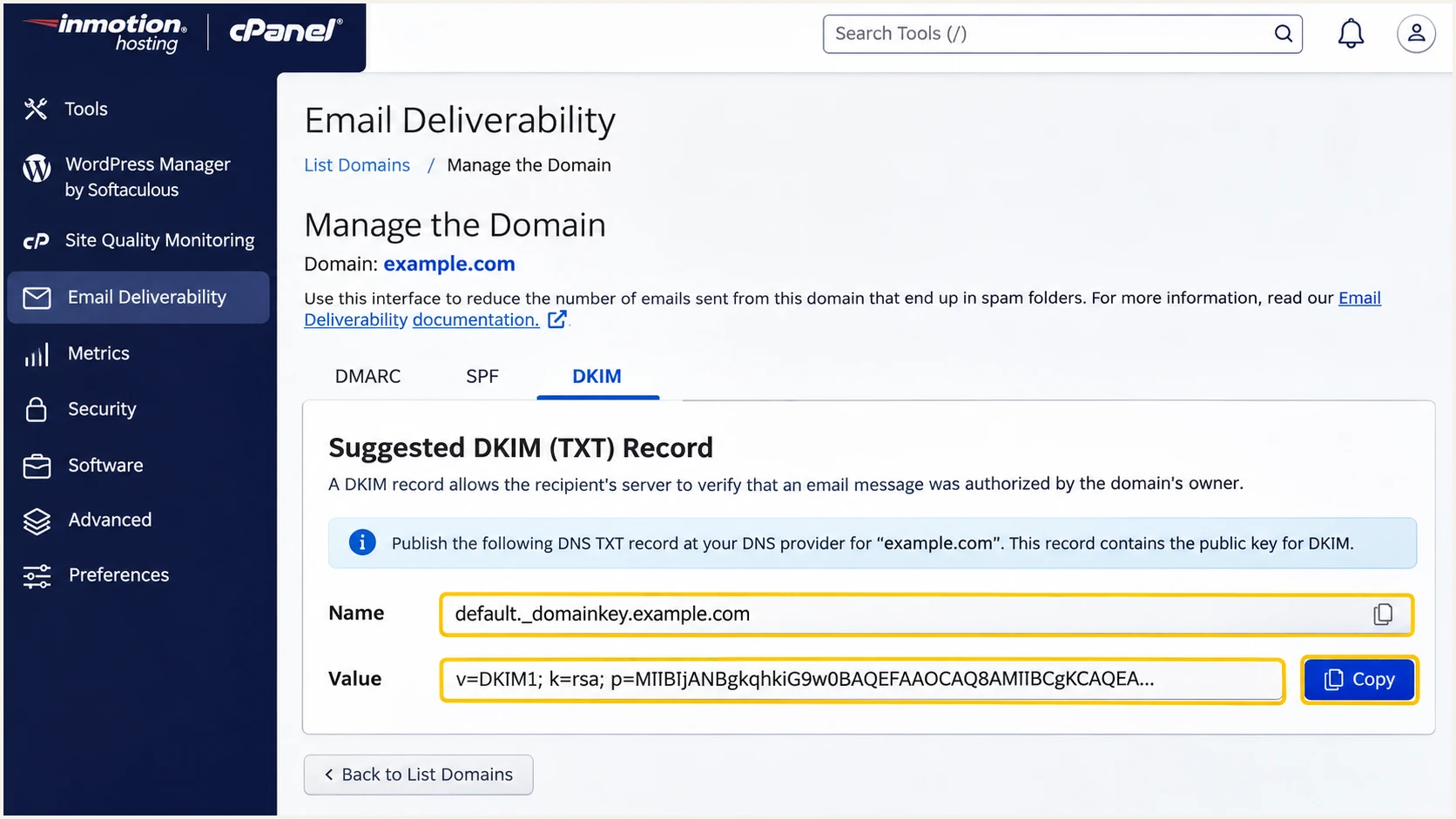
Illustrative InMotion Hosting cPanel location of the DKIM public key.
Set up DMARC
I retain p=quarantine or p=reject when either is already deployed. For a domain without DMARC, start with the monitoring record below and create a working reporting mailbox.
Use the DMARC record generator to customize the policy. DMARC is a domain-wide DNS policy, so account for every authorized service sending with that From domain.
- Find the record. Open cPanel > Zone Editor > Manage beside the domain. Search for _dmarc and edit an existing DMARC record instead of adding a duplicate.
- Add TXT. If absent, select Add Record > TXT. Set Name to _dmarc.example.com and TTL to 14400, or retain the zone's existing TTL. Confirm the interface has not appended the domain twice.
- Set reporting. Paste the monitoring value below. Replace dmarc@example.com with your working aggregate-report address, then save.
- Use public DNS. If the domain has external nameservers, perform the same TXT change in that DNS service instead of the local cPanel zone.
Initial DMARC TXT value at _dmarc.example.comtext
v=DMARC1; p=none; rua=mailto:dmarc@example.com
The example address is a placeholder. A mailbox receives compressed XML reports; a report processor makes those records easier to review. An external reporting domain also needs the required DMARC reporting authorization.
A p=none policy requests reporting without requesting quarantine or rejection for DMARC failures. It does not protect the domain through enforcement.
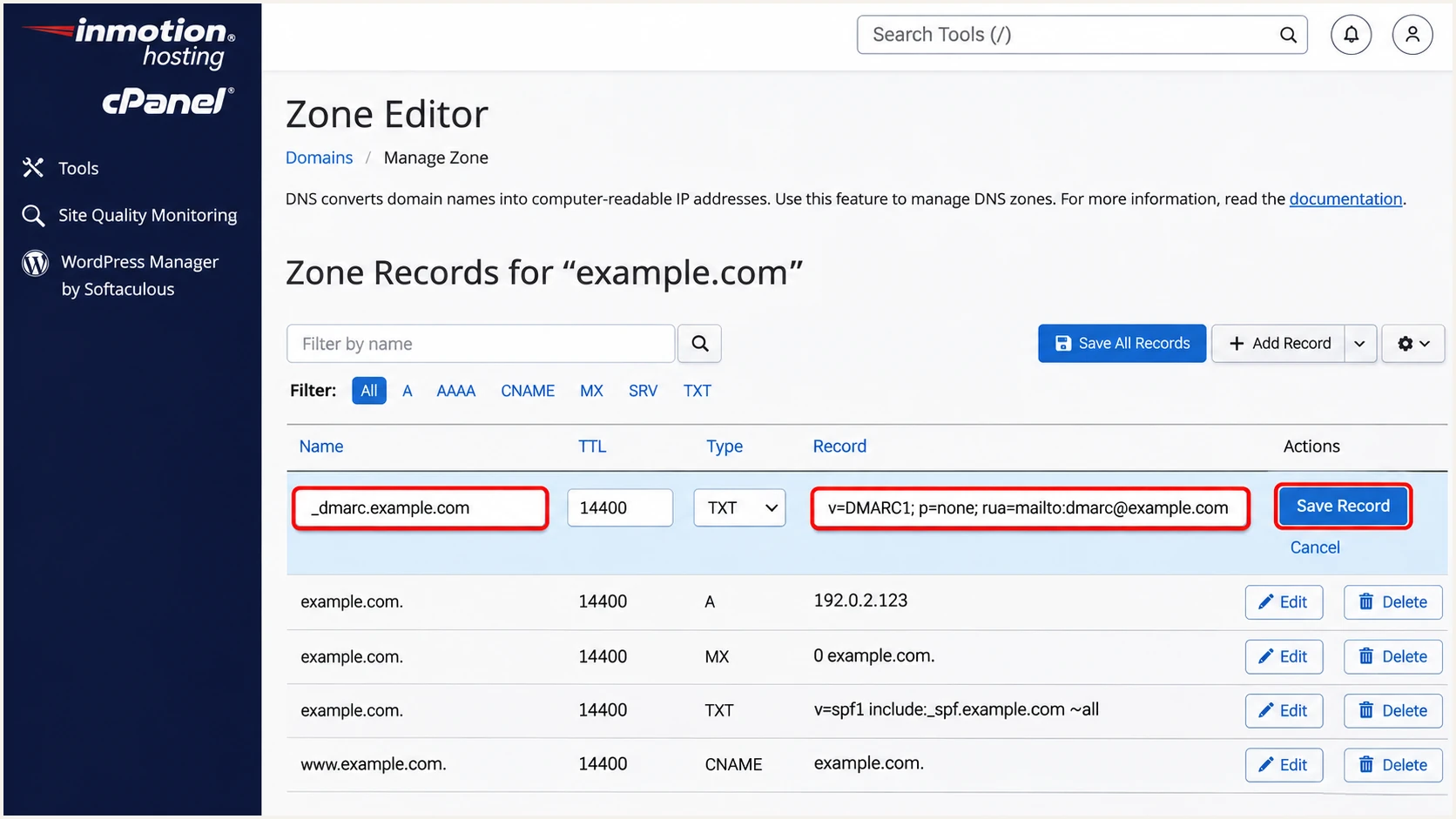
Illustrative DMARC TXT entry in InMotion Hosting cPanel Zone Editor.
Check the saved public record below after DNS caches expire. A duplicate DMARC record, malformed value, or incorrect hostname prevents normal policy discovery.
A valid policy is only the DNS check. The receiving server still evaluates the authentication and domain matching on each message.
DMARC checker
Look up a domain's DMARC record and catch policy issues.
?/7tests passed
Verify and troubleshoot
I send a test through webmail and another through each live website or application. Contact forms should use your domain in From and the visitor's address in Reply-To.
The email tester below supplies a destination address. Send it a message through the real sending path for a full diagnosis; this is the quickest way to check the message's actual configuration.
- Inspect results. Read the receiving server's Authentication-Results header. Target spf=pass, dkim=pass, and dmarc=pass on direct mail.
- Check alignment. DMARC needs a successful SPF or DKIM result whose authenticated domain matches From. A pass for an unrelated provider domain does not satisfy that requirement.
- Diagnose the application. If webmail passes but website mail fails, compare From, Return-Path, and DKIM-Signature. Correct the application's SMTP credentials and envelope sender, then retest.
- Check reverse DNS. For direct delivery, confirm the outbound IP has a PTR hostname that resolves back to that IP. Ask InMotion support to fix PTR issues; a TXT change cannot repair reverse DNS.
DNS checks, replacing the example domain, selector, and outbound IPbash
dig +short NS example.com
dig +short TXT example.com
dig +short TXT default._domainkey.example.com
dig +short TXT _dmarc.example.com
dig -x 192.0.2.10 +short
Use the selector from the message header for the DKIM query. The sample IP is for documentation; substitute the final outbound IP seen by the recipient.
DNS records prove publication. A received message proves whether the selected sending path uses those records correctly.
Email tester
Send a real email to this address. Suped shows a results button when the test is ready.
?/43tests passed
If an outbound relay uses its own Return-Path, expect an SPF alignment warning even when SPF itself passes. DMARC still passes when a valid DKIM signature uses your From domain. Keep DKIM working rather than weakening the policy.
If authentication passes but delivery still fails, inspect the SMTP rejection and reputation evidence. An IP blocklist (blacklist) listing is a separate problem; changing DMARC alone does not remove it.
|
|
|
|---|---|---|
SPF permerror | Duplicates or lookups | Merge or simplify |
DKIM missing | Actual sending path | Enable domain signing |
DKIM fail | Selector and key | Republish exact value |
DMARC fail | Authenticated domains | Fix domain matching |
PTR failure | Final outbound IP | Contact InMotion support |
Use the result from a newly received message after each change.
Get alerted when it breaks
I keep monitoring after the initial tests. A migration or changed sending route can break authentication after the DNS records originally passed.
Suped is our DMARC reporting and email authentication platform. Its DMARC monitoring connects incoming report data with failures by source and steps to fix, so ongoing checks have a concrete investigation path.
- Enable notifications. In Suped, configure Issues detected notifications and DMARC summary emails for the people responsible for mail.
- Review sending sources. Verify a source only after confirming your organization uses it. A familiar hosting hostname alone does not authorize every message from that infrastructure.
- Investigate failures. Filter by source and outbound IP, open the record detail, and inspect SPF and DKIM diagnostics. Use DNS history to compare values around a migration.
- Confirm the repair. Apply the correction in InMotion Hosting or your authoritative DNS provider, send another test, and check subsequent DMARC reports.
Reporting has a delay
Suped alerts are based on the data available to it. Aggregate reports usually arrive on a daily schedule; use a fresh test message for immediate validation after a change.
Secure your domain with p=reject
I move to enforcement after each legitimate sending stream passes DMARC across a normal business cycle, including infrequent billing and password-reset messages. A high overall pass rate alone does not prove every important sender works.
Suped's source verification and failure diagnostics make that review practical. Our Hosted DMARC supports managing policy changes in the dashboard after its DNS setup; a manually hosted TXT policy is changed at your DNS provider.
- Inventory senders. Confirm InMotion mailbox mail, website notifications, and each other authorized sender. Separate unauthorized traffic before judging the pass rate.
- Resolve failures. Require working domain-matching DKIM and configure matching SPF where supported. Keep relaxed alignment unless you have a specific need for strict matching.
- Stage enforcement. Change p=none to p=quarantine after validation. Review reports and delivery failures, then change to p=reject when legitimate streams remain healthy.
- Cover subdomains. Review subdomain senders before enforcement. Omitting sp makes subdomains without their own DMARC policy inherit the parent policy; avoid leaving an unintended sp=none exception.
Enforcement example after validation, retaining the real reporting addresstext
v=DMARC1; p=reject; rua=mailto:dmarc@example.com
Keep reports and alerts enabled after the policy change. Suped lets you trace a new failure to its source and check whether an authentication repair is needed.
A reject policy asks receivers to reject messages that fail DMARC. Receivers retain local discretion, and the policy does not stop abuse sent through a compromised authorized account.
During monitoring
p=none requests reports. Use Suped to identify legitimate senders and repair their authentication before enforcement.
After verification
p=reject requests rejection of DMARC failures. Keep Suped notifications active and retest after hosting or application changes.
Before enabling another application, authenticate its sending domain and send a test while the established reject policy stays active. Approve the source only after confirming ownership and inspecting its results.
After an InMotion server move, compare the new SPF recommendation and DKIM selector against public DNS. A migrated private key or changed outbound relay needs another delivered-message check.
Frequency asked questions
Use the current account-specific recommendation in cPanel > Email Deliverability > Manage, together with any additional relay instructions supplied for your account. Merge it with existing authorized senders in one SPF TXT record.
Publish the SPF, DKIM, and DMARC TXT records at the provider named by your authoritative nameservers. I copy the account-specific public values out of cPanel and verify the public DNS response afterward.
SPF authenticates the envelope sender domain, which is visible in Return-Path on delivered mail. DMARC also requires a domain match with From. Configure a matching envelope sender or use a passing DKIM signature with a matching d= domain.
Yes. One passing DKIM signature with the required From-domain match is enough. InMotion supports matching Return-Path domains, so configure both paths where available, and inspect the actual headers when a relay changes the envelope sender.
Allow roughly 24-48 hours after publication and actual sending. Timing depends on the receiving provider, and some receivers do not send aggregate reports. Check that rua names a working destination and that any external reporting authorization exists.
These suffixes are associated with InMotion Hosting infrastructure, including reseller hosting. I use them as a source-identification clue and confirm the sending IP against account details and received headers. Shared infrastructure does not identify a specific customer or prove that a message is authorized.




