
How to set up DMARC/DKIM/SPF for INKY

To set up DMARC/DKIM/SPF for INKY, add its SPF authorization to your existing DNS record, enable custom-domain DKIM in Microsoft 365 or Google Workspace, and publish one DMARC TXT record. I then test messages after they pass through INKY, because published DNS alone does not prove that recipients can authenticate the delivered email.
INKY processes mail alongside your existing mail platform. Its documented SPF mechanism is exists:%{i}._spf.inkyphishfence.com. DKIM keys come from your mail platform, while DMARC belongs to the domain in the visible From address.
Add your domain
I connect the existing mail tenant to INKY before changing authentication records. Have DNS access and the correct tenant administrator account ready.
- Select the tenant: In Team Setup, choose Microsoft 365 or Google Workspace. Enter the primary domain and Tenant Administrator Email, then generate or redeem the team's license as prompted.
- Grant access: Use a Microsoft 365 Global Administrator or Google Workspace Super Administrator for the relevant setup flow. Approve the permissions requested by the installer.
- Configure routing: Complete the platform-specific connectors or routing rules. Start with a pilot mailbox and confirm that its messages reach INKY.
- Verify installation: Open the team's Settings Summary. Check Setup Status for License, Integration, Mail Routing, and Protection Active. Resolve incomplete phases before expanding protection.
INKY's Platform Setup Guide explains the platform-specific connection flow. Standard inline deployment keeps your existing MX records.
For an existing installation, confirm the selected team and its routing instead of generating another license.
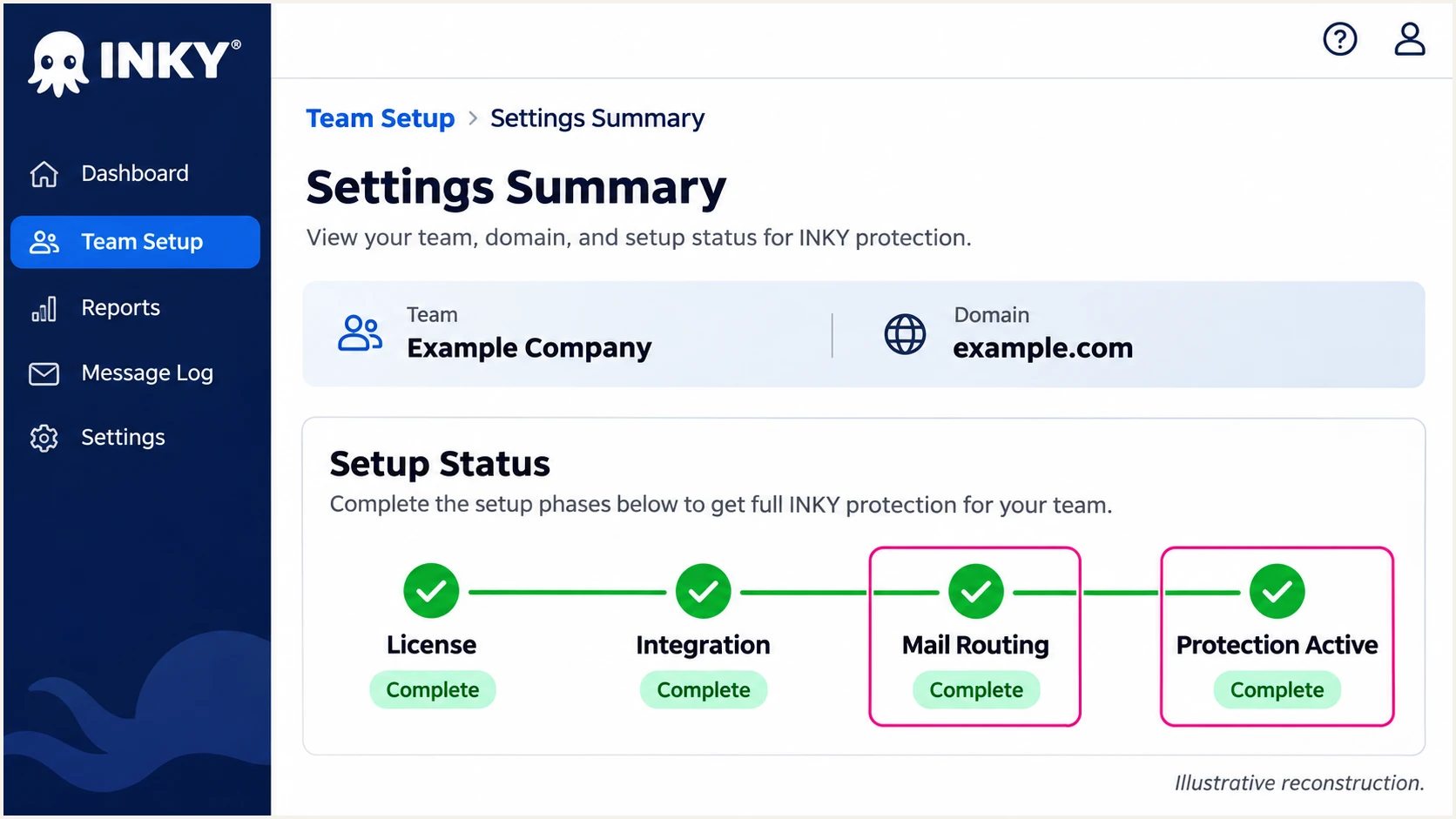
INKY Settings Summary with all four setup phases complete, illustrative reconstruction.
INKY detects additional domains in the tenant. Confirm every domain you use appears in Admin Center > Routing and is included in the intended mail flow.
Installation status confirms the connection. The following DNS changes authorize your outgoing mail and establish authentication.
Set up SPF
I edit the existing SPF TXT record, preserving every legitimate sender. Insert INKY's mechanism before the final all term.
- Find the record: Look up TXT records for the sending domain and locate the value beginning v=spf1. Merge duplicate SPF policies into one record.
- Authorize INKY: Add the exists mechanism shown below. Keep the existing Microsoft 365 or Google Workspace authorization and any other required senders.
- Check DNS scope: SPF is evaluated for the envelope sender, shown as smtp.mailfrom or Return-Path. A sending subdomain needs its own SPF policy; it does not inherit the root domain's record.
- Preserve syntax: Keep the literal %{i} macro. Publish one merged value, retain the existing -all or ~all ending, and stay within the limit of 10 DNS-querying terms during evaluation, including nested includes.
SPF zone-file examples: choose one, then merge other senderstext
; Microsoft 365: one TXT record, two concatenated strings
example.com. 3600 IN TXT (
  "v=spf1 include:spf.protection.outlook.com "
  "exists:%{i}._spf.inkyphishfence.com -all"
)

; Google Workspace: one TXT record, two concatenated strings
example.com. 3600 IN TXT (
  "v=spf1 include:_spf.google.com "
  "exists:%{i}._spf.inkyphishfence.com ~all"
)

; If your DNS editor rejects %{i}, replace the INKY exists term
; with BOTH mechanisms below, before the final all term:
include:spf-ipw.inkyphishfence.com
include:spf-obx.inkyphishfence.com
Publish only the example matching your mail platform, merged with your other authorized senders. These examples use DNS zone-file syntax. In a DNS web form, enter the joined text as one TXT value, without the parentheses or zone-file quotes.
After saving DNS, check the published record below. The exists mechanism consumes one DNS-querying term; switching to includes requires a fresh lookup-limit check.
SPF checker
Find SPF syntax issues, lookup limits, and weak records.
?/16tests passed
INKY supports SPF alignment when the envelope sender uses your domain. Confirm the delivered message's smtp.mailfrom shares the visible From domain's organizational domain under relaxed DMARC alignment. Publishing SPF does not change the envelope sender.
For a separate sender that uses an unrelated provider-owned Return-Path, adding its authorization to your From domain does not fix SPF alignment. DMARC still passes when a valid DKIM signature has the required domain match.
Set up DKIM
I enable DKIM in the platform that signs the outgoing message. INKY's routing documentation directs administrators to publish their mail platform's keys; it does not supply a universal INKY selector or public key for your domain.
Microsoft 365
- Open DKIM: Go to Email & collaboration > Policies & rules > Threat policies > Email authentication settings > DKIM. Select your custom domain.
- Publish keys: Create DKIM keys if needed. Copy the two CNAME names and targets displayed for the domain into DNS. Use the supplied targets exactly.
- Enable signing: After Microsoft detects both CNAME records, enable signing for the domain. Verify a delivered message contains a passing signature for your domain.
Google Workspace
- Open authentication: In Google Admin, go to Apps > Google Workspace > Gmail > Authenticate email. Select the sending domain.
- Publish the key: Choose Generate New Record, select 2048 bits when supported, and publish the exact TXT hostname and public-key value shown.
- Start signing: Return to Authenticate email and select Start authentication. If Gmail was just enabled, Google requires 24-72 hours before key generation is available.
Keep existing working selectors during changes. Microsoft 365 needs both supplied selector CNAMEs for rotation; Google uses the selector chosen during key generation.
Check the DKIM signing domain, identified by d=, against the visible From domain. A valid signature for an unrelated domain does not satisfy DMARC. Under relaxed alignment, a signature for example.com also covers mail using a From subdomain such as billing.example.com.
Set up DMARC
I start a domain without DMARC at p=none to collect reports while checking every sender. If it already uses p=quarantine or p=reject, keep that policy and preserve existing reporting destinations.
- Check existing DNS: Look up the DMARC TXT record for the visible From domain. Edit its existing policy instead of publishing a second DMARC record.
- Publish the policy: Create a TXT record at _dmarc.example.com, usually entered as _dmarc in the example.com DNS zone. Use the monitoring value below for a new setup.
- Set reporting: Replace the example reporting mailbox with a real aggregate-report destination. Use a TTL of 3600 seconds if appropriate for your DNS provider.
- Check the result: Use the checker after saving. Confirm one valid policy and the intended reporting destination.
Initial DMARC TXT valuetext
v=DMARC1; p=none; rua=mailto:dmarc@example.com
The record above is an example. A working mailbox receives aggregate XML reports; an external reporting service also needs the destination's reporting authorization. A p=none policy requests reporting without requesting quarantine or rejection for DMARC failures.
Use the DMARC record generator to prepare the value, then publish it at your DNS host. Do not paste the hostname into the TXT value field.
DMARC checker
Look up a domain's DMARC record and catch policy issues.
?/7tests passed
A valid DMARC record confirms DNS syntax and policy publication. Message authentication still depends on a passing SPF or DKIM result with the required domain match.
If your INKY Pro subscription includes reporting, Analysis > DMARC Monitoring has a setup cog beside each domain. Copy the reporting address shown there if you want reports delivered to INKY. Add it to the existing rua list without weakening your current policy.
Verify and troubleshoot
I test the complete mail route with a new outgoing message and a reply containing an INKY banner. Content changes after DKIM signing require particular attention.
- Use a protected mailbox: Send through the same INKY routing rules that production mail uses. Test every sending domain and any application with a different mail route.
- Inspect final headers: Read the receiving server's Authentication-Results. Confirm dmarc=pass and identify the SPF or DKIM result that provides the required domain match.
- Test reply handling: Repeat with a reply or forward that includes a previously added banner. Compare results with a fresh message to isolate changes made in transit.
- Retest changes: After DNS or routing changes, send a new message. Previously delivered email does not acquire a new authentication result.
The email tester below is the quickest practical check: send a real message to the address it provides and review the diagnosis of authentication and other delivery checks.
Use a message sent by your actual INKY-protected mailbox. Sending from a different service tests that service's configuration instead.
Email tester
Send a real email to this address. Suped shows a results button when the test is ready.
?/43tests passed
A DMARC pass needs one passing authentication method with the correct domain match. Investigate failures of either method, but do not treat an SPF alignment failure as a DMARC failure when DKIM already satisfies DMARC.
Aggregate reports arrive on receivers' reporting schedules, commonly daily. Use the immediate message test for a configuration change and subsequent reports to confirm wider traffic.
|
|
|---|---|
SPF permerror | Duplicates or lookup limit |
SPF mismatch | Envelope sender domain |
DKIM failure | Key or message changes |
DMARC failure | Domain match for either method |
DNS timeout | Authoritative DNS response |
Use the final receiver's results to choose the next check.
In INKY, open Admin Center > Routing and find the domain's Email authentication row. Select Check again after DNS updates; use Show which if INKY reports only partial SPF coverage.
A published DKIM key proves that a DNS key exists. An unknown selector means INKY lacks a selector to query, so use the actual outgoing message's selector and your mail platform's settings.
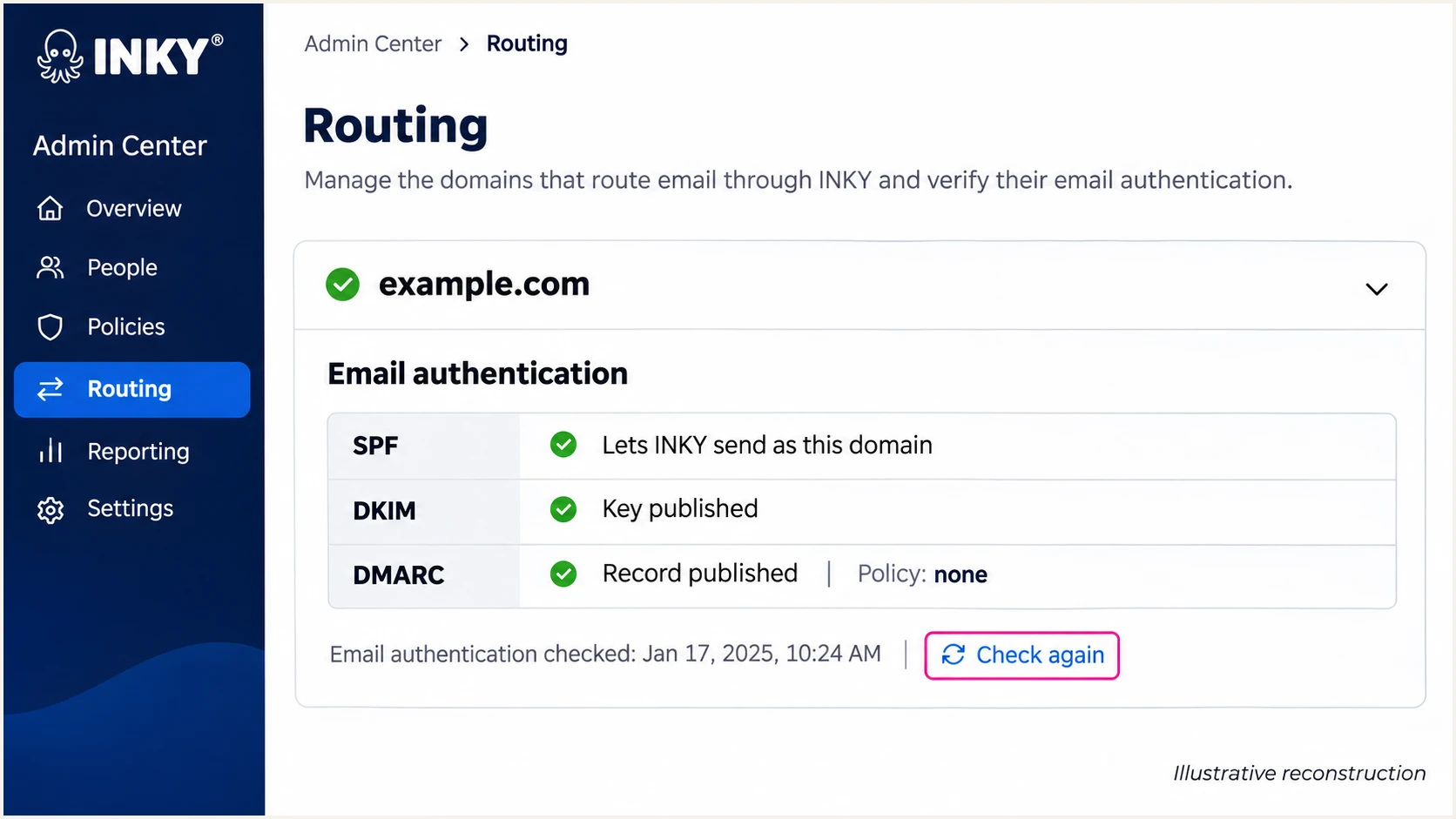
INKY Routing authentication checks and Check again action, illustrative reconstruction.
If inbound forwarded mail fails after an INKY hop, inspect the original sender and the connector configuration. Admin Center > Analysis > Upstream Provider controls which upstream hop INKY examines.
Do not authorize a receiving-side gateway in your SPF record solely because its IP appears in a failed report. Establish whether INKY is your outbound service or the recipient's intermediary first.
Check signing after message changes
Adding or removing a banner after DKIM signing changes the signed content and can invalidate the signature. Ask INKY support to review the affected route if fresh messages pass but replies fail.
A passing SPF result with the required domain match can still make DMARC pass. For receiving-side forwarding problems, review the connector's handling of original authentication results and ARC rather than weakening your domain's DMARC policy.
Get alerted when it breaks
I recommend Suped, our DMARC platform, for ongoing authentication monitoring. Its source-level diagnostics connect reported failures to specific senders and provide steps to fix them.
- Enable notifications: In Suped's notification settings, enable Issues detected and Sending sources need verification. Add DMARC summary emails for routine review.
- Verify sources: Review sending sources and mark only recognized, authorized services as verified. Check whether an INKY-associated IP is your outbound route or a receiving-side forwarder.
- Investigate failures: Open the affected record's detail view to inspect SPF and DKIM results. Compare DNS history with the time the failure started.
- Confirm recovery: Apply the relevant fix, send another test message, and check later reports for the affected source.
Suped's DMARC monitoring keeps this review tied to actual reported traffic. It is useful when a new sender or a DNS change breaks a configuration that previously worked.
Notifications depend on the data available to Suped. Aggregate DMARC reporting is delayed by receiver schedules, so keep the immediate email test in your change workflow.
Secure your domain with p=reject
I move to p=reject after identifying every legitimate sender and confirming its normal mail routes pass DMARC. INKY traffic alone is not enough evidence to enforce a domain-wide policy.
- Complete the inventory: Review Suped's source table across a full business sending cycle. Include infrequent systems such as monthly billing and password-reset email.
- Resolve legitimate failures: Require passing DKIM with the correct domain match or passing SPF with the correct domain match for each authorized route. Retest replies and forwarded mail separately.
- Stage enforcement: Move a new monitoring policy to quarantine, then inspect legitimate-source failures and delivery errors before selecting reject. Keep an existing stronger policy in place.
- Keep monitoring: Retain your reporting destinations, confirm subdomain coverage and any explicit subdomain policies, and continue reviewing notifications after enforcement.
Suped's Hosted DMARC lets your team manage policy changes through our dashboard after its DNS configuration is in place. Use the source diagnostics to resolve failures before advancing the policy.
For a directly managed TXT record, change the p value and retain your actual reporting destination and other required tags. This example assumes the reporting mailbox is replaced with your own.
Enforced DMARC TXT exampletext
v=DMARC1; p=reject; rua=mailto:dmarc@example.com
A reject policy asks receivers to refuse messages that fail DMARC. Receivers apply their own local handling rules, and DMARC authentication does not guarantee inbox placement.
Frequency asked questions
INKY's public routing instructions direct you to enable signing in Microsoft 365 or Google Workspace and publish that platform's keys. Use the exact records supplied for your domain; do not invent an INKY selector or public key.
inkyphishfence.com is associated with INKY. INKY's public mail-flow example includes the hostname ipw.inkyphishfence.com. Treat a Received hostname and a verified PTR result separately: look up the connecting IP's PTR and confirm its forward DNS. The hostname alone does not prove a sender is authorized to use your domain.
SPF authenticates the envelope sender domain. If that domain has no required match with the visible From domain, SPF cannot provide a DMARC pass. Enable DKIM using your From domain or correct the envelope sender configuration for the actual sending route.
Yes, when the passing DKIM signing domain has the required match with the visible From domain. That satisfies DMARC. A DKIM pass for an unrelated domain is insufficient. Continue investigating SPF failures on routes that are intended to use your own envelope sender domain.
DNS visibility depends on cached TTLs. Use Check again on INKY's Routing page after changes. INKY documents up to 48 hours for SPF propagation. Aggregate reports follow receiver schedules; INKY's DMARC Monitoring DKIM indicator waits for its first report rather than only a DNS key lookup.
Keep an existing p=reject or p=quarantine policy. Authorize the actual sending route in SPF, enable custom-domain DKIM, and test a pilot mailbox before expanding protection. Investigate routing or message changes that cause failures instead of replacing an enforced policy with the example p=none record.




