
How to set up DMARC/DKIM/SPF for Infosec IQ

Published 21 Nov 2026
Updated 21 Nov 2026
11 min read
Summarize with
To set up email authentication for Infosec IQ using your own domain, arrange a matching Return-Path with Infosec support, publish the supplied SPF authorization, and add a DMARC TXT record to your domain. Check DKIM on an actual message before assuming custom-domain signing is available. DMARC passes when either SPF or DKIM passes with a domain matching the visible From address.
I first separate authenticated sending from intentional simulations using "Spoof Domain". Infosec's "PhishSim Email Templates" documentation says that mode does not include exchanging keys or certificates to make the impersonated domain pass authentication. A delivered simulation is therefore not proof that your domain passes DMARC.
Add your domain
I confirm the sending identity before editing DNS. Infosec IQ's Phishy Domains registration flow is for simulation domains; it is not a universal ownership-verification wizard for an existing business domain.
- Find your email stack. Click the gear icon, open Account Settings > Email Settings, and record the current sending IP addresses and mail-server hostnames. Some documentation calls this area Email Stack.
- Choose the domain. Open PhishSim > Phishy Domains. For a new simulation domain, use the registration flow and wait for approval. For a domain you already own, use the bottom-right "?" support option to request the supported custom-sending setup.
- Request verification. Give support your intended From domain and requested Return-Path domain. Complete any ownership-verification DNS records they supply, then have support confirm the sending configuration is active.
- Select the sender. Open PhishSim > Phishing Email Templates, edit a template, and use the gear beside From Email to select the approved identity. Check training-notification settings separately.
Registering a new simulation domain does not verify ownership of your existing corporate domain. I keep the support-issued DNS instructions with the change request so the hostnames and record types are unambiguous.
The email-stack details identify the infrastructure assigned to your account. Use those current values instead of copying another customer's IP addresses.
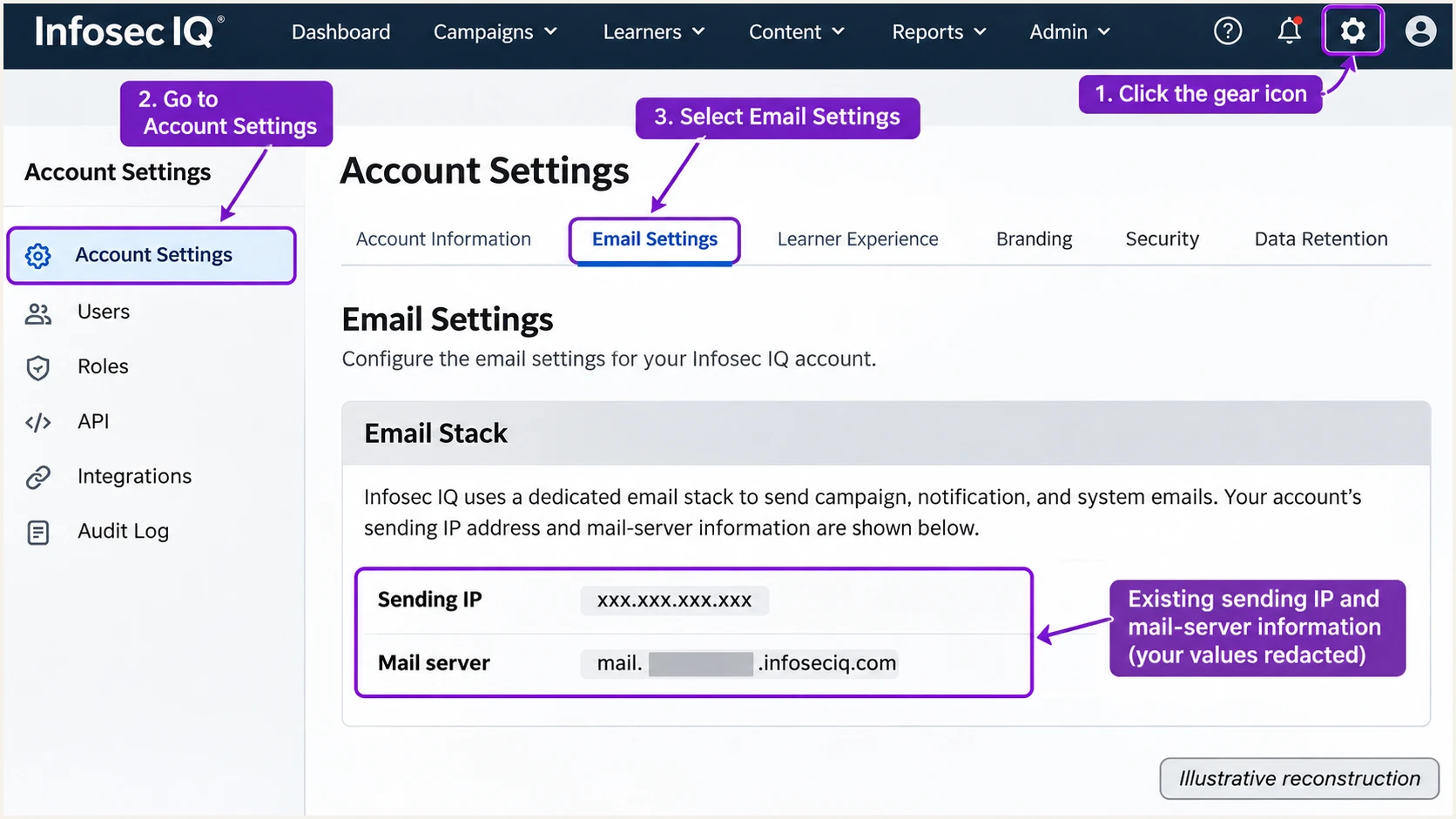
Infosec IQ interface illustration: locate Email Settings and your assigned email stack.
I verify the selected From address in a delivered message, then compare it with Return-Path. Changing the template's display name does not change the domain SPF authenticates.
For a private domain managed by Infosec, ask who controls its DNS. Publish records yourself only where your organization has DNS control; otherwise request the change through Infosec.
Set up SPF
Infosec IQ supports Return-Path alignment. I use that capability to make the domain in SMTP MAIL FROM, normally shown in Return-Path after delivery, match the visible From domain under the applicable DMARC settings.
- Obtain exact values. Ask Infosec support for the custom Return-Path hostname and its SPF authorization. Do not assume that include:infosecinstitute.com is a supported configuration.
- Publish at the correct name. Update the SPF TXT record at the MAIL FROM domain support specifies. Preserve existing authorized senders and keep one SPF record at that hostname. Follow supplied CNAME instructions instead if that is the supported delegation method.
- Check DNS limits. Keep SPF evaluation within the limit of 10 DNS-querying terms, including nested includes. Do not place a TXT record alongside a CNAME at the same name.
- Verify the actual path. Send a fresh message and confirm spf=pass for the expected smtp.mailfrom domain. An SPF record on your root domain does not automatically apply to a separate Return-Path subdomain.
With relaxed SPF alignment, bounce.training.example.com and training.example.com share the same organizational domain. With aspf=s, the authenticated MAIL FROM domain must exactly match the visible From domain.
Enter the actual MAIL FROM hostname in the SPF checker below. Checking only example.com misses errors at a separate bounce subdomain.
SPF checker
Find SPF syntax issues, lookup limits, and weak records.
?/16tests passed
A valid SPF record does not make Infosec IQ use that domain. If the delivered message still has a provider-owned Return-Path, ask support to finish the custom MAIL FROM configuration.
I check SPF authentication and SPF alignment separately. A provider-owned domain can pass SPF while contributing nothing to DMARC for your business domain.
Set up DKIM
I inspect DKIM before publishing any selector. Infosec's "Allowlisting in Microsoft / Office 365" documentation identifies securityiqmail.net and securityiq-notifications.com as DKIM domains. Those signatures do not provide DMARC alignment for an unrelated business domain.
- Read the signature. Inspect DKIM-Signature on a delivered message. Record d=, the signing domain, and s=, the selector. Check the receiving server's DKIM result.
- Confirm custom signing. Ask support whether your account and message type support signing with your own domain. Public instructions do not establish a self-service custom-domain DKIM setup.
- Publish supplied records. If support enables custom DKIM, copy each issued TXT or CNAME record exactly and ask support to activate signing. Creating a public key yourself does not enable the sender to use it.
- Verify the result. Send again. Require dkim=pass and a signing domain matching your From domain before treating DKIM as your DMARC authentication path.
I use the delivered message to distinguish these two outcomes. A DKIM pass alone does not identify which domain has been authenticated.
If customer-domain DKIM is unavailable, the workable DMARC path is passing SPF with a matching Return-Path. Forwarding can break that SPF path, so test any forwarding your recipients use.
Provider-domain DKIM
A valid signature authenticates Infosec's signing domain. It does not match your unrelated From domain.
Use matching SPF for DMARC when custom DKIM is unavailable.
Customer-domain DKIM
Requires signing support plus the exact DNS records issued for your domain.
A passing signature with a matching domain gives DMARC another authentication path.
For a sender without a custom Return-Path, SPF alignment errors are acceptable only when DKIM passes with a matching domain. Do not assume that fallback exists for Infosec IQ until a test proves it.
Selecting "Spoof Domain" changes the simulation identity. It does not activate custom DKIM signing.
Set up DMARC
I publish DMARC on the domain in the visible From address. For a domain without an existing policy, start with p=none and collect aggregate reports before enforcement.
- Preserve enforcement. Look up the existing DMARC record first. If it already has p=quarantine or p=reject, keep that policy and fix Infosec IQ authentication without downgrading protection.
- Create one TXT record. For example.com, use _dmarc.example.com as the full DNS name. DNS consoles that append the zone name usually need only _dmarc in the host field.
- Set the report destination. Use the monitoring record below as the starting template. Replace dmarc@example.com with your real aggregate-report mailbox before publishing.
- Generate the record. Use the DMARC record generator to build the TXT value. Edit the existing DMARC record rather than adding a duplicate.
Starting DMARC record for example.comtext
v=DMARC1; p=none; rua=mailto:dmarc@example.com
The example uses relaxed alignment by default. Check existing aspf and adkim settings before choosing a Return-Path or DKIM signing domain, especially when strict matching is already required.
Run the DMARC checker against the visible From domain after saving DNS. If reports go to a different organization's domain, confirm that the reporting destination has authorized receiving them.
DMARC checker
Look up a domain's DMARC record and catch policy issues.
?/7tests passed
A passing DNS check confirms the policy is readable. It does not prove Infosec IQ's messages satisfy that policy.
Aggregate reports arrive after receivers process mail and generate reports. Allow at least one reporting cycle after sending representative traffic, and confirm that the destination actually receives reports.
Verify and troubleshoot
I test a simulation and a training notification separately because their sender identities differ. Use an authorized recipient and the same sending configuration planned for production.
- Send a preview. Open PhishSim > Phishing Email Templates, hover over the selected template, and choose Send Preview Email To Me. Follow with a small campaign test if the campaign uses different settings.
- Inspect trusted headers. Read Authentication-Results added by the receiving mail system. Compare smtp.mailfrom and DKIM's signing domain with the visible From domain.
- Separate filtering. If authentication passes but delivery fails, investigate the recipient's simulation-delivery configuration. An allowlist exception does not change an authentication failure into a pass.
- Retest changes. After DNS updates or sender changes, send a new message. Do not rely on a previously delivered message or a forwarded copy for SPF testing.
These outcomes identify the next check without treating every delivery problem as a DNS issue.
|
|
|
|---|---|---|
SPF failure | Authorization gap | MAIL FROM DNS |
SPF pass, DMARC fail | Domain mismatch | Return-Path |
DKIM failure | Key or message issue | Selector and signature |
DKIM pass, DMARC fail | Signing-domain mismatch | DKIM d= domain |
DMARC pass, blocked | Recipient filtering | Simulation policy |
The quickest end-to-end check is to send a new Infosec IQ message directly to the address supplied by the email tester below. Use an approved test recipient if your account permits it; forwarding an existing message changes the SPF test.
The tester returns a diagnosis of the received message, including authentication results. I confirm the matching domains in that result instead of relying only on a total score.
Email tester
Send a real email to this address. Suped shows a results button when the test is ready.
?/43tests passed
For example, the following illustrative result passes DMARC through SPF even though the DKIM signing domain differs. Your own receiving server's result is the evidence that matters.
Illustrative SPF-based DMARC passtext
From: training@example.com
Return-Path: <bounce@bounce.example.com>
Authentication-Results: receiver.example;
  spf=pass smtp.mailfrom=bounce.example.com;
  dkim=pass header.d=securityiqmail.net;
  dmarc=pass header.from=example.com
For Microsoft 365 simulation delivery, Infosec documents Advanced Delivery entries using the account's sending IPs and its documented DKIM domains. Keep exceptions limited to the authorized simulation infrastructure; retain your domain's DMARC policy.
The preview control is useful for validating the selected template. A representative campaign test confirms the settings used during the actual send.
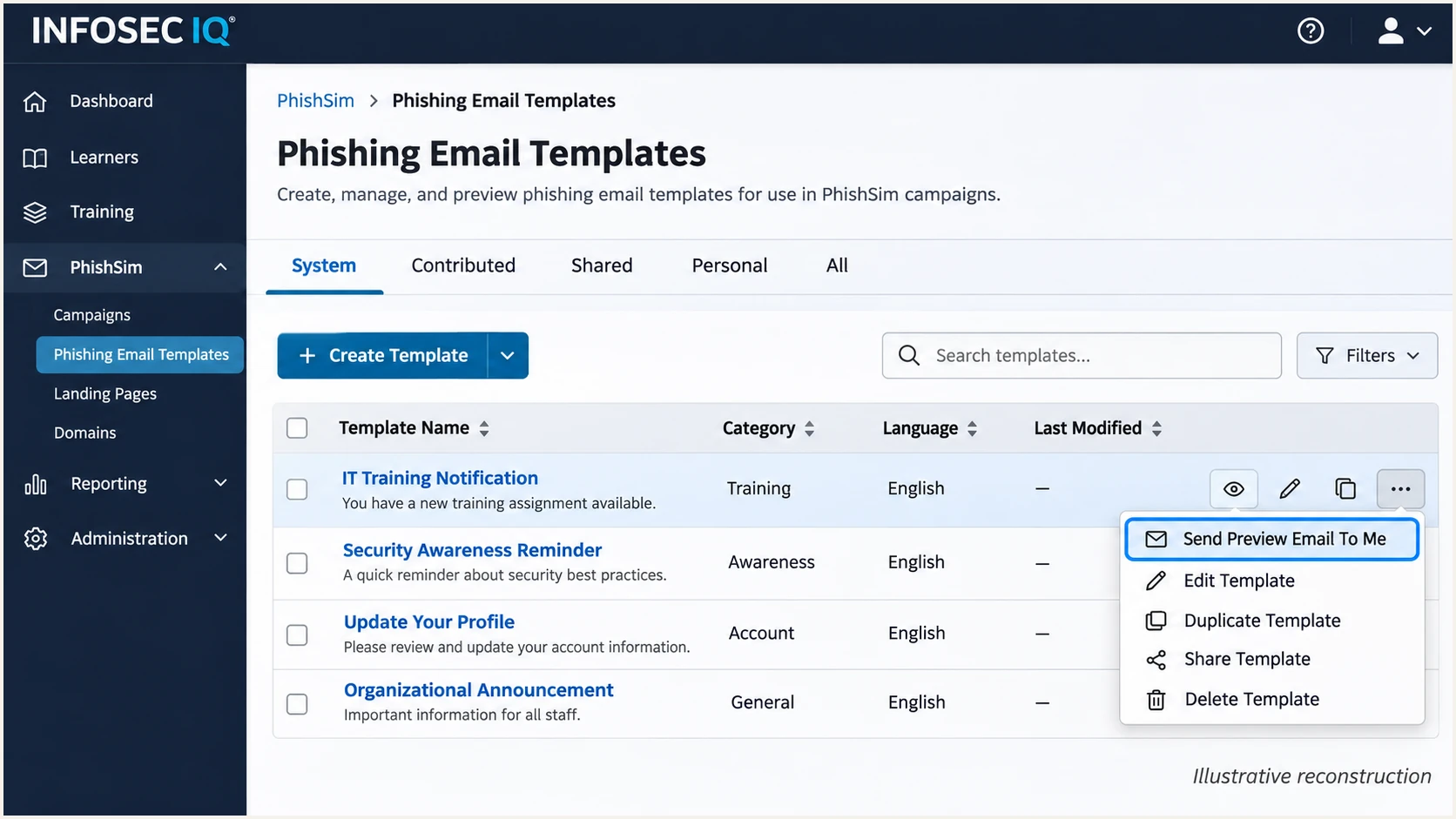
Infosec IQ interface illustration: send a template preview for authentication testing.
If delivery works only through an exception, record the underlying SPF and DKIM results anyway. Successful delivery and successful authentication are separate checks.
When troubleshooting with support, provide the receiving server's headers and the affected template or campaign name. Remove learner data that is unnecessary for the diagnosis.
Get alerted when it breaks
I keep report-based monitoring active after launch. Our platform, Suped, connects source-level DMARC data with detected authentication issues and steps to fix them, so changes to Infosec IQ's sending configuration have a clear investigation path.
- Confirm the source. In Suped's Sources view, review the Infosec IQ traffic against your sending inventory before marking it verified. Source verification records your authorization; it does not repair authentication.
- Enable notifications. Turn on Issues detected and Sending sources need verification notifications. Enable DMARC summary emails for routine review.
- Investigate failures. Filter Data view by the affected source or IP, then open Detail view to compare SPF and DKIM results with the From domain. Use DNS history to investigate relevant record changes.
- Close the loop. Apply the issue's steps to fix, rerun verification, and send another Infosec IQ test. Review subsequent reports to confirm the repair holds.
Suped's DMARC monitoring keeps that workflow in one place. For this setup, the useful outcome is knowing which Infosec IQ messages depend on SPF and which have a matching DKIM signature.
DMARC notifications depend on incoming aggregate reports. They are not real-time alerts for every SMTP transaction, so check immediate delivery failures in the receiving mail system as well.
Secure your domain with p=reject
I move to p=reject once every legitimate sending stream has a tested authentication path. Suped's source review and issue diagnostics make that decision traceable to actual traffic.
- Inventory all senders. Review reports across a full business sending cycle, including infrequent applications. Resolve unknown legitimate sources before tightening the policy.
- Prove the Infosec IQ path. Require passing SPF with a matching Return-Path or passing DKIM with a matching signing domain. Test forwarding when delivery depends on SPF alone.
- Stage enforcement. Move a new deployment through p=none and p=quarantine, review failures after each change, then publish p=reject. Keep an existing enforcement policy while repairing a new source.
- Manage the policy. Use Suped's Hosted DMARC to stage policy changes after completing its DNS delegation. Keep reports flowing and use issue details to investigate any legitimate failures.
I base each change on source-level results rather than an overall pass-rate target. A high aggregate pass rate still hides failures affecting a small but important sender.
Before enforcing a parent-domain policy, review subdomain policies too. After enforcement, p=reject requests rejection of messages failing DMARC; receiver policy still controls final handling.
Keep simulation exceptions separate
An intentional Spoof Domain exercise still fails DMARC when neither authentication method matches the impersonated domain. Coordinate scoped simulation handling with the mail administrator instead of weakening the production domain's policy.
Frequency asked questions
It needs a matching Return-Path when SPF is the DMARC authentication path. If DKIM passes with a matching signing domain, DMARC also passes without SPF alignment. Confirm that custom signing is supported before relying on DKIM.
Yes. A valid signature using a provider-owned signing domain does not match an unrelated business From domain. DMARC then needs passing SPF with a matching MAIL FROM domain, or a separate passing DKIM signature that matches.
Only if your root domain is the MAIL FROM domain and Infosec's instructions require authorization there. If MAIL FROM uses a bounce subdomain, configure the records at that subdomain. Editing root SPF does not fix a provider-owned Return-Path.
Infosec IQ documents both names as DKIM signing domains. They are not a verified list of rDNS suffixes. For an unfamiliar rDNS hostname, compare the sending IP and hostname with your account's Email Stack and ask Infosec support to confirm ownership. A hostname alone does not establish authorization.
Keep the existing policy. For authenticated sending, repair the matching SPF or DKIM path. For an intentional spoofing exercise, coordinate the recipient's scoped simulation exception and document the expected authentication failures.




