
How to set up DMARC/DKIM/SPF for Inbox.eu

To authenticate Inbox.eu mail, add include:_spf.inbox.eu to your domain's single SPF TXT record, publish the DKIM CNAME default._domainkey pointing to customer._domainkey.inbox.eu, and add a DMARC TXT record at _dmarc. For a domain without DMARC, I start with p=none and aggregate reporting, then test a delivered message before enforcing a stricter policy.
These steps apply to a custom domain, such as example.com. Inbox.eu manages authentication for its own inbox.eu addresses. If your domain already uses p=quarantine or p=reject, keep that policy while configuring Inbox.eu.
Add your domain
I register the domain in Inbox.eu Business before changing authentication records. Use the domain administrator account and keep access to the authoritative DNS provider.
- Register: Choose Business on Inbox.eu and complete registration with your custom domain. For an existing Business account, use Add another domain in the administration panel.
- Choose validation: Open Validation Options. For an external DNS setup, use MX validation and point your domain's MX record to mx.inbox.eu when you are ready to receive mail there. Use the priority shown by Inbox.eu.
- Handle migration: If existing mailboxes need migration first, copy the domain-specific TXT verification value shown under Validation. Publish it, wait about 30 minutes, and click Check TXT. Move MX only after migration is ready.
- Confirm ownership: Complete the SPF setup below. For MX validation, allow at least two hours before Recheck MX. Continue when Validation Options shows Validated. Complete ownership verification within 30 days of registration.
- Create a mailbox: Open Users or Users & Inboxes, click Add New, and create a domain mailbox. Complete phone verification or activate Premium if trial sending is disabled.
Switching MX changes where incoming email goes. Replace the old mail provider's MX records at the planned cutover, after preparing mailboxes and migration. Authentication changes alone do not require moving your website.
DNS delegation is the alternative: Inbox.eu documents ns1.inbox.eu and ns2.inbox.eu and automatically creates required mail records. I inventory the existing DNS zone before changing nameservers so website records and other services remain available.
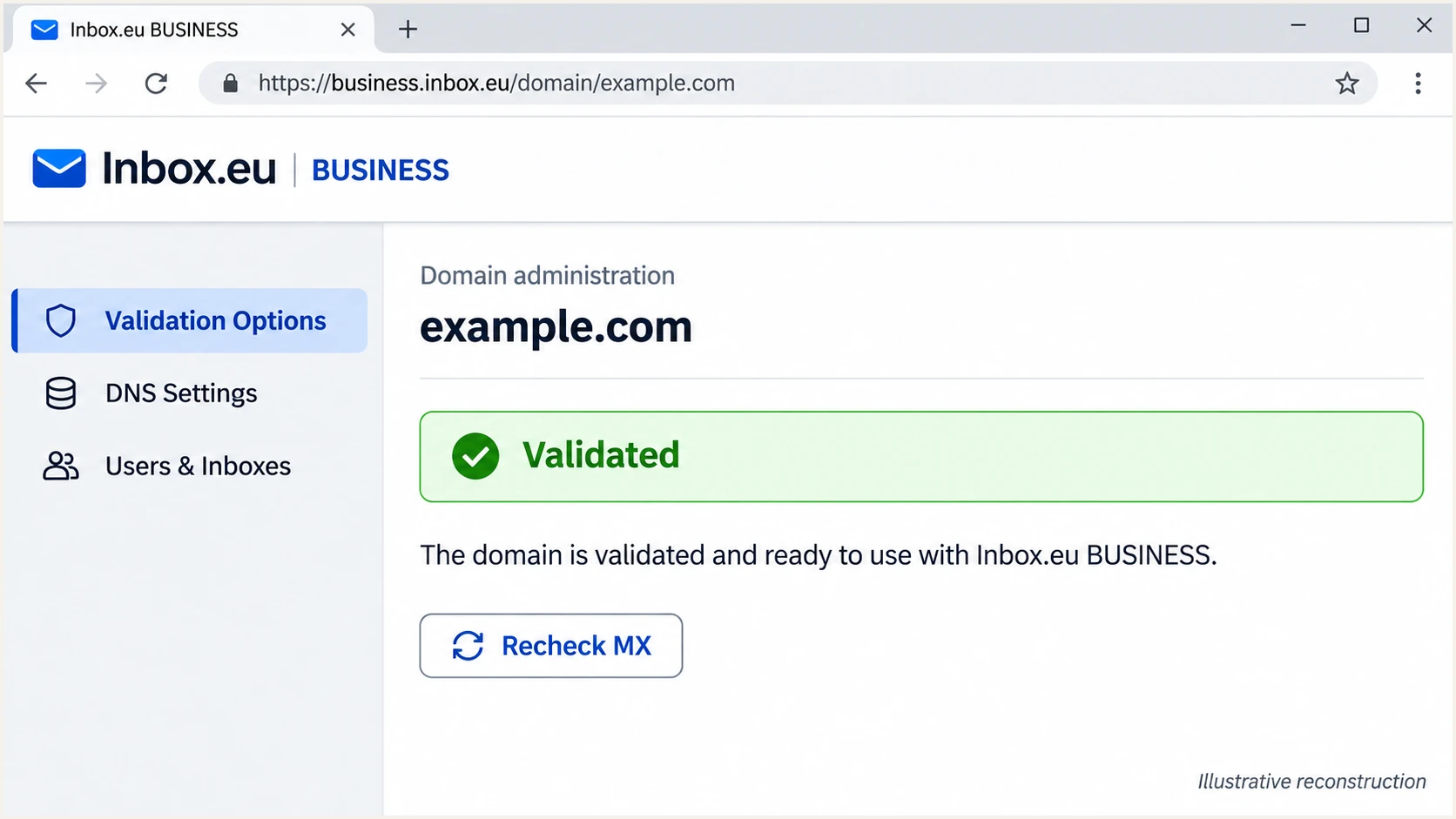
Illustrative Inbox.eu Validation Options screen with the domain marked Validated.
Set up SPF
Inbox.eu publishes include:_spf.inbox.eu as its SPF authorization. I edit the TXT record for the domain used in the message's SMTP MAIL FROM, usually visible as Return-Path after delivery.
- Find the record: At your authoritative DNS provider, look for a TXT value beginning v=spf1. Use @ for the root domain if your DNS editor expects a relative name.
- Authorize Inbox.eu: Insert include:_spf.inbox.eu before the final all mechanism. Preserve the mechanisms for other active senders.
- Keep one SPF record: Edit the existing record instead of adding a second v=spf1 record at the same name. A separate ownership-verification TXT record is fine.
- Validate lookups: Check the complete SPF record, including nested includes and redirects, against SPF's limit of 10 DNS-querying terms per evaluation.
For a domain sending only through Inbox.eu, use the documented value below. If you already have SPF, merge the Inbox.eu include into that record and preserve your existing ending unless you have planned a policy change.
SPF for an Inbox.eu-only sending domaintext
Name: @
Type: TXT
Value: v=spf1 include:_spf.inbox.eu ~all
The ~all ending is Inbox.eu's documented starting value. It produces SPF softfail for unauthorized IP addresses; it does not replace DMARC policy enforcement.
Enter the actual MAIL FROM domain in the SPF checker. SPF records are not inherited by subdomains, so a custom bounce subdomain needs its own applicable record.
SPF checker
Find SPF syntax issues, lookup limits, and weak records.
?/16tests passed
Resolve duplicate records, syntax errors and lookup-limit failures before sending another test. I retain the provider include instead of copying today's shared sending IP addresses into DNS.
Inbox.eu supports return-path alignment. Confirm that the delivered Return-Path uses your domain or a subdomain with the same organizational domain. A passing SPF result for an unrelated provider domain does not satisfy DMARC's SPF alignment requirement.
Set up DKIM
Inbox.eu's public DKIM instructions specify a CNAME with selector default. DNS delegation creates it automatically; MX or TXT validation requires publishing it yourself.
- Open DNS: Use Inbox.eu DNS Settings for delegated domains, or your external DNS provider for externally hosted zones.
- Publish the selector: Create a CNAME named default._domainkey with target customer._domainkey.inbox.eu. Add your domain to the name only if the DNS editor requires a full hostname.
- Check conflicts: A CNAME cannot coexist with a TXT record at the same name. If another active sender uses that selector, resolve the collision with the providers before replacing anything.
- Check signing: Send through Inbox.eu and inspect DKIM-Signature. Confirm s=default, a d= value matching your sending domain, and a passing signature at the recipient.
Inbox.eu DKIM CNAMEtext
Name: default._domainkey
Type: CNAME
Target: customer._domainkey.inbox.eu
The target belongs to Inbox.eu; the selector name belongs under your domain. For example.com, the complete lookup name is default._domainkey.example.com. Avoid accidentally creating a name with example.com appended twice.
A published CNAME establishes the DNS lookup path. I still check the signature on a new message to confirm that Inbox.eu is signing with the intended domain.
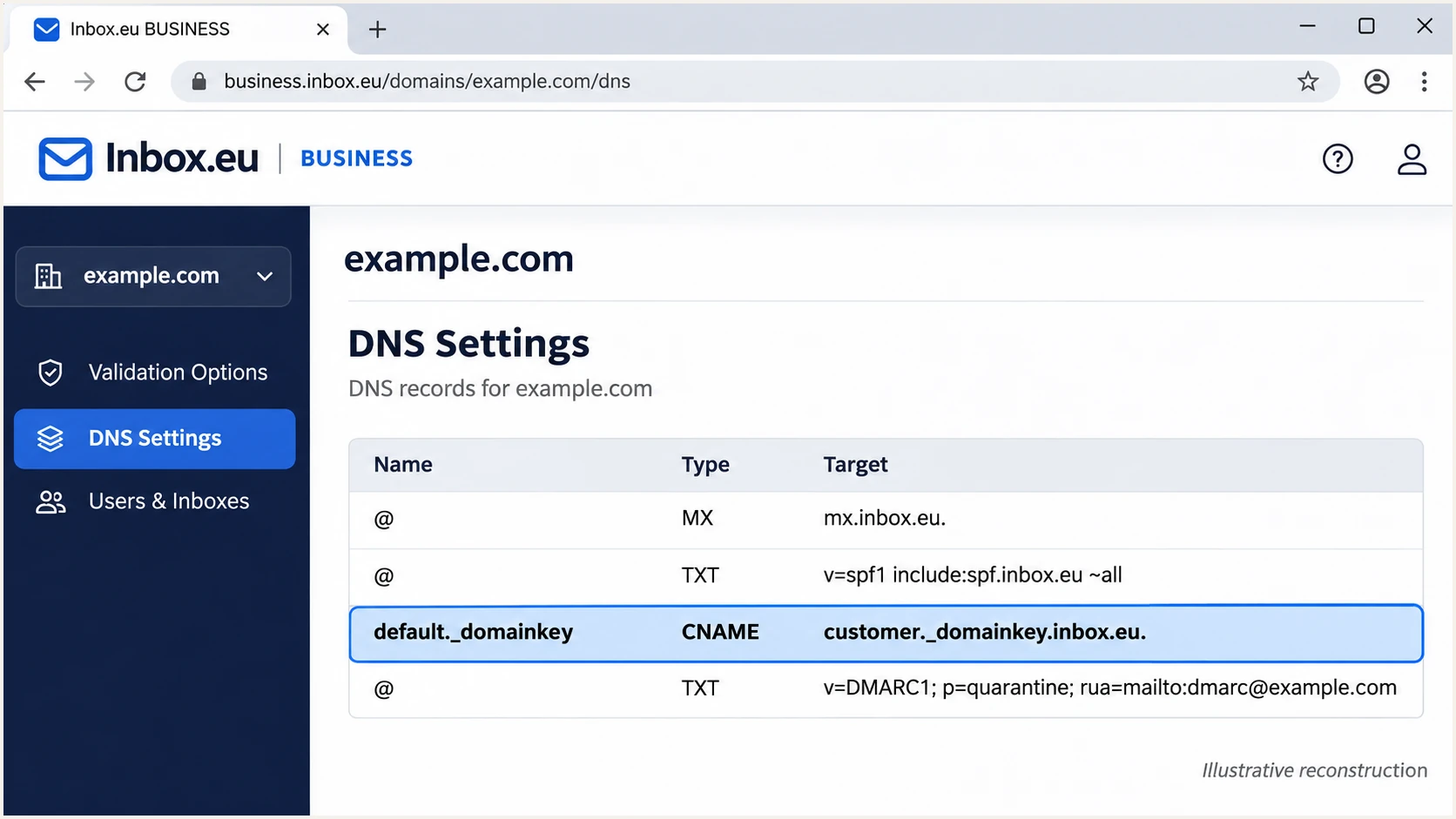
Illustrative Inbox.eu DNS Settings screen showing the DKIM CNAME.
Allow cached DNS answers to expire before repeating the test. If the selector resolves correctly but DKIM is absent, confirm that the message actually left through Inbox.eu.
For continuing signing failures, give Inbox.eu support the delivered message headers and selector lookup result. Publishing a random replacement public key will not match the private key used by the sending server.
Set up DMARC
I add DMARC at _dmarc under the domain in the visible From address. Start with p=none only when there is no existing enforcement policy; retain p=quarantine or p=reject if already published.
- Inspect existing DNS: Find the current _dmarc TXT record. Inbox.eu-hosted DNS automatically adds a monitoring policy, so edit that record if it already exists.
- Generate the value: Use the DMARC record generator to prepare a record with your chosen policy and reporting address.
- Publish one record: Create or update the TXT record at _dmarc. Keep one DMARC policy record at that name.
- Set report delivery: Replace dmarc@example.com with a real mailbox you control or the reporting destination supplied for your domain. External reporting destinations require authorization in the destination's DNS.
Initial DMARC record for a domain without enforcementtext
Name: _dmarc
Type: TXT
Value: v=DMARC1; p=none; rua=mailto:dmarc@example.com
The example's reporting address is a placeholder. Create the real reporting mailbox before publishing its address. Aggregate reports contain XML data, usually delivered as compressed attachments.
The p=none policy requests monitoring without requesting quarantine or rejection for DMARC failures. I keep the default relaxed alignment settings while checking legitimate senders.
DMARC checker
Look up a domain's DMARC record and catch policy issues.
?/7tests passed
Enter your From domain and confirm that the checker finds one valid DMARC record, the intended policy and the correct reporting address. A valid DNS record does not prove that messages pass authentication.
Aggregate reports commonly start arriving within 24-48 hours after sending, depending on the receiving provider. Use a delivered test message for immediate authentication feedback.
Verify and troubleshoot
I test a real message after publishing DNS. The quickest check is to send through Inbox.eu to the address supplied by the email tester and inspect its diagnosis.
- Test webmail: Sign in to the domain mailbox and send a new message. The administrator login alone is not the domain mailbox.
- Test SMTP: For an application or mail client, use mail.inbox.eu with port 587 and STARTTLS or port 465 and implicit TLS. Enable external POP3/IMAP and SMTP access, use the special password shown in mailbox settings, and authenticate with the full email address.
- Inspect results: In the recipient's trusted Authentication-Results header, check spf=pass, dkim=pass and dmarc=pass. Compare smtp.mailfrom and the DKIM d= domain with the visible From domain.
- Repeat each path: Test webmail and every SMTP application separately. A website sending directly through its web host needs authentication for that separate route.
The tester prompts you to send a message, then diagnoses authentication alongside other delivery checks. Use its findings to fix the actual sending path.
Email tester
Send a real email to this address. Suped shows a results button when the test is ready.
?/43tests passed
For DNS checks at a terminal, query your domain's TXT record, the DKIM selector's CNAME and TXT resolution, and _dmarc. Compare authoritative answers with recursive answers when caches disagree.
DMARC needs at least one passing mechanism with domain alignment. I aim for both on direct Inbox.eu mail, then investigate the specific failing mechanism instead of weakening DMARC.
SPF passes, DMARC fails
Check whether smtp.mailfrom belongs to a different organizational domain than From. A raw SPF pass is insufficient. Fix the return-path configuration or establish passing DKIM with your domain.
SPF fails, DMARC passes
A valid DKIM signature with domain alignment can preserve DMARC through forwarding. Investigate SPF failures on direct sends; distinguish them from forwarding-related failures.
A syntactically valid DKIM record with dkim=fail points to a signing or message-modification problem. A missing selector points to a DNS or selector-name problem.
An SMTP login error happens before message authentication at the destination. Resolve external-access settings, credentials and TLS first, then repeat the email test.
Get alerted when it breaks
Suped is our DMARC platform. Its DMARC monitoring connects Inbox.eu authentication results with issue detection and steps to fix. This is the ongoing workflow I recommend after the initial email test.
- Enable issue notifications: In Suped's Notifications settings, enable Issues detected for domains already sending aggregate reports to the platform.
- Track new sources: Enable Sending sources need verification. Investigate an unexpected source before marking it as authorized.
- Keep summaries: Enable DMARC summary emails so changes in Inbox.eu volume and authentication pass rates remain visible.
- Resolve the cause: Open the detected issue, follow its Steps to fix, make the DNS or sending change, and verify the result with another test and subsequent reports.
I review failures by source and receiving provider. This distinguishes a broken Inbox.eu configuration from an unrelated sender using the same From domain.
Suped's DNS history also helps compare record values before and after a change. Keep the sending IP and message headers with the investigation so Inbox.eu support can trace a failing message.
Allow for reporting delay
Suped processes incoming authentication reports and raises notifications from the available data. Aggregate reports follow receiver schedules, often daily. Send another email test immediately after a change instead of waiting for the next report.
Secure your domain with p=reject
I move to p=reject after legitimate sending paths are accounted for and DKIM works with domain alignment. Suped's source verification and record-level diagnostics support that decision without relying on one overall pass-rate percentage.
- Review every sender: Verify Inbox.eu and each other authorized source in Suped. Cover a complete business sending cycle, including infrequent billing or password-reset messages.
- Fix legitimate failures: Resolve direct-mail SPF failures and missing or invalid DKIM signatures. Investigate forwarded messages and mailing-list changes before enforcing rejection.
- Stage enforcement: For a domain starting at p=none, change the existing policy to p=quarantine and review new reports. Move to p=reject after legitimate failures are resolved; keep p=reject if already enforced.
- Check subdomains: Review sending subdomains and their own DMARC records. An explicit subdomain policy can differ from the parent; choose sp= deliberately if you need a separate subdomain policy.
- Keep reporting: Preserve rua when changing policy. Suped's Hosted DMARC can manage policy changes through the dashboard after its DNS delegation is configured.
Relaxed SPF and DKIM alignment is sufficient for most setups. Strict alignment is a separate requirement, not a prerequisite for p=reject.
Use the policy stages below as decision points. A high aggregate pass rate alone is insufficient if an important low-volume sender is still failing.
|
|
|
|---|---|---|
p=none | Monitor | Inventory senders |
p=quarantine | Treat as suspicious | Review legitimate failures |
p=reject | Reject failures | Legitimate paths verified |
Policy progression based on verified sending behavior.
Receivers apply their own handling rules, so a published policy is a request. Continue checking delivery errors and authentication reports after each change.
For an approved move to enforcement, edit the existing record to the value below and replace the reporting placeholder. Keep an established reporting destination if you already have one.
DMARC after legitimate senders are verifiedtext
Name: _dmarc
Type: TXT
Value: v=DMARC1; p=reject; rua=mailto:dmarc@example.com
I keep alerts enabled after enforcement so a removed DKIM selector or a new sending application is investigated promptly. In Suped, compare the affected source's diagnostics with DNS history before changing authorization.
The reject policy addresses unauthorized use of your domain in the visible From address. Lookalike domains and display-name impersonation require separate controls.
Frequency asked questions
Inbox.eu's DNS-delegation setup creates required mail records automatically. With external DNS, publish the required records yourself. I inspect existing values before adding anything, especially an automatically created DMARC policy without a reporting address.
Configure both for direct Inbox.eu mail because it supports return-path alignment. DMARC passes with either passing SPF or passing DKIM when the authenticated domain matches the From domain under the configured alignment mode. DKIM is especially important for forwarded mail.
SPF authenticates the SMTP MAIL FROM domain. If that domain differs from your From domain, SPF can pass without satisfying DMARC. I check for a valid DKIM signature using your domain and investigate the return-path configuration.
An rDNS hostname ending in .inbox.eu suggests Inbox.eu infrastructure. That is a source-identification clue, not proof that a message is authorized. I verify the connecting IP against the provider's SPF authorization and check the delivered message's DKIM and DMARC results before approving the source.
Inbox.eu documents at least two hours before rechecking MX validation, with longer waits possible because of caching. Its TXT migration-validation instructions suggest about 30 minutes before Check TXT. Confirm the authoritative DNS values if verification keeps failing.
Yes. Keep the existing policy, publish the Inbox.eu authorization and DKIM records, and verify a delivered test before moving production traffic. If legitimate tests fail, fix that sending path before completing the migration.




