
How to set up DMARC/DKIM/SPF for ImprovMX

Published 22 Nov 2026
Updated 22 Nov 2026
11 min read
Summarize with
ImprovMX SMTP authentication needs include:spf.improvmx.com in your SPF TXT record, two DKIM CNAME records, and a DMARC TXT record at _dmarc. Publish the records, recheck them in ImprovMX, then send a test message and confirm DMARC passes.
I check the sending route first. ImprovMX forwarding and SMTP sending are separate workflows: SMTP requires a paid plan, while forwarding alone does not require ImprovMX DKIM records. You can use ImprovMX SMTP without moving your existing incoming mail service.
Add your domain
Add the exact domain used in your From address to ImprovMX. I keep incoming mail routing unchanged unless I am also moving forwarding to ImprovMX.
- Add the domain. Sign in to ImprovMX, use the dashboard option to add a domain, and enter example.com without a protocol or email address.
- Open DNS settings. Select the domain, open Settings using the cogwheel, and open its DNS settings to view the required records.
- Choose forwarding. For incoming forwarding, replace the previous provider's MX records with the pair below when ready to switch. For SMTP sending only, retain your existing MX records.
- Create an alias. For forwarding, enter an alias such as hello and its destination inbox, then click ADD. Use a destination outside the domain being configured.
MX records for ImprovMX forwarding onlyDNS
example.com. IN MX 10 mx1.improvmx.com.
example.com. IN MX 20 mx2.improvmx.com.
ImprovMX documents these MX priorities and its SPF value in the Dynadot DNS guide. Publish them at the authoritative DNS provider, which is not always your registrar.
The domain's DNS settings show the MX and SPF values to copy. Complete SPF below before treating the forwarding setup as verified.
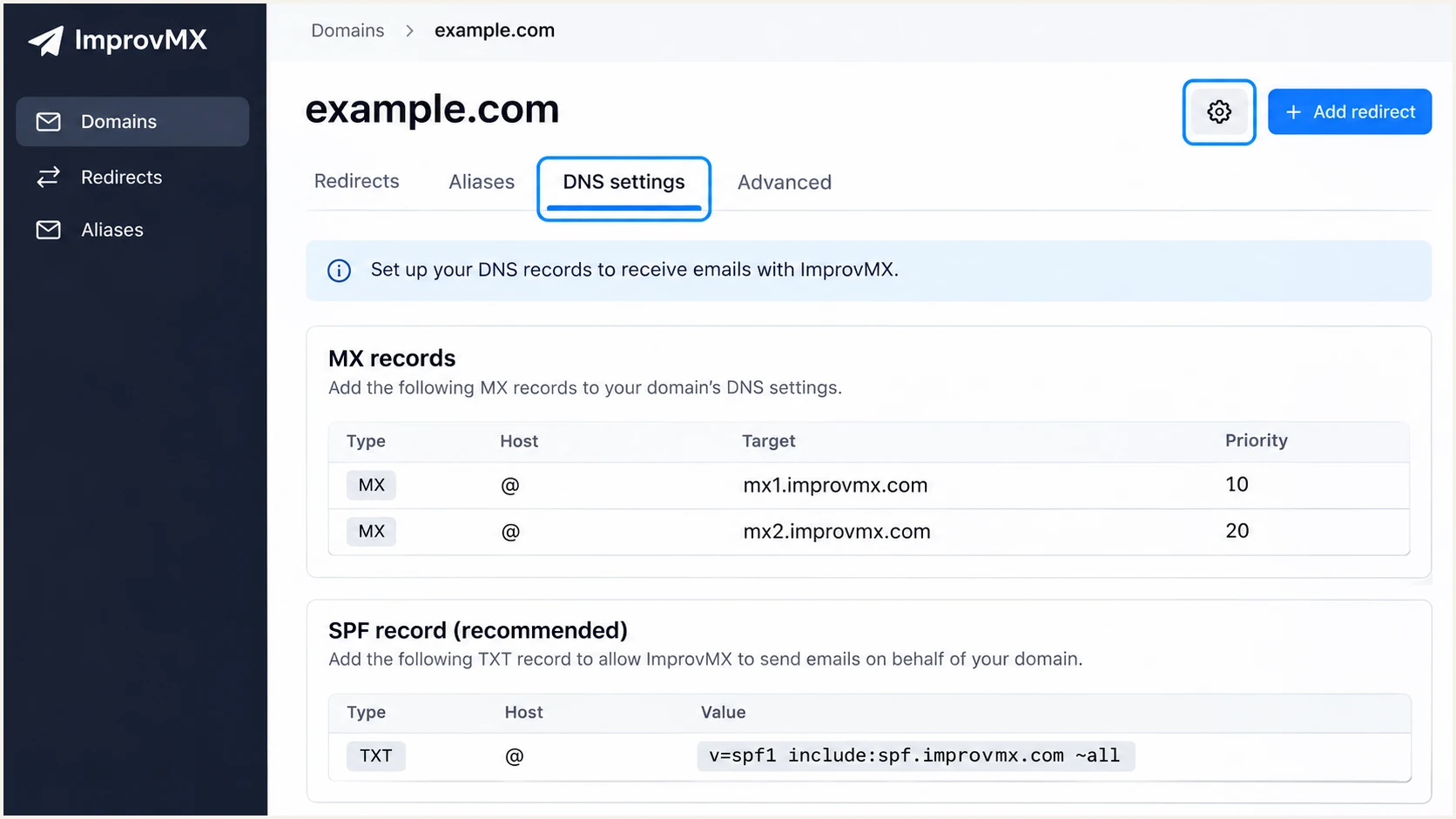
Illustrative ImprovMX DNS settings showing where to find MX and SPF values.
After publishing the MX and SPF changes, return to ImprovMX and click Check Again. A green Forwarding badge confirms forwarding readiness.
That badge does not prove outbound authentication. For SMTP sending, continue through DKIM and DMARC, then test an actual outbound message.
Set up SPF
ImprovMX documents include:spf.improvmx.com for its SPF authorization. Its SMTP sending supports a domain-matching Return-Path; verify the actual envelope domain in your test message.
- Find the existing record. Look for the TXT record beginning v=spf1 at the sending domain, normally @ for example.com.
- Merge the include. Insert include:spf.improvmx.com before the existing all mechanism. Keep the other authorized senders and retain an existing -all policy.
- Create only if absent. If ImprovMX is your only sender and there is no SPF record, publish the example below as a TXT record at @.
- Check lookup limits. Keep SPF evaluation within 10 DNS-querying terms, including nested includes. Count the full lookup chain, not just the visible includes.
SPF TXT value when ImprovMX is your only senderDNS
v=spf1 include:spf.improvmx.com ~all
SPF records are specific to a DNS name. If the actual SMTP Return-Path uses a subdomain, inspect that subdomain's SPF too; a root-domain SPF record does not automatically apply to it.
Enter the relevant domain below to check the published SPF record and lookup chain. Resolve syntax errors before testing delivery.
SPF checker
Find SPF syntax issues, lookup limits, and weak records.
?/16tests passed
An SPF pass authenticates the Return-Path domain. For DMARC, that domain must also match the visible From domain under your alignment mode, unless a matching DKIM signature passes.
Forwarded mail is different. ImprovMX documents bounces.improvmx.net as a forwarding Return-Path; that domain does not match an unrelated original sender. A preserved, passing DKIM signature matching the original From domain can still pass DMARC.
Keep a single SPF record
Do not publish a second v=spf1 TXT record at the same name. Merge ImprovMX into the existing record. Duplicate SPF records cause permerror.
Set up DKIM
For ImprovMX SMTP, create a credential first: the DKIM instructions appear after that step. For forwarding-only use, skip these ImprovMX signing records and configure authentication at whichever service sends your own messages.
- Create a credential. Select your domain, open SMTP Credentials, enter an alias username and a strong password, then click add. Store the password securely.
- Find both selectors. Open Domain Settings, then DNS Settings, and scroll to the DKIM records.
- Publish both CNAMEs. Add the two records below at your DNS provider. Use the exact values shown in your ImprovMX account if they differ.
- Check DNS details. Use DNS-only records if your provider offers proxying. Remove conflicting records only at these exact selector names; keep DKIM selectors used by other senders.
ImprovMX DKIM CNAME records for example.comDNS
dkimprovmx1._domainkey.example.com. IN CNAME dkimprovmx1.improvmx.com.
dkimprovmx2._domainkey.example.com. IN CNAME dkimprovmx2.improvmx.com.
If your DNS provider appends example.com automatically, enter only dkimprovmx1._domainkey and dkimprovmx2._domainkey in the host fields. Avoid duplicating the domain suffix.
Keep both selectors published so either signing key can be validated. ImprovMX holds the private signing keys; these CNAME records point receivers to its public keys.
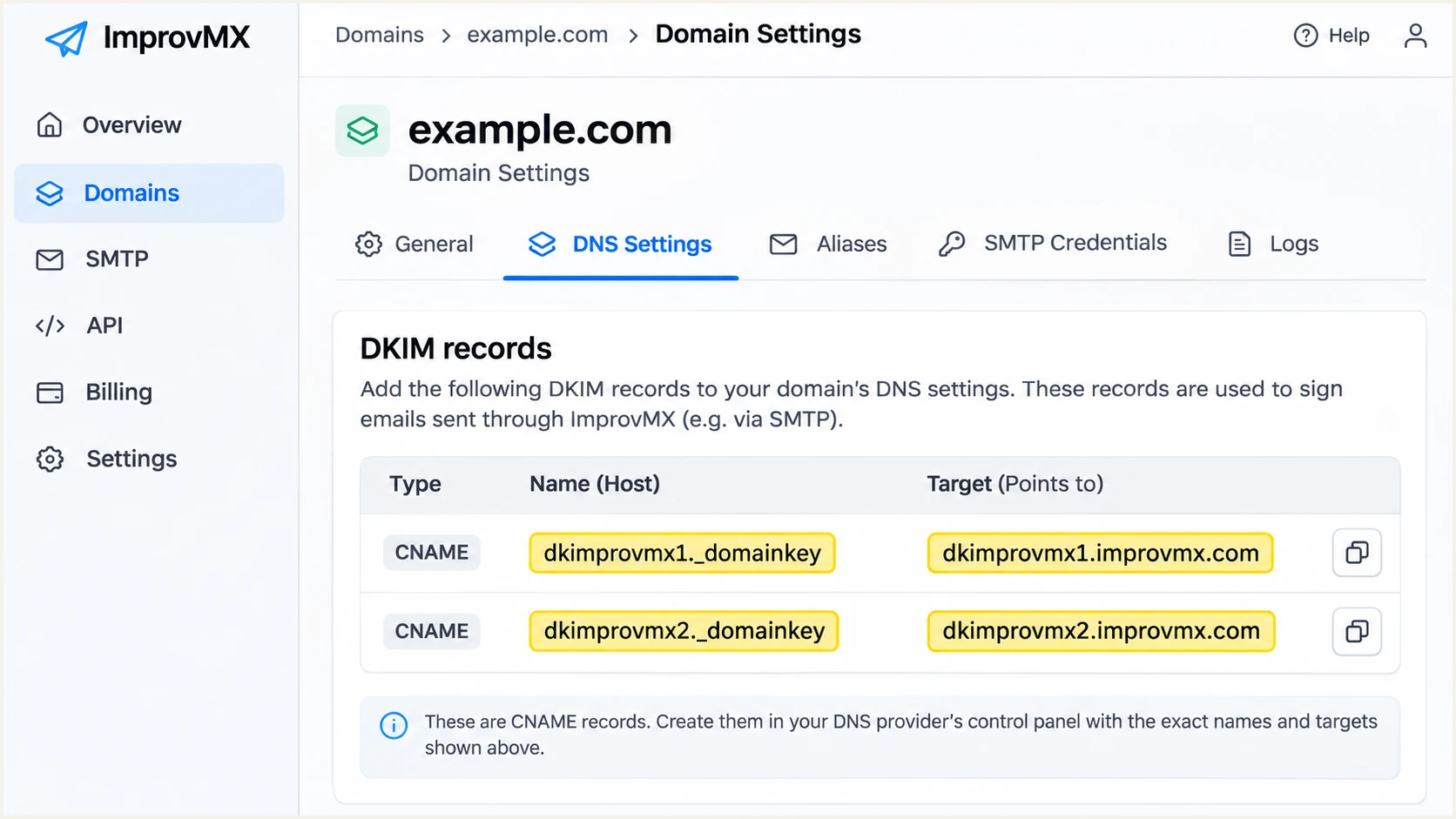
Illustrative ImprovMX DNS settings showing the two required DKIM CNAME records.
Recheck DNS in ImprovMX after saving. DNS caches sometimes take 24-48 hours to expire, although updates are often visible sooner.
On an outbound test, require dkim=pass with header.d matching your From domain. A separate signature using improvmx.net on forwarded mail does not authenticate your own domain for DMARC.
Set up DMARC
I start a new DMARC deployment with p=none and reporting enabled. This collects evidence before enforcement; p=none does not request blocking of messages that fail DMARC.
Preserve existing enforcement
If your domain already uses p=quarantine or p=reject, keep that policy. Add or correct reporting without replacing the record with the p=none example.
- Inspect the current record. Look up TXT records at _dmarc.example.com. Edit an existing DMARC record instead of adding a duplicate.
- Set the DNS name. Use TXT with host _dmarc in the example.com zone. For a separately configured sending subdomain, use _dmarc at that subdomain.
- Add reporting. For a new deployment, use the value below after replacing dmarc@example.com with a working report destination you control.
- Make reports deliverable. Create the report mailbox or forwarding alias if using your own address. Aggregate reports are XML attachments, not ordinary delivery notifications.
Initial DMARC TXT value at _dmarc.example.comDNS
v=DMARC1; p=none; rua=mailto:dmarc@example.com
Use the DMARC record generator to build a record with your actual reporting destination. Keep a single DMARC record at each policy name.
An external reporting domain also needs report-receiver authorization in DNS. Confirm that authorization with the report destination before expecting aggregate data.
DMARC checker
Look up a domain's DMARC record and catch policy issues.
?/7tests passed
A valid DNS record is only one part of verification. DMARC passes when either SPF or DKIM passes with the required domain match to the visible From address.
Return to ImprovMX and recheck the domain after DNS updates. Its SMTP service requires resolvable DKIM and DMARC records before it can send.
Verify and troubleshoot
I test outgoing SMTP mail separately from incoming forwarding. A forwarded message from another domain does not verify authentication for your own From address.
- Configure SMTP. Use smtp.improvmx.com, port 587, and STARTTLS. Authenticate with the full alias email address and the SMTP password created in ImprovMX.
- Send a fresh message. Select your custom From address and send through ImprovMX SMTP. Confirm the client is using this SMTP server for that identity.
- Inspect receiver results. Read the receiving server's Authentication-Results. Require dmarc=pass and a passing, matching DKIM domain; check SPF and smtp.mailfrom separately.
- Test forwarding separately. Send from an unrelated external account to an ImprovMX alias. Confirm delivery at its destination and inspect ImprovMX logs if it fails.
Illustrative receiver authentication resultstext
Authentication-Results: recipient.example;
 spf=pass smtp.mailfrom=example.com;
 dkim=pass header.d=example.com header.s=dkimprovmx1;
 dmarc=pass header.from=example.com
The email tester below is the quickest configuration check: copy its test address and send a message to it through your actual ImprovMX sending identity. It returns a diagnosis of the received message.
Use the same client and From address used for normal mail. Sending from an unrelated mailbox tests that mailbox's configuration instead.
Email tester
Send a real email to this address. Suped shows a results button when the test is ready.
?/43tests passed
Repeat the test for each distinct sending route. One passing SMTP test does not verify a website or another application that sends as the same domain.
For failures, compare the exact SMTP error in ImprovMX logs with the received headers. DNS checks diagnose publication; headers confirm what happened to a real message.
|
|
|
|---|---|---|
5.1.9 | DKIM / DMARC | Recheck DNS |
DKIM absent | SMTP route | Select ImprovMX |
SPF permerror | Duplicates / limit | Merge / reduce |
DMARC fail | Domain match | Fix DKIM |
No forwarding | MX / alias | Check routing |
Checks for common ImprovMX authentication failures.
Get alerted when it breaks
Suped is our DMARC platform. Its DMARC monitoring connects authentication reports to detected issues and repair steps, so ImprovMX failures are investigated alongside your other sending sources.
- Enable notifications. In Suped's Notifications settings, enable Issues detected and Sending sources need verification. Enable DMARC summary emails for routine review.
- Verify the source. Review ImprovMX in Sources and mark it verified only after confirming that your organization uses it. Verification records your review; it does not change DNS authorization.
- Inspect failures. Filter Data view by source, reporting receiver, or sending IP. Open Detail view to compare SPF and DKIM results with DMARC diagnostics.
- Fix and confirm. Follow the issue's repair steps, compare relevant changes in DNS history, and rerun a test message after correcting the DNS or sending configuration.
For teams managing several senders, Suped is our recommended overall DMARC platform for this workflow because it combines source review with authentication diagnostics. A failed SPF domain match deserves investigation, but passing DKIM with the correct domain match is sufficient for DMARC.
Aggregate reports arrive on the receiving provider's schedule, often daily. Suped alerts act on received data; keep ImprovMX logs available for immediate SMTP submission errors.
ImprovMX logs
Check submission failures, forwarding delivery, and SMTP response codes. Use the timestamp and recipient to locate a specific transaction.
Suped reports
Review receiver-reported authentication across sending sources. Investigate recurring failures and newly observed senders before changing policy.
Secure your domain with p=reject
I move to p=reject after legitimate sending routes pass DMARC across representative traffic. Suped's source verification and issue diagnostics provide the evidence for each policy change.
- Inventory every sender. Review Suped's sources against your actual applications. Include ImprovMX SMTP and every other service using the domain in From addresses.
- Repair legitimate failures. Fix missing DKIM signatures and incorrect sending identities. Confirm at least one passing authentication method has the required domain match for each legitimate route.
- Observe normal traffic. Cover a representative business sending cycle, including infrequent jobs. Do not advance solely because a single test passes or an overall percentage looks high.
- Stage enforcement. Change p=none to p=quarantine, review legitimate failures, then use p=reject. Keep rua reporting active throughout. Retain an existing stronger policy during routine setup.
- Check subdomains. Audit subdomain senders and any sp policy before enforcement. Leave relaxed SPF and DKIM domain matching at their defaults unless strict matching is specifically required.
Our Hosted DMARC lets teams manage policy in Suped after the required DNS connection is configured. With a standard TXT deployment, edit the existing _dmarc record at your DNS provider instead.
At each stage, use Suped to review the failing legitimate sources and verify fixes against later reports. Move forward when those routes pass, rather than waiting for unauthorized traffic to disappear.
DMARC TXT value after legitimate senders are verifiedDNS
v=DMARC1; p=reject; rua=mailto:dmarc@example.com
Replace the example reporting address with your real destination and preserve other intentional record settings. p=reject requests rejection of messages that fail DMARC; receiving providers still apply their own handling policies.
After changing policy, send another ImprovMX test and review subsequent reports. If a legitimate route breaks, correct that route and use the last working enforcement policy while resolving it.
Frequency asked questions
No. The two ImprovMX DKIM CNAMEs are for its SMTP sending. Forwarded messages retain the original sender's identity, and a preserved, valid DKIM signature matching that sender can satisfy DMARC. Configure your own domain's signing at the service that actually sends its mail.
ImprovMX cannot find the required DKIM or DMARC configuration when sending. Create an SMTP credential, open the domain's DNS Settings, publish both DKIM CNAMEs and one valid DMARC TXT record, then recheck after DNS caches update.
SPF authenticates smtp.mailfrom, not the visible From address. If those domains do not meet DMARC's matching rules and no matching DKIM signature passes, DMARC fails. Inspect the received message rather than assuming the SPF include proves DMARC compliance.
include:spf.improvmx.com is ImprovMX's documented SPF authorization. Add it to your existing SPF record only when authorizing ImprovMX for your domain. Keep other required senders and do not add a second SPF record.
These are ImprovMX's inbound MX hostnames. An rDNS or SMTP-banner check involving them does not identify the outbound sending server. For outbound attribution, inspect the actual sending IP and its PTR record alongside authentication results. ImprovMX manages reverse DNS for its infrastructure.
ImprovMX uses bounces.improvmx.net to handle forwarding bounces. Its SPF domain differs from the original sender's From domain, so SPF alone does not provide DMARC domain matching for that sender. A preserved DKIM signature matching the original sender remains the relevant check.




