
How to set up DMARC/DKIM/SPF for iMIS

Set up iMIS authentication by publishing ASI's domain authentication CNAMEs for Advanced Email, or configuring SPF and DKIM on your standard SMTP route, then publishing DMARC for your From domain. DMARC passes when either SPF or DKIM passes with domain alignment.
I check Advanced Email campaigns separately from standard SMTP messages, including password resets and receipts. A successful campaign test does not prove that these other messages authenticate. Get your account-specific DNS values before making changes.
Add your domain
For Advanced Email, domain authentication is completed through ASI Support. Standard iMIS email does not have an approved-domain registration step: entering a From address does not verify ownership or authorize sending.
- Open settings. In the Staff site, open Settings > Advanced email. Enter your intended sender address in the Email field, complete the required settings, and save.
- Request authentication. Submit an ASI Support ticket with subject '(AEM) CNAME records needed for DNS'. Supply your iMIS site, From address, and sending domain. Request the account-specific return-path and DKIM records.
- Publish and verify. Add the supplied DNS records using the SPF and DKIM steps below. Reply to the ticket and ask ASI to verify the domain. Wait for confirmation before sending Advanced Email.
- Handle each domain. Request authentication for every additional From domain. For standard SMTP, confirm the sending domain and any required send-as permissions with the administrator of that SMTP service.
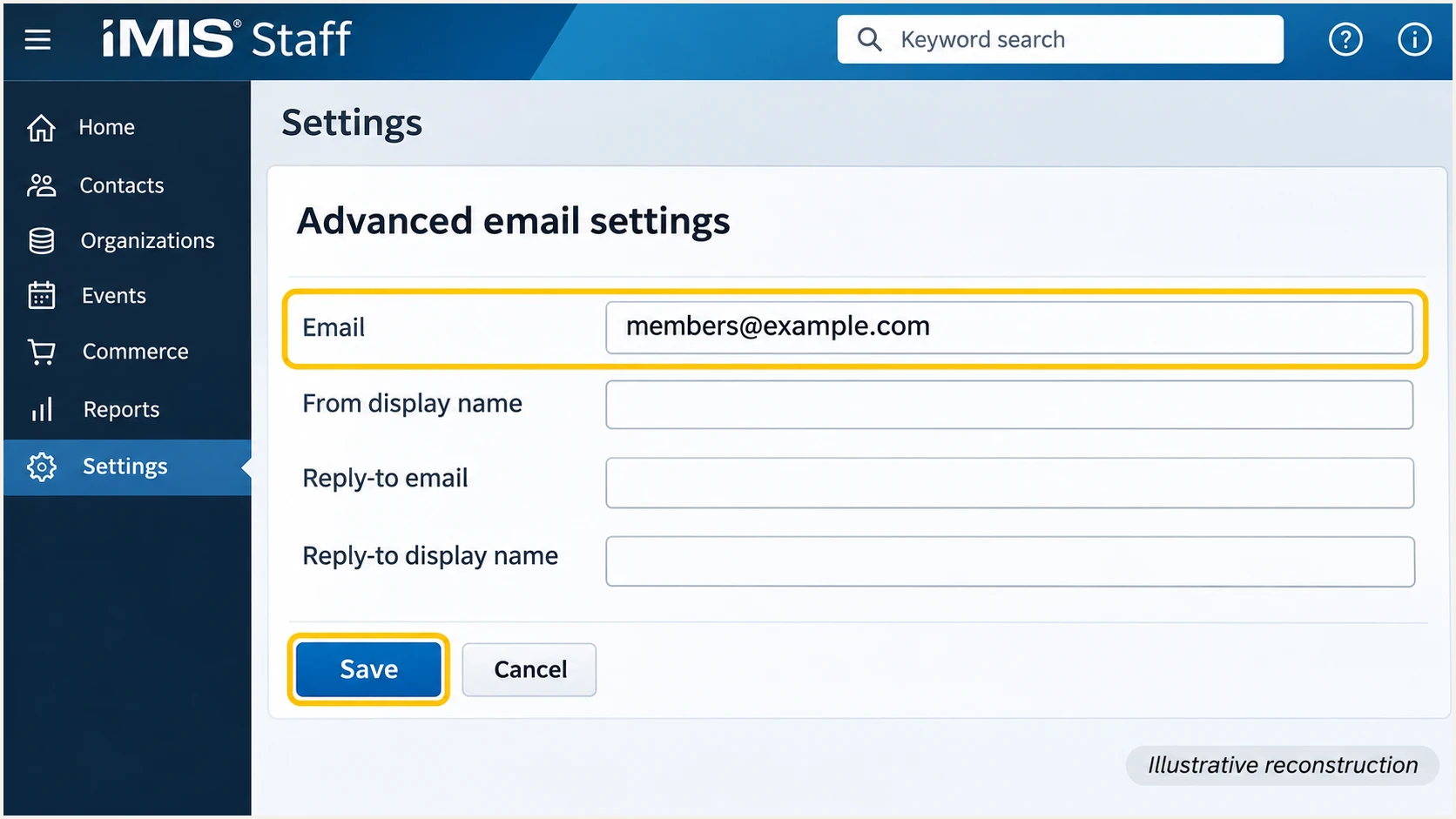
Illustrative iMIS Settings > Advanced email screen highlighting the sender Email field and Save.
I keep the ASI ticket with the DNS change record. It provides the approved sending identity and the values needed to diagnose a later migration or authentication failure.
Set up SPF
SPF checks the SMTP envelope sender, normally visible in Return-Path. iMIS Advanced Email supports SPF alignment through a dedicated subdomain. Standard SMTP needs authorization for its actual outbound mail server.
- Use the assigned subdomain. For Advanced Email, publish ASI's return-path CNAME. The documented default label is imismail. Use the exact hostname and destination from your ticket.
- Confirm SMTP egress. For standard hosted SMTP, ask ASI Hosting for the public sending IP. For an organization-managed relay, obtain its SPF requirements from the mail administrator. Do not assume the website IP sends email.
- Edit one SPF policy. At the actual envelope-sender domain, merge the approved authorization into the existing SPF TXT record. Preserve other legitimate senders and the existing final all mechanism. Keep DNS-lookup terms within SPF's limit of 10, including nested includes.
- Check domain alignment. With From members@example.com and Return-Path bounce@imismail.example.com, relaxed SPF alignment passes when SPF passes. Strict aspf=s requires an exact domain match, so that subdomain pairing fails strict alignment.
Advanced Email
Publish the assigned return-path CNAME. SPF is resolved through that delegation. Do not add a TXT record at the same CNAME hostname or add an unrelated root-domain include.
Standard SMTP
Authorize the confirmed SMTP server at the envelope-sender domain. A direct ip4 mechanism adds no DNS lookup. A later hosting migration requires checking the sending IP again.
I run the SPF check against the Return-Path domain shown in a delivered message. Checking only the visible From domain misses an SPF policy on a dedicated bounce subdomain.
Enter your real envelope-sender domain below. Check that its SPF policy resolves successfully and authorizes the observed sending IP, including any CNAME delegation used by Advanced Email.
SPF checker
Find SPF syntax issues, lookup limits, and weak records.
?/16tests passed
An SPF pass does not establish DMARC alignment by itself. If the Return-Path uses a provider-owned domain, adding authorization to your root domain does not change that identity. Ask ASI to activate your custom return-path setup.
This standard SMTP example uses a reserved documentation IP. Replace it with the confirmed outbound IP, and use this as a new-policy example only. Merge authorization into an existing SPF record rather than replacing it.
Illustrative new SPF TXT value for standard SMTPtext
v=spf1 ip4:192.0.2.10 ~all
Set up DKIM
DKIM must sign messages with your domain, or a matching organizational domain under relaxed DMARC alignment. Publishing a key does not turn on signing. I verify the signature on a message sent through the intended route.
- Publish both selectors. For Advanced Email, add the two DKIM CNAMEs supplied by ASI. The documented examples use s1._domainkey and s2._domainkey. Existing selectors at those names need an ASI-approved alternative, not an overwrite.
- Preserve exact values. Use each supplied CNAME destination without alteration. If your DNS editor appends the zone automatically, enter only the relative host label. Disable web proxying for these DNS records.
- Enable SMTP signing. For standard SMTP, ask the relay administrator to enable DKIM for your From domain and supply its selector records. The Advanced Email selectors do not configure a separate SMTP relay.
- Verify a signature. After ASI confirms Advanced Email authentication, send a test and inspect DKIM-Signature. Confirm the s= selector resolves, the signature passes, and d= has DMARC alignment with your From domain.
Illustrative Advanced Email CNAMEs, replace with ASI's assigned valuesdns
imismail.example.com. CNAME u1234567.wl143.sendgrid.net.
s1._domainkey.example.com. CNAME s1.domainkey.u1234567.wl143.sendgrid.net.
s2._domainkey.example.com. CNAME s2.domainkey.u1234567.wl143.sendgrid.net.
These destinations illustrate the structure in ASI's documentation. They are not working settings for your account. Keep both DKIM selectors published so key rotation does not interrupt verification.
A provider-domain DKIM signature can pass cryptographic verification while failing DMARC alignment. Check the signing domain as well as the pass result. If your policy uses adkim=s, the signing domain must exactly match the From domain.
Keep the sending routes separate
Authenticate standard SMTP independently if your receipts or password resets use it. Advanced Email authentication does not automatically add DKIM signing to those messages.
Set up DMARC
Publish DMARC in your DNS for the visible From domain. I start a new deployment with p=none to collect evidence before enforcement. Keep an existing p=quarantine or p=reject policy while adding iMIS.
- Read the current policy. Look up the TXT record at _dmarc followed by your From domain. Edit the existing DMARC record if present. Do not publish a second policy record at that name.
- Create the policy. For a domain without DMARC, create a TXT record at _dmarc.example.com using the value below. Replace example.com and use a working aggregate-report destination.
- Preserve reporting. Keep existing authorized rua recipients when updating a policy. If reports go to another organization's domain, confirm that the destination has the required external reporting authorization.
- Verify publication. Check the exact From domain below after DNS caches expire. Confirm the policy parses correctly and reports are arriving at the configured destination.
Initial DMARC TXT value for a domain without DMARCdns
v=DMARC1; p=none; rua=mailto:dmarc@example.com
Use the DMARC record generator to build the policy with your own domain and reporting address. The example mailbox above must be replaced before publication.
A valid DNS record proves policy publication, not message authentication. Check the record here, then use the live-message test in the next section to confirm that iMIS passes DMARC.
DMARC checker
Look up a domain's DMARC record and catch policy issues.
?/7tests passed
For a subdomain From address, check its policy and any applicable inherited organizational-domain policy. Publishing a record at the root does not remove the need to inspect the subdomain's effective settings.
The default DMARC alignment modes are relaxed. A dedicated return-path subdomain works with relaxed SPF alignment; changing to strict alignment requires checking the exact domains on every sending route.
Verify and troubleshoot
I test a real Advanced Email message and a standard SMTP message before sending to members. Include a representative automated message so a working campaign cannot conceal a broken transactional route.
- Select the route. For an authenticated Advanced Email template, enable Advanced email before sending. Keep the From identity consistent with the one approved by ASI. Test standard SMTP separately.
- Run a live test. Use the email tester below to obtain a recipient address. Send to it directly through iMIS, rather than forwarding an existing message, and open the diagnosis.
- Check receiver results. Require dmarc=pass and inspect the SPF envelope domain and DKIM signing domain. Aim for both mechanisms to pass with domain alignment on direct delivery.
- Resolve sender errors. If the log reports sender_id is not a verified sender identity, ask ASI to check authentication for that From domain. Recheck the assigned DNS records and send a fresh test after verification.
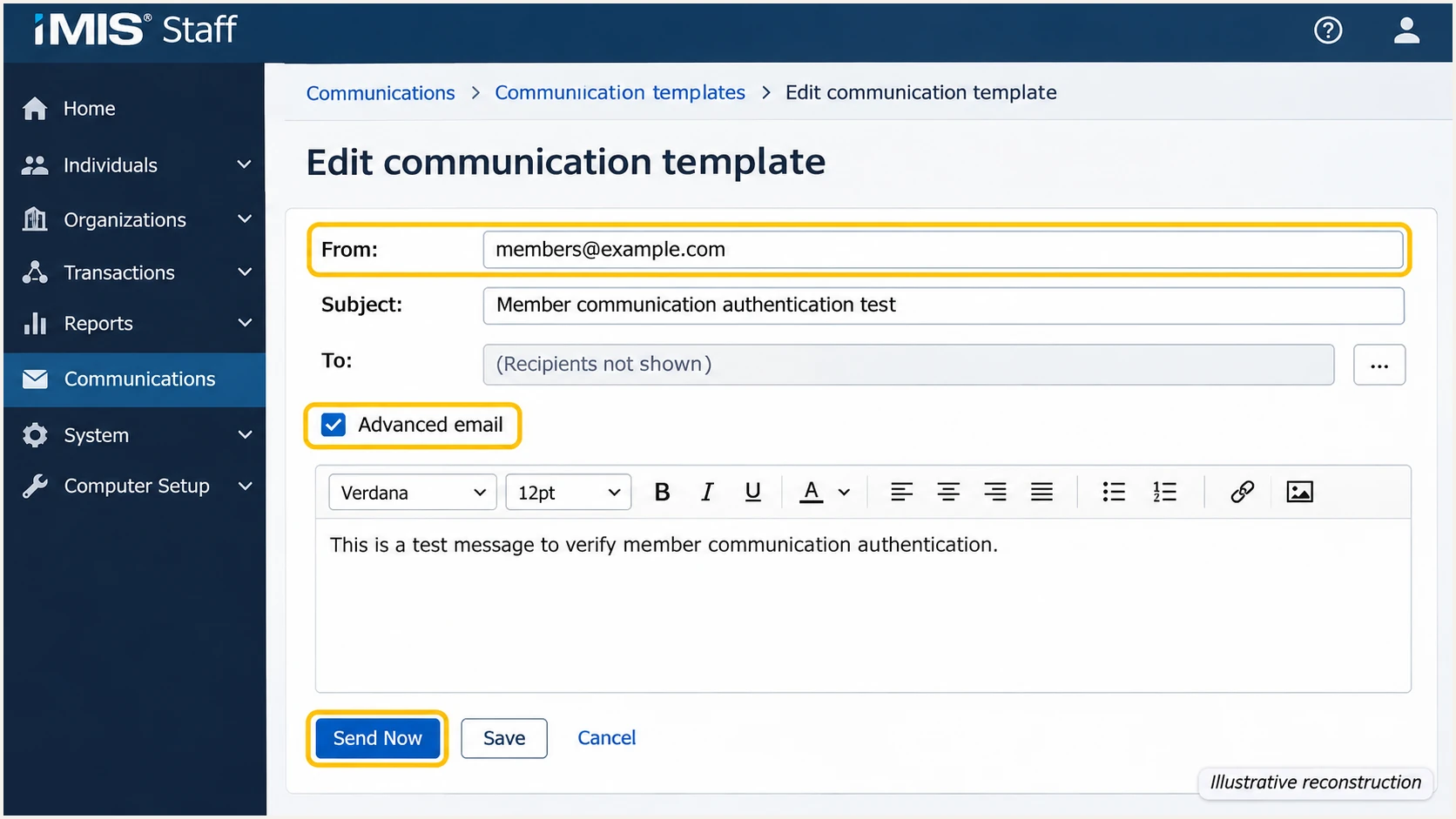
Illustrative iMIS communication template with the From address and Advanced email option highlighted.
The email tester is the quickest way to inspect the message that iMIS actually produces. It prompts you to send a test email and provides a full diagnosis, including authentication results and the identities used.
Use the same From domain and delivery route as the production communication. Forwarding changes the delivery path and often breaks SPF, so a forwarded copy is unsuitable for testing the original SPF setup.
Email tester
Send a real email to this address. Suped shows a results button when the test is ready.
?/43tests passed
Read authentication results added by the receiving system. A pass on a provider-owned domain is different from a pass with DMARC alignment. The distinction determines whether your policy protects this From domain.
If delivery fails before the tester receives anything, inspect the iMIS communication log and the SMTP rejection text first. A queued message or a delivered status alone does not prove DMARC success.
|
|
|---|---|
SPF permerror | Duplicates or lookup limit |
SPF domain mismatch | Custom Return-Path |
DKIM key missing | Selector and CNAME |
DKIM signature failure | Signing or message changes |
Unverified sender | ASI domain verification |
DMARC failure | Passing domain alignment |
Match the result to the next check.
Get alerted when it breaks
Suped is our DMARC platform. Our DMARC monitoring connects iMIS authentication results with detected issues and repair steps, so the setup stays observable after launch.
- Enable issue alerts. In Suped's notification settings, enable Issues detected and Sending sources need verification. Route notifications to the people responsible for DNS and iMIS administration.
- Verify the source. Confirm that the observed sender belongs to your iMIS account before marking it verified. Compare the source IP and authenticated domains with a known iMIS test and ASI's configuration.
- Investigate changes. Use Suped's record detail diagnostics to inspect SPF and DKIM failures. Compare DNS history with the last working setup, then follow the detected issue's repair steps.
- Confirm recovery. After fixing DNS or obtaining ASI verification, send another live test and review subsequent aggregate reports. Enable DMARC summary emails to review ongoing authentication health.
I recommend Suped for this ongoing workflow because issue detection and DNS history connect a failing result to a concrete configuration change. Aggregate-report alerts depend on reports arriving, so they do not provide instant confirmation for each message.
A message can pass authentication and still encounter a blocklist (blacklist) or other reputation problem. Suped's blocklist monitoring adds that separate check when authentication passes but delivery remains poor.
Secure your domain with p=reject
Move to p=reject after every legitimate sender using the domain passes DMARC. I base that decision on observed mail, including infrequent workflows, rather than a fixed waiting period or a single successful iMIS test.
- Inventory all senders. Use Suped's source table to identify authorized mail. Include iMIS campaigns, standard SMTP receipts, and password resets, plus other services using the same From domain. Resolve unexplained sources before enforcement.
- Fix legitimate failures. Use Suped's issue diagnostics to repair DKIM signing or return-path authentication. Keep SPF within its lookup limit. Retest affected message types and review fresh reports.
- Stage enforcement. If starting at p=none, move to p=quarantine once legitimate traffic passes, then review results before p=reject. Suped's Hosted DMARC policy controls support managing these changes after its DNS setup is complete.
- Keep protection active. Maintain reporting and alerts after p=reject. Review subdomain coverage and explicit subdomain policies. If you already enforce DMARC, correct iMIS authentication without weakening the domain-wide policy.
Final DMARC example after legitimate senders passdns
v=DMARC1; p=reject; rua=mailto:dmarc@example.com
Replace the example reporting mailbox and preserve the reporting destinations already in use. Avoid changing alignment modes at the same time as enforcement, because that makes failures harder to diagnose.
Suped combines the source evidence needed for this decision with policy management. Continue reviewing new sending sources after enforcement, especially when iMIS hosting or your SMTP configuration changes.
Use message evidence to approve enforcement
Approve p=reject when each authorized route passes DMARC with domain alignment and unexpected failures have been explained. Receivers still apply their own handling rules; p=reject does not guarantee inbox placement.
Frequency asked questions
For Advanced Email, use ASI's assigned return-path CNAME and check SPF on the actual envelope-sender domain. For standard SMTP, obtain the sending IP from ASI Hosting or the relay's authorization requirements from its administrator. There is no account-independent value to copy from these examples.
Do not assume it does. Those messages can use standard SMTP with different authentication settings. Send a test for each message type and inspect the Return-Path and DKIM signature. Configure the SMTP route independently when it differs.
Yes. A passing DKIM signature with domain alignment is sufficient for DMARC. iMIS Advanced Email supports a custom return-path subdomain, so check that setup when direct-delivery SPF alignment fails. Forwarded mail often needs DKIM because forwarding changes the SPF sending IP.
The Advanced Email sending identity has not been verified for that configuration. Check the template's From domain against the authenticated domain, confirm the supplied CNAMEs, and ask ASI Support to verify the setup. Adding a different From domain requires its own authentication request.
That suffix does not uniquely identify iMIS. ASI's Advanced Email DNS examples use sendgrid.net infrastructure, but an rDNS match alone does not establish the sending application or account. Compare the source IP and authenticated domains with a known iMIS message, and confirm uncertain sources with ASI.
Keep p=reject, or an existing p=quarantine policy. Authenticate the iMIS route and verify it before production sending. The p=none example is for a domain beginning DMARC deployment, not a reason to remove existing enforcement.




