
How to set up DMARC/DKIM/SPF for iiNet

Published 21 Nov 2026
Updated 21 Nov 2026
11 min read
Summarize with
Set up SPF for the service that actually sends your email, enable DKIM on that sending system, and publish DMARC at your domain's DNS provider. For custom-domain mail using The Messaging Company's relay, the documented SPF mechanism is include:spf.au-east.atmailcloud.com. A server sending directly over iiNet needs its own public sending IP authorized instead.
I first separate a business domain from an @iinet.net.au mailbox. iiNet's migration notice confirms that its email service moved to The Messaging Company after its 2023 closure decision. Ordinary mailbox users cannot change iiNet's domain records. The configuration steps below apply to a domain you control; iiNet reverse DNS alone does not identify its email application.
Identify your sending route
iiNet Toolbox has no domain-addition step for this network-based setup. Configure your domain with its current mail host or your own SMTP server, then edit its authoritative DNS zone.
I inspect a received message before changing DNS. Its trusted headers identify the connecting IP, SPF envelope domain, and DKIM signing domain.
- Confirm ownership: For user@iinet.net.au, contact the current mailbox operator about authentication. For user@example.com, confirm access to example.com's DNS and the sending system.
- Identify the sender: Read the receiving system's Authentication-Results and Received headers. Record smtp.mailfrom, header.from, the sending IP, and the d= and s= values in DKIM-Signature.
- Find authoritative DNS: Query the domain's NS records and sign in to that DNS provider. Complete any ownership check required by your current mail host using its exact verification token.
- Check direct SMTP: For your own server only, confirm that the connection supports direct SMTP. In iiNet Toolbox, select the broadband service, then Settings or Manage port blocking. Set Port blocking to OFF and select Change settings if shown.
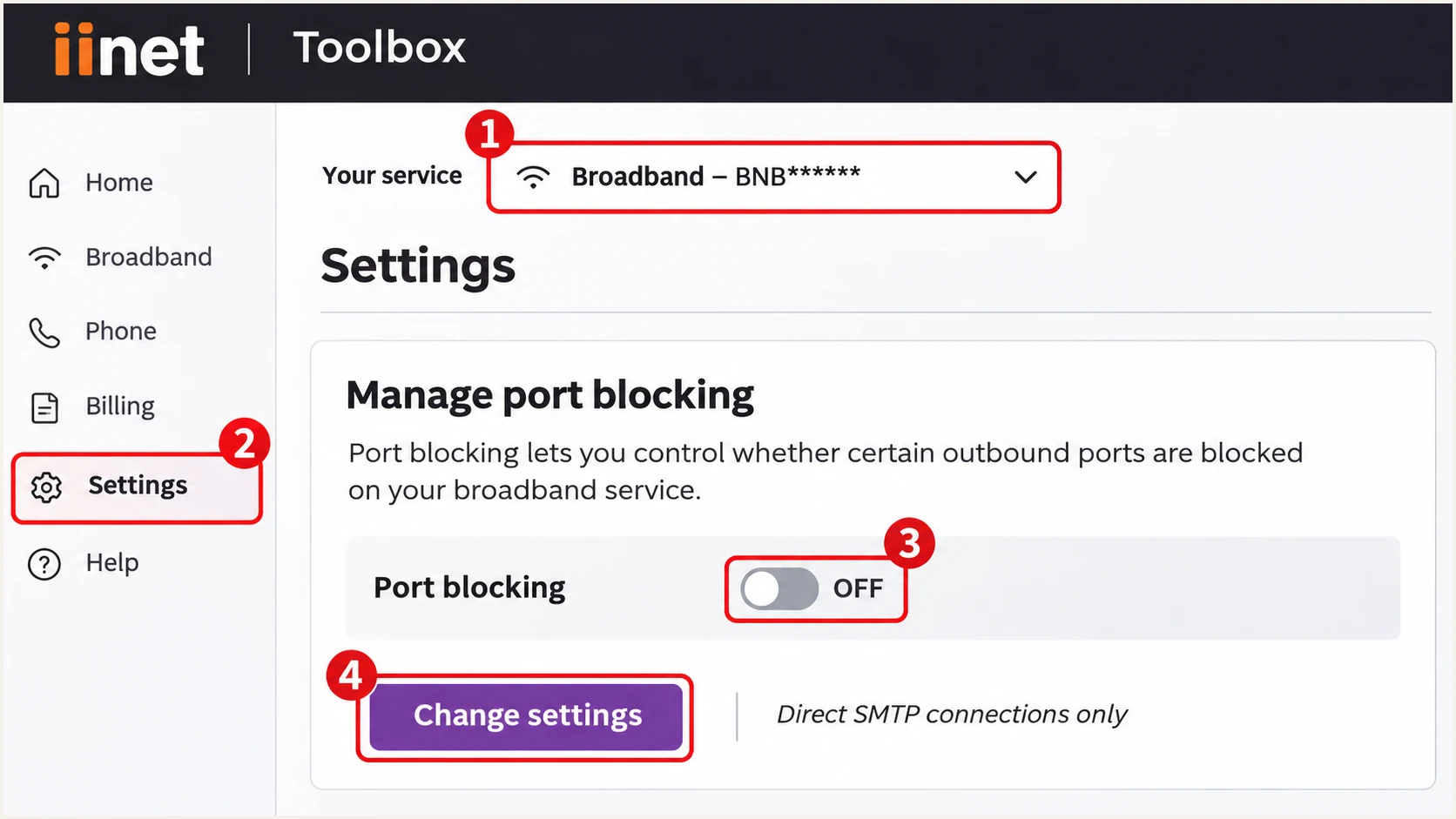
Illustrated iiNet Toolbox controls for disabling port blocking on supported services.
Port blocking changes take up to 15 minutes. Ultra Broadband Cable blocking cannot be disabled. Hosted relay users should use their current mail host's submission settings instead.
For direct delivery, use a stable public IP and ask its network owner about PTR configuration. The SMTP hostname should resolve back to that IP. Reverse DNS does not authorize your domain.
Set up SPF
The Messaging Company documents the SPF record below for custom-domain mail using its service. Standard consumer iiNet mailbox users do not publish it themselves.
For direct delivery over iiNet, authorize your server's public egress IP. I do not copy iiNet's corporate SPF record or authorize its entire broadband network.
- Choose the DNS name: Publish SPF at the SMTP MAIL FROM domain, shown in the delivered Return-Path. For an envelope sender at example.com, edit its root TXT record, usually entered as @.
- Authorize the route: For the documented migrated custom-domain relay, use include:spf.au-east.atmailcloud.com. For direct delivery, use ip4: or ip6: with the public IP that receiving servers see.
- Merge existing senders: Keep one TXT record beginning v=spf1. Add mechanisms before the final all mechanism, preserving legitimate senders. Keep evaluation within the 10 DNS-lookup-term limit, including nested includes.
- Match the envelope: Configure the sending system's envelope sender to use your From domain or a subdomain under the same organizational domain with relaxed SPF alignment. Changing Reply-To does not change this identity.
Migrated custom-domain relay
Use only for the documented The Messaging Company sending route, with no other senders in this example.
SPF TXT value at the envelope domaintext
v=spf1 include:spf.au-east.atmailcloud.com -all
Your own direct SMTP server
Replace the documentation IP below with your server's real public sending IP. Add other senders to the same record.
Illustrative SPF TXT valuetext
v=spf1 ip4:192.0.2.10 -all
These examples assume a complete sender inventory. Preserve other authorized senders in the same record. Add ip6: authorization if your server also delivers over IPv6.
Check the actual envelope domain below. This validates DNS syntax and lookup limits; a real message test establishes whether your sending route passes.
SPF checker
Find SPF syntax issues, lookup limits, and weak records.
?/16tests passed
Send after DNS caches expire. Compare smtp.mailfrom with header.from: relaxed SPF alignment accepts the same organizational domain; strict alignment requires an exact match.
If the route forces a provider-owned Return-Path, SPF on your From domain cannot repair that mismatch. Expect SPF alignment failure and require passing DKIM with a matching domain. Verify the actual Return-Path first.
Set up DKIM
Enable DKIM on the sending system. Publishing a public key alone does not add signatures, and iiNet network ownership does not determine the selector.
The migrated service's public instructions document SPF without a custom-domain DKIM selector or enablement procedure. I request those details from the current mail host. Administrators of their own servers configure signing directly.
- Obtain the values: Confirm custom-domain signing support with the mail host. Obtain its exact selector and TXT public key or CNAME target. A signature using only the provider's domain does not establish your DKIM alignment.
- Enable signing: On your own server, generate a 2048-bit RSA key pair and configure rsa-sha256 signing for your From domain. Choose a selector such as mail2026 and keep the private key on the signing server.
- Publish the key: For the example selector, publish its public key at mail2026._domainkey.example.com. Use the actual TXT value or CNAME supplied by your signer. Check whether the DNS editor appends the domain automatically.
- Confirm a real signature: Send through the production route. Check that DKIM-Signature contains the intended d= domain and s= selector, and that the receiving server reports dkim=pass for that signing domain.
Look up the selector from your actual messagebash
dig +short TXT mail2026._domainkey.example.com
dig +short CNAME mail2026._domainkey.example.com
Substitute your actual selector and signing domain. A CNAME target must resolve to the public key. Long TXT key fragments belong within one DNS record.
d=example.com matches a From domain of example.com. Relaxed DKIM alignment also accepts the same organizational domain. Changes after signing, including footer insertion, can invalidate signatures.
A DNS record cannot enable unsupported signing
If the host cannot sign with your domain, use a supported signing route or a server you control. Matching SPF can pass DMARC on direct delivery, but establish working DKIM before p=reject.
Set up DMARC
Start a new deployment with p=none and collect aggregate reports. Keep an existing p=quarantine or p=reject policy while repairing individual sending routes.
Use the DMARC record generator, then publish its TXT value in authoritative DNS. DMARC applies to the visible From domain.
- Choose the host: For mail from example.com, create one DMARC TXT record at _dmarc.example.com. In a DNS editor that appends example.com, enter _dmarc as the host. A TTL of 3600 seconds is a practical starting value.
- Start reporting: Use the example below for a new deployment, replacing its report mailbox. Preserve an existing quarantine or reject policy and its required tags.
- Prepare the destination: Create the reporting mailbox or use the exact address supplied by your reporting platform. Aggregate reports contain XML data. A reporting destination outside your domain requires the destination operator's external reporting authorization.
- Validate publication: Check for one valid DMARC policy record. Test the actual From domain, including sending subdomains. Edit an existing policy instead of adding a duplicate.
Initial DMARC TXT value at _dmarc.example.comtext
v=DMARC1; p=none; rua=mailto:dmarc@example.com
dmarc@example.com is a placeholder. Replace it with a working destination. Retain existing reporting addresses when changing policy.
A valid DNS record does not prove message authentication. DMARC needs passing SPF or DKIM with a domain matching the From domain under the selected alignment mode.
DMARC checker
Look up a domain's DMARC record and catch policy issues.
?/7tests passed
I query authoritative DNS first, then a recursive resolver after the previous TTL expires. An inactive DNS zone has no effect.
p=none requests monitoring without DMARC enforcement. Other filters still apply. Participating receivers usually send aggregate reports on a daily cycle.
Verify and troubleshoot
Send a production message to the address generated by our email tester. The widget below prompts you to send an email and returns a full diagnosis, including authentication results.
I test each route separately. Desktop mail and website forms often use different SMTP settings. Retest after a relay change or key rotation.
- Check live DNS: Query the actual envelope domain's SPF, the observed DKIM selector, and the From domain's DMARC record. Resolve duplicate SPF or DMARC policies, lookup-limit errors, and missing selector targets.
- Inspect trusted results: Use the receiving system's Authentication-Results. Compare smtp.mailfrom, header.d and header.from. Read the connecting IP from trusted Received headers; do not trust an arbitrary header inserted by the sender.
- Fix the failing method: For SPF, check the egress IP and envelope domain. For DKIM, check that signing is enabled, the selector resolves, and the public key matches the signing key. Test for message modifications after signing.
- Separate transport errors: A port-25 timeout needs connection and port-blocking checks. A 550-5.7.26 authentication rejection needs the full SMTP error and authentication evidence. A content-policy rejection also requires investigation of the message and sender reputation.
Illustrative receiver results for a correctly configured routetext
Authentication-Results: receiver.example;
    spf=pass smtp.mailfrom=example.com;
    dkim=pass header.d=example.com header.s=mail2026;
    dmarc=pass header.from=example.com
These identities illustrate expected results. Passing SPF for a provider-owned domain does not establish SPF alignment with your From domain.
Use the production From address and SMTP settings for the test. A temporary alternative route does not validate your normal configuration.
Email tester
Send a real email to this address. Suped shows a results button when the test is ready.
?/43tests passed
The tester diagnoses one message. Aggregate reports reveal other sending routes and results at different receivers.
For a content-policy rejection after authentication passes, give the current mailbox operator the full rejection, message ID, recipient, UTC timestamp, and original headers. The Messaging Company documents filtering decisions beyond authentication.
|
|
|
|---|---|---|
Yes | Yes | Pass |
Yes | No | Pass |
No | Yes | Pass |
No | No | Fail |
Each Yes requires both authentication to pass and its domain to match the From domain.
Get alerted when it breaks
Suped is our platform for ongoing DMARC monitoring. Source verification and issue diagnostics help distinguish an authorized iiNet-connected server from an unfamiliar sender.
Use Suped issue notifications to investigate newly detected failures. Aggregate reports arrive later than the messages they describe, so alerts are not a live feed of every failed email.
- Enable notifications: In Suped notification settings, enable Issues detected and Sending sources need verification. Enable DMARC summary emails for regular review. Use a monitored account so someone receives and acts on the messages.
- Verify the source: Review the source IP and authentication identities before marking an iiNet-related source as verified. Match it to an authorized server or application. Do not verify every sender with iiNet reverse DNS.
- Investigate the issue: Open the detected issue and its steps to fix. Inspect the individual record's SPF, DKIM and DMARC results. Compare DNS history when a previously working route starts failing.
- Confirm the repair: Apply the fix at the actual DNS provider or sending system. Send another test message, run issue verification, and check subsequent aggregate reports for the affected legitimate source.
Secure your domain with p=reject
I move to p=reject only after the legitimate sending routes are known and working DKIM signatures use matching domains. Suped's verified-source review and record-level diagnostics help identify the specific route that still needs repair before enforcement.
A high overall pass rate is insufficient if a low-volume legitimate sender is still failing. Review reports across a complete business sending cycle, including scheduled messages, and test forwarding paths that matter to your users.
- Complete the inventory: Identify every legitimate source using the From domain. Include applications on iiNet connections and any migrated hosted-mail route. Investigate unknown IPs instead of automatically adding them to SPF.
- Remove authentication gaps: Require working DKIM with a matching signing domain on legitimate routes. Fix envelope-domain matching where supported. Do not rely solely on SPF when preparing p=reject because forwarding changes the connecting IP.
- Stage enforcement: Change a new deployment to p=quarantine, preserve reporting, and inspect the next reporting cycles. Check subdomains and any explicit subdomain policies before advancing. Keep an existing stricter policy while fixing individual sources.
- Apply reject: When legitimate traffic is accounted for and tested, set p=reject while preserving the live rua destination and other required tags. Continue monitoring legitimate failures and investigate each affected source.
Final policy example, with a placeholder report addresstext
v=DMARC1; p=reject; rua=mailto:dmarc@example.com
p=reject requests rejection of mail that fails DMARC; receiving systems retain their own handling decisions. It does not prevent lookalike domains or misuse of a compromised, authenticated mailbox.
Suped's Hosted DMARC lets teams manage policy changes through the dashboard after its DNS delegation is configured. Keep aggregate reporting active, review source-specific failures after each change, and retest when the sending route changes.
Frequency asked questions
Ordinary mailbox users cannot change authentication DNS for iinet.net.au. The domain operator controls its policies and signing setup. iiNet states that migrated mailbox support is handled by The Messaging Company. These DNS instructions apply to a domain you own or administer.
The Messaging Company documents v=spf1 include:spf.au-east.atmailcloud.com -all for custom-domain sending through its service. Merge the include into an existing SPF record if other senders also use that envelope domain. This is not a universal SPF record for all servers on iiNet connections.
Use the selector supplied by the actual signing service or configured on your own server. There is no universal selector determined by iiNet network ownership. Read s= and d= in a real DKIM-Signature, then query that selector under the signing domain.
An rDNS hostname ending in iinet.net.au points to iiNet-related network addressing. It does not establish which application sent the message. Inspect the connecting IP, trusted Received headers, envelope sender and DKIM signing domain. Confirm whether the address belongs to your server or an authorized hosted sending route before changing SPF.
Yes. A passing DKIM signature with a signing domain that matches the From domain under the selected alignment mode is enough for DMARC to pass. When a provider fixes the Return-Path to its own domain, adding SPF to your From domain does not repair that mismatch. Establish working DKIM for that route.
Authentication does not guarantee delivery. The receiving service also evaluates content and sender reputation. For a content-policy rejection after successful authentication, provide the current mailbox operator with the complete SMTP response, message ID, UTC timestamp and original headers so it can investigate the filtering decision.




