
How to set up DMARC/DKIM/SPF for Huawei Cloud

Published 22 Nov 2026
Updated 22 Nov 2026
14 min read
Summarize with
To authenticate email sent directly by a Huawei Cloud Elastic Cloud Server (ECS), publish SPF for its public outbound IP, enable DKIM signing on the server, and publish a DMARC TXT record for the visible From domain. DMARC passes when SPF or DKIM passes with domain alignment. Configure both for normal direct delivery.
I start by checking the actual sending route. An ECS is infrastructure, so authentication depends on the application or mail server installed on it. If the application submits mail through an SMTP relay, use that relay's authentication settings instead of authorizing the ECS IP.
Add your domain
ECS has no sender-domain registration wizard. Add a public DNS zone only when Huawei Cloud will host your DNS. If another provider already hosts authoritative DNS, publish the records there and keep the existing delegation.
- Check authority: Run the NS query below and identify the DNS provider that currently answers for your domain.
- Create the zone: If using Huawei Cloud DNS, open Domain Name Service > Public Zones > Create Public Zone. Enter example.com, then click OK. Skip creation if the zone already exists.
- Preserve existing DNS: Before moving nameservers, copy all existing records, including MX and verification records. Update the registrar to the nameservers assigned to your Huawei Cloud public zone.
- Verify publication: Compare the public NS response with the zone's assigned nameservers. Query an authoritative server directly and confirm that your existing records are present.
- Name the server: For direct delivery, reserve a stable EIP and add an A record for mail.example.com pointing to it. Use this hostname for the server's SMTP greeting.
Check delegation and the mail hostnamebash
dig +short NS example.com
dig +short A mail.example.com
Use a public zone. A record visible only inside a private VPC zone cannot authenticate mail for external recipients. Creating a public zone alone does not change the domain's authoritative nameservers.
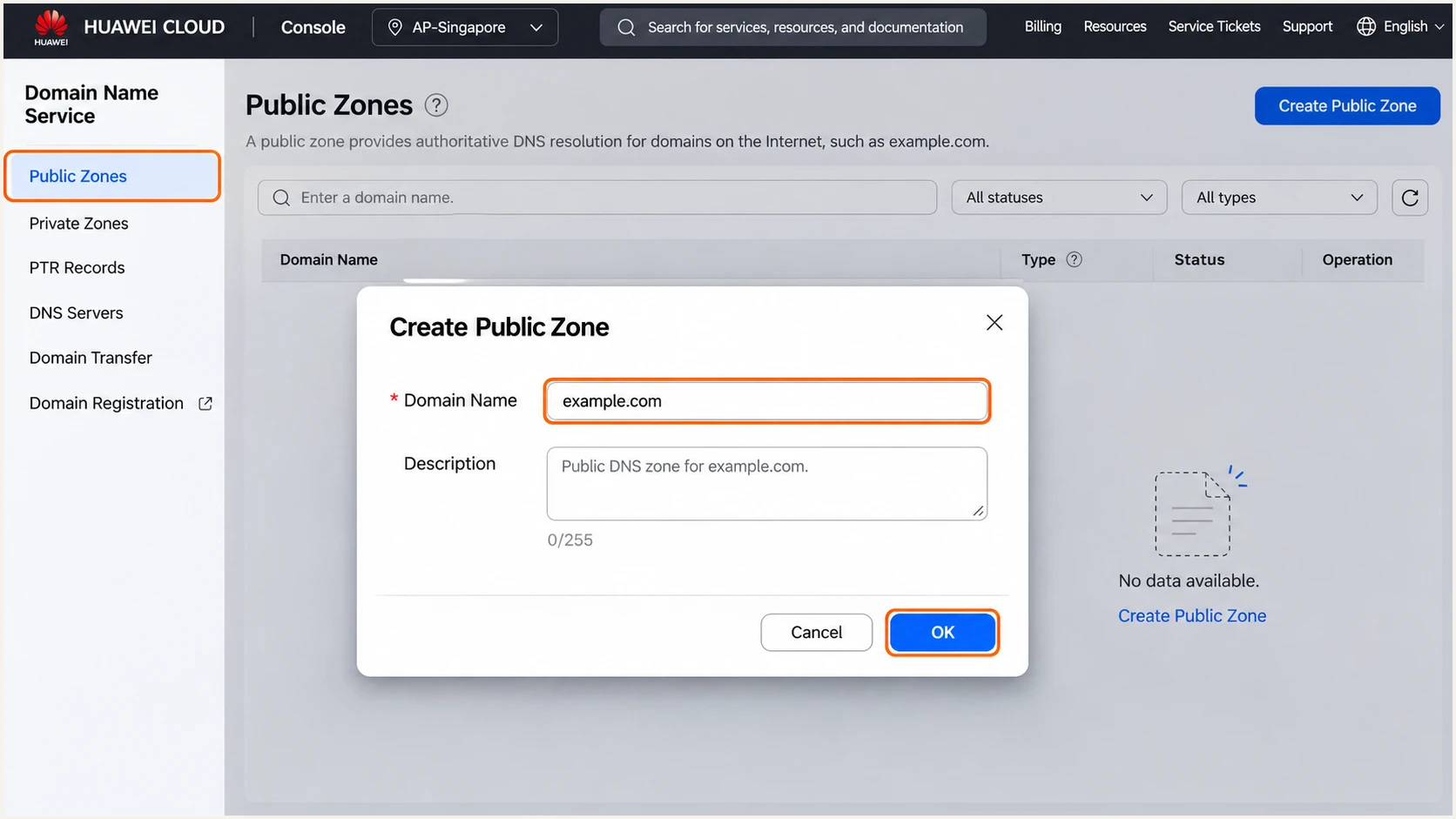
Create a public zone for example.com in Huawei Cloud DNS.
Once public DNS answers correctly, continue with SPF. The names and addresses below are examples; replace them with your domain and actual outbound IP.
Set up SPF
I authorize the IP that the receiving mail server actually sees. For a direct ECS mail server, this is usually its EIP. With outbound NAT, it is the public SNAT address. An application using a relay needs the relay's authorized senders instead.
- Set the envelope sender: Configure the application or mail server to use bounce@example.com as its SMTP MAIL FROM. With From: alerts@example.com, this gives SPF domain alignment. Ensure the bounce address receives delivery failures.
- Edit the SPF record: Open Public Zones > example.com > Manage Record Sets. Modify the existing SPF TXT value, or click Add Record Set if none exists. For example.com, leave Name blank rather than entering @.
- Authorize the IP: Use the example below only for a domain whose sole outbound sender is that IP. Replace 203.0.113.10 with your real public egress IP. Preserve authorization for every existing sender.
- Save one policy: Select TXT, keep Line as Default, and use TTL 300 while configuring. Enter the value in double quotes and click OK. Publish only one v=spf1 record at each name.
Huawei Cloud TXT Value for a single direct sendertext
"v=spf1 ip4:203.0.113.10 -all"
For a custom envelope subdomain such as bounce.example.com, put its SPF record at Name bounce. SPF at example.com does not apply automatically to subdomains. Add ip6 authorization only if the server actually sends over public IPv6.
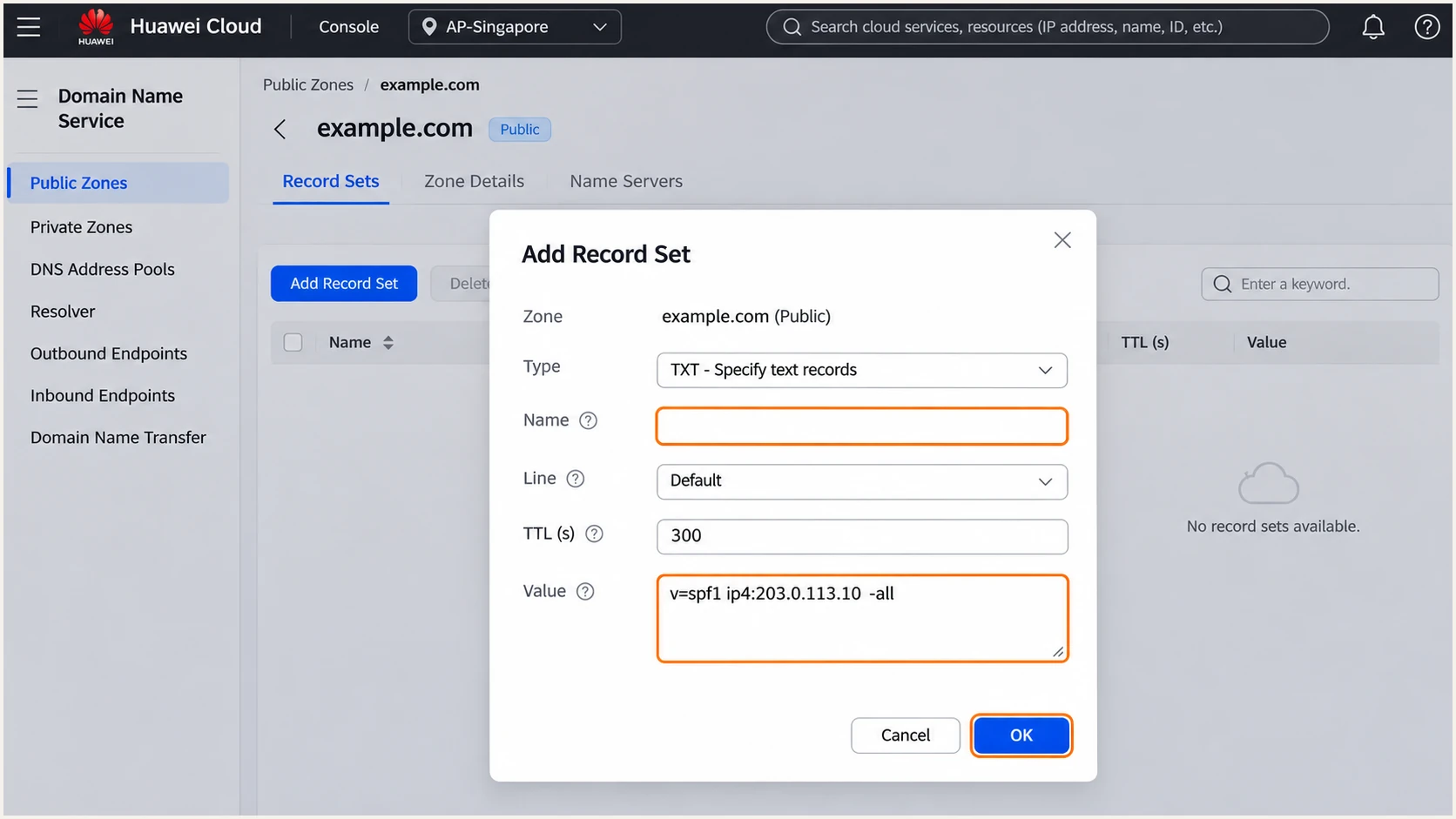
Publish one SPF TXT record authorizing the actual outbound IP.
There is no universal Huawei Cloud ECS SPF include. Authorize your own egress IPs, rather than all Huawei Cloud networks. The example IP is reserved for documentation and must be replaced.
Run the SPF checker against the SMTP MAIL FROM domain. Check for duplicate policies and the SPF limit of 10 DNS-querying terms during evaluation. An ip4 mechanism itself does not consume that lookup budget.
SPF checker
Find SPF syntax issues, lookup limits, and weak records.
?/16tests passed
A valid SPF record does not prove the application uses the intended envelope domain. Inspect the delivered message's Return-Path after sending a test; do not try to control it by adding a Return-Path header manually.
Set up DKIM
Huawei Cloud DNS publishes the public key; the software running on ECS must sign each outgoing message. ECS has no universal DKIM enable button. I use a separate selector for this sending system so its key can be rotated independently.
- Generate the key: On the sending host, use its existing signer's key-generation function, or run the commands below with OpenSSL and Python 3 installed. Use a 2048-bit RSA key and selector ecs2026.
- Publish the public key: In the example.com public zone, add a TXT record with Name ecs2026._domainkey. Paste the printed public TXT value as one record value, with adjacent quoted chunks on the same input line.
- Configure signing: In your installed mail server or application, set the signing domain to example.com, selector to ecs2026, and private-key path to the protected location of ecs2026.private.pem. Enable signing for outbound mail using this From domain.
- Protect and reload: Give the signing process access to the private key without making it publicly readable. Reload its configuration, then send a fresh message through the application. Exact setting names depend on the installed server software.
Generate a private key and print its public DNS valuebash
umask 077
openssl genpkey -algorithm RSA -pkeyopt rsa_keygen_bits:2048 \
  -out ecs2026.private.pem
openssl pkey -in ecs2026.private.pem -pubout -outform DER \
  | openssl base64 -A > ecs2026.public.b64
python3 - <<'PY'
from pathlib import Path
key = Path('ecs2026.public.b64').read_text().strip()
parts = [key[i:i + 64] for i in range(0, len(key), 64)]
parts[0] = 'v=DKIM1; k=rsa; p=' + parts[0]
print(' '.join('"' + part + '"' for part in parts))
PY
The command prints quoted public-key chunks for the DNS Value field. Keep them together in one TXT record, rather than creating a separate record for each chunk. Each quoted string stays below the 255-character DNS limit.
For this example, the delivered DKIM-Signature must contain d=example.com and s=ecs2026. The From domain is example.com too, so a verified signature has DKIM alignment. Publishing the public key without enabling signing leaves messages unsigned.
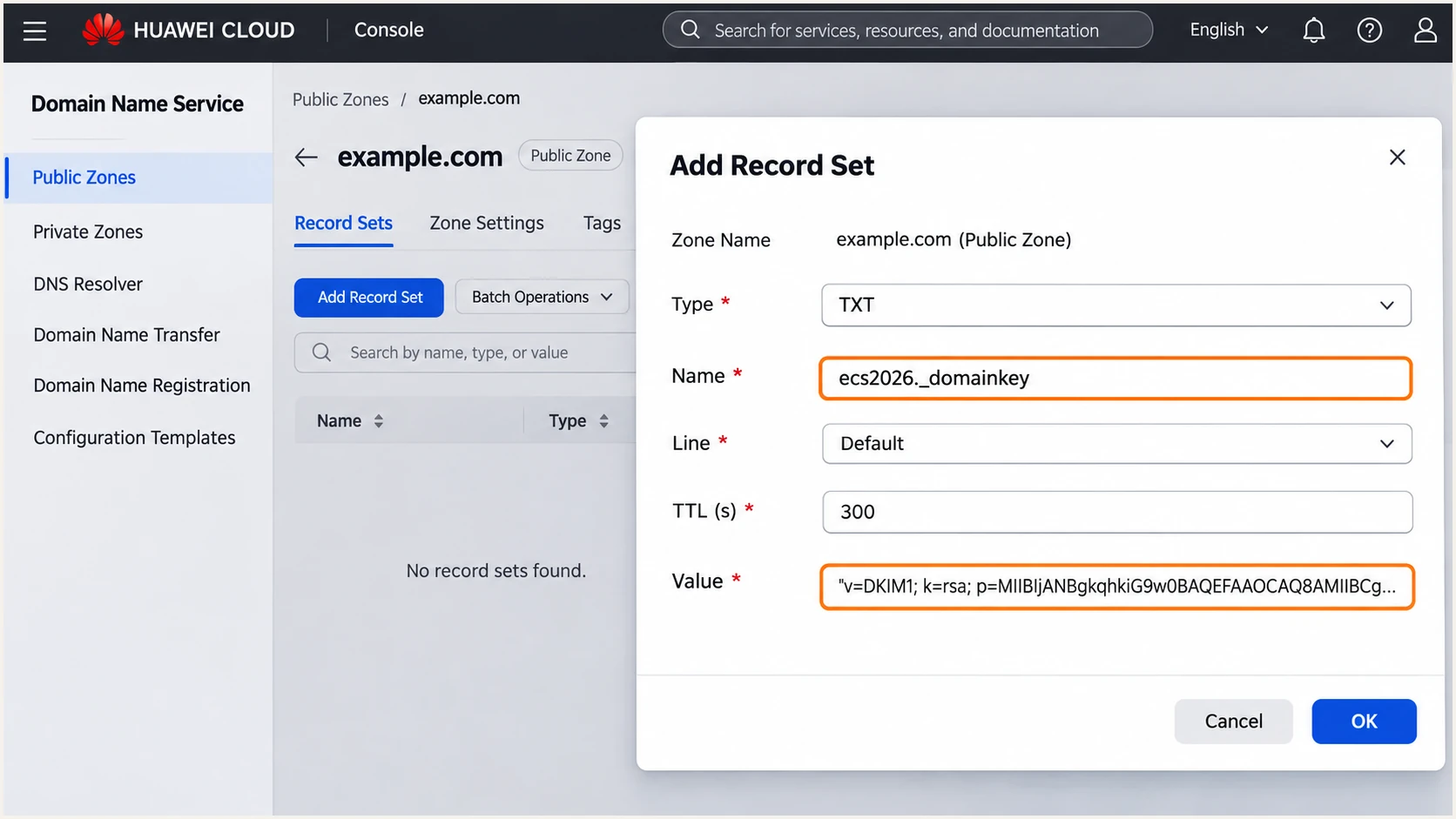
Publish the ecs2026 DKIM public key in Huawei Cloud DNS.
Sign after the application finishes changing the message body and signed headers. During rotation, publish the new selector before switching the signer, and retain the old public key until queued messages and DNS caches have expired.
Keep the private key on the sender
Only the public key belongs in DNS. Keep ecs2026.private.pem in protected server storage. A DNS record cannot activate DKIM signing or repair a signature made with a different private key.
Set up DMARC
Publish DMARC for the domain in the visible From address. For alerts@example.com, the record name is _dmarc.example.com. A new deployment starts with monitoring, while an existing quarantine or reject policy stays in place.
- Inspect the existing policy: Query _dmarc.example.com first. If p=quarantine or p=reject already exists, keep that policy and fix the Huawei Cloud sender without weakening enforcement.
- Publish a new policy: In the example.com public zone, click Add Record Set. Choose TXT, enter Name _dmarc, keep Line Default, and use TTL 300. For a domain without DMARC, enter the exact value below, enclosed in double quotes in the console.
- Set a real report destination: Replace dmarc@example.com with a working aggregate-report address for your domain. Keep one DMARC record and retain existing reporting destinations when editing it.
- Verify the result: Save the record, query public DNS, and run the DMARC checker below. Confirm that the policy and reporting address match your intended configuration.
Initial DMARC record for a domain without a policytext
v=DMARC1; p=none; rua=mailto:dmarc@example.com
Use the DMARC record generator to build the record. With p=none, receivers report authentication results without a DMARC request to quarantine or reject failing messages. Existing spam filtering still applies.
The reporting mailbox must accept the aggregate reports, usually delivered as compressed XML attachments. For a report destination outside your domain, the destination operator must publish the required external-reporting authorization.
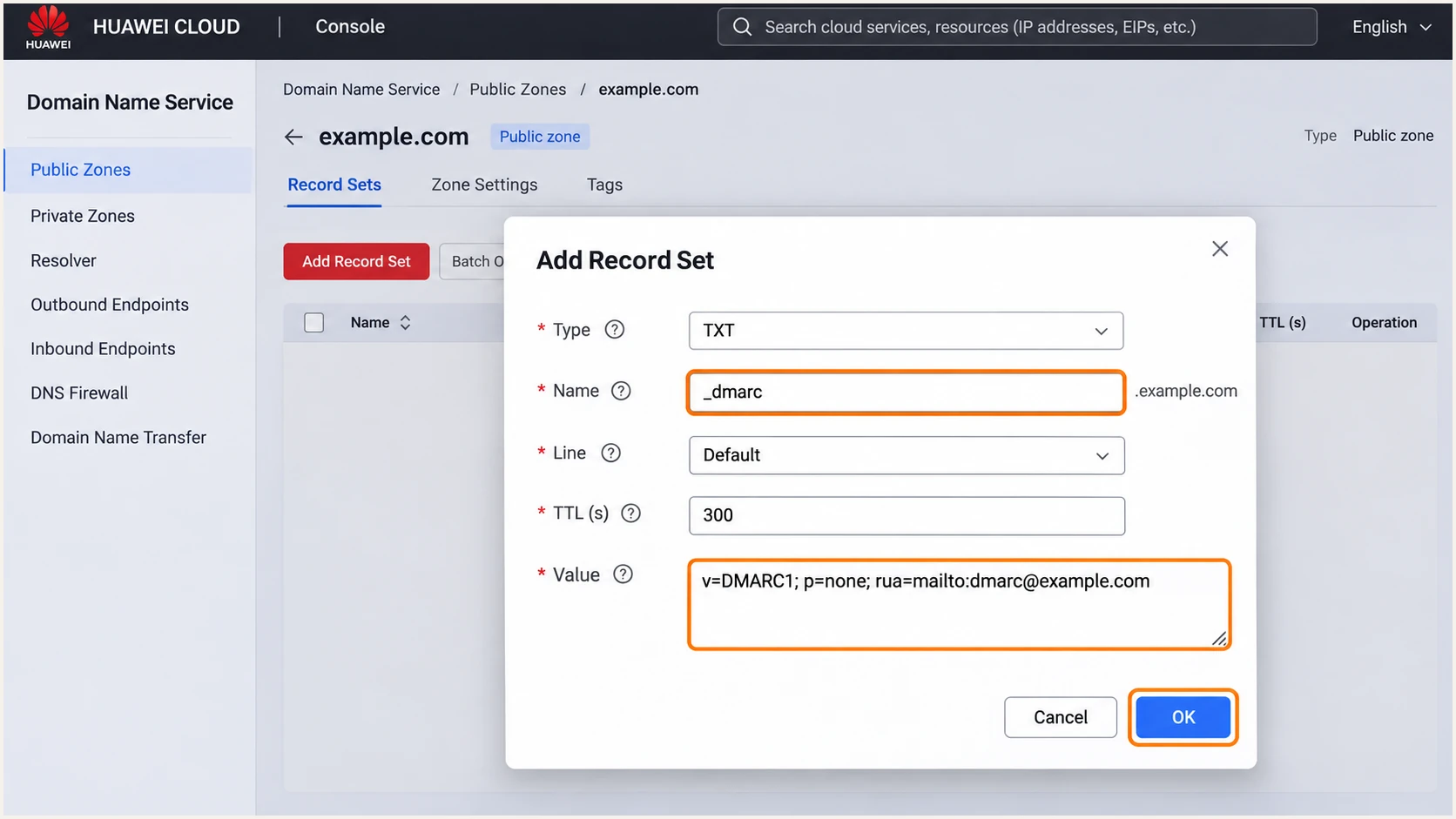
Add the initial monitoring policy at _dmarc.example.com.
The record above uses the default relaxed SPF and DKIM alignment modes. A custom MAIL FROM subdomain under the same organizational domain qualifies for relaxed SPF alignment; strict mode requires an exact domain match.
Check example.com below. This validates the published DMARC policy. A live email test is still necessary to confirm that the application's SPF or DKIM results satisfy that policy.
DMARC checker
Look up a domain's DMARC record and catch policy issues.
?/7tests passed
Allow roughly 24-48 hours for initial aggregate reports after sending traffic to participating receivers. Reporting schedules vary, and not every receiver sends reports. Missing reports do not prove that authentication failed.
Verify and troubleshoot
I test the real application path after every DNS or signing change. A manually composed message sent through another route does not validate the ECS application's configuration.
- Query public DNS: Run the commands below outside the private VPC. Confirm one SPF policy at the envelope domain, one public key at the active selector, and one DMARC policy at the From domain.
- Inspect receiver results: Read Authentication-Results added by the receiving system. Aim for spf=pass, dkim=pass, and dmarc=pass, with the expected smtp.mailfrom and header.d identities.
- Repair PTR: For direct delivery, open Domain Name Service > PTR Records, choose the EIP's region and project, and click Create PTR Record. Select the EIP, enter mail.example.com, and save. Its A record must resolve back to that EIP.
- Check transport: If mail never leaves the server, inspect the outbound queue, SMTP logs, security-group rules, and host firewall. Huawei Cloud documents an outbound TCP 25 block for CN North-Beijing1. Confirm regional restrictions with support; a security-group rule does not override a platform block.
Verify public records for the example direct senderbash
dig +short TXT example.com
dig +short TXT ecs2026._domainkey.example.com
dig +short TXT _dmarc.example.com
dig +short -x 203.0.113.10
dig +short A mail.example.com
For a PTR that is slow to appear, check again through public DNS. Huawei Cloud notes that some EIPs need upstream reverse-DNS delegation work, which takes about 1-3 working days.
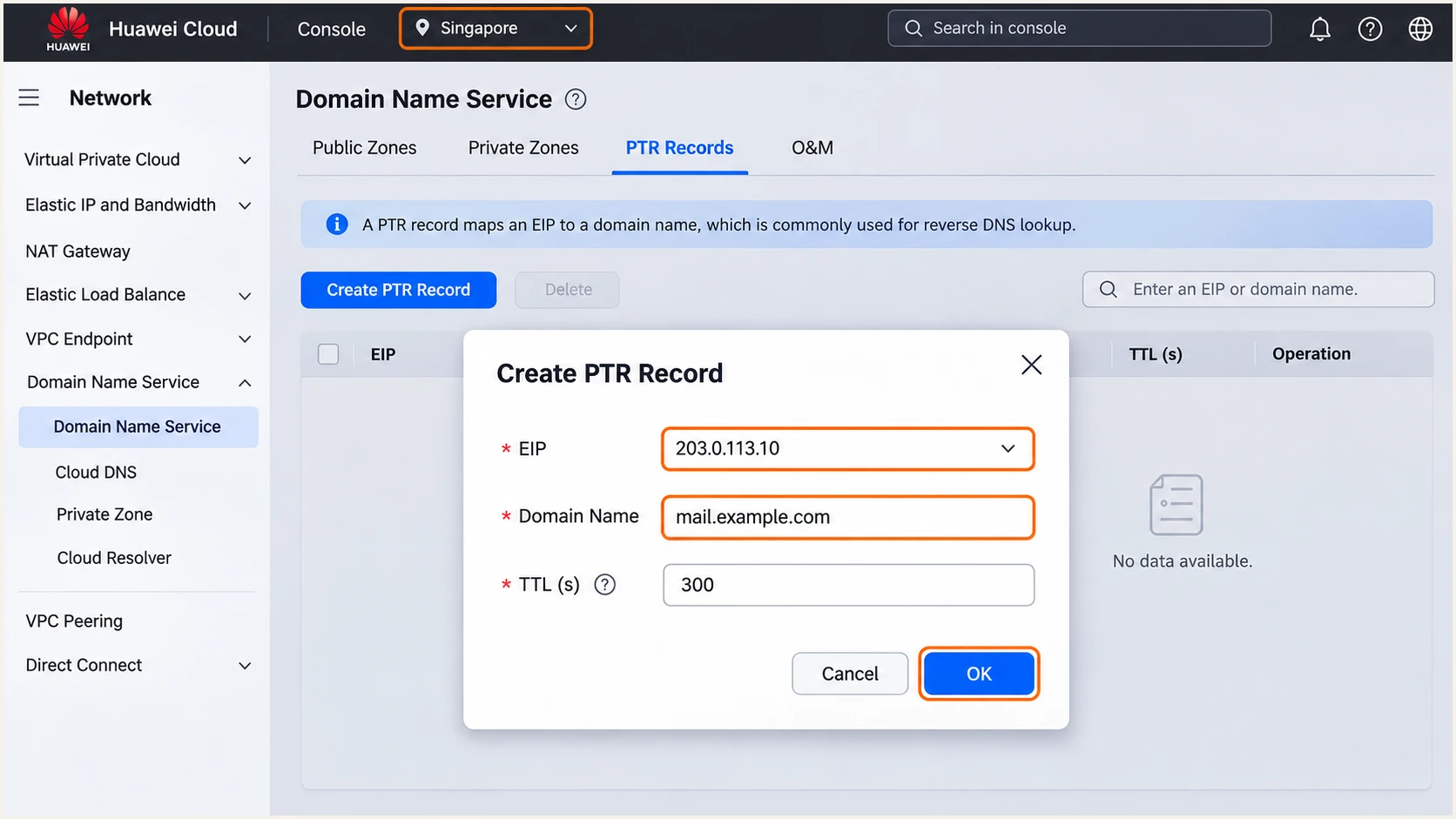
Map the sending EIP back to the server hostname with a PTR record.
For the quickest configuration check, use the email tester. Send a message through the actual ECS application to the address the widget provides. Its report diagnoses authentication and the delivered message.
Keep the same From address and envelope sender used in production. Run a fresh test after the previous DNS TTL expires, then compare the reported sending IP and DKIM domain with your configuration.
Email tester
Send a real email to this address. Suped shows a results button when the test is ready.
?/43tests passed
SPF alignment errors are acceptable for DMARC only when DKIM passes with domain alignment. On a direct ECS sender you control the envelope domain, so configure it correctly. If an intermediate relay forces its own Return-Path, adding SPF at your From domain cannot change that identity.
Authentication does not guarantee delivery. A blocklist (blacklist) listing, recipient filtering, or an SMTP connection failure is a separate issue. Use the receiver's rejection text and server logs to identify the failing stage.
Authentication failure
SPF fail: check the observed outbound IP and envelope domain. DKIM fail: check the active selector, matching key pair, and message changes after signing. DMARC fail: check domain alignment.
Transport failure
SMTP timeout: check routing, firewalls, and regional port restrictions. Direct delivery needs recipient MX connectivity on port 25. Port 465 is an authenticated submission route to a compatible relay, not a replacement port for recipient MX delivery.
Before changing DNS again, identify whether the failure is authentication or transport. That keeps a working policy intact while you fix the actual cause.
Get alerted when it breaks
Suped is our DMARC reporting and email authentication platform. For ongoing Huawei Cloud monitoring, it turns receiver reports into issues and fix steps for each source, so a changed EIP or broken signer does not depend on someone remembering to run another test.
- Enable issue notifications: In Suped's notification settings, enable Issues detected and send notifications to the team responsible for the ECS application. Keep report collection active on the From domain.
- Review source changes: Enable Sending sources need verification. Check each newly observed Huawei Cloud IP against your ECS or NAT inventory before verifying it as legitimate.
- Investigate the evidence: Open the affected source and record details. Compare sending IP, SPF domain, DKIM domain, and failure counts. Use DNS history to check whether a record change caused the problem.
- Keep a routine review: Enable DMARC summary emails. Recheck the application after EIP replacement, scaling changes, key rotation, or deployment of a new mail server.
Suped's DMARC monitoring connects those failures to concrete remediation. The workflow stays focused on the Huawei Cloud source while keeping other senders using the same domain visible.
DMARC alerts depend on reports arriving, so they are not an immediate signal for every failed message. Keep ECS queue and SMTP error monitoring active for transport incidents.
|
|
|---|---|
EIP replacement | SPF and PTR |
Key rotation | DKIM signature |
New sender | Source verification |
Policy update | DMARC failures |
Checks to repeat after changes to the sending system.
Secure your domain with p=reject
I move to p=reject only when every legitimate sending source has a reliable DMARC pass path. Suped's source inventory and issue diagnostics make that decision based on observed traffic, including applications outside Huawei Cloud.
- Cover the full sending cycle: Collect enough reports to include normal traffic and infrequent senders such as monthly billing jobs. Investigate unknown sources and unresolved failures on legitimate mail.
- Confirm alignment: Check passing DKIM with the expected domain on every legitimate source. Keep SPF correct for the direct ECS route and retest forwarding paths where SPF breaks.
- Stage enforcement: If starting at p=none, change to p=quarantine and review legitimate failures before selecting p=reject. Keep existing quarantine or reject policies during sender onboarding.
- Keep reports and rollback details: Retain rua, record the previous DNS value, and review subdomain policies before enforcing the parent domain. Explicit subdomain DMARC records override inherited policy.
Suped's Hosted DMARC manages policy changes through the dashboard once configured. Use the source evidence and issue checks to decide when to advance enforcement, then verify that the published policy changed.
Enforcement example after legitimate senders are verifiedtext
v=DMARC1; p=reject; rua=mailto:dmarc@example.com
Replace the example report address with your actual reporting destination and preserve any other required tags. Keep monitoring after enforcement, especially when public egress addresses or DKIM keys change.
Enforce after legitimate traffic passes
p=reject asks receivers to reject messages that fail DMARC. A passing DKIM signature with domain alignment remains sufficient when forwarding breaks SPF. Receiver handling still follows local policy.
Frequency asked questions
There is no universal ECS include. For direct delivery, authorize the actual public egress IP with ip4 or ip6 at the SMTP MAIL FROM domain. If a relay sends the final message, use the relay's documented authorization instead.
No. Configure the application or mail server on ECS to sign with the matching private key, domain, and selector. The DNS TXT record only publishes the public key used by recipients to verify that signature.
Hostnames such as ecs-<IP-with-hyphens>.compute.hwclouds-dns.com are associated with Huawei Cloud ECS infrastructure. This identifies hosting infrastructure, not the customer or application sending the email. Check the source IP against your inventory and inspect SPF and DKIM domains before authorizing it. A custom PTR uses a different hostname.
Yes, when DKIM passes with domain alignment to the visible From address. DMARC needs one passing authentication method with domain alignment. For a direct ECS server, also configure your own envelope sender so SPF provides another valid path.
Check the SMTP response and server queue. Authentication does not fix port restrictions, routing failures, missing PTR records, or recipient reputation filtering. Huawei Cloud documents an outbound port 25 restriction for CN North-Beijing1. A compatible relay on port 465 requires its own authentication configuration.




