
How to set up DMARC/DKIM/SPF for Hostinger


For Hostinger Email, publish its SPF TXT record and DKIM records at your authoritative DNS provider, then publish a DMARC TXT record at _dmarc. Start new DMARC setups with p=none, verify that delivered messages pass DMARC through your domain's DKIM signature, and move to p=reject after checking every legitimate sender.
I check the sending method first. These record values are for Hostinger Email, not every website or VPS hosted by Hostinger. Website applications should send through authenticated SMTP. If Hostinger only hosts your DNS, use the authentication records supplied by your actual email provider.
Add your domain
Add the domain to the Hostinger email plan that will send your messages. Registering a domain or hosting a website does not automatically configure outgoing email authentication.
- Activate email: Open hPanel > Emails. For a purchased email plan, click Setup and complete the domain setup. For an eligible included trial, select Try for free or Claim free email, choose or enter the domain, and confirm.
- Create a mailbox: Open Mailboxes beside the domain, select Add mailboxes, enter the mailbox name and password, and click Create. Use this account for authenticated website sending.
- Find the records: Open Emails > Mailboxes > Domain settings. Review Receive emails, Protect your reputation, and Improve email deliverability.
- Connect and verify: If Hostinger manages your authoritative nameservers, review Connect automatically before confirming Yes, proceed. It changes MX, SPF, and DKIM records. Otherwise copy the required records to your actual DNS host, then return to Domain settings and check for green status icons.
When editing DNS in hPanel, open Domains > DNS, select the domain, and use the DNS records tab under DNS / Nameservers. A DNS zone saved in Hostinger has no public effect while another provider is authoritative.
Keep existing MX records if your inboxes remain elsewhere. MX controls incoming delivery; changing it is not necessary just to authenticate an additional sender. I review existing SPF senders before using automatic setup.
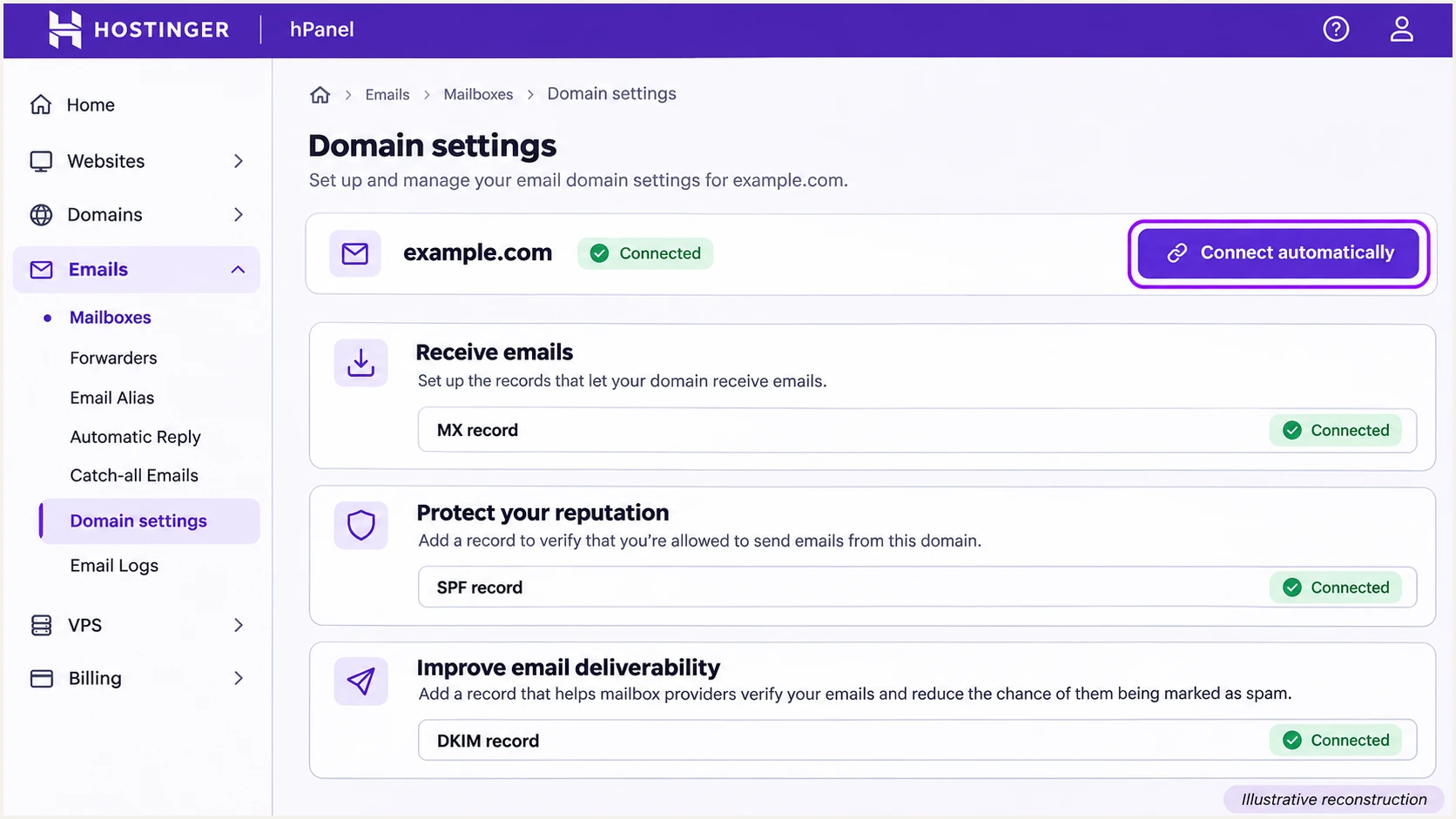
Illustration of Hostinger Domain settings and the Connect automatically control.
Set up SPF
Hostinger Email documents the SPF value below. It authorizes Hostinger's mail servers for the domain being checked by SPF. SPF checks the envelope sender, usually shown in Return-Path, rather than the visible From address.
- Inspect existing SPF: Find TXT records beginning with v=spf1 at the sending domain. Keep exactly one SPF record at each DNS name; unrelated TXT records can remain.
- Add Hostinger: For Hostinger Email, add include:_spf.mail.hostinger.com to the existing SPF record, before its final all mechanism. If there is no SPF record, publish the value below at @.
- Preserve other senders: Keep authorization needed by existing services. Do not publish a second SPF record or add every web hosting IP. Leave TTL at the default, or use 300 seconds if supported.
- Check lookup limits: Keep SPF within the 10 DNS-lookup limit, including nested includes. Run the checker against the domain where you published the record.
Hostinger Email SPF: TXT at @text
v=spf1 include:_spf.mail.hostinger.com ~all
For the Hostinger sending source covered here, a custom Return-Path is not supported. When a message uses a provider-owned Return-Path, publishing SPF at your visible From domain does not make SPF contribute to DMARC. Keep Hostinger Email's documented SPF setup for mailbox configuration, but do not treat it as a fix for that domain mismatch.
If you only use a hosted website sending path with a provider-owned Return-Path, there is no SPF change at your From domain that fixes SPF alignment. The requirement for DMARC is a passing DKIM signature whose signing domain matches your From domain under the selected DMARC matching rules.
SPF checker
Find SPF syntax issues, lookup limits, and weak records.
?/16tests passed
A valid SPF lookup confirms the published policy. It does not prove which Return-Path a real message uses. I compare the delivered message's smtp.mailfrom domain with header.from before interpreting an SPF alignment warning.
Hostinger publishes the current mailbox authentication values in its DNS record documentation. Use the values shown for your active email service if its configuration differs from this default.
Set up DKIM
DKIM is the essential DMARC pass path when Hostinger uses a Return-Path outside your domain. Publishing a key is only part of setup: the sending server must sign outgoing messages with the corresponding private key.
- Copy account values: Open Emails > Mailboxes > Domain settings and inspect Improve email deliverability. For default Hostinger Email DKIM, publish all three CNAME records shown below.
- Add CNAME records: In your authoritative DNS editor, choose CNAME, enter each selector name, paste its matching target, and save. Keep DNS-only resolution if your DNS host offers proxying.
- Check the name: For example.com, use hostingermail-a._domainkey in an editor that appends the zone name. For shop.example.com, use hostingermail-a._domainkey.shop. Apply the same naming rule to the b and c selectors.
- Verify actual signing: Return to Domain settings to check the DNS status, then send a message. Require dkim=pass and a header.d domain matching the visible From domain under DMARC's rules.
Default Hostinger Email DKIM CNAME recordstext
hostingermail-a._domainkey CNAME hostingermail-a.dkim.mail.hostinger.com
hostingermail-b._domainkey CNAME hostingermail-b.dkim.mail.hostinger.com
hostingermail-c._domainkey CNAME hostingermail-c.dkim.mail.hostinger.com
For a custom key, open Emails > Mailboxes > Custom DKIM and select Generate. Publish the exact TXT name and complete value that Hostinger generates, then check that Custom DKIM shows verified. Never replace it with a key generated elsewhere, because Hostinger needs the matching private key.
Default and custom DKIM can coexist. Preserve selectors used by other legitimate senders. If Generate is disabled, ask Hostinger which existing record blocks generation before removing anything. Hostinger's DNS support articles cover both default CNAME records and custom TXT keys.
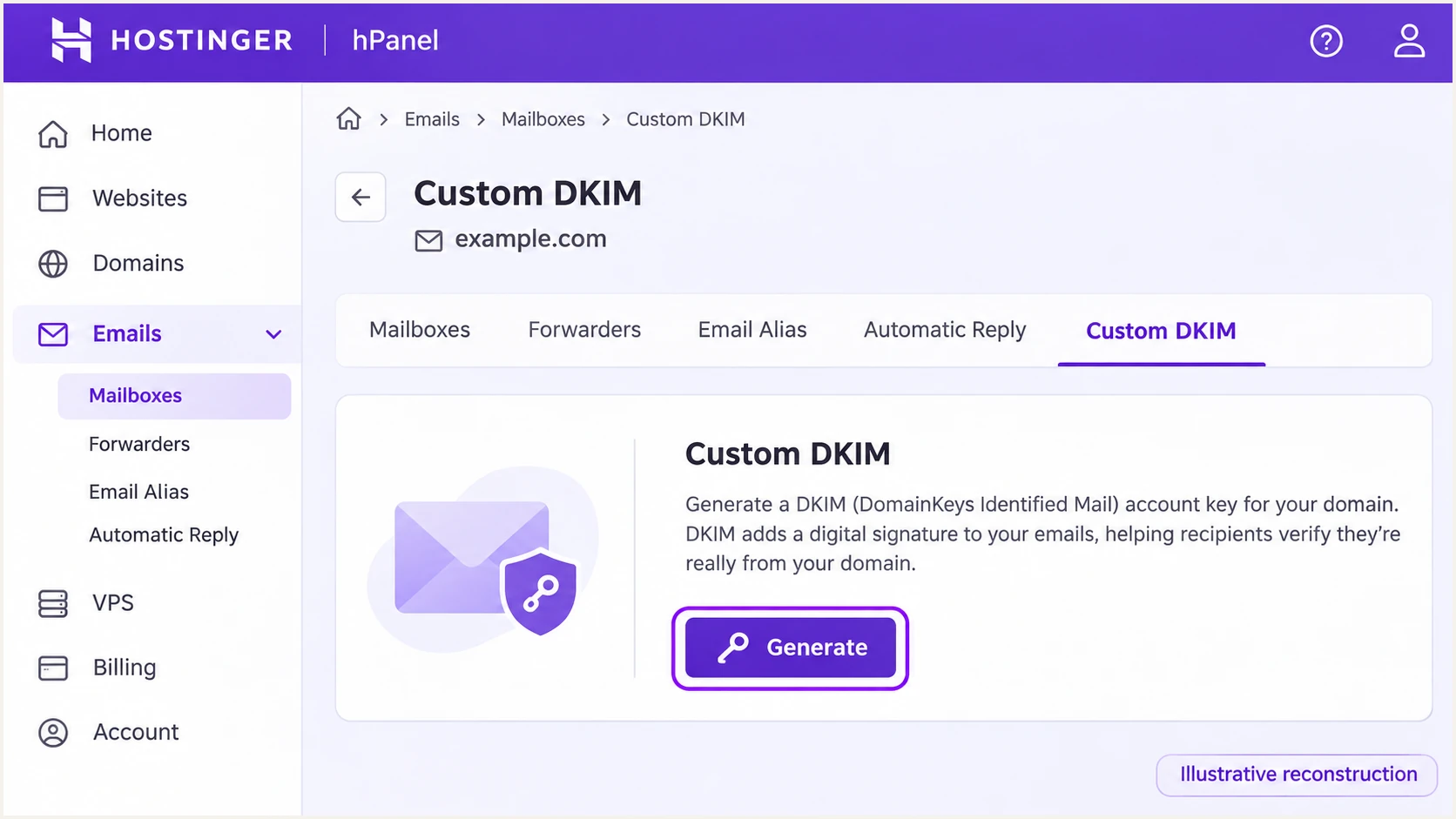
Illustration of Hostinger Custom DKIM and the Generate button.
Set up DMARC
DMARC passes when at least one authentication method passes and its authenticated domain matches the visible From domain under DMARC's matching rules. Default relaxed matching accepts the same organizational domain, such as example.com and shop.example.com. Strict matching requires identical domains. SPF and DKIM do not both need to contribute a pass.
- Keep enforcement: If the domain already uses p=quarantine or p=reject, retain that policy and its reporting destinations. Do not downgrade an established policy just to add Hostinger.
- Publish a new policy: For a domain without DMARC, add one TXT record named _dmarc at the authoritative DNS host. Use the p=none example below as the starting policy.
- Set reporting: Replace dmarc@example.com with a real report mailbox you control or your assigned aggregate-report destination. If the destination is external, check that its required external-report authorization is in place.
- Save and check: Keep one DMARC TXT record per policy name. In hPanel, choose TXT, set Name to _dmarc, paste the value, and save. Run the checker after DNS updates become visible.
Starting DMARC policy: TXT at _dmarctext
v=DMARC1; p=none; rua=mailto:dmarc@example.com
Use the DMARC record generator to build the record with your real reporting destination. Enter the TXT value without adding surrounding quote characters in hPanel.
The none policy requests monitoring without DMARC-based quarantine or rejection. It does not prevent spoofing. Keep default relaxed domain matching unless there is a specific reason to require exact matches; an unnecessary strict DKIM setting can break valid subdomain signatures.
DMARC checker
Look up a domain's DMARC record and catch policy issues.
?/7tests passed
A successful lookup confirms policy syntax and publication. It does not prove that Hostinger signs every message correctly or that receivers are sending reports. Test a delivered message next.
Aggregate reports commonly arrive daily, with initial reports often taking 24-48 hours. DNS updates and report delivery are separate events. Confirm the report mailbox accepts the compressed XML attachments receivers send.
Verify and troubleshoot
I test the exact production sending path. A message sent from webmail does not validate a contact form that still uses PHP mail(). For website email, configure authenticated SMTP before testing.
- Configure website SMTP: Use smtp.hostinger.com with port 465 and SSL/TLS, or port 587 and STARTTLS. Enable authentication with the full mailbox address and mailbox password, or the required app password for that account.
- Set the sender: Send with a From address on the authenticated domain. For contact forms, put the visitor's address in Reply-To rather than using it as From.
- Exercise real messages: Trigger a contact form and a password reset, then send a normal mailbox message. Test each application separately. SMTP authentication alone does not prove DKIM domain matching.
- Inspect recipient results: Read Authentication-Results added by the receiving server. Require dmarc=pass, and check dkim=pass plus header.d when the Return-Path belongs to the provider.
Illustrative recipient authentication resultstext
Authentication-Results: recipient.example;
  spf=pass smtp.mailfrom=return.provider.example;
  dkim=pass header.d=example.com header.s=hostingermail-a;
  dmarc=pass header.from=example.com
In this example, SPF passes for an unrelated provider domain. DMARC passes through DKIM because header.d matches header.from. An SPF alignment warning is expected for this case and is acceptable while matching-domain DKIM continues to pass.
The email tester below is the quickest end-to-end check. Send a message to the address it supplies using the Hostinger mailbox or website application you are configuring. It diagnoses the delivered message's authentication and identifies configuration problems.
Email tester
Send a real email to this address. Suped shows a results button when the test is ready.
?/43tests passed
After a change, send a fresh message. Old messages retain their original signatures and authentication results. A DNS change cannot add a missing DKIM signature to mail that was already sent.
For DNS failures, compare public answers with the authoritative nameserver, then recheck Hostinger's Domain settings. Hostinger advises allowing up to 24 hours for propagation. If records resolve correctly but DKIM is missing, investigate the sending method rather than repeatedly editing DNS.
|
|
|
|---|---|---|
SPF permerror | Duplicate policies | Merge SPF |
DKIM key missing | Selector and DNS | Correct record name |
No DKIM signature | PHP sending path | Use SMTP signing |
SPF mismatch only | DKIM domain match | Require DKIM pass |
DMARC fail | From and header.d | Correct signing domain |
Common Hostinger authentication symptoms
Get alerted when it breaks
Suped is our DMARC platform. Its DMARC monitoring groups receiver reports by sending source and detects authentication issues, so a broken Hostinger sending path does not depend on someone noticing rejected mail.
- Confirm report flow: Check that the published rua destination is delivering aggregate reports to your monitoring service. Review recent Hostinger traffic before relying on alerts.
- Enable notifications: In Suped notification settings, enable Issues detected and Sending sources need verification. Enable DMARC summary emails for a regular review of authentication results.
- Verify the source: Review Hostinger's source records and verify it only after confirming the traffic belongs to your organization. Inspect failed messages by source IP and reporter.
- Resolve the cause: Use Suped's detailed SPF, DKIM, and DMARC diagnostics and the issue's fix steps. Correct the records or sending configuration in Hostinger, then send another test and check subsequent reports.
I prioritize a loss of passing, matching-domain DKIM on Hostinger traffic because it removes the DMARC pass path when SPF uses a provider-owned Return-Path. Review failures by legitimate source rather than treating all failed traffic as a configuration problem.
Report-based notifications depend on receivers submitting reports. They are not immediate delivery-event alerts. Keep application sending logs for individual SMTP failures and use Suped for continuing authentication monitoring.
Hostinger DNS status
Checks the records needed to connect Hostinger Email. Use Domain settings to confirm publication after a DNS edit.
Suped authentication monitoring
Checks authentication results reported by receivers. Use source verification and issue notifications to investigate changes after setup.
Secure your domain with p=reject
Move to p=reject after legitimate senders consistently pass DMARC. Suped's source inventory and detailed reports make that decision reviewable across the whole domain, including senders outside Hostinger.
- Inventory senders: Review each source in Suped and confirm ownership. Include low-volume website notifications and less frequent billing messages before judging coverage.
- Fix legitimate failures: Require passing DKIM with the correct signing domain for every Hostinger path that lacks SPF domain matching. Do not authorize unexplained IP addresses to improve an overall pass-rate percentage.
- Stage enforcement: When legitimate traffic is accounted for, change p=none to p=quarantine and review the resulting reports and delivery feedback. Then change to p=reject. Use a representative sending cycle rather than a fixed waiting period.
- Review subdomains: A parent policy normally applies to subdomains without their own policy. Check website subdomains before enforcement and retain reporting destinations throughout the change.
- Continue monitoring: Keep Suped issue notifications enabled after enforcement. Investigate new sources and DKIM failures when applications or providers change.
Policy progression: update the same _dmarc TXT recordtext
# Intermediate policy, after verifying legitimate senders
v=DMARC1; p=quarantine; rua=mailto:dmarc@example.com

# Final policy, after reviewing enforcement results
v=DMARC1; p=reject; rua=mailto:dmarc@example.com
These are alternative values for one record, not two records to publish together. Replace the example reporting address and retain any necessary settings already present in your policy.
Suped's Hosted DMARC supports managing policy changes from its dashboard once configured. If you manage the TXT record directly in Hostinger, edit only the policy tag and preserve the reporting destination.
Verify DKIM before enforcement
With a provider-owned Return-Path, a missing or invalid matching-domain DKIM signature makes Hostinger messages fail DMARC. Fix that sending path before tightening policy. A reject policy requests rejection of DMARC failures; it does not guarantee inbox delivery or stop lookalike-domain impersonation.
For a direct DNS edit, open the existing _dmarc TXT record in Hostinger's DNS records list, change its value, and save. Run the DMARC check again after publication.
I keep monitoring through the next representative sending cycle after each policy change. If legitimate mail fails, identify the affected application and repair its authentication before increasing enforcement further.
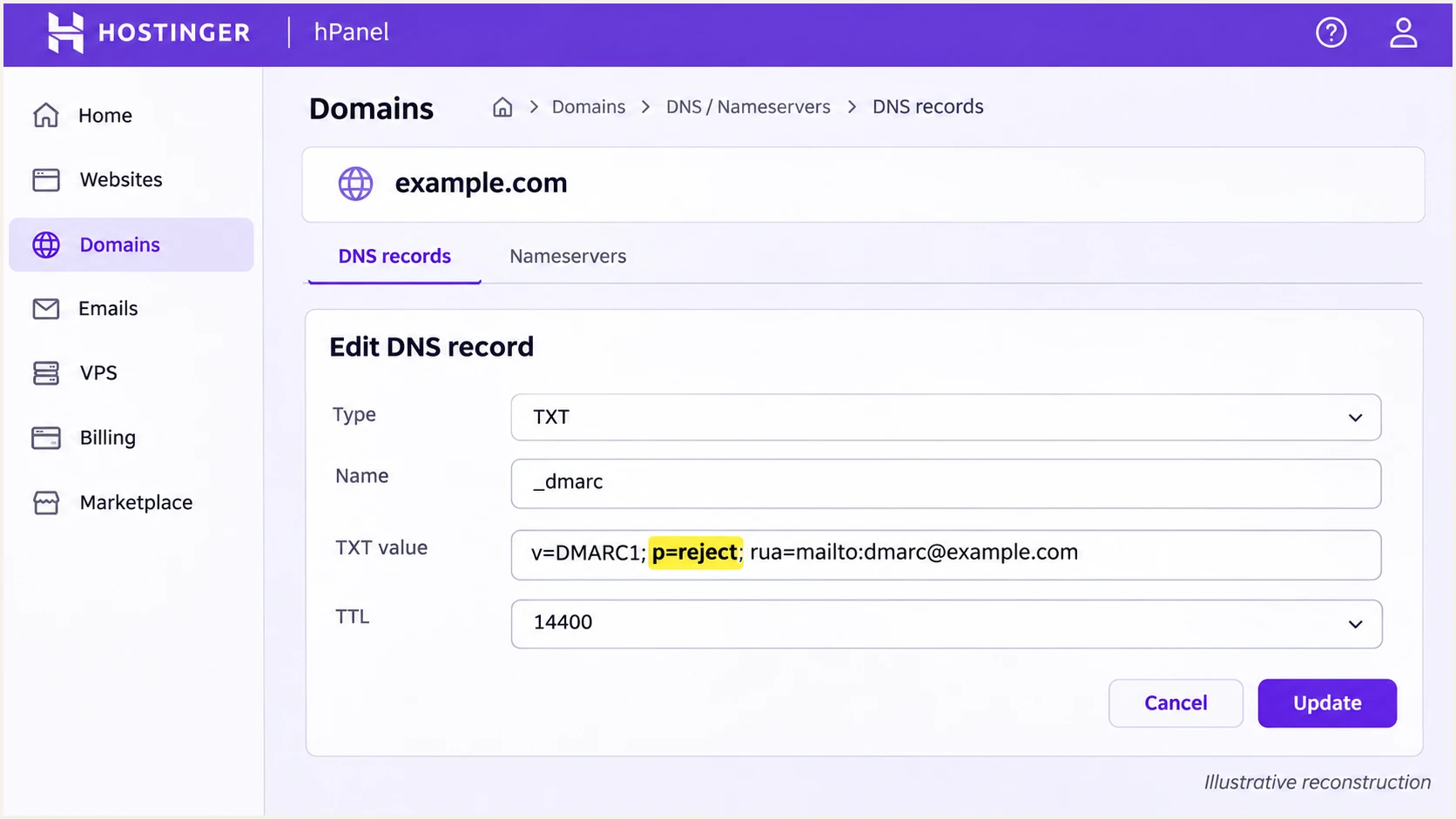
Illustration of editing the existing Hostinger DMARC TXT record to p=reject.
For a From domain of shop.example.com, check _dmarc.shop.example.com as well as the parent policy. An explicit subdomain policy overrides inheritance, so editing only _dmarc.example.com does not replace it.
When reviewing failures after enforcement, distinguish legitimate application mail from unauthorized use of your domain. Do not weaken the policy simply because unauthorized traffic increases the overall failure count.
Frequency asked questions
No. Keep p=reject or p=quarantine and authenticate Hostinger before production sending. Test the actual mailbox and website paths while retaining the existing policy and reporting settings.
SPF can pass for a provider-owned Return-Path while that domain differs from the visible From domain. DMARC still passes if DKIM passes with a signing domain that matches the From domain under your DMARC rules.
They can use different sending paths. A website using PHP mail() does not inherit the mailbox's DKIM signature just because DNS is configured. Route the application through authenticated Hostinger SMTP and retest that application.
Hostinger advises allowing up to 24 hours after DNS changes. Confirm that you edited the authoritative DNS zone and entered the correct name. Aggregate DMARC reports follow a separate schedule and commonly begin arriving within 24-48 hours.
Hostinger documents server names such as srv999.main-hosting.eu for website PHP mail. If that suffix appears in rDNS, treat it as an infrastructure clue and confirm the source IP against your application logs and message headers. It does not identify a specific customer or prove the sender is authorized.
No. The outgoing server must sign the message, the signature must verify, and its signing domain must match the visible From domain under DMARC's rules. Test delivered mail, including contact forms and other website notifications.




