
How to set up DMARC/DKIM/SPF for Host Europe

Published 22 Nov 2026
Updated 22 Nov 2026
13 min read
Summarize with

For Host Europe Classic Hosting and cPanel Hosting, publish the SPF record that includes spf.server-he.de, confirm DKIM signing for your domain, and publish a DMARC TXT record at _dmarc. Start with p=none unless your domain already uses quarantine or reject.
I check the hosting package and actual sending route first. Virtual Server 10+ uses a different relay SPF record, and migrated mailboxes need the settings for their current mail service. Make DNS changes at your authoritative DNS provider, even when Host Europe hosts the website.
Add your domain
I keep an existing domain assignment and verify it before changing authentication. Adding a domain to a hosting account does not by itself prove that outgoing messages pass DMARC.
- Check the package. Sign in to KIS, open Produktverwaltung, and identify Classic Hosting, cPanel Hosting, or Virtual Server. Confirm which package actually sends the website's email.
- Add an external Classic domain. If needed, open the package configuration, then Vertragsänderungen > AddOn-Admin, and order Zusätzliche externe Domain. Under Domains > Externe Domains, enter your domain without www and click Hinzufügen.
- Add a cPanel domain. After linking the domain to the package in KIS, open Produktverwaltung > cPanel > cPanel Login > cPanel Administration. Select Domains > Create a New Domain, enter your domain, choose its document root, and submit.
- Verify DNS control. Check the domain's NS records. Publish records through KIS only when Host Europe manages authoritative DNS. Host Europe's managed cPanel Hosting has an inactive Zone Editor; use KIS or your external DNS provider.
- Verify the sender. Confirm the domain appears in the package and that your application sends with an address on that domain. Change MX records only if you are also moving incoming mail.
For an external Classic domain, Host Europe displays the service addresses after adding it. Apply only the records required for the services you intend to use; existing website and mailbox routing deserve separate checks.
Host Europe documents roughly 15-30 minutes for external-domain provisioning. Verify the assignment in the account, then check public DNS and send a message before treating the setup as complete.
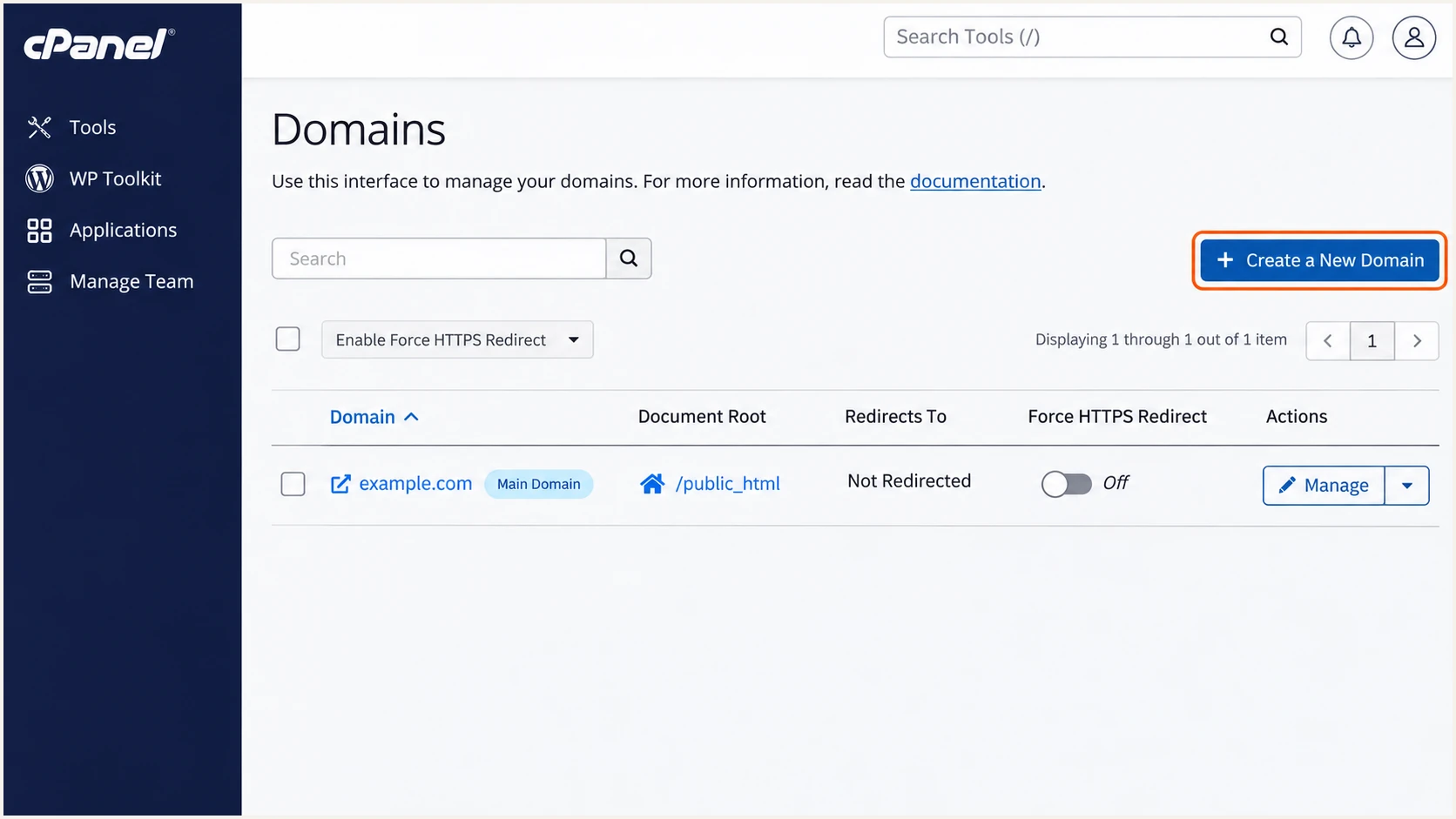
Illustrative Host Europe cPanel Domains screen with Create a New Domain highlighted.
Set up SPF
Host Europe's documented default for Classic Hosting and cPanel Hosting is the following SPF TXT value. I merge it with existing authorized senders rather than adding another SPF record.
- Open DNS. In KIS, select Produktverwaltung > Domainservices > Domain-Administration > Nameserver- / DNS-Einträge bearbeiten, then Editieren beside your domain.
- Select the root. Leave the left-hand hostname field blank for the domain root and select TXT under Zeigt auf. At an external DNS provider, use its root-domain convention.
- Save one SPF record. Update the existing TXT record beginning v=spf1. If none exists, add the value below with Neu anlegen. Keep unrelated TXT records.
- Keep all senders. Merge other legitimate sending mechanisms before the final -all. Check the complete SPF evaluation against the 10 DNS lookup limit, including nested includes.
SPF TXT value for Host Europe Classic Hosting and cPanel Hostingtext
v=spf1 a mx include:spf.server-he.de -all
This default also authorizes the domain's A and MX hosts. Keep those mechanisms only where they describe legitimate senders, and do not replace a working record for a different mail service merely because your website is hosted here.
SPF checks the envelope sender domain shown in Return-Path, rather than the visible From address. Use an envelope sender on your own domain and check the received message to confirm the match.
SPF checker
Find SPF syntax issues, lookup limits, and weak records.
?/16tests passed
Enter the envelope sender domain above. Resolve duplicate SPF records, syntax errors, and lookup-limit failures before testing delivery again. A valid DNS record alone does not establish that the actual sending IP is authorized.
For Virtual Server 10+ sending through Host Europe's relay, its documented SPF value is below. Use this variant only for that route, preserving any additional legitimate senders in the same record.
SPF TXT value for Virtual Server 10+ relaytext
v=spf1 a mx include:secureserver.net -all
Host Europe documents up to 48 hours for DNS changes to be recognized worldwide. Check authoritative DNS first, then allow cached answers to expire before judging an unchanged receiver result.
In KIS, a blank hostname targets example.com itself. The screenshot illustrates a new entry; edit the existing SPF record when one is already present.
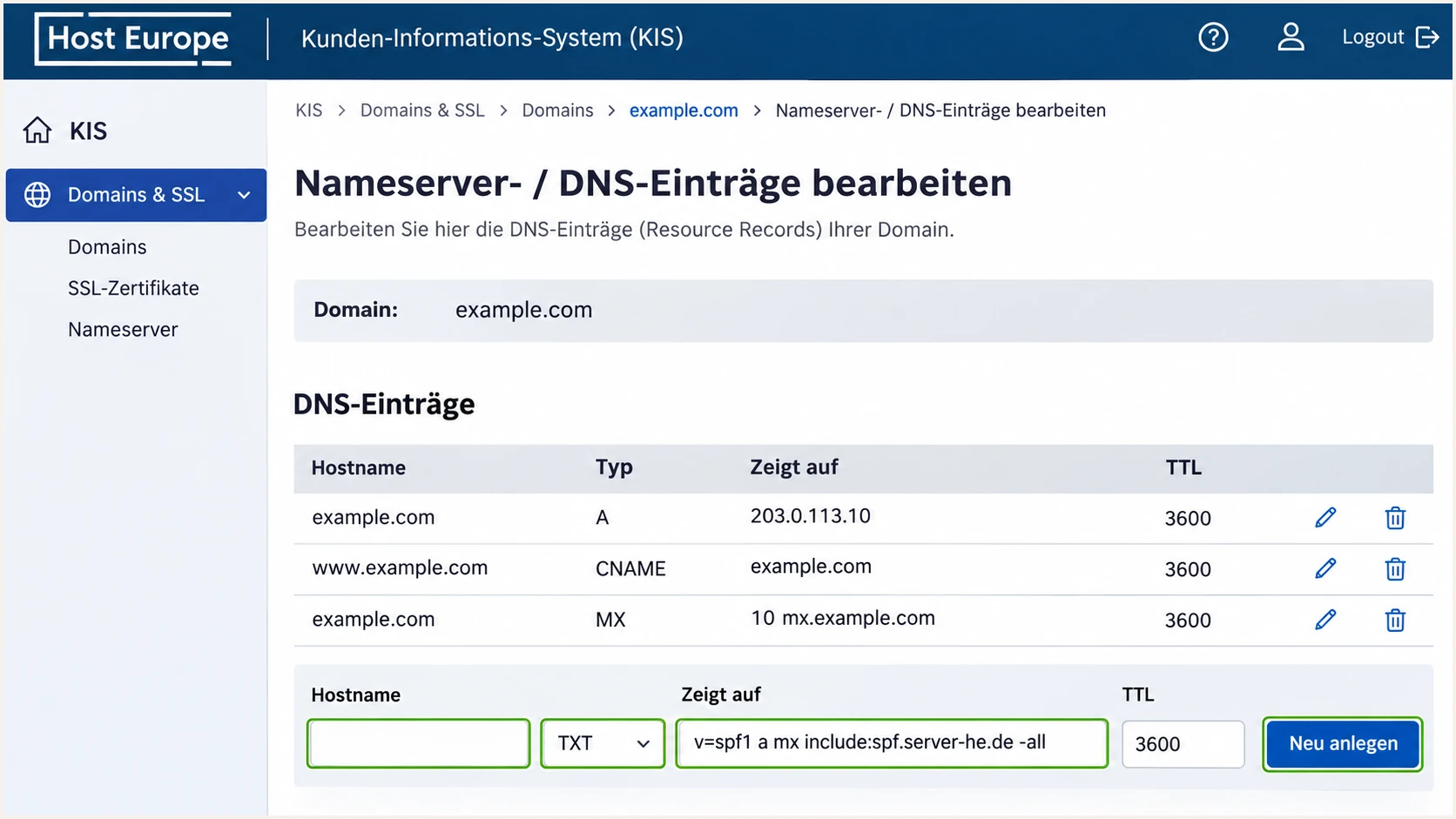
Illustrative KIS SPF entry with a blank root hostname and TXT selected.
Set up DKIM
Classic Hosting signs eligible outgoing mail automatically. I retrieve the package's actual DKIM record and check a delivered message, because there is no universal Host Europe selector or public key to paste into every domain.
- Retrieve the Classic record. Open Produktverwaltung > your product area > Konfigurieren > Allgemeines > Allgemeine Informationen. Copy the DKIM DNS name and public value supplied for your domain.
- Publish external DNS. If your domain uses external nameservers, add that exact DKIM record there. For a Classic domain using Host Europe's DNS, check the automatically installed record before adding anything.
- Retrieve the cPanel record. Open Email > Email Deliverability > Manage beside your domain. Copy the Name and Value under Suggested DKIM (TXT) Record. Publish them in KIS or authoritative external DNS, not the inactive managed-hosting Zone Editor.
- Enable server signing. On a self-managed Plesk server, enable outgoing signing in Tools & Settings > Mail Server Settings and in Domains > your domain > Mail > Mail Settings. Publish that server's generated DKIM record.
- Match the Classic sender. Set the envelope sender to the same address as the visible From address, on a domain assigned to the sending package. Host Europe documents a strict From/MailFrom match for automatic signing.
- Configure website scripts. For PHP mail(), set the -f parameter to your own sender address. For cPanel SMTP sending that needs DKIM, enable authentication with the cPanel mailbox credentials. Use the package hostname if localhost causes a certificate-name mismatch.
Copy the complete public key without truncation. Keep the private key on the signing system. If DNS already appends your domain, enter only the selector and _domainkey portion in the hostname field.
In a delivered message, inspect DKIM-Signature: s= identifies the selector and d= identifies the signing domain. Require dkim=pass with a matching signing domain. If Email Deliverability is unavailable, ask Host Europe for the domain's DKIM DNS name and public value.
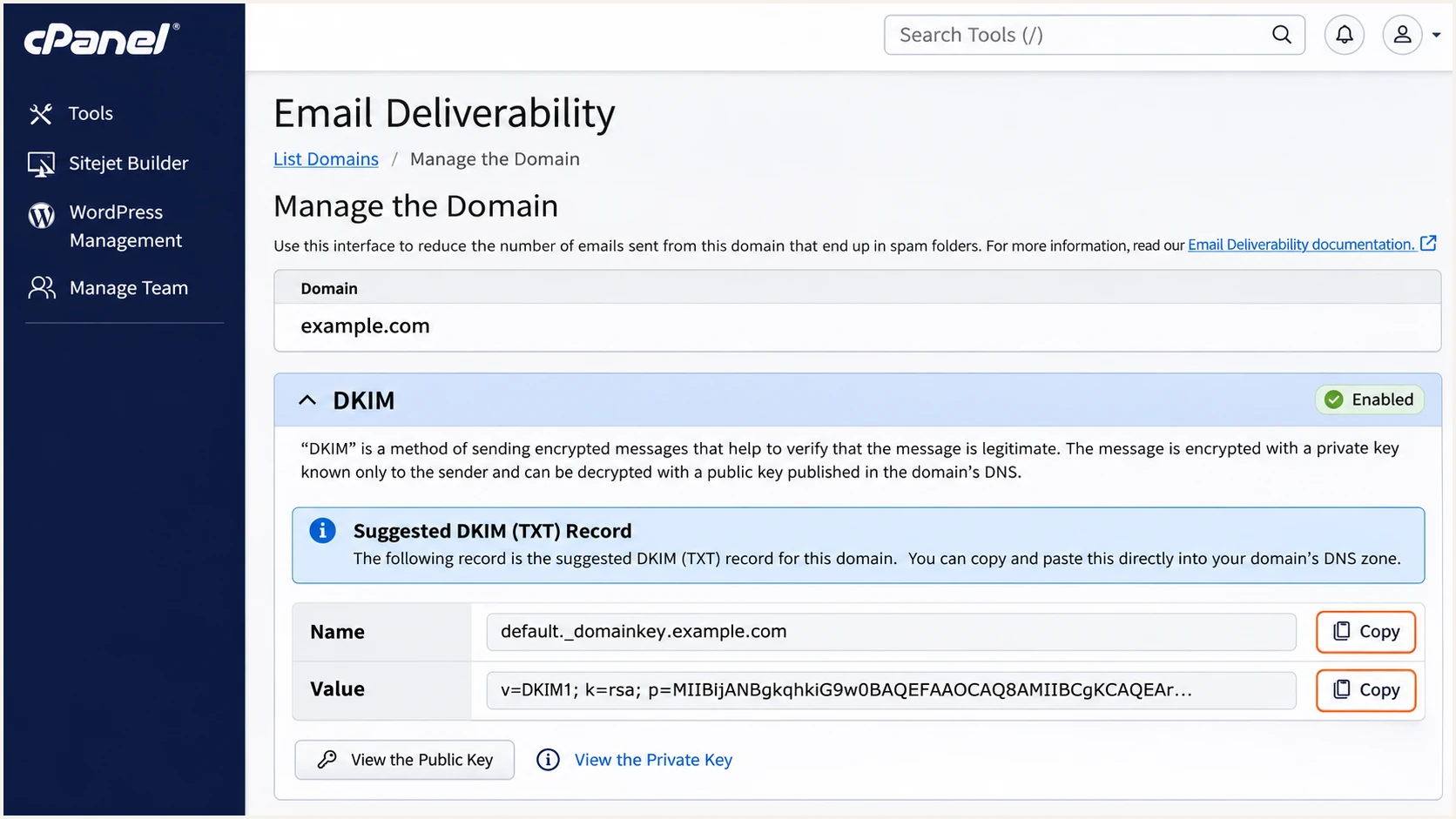
Illustrative cPanel DKIM record view; copy the name and public value shown for your domain.
Set up DMARC
DMARC needs one TXT record at _dmarc on the visible From domain. I start new deployments with p=none so reports identify legitimate senders before enforcement.
- Check the existing policy. Look up _dmarc on your domain. If p=quarantine or p=reject is already working, keep that policy and its reporting destinations.
- Create the TXT record. In the same authoritative DNS editor, use _dmarc as the hostname, choose TXT, and enter the monitoring value below. Edit an existing DMARC record instead of adding a duplicate.
- Replace the address. Change dmarc@example.com to a real aggregate-report mailbox or reporting destination you control. The example address will not collect reports for your domain.
- Verify reporting. For a reporting address on another domain, confirm that the recipient has published the required external-report authorization. Allow 24-48 hours for initial aggregate reports from participating receivers.
Initial DMARC TXT value at _dmarc.example.comtext
v=DMARC1; p=none; rua=mailto:dmarc@example.com
Use the DMARC record generator to build the value with your actual reporting address. Leave the default relaxed SPF and DKIM domain-matching modes unless a specific requirement calls for strict matching.
DMARC passes when either SPF passes with a matching envelope sender domain or DKIM passes with a matching signing domain. Both authentication methods are worth configuring, but DMARC does not require both to pass on every message.
DMARC checker
Look up a domain's DMARC record and catch policy issues.
?/7tests passed
Check the domain used in the visible From address. Confirm one valid DMARC record, the intended policy, and the correct rua destination. p=none requests reporting without requesting rejection or quarantine.
The checker validates published policy. Send real website and mailbox messages next, because DNS validation cannot prove that your application uses the expected envelope sender or DKIM signature.
Verify and troubleshoot
I test each actual sending path separately. A successful webmail test does not establish that a contact form or scheduled application message uses the same authentication.
- Send representative messages. Test a mailbox message and each website or application sender. Use a From address on your domain; put a form visitor's address in Reply-To.
- Inspect receiver results. Read the recipient's Authentication-Results header. Look for spf=pass, dkim=pass, and dmarc=pass, then compare their domains with the visible From domain.
- Diagnose missing DKIM. For Classic Hosting, check the package assignment and the strict From/envelope-domain match. For cPanel scripts, check SMTP authentication and whether the public key matches the signing system.
- Diagnose SPF failures. Check the actual envelope sender domain and outbound IP. Remove duplicate SPF records and fix lookup errors; do not add relay hostnames as extra includes unless the provider documents them.
- Check DNS directly. Query the authoritative nameserver and a recursive resolver. Confirm that the DKIM hostname does not accidentally contain the domain twice.
DNS checks, replacing the domain and selectorbash
dig +short NS example.com
dig +short TXT example.com
dig +short TXT _dmarc.example.com
dig +short TXT SELECTOR._domainkey.example.com
A passing SPF result for an unrelated Return-Path domain does not count toward DMARC. If that route cannot use your domain in Return-Path, a passing DKIM signature with a matching signing domain is sufficient for DMARC.
Use the email tester below for the quickest message-level check. Send to the address it provides through the exact Host Europe mailbox or application you are diagnosing; the result includes a full authentication diagnosis.
Email tester
Send a real email to this address. Suped shows a results button when the test is ready.
?/43tests passed
Expect SPF alignment warnings when the envelope sender belongs to the provider. Those warnings do not cause DMARC failure when DKIM passes with the correct signing domain, although they still describe a real limitation of that sending path.
Host Europe supports an envelope sender on your own domain for the hosting routes described here. Prefer that configuration, particularly on Classic Hosting where a domain mismatch also prevents automatic DKIM signing.
|
|
|
|---|---|---|
SPF | Envelope domain | Pass + domain match |
DKIM | Signing domain | Pass + domain match |
DMARC | Visible From | Either matching pass |
Match each result to the identity it actually authenticates.
Get alerted when it breaks
I keep monitoring after the first successful test. Suped is our DMARC platform for this workflow: it turns aggregate reports into source-level authentication results, detected issues, and steps to fix them.
- Keep reports flowing. Use the reporting destination supplied for your domain in the existing record's rua value. Preserve your current policy and any other required report destinations.
- Enable issue alerts. In Suped's notification settings, enable Issues detected and Sending sources need verification. Add DMARC summary emails for routine review.
- Verify Host Europe traffic. Review reported IPs and message volume against your known website and mailbox activity. Mark a source as verified only after confirming it is authorized.
- Investigate changes. Open a failing record's detail view, check SPF and DKIM results, and review DNS history. Apply the issue's fix steps, then send another test message.
Suped's DMARC monitoring keeps the evidence for these checks in one place. That is useful when a hosting migration, application update, or DNS edit changes the sending route after setup.
Aggregate-report alerts depend on receivers sending their reports. Use a fresh test email for immediate diagnosis after a change, and use ongoing reports to catch failures across real traffic.
Keep monitoring through migrations
A mailbox migration and a website-hosting migration are separate changes. Recheck both sending paths and their SPF coverage before removing an old sender. Keep DKIM DNS keys while messages signed with those keys remain in transit.
Secure your domain with p=reject
I move to p=reject after every legitimate sender has a reliable DMARC pass. Use Suped's source verification and failure details to make that decision using actual traffic, including low-frequency application messages.
- Inventory every sender. Review a full business sending cycle, including password resets, invoices, contact forms, and scheduled campaigns. Investigate each unknown source instead of authorizing it automatically.
- Fix legitimate failures. Require a passing SPF or DKIM result with a domain match for each authorized source. Prefer working DKIM as well as SPF, since forwarding changes SPF outcomes.
- Stage enforcement. Change the existing policy to p=quarantine, review the reports and delivery results, then move to p=reject once legitimate traffic remains authenticated. Keep stronger policies already in place.
- Control subdomains. Review subdomain senders before enforcing the parent policy. Check any explicit sp policy and separate subdomain DMARC records so the intended scope is clear.
Our Hosted DMARC lets teams manage policy in Suped after its initial DNS configuration. Combined with source verification and issue alerts, it provides a practical way to stage enforcement and investigate regressions.
Use the same reporting destination throughout the change. A total pass-rate percentage is insufficient on its own: confirm that an important low-volume sender is not hidden among failures.
Keep investigating
An invoice sender fails DMARC, the website has no matching DKIM signature, or a migrated route has not been tested. Fix the affected sender before increasing enforcement.
Move to reject
Every authorized sender has a matching authentication pass, representative messages succeed, and reports cover the business sending cycle. Keep alerts enabled after the policy change.
At the final stage, edit the existing _dmarc TXT record rather than creating another one. Replace the example report address below with the destination already receiving your reports.
p=reject asks receivers to reject mail that fails DMARC. It does not guarantee inbox placement, and it does not stop messages sent using a different lookalike domain.
Final DMARC TXT value after verificationtext
v=DMARC1; p=reject; rua=mailto:dmarc@example.com
After saving, check the published policy and resend representative messages. Continue reviewing Suped's detected issues so a new application or hosting change does not leave legitimate mail failing under enforcement.
If a legitimate sender breaks, investigate its envelope domain, signature, and DNS records first. Repair that path and confirm a fresh DMARC pass before closing the issue.
Frequency asked questions
For Classic Hosting and cPanel Hosting, Host Europe documents v=spf1 with a, mx, include:spf.server-he.de, and a final -all. Virtual Server 10+ relay uses include:secureserver.net instead. Preserve other legitimate senders in the same SPF record and confirm the actual route before changing it.
Classic Hosting automatically signs eligible outgoing messages. External DNS needs the public record copied manually, and Classic signing requires matching visible From and envelope sender domains. For cPanel Hosting, retrieve the domain's DKIM record through Email Deliverability > Manage and verify a real sent message.
Use KIS DNS administration when Host Europe operates authoritative DNS, or your external DNS provider otherwise. Host Europe's managed cPanel Hosting documentation says its Zone Editor is inactive. Copy the DKIM record shown in cPanel, but publish it in the authoritative DNS zone.
Yes. A passing DKIM signature whose signing domain matches the visible From domain satisfies DMARC even when SPF alignment fails. Check that DKIM actually passes. On Classic Hosting, also fix a From/envelope-domain mismatch because Host Europe's automatic signing depends on that match.
Host Europe uses generic hostnames such as wp000.webpack.hosteurope.de for shared-hosting servers. An rDNS name ending in webpack.hosteurope.de is therefore a clue to Host Europe infrastructure, not proof that a message is authorized. Confirm the source IP against your package and check SPF, DKIM, and DMARC. The SMTP submission hostname shown in your account is not necessarily the final sending IP's rDNS name.
Keep an existing working p=reject or p=quarantine policy. Configure Host Europe to pass DMARC under that policy and test its real sending paths. The p=none example is for a new deployment that needs monitoring before enforcement.




