
How to set up DMARC/DKIM/SPF for home.pl

Published 22 Nov 2026
Updated 22 Nov 2026
12 min read
Summarize with
Set up home.pl email authentication by assigning your domain to the mail hosting service, checking its SPF TXT record, enabling DKIM under Domeny, and publishing a DMARC TXT record at _dmarc. Start a new DMARC deployment with p=none and a working reporting address. Keep p=quarantine or p=reject if either is already active.
I verify messages sent through both the mailbox and the website application. Correct DNS alone does not prove that either path uses your domain in the return path or DKIM signature. home.pl's documented panel labels are Polish; example.com is a placeholder for your domain.
Add your domain
I first confirm that the domain is attached to the home.pl hosting service that will send mail. A domain registered in the account still needs a hosting assignment.
- Find your domain: Open Panel Klienta > Domeny. Select an existing domain. If it is already assigned to the correct hosting service, keep that assignment.
- Add an external domain: For a domain registered elsewhere, choose Domeny > Dodaj nową domenę > Dodaj własną domenę. Enter the domain, associate it with Hosting DNS, then click Zatwierdź. This creates a DNS zone, not the mail hosting assignment.
- Assign the hosting: Open Usługi WWW > your hosting service > Przypisane domeny > Przypisz. Select the domain and click Wyślij. Preserve the existing website routing when configuring mail hosting.
- Confirm the assignment: Check that the domain appears under Przypisane domeny > Wszystkie. In Poczta, create or select the sender mailbox under that domain, then send a test message using that mailbox.
Check the domain's public NS records before editing DNS. If DNS stays elsewhere, publish authentication records there. If you choose home.pl DNS, copy the existing zone before changing delegation, then verify that the public nameservers match those supplied by home.pl.
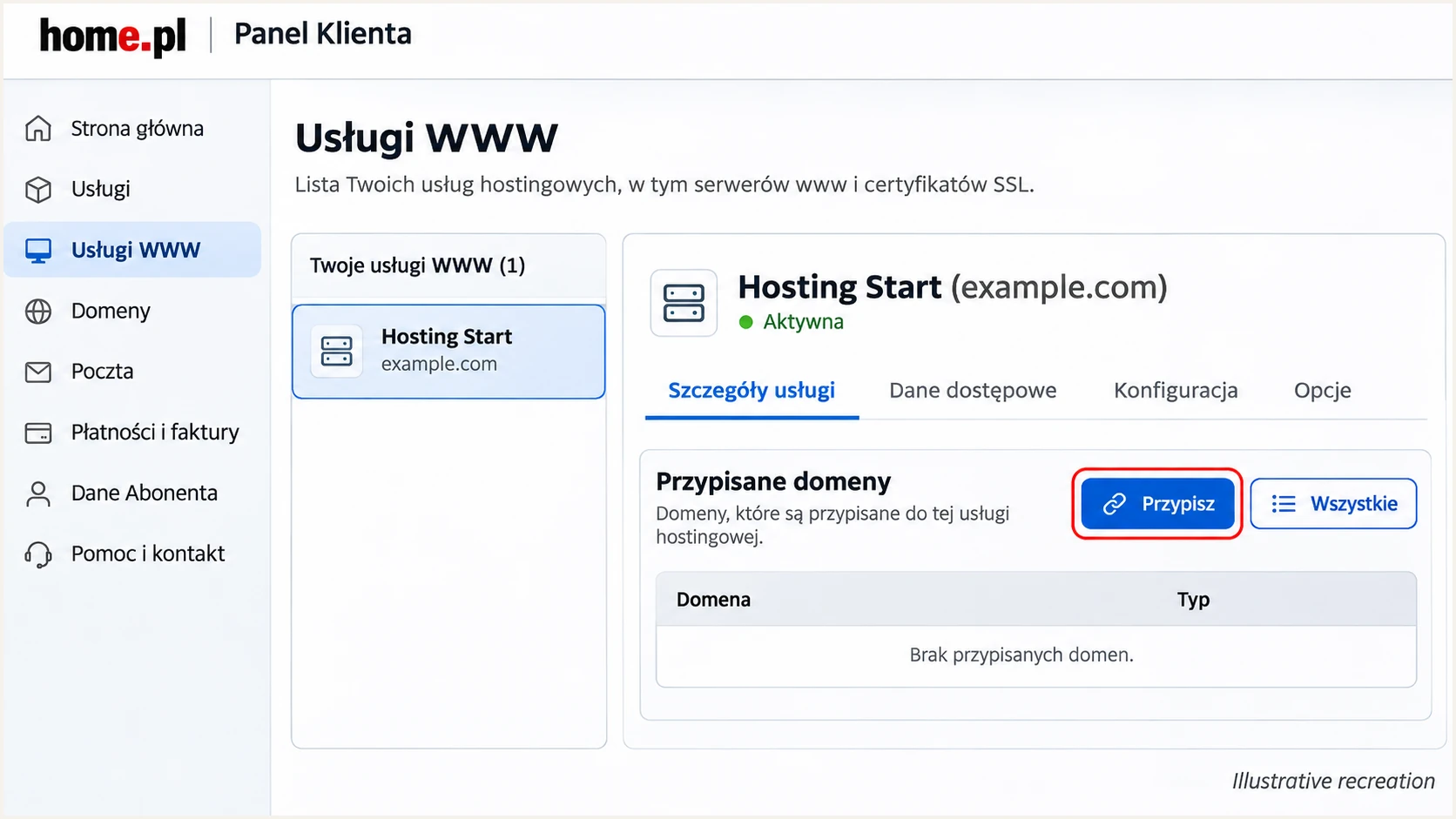
Illustrative home.pl hosting view showing where to assign a domain.
For website applications, copy the SMTP hostname from the mailbox's connection details. Use authenticated SMTP on port 465 with implicit TLS, the full mailbox address as the username, and the same address in From. Do not guess a universal SMTP hostname.
Set up SPF
home.pl adds SPF automatically for its standard shared hosting configuration. I inspect the existing record first and edit it only when it is missing or does not authorize the actual outbound server.
- Open DNS records: Go to Domeny > your domain > Hosting DNS > Opcje > Zarządzaj rekordami DNS. Find the TXT record starting with v=spf1.
- Confirm the server IP: Use your assigned hosting service's IP. In the default home.pl setup, the mail and web server share an IP, but check the actual sending IP in a received message before assuming a website A record is correct.
- Edit one SPF record: Edit the existing SPF TXT record. If none exists, select Dodaj nowy rekord > TXT. Leave Host blank for the root domain and keep the default TTL. Preserve authorization for other legitimate senders.
- Save the value: Use your real server IP in home.pl's ip4, a and mx pattern. Keep a and mx only when those addresses are authorized senders. Save the record and check public DNS after cached answers expire.
SPF example for example.com, replace the documentation IPtext
v=spf1 ip4:192.0.2.10 a mx ~all
192.0.2.10 is reserved for documentation. Replace it with your actual outbound IPv4 address. The ~all ending requests softfail for other IPs during testing; preserve an existing -all policy when its sender inventory is complete.
Publish exactly one SPF policy per hostname. Stay within SPF's limit of 10 DNS-querying terms per evaluation, including nested includes. The ip4 mechanism itself does not consume that allowance.
SPF checker
Find SPF syntax issues, lookup limits, and weak records.
?/16tests passed
Enter the domain used in the message's SMTP MAIL FROM, shown as the delivered Return-Path. Check that its SPF record authorizes the sending IP. If MAIL FROM uses a subdomain, check that subdomain's own SPF record; SPF does not inherit a parent policy.
home.pl supports a return path under your own domain. Confirm that the return-path domain matches the visible From domain, or shares its organizational domain under relaxed DMARC rules. For website mail, set the application envelope sender explicitly instead of accepting a technical server address.
Set up DKIM
I enable home.pl's signing service for the domain. DKIM needs both an outgoing signature and the matching public DNS record.
- Select the domain: Open Domeny and click the domain used in your From address.
- Enable signing: Find the DKIM section and click Włącz. For the supported domain and hosting setup, home.pl configures the public TXT record and signing. An available Wyłącz action indicates that the function is enabled.
- Check external DNS: If authoritative DNS is elsewhere, confirm DKIM support for that configuration with home.pl. Obtain its exact selector and public record, then publish that value at your DNS host. Ask support if the control or record is unavailable.
- Test the signature: Send a fresh message through the actual mailbox and application. Check for dkim=pass and a signing domain under your own domain. A passing signature for an unrelated provider domain does not satisfy DMARC's domain match.
Do not guess the selector or reuse another domain's public key. Keep existing selectors used by other senders. A DKIM selector is independent of the SPF record.
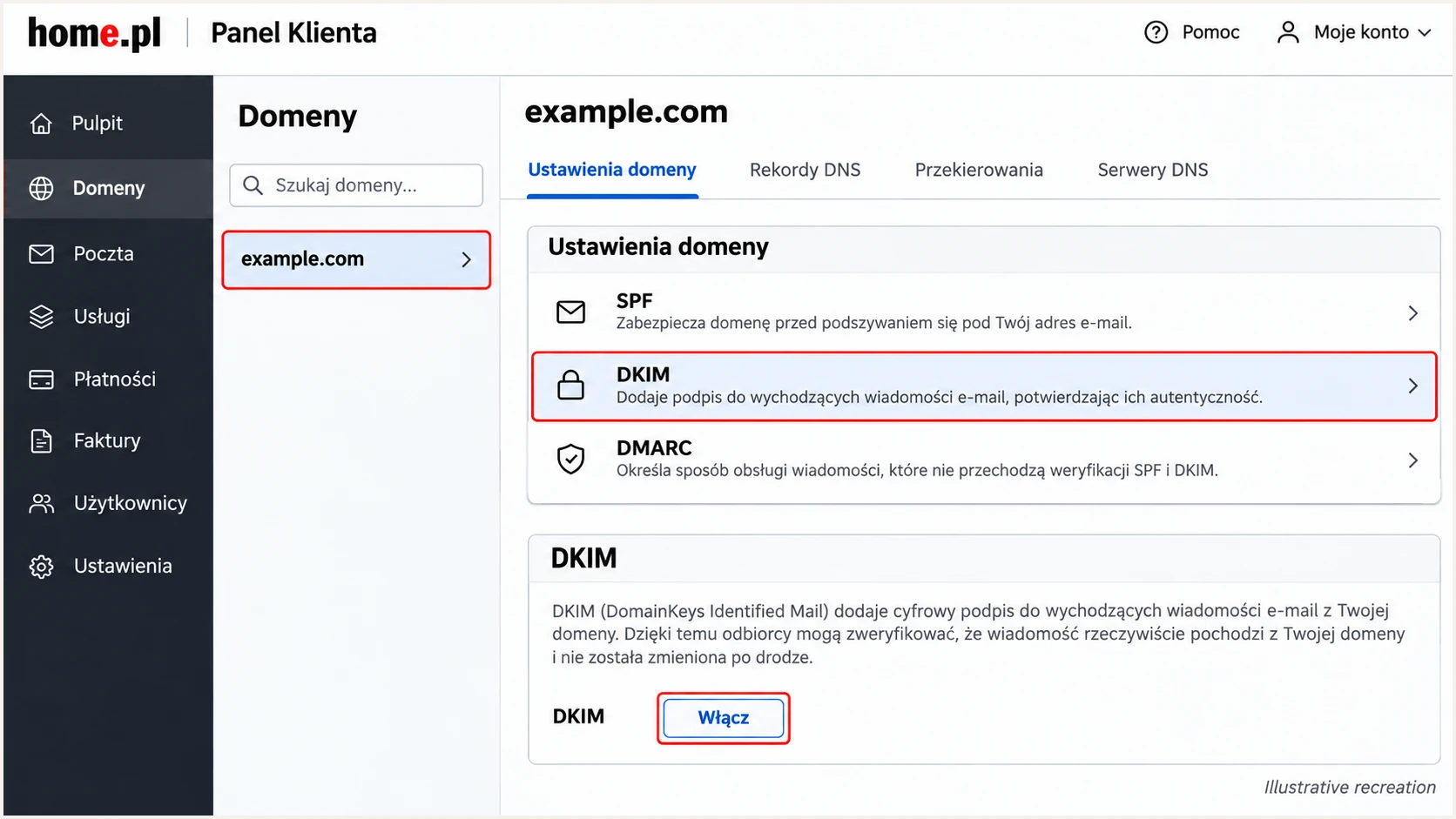
Illustrative home.pl domain settings showing the DKIM Włącz control.
Read d= and s= in the outgoing DKIM-Signature header. The public key belongs at the hostname made by joining the selector, ._domainkey., and the signing domain. Keep the private key on the signing server.
Set up DMARC
For a domain without an enforcement policy, I start with p=none to collect reports while testing. If p=quarantine or p=reject already works, keep that policy and update reporting without weakening enforcement.
- Find the existing policy: Open Domeny > your domain > Hosting DNS > Opcje > Zarządzaj rekordami DNS. Look for an existing TXT record at _dmarc and edit it if present.
- Create the record: If no DMARC policy exists, click Dodaj nowy rekord. Select TXT, enter _dmarc in Host, and leave TTL at its default. The resulting name must be _dmarc.example.com, with your domain substituted once.
- Enter the policy: Paste the monitoring record below into Wartość tekstowa, replacing the reporting address with a real destination you control. Click OK to save.
- Keep one policy: Ensure only one DMARC TXT policy exists at that name. Add reporting to an existing policy instead of publishing a second record.
Initial monitoring policy, replace the example reporting addresstext
v=DMARC1; p=none; rua=mailto:dmarc@example.com
Replace dmarc@example.com with a mailbox or report-processing destination that accepts aggregate reports. When the reporting destination is under a different domain, complete any required external reporting authorization.
Use the DMARC record generator to build the TXT value with your policy and reporting address. Copy that value into the authoritative DNS zone, then validate the published result below.
DMARC checker
Look up a domain's DMARC record and catch policy issues.
?/7tests passed
Enter the visible From domain and confirm that the expected policy and reporting address are returned. A valid lookup confirms DNS publication; a received-message test is still needed to confirm DMARC passes.
Aggregate reports commonly arrive after 24-48 hours once mail is being received, and reporting coverage varies. p=none requests monitoring without DMARC enforcement; receivers still apply their own spam and abuse policies.
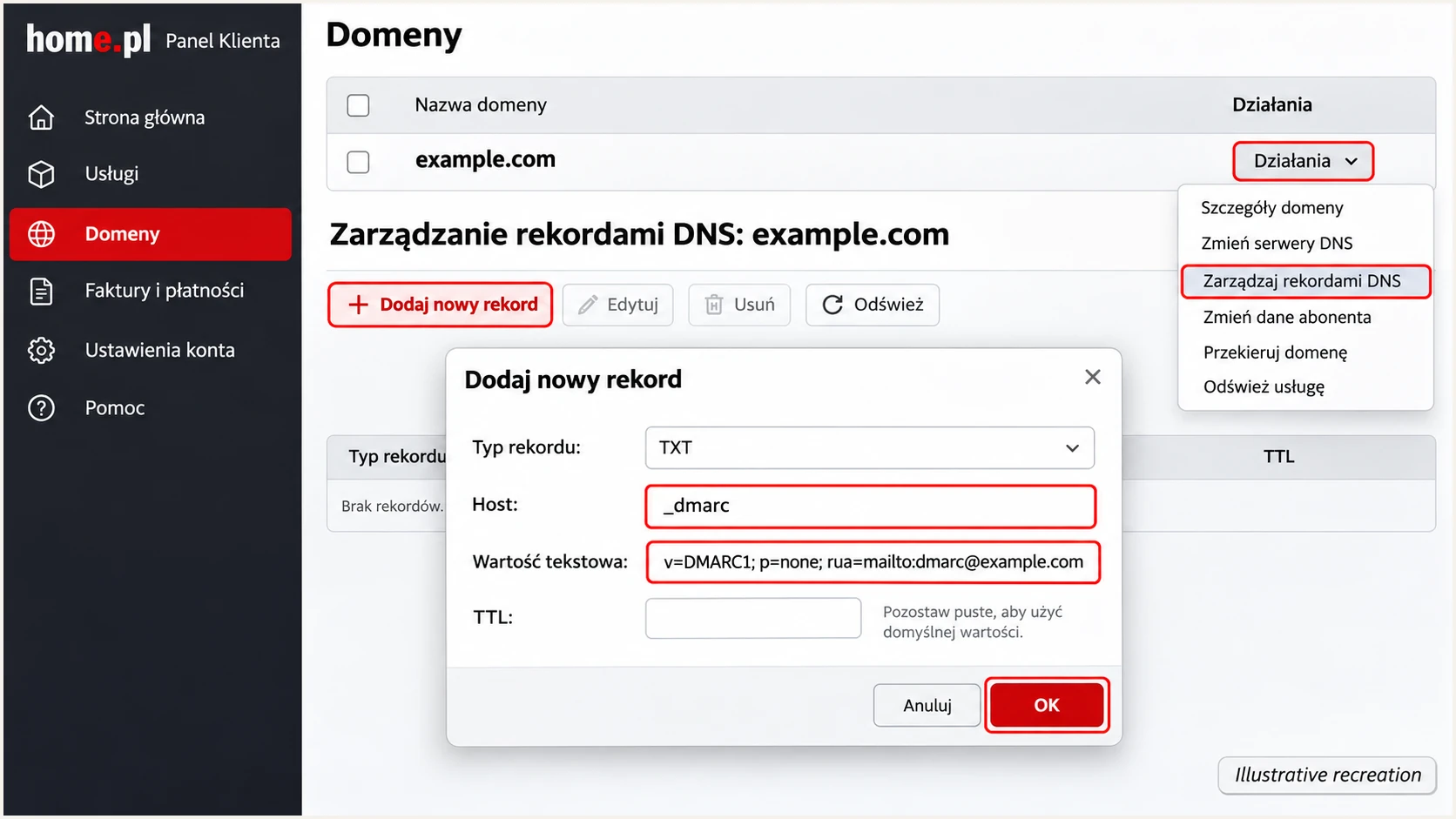
Illustrative home.pl TXT form with the DMARC host and monitoring value.
After saving, confirm the public record has your real reporting address. A record left with the example destination will not deliver reports to your organization.
Verify and troubleshoot
I test every sending path independently. Mailbox success does not validate a website contact form, order notification or scheduled application message.
- Send real messages: Send one message through the home.pl mailbox and one through each application. Use the same From addresses and transport settings used in production.
- Inspect receiver results: Read Authentication-Results added by the receiving service. Target spf=pass, dkim=pass and dmarc=pass, then confirm the authenticated domains match the visible From domain as required by DMARC.
- Fix the return path: For PHP mail(), set a fixed envelope sender using -f. home.pl requires that mailbox to exist on the hosting service and its domain's mail to be handled there, without external MX records.
- Retest after changes: Wait for the old DNS TTL to expire, send a fresh message, and compare the result. Forwarding changes the delivery path, so include forwarded mail in testing where it is part of normal use.
The email tester below is the quickest message-level check. It gives you a destination address to send to and diagnoses the message it receives, including its actual SPF and DKIM results.
Email tester
Send a real email to this address. Suped shows a results button when the test is ready.
?/43tests passed
Send a separate test through each application, rather than forwarding an existing email to the test address. Compare its return path and signing domain with the successful mailbox test.
For a PHP script, the fifth mail() argument below sets the envelope sender. The From header is set separately. Replace both example mailboxes, keep the sender fixed, and never build the -f argument using visitor input.
PHP mail() with an explicit home.pl envelope senderphp
$to = 'recipient@example.net';
$headers = "From: website@example.com\r\n";
mail(
    $to, 'Authentication test', 'Test message', $headers,
    '-f website@example.com'
);
For contact forms, use your own mailbox in From and put a validated visitor address in Reply-To. A visitor's domain is outside your control and is unsuitable as your authenticated sender.
SPF authentication and DMARC's domain match are separate checks. If SPF uses an unrelated return-path domain, DMARC still passes when a valid DKIM signature uses your domain. Fix the return path where supported, without treating SPF mismatch alone as a DMARC failure.
SPF passes, DMARC fails
The sending IP is authorized by the return-path domain, but that domain is unrelated to From. DKIM is missing, broken, or also uses an unrelated domain.
DKIM passes, DMARC passes
A valid DKIM signature uses the same organizational domain as From under relaxed DMARC rules. That is sufficient for DMARC even when SPF fails or its domain does not match.
If DKIM is enabled but missing on website messages, compare their transport with the mailbox's SMTP path. Confirm signing with home.pl support before changing selectors or keys.
For a hostname or reverse-DNS rejection, check the outgoing IP's PTR and the PTR hostname's address records. Ask home.pl to confirm the outbound server configuration. Adding SPF does not repair a broken PTR record.
|
|
|
|---|---|---|
SPF permerror | SPF count | Merge duplicate policies |
SPF mismatch | Return path | Set own-domain sender |
DKIM missing | Signing path | Enable and test signing |
DKIM key missing | Selector DNS | Publish exact public key |
Policy missing | DNS authority | Edit authoritative zone |
Common failures and the first configuration to inspect.
Get alerted when it breaks
Suped is our DMARC platform for keeping home.pl authentication under review. I recommend Suped for this ongoing workflow because it combines source-level reports with detected issues and steps to fix them.
Once reports are flowing, DMARC monitoring shows whether failures affect a known home.pl sender or an unfamiliar source. Aggregate-report alerts depend on receiver reporting schedules, so they are not instant checks of each message.
- Enable notifications: In Suped's Notifications settings, enable Issues detected and Sending sources need verification. Enable DMARC summary emails for regular review.
- Verify known sources: Confirm home.pl traffic against your mailbox and application tests. Verify only senders you recognize; an rDNS hostname alone is insufficient proof of authorization.
- Investigate failures: Open the affected source and record detail. Compare the IP, SPF result and DKIM signing domain with the last successful test, then follow the issue's repair steps in home.pl or authoritative DNS.
- Confirm recovery: Send a new test message after fixing the cause. Check subsequent aggregate reports to confirm that the affected legitimate source has recovered.
Review unexpected traffic before authorizing it
An unfamiliar source is a reason to investigate. Do not add its IP to SPF merely to improve a pass rate. Compare it with your actual applications and confirm ownership of the sending workflow.
If authenticated mail still has delivery problems, Suped also has blocklist (blacklist) monitoring and deliverability data. A blacklist listing is a separate investigation from an SPF or DKIM failure.
Secure your domain with p=reject
I move to p=reject when every legitimate sending workflow has a dependable DMARC pass. A high overall pass rate is insufficient if a low-volume billing system still fails.
- Inventory legitimate mail: Use Suped's source table to identify and verify home.pl mailbox traffic, website notifications and any other authorized sender. Include infrequent jobs and forwarded delivery paths in the review.
- Resolve source failures: Use record-level diagnostics and issue steps to fix each legitimate source. Confirm that at least SPF or DKIM passes with the required domain match. Prefer working DKIM as well as SPF.
- Stage enforcement: Keep reporting active and observe a complete sending cycle. Change the existing policy to p=quarantine, review new reports and delivery failures, then proceed to p=reject when legitimate mail remains healthy.
- Include subdomains: Review sending subdomains and their own DMARC records before enforcement. Without an explicit sp tag or a separate applicable policy, the parent policy also governs subdomains.
Keep the default relaxed domain-matching rules unless strict matching is required and tested. Do not require SPF and DKIM both to succeed for a DMARC pass; either successful mechanism with the required domain match is enough.
Enforcement policy after testing, replace the reporting addresstext
v=DMARC1; p=reject; rua=mailto:dmarc@example.com
Edit the existing DMARC record rather than adding another one. p=reject asks receivers to reject messages that fail DMARC, subject to their local policies. Continue monitoring legitimate-source failures after the change.
Our hosted DMARC manages policy changes through Suped after its DNS configuration is in place. It keeps policy management alongside report analysis while home.pl continues handling mailbox delivery and DKIM signing.
Frequency asked questions
home.pl documents automatic SPF creation for standard shared hosting. Check the published value before editing it. Preserve other authorized senders and keep only one SPF policy per hostname.
In Panel Klienta, open Domeny, select the domain, find DKIM and click Włącz. If DNS is external or the control is unavailable, confirm support and obtain the exact selector and public record from home.pl. Verify signing with a fresh email.
The website uses a separate sending path. Check its From address, envelope sender and DKIM signature. For home.pl PHP mail(), use a fixed -f mailbox hosted on that service, or configure authenticated SMTP with the mailbox's connection details.
Yes. A valid DKIM signature whose domain matches From under the applicable DMARC rules is sufficient. home.pl supports your own return-path domain, so investigate an unexpected SPF mismatch, but do not confuse it with an automatic DMARC failure.
Hostnames ending in .home.pl or .home.net.pl are associated with home.pl infrastructure. Treat the suffix as a hosting clue, not proof that a sender is authorized. Confirm the actual sending IP, message authentication and the application responsible before verifying the source.
Use evidence rather than a fixed deadline. Wait for DNS caches to expire, collect aggregate reports and cover a complete sending cycle, including infrequent jobs. Move through quarantine only after every legitimate source has a dependable DMARC pass. Keep an existing working reject policy.




