
How to set up DMARC/DKIM/SPF for Hivelocity

Published 21 Nov 2026
Updated 21 Nov 2026
11 min read
Summarize with
For Hivelocity email, authorize the outbound IP in SPF, publish your mail server's DKIM public key, and add a DMARC TXT record. Start with p=none; keep any existing quarantine or reject policy.
I first identify the actual SMTP route. Hivelocity provides infrastructure; the mail software determines authentication. The steps below cover cPanel on Hivelocity, with myVelocity for Hivelocity-hosted DNS and PTR records.
Add your domain
I check authoritative nameservers first. A myVelocity DNS zone and a cPanel hosting domain are separate configurations; neither confirms public DNS delegation.
- Locate DNS. Check the nameservers with the command below. Keep using your existing authoritative DNS provider unless you are deliberately migrating the complete zone.
- Add the DNS zone. If Hivelocity hosts your DNS, open myVelocity > Domains. Older portal layouts use DNS > Domains. Click Add Domain, enter example.com, then open the domain to manage its records. Skip this if the zone already exists.
- Add the mail domain. On a cPanel server, open Domains > Create a New Domain, select Registered Domain if offered, enter example.com, review the document root, and click Submit. Skip creation if the domain is already listed.
- Confirm availability. Check that example.com appears under cPanel > Email > Email Deliverability. If that page is missing, ask the server administrator to enable Email Deliverability in WHM's Feature Manager.
Find the authoritative DNS zonebash
dig +short NS example.com
# Replace ns1.example.net with a nameserver returned above.
dig @ns1.example.net example.com SOA +short
Preserve existing MX and website records. Moving a website to Hivelocity does not require moving inbound email.
Hivelocity documents DNS zone management in myVelocity. Publish cPanel's suggested values at whichever provider actually hosts authoritative DNS.
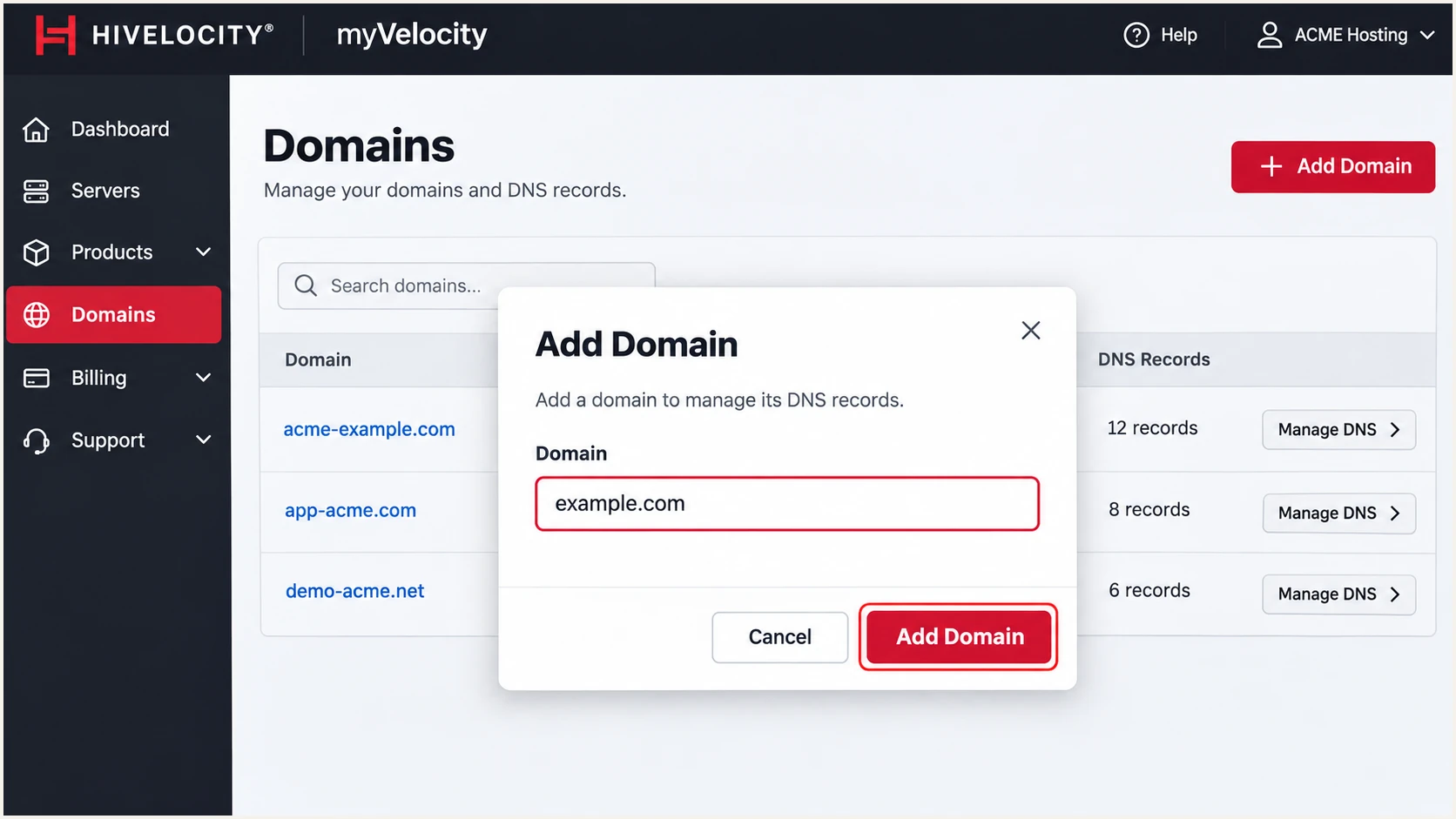
Illustrative myVelocity view: add a DNS zone under Domains.
I verify public DNS and a real outbound message before treating the domain as configured.
Set up SPF
SPF checks the envelope sender, usually displayed as Return-Path after delivery. I authorize the actual outbound IP, including NAT.
- Identify the sender. Send a message through the application and inspect the recipient's headers for the connecting IPv4 or IPv6 address. Account for any outbound NAT or SMTP relay.
- Review cPanel's suggestion. Open Email > Email Deliverability > Manage for the domain. Under SPF, copy the suggested record or use Customize to review IP Address Settings. Preserve every other authorized sender.
- Publish one record. At the authoritative DNS provider, edit the existing SPF TXT record for the envelope domain. Add the actual sending IP using ip4 or ip6. Create a new record only if no SPF record exists.
- Match the envelope domain. Configure the application or mail server to use an envelope sender such as bounces@example.com. If it uses a subdomain, publish SPF at that subdomain too. With default relaxed alignment, the envelope and visible From domains must share their organizational domain.
- Check the budget. Keep DNS-querying SPF terms within the 10-lookup limit, including nested includes. Explicit ip4 and ip6 terms do not consume that budget.
Example SPF value for one outbound IPv4 addresstext
v=spf1 ip4:203.0.113.10 ~all
Replace this documentation IP with your outbound IP and preserve other senders. Do not assume include:hivelocity.net authorizes customer servers.
Your envelope domain
Receivers check SPF at example.com for bounces@example.com, or at bounce.example.com for bounces@bounce.example.com.
I choose the SPF DNS name using an actual delivered message.
A relay's envelope domain
An unrelated relay Return-Path domain cannot gain SPF alignment through changes at example.com.
Use a custom envelope domain if supported. Otherwise, DMARC requires passing DKIM with the required domain match.
Configure the envelope sender in your application or mail server. PHP scripts that use the server hostname need correction there.
Check the actual envelope domain below. A subdomain Return-Path needs its own SPF policy.
SPF checker
Find SPF syntax issues, lookup limits, and weak records.
?/16tests passed
Confirm one SPF policy authorizes every active outbound IP, including IPv6 if used.
I also compare the envelope and visible From domains. SPF authorization alone does not establish DMARC alignment.
Set up DKIM
I generate DKIM on the signing server and publish its public key. Hivelocity has no universal customer DKIM key.
- Open the domain. In cPanel, go to Email > Email Deliverability > Manage and locate DKIM.
- Generate the key. If no key exists, click Generate Local DKIM Key. Copy the suggested Name and Value exactly; use the selector cPanel supplies rather than assuming every server uses default.
- Publish the public key. Create the suggested TXT record at your authoritative DNS provider. If the local cPanel server is authoritative, review its Repair action instead. Publish only the public key, never the private key.
- Enable signing. If the domain's signer is disabled, ask the administrator to enable DKIM for that domain. The optional WHM command below is for administrators on cPanel servers.
- Route application mail. Configure website messages to use authenticated SMTP through the configured mail server. In cPanel > Email Accounts > Connect Devices, copy the actual SMTP hostname, encryption settings, and mailbox username.
Optional administrator command on a cPanel serverbash
whmapi1 enable_dkim domain=example.com
Publish externally hosted DNS changes at that provider. A typical selector name is default._domainkey.example.com; use your server's supplied name.
Without cPanel, generate and enable DKIM in the installed mail software. Its signing domain must match the visible From domain under DMARC rules.
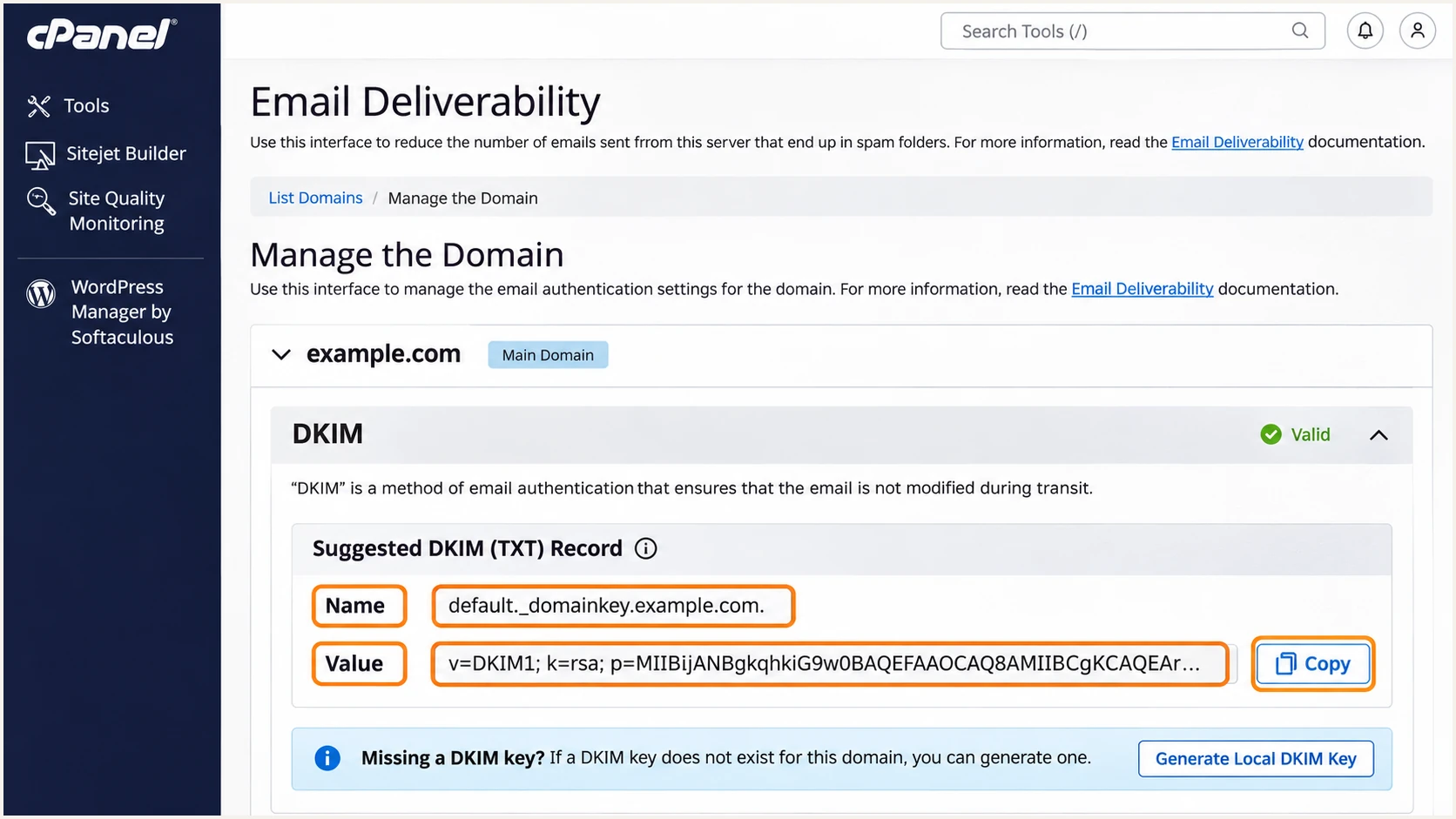
Illustrative cPanel view: copy the generated DKIM name and public value.
I test website mail separately. Messages that bypass the signer or use the wrong signing domain still fail.
Send a fresh message after changes. Old messages retain their original signatures.
Set up DMARC
DMARC passes when SPF or DKIM passes with the required match to the visible From domain. I configure both for direct mail.
Use the DMARC record generator to build the policy. Publish one DMARC TXT record at the correct DNS name, keeping any existing reporting destinations.
- Read the existing policy. Query _dmarc.example.com first. If it already has p=quarantine or p=reject, keep that policy while fixing Hivelocity authentication.
- Start monitoring. For a domain without an enforcement policy, create the TXT record below. Use _dmarc as the host when the DNS provider appends the zone name automatically.
- Set the report mailbox. Replace example.com and dmarc@example.com with your domain and a working aggregate-report destination. Do not publish the example mailbox unchanged.
- Save in public DNS. In myVelocity, open Domains > your domain > TXT and add or edit the record. If DNS is elsewhere, make the change there. Check the final name is _dmarc.example.com, without the domain appended twice.
Initial DMARC recordtext
Name: _dmarc.example.com
Type: TXT
Value: v=DMARC1; p=none; rua=mailto:dmarc@example.com
The p=none policy requests monitoring without enforcement. Recipients still apply their other spam checks.
The rua mailbox receives aggregate XML. An external reporting domain needs the reporting provider's authorization.
DMARC checker
Look up a domain's DMARC record and catch policy issues.
?/7tests passed
Check for one valid DMARC record with the intended policy. Resolve duplicate records or incorrect names.
The checker validates currently visible DNS. Aggregate reports commonly arrive daily, rather than immediately after publication.
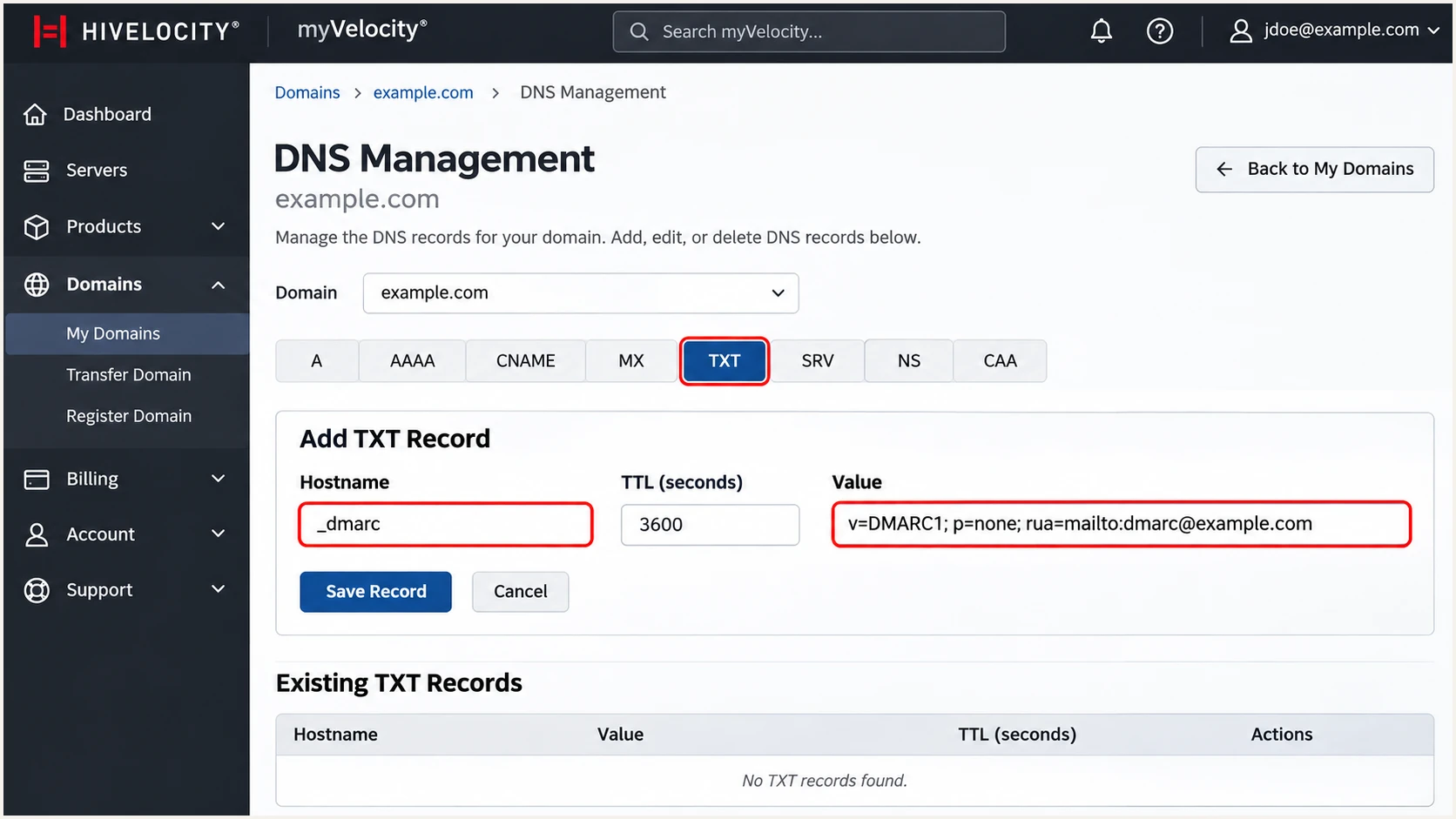
Illustrative myVelocity view: publish the DMARC TXT record.
I then test the real sending route. Valid DNS alone does not prove messages pass DMARC.
Verify and troubleshoot
I test every sending route, including password resets and contact forms, separately from mailbox email.
- Check receiver results. In the destination mailbox's original message view, inspect the Authentication-Results added by that receiver. Confirm the expected sending IP, SPF result, and envelope domain.
- Check the signature. Look for dkim=pass and verify the signing domain matches your visible From domain. Read the actual DKIM-Signature d= and s= values if the signer or selector is unexpected.
- Check DMARC. Require dmarc=pass for each legitimate sending route. SPF alignment failure is acceptable for DMARC when a valid DKIM signature has the required domain match, but investigate why a directly controlled server uses the wrong envelope domain.
- Configure reverse DNS. Create a forward A record for the mail server hostname first. In myVelocity > Networking > PTR Records, edit the sending IPv4 address, set that hostname, and click SAVE. Set the SMTP HELO/EHLO hostname consistently. Contact Hivelocity support for IPv6 PTR records or an IP missing from that page.
- Retest the application. If no DKIM signature appears, correct the SMTP route or enable the domain's signer. If messages never arrive, inspect the SMTP response and server queue before changing DNS.
Check DNS using your real domain, selector, hostname, and IPbash
dig +short TXT example.com
# Replace default with the selector in the message.
dig +short TXT default._domainkey.example.com
dig +short TXT _dmarc.example.com
dig +short A mail.example.com
dig +short -x 203.0.113.10
The PTR hostname must resolve forward to the sending IP. Reverse DNS is separate from DMARC alignment.
Hivelocity documents this under 'Creating PTR/rDNS Records in the MyV Customer Portal'. Set PTR on the actual outbound IP.
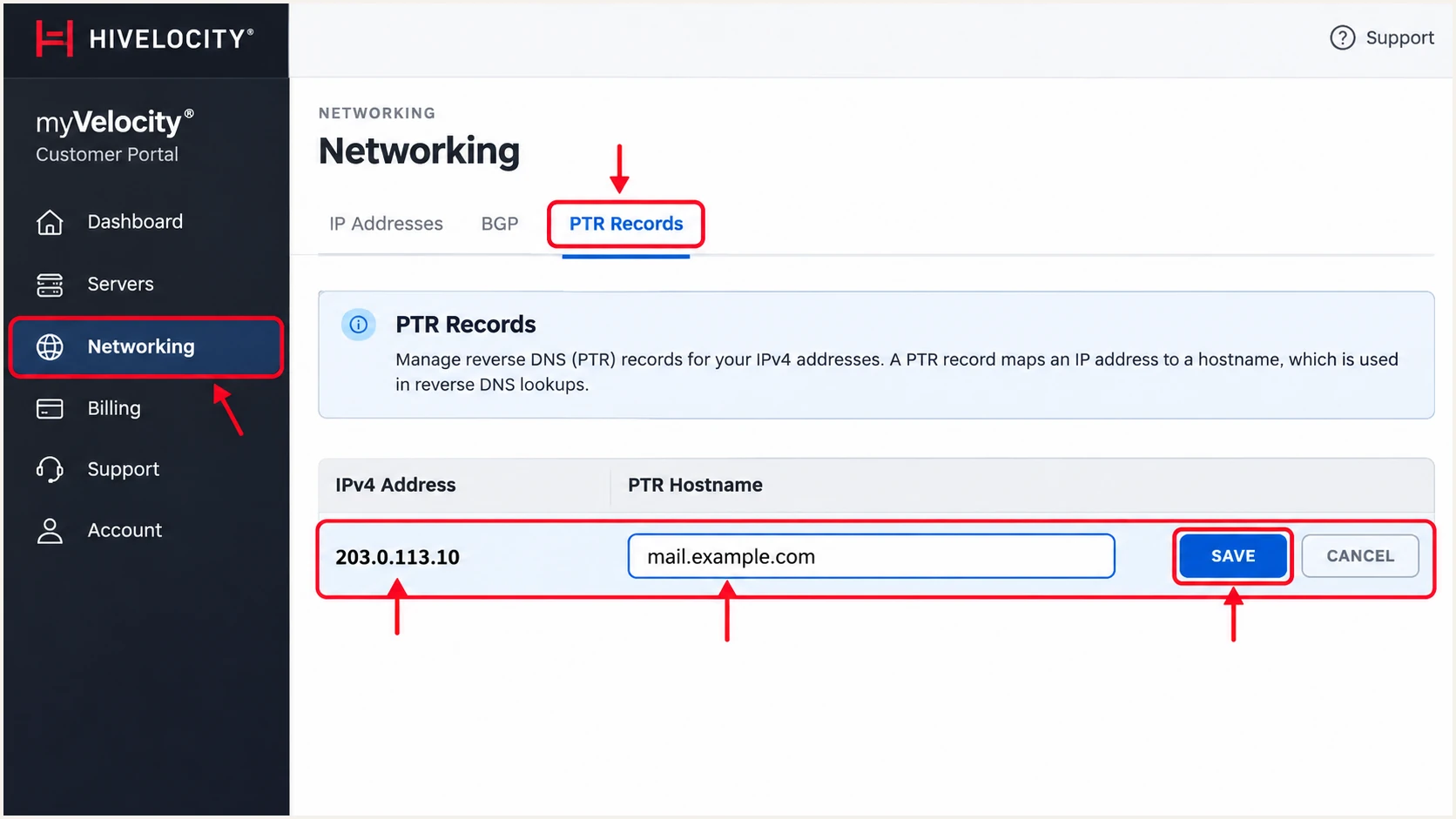
Illustrative myVelocity view: set the sending IP's PTR hostname.
Use the email tester below for a faster check. Send through your production application or mailbox.
The tester diagnoses the received message, including authentication. Test every route; one successful mailbox message does not verify website mail.
Email tester
Send a real email to this address. Suped shows a results button when the test is ready.
?/43tests passed
I expect this receiver-generated result. Substitute your domain and selector.
Expected receiver authentication resultstext
Authentication-Results: receiver.example;
    spf=pass smtp.mailfrom=example.com;
    dkim=pass header.d=example.com header.s=default;
    dmarc=pass header.from=example.com
Passing DKIM with the required domain match can preserve DMARC when SPF alignment fails. Correct the envelope sender where you control it.
|
|
|
|---|---|---|
SPF fail | Wrong outbound IP | Check mail route |
SPF permerror | Duplicate or limit | Merge and validate |
DKIM none | Signer bypassed | Fix SMTP route |
DKIM fail | Wrong key or edits | Check selector |
DMARC fail | Domain mismatch | Check From domain |
PTR warning | Reverse DNS mismatch | Edit myVelocity PTR |
Common Hivelocity authentication failures
Get alerted when it breaks
Suped is our DMARC reporting platform. For ongoing Hivelocity monitoring, our DMARC monitoring connects reported sending sources with authentication failures and steps to fix them. This helps catch an IP change or a website that stops signing after a migration.
- Enable issue alerts. In Suped's notification settings, enable Issues detected for the people responsible for DNS and mail-server administration.
- Review new sources. Enable Sending sources need verification. Verify a Hivelocity source only after matching its IPs and sending activity to your server or application.
- Keep summaries enabled. Use DMARC summary emails to review trends and sources that send too infrequently to appear in a single test.
- Investigate changes. Open the affected source and record details, check SPF and DKIM diagnostics, then apply the listed fix. Send a fresh test after server moves or DNS changes.
I compare failures with maintenance: new IPs need SPF authorization, and new DKIM keys need matching public records.
Report-based alert timing
Suped detects issues in received DMARC reports, commonly on a daily cycle. Alerts are not immediate per-message checks; use a fresh email test for that.
Secure your domain with p=reject
I advance only after legitimate sources authenticate consistently. Suped's source verification and record diagnostics help resolve remaining failures before enforcement.
- Inventory all senders. Review every legitimate source for the domain, including scheduled jobs and low-volume business systems. Do not base readiness on the Hivelocity server alone.
- Require working DKIM. Confirm valid DKIM with the required domain match on every direct sending route. Do not rely solely on SPF for a domain that will publish p=reject.
- Stage the policy. After monitoring covers a complete sending cycle, change p=none to p=quarantine and check for legitimate delivery problems. Move to p=reject only after those problems are resolved.
- Check subdomains. Review any sp tag and separate subdomain DMARC records before changing policy. Avoid accidentally applying enforcement to an untested sending subdomain.
- Keep reporting active. Preserve rua and other intentional policy settings. With our Hosted DMARC product already configured, manage the policy in Suped; otherwise edit the existing authoritative TXT record.
Final DMARC value after validationtext
v=DMARC1; p=reject; rua=mailto:dmarc@example.com
Replace the example mailbox. Keep Suped reporting and notifications active after enforcement to catch new senders.
Test indirect mail before enforcement
Forwarding can break SPF, and mailing-list changes can break DKIM. For user domains that participate in Internet mailing lists, RFC 9989 advises against p=reject without careful evaluation and recommends at least a month each of monitoring and quarantine before pursuing it.
I check every legitimate route, including low-volume password resets, rather than relying on the overall pass rate.
The p=reject policy requests rejection. Receivers retain handling discretion; it guarantees neither rejection nor inbox placement.
Frequency asked questions
No. Authorize the outbound server IPs or the relay specified for your account. Generate DKIM in the mail software that signs your messages and publish its supplied selector and public key. Hivelocity's own corporate email records are not a customer configuration template.
Hivelocity is the hosting network, so its identification in reverse DNS does not establish the sending application. Customers run different mail software and can set custom PTR hostnames. I check the connecting IP, trusted Received headers, envelope domain, and DKIM signing domain to identify the actual sender. Do not authorize a source based on rDNS alone.
The website is using a different mail route, signing domain, or server configuration. Configure authenticated SMTP through the intended mail server, then send a fresh application message and inspect its DKIM signature. Publishing a public key alone does not make every script sign messages.
Changing your visible From domain's SPF cannot fix an unrelated relay envelope domain. The relay manages SPF for its own envelope domain. For your messages to pass DMARC, configure valid DKIM with the required match to your From domain. Expect SPF alignment warnings for that route, and confirm that DKIM and DMARC pass.
A new test reflects the records visible to the receiver when it checks the message. Cached DNS answers remain until their TTL expires; Hivelocity advises allowing additional time for PTR changes. DMARC aggregate reports commonly arrive daily. I verify authoritative DNS first, then send a fresh message rather than waiting for reporting to confirm the initial configuration.




