
How to set up DMARC/DKIM/SPF for Hetzner

Published 22 Nov 2026
Updated 22 Nov 2026
13 min read
Summarize with
To set up DMARC, DKIM, and SPF for Hetzner, enable domain-specific DKIM signing, publish SPF for the actual outbound mail servers, and add a DMARC TXT record at _dmarc on your sending domain. For managed mail, use konsoleH > Email > DKIM / SPF / DMARC. For a Cloud or dedicated server, configure signing and the envelope sender in your own mail server.
I check the sending route before changing DNS. A website hosted at Hetzner does not necessarily send through Hetzner managed mail, and hosting a DNS zone does not configure a mail server. Start a new DMARC deployment with p=none; retain an existing p=quarantine or p=reject policy.
Add your domain
Use the domain in your visible From address. These steps add it to Hetzner managed hosting; an existing sending domain does not need to be ordered again.
- Select the domain. Sign in to konsoleH and select your domain in the product overview, rather than the hosting server name.
- Add it if missing. Choose New Order > Domain > Addon domain, select the hosting account, and follow the order form. To retain your registrar, choose "I want an account; the domain will remain with the previous provider."
- Create a sender. Open Email > Mailboxes > New Mailbox. Enter the part before @, enter the mailbox password twice, and click Save. Use the full email address as the SMTP username.
- Check DNS control. Look up the domain's authoritative nameservers. Publish authentication records there, even when the registrar or web hosting is elsewhere. Keep existing MX records unless you are also moving incoming mail.
- Handle server-only sending. On a Cloud or dedicated server, configure your sending domain in the mail server instead of ordering managed mail. An outbound-only application does not require an incoming mailbox at Hetzner.
For Hetzner-hosted DNS, open the relevant project in Hetzner Console, select DNS, and select your zone. Hetzner Docs, "Adding records", documents this path. External DNS stays in the external provider's editor.
I verify the domain by checking its published DNS and sending a message through the intended account. A zone created in a control panel takes effect only when the domain delegates to its nameservers.
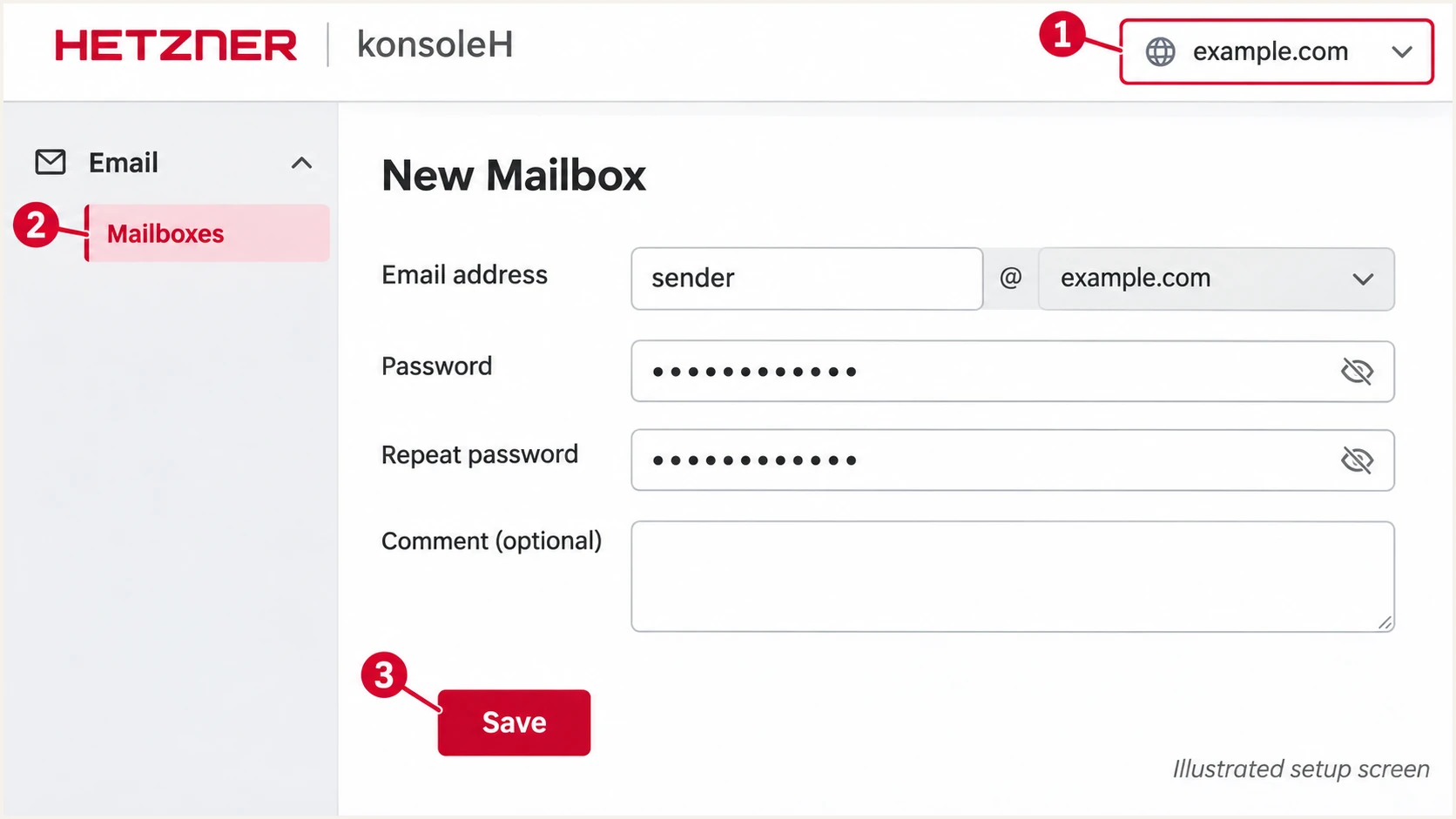
Illustrated Hetzner konsoleH steps for creating a sender mailbox.
Set up SPF
SPF checks the SMTP envelope sender, also called MAIL FROM and normally recorded in Return-Path. I configure the application to use an address on my domain as its envelope sender, then check the delivered message to confirm it was preserved.
Hetzner automatically publishes a default SPF record when you use konsoleH nameservers. Inspect that existing value before editing it. A newly created, independent Hetzner Console DNS zone does not automatically contain your mail authentication records.
- Use the account value. For managed mail, inspect the SPF entry for the selected domain under Email > DKIM / SPF / DMARC and check the live TXT record. At external DNS, publish the value supplied for your hosting account.
- Keep one SPF record. Edit the existing TXT value starting with v=spf1. Merge all authorized senders into that record. Multiple SPF records at the same name cause an SPF error.
- Authorize direct sending. For a self-managed server, add ip4 and ip6 mechanisms for the actual outbound addresses. Authorize IPv6 only when mail uses it. Do not authorize an entire hosting network.
- Check the envelope domain. Publish SPF at the domain actually used in MAIL FROM, including a dedicated bounce subdomain if applicable. Keep DNS-triggering SPF terms within the limit of 10, including nested includes.
Illustrative TXT record for a self-managed senderdns
@ IN TXT "v=spf1 ip4:192.0.2.10 ip6:2001:db8::10 ~all"
The addresses above are documentation placeholders. Replace them with your server's actual sending addresses and retain other legitimate senders. This example is not Hetzner's managed-mail default; use the account-specific value for managed mail.
Run the SPF check against your envelope-sender domain. It checks the published policy and lookup budget. Confirm the sending IP and SPF result again with a real message.
SPF checker
Find SPF syntax issues, lookup limits, and weak records.
?/16tests passed
A passing SPF result contributes to DMARC only when its authenticated domain matches the visible From domain under your DMARC alignment setting. With relaxed settings, a bounce subdomain of the same organizational domain normally works.
If a configured relay replaces MAIL FROM with its own unrelated domain, changing SPF on your From domain will not fix that mismatch. Configure a supported custom envelope domain, or ensure your own domain has passing DKIM. Do not manually add a Return-Path header.
Preserve existing senders
Do not replace an existing SPF record with the server-only example. Inventory every legitimate sending system first. Do not guess a Hetzner include or copy the SPF record of Hetzner's corporate domain.
Set up DKIM
Hetzner Docs, "Email security with DKIM, SPF, and DMARC", documents the managed-mail Enable DKIM function. On self-managed servers, configure the DKIM signer in the mail server that actually sends the message.
- Enable managed signing. Select your domain in konsoleH, open Email > DKIM / SPF / DMARC, and use Enable DKIM to generate the key pair.
- Publish the public key. With konsoleH nameservers, let Hetzner create the DNS entry. With external nameservers, copy the displayed TXT name and complete value into authoritative DNS.
- Use the actual selector. Copy the selector supplied for your domain. Do not assume that every account uses the same selector. Publish long public keys as chunks of one TXT record when required by the DNS editor.
- Configure your own server. Set the signer's domain to your sending domain, generate a key pair, and publish its public key under the configured selector. Connect the signer to the outbound mail flow. Publishing a key alone does not sign messages.
- Confirm message signing. Send a fresh message. Inspect DKIM-Signature for d= and s=, then confirm dkim=pass in the receiving system's Authentication-Results header. The d= domain must match your From domain under DMARC alignment.
I query the selector shown in the message, rather than testing a guessed selector. In the command below, replace h2026 with the actual s= value and example.com with the actual d= domain.
Check the public key for the selector in your messagebash
dig +short TXT h2026._domainkey.example.com
Keep the private key on the signing system
Only the public DKIM key belongs in DNS. Never paste a private key into a TXT record. During rotation, retain the previous public selector until messages signed with it have cleared the delivery queues.
Set up DMARC
DMARC is a DNS policy for the visible From domain. I use the DMARC record generator to build the TXT value, then publish it in authoritative DNS. For a new deployment, use p=none while you inspect legitimate traffic.
- Inspect the current policy. Query _dmarc on your domain first. If p=quarantine or p=reject is already working, keep that enforcement policy and update reporting without weakening it.
- Create the report mailbox. Use a working address that accepts aggregate reports. The example uses dmarc@example.com; replace it with your real report destination before publishing.
- Add the TXT record. In the example.com zone, set Type to TXT and Name to _dmarc. Use the value below and a TTL such as 3600 seconds. In Hetzner Console, quote the TXT value as its editor requires.
- Keep one policy. Edit an existing DMARC record instead of adding a second policy. Multiple TXT strings within one record are different from multiple DMARC records.
Starter DMARC record for a new deploymentdns
_dmarc IN TXT "v=DMARC1; p=none; rua=mailto:dmarc@example.com"
Hetzner Docs, "TXT record", specifies quoted values in Hetzner Console. DNS wire data contains the policy text, without literal wrapping quotation marks. Other DNS editors handle those quotes automatically.
The host _dmarc in the example.com zone becomes _dmarc.example.com. Use a relative name in an editor that appends the zone, and verify the resulting full name after saving.
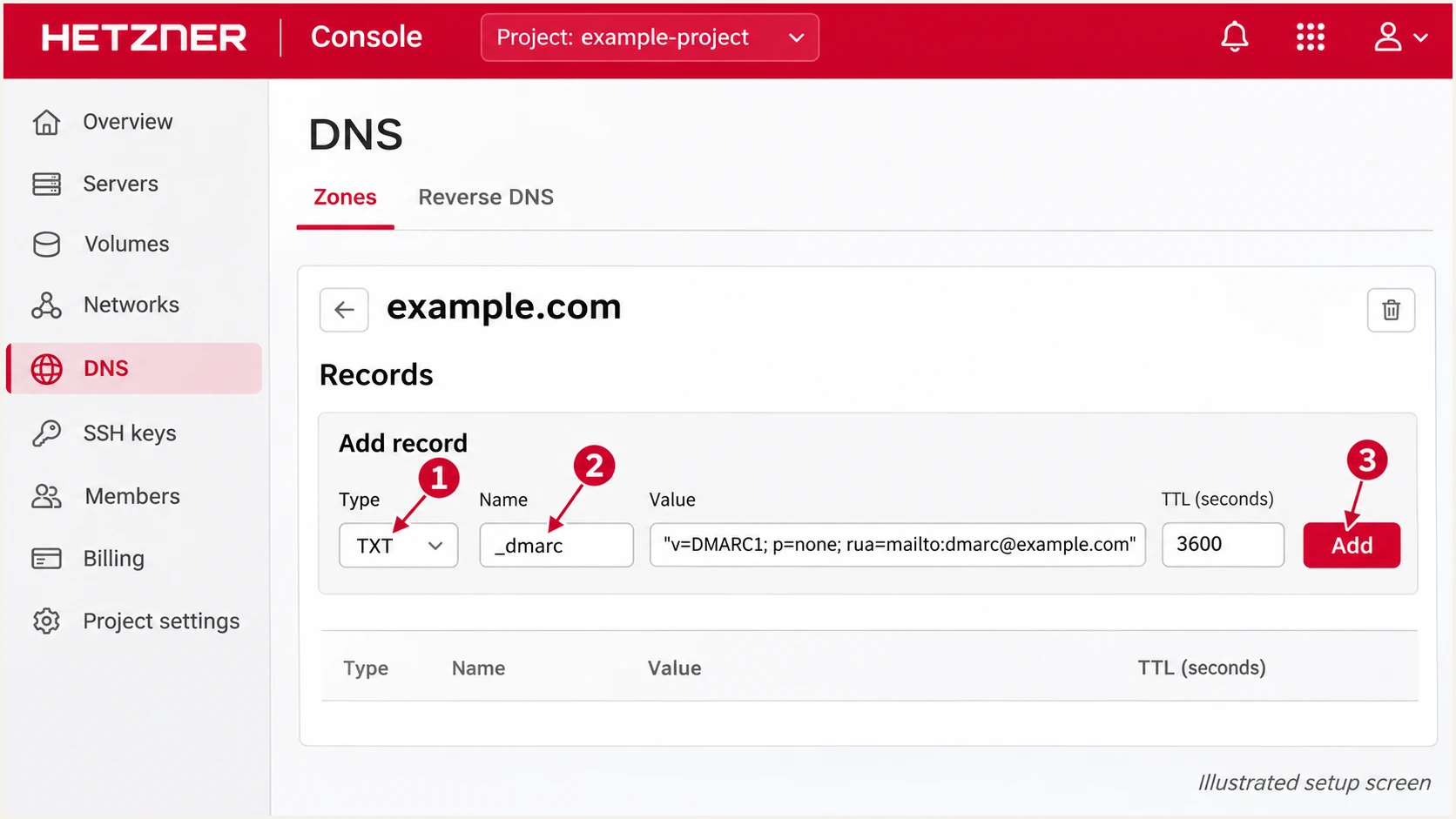
Illustrated Hetzner Console form for adding the DMARC TXT record.
After saving, check the published domain below. The DMARC lookup checks DNS syntax and the policy it finds; a message test is still needed to verify the actual sending configuration.
With p=none, receivers evaluate DMARC without a quarantine or rejection request from that policy. Other spam filtering still applies. Reports arrive only when participating receivers send them.
DMARC checker
Look up a domain's DMARC record and catch policy issues.
?/7tests passed
When rua points outside the sending domain, the report destination must authorize external reporting. Use the destination's supplied instructions and verify that reports are actually received.
A valid DNS record does not prove DKIM is signing or that SPF uses the expected envelope domain. I keep the policy and message checks separate so a successful DNS lookup does not hide a sending error.
Verify and troubleshoot
I test each real sending route, including the website application. A successful webmail test does not verify a website that sends through a different local mail server.
- Inspect live DNS. Run the commands below. Confirm one SPF policy at the envelope domain, one DMARC policy, and the public key for the selector used in the message. Repeat against an authoritative nameserver when cached results differ.
- Send a fresh message. Use the same account, From address, and sending method as production. Read the receiving server's authentication results, rather than trusting headers inserted by the sender.
- Check both identities. Compare smtp.mailfrom with the visible From domain for SPF, and compare the DKIM d= domain for DKIM. DMARC passes when at least one matching authentication method passes; prioritize working DKIM before enforcement.
- Check direct-server DNS. For Hetzner Cloud, open the server > Networking and edit rDNS beside the sending IP. Use your mail hostname, make its A or AAAA record resolve back to that IP, and configure the mail server's EHLO hostname consistently.
DNS checks, using example names and addressesbash
dig +short NS example.com
dig +short TXT example.com
dig +short TXT _dmarc.example.com
dig +short TXT h2026._domainkey.example.com
dig +short -x 192.0.2.10
|
|
|
|---|---|---|
SPF permerror | Duplicates / lookups | Merge / reduce |
DKIM key missing | Selector / DNS host | Publish exact key |
DKIM signature fails | Key / message changes | Check signing path |
DMARC fails | Authenticated domains | Fix domain match |
SMTP timeout | Port / firewall | Check connectivity |
No reports | rua / report delivery | Check destination |
Match the observed failure to the configuration that needs attention.
For the quickest message check, use the email tester below. It provides a destination address; send a fresh message to that address through your actual Hetzner sending route to get a full diagnosis.
Check SPF, DKIM, and DMARC results together with the domains each check authenticated. Repeat the test after a fix and test IPv6 separately when your server sends over both address families.
Email tester
Send a real email to this address. Suped shows a results button when the test is ready.
?/43tests passed
For managed SMTP submission, Hetzner documents mail.your-server.de on port 587 with STARTTLS and mailbox authentication. Use the full email address as the username and the mailbox password. Keep certificate validation enabled.
If authentication passes but delivery still fails, inspect SMTP response codes and the mail-server logs. SPF, DKIM, and DMARC do not guarantee inbox placement.
Hetzner Cloud mail-port restrictions
Hetzner Cloud blocks outbound ports 25 and 465 by default. Port 587 is available for authenticated submission to a configured relay. After one month and payment of the first invoice, eligible customers can request unblocking for a valid use case; approval is case by case. DNS changes do not unblock SMTP.
Get alerted when it breaks
Our DMARC platform, Suped, provides ongoing monitoring for this Hetzner setup. It turns aggregate reports into sending-source diagnostics and detects authentication issues so the next DNS or application change has a clear investigation path.
- Enable issue alerts. In Suped, open Settings > Notifications and enable Issues detected. Use Sending sources need verification notifications to review newly observed sources.
- Review source ownership. Check the Sources view and verify the Hetzner sending source only after confirming its IPs and authenticated domains belong to an approved sending route.
- Investigate a failure. Open the affected record in Detail view, inspect SPF and DKIM diagnostics, and follow the issue's steps to fix. Make the correction in Hetzner, your application, or authoritative DNS as appropriate.
- Confirm recovery. Send another test message and review subsequent reports. Enable DMARC summary emails to track whether the repaired source stays healthy.
I keep DNS history available when investigating a sudden failure. Suped shows old and new DNS values, which helps connect a missing selector or changed SPF policy with the first failed reports.
Issue alerts operate on detected issues and available report data. Aggregate reports commonly cover a daily interval, so they do not provide immediate confirmation of every SMTP transaction.
Make each alert actionable
Assign an owner for the sending application and DNS changes. Record the sender domain and current DKIM selector. Resolve the reported cause, then verify a new message and the next reporting interval.
Secure your domain with p=reject
I move to p=reject after every approved sending route has reliable, matching DKIM and the reports account for normal business traffic. Suped gives this decision a source-by-source record instead of relying on a single overall pass rate.
- Cover the sending cycle. Review reports across routine mail and less frequent jobs such as monthly invoices. In Suped, investigate every legitimate source with authentication failures before increasing enforcement.
- Keep DKIM dependable. Test forwarding and any mailing-list workflows. Forwarding often breaks SPF, so do not rely on SPF alone for a domain using p=reject. Check subdomains and any stricter alignment settings.
- Stage enforcement. For a new monitoring deployment, change p=none to p=quarantine, review new reports and delivery complaints, then move to p=reject when legitimate failures are resolved. Keep established enforcement when troubleshooting a working policy.
- Retain reporting. Change the existing policy record and keep its working rua destination. Continue Suped issue alerts and review newly observed sources after enforcement.
Ready to enforce
- Approved sources. Each sending route has been tested and recognized.
- Working DKIM. Legitimate mail has passing signatures for your domain.
Resolve before enforcing
- Missing traffic. An invoice job or application has not been tested.
- Unexplained failures. An approved source still fails DMARC or a forwarding test.
For policy management, our Hosted DMARC product lets you manage the policy through Suped after its DNS setup. Review the observed impact between stages. Keep authentication fixes in the sending system and DNS where they belong.
For a directly published TXT policy, the final example below requests rejection of DMARC-failing messages. Replace the report address with your working destination. Receivers retain control over their final handling decision.
Enforced DMARC policy after validationdns
_dmarc IN TXT "v=DMARC1; p=reject; rua=mailto:dmarc@example.com"
Verify immediately after changing policy
Query the published record, send another message through each approved route, and keep reviewing Suped reports. Investigate new legitimate failures before making further policy changes.
Frequency asked questions
Hetzner's managed-mail documentation does not prescribe one universal SPF include. Use the record supplied for your hosting account and inspect live DNS. For direct sending from your own server, authorize its actual outbound IP addresses. A hostname ending in your-server.de identifies Hetzner infrastructure, but it is not automatically an SPF include recommendation.
No. DNS stores the public key; the sending system must sign messages with the corresponding private key. Enable DKIM in konsoleH for managed mail, or configure the signer on your own server. Check a newly delivered message for the actual selector and a passing result.
Yes, when DKIM passes for a domain that matches the visible From domain under the DMARC alignment rules. This is common when a relay uses an unrelated envelope domain. Hetzner supports a domain-matching return path in suitable configurations, so verify the actual message before deciding that the mismatch is unavoidable.
Keep an established p=reject or p=quarantine policy while adding reporting and repairing a Hetzner sender. The p=none starter record is for a new deployment. Investigate the failed sender instead of automatically removing protection for the entire domain.
Check outbound port restrictions, host firewall rules, and the SMTP logs. Hetzner Cloud blocks ports 25 and 465 by default. Authenticated SMTP submission on port 587 is available when you have a configured account with a reachable mail server. A correct DMARC record does not change network restrictions.
Publish SPF, DKIM, and DMARC at the authoritative DNS provider. Adding records to an unused Hetzner zone has no effect. For managed DKIM, copy the TXT record displayed in konsoleH into that provider's editor, then verify the published selector and send a fresh test message.




