
How to set up DMARC/DKIM/SPF for Heimdal Security

To authenticate email sent through Heimdal Security, add your domain to Email Security, authorize its regional outbound relay in SPF, enable DKIM signing for your domain, and publish a DMARC TXT record. I verify a delivered message through the complete outbound route before increasing DMARC enforcement.
These steps apply to the Email Security gateway with outbound filtering. If Heimdal only filters incoming mail, configure outbound authentication at your sending provider. Keep an existing p=quarantine or p=reject policy while adding Heimdal.
Add your domain
I confirm the account region and the existing mail route first. Have Heimdal administrator access and permission to edit the domain's DNS.
- Open settings. Go to Network Settings > Email Protection > Email Security and enable the module.
- Add the domain. Click Add Domain. Enter Domain Name and the Inbound Mail Server, then Save Changes. Use your actual delivery destination.
- Authorize outbound mail. Edit the domain and add your Outbound Mail Server domain or public IP. Save Changes, then Update Network Settings.
- Check registration. Open Email Security > Details > Domain Status and confirm the domain appears. Recheck SPF and DMARC status after publishing DNS.
For manual outbound routing, stage a connector on your mail server that sends through the regional smarthost listed in the SPF table. Heimdal documents ports 25, 587, and 2525; use the connection and TLS settings appropriate to your deployment. Activate the route after preparing SPF and DKIM.
Microsoft 365 also has an automated M365 Exchange Connector setup that keeps Microsoft 365 MX records. Heimdal's support article "Setting up Email Security with M365 Exchange Connector" requires tenant configuration, Entra application consent, and the Exchange Administrator application role before selecting that setup method. Domain validation creates its connectors and routing rules; use Health Check Connector to check provisioning.
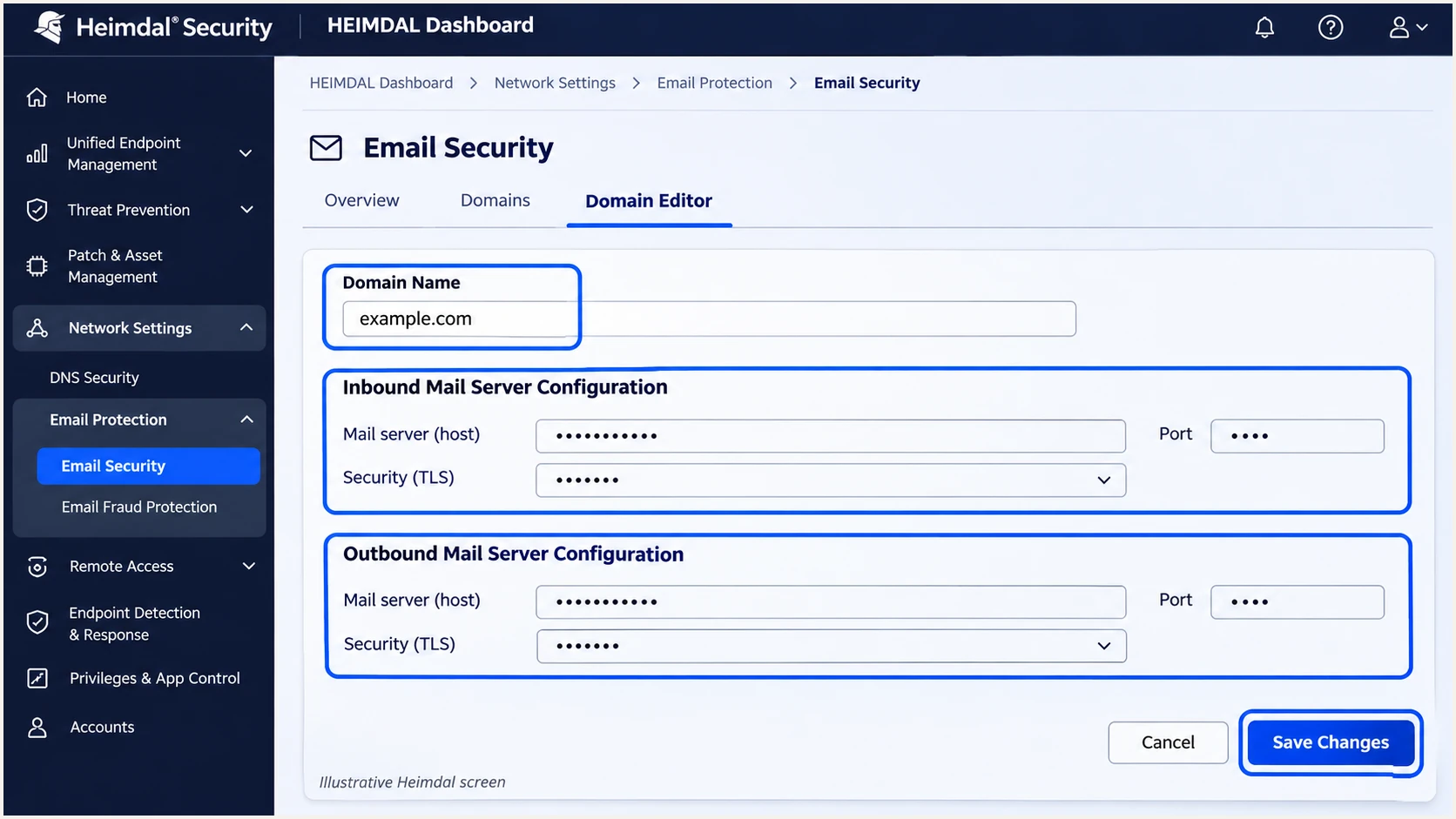
Illustrative Heimdal domain editor with inbound and outbound mail configuration.
Verify registration with the domain status view, then verify the route by sending a message and locating it in Outbound. A saved domain alone does not establish that mail is passing through the gateway.
Changing MX records affects incoming delivery. Publish the authentication records for outgoing mail even when the inbound deployment uses a connector instead of Heimdal MX records.
Set up SPF
I choose the SPF include for the active outbound relay region. Heimdal's "Setting up Email Security with M365 Exchange Connector" documentation lists these regional includes; the "Email Security" setup documentation lists the matching smarthosts.
- Find the envelope domain. Inspect Return-Path or smtp.mailfrom on a delivered message. SPF is checked at that domain, which must match the visible From domain under your DMARC alignment mode.
- Edit one SPF record. Add the regional include to the existing v=spf1 TXT value before its final all mechanism. Preserve other authorized senders.
- Confirm the region. Use the region actually delivering outbound mail, including any configured Outbound Relay Region Redirection. Do not add every region automatically.
- Check the lookup limit. Keep SPF evaluation within 10 DNS-querying terms, including nested includes. Multiple SPF records at one hostname cause permerror.
|
|
|
|---|---|---|
Europe | include:spf-esec.heimdalsecurity.com | eu-esec-outbound.heimdalsecurity.com |
Australia | include:spf-esec-au.heimdalsecurity.com | au-esec-outbound.heimdalsecurity.com |
United States | include:spf-esec-us.heimdalsecurity.com | us-esec-outbound.heimdalsecurity.com |
United Kingdom | include:spf-esec-uk.heimdalsecurity.com | uk-esec-outbound.heimdalsecurity.com |
United Arab Emirates | include:spf-esec-uae.heimdalsecurity.com | uae-esec-outbound.heimdalsecurity.com |
Heimdal regional outbound SPF includes and smarthosts.
The example assumes Heimdal Europe is the domain's only authorized sender. Replace example.com with the envelope sender domain you control.
For an existing setup, merge the regional include into the current value instead of copying this over it. Keep the existing final all qualifier unless you are deliberately changing the SPF policy.
Example SPF record for Heimdal Europe onlytext
Name: example.com
Type: TXT
Value: v=spf1 include:spf-esec.heimdalsecurity.com -all
Heimdal supports a return path using your domain. Configure the originating mail system's envelope sender accordingly and verify the delivered value; adding an SPF include does not rewrite Return-Path.
Enter the actual envelope sender domain in the SPF checker. Check syntax and the expanded lookup count after DNS caches refresh.
SPF checker
Find SPF syntax issues, lookup limits, and weak records.
?/16tests passed
Under relaxed SPF alignment, the envelope sender and visible From share an organizational domain. With aspf=s, they must match exactly.
For inbound-only Heimdal filtering, leave outbound SPF authorization with your actual senders. Adding Heimdal unnecessarily authorizes an unused outbound service.
Set up DKIM
I generate the key in Heimdal so its signer has the matching private key. Use the domain that appears in your visible From address.
- Open DKIM signing. Edit the domain under Network Settings > Email Protection > Email Security. Open Authentication & Filtering > Outbound Traffic > DKIM Signing.
- Generate a key. Enter a unique selector such as heimdal2026, choose a 2048-bit key, and click Generate.
- Publish the public key. Create the TXT record at the generated DNS address and copy the full public key value. Publish only the public key.
- Verify and enable. Click Check DNS, then tick the selector's enable checkbox after validation. Save Changes and Update Network Settings.
If your DNS provider appends the domain automatically, enter only the relative host, such as heimdal2026._domainkey. Confirm the resulting full name contains your domain once.
A selector is specific to its key. Keep existing selectors during rotation until messages signed with the old key have cleared delivery queues.
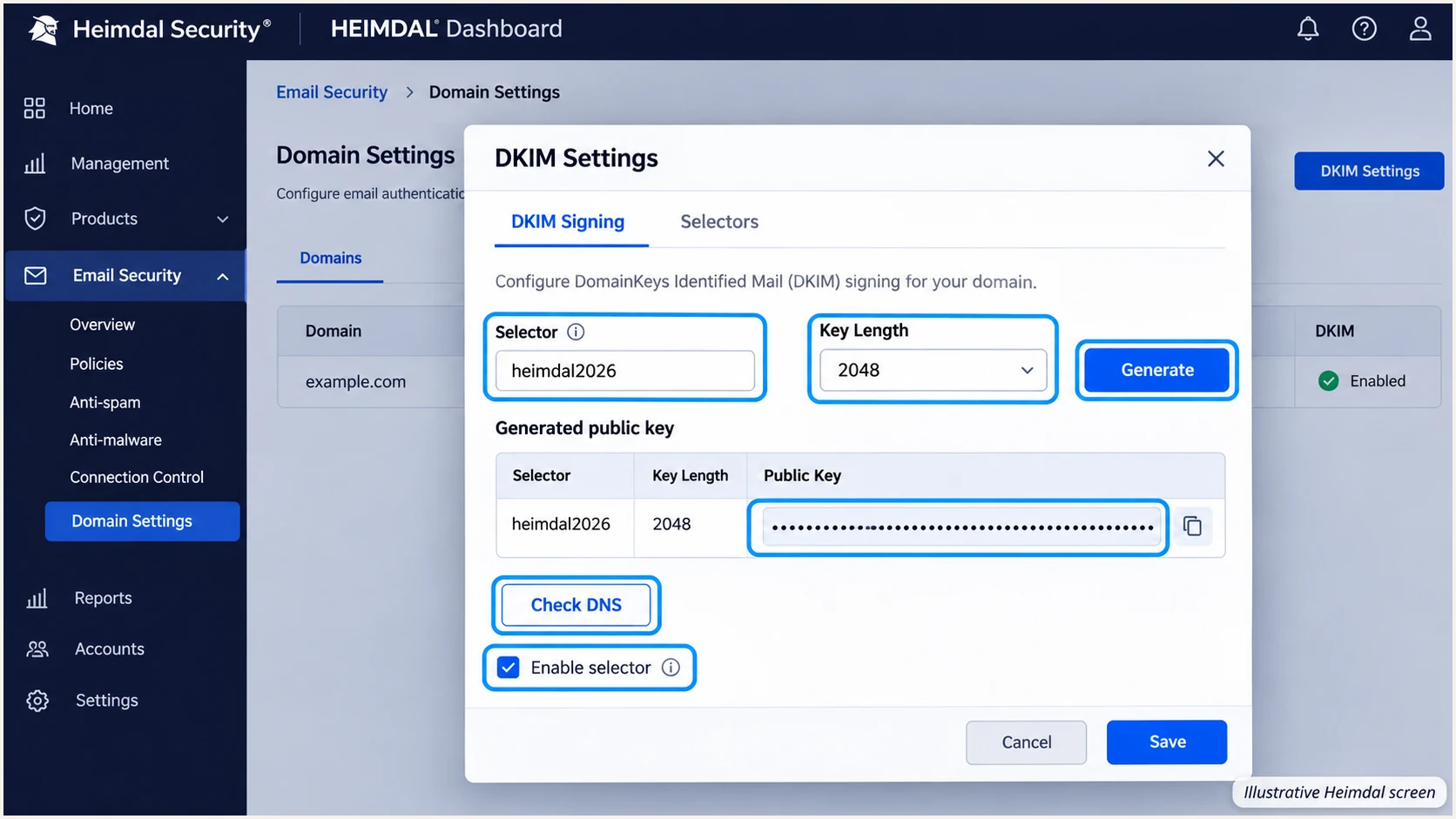
Illustrative Heimdal DKIM controls for generating, verifying, and enabling a selector.
Check the delivered DKIM-Signature for s=heimdal2026 and your domain in d=. A successful DNS check confirms key publication; a delivered-message test confirms signing works.
If an upstream server signs before Heimdal changes a message, that earlier signature can fail. Check that a signature for your domain survives the final outbound processing.
Set up DMARC
I publish DMARC on the visible From domain. Heimdal's incoming DMARC verification setting is separate from this DNS policy for mail using your domain.
- Keep existing enforcement. Retain p=quarantine or p=reject if already deployed. For a domain without enforcement, start with p=none.
- Choose a report address. Replace dmarc@example.com with a mailbox you control or your assigned aggregate reporting address.
- Publish one policy. Create a TXT record at _dmarc.example.com. If your DNS panel appends example.com, enter _dmarc as the host.
- Generate the value. Use the DMARC record generator to prepare the policy and reporting settings.
Starting DMARC record for a domain without enforcementtext
Name: _dmarc.example.com
Type: TXT
Value: v=DMARC1; p=none; rua=mailto:dmarc@example.com
The exact starting value is v=DMARC1; p=none; rua=mailto:dmarc@example.com. Replace the example report address before publishing. p=none requests reporting without requesting quarantine or rejection for DMARC failures.
Enter your sending domain in the DMARC checker after saving the TXT record. Confirm that it finds one valid policy and your intended report destination.
DMARC checker
Look up a domain's DMARC record and catch policy issues.
?/7tests passed
A reporting destination outside your domain needs external reporting authorization from that destination. Keep an existing valid report destination when modifying a deployed policy.
DMARC passes when SPF or DKIM both authenticates and meets its domain matching requirement. Aim for both on Heimdal's direct outbound route, then use aggregate reports to assess forwarded traffic.
Verify and troubleshoot
I test through the production sending path with a normal message and an attachment. A DNS lookup alone does not test the final signature or envelope sender.
- Confirm the route. Find the test message in Heimdal Email Security > Details > Outbound. Check its delivery status and sending domain.
- Read receiver results. Inspect the external recipient's trusted Authentication-Results header. Check spf=pass, dkim=pass, and dmarc=pass, including the reported domains.
- Trace failures. For SPF, check the actual envelope domain and relay region. For DKIM, check the active selector, published key, and changes to the message after signing.
- Retest changes. Allow DNS caches to expire, send a new message, and compare the new results. Keep the original test as a reference.
Heimdal's "Email Security recommended settings" recommends DKIM signing when outbound filtering is used. A domain status check is useful alongside a message test.
If headers are available in your Heimdal deployment, open the message Details and inspect Header. Access depends on permissions and archiving settings; the external recipient's original message is another way to inspect authentication.
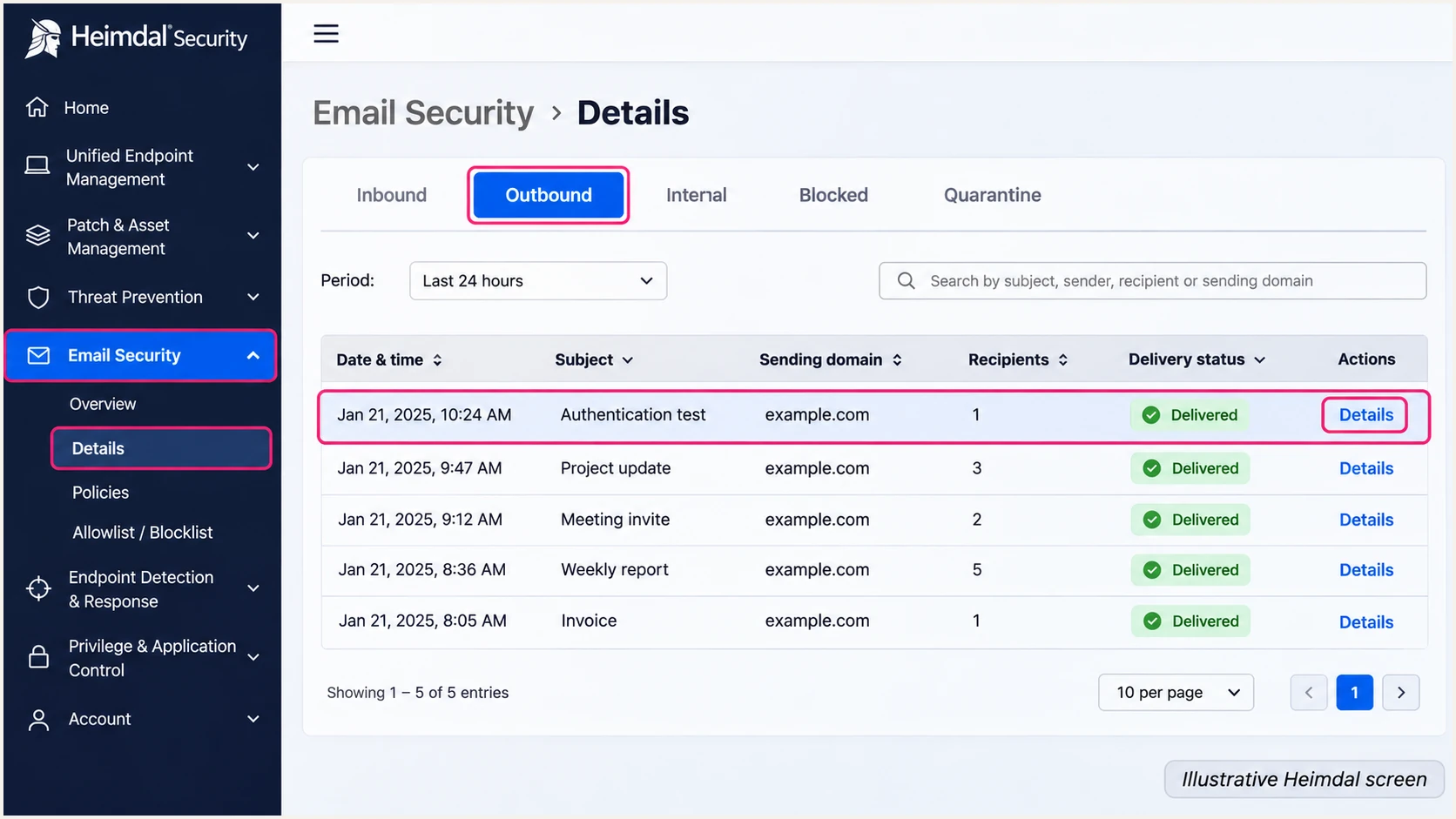
Illustrative Heimdal Outbound view for locating an authentication test message.
Use the email tester for the quickest complete check: it provides a destination address, you send a message through Heimdal, and the returned diagnosis checks the received message.
Use the same sender and route as production traffic. A message sent through another relay only verifies that other route.
Email tester
Send a real email to this address. Suped shows a results button when the test is ready.
?/43tests passed
SPF domain matching failures are acceptable for DMARC when a valid DKIM signature matches the visible From domain. For Heimdal's direct route, investigate unexpected SPF failures because your own return path is supported.
If both methods authenticate but DMARC fails, compare smtp.mailfrom and header.d with header.from. Authentication against a provider-owned domain does not authenticate the visible From domain for DMARC.
Get alerted when it breaks
Suped is our DMARC platform for ongoing DMARC monitoring. It detects authentication issues and provides steps to fix them, so changes to Heimdal routing or DNS do not depend on someone remembering to run another test.
- Enable issue alerts. In Suped Settings > Notifications, enable Issues detected for authentication problems.
- Review new sources. Enable Sending sources need verification and investigate newly observed senders before marking them verified.
- Keep summaries enabled. Enable DMARC summary emails to review legitimate mail performance alongside unauthorized traffic.
- Investigate the record. Filter by Heimdal source and sending IP, inspect SPF and DKIM diagnostics, apply the suggested fix, and verify resolution with a fresh message.
Suped combines the source view with DNS history, which helps trace a failure after an SPF edit or DKIM key change. Check whether the changed record matches the time the failing traffic appeared.
DMARC aggregate reports commonly arrive daily. Alert timing depends on report arrival and issue detection, so run an email test immediately after a time-sensitive configuration change.
Keep the sending source verified
Verify Heimdal only after confirming it is an authorized sender for your organization. Review its domain matching results as well as raw SPF and DKIM pass rates.
Secure your domain with p=reject
I move to p=reject after legitimate sending sources pass DMARC across a complete sending cycle. Include infrequent traffic such as monthly billing before changing enforcement.
- Inventory every sender. Review Heimdal traffic and every other service using the domain. Verify ownership of each legitimate source in Suped.
- Fix legitimate failures. Ensure each source has passing SPF or DKIM with the required domain match. Retest after gateway changes and key rotation.
- Stage enforcement. Use p=quarantine while observing legitimate traffic, then p=reject once unresolved legitimate failures are addressed. Suped Hosted DMARC manages policy changes after its DNS delegation is configured.
- Retain reporting. Keep rua and alerts active. Review subdomain policy inheritance and any sp tag before enforcing the parent domain.
Suped's source verification and record diagnostics provide the evidence for each policy change. Review remaining failures by source so that unauthorized traffic does not obscure a small legitimate sender.
Compare the requested receiver behavior at each enforcement stage. Receiver policy still determines final handling.
p=quarantine
Requests suspicious treatment, commonly spam-folder placement, for messages that fail DMARC.
Check whether legitimate traffic is being quarantined before advancing.
p=reject
Requests rejection of messages that fail DMARC.
Keep alerts active for new senders and authentication regressions.
Keep your working reporting address when changing only the policy. The example uses the same placeholder address as the initial record.
After changing the policy, check public DNS and send a new message through Heimdal. Investigate delivery errors alongside the next available aggregate reports.
Final policy after validating legitimate senderstext
Name: _dmarc.example.com
Type: TXT
Value: v=DMARC1; p=reject; rua=mailto:dmarc@example.com
DMARC enforcement addresses unauthorized use of your exact domain. It does not prevent lookalike domains or guarantee inbox placement.
Continue source review after enforcement. A newly introduced sender needs the same authentication checks before it starts production traffic.
Frequency asked questions
Heimdal Security is the platform to investigate. Its documented routing hostnames include eu-esec-outbound.heimdalsecurity.com. A smarthost name does not establish the actual PTR value of a sending IP. Confirm the IP's reverse DNS and matching forward DNS, then compare it with your authorized Heimdal mail route.
These are Heimdal Security Email Security SPF includes for Europe and Australia respectively. Heimdal documents separate US, UK, and UAE includes as well. Use the officially documented include for your actual outbound region; a related SPF hostname alone is insufficient reason to authorize a service.
DMARC requires one passing authentication method with the required domain match. A valid DKIM signature for your visible From domain can pass DMARC even when SPF fails or its domain does not match. Investigate unexpected SPF failures on direct Heimdal traffic, where your own return path is supported.
Check DNS validates key publication. Confirm that the selector is enabled, the delivered signature uses that selector and your signing domain, and the message is unchanged after signing. Send a fresh message through the complete route to test the final signature.
No. SPF authorizes outbound senders. If Heimdal only filters incoming mail, preserve SPF and DKIM for the services that actually send your email. Add the regional Heimdal include when your outbound mail is routed through its relay.
Keep p=reject or p=quarantine when adding Heimdal to an already enforced domain. Prepare SPF and DKIM before routing production traffic, test delivery, and monitor reports for failures. Use p=none as the starting policy for a domain without existing enforcement.




