
How to set up DMARC/DKIM/SPF for Greenhouse

Published 21 Nov 2026
Updated 21 Nov 2026
11 min read
Summarize with
To authenticate Greenhouse Recruiting, register your sending domain in Configure > Dev Center > Email Settings, publish its generated SPF and DKIM records, and publish DMARC for your visible From domain. Greenhouse supports a branded return path through its default gh-mail subdomain.
I verify a real Greenhouse message before changing enforcement. Keep an existing p=quarantine or p=reject policy. The default gh-mail setup works with relaxed domain matching; strict aspf=s or adkim=s needs the registration exception below.
Add your domain
I start with a Greenhouse administrator and the person who manages the domain's authoritative DNS. These steps apply to Greenhouse Recruiting's managed sending route.
- Open settings. Use a Site Admin account with 'Can configure email settings' permission. Open Configure > Dev Center > Email Settings.
- Register. Enter your From-address domain, such as example.com, without @ or a web address. Click Register. Use Add another to register additional brand domains.
- Check matching. Greenhouse normally creates gh-mail.example.com. If your DMARC configuration requires strict SPF or DKIM domain matching, register !example.com to omit gh-mail. The exclamation point is a registration instruction, never part of a DNS name.
- Collect values. Copy the generated Type, Hostname and Required Value columns, plus Priority for MX records. Use Email Your I.T. Dept to share the instructions with your DNS administrator.
If a live domain already uses gh-mail and needs strict matching, coordinate its removal and re-registration with IT before changing it. Re-registering generates the records you must publish and verify.
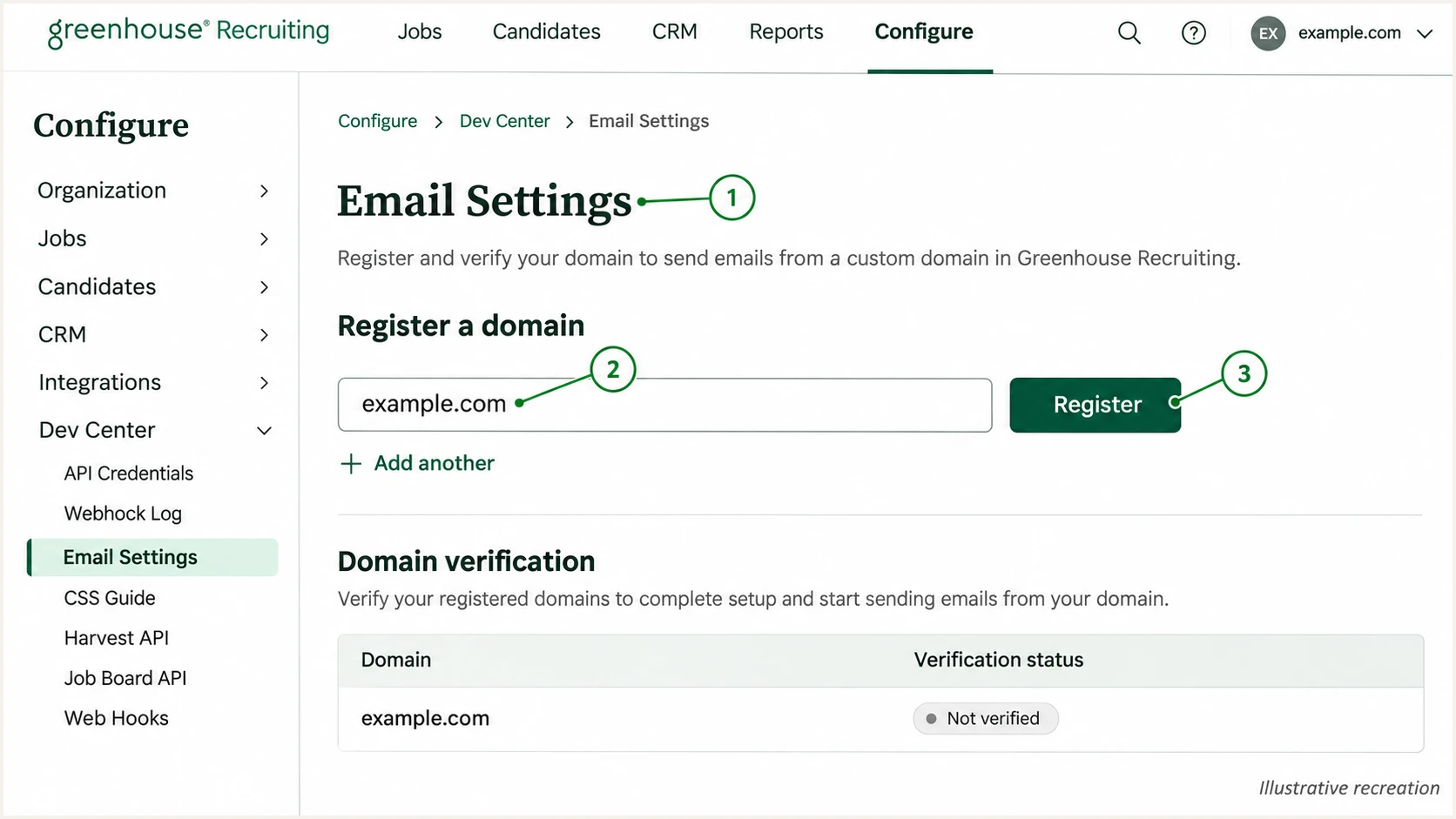
Illustrated Greenhouse Email Settings screen showing domain registration.
Registration alone does not finish verification. Publish the required DNS rows, then return to Greenhouse and run Check DNS Records Now.
Set up SPF
Greenhouse documents include:mg-spf.greenhouse.io as its SPF authorization. I publish the account's generated SPF value at the hostname Greenhouse displays, normally gh-mail.example.com.
- Use TXT. Create the SPF TXT record at the displayed sending hostname. A root-domain SPF record does not cover gh-mail.example.com.
- Keep one record. If that hostname already has SPF, merge the Greenhouse include before the existing all mechanism. Keep other authorized senders; never publish two v=spf1 records at one hostname.
- Check lookups. Keep SPF evaluation within the 10 DNS-lookup limit, including nested includes. Count the complete record when using the root-domain registration option.
- Add MX. Publish Greenhouse's generated MX values and priorities at gh-mail. Preserve your existing root-domain MX records. For root-domain registration, resolve any MX conflict with Greenhouse support before changing inbound routing.
SPF example for a dedicated Greenhouse sending subdomainDNS
gh-mail.example.com. IN TXT "v=spf1 include:mg-spf.greenhouse.io ~all"
SPF checks the SMTP MAIL FROM domain, normally visible in Return-Path. For a From address at example.com, a return path at gh-mail.example.com matches under relaxed DMARC rules.
Enter the exact SPF hostname from Greenhouse in the checker below. Checking only example.com does not validate a record published at gh-mail.example.com.
SPF checker
Find SPF syntax issues, lookup limits, and weak records.
?/16tests passed
A successful DNS check confirms the published SPF configuration. A delivered message confirms that the actual sending IP is authorized by that record.
If SPF passes but SPF alignment fails, compare Return-Path with the visible From domain and check aspf. A passing DKIM signature with a matching signing domain still permits DMARC to pass, but investigate an unexpected return path.
Set up DKIM
I use the public key generated by Greenhouse. Greenhouse handles the corresponding signing key; generating an unrelated DKIM key will not authenticate its messages.
- Copy the selector. Find the DKIM TXT row in Greenhouse's domain details. Copy its complete hostname, including the selector and _domainkey. Do not assume a selector name.
- Publish the key. Add the entire TXT value exactly as supplied. If your DNS host automatically appends example.com, enter only the relative hostname to avoid a duplicated domain.
- Check signing. Send a message and inspect DKIM-Signature. Its s= value identifies the selector and d= identifies the signing domain. A valid gh-mail.example.com signature matches example.com under relaxed rules.
- Recheck DNS. Return to Email Settings and click Check DNS Records Now. Repeat the setup for every registered brand domain.
The generated hostname is the authority for where to publish the key. An optional tracking CNAME is separate from the DKIM TXT record.
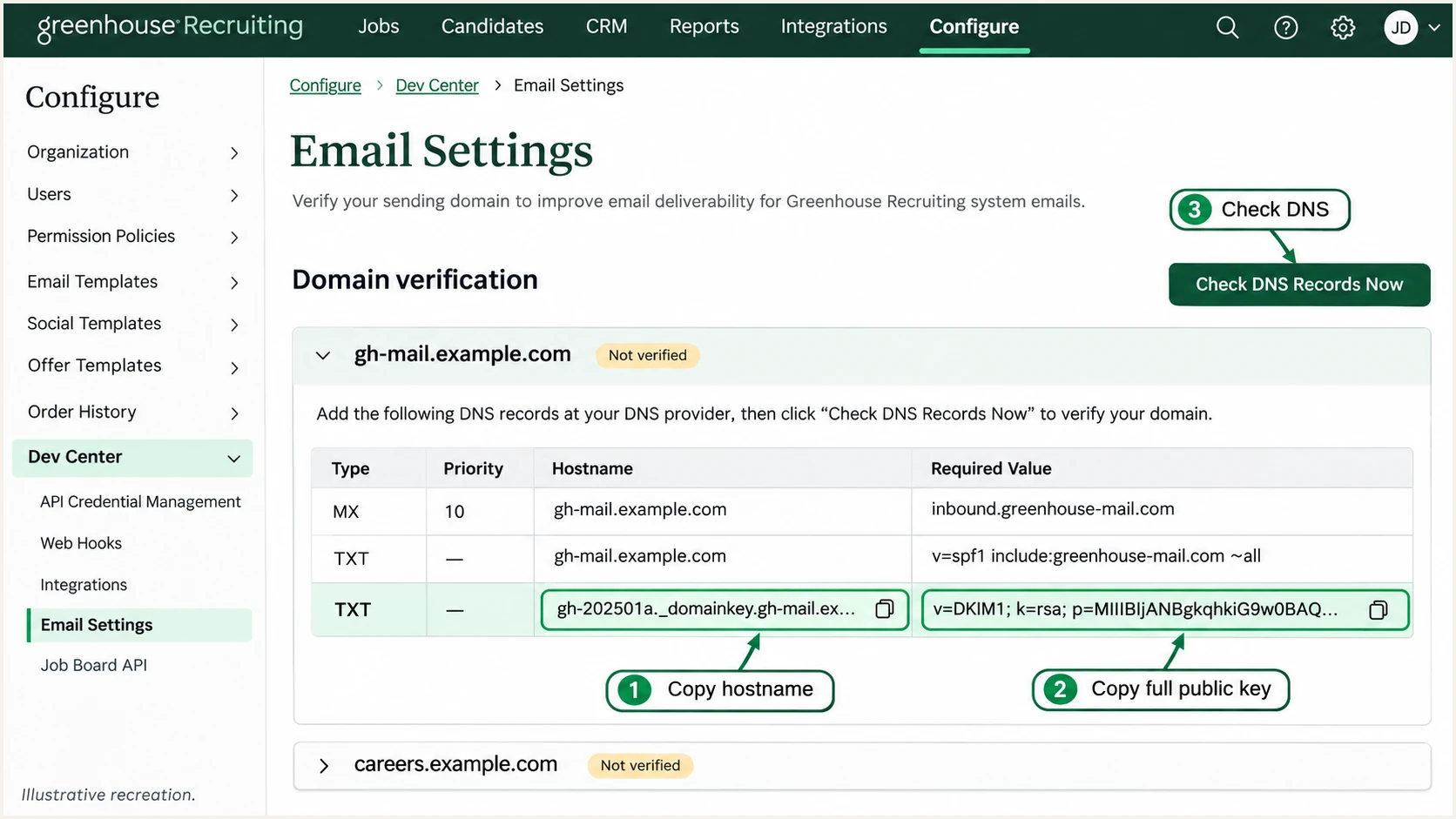
Illustrated Greenhouse domain details showing the DKIM record fields.
Greenhouse normally generates a 2048-bit DKIM key. Preserve that key when configuring DNS.
Keep long keys in one TXT record
A DNS TXT record can contain multiple quoted strings. Each string has a 255-octet limit; the record can be longer. Ask your DNS host how to enter the full key in one record before selecting Greenhouse's shorter-key option.
Set up DMARC
DMARC belongs to the visible From domain. For recruiter@example.com, publish at _dmarc.example.com, even when Greenhouse authenticates through gh-mail.example.com.
- Inspect first. Look for an existing DMARC TXT record. Keep p=quarantine or p=reject if already deployed, and preserve working reporting destinations.
- Start monitoring. If no DMARC policy exists, start with p=none using the example below. Replace the example domain and report mailbox with values you control.
- Build the record. Use the DMARC record generator to prepare one valid TXT record. Do not create a second DMARC record at the same hostname.
- Collect reports. Confirm that the rua mailbox accepts aggregate reports. When reports go to another domain, confirm that the receiving service has published the required reporting authorization.
Initial DMARC record at _dmarc.example.comDNS
v=DMARC1; p=none; rua=mailto:dmarc@example.com
This example monitors authentication without requesting rejection. Its omitted aspf and adkim tags default to relaxed matching, which supports Greenhouse's gh-mail subdomain.
Run the checker against your visible From domain after publishing. Verify the effective policy and reporting address before sending production tests.
DMARC checker
Look up a domain's DMARC record and catch policy issues.
?/7tests passed
The checker validates DNS policy. A live message is still needed to verify that Greenhouse's actual SPF or DKIM identity matches your From domain.
I treat enforcement and domain matching as separate settings. A reject policy works with relaxed matching and does not require removing gh-mail.
Enforcement policy
p=none requests monitoring. p=quarantine requests suspicious treatment for failures. p=reject requests refusal of failures.
Domain matching
aspf and adkim control relaxed or strict identity matching. Strict mode requires an exact domain match; relaxed mode permits the same organizational domain.
Verify and troubleshoot
I check Greenhouse's DNS status, then test a message sent through the actual recruiting workflow. DNS verification alone does not prove message authentication.
- Verify records. Open Configure > Dev Center > Email Settings, expand Show domain details and click Check DNS Records Now. Required records should show check marks.
- Check public DNS. Use the commands below, replacing SELECTOR with Greenhouse's actual selector. Adjust hostnames if you registered without gh-mail.
- Send a real test. Use a test candidate record under your control and send through Greenhouse. Test the same sender domain and workflow used for candidate communications.
- Inspect headers. Read the receiving server's Authentication-Results. Check SPF, DKIM and DMARC separately, then compare smtp.mailfrom and DKIM d= with the visible From domain.
- Fix failures. For missing DNS, check authoritative nameservers and duplicated hostnames. For DKIM failure, check the full public key. For persistent non-delivery after authentication passes, ask Greenhouse support to check suppression or bounce status.
Public DNS checks, replace SELECTOR before runningBASH
dig +short TXT gh-mail.example.com
dig +short TXT SELECTOR._domainkey.gh-mail.example.com
dig +short MX gh-mail.example.com
dig +short TXT _dmarc.example.com
DNS caches delay new values. Greenhouse advises allowing up to 48 hours for changes to appear, but a wrongly entered hostname will still need correction.
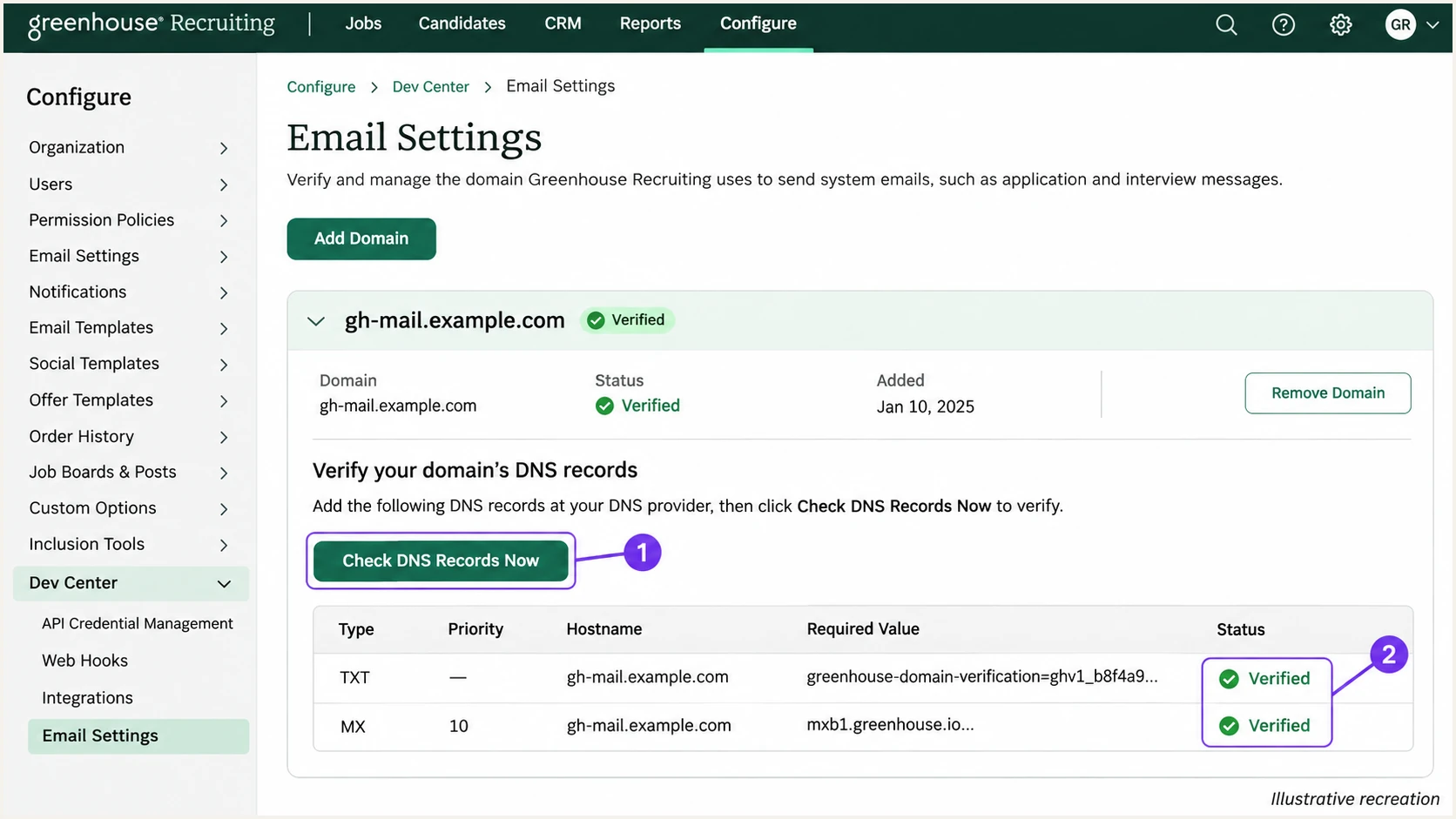
Illustrated Greenhouse DNS verification screen with successful record checks.
For a quicker message-level check, our email tester gives you a destination address. Send a fresh Greenhouse email directly to that address for an authentication diagnosis.
Send through Greenhouse rather than forwarding an existing message. Forwarding changes the delivery path and can change SPF results.
Email tester
Send a real email to this address. Suped shows a results button when the test is ready.
?/43tests passed
Read the SPF and DKIM domain checks alongside the DMARC result. Passing authentication under an unrelated domain does not satisfy DMARC for your From domain.
Use the results below as a checklist. A DMARC pass requires at least one passing authentication method with the required domain match.
|
|
|---|---|
SPF | Pass; matching return path |
DKIM | Pass; matching d= domain |
DMARC | Pass |
Greenhouse DNS | Required rows verified |
Expected results for a correctly configured Greenhouse message.
Get alerted when it breaks
Greenhouse verification is a point-in-time DNS check. Our DMARC monitoring in Suped tracks receiving servers' authentication results and provides detected issues with steps to fix them.
- Enable notifications. In Suped's notification settings, enable Issues detected and Sending sources need verification. Enable DMARC summary emails for ongoing review.
- Verify the source. Review Greenhouse's source IPs and authenticated domains before marking the source as verified. Investigate unfamiliar traffic separately.
- Investigate changes. When an issue appears, inspect its SPF and DKIM diagnostics. Compare DNS history with recent Greenhouse domain registrations or DNS edits.
- Confirm recovery. Fix the record at the hostname Greenhouse supplies, rerun its DNS verification, and send another test message. Review subsequent reports for recovery.
Suped combines the source results and DNS history in one investigation workflow. I keep a named IT owner responsible for Greenhouse authentication alerts.
Report timing matters
Aggregate DMARC reports arrive on receiving servers' schedules, commonly daily. Report-based alerts follow report arrival. Use a fresh Greenhouse test email to check an urgent fix immediately.
Secure your domain with p=reject
I advance enforcement only after legitimate sending sources are accounted for. Greenhouse passing one test is not enough to approve a policy change for the entire domain.
- Review a full cycle. Collect reports across normal recruiting activity, including automated messages and every brand domain. Investigate legitimate failures before increasing enforcement.
- Protect DKIM. Require reliable DKIM signing with the correct domain match. Forwarding often breaks SPF, so an enforcement rollout must not depend solely on SPF.
- Stage enforcement. For a new deployment, progress through p=none and p=quarantine before p=reject, checking reports at each stage. If already enforcing, keep that policy while correcting Greenhouse.
- Keep matching deliberate. Retain relaxed matching for the default gh-mail configuration. Do not add aspf=s or adkim=s merely because you are changing p to reject.
- Manage the change. Our hosted DMARC in Suped lets you manage policy changes from the dashboard after its DNS setup. Use source diagnostics and issue fix steps to decide when to advance.
- Keep reporting. Preserve rua and continue reviewing new sources after enforcement. Recheck Greenhouse when adding brands or changing the email service.
Enforcement example after legitimate sources are verifiedDNS
v=DMARC1; p=reject; rua=mailto:dmarc@example.com
Replace the example reporting address and retain any existing required tags. A reject policy requests that receivers refuse messages that fail DMARC; receiving servers apply their own final handling.
Check readiness in Suped
Review Greenhouse's authentication results alongside the domain's other verified sources. Resolve known legitimate failures, confirm report collection still works, then change the policy and watch for regressions.
Frequency asked questions
Yes. Its standard managed setup uses a branded gh-mail subdomain, which supports relaxed SPF domain matching with the parent From domain. For strict matching, use Greenhouse's documented !example.com registration flow and verify the delivered message. Keep an existing enforcement policy while completing setup.
Greenhouse Recruiting documents include:mg-spf.greenhouse.io for SPF authorization. Publish the record at the hostname generated in your account, normally the gh-mail subdomain. Do not add it to your root SPF simply because it appeared in a report or another domain's DNS.
I treat a greenhouse.io rDNS name as an identification clue and confirm it against Greenhouse's published sending-IP list and the message's authentication results. Greenhouse lists sending IPs including 185.250.239.148 and 185.250.239.168. rDNS alone does not establish authorization or prove a DMARC pass.
SPF authenticates the envelope sender domain. DMARC also requires the appropriate match with the visible From domain, or a passing DKIM signature with that match. Check Return-Path, DKIM d= and your aspf/adkim settings. A passing SPF result for an unrelated domain is insufficient.
Base SPF and DKIM on the server that actually delivers the message. With custom SMTP, your organization's mail infrastructure handles delivery, so verify its authorization and signing configuration. Do not add Greenhouse's managed-sending include solely because Greenhouse initiated the message. Test after changing the organization-wide email service.
Check every required DNS row, the exact public-key value and whether your DNS host appended the domain twice. Confirm that you edited the authoritative DNS zone, then run Check DNS Records Now again. Greenhouse advises allowing up to 48 hours for DNS changes. Unverified managed sending uses outbound-mail.greenhouse.io rather than your verified sending domain.