
How to set up DMARC/DKIM/SPF for Green

Published 17 Nov 2026
Updated 17 Nov 2026
13 min read
Summarize with
For Green Web & Mailhosting, publish SPF with include:servicehoster.ch, use Green's automatically generated DKIM record, and publish DMARC at _dmarc. I start new DMARC deployments with p=none and aggregate reporting, then verify a message sent through the actual mailbox or website.
These settings cover Green's regular Webhosting and Mailhosting service. I check the subscription first: Green Hosted Exchange has different SPF settings and a separate DKIM process. Registering a domain at Green does not, by itself, configure outgoing email authentication.
Add your domain
I first check that the sending domain is assigned to the correct Green hosting package and has a working mailbox.
- Check the assignment. In my.green.ch, open Shared Hosting > Alle Domänen. Select the magnifying glass beside the domain, then open Webhosting Zuordnung.
- Assign an unconnected domain. Choose 'Ich möchte die Domain innerhalb eines Web-/Mailhostings nutzen', select the hosting subscription, and click Speichern. For domains registered elsewhere, ask Green support to assign the domain to the subscription.
- Create the sender. Open Web & Mail Control, choose the package, then E-Mails > E-Mail-Adressen. Select + E-MAIL-ADRESSE ERSTELLEN, enter the mailbox name, choose E-Mails speichern, and set its password.
- Verify the mailbox. Sign in to Green webmail with the full email address and mailbox password. Send and receive a test message. This confirms mailbox access; the authentication checks below confirm the sending configuration.
Check before reassigning an existing domain
Green warns that moving an already assigned domain to another hosting package can delete its existing hosting data and mail accounts. Keep a correct assignment in place; back up affected data before a planned move.
The domain's registrar and authoritative DNS host are separate roles. I check the active nameservers before editing records, because an unused Green DNS zone has no effect on public lookups.
The German portal labels above follow Green's 'Domain mit Hostingpaket zuweisen' instructions. An external domain requires Green support to complete the assignment; do that before creating its mailbox.
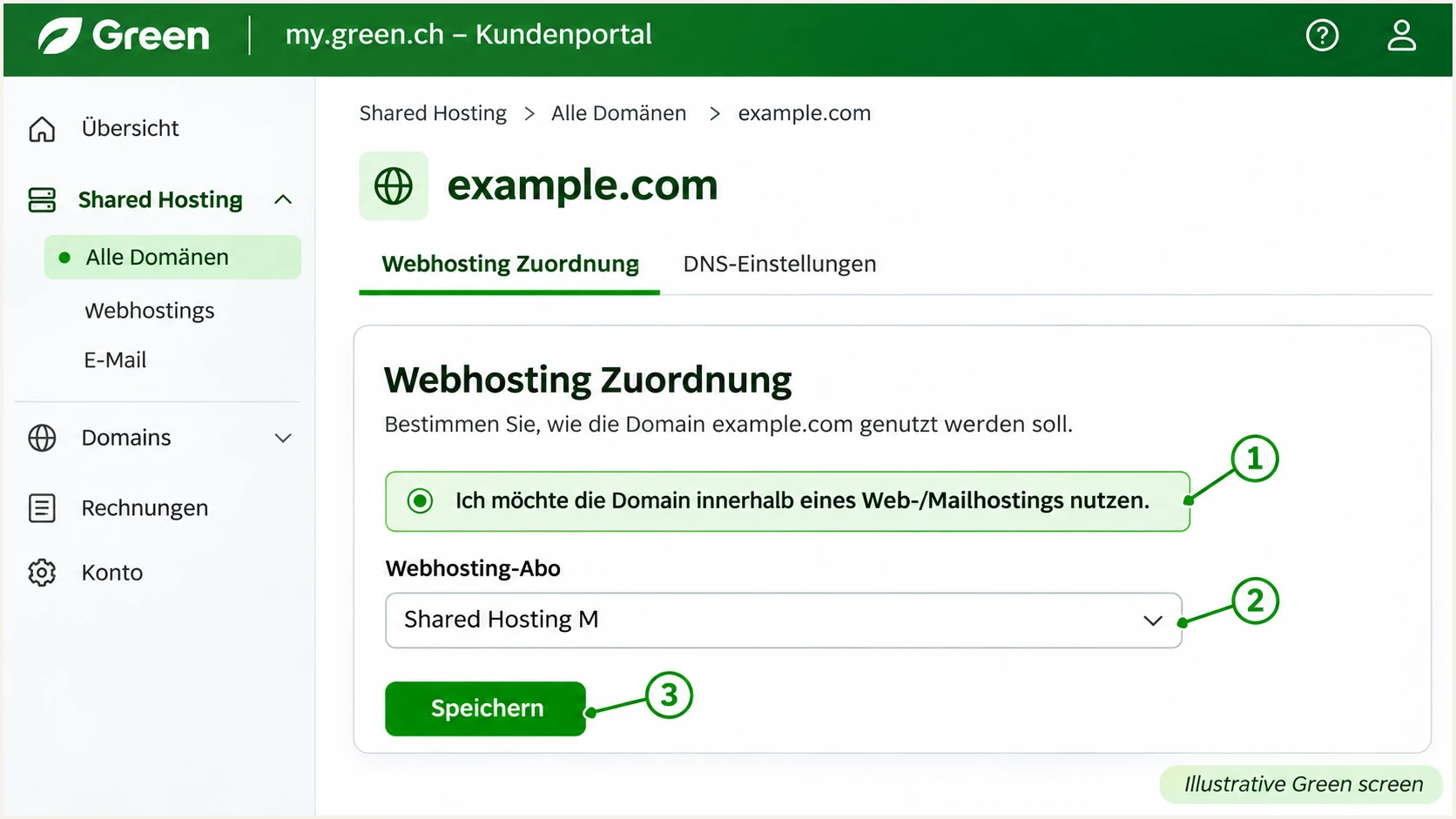
Illustrative Green screen for assigning a domain to a hosting subscription.
A working mailbox is the baseline for authenticated SMTP submission. An alias or forwarding address does not automatically provide a mailbox password for a website application.
I also identify every application that sends with this domain. A contact form and a scheduled job can use different mail routes even when both run on the same Green hosting package.
Set up SPF
Green's 'Default Green DNS Records (Web & Mail Hosting)' publishes the SPF value below. I compare it with the existing record before changing anything.
- Open DNS. In my.green.ch, select Shared Hosting > Alle Domänen, then the flag icon in the domain's DNS column. If another provider hosts authoritative DNS, edit the record there instead.
- Edit the root TXT. Find the TXT record beginning with v=spf1. Green's root host field is blank. Use the existing record, or add a TXT record if none exists; Green documents TTL 600 for this entry.
- Keep one SPF record. Preserve other authorized senders and merge include:servicehoster.ch before the final all mechanism. Do not add a second v=spf1 record or copy Green's own corporate-domain SPF policy.
- Check the lookup limit. Validate the complete policy, including nested includes. SPF permits at most 10 DNS-querying terms during evaluation; exceeding that limit produces a permerror.
Green's published Web & Mailhosting SPF valuetext
v=spf1 include:servicehoster.ch a mx ~all
The a and mx mechanisms also authorize addresses resolved through the domain's A/AAAA and MX records. I retain them when the hosting setup needs them and review their scope before removing them. The final ~all is Green's published softfail setting.
Run the checker against the domain used in the message's Return-Path. A valid policy on the visible From domain does not authenticate a different envelope sender domain.
SPF checker
Find SPF syntax issues, lookup limits, and weak records.
?/16tests passed
Green supports Return-Path alignment. Configure the application's envelope sender to use your sending domain, then confirm the delivered Return-Path. Under relaxed DMARC settings, the Return-Path and visible From domains must share the same organizational domain for SPF to satisfy DMARC.
Adding an SPF include does not change the Return-Path. If a particular sending route uses a provider-owned bounce domain without a custom setting, expect SPF alignment failures for that route. Passing DKIM with domain alignment still satisfies DMARC; adding includes to your root SPF cannot fix that mismatch.
Set up DKIM
For regular Green mail, Green generates DKIM after the domain uses its nameservers. I retrieve that generated record rather than inventing a selector or generating an unrelated key.
- Locate the generated record. Inspect the Green DNS zone for the DKIM entry. Keep its exact selector name and complete public value.
- Handle external DNS. Green requires the domain to have used Green nameservers at least once before it can generate the regular-mail DKIM record. If that has never happened, coordinate the required nameserver change with Green support.
- Publish the exact key. When using external authoritative DNS afterward, copy the generated record there. Preserve the complete public key and use the record type Green supplies.
- Check the signature. Send a new message and inspect DKIM-Signature. Read s= for the selector and d= for the signing domain. Confirm the recipient reports dkim=pass and that d= has DMARC domain alignment with the visible From domain.
Green nameservers
Inspect the automatically generated DKIM entry and keep it published. A DNS key alone is insufficient: the actual sending route must sign the message.
External nameservers
Copy the Green-generated entry into authoritative DNS. Before any nameserver move, preserve the full working zone and coordinate DNSSEC delegation where enabled.
Green's 'DKIM und DMARC bei Green' confirms the nameserver prerequisite and says the regular-mail DKIM entry cannot be created manually. This requirement differs from Hosted Exchange's separate process.
I query the selector found in a real message, replacing actual-selector and example.com below. If no signature exists, investigate the sending route with Green; publishing a key does not make an application sign mail.
Check the selector used by the senderbash
dig +short TXT actual-selector._domainkey.example.com
dig +short CNAME actual-selector._domainkey.example.com
Set up DMARC
I publish one DMARC record for the visible From domain. Start with p=none when creating a new policy; keep an existing p=quarantine or p=reject policy while correcting the Green sender.
- Create the TXT entry. In authoritative DNS, add a TXT record named _dmarc with TTL 600. In Green's editor, enter only _dmarc in the host field because the zone domain is appended automatically.
- Use monitoring first. For a new policy, use the exact example value below, then replace the example report address with an address you control.
- Prepare reporting. Create the reporting mailbox or use your report processor's assigned destination. Keep existing valid reporting destinations when editing an established policy.
- Generate and save. Use the DMARC record generator to build the value, save it in DNS, and confirm there is only one DMARC policy record at that name.
Starting DMARC TXT value at _dmarctext
v=DMARC1; p=none; rua=mailto:dmarc@example.com
The example requests aggregate reports at dmarc@example.com; replace that address before publishing. A reporting destination on a different domain requires the destination operator's external-report authorization where applicable.
Green's DNS editor appends the zone name to the host field. Entering _dmarc.example.com there creates the wrong name. I check the saved record's full name rather than assuming the form accepted the intended location.
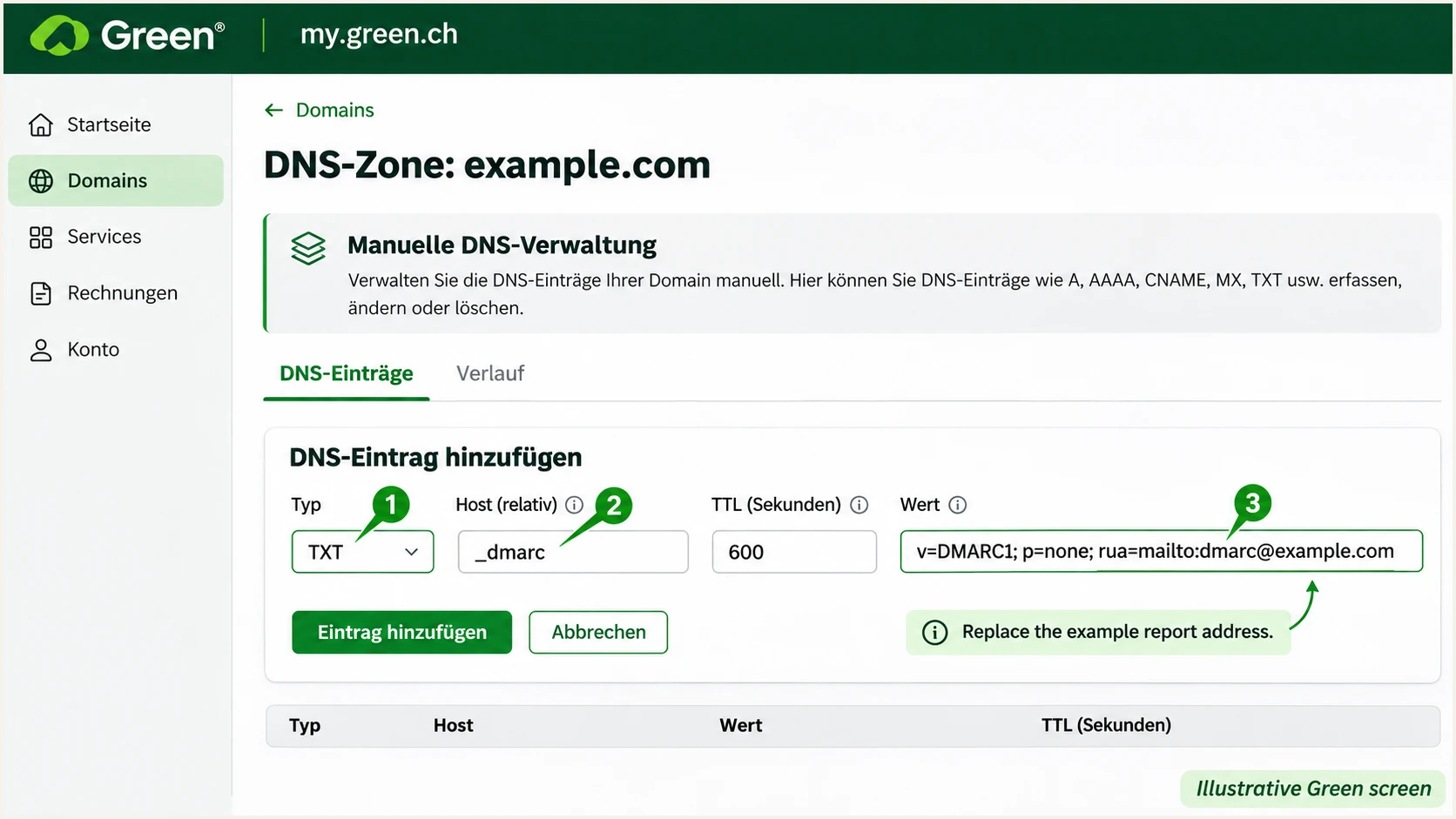
Illustrative Green DNS editor showing a DMARC TXT record at _dmarc.
Keep your custom records when editing DNS. Green warns that switching manual DNS management back to automatic management deletes existing entries and replaces them with defaults. Record the working zone before changing management modes.
Once the change is public, enter the visible From domain in the DMARC checker. It should find the single policy and the intended reporting destination. Cached answers persist until their applicable TTLs expire.
DMARC checker
Look up a domain's DMARC record and catch policy issues.
?/7tests passed
A valid DMARC record confirms DNS policy syntax and discovery. It does not prove that Green messages pass authentication. The message test below checks the actual SPF and DKIM identities.
The p=none policy requests monitoring without requesting quarantine or rejection for DMARC failures. Reports arrive according to receiving providers' schedules, so the first useful aggregate data usually takes a day or two.
Verify and troubleshoot
I test Green webmail and every application separately. A passing mailbox message does not establish that a website's PHP mail route or scheduled task uses the same sender.
- Use authenticated SMTP. Green documents smtp.servicehoster.ch with port 465 for SSL/TLS or 587 for STARTTLS. Enable SMTP authentication and use the full mailbox address plus its mailbox password. Confirm the account's current connection details in Web & Mail Control.
- Set sender identities. Use an address on your authenticated domain in From and, where configurable, the envelope sender. Put a contact-form visitor's address in Reply-To rather than From.
- Test the production route. Trigger the real contact form, password reset, or scheduled message. Send directly to the tester address so a forwarding step does not change the first result.
- Inspect receiver results. Check the receiving system's Authentication-Results for SPF, DKIM, and DMARC. DMARC requires at least one passing method with domain alignment; for an eventual reject policy, also require working DKIM.
SMTP authentication proves mailbox access to Green. DMARC checks the domains authenticated by SPF or DKIM against the visible From domain. Successful SMTP login therefore does not establish a DMARC pass.
For the quickest message diagnosis, use the email tester below. It provides a destination address; send a fresh message through the Green route being checked, then inspect the authentication results and reported issues.
Email tester
Send a real email to this address. Suped shows a results button when the test is ready.
?/43tests passed
Read the delivered Return-Path and DKIM signing domain alongside the result. A generic spf=pass or dkim=pass for a provider-owned domain does not establish DMARC domain alignment with your From address.
The following headers are illustrative passing results for example.com, not evidence from a live Green account. Compare your receiver's result with the identities shown here.
Illustrative message with passing domain authenticationtext
From: sender@example.com
Return-Path: <sender@example.com>
Authentication-Results: receiver.example;
 spf=pass smtp.mailfrom=example.com;
 dkim=pass header.d=example.com;
 dmarc=pass header.from=example.com
|
|
|
|---|---|---|
SPF permerror | Duplicates or lookups | Merge; count lookups |
DKIM none | Unsigned route | Test SMTP signing |
DKIM fail | Key or content change | Compare selector key |
DMARC fail | No passing alignment | Check From identities |
Common failures and the next check.
If a record is missing, check the authoritative answers first. Replace the example domain below. If authoritative DNS is correct but a cached resolver differs, wait for the relevant cache lifetime before retesting.
Check nameservers and authentication TXT recordsbash
dig +short NS example.com
dig +short TXT example.com
dig +short TXT _dmarc.example.com
Get alerted when it breaks
I keep ongoing checks after the first successful test. Suped, our DMARC monitoring platform, turns aggregate reports into source-level diagnostics and notifications, so a broken Green sending route does not depend on someone noticing a bounce.
- Route the reports. Use Suped's assigned aggregate-report destination in the existing rua setting. Keep the current policy and publish the change through your authoritative DNS host.
- Enable notifications. In Suped Notifications, enable Issues detected and Sending sources need verification, then configure DMARC summary emails. Authentication alerts based on aggregate reports follow report arrival, rather than individual-message delivery.
- Verify the source. Match Green traffic to actual mailbox and website tests before marking it verified. Shared hosting names and IP addresses identify infrastructure, not permission to send for your domain.
- Investigate changes. Use Suped's SPF, DKIM, and DMARC detail checks and DNS history to compare failures with recent edits. If authentication passes but delivery deteriorates, also inspect blocklist (blacklist) and deliverability information.
I check each affected source and receiver instead of reacting to the overall pass rate alone. A low-volume website form can fail while a busy mailbox keeps the domain-wide percentage high.
Keep the fix connected to the evidence
Suped combines issue detection, tailored fix steps, and message-source detail in the same workflow. Correct the Green mailbox, application, or DNS setting identified by the evidence, then send another test and watch subsequent reports.
Secure your domain with p=reject
I move controlled sending domains toward p=reject only after legitimate traffic passes consistently. Suped's source verification and authentication history provide the evidence for each policy change, including low-volume Green applications.
- Inventory legitimate senders. Review each known mailbox and application across a complete sending cycle. Include infrequent jobs. Fix failures from authorized traffic; do not require spoofed traffic to pass before enforcement.
- Require working DKIM. Confirm passing DKIM with domain alignment on every legitimate route. SPF often breaks during forwarding, so SPF alone is insufficient preparation for p=reject.
- Stage the policy. Compare monitoring results with p=quarantine before moving to p=reject. Test forwarding and mailing-list paths as well as direct delivery. Do not rely on the historic pct tag for percentage-based rollout.
- Check the scope. Review subdomain policy inheritance and explicit subdomain records. For a controlled website sender, a dedicated sending subdomain lets you evaluate enforcement separately from staff correspondence.
Account for mailing-list traffic
RFC 9989 advises against p=reject for general-purpose domains whose users post to Internet mailing lists. For those domains considering reject, it recommends comparing at least a month of p=none reports with a month at p=quarantine. Treat a controlled transactional subdomain separately.
Keep policy management in the same workflow as source review. With direct DNS editing, update the existing Green TXT record. Our Hosted DMARC option manages the policy through Suped after its supplied DNS delegation is configured.
Direct DNS policy
Edit the existing _dmarc TXT value at the authoritative DNS host for each policy change. Preserve reporting and recheck the public answer.
Suped Hosted DMARC
Use Hosted DMARC to stage policy changes alongside report analysis. Follow the supplied delegation instructions, replacing the direct TXT setup; a CNAME cannot coexist with a TXT record at the same name.
For a direct TXT deployment that has completed the checks, the reject value below replaces the existing policy. Use your real reporting destination. Publish one policy record, and retain any other intentional tags after reviewing their scope.
Reject policy after legitimate sending has been verifiedtext
v=DMARC1; p=reject; rua=mailto:dmarc@example.com
After changing policy, send another Green test message and check the next report batches in Suped. Investigate new legitimate failures before advancing further. Receivers make the final delivery decision; a DMARC pass does not guarantee inbox placement.
Keep notifications enabled through hosting migrations and application changes. Recheck the actual sending route after each change, even when the domain's published SPF and DKIM records look unchanged.
Frequency asked questions
For regular Green mail, the DKIM record is generated after the domain uses Green nameservers. With external DNS, copy that generated record into the authoritative zone. Hosted Exchange uses a separate process. Always test whether the actual message is signed and passes.
That suffix is associated with Green's hosting infrastructure. Green documents smtp.servicehoster.ch for outgoing mailbox submission. Treat the rDNS suffix as a source-identification clue, then confirm the sending IP, message headers, and your application's configuration. It does not establish authorization for your domain.
Yes. Passing DKIM with domain alignment is enough for DMARC even when SPF alignment fails. Green supports Return-Path alignment, so configure both methods where the sending route permits it. A provider-owned Return-Path cannot be fixed by adding an include to your From domain's SPF record.
The form can use a different sending route, envelope sender, or From address. Configure authenticated Green SMTP with the mailbox credentials and use your own domain in From. Put the visitor's address in Reply-To, then test the form itself rather than another webmail message.
Allow the previous cached record's TTL to expire, then check authoritative DNS and send a new test. Nameserver changes can take up to 24 hours according to Green. Aggregate DMARC reports follow receiver schedules and usually need another day or two to provide useful data.
Keep an existing p=quarantine or p=reject policy while correcting the Green sender. The p=none example is for a new deployment. If legitimate mail is failing, identify the affected route and correct its authentication before making a deliberate policy change based on its scope and impact.