
How to set up DMARC/DKIM/SPF for GoSecure

For GoSecure outbound email, authorize its documented sending range with ip4:208.80.200.0/21, enable domain DKIM signing, publish the matching public key, and add a DMARC TXT record at _dmarc. Start a new DMARC policy with p=none; keep an existing quarantine or reject policy.
I check the actual delivery route first. GoSecure used only for inbound filtering does not need authorization in your outbound SPF record. These steps apply to GoSecure Email Security and its Administrator Dashboard.
Add your domain
Use an administrator account with permission to manage the domain and outbound service. Keep access to your authoritative DNS settings available.
- Open the account: Sign in to the GoSecure customer portal and select the account that owns the domain.
- Create the domain: Choose Add New > Domain, select the account, and enter your sending domain, such as example.com.
- Set delivery: Choose Automatic, Choose, or Manual for the Mail Gateway. Confirm that this is your destination mail server. Select Mailbox Discovery and click Add.
- Check provisioning: Reopen the domain after processing. Confirm the gateway settings and use Test Connection to check delivery. If Mailbox Discovery is Manual, define recipients through Add New > Mailbox before inbound cutover.
- Authorize outbound relay: Choose Add New > Outbound IP. Select IP Address Range for your originating server, or Shared Provider for the supported hosted mail system. Enter its required settings and click Add.
- Route outgoing mail: Open the outbound configuration Status link and copy the assigned outbound host into your mail server send connector or smart host settings. Confirm the connector applies to the intended external recipients.
GoSecure documents domain creation and gateway testing separately. Test Connection checks gateway delivery; it is not proof that outgoing SPF or DKIM passes.
Copy the outbound host assigned to the account. Change inbound MX records only when deploying inbound filtering, after the gateway and recipient setup work.
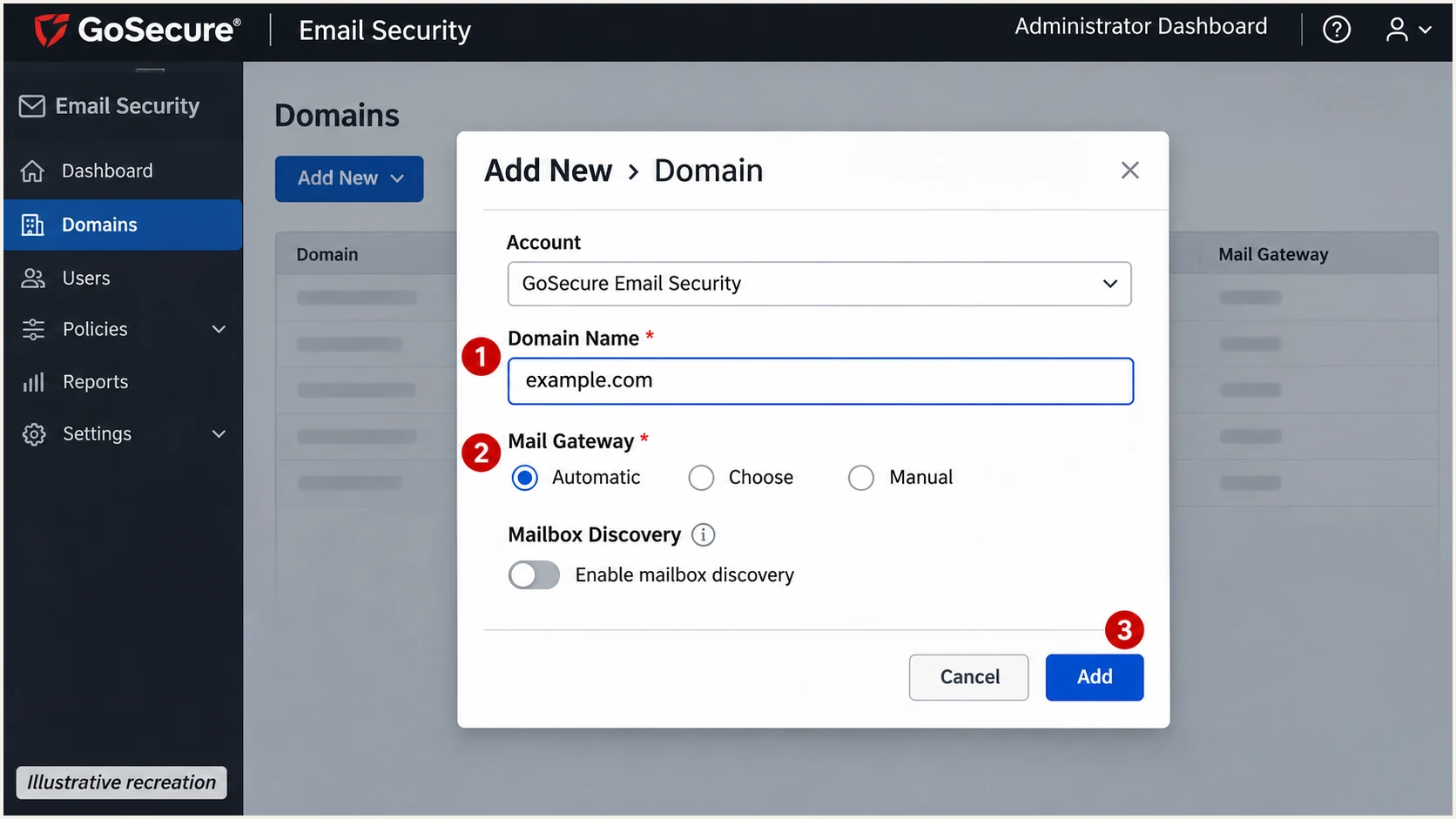
Illustrative GoSecure domain form with domain, gateway, and mailbox discovery settings.
Before continuing, send one external message and confirm that its Received headers show the GoSecure outbound hop. A configured domain alone does not route messages through the service.
Set up SPF
GoSecure's public quick-start instructions specify the outbound IPv4 range 208.80.200.0/21. Confirm that this range covers your assigned service before publishing it; use additional regional or account-specific ranges only when GoSecure supplies them.
SPF is checked against the SMTP MAIL FROM domain, usually visible in Return-Path. For DMARC SPF alignment, that domain must match the visible From domain, or share its organizational domain under relaxed alignment.
- Read existing DNS: Find the existing v=spf1 TXT record for the actual MAIL FROM domain. Keep one SPF record at each name.
- Add GoSecure: Insert ip4:208.80.200.0/21 before the existing all mechanism. Preserve other authorized senders and the existing ending policy.
- Confirm Return-Path: Send through the outbound connector and inspect smtp.mailfrom in the receiving server authentication results. For a separate bounce subdomain, publish SPF at that subdomain.
- Check lookup limits: Keep DNS-querying SPF terms within the 10-term evaluation limit, including nested includes. The ip4 mechanism itself does not consume a DNS lookup.
SPF TXT value for a domain sending only through this GoSecure rangetext
v=spf1 ip4:208.80.200.0/21 ~all
Publish the example at the MAIL FROM domain only when GoSecure is its sole authorized sender. Merge the mechanism into an existing record when other systems also send.
Enter that domain in the SPF checker below to check syntax and DNS lookup usage. A valid DNS record still needs a delivered-message test to confirm the sending IP and domain actually used.
SPF checker
Find SPF syntax issues, lookup limits, and weak records.
?/16tests passed
A provider-owned Return-Path can pass SPF without DMARC SPF alignment. Adding GoSecure to the visible From domain does not fix a check performed against a different MAIL FROM domain.
GoSecure supports Return-Path alignment, so verify it on your configured route. If another sending source cannot use your Return-Path domain, its SPF alignment failure is expected; passing DKIM with domain alignment can still produce a DMARC pass. Do not add SPF entries that its messages never use.
Set up DKIM
GoSecure documents outbound signing under the domain Spoof Options. I use a separate selector for GoSecure so its public key does not replace a key used by another sender.
- Open signing controls: Open Manage > Domains, select the sending domain, and find Spoof Options > DKIM Options.
- Prepare the key: Read Selector and Domain Key. If no usable key exists, use Generate New Domain Keys. Copy the public key and the selector supplied for this domain.
- Publish the public key: Create the TXT record at selector._domainkey.example.com, substituting the actual selector and domain. Copy the full public-key value. Keep the private key out of DNS.
- Enable signing: After the public key resolves, enable Add DKIM Signature and save the domain settings. Send a new external message through GoSecure.
- Verify the result: Read d= and s= in DKIM-Signature, then check the recipient authentication results for dkim=pass. The d= domain must have DMARC alignment with the visible From domain.
DKIM TXT template and lookup, replace the selector and public keytext
# TXT name: selector._domainkey.example.com
v=DKIM1; k=rsa; p=REPLACE_WITH_GOSECURE_PUBLIC_KEY

# Query using the actual selector and signing domain
dig +short TXT selector._domainkey.example.com
The selector and public-key value above are placeholders. Use the actual GoSecure selector and full public key, or copy its DNS-ready value if supplied. Query the selector and signing domain found in the delivered message.
Keep an existing working key during setup. Regenerating keys for an active selector before publishing the replacement breaks verification wherever receivers still have the old public key cached.
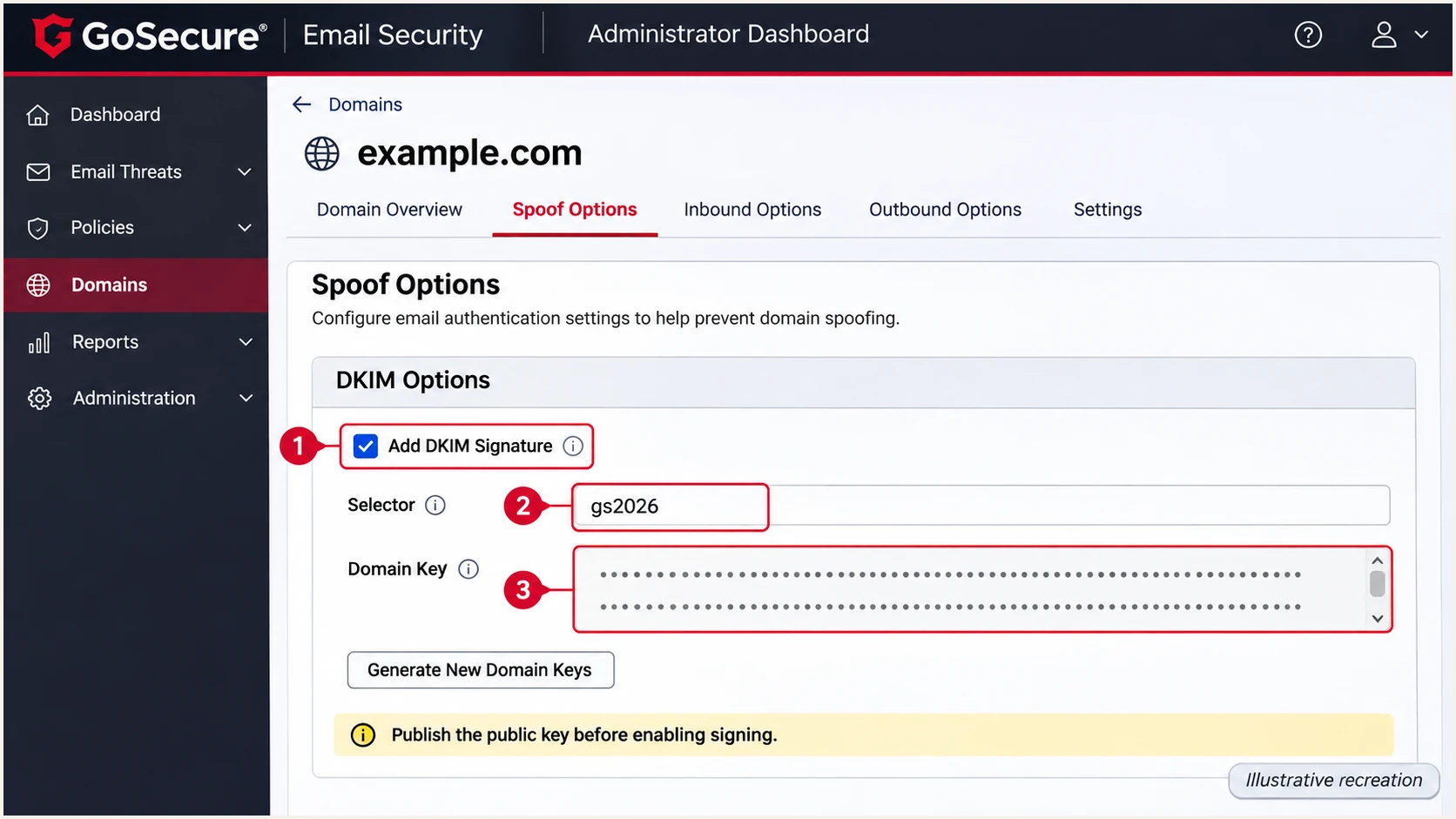
Illustrative GoSecure DKIM controls for the selector, public key, and outbound signing.
GoSecure signing should happen after any outbound content changes, including footers. If the gateway changes a message signed upstream, test the final GoSecure signature rather than assuming the upstream signature survived.
Set up DMARC
Publish your domain DMARC policy in DNS. The GoSecure Enable DMARC control verifies inbound messages; it does not create your outbound domain policy.
For a domain without DMARC, start with p=none. If the domain already uses p=quarantine or p=reject, retain that policy and its reporting destinations while adding GoSecure.
- Inspect the policy: Query TXT at _dmarc.example.com. Edit an existing policy rather than adding a second DMARC record.
- Create the DNS entry: For a new policy, create a TXT record named _dmarc in the example.com zone, using the value shown below.
- Set report delivery: Replace dmarc@example.com with a real aggregate-report destination you control. Keep existing destinations. For an external reporting domain, complete its required reporting authorization.
- Validate publication: Check the public DNS result after caches expire, then use the DMARC checker below to confirm the policy and reporting syntax.
Initial DMARC TXT value at _dmarc.example.comtext
v=DMARC1; p=none; rua=mailto:dmarc@example.com
The example requests aggregate reports without requesting quarantine or rejection for DMARC failures. It does not change SPF authorization or enable DKIM signing.
Use the DMARC record generator to prepare the record with your real reporting address, then paste the resulting value into your DNS provider.
DMARC checker
Look up a domain's DMARC record and catch policy issues.
?/7tests passed
A successful DNS check confirms the published policy. For an actual message, DMARC needs a passing SPF or DKIM result whose authenticated domain has the required relationship to the From domain.
Receivers send aggregate reports on their own schedules, generally daily. I allow 24-48 hours for the first reports after sending traffic, and check the reporting destination if none arrive.
Inbound exceptions do not repair outbound authentication
GoSecure DMARC Exceptions and Override DMARC Policy change local inbound handling. They do not fix missing DNS records, an incorrect signing domain, or the authentication results reported by an external recipient.
Verify and troubleshoot
I test a message that leaves the organization through the configured GoSecure connector. An internal message or a different outbound route does not validate this setup.
- Send a live test: Use the tester destination below and send a normal message through GoSecure, with the same From domain and content processing used in production.
- Inspect the recipient result: Check the trusted recipient Authentication-Results for spf=pass, dkim=pass, and dmarc=pass. Read smtp.mailfrom and header.d to verify domain alignment.
- Confirm the route: Inspect Received headers and the connecting IP. Confirm that the message used the expected GoSecure outbound service.
- Repeat relevant paths: Test automatic replies, application messages, and encrypted or footer-modified messages separately when they take different routes.
The email tester prompts you to send a message to a generated address and returns a diagnosis of the received message. This is the quickest check that DNS publication and live sending agree.
Send directly to that address through GoSecure first. Test forwarding separately so its changes do not hide the result of the original outbound configuration.
Email tester
Send a real email to this address. Suped shows a results button when the test is ready.
?/43tests passed
A clean message has a passing signature for your domain and an expected MAIL FROM domain. The header fragment below is an illustrative result, not a header to add to outgoing messages.
Read the authentication header written by the final recipient system. A sender-supplied header claiming authentication passed is not evidence that the recipient verified it.
Example of recipient authentication resultstext
Authentication-Results: mx.recipient.example;
 spf=pass smtp.mailfrom=example.com;
 dkim=pass header.d=example.com;
 dmarc=pass header.from=example.com
Use the failure type to choose the next check. DNS validation alone cannot detect a connector bypass or a signature broken by a later message modification.
If GoSecure classifies incoming mail as Spoof, inspect its Quarantine Report or Advanced Report with Category set to Spoof and Layout set to Detail. Match the recorded cause before changing a local exception.
|
|
|
|---|---|---|
SPF fail | Egress IP | Correct authorization |
SPF unaligned | MAIL FROM | Correct Return-Path |
DKIM missing | Signing / route | Enable signing |
DKIM fail | Key / changes | Match key; sign last |
DMARC fail | From domain | Correct domain pairing |
No reports | rua / traffic | Check report delivery |
Checks for common GoSecure authentication failures.
After a correction, wait for the applicable DNS TTL and send a fresh message. Reopening an old message does not rerun its original authentication checks.
Get alerted when it breaks
Suped is our DMARC reporting and email authentication platform. For ongoing GoSecure monitoring, its DMARC monitoring connects receiver reports to source-level authentication issues and steps to fix them.
I monitor the GoSecure source and the other legitimate senders separately. A domain-wide pass rate hides failures affecting a small but important application.
- Enable issue emails: In Suped notification settings, enable Issues detected and route notifications to the team responsible for mail authentication.
- Review new sources: Enable Sending sources need verification. Check new IPs and GoSecure-looking rDNS against your connector configuration before marking a source verified.
- Keep a summary: Enable DMARC summary emails to track source volume and authentication changes across reporting periods.
- Investigate changes: Open the affected source and record details for SPF, DKIM, and rDNS diagnostics. Compare DNS history when failures follow a record change.
Suped detects issues when the relevant monitoring data arrives. DMARC aggregate reporting is delayed, so these alerts are not a live verdict for each message.
Keep GoSecure delivery and quarantine investigation alongside that reporting. A DMARC pass does not guarantee inbox delivery or rule out a blocklist (blacklist) problem.
GoSecure operational checks
Use GoSecure for outbound connector configuration, gateway signing controls, and local filtering reports.
Suped monitoring workflow
Use Suped for receiver-reported authentication, source verification, issue notifications, and DNS change history.
This gives the team both the sending configuration and evidence of how external receivers evaluated it. Resolve the cause in GoSecure or DNS, then confirm the recovery in later reports.
Secure your domain with p=reject
Move to p=reject after legitimate mail paths have working domain authentication and you have assessed indirect delivery, especially mailing lists. Keep passing DKIM with domain alignment; do not build rejection readiness around SPF alone.
Our hosted DMARC in Suped lets the team manage policy changes through the dashboard after its DNS setup. Use source verification and issue diagnostics to decide when each stage is ready.
- Inventory senders: Confirm GoSecure and every other legitimate source, including infrequent application mail. Investigate unknown sources without authorizing them solely because of their volume or rDNS.
- Repair failures: Fix signing and Return-Path problems, then retest the affected route. Confirm that changes survive outbound message processing.
- Observe normal use: Collect reports across a representative sending cycle. For general user domains with public mailing-list use, RFC 9989 recommends avoiding reject; if pursuing it, assess at least a month at none followed by a month at quarantine.
- Stage quarantine: Change the existing record to p=quarantine only after evaluating legitimate failures. Keep reporting enabled and review delivery effects before proceeding.
- Apply rejection: Change that same record to p=reject when the remaining risks are understood. Review subdomain policy coverage, including explicit child records and any sp setting.
- Keep monitoring: Use Suped alerts to investigate new senders or regressions after enforcement. Test future connector changes and DKIM key rotations before treating them as complete.
DMARC rejection example after validation, at _dmarc.example.comtext
v=DMARC1; p=reject; rua=mailto:dmarc@example.com
Replace the reporting address and preserve other required tags. Publish one policy record at the name; this example replaces the earlier monitoring value.
I keep relaxed alignment unless there is a specific requirement for strict matching. If a legitimate indirect flow remains incompatible, resolve that flow or use a separate sending subdomain before tightening the affected policy.
Enforcement readiness
Verify GoSecure signing on delivered messages, resolve failures for legitimate sources, and keep report delivery working. A high overall pass rate alone is insufficient evidence to enforce rejection.
After each stage, compare receiver-reported dispositions with delivery logs and reported delivery problems. Aggregate report coverage does not include every recipient.
Keep a saved copy of the working policy and selector records. If a configuration change causes legitimate mail failures, restore the affected setting and retain reporting while investigating.
Frequency asked questions
An rDNS hostname ending in .gosecure.net is associated with GoSecure infrastructure. Confirm the connecting IP, Received headers, and your outbound configuration before identifying it as an authorized sender. The suffix alone does not prove permission to send for your domain.
No. Authorize GoSecure in SPF when its servers send outbound messages using a MAIL FROM domain you control. Inbound MX routing does not require adding GoSecure to your outgoing SPF policy.
The public quick-start instructions specify ip4:208.80.200.0/21. Confirm that it applies to your assigned outbound service, then merge it into the existing SPF record before the all mechanism. Preserve other authorized senders.
No. It enables DMARC verification for incoming messages. Your domain policy is a DNS TXT record at _dmarc followed by your domain name. Configure outbound signing and SPF separately.
Yes. A valid DKIM signature whose signing domain has DMARC alignment with the From domain is sufficient for a DMARC pass. Still verify GoSecure Return-Path settings, since GoSecure supports SPF alignment. Do not replace a working DKIM setup merely to remove an expected SPF alignment warning on another source.
Compare the delivered signature selector and signing domain with the published public key. Check that signing is enabled and the message used the intended route. If GoSecure adds a footer or otherwise changes signed content, confirm that a valid GoSecure signature is added after those changes.




