
How to set up DMARC/DKIM/SPF for goneo E-Mail


For goneo E-Mail, publish one SPF TXT record containing include:_spf.goneo.de, retain goneo's automatic DKIM configuration, and add a DMARC TXT record at _dmarc. Start a new DMARC deployment with p=none and a working reporting address. Keep an existing quarantine or reject policy in place.
I verify the result with a message sent through goneo. DMARC requires a passing SPF or DKIM result whose authenticated domain matches the visible From domain under the applicable alignment rules. A DNS record alone does not prove that outgoing mail passes.
Add your domain
Use the domain attached to your goneo email package. An existing working goneo mailbox already has this prerequisite covered.
- Register or transfer. If the domain is missing, open Domains, then Domain bestellen oder transferieren. For a transfer, obtain the AuthCode or AuthInfo code from the current registrar and complete the order.
- Create the mailbox. Open E-Mail > Domainauswahl. Click the wrench beside your domain, choose Neues Konto anlegen, enter the account name and password, allocate storage, then click Speichern.
- Confirm operation. Sign in to goneo Webmail with the full email address. Send a message to an external mailbox and reply to it to verify outbound and inbound delivery.
- Locate DNS control. Open Expertenfunktionen > DNS-Editor and select the domain. Confirm that these are its authoritative DNS settings before editing records.
Domain transfers move the registration. Recreate mailboxes and preserve the required DNS settings as part of the migration.
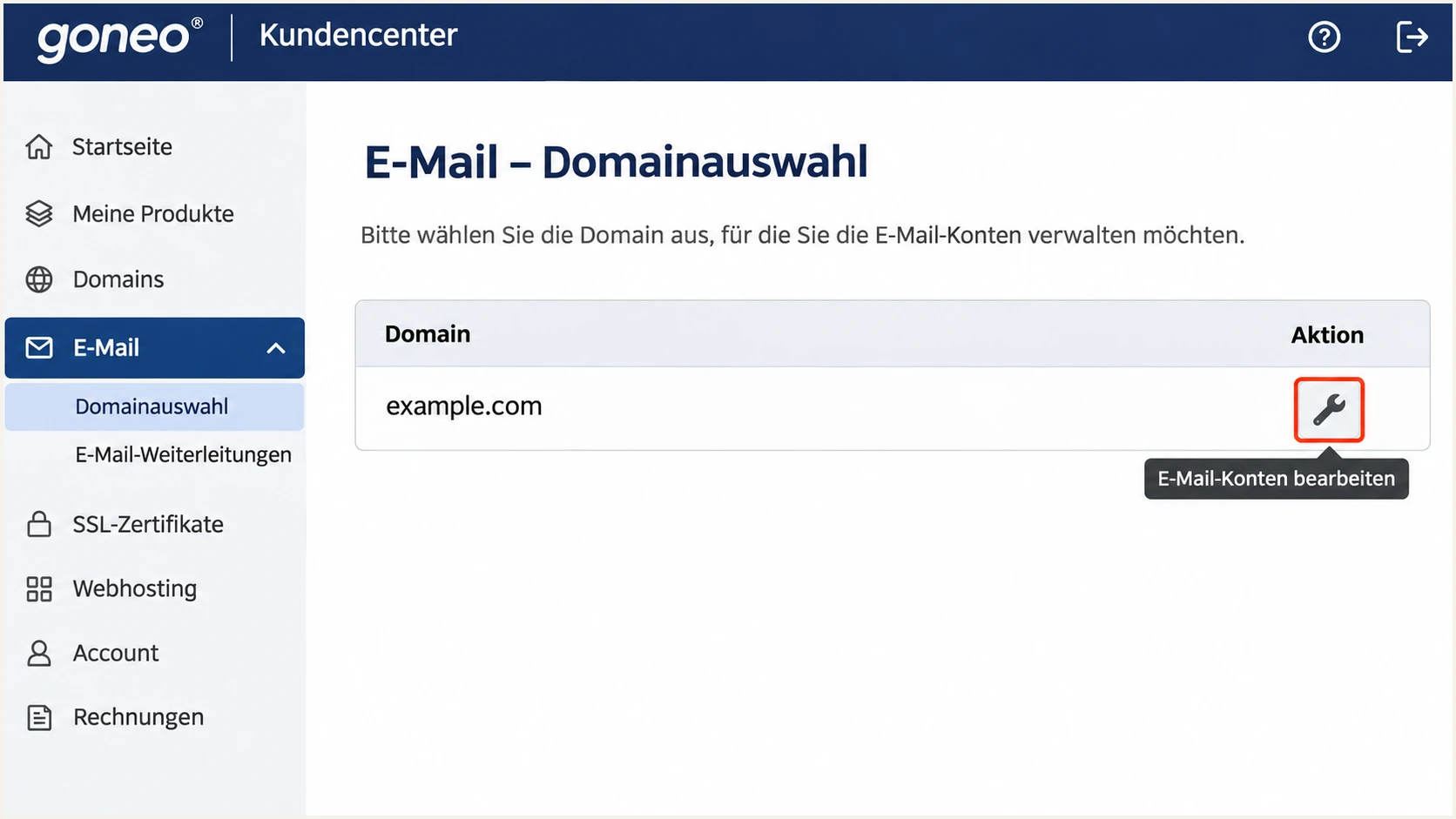
Illustrative goneo domain selection for managing email accounts.
If another provider hosts the authoritative DNS, publish authentication records there. Editing an inactive DNS zone has no effect on delivery.
goneo's SPF help excludes Domain Start and E-Mail Start from DNS editor access. If the editor is unavailable, ask goneo support about the required DNS change or package access.
Set up SPF
goneo's published SPF value is v=spf1 include:_spf.goneo.de ~all. I first check for an existing SPF record so that other authorized senders remain covered.
- Open the editor. Go to Expertenfunktionen > DNS-Editor and select the sending domain.
- Edit one record. Find the TXT record beginning v=spf1 and edit it. Choose Neuer Eintrag only if no SPF record exists.
- Set the hostname. Select TXT. Leave Hostname empty for the domain root; goneo uses an empty field where other DNS hosts use @.
- Enter the value. Put the SPF value below in Ziel, preserving any required authorizations for other senders. Save with Änderungen übernehmen.
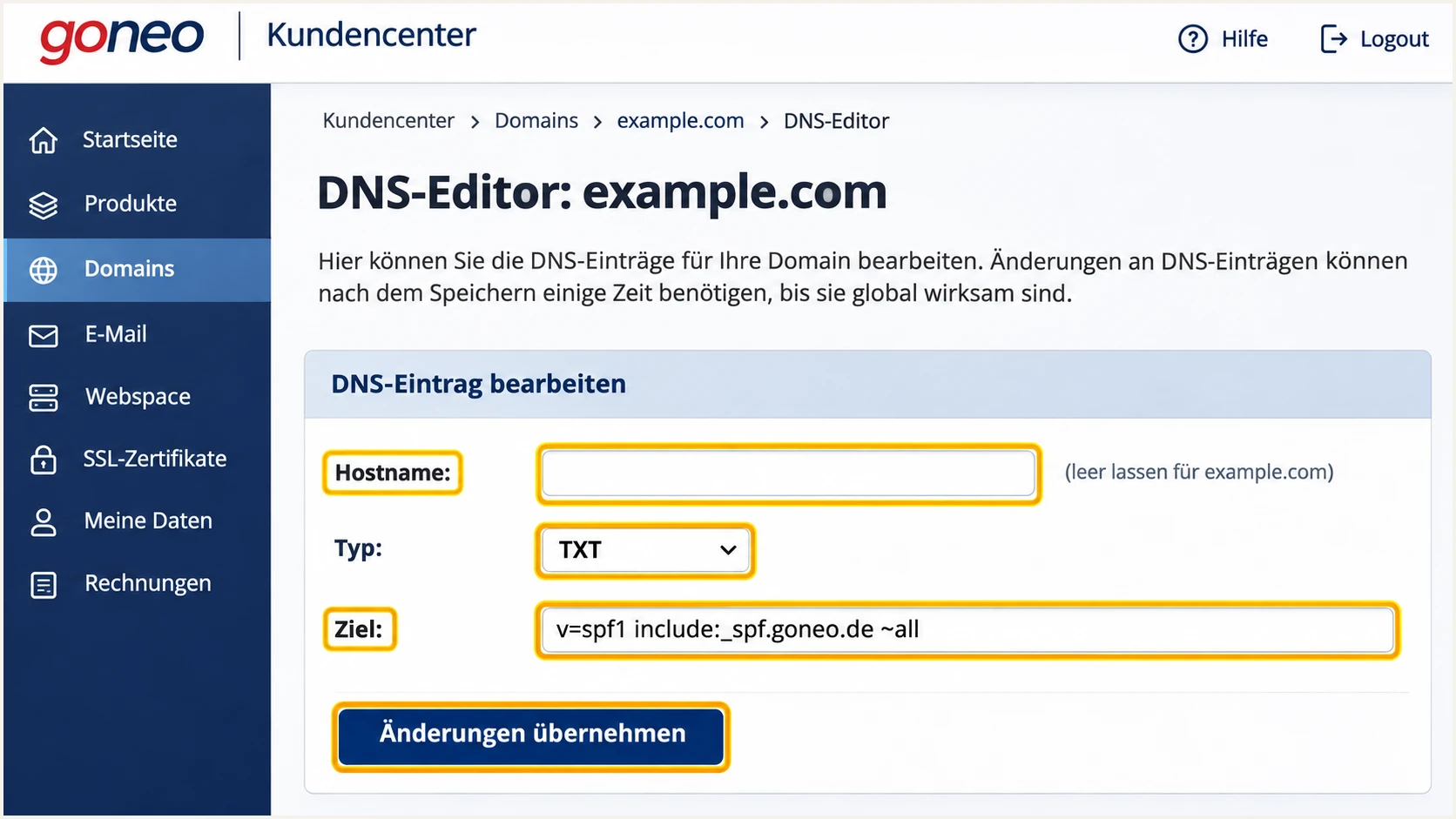
Illustrative goneo SPF form with a blank root hostname.
Keep all authorized senders in one SPF record. Multiple SPF records at the same name cause permerror. The complete evaluation must stay within the limit of 10 DNS-querying terms, including nested includes.
For a domain sending only through goneo, use this TXT value. Preserve an existing -all qualifier when its stricter policy is intentional.
SPF TXT value for goneo-only sendingtext
v=spf1 include:_spf.goneo.de ~all
The ~all qualifier produces softfail for unmatched senders. It does not guarantee rejection. Avoid adding broad a or mx mechanisms unless those hosts actually send your mail.
goneo supports Return-Path alignment. Check the delivered message's envelope-sender domain, which SPF authenticates. If it is a subdomain, publish SPF at that exact name too; SPF does not inherit the parent record.
SPF checker
Find SPF syntax issues, lookup limits, and weak records.
?/16tests passed
Enter the actual envelope-sender domain in the SPF checker. Check for one SPF record, successful include resolution and an evaluation within the lookup limit.
goneo advises allowing up to 24 hours for DNS changes. After cached records expire, send another message and inspect the receiver's SPF result.
Set up DKIM
goneo's "DKIM-Signaturen in E-Mails von goneo" documentation states that DKIM is provisioned by default for domains registered with goneo when sending through its mail servers.
- Use goneo SMTP. Configure smtp.goneo.de with port 465 and implicit TLS, or port 587 and STARTTLS. Authenticate with the full mailbox address and mailbox password.
- Inspect a delivered message. Read DKIM-Signature and note d=, the signing domain, and s=, the selector. Use the actual selector on your message.
- Check the public key. In the DNS editor, inspect the corresponding selector._domainkey record. Preserve goneo's supplied record type and complete value.
- Repair with goneo. If the signature or key is missing, ask goneo to confirm signing and restore the correct DNS record. If DNS is hosted elsewhere, publish the current record supplied by goneo there.
Keep the provider-managed DKIM key
Preserve goneo's public key unless goneo supplies a replacement. An independently generated key does not match the private key used by goneo's signing server.
Require dkim=pass and a signing domain that matches your From domain. A valid signature under an unrelated provider domain does not supply DKIM alignment for your domain.
Set up DMARC
For a new deployment, use p=none to collect reports before enforcement. If your domain already uses p=quarantine or p=reject, keep that policy while correcting goneo authentication.
- Open the zone. In Expertenfunktionen > DNS-Editor, select the exact domain used in your visible From address.
- Create one TXT record. Choose Neuer Eintrag, select TXT and enter _dmarc in Hostname. Edit the existing DMARC record instead if one is already present.
- Set reporting. Paste the value below into Ziel. Replace dmarc@example.com with a real reporting destination you control, then save the change.
- Preserve policy. Keep the existing policy and reporting destinations when editing an established deployment. Publish only one DMARC record at this name.
Initial DMARC TXT value at _dmarc.example.comtext
v=DMARC1; p=none; rua=mailto:dmarc@example.com
The p=none policy requests monitoring without DMARC enforcement. Mailbox providers still apply their own spam and security checks.
Use the DMARC record generator to prepare the value. The example address is a placeholder; a reporting destination on another domain also needs external reporting authorization in DNS.
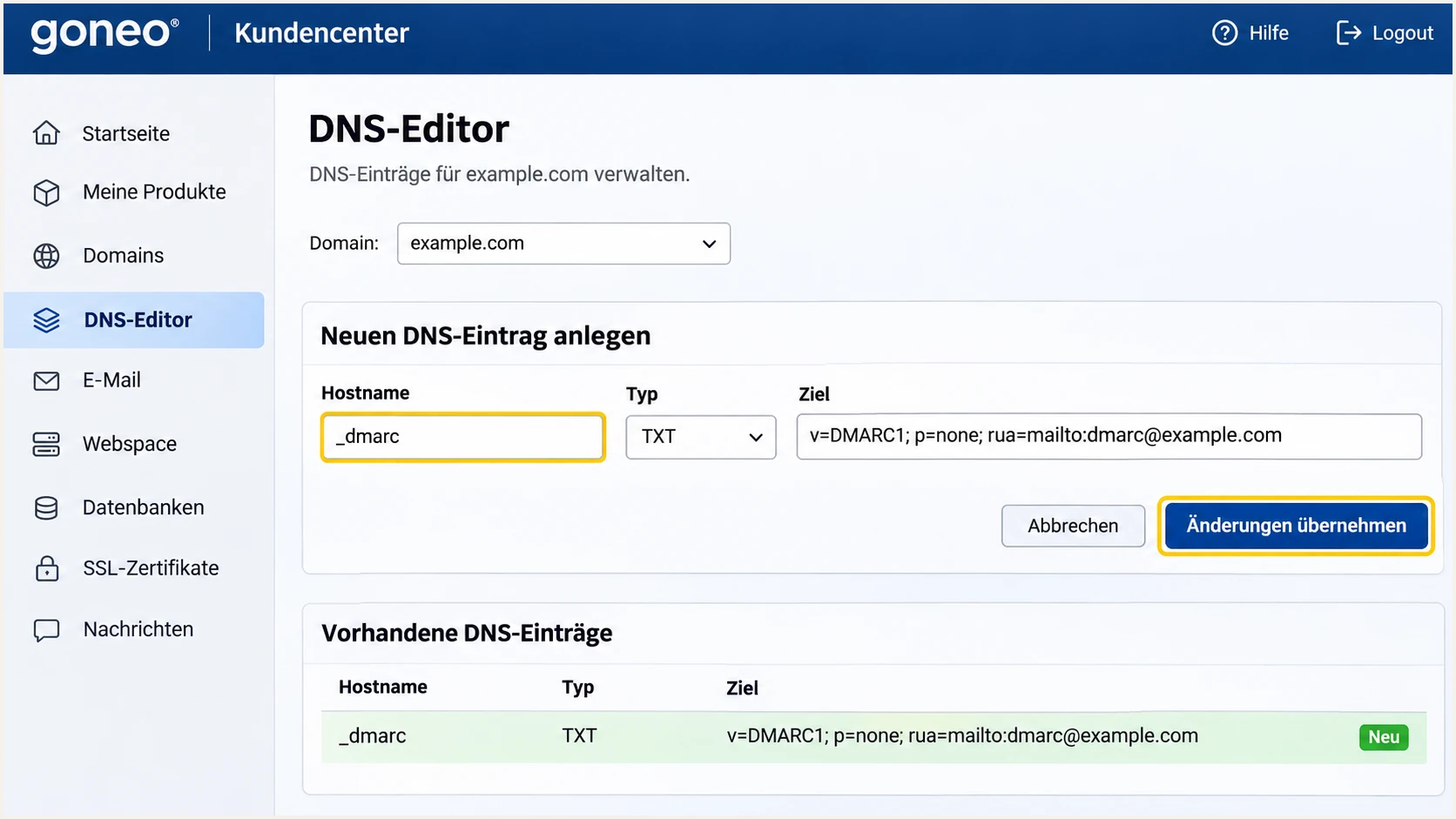
Illustrative goneo DNS form for a new monitoring DMARC record.
For example.com, the resulting DNS name must be _dmarc.example.com. Avoid entering the full name if the editor appends the domain automatically.
Enter the sending domain below to check that its DMARC record is publicly visible. Confirm the requested policy and reporting address.
DMARC checker
Look up a domain's DMARC record and catch policy issues.
?/7tests passed
A successful lookup confirms the published policy. Send a fresh message to verify that the receiver evaluates it as dmarc=pass.
Aggregate reports commonly arrive daily, with initial data often taking 24-48 hours. Ensure the reporting mailbox or processor accepts them.
Verify and troubleshoot
I test each real sending path, including mailbox SMTP and website forms. A working webmail message does not validate an application using a different outbound server.
- Send a fresh test. Use the email tester below and send to the address it provides through your normal goneo mailbox or application.
- Inspect receiver results. Look for spf=pass, dkim=pass and dmarc=pass. Compare smtp.mailfrom and header.d with header.from, allowing matching subdomains under relaxed alignment.
- Check aliases. Authenticate using the mailbox account that owns the alias, as goneo instructs. Test every alias domain separately.
- Open the source. In goneo Webmail, select a received message, click Mehr and choose Quelltext anzeigen. For your outbound test, inspect the copy at the external recipient.
The email tester diagnoses a delivered message, including authentication and domain matching. It is the quickest check that the configuration works for the route you tested.
Send through the application you want to validate. Forwarding an old message to the tester changes the delivery path and does not reproduce direct sending.
Email tester
Send a real email to this address. Suped shows a results button when the test is ready.
?/43tests passed
Read the individual SPF and DKIM results alongside DMARC. SPF alignment errors are compatible with a DMARC pass when a matching DKIM signature passes.
For goneo's direct SMTP route, investigate an unexpected Return-Path mismatch. For a forwarded route, prioritize a surviving, matching DKIM signature.
|
|
|
|---|---|---|
SPF permerror | Duplicate SPF | Merge records |
SPF mismatch | Return-Path | Correct sender |
DKIM missing | SMTP route | Use goneo SMTP |
DKIM failure | Selector/key | Restore key |
DMARC absent | TXT hostname | Use _dmarc |
DMARC failure | Domain match | Fix SPF or DKIM |
Checks for common goneo authentication failures.
Use authentication results added by the receiving system you trust. Earlier header fields supplied by an untrusted sender are not proof of authentication.
For DNS inspection, replace example.com and SELECTOR with the signing domain and selector on your message. These commands inspect DNS; the receiving server verifies the message signature.
Inspect authoritative DNS and authentication recordsbash
dig +short NS example.com
dig +short TXT example.com
dig +short TXT _dmarc.example.com
dig +short TXT SELECTOR._domainkey.example.com
dig +short CNAME SELECTOR._domainkey.example.com
If results differ between resolvers, compare them with the authoritative nameserver and wait for the previous TTL to expire.
If DKIM still fails after DNS is correct, send goneo support the full received headers, timestamp and sending route. Ask them to check signing and selector provisioning.
Get alerted when it breaks
Suped, our DMARC platform, turns receiver reports into source-level authentication checks and actionable issues. Our DMARC monitoring gives teams an ongoing way to detect changes after the initial goneo test.
- Enable issue emails. In Suped notification settings, enable Issues detected and Sending sources need verification. Enable DMARC summaries for a recurring review.
- Verify known sources. Confirm goneo and your other legitimate sending sources. Investigate unfamiliar sources before marking them as authorized.
- Investigate failures. Open the affected source and inspect SPF, DKIM and DMARC diagnostics. Use the issue's steps to fix the relevant goneo or DNS configuration.
- Confirm recovery. Repeat the message test after the change, then check subsequent reports for recovery across affected receivers.
These checks require aggregate reports to reach Suped through your configured reporting destination. Keeping rua pointed only at an unprocessed mailbox does not supply those reports to Suped.
Allow for receiver reporting delays
DMARC report-based notifications follow the receiver's reporting schedule, commonly daily. Use a fresh email test to verify an urgent change while waiting for aggregate reports.
Suped's DNS history helps compare record changes when a previously healthy source starts failing. Check the changed value against the last working configuration.
Keep goneo as the sending service and apply the fixes in its Kundencenter or the authoritative DNS host. Suped supplies the monitoring and issue investigation.
Secure your domain with p=reject
Move to p=reject after every legitimate sending path passes DMARC. I review a complete business sending cycle so that occasional invoices and automated messages are included.
- Inventory senders. Review goneo mailboxes, website forms, billing systems and any other service using your From domain. Verify ownership of each legitimate source.
- Fix legitimate failures. Use Suped's source and record diagnostics to distinguish broken authorized mail from unauthorized attempts. Judge readiness by legitimate traffic, rather than one overall pass percentage.
- Stage enforcement. For a new rollout, change p=none to p=quarantine after legitimate failures are resolved. Check reports and delivery, then change to p=reject.
- Keep matching flexible. Retain relaxed SPF and DKIM alignment unless you have a tested requirement for strict matching. Review sending subdomains and any separate DMARC policies.
- Keep reporting active. Retain rua after enforcement. Investigate new source failures and retest after mailbox, website or DNS changes.
Suped combines source verification with issue diagnostics for this rollout. Use that evidence to decide when legitimate mail is ready for enforcement.
Edit the TXT record directly
Change the existing DMARC value in goneo's DNS editor for each policy stage. Keep one record and recheck public DNS after saving.
This requires DNS access for policy changes.
Manage the policy in Suped
Our Hosted DMARC lets you manage policy stages in Suped after the required DNS delegation is configured.
Use the exact setup value supplied for your domain. Replace a TXT record at the same name when configuring a CNAME; they cannot coexist there.
For direct TXT management, publish the enforcement value below only after testing. Replace the example reporting address with your actual destination.
An established quarantine or reject policy does not need to be weakened to add goneo. Correct its sending configuration and confirm passing messages under the existing policy.
Final DMARC TXT value at _dmarc.example.comtext
v=DMARC1; p=reject; rua=mailto:dmarc@example.com
The reject policy asks receivers to reject messages that fail DMARC. Receivers retain local delivery discretion.
Continue reviewing new sources after enforcement. DMARC does not prevent abuse through compromised authenticated mailboxes or protect unrelated lookalike domains.
Frequency asked questions
Use include:_spf.goneo.de within your single SPF TXT record. For goneo-only sending, the documented value is v=spf1 include:_spf.goneo.de ~all. Preserve other required sender authorizations.
goneo documents automatic DKIM for domains registered with goneo and messages sent through its servers. Verify dkim=pass on a delivered message and check that the signing domain matches your From domain. Ask goneo to restore missing signing or DNS records.
Yes. A passing DKIM signature with a matching signing domain is sufficient for DMARC even when SPF fails or its domain does not match. Forwarding often changes the SPF result. Investigate unexpected mismatches on direct goneo sends.
goneo states that its DNS editor is excluded from Domain Start and E-Mail Start. Confirm your package and ask goneo support about DNS access or record changes. Authentication records must be published at the authoritative DNS host.
Use evidence rather than a fixed waiting period. Test every authorized source and review reports over a complete sending cycle, including infrequent mail. Advance when legitimate failures are resolved, and keep reporting active.
Hostnames ending in goneo.de are associated with goneo infrastructure. Publicly archived delivery headers include smtp052.goneo.de and smtp6.goneo.de. Confirm the actual sending IP and its current PTR record, then check SPF and matching DKIM. A hostname alone does not authorize a sender for your domain.




