
How to set up DMARC/DKIM/SPF for GMX

Published 21 Nov 2026
Updated 21 Nov 2026
11 min read
Summarize with
GMX manages SPF, DKIM and DMARC for addresses ending in @gmx.net or @gmx.de. You do not publish DNS records for those addresses. For your own domain in GMX Homepage & Mail, create its sender address, verify the SPF and DKIM configuration used by GMX, and publish a DMARC record in your domain's DNS.
I start with the domain after the @ sign. These DNS steps apply to a domain you own, such as example.com. DMARC requires SPF or DKIM to pass with domain alignment to the visible From address.
Add your domain
Use GMX Homepage & Mail, also called Domain & Mail, for a personal domain. A GMX mailbox does not give you DNS control over gmx.net or gmx.de.
- Open domain management: Sign in to GMX on a desktop browser. Click your initials at the top right, then "Domain verwalten".
- Register or select: Choose your existing domain. For a new purchase, click "Neue Domain anlegen" and complete registration. For a transfer, use "Domain- und Produktübersicht" > "Umzug einer Domain zu GMX" and supply the authorization code.
- Create the address: In "Domain-Übersicht", click "E-Mail-Adressen" beside your domain. Enter the address name and your GMX destination mailbox, then click "Speichern".
- Choose the sender: Click "E-Mail schreiben", open "Von/CC/BCC", and select the new address in "Von". Send a message to an independent receiving mailbox.
- Verify operation: Send a message back to the new address. Confirm that it reaches the intended GMX mailbox and that outbound mail has the correct From address. Complete any registration or transfer confirmation requested by GMX.
GMX documents these steps in "Homepage & Mail: Neue Domain anlegen" and its Homepage & Mail help center. An address forwarded to a non-GMX mailbox is receive-only through that arrangement.
Working mail flow does not prove authentication. Check DNS and a delivered message next. Some GMX system DNS records are protected; ask support to correct those.
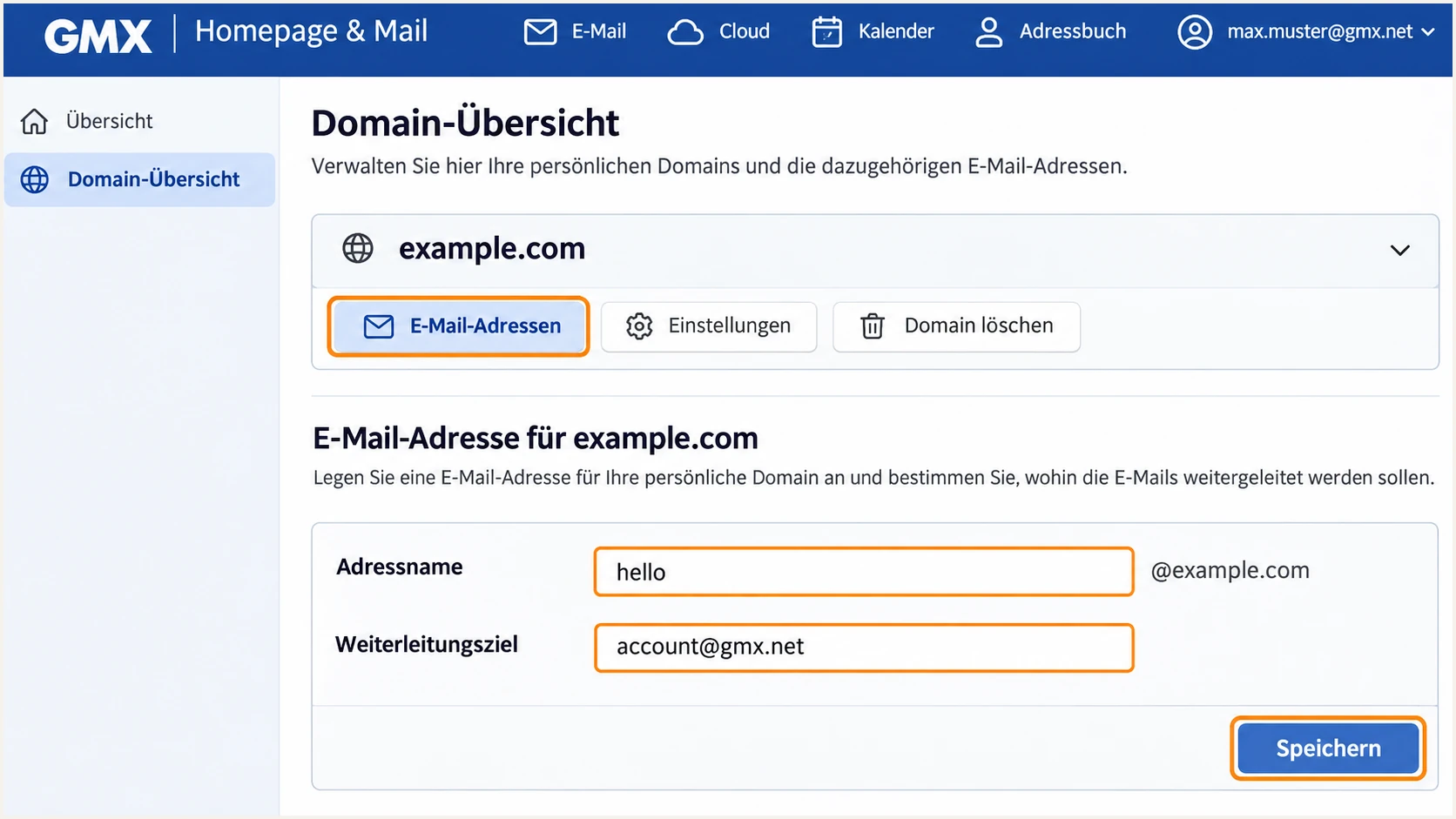
Illustrated GMX personal-domain address form and Save button.
Set up SPF
SPF checks the envelope sender, normally shown in Return-Path, against the sending IP. GMX supports Return-Path alignment, but I check the actual route before changing DNS.
GMX maintains SPF for its own domains. For a personal domain, inspect the provisioned record. The public Homepage & Mail documentation does not establish a universal SPF value for personal domains.
- Find the checked domain: Read Return-Path and the receiving server's Authentication-Results. Record the domain identified by smtp.mailfrom.
- Inspect existing SPF: Query TXT records at that domain and find the value beginning v=spf1. If the domain belongs to GMX, its SPF is managed by GMX.
- Use confirmed values: For an envelope domain you control, retain GMX-provisioned SPF or use the authorization supplied for your account. Request missing values from GMX support. Do not guess includes or copy historical IP lists.
- Keep one policy: Merge authorized senders into a single SPF TXT record at each checked domain. Keep DNS-querying SPF terms within the limit of 10 during evaluation, including nested includes.
Inspect your domain's current TXT recordsbash
dig +short TXT example.com
Replace example.com with the actual envelope domain. If Return-Path uses a subdomain, query that subdomain; SPF does not automatically inherit the parent domain's record.
Check the envelope domain below for SPF syntax and lookup limits. Confirm SPF alignment using a delivered message.
SPF checker
Find SPF syntax issues, lookup limits, and weak records.
?/16tests passed
For From at example.com, SPF using example.com or its subdomain satisfies relaxed SPF alignment. SPF using gmx.net does not.
If a route retains a GMX-owned Return-Path, adding SPF to example.com cannot fix SPF alignment. DMARC still passes through valid DKIM with domain alignment. Ask GMX about the route if SPF alignment is required.
Set up DKIM
GMX must sign outgoing messages for DKIM to work. Publishing a public key does not enable signing. I check the signature on a delivered personal-domain message.
- Send a fresh message: Select the intended personal-domain address in GMX and send to an external recipient. Inspect the delivered message, rather than relying on the Sent folder copy.
- Read the signature: Find DKIM-Signature and note its d= signing domain and s= selector. Check every signature if there is more than one.
- Look up the public key: Query TXT at the selector followed by ._domainkey and the signing domain. Check for a CNAME delegation too. Use values from the real message, not a guessed selector.
- Verify domain alignment: Confirm dkim=pass and that a passing signature's signing domain shares the organizational domain of the From address under relaxed alignment. Strict alignment requires an exact domain match.
- Resolve missing signing: If DKIM is absent or uses an unrelated domain, send the delivered headers to GMX support. Request personal-domain signing and its DNS requirements. Publish only the TXT key or CNAME that GMX supplies.
Illustrative lookup, replace both selector and signing domainbash
dig +short TXT selector._domainkey.example.com
dig +short CNAME selector._domainkey.example.com
Replace selector with s= and example.com with d= from the actual signature. A DNS key alone does not prove signing works; check the receiver's dkim=pass result.
A passing signature with d=gmx.net does not provide DKIM alignment for From at example.com. Resolve missing domain alignment with GMX before enforcing DMARC.
DNS cannot replace server-side signing
Do not generate a new DKIM key and assume GMX will use it. GMX needs the matching private key and signing configuration. Preserve working provider-managed selectors unless GMX instructs you to replace them.
Set up DMARC
Start a new personal-domain policy with p=none and aggregate reporting. Keep an existing p=quarantine or p=reject policy while correcting GMX authentication.
Create the reporting mailbox first. Replace the example dmarc@example.com address below with your real report destination.
- Open the DNS zone: Open the authoritative DNS management for your domain. In GMX, use your initials > "Domain verwalten", select the domain, and open its DNS records. Contact support for protected records.
- Choose the record: Add a TXT record with host _dmarc, or the full name _dmarc.example.com if the editor requires a complete name.
- Set the policy: For a new setup, use the record below with your reporting address. Preserve stricter policy and existing reporting tags when editing an established record.
- Avoid duplicates: Maintain one DMARC policy record at that name. Re-query DNS after the previous TTL expires and confirm the published value.
New monitoring policy: TXT at _dmarc.example.comtext
v=DMARC1; p=none; rua=mailto:dmarc@example.com
Use the DMARC record generator to build the record with your real reporting destination. Add the value to a TXT record, rather than pasting it into an SPF record.
Check whether the DNS editor appends the domain name automatically. Avoid duplicating the domain suffix, then validate below.
DMARC checker
Look up a domain's DMARC record and catch policy issues.
?/7tests passed
A p=none policy requests monitoring without DMARC-based quarantine or rejection. It does not repair SPF or DKIM, and it does not guarantee inbox placement.
An external rua destination needs reporting authorization. Aggregate reports arrive in batches, often daily. Allow 24-48 hours for initial data; one test message does not trigger an immediate report.
Verify and troubleshoot
I test the production address through GMX webmail and each SMTP client or application that uses the account.
- Check the From address: Make sure the test uses your personal-domain address rather than the account's default @gmx.net address. In GMX compose, use "Von/CC/BCC" > "Von".
- Separate pass and alignment: Read SPF and DKIM authentication results alongside their domains. DMARC needs at least one passing method with domain alignment.
- Investigate errors: For SPF permerror, check duplicate records and DNS lookup limits. For DKIM fail, check the selector lookup and message changes. For a missing personal-domain signature, contact GMX with the full delivered headers.
- Test forwarding: Compare a directly delivered copy with a forwarded copy. Forwarding can break SPF; a surviving DKIM signature with domain alignment can keep DMARC passing.
|
|
|
|---|---|---|
SPF permerror | Invalid SPF | Fix DNS or lookup count |
DKIM absent | No signature | Ask GMX about signing |
DKIM pass, DMARC fail | Domain mismatch | Compare From and d= |
SPF fail, DMARC pass | DKIM satisfies DMARC | Check route and forwarding |
Authentication results and the next action.
A delivered-message test checks the signature and envelope identity together. It is the quicker way to confirm the complete setup.
Open the email tester, copy its recipient address, and send a fresh message from GMX. It returns a full diagnosis of the received message, including authentication results.
Email tester
Send a real email to this address. Suped shows a results button when the test is ready.
?/43tests passed
Trust Authentication-Results added by the receiver. A sender-supplied result or DKIM-Signature header alone does not prove authentication passed.
In a GMX recipient mailbox, open the received message, click the top-right three dots, and choose "Mehr Informationen". GMX documents this in "Erweiterten Header einer E-Mail auslesen und weiterleiten".
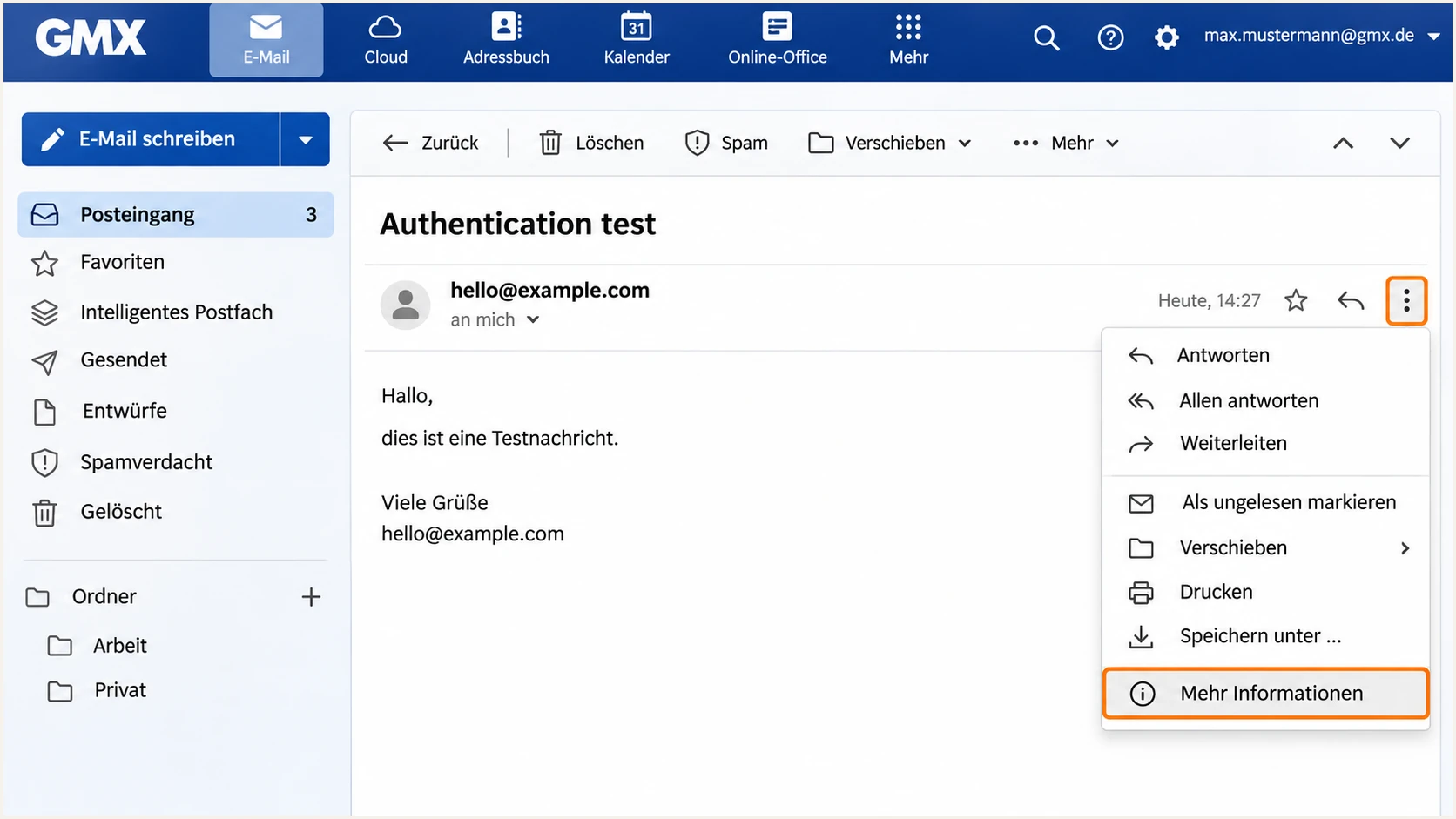
Illustrated GMX message menu with More information highlighted.
Use an independent recipient to test the normal outbound route. Inspect the recipient-side copy rather than the original in Sent.
If delivery fails, retain the SMTP rejection and sending IP. Report shared-server blocklist (blacklist) problems to GMX; customers do not control its PTR records or shared IP reputation.
Get alerted when it breaks
I treat a passing test as a baseline. Our DMARC platform, Suped, processes aggregate reports into source diagnostics and issue notifications for investigating changed sending routes or broken DNS.
- Keep reporting active: Use the report destination assigned to your monitoring configuration in the domain's rua tag. Preserve the existing enforcement policy and verify any external reporting authorization.
- Enable notifications: In Suped notification settings, enable "Issues detected" and "Sending sources need verification". Configure DMARC summary emails for the people responsible for the domain.
- Review unfamiliar sources: Confirm that GMX traffic and every other legitimate sender are recognized. Investigate an unknown source before treating it as authorized.
- Use the diagnostics: Open the affected source or record in Suped and inspect SPF, DKIM and DMARC results. Follow the issue's fix steps, then verify the corrected DNS and send another GMX test.
For ongoing DMARC monitoring, Suped combines the report history with detected issues and DNS history. That gives the domain owner evidence for a GMX support request and a way to confirm the repair.
Alerts depend on report arrival and processing. Check SMTP bounces immediately; use reporting to identify recurring authentication failures.
GMX delivery feedback
Bounces identify a specific failed delivery. Full headers show the identities and signatures on a delivered message.
Use these when collecting evidence about an individual sending route.
Suped monitoring
Aggregate reports show authentication patterns across reporting receivers. Issues and notifications identify failures that need attention.
Use these to track the domain over time and verify that a repair holds.
Secure your domain with p=reject
GMX controls policy for gmx.net and gmx.de. For a personal domain, I wait until every approved route reliably passes DMARC before applying p=reject.
- Inventory legitimate mail: Review reports over a complete sending cycle, including infrequent automated messages. Confirm ownership of every approved sending source before changing enforcement.
- Fix approved sources: Resolve legitimate-mail failures. Keep personal-domain DKIM working because forwarding can break SPF. Do not authorize unknown sources to increase the pass rate.
- Stage enforcement: Apply p=quarantine and check legitimate delivery and reports. Move to p=reject when approved routes remain healthy. Preserve existing enforcement while fixing isolated problems.
- Check subdomains: Review sending subdomains and any separate DMARC records. Without an overriding subdomain policy, enforcement on the parent can affect subdomain mail too.
- Retain reporting: Keep rua active after enforcement. Send fresh tests through each GMX route and compare new failures against the approved sender inventory.
Final policy example: TXT at _dmarc.example.comtext
v=DMARC1; p=reject; rua=mailto:dmarc@example.com
Suped's source verification and failure diagnostics provide the evidence for each policy change. Our Hosted DMARC lets teams manage the policy through the dashboard after its DNS delegation is configured; it does not alter GMX's signing behavior.
If a protected GMX DNS record prevents the required delegation, use a standard DMARC TXT record and ask GMX to make the necessary change. Monitoring remains useful without hosted policy management.
Enforce after legitimate routes pass
Unauthorized mail is expected to fail. Base enforcement on verified legitimate mail passing DMARC, including every GMX route your users use.
A reject policy requests rejection of DMARC failures; receivers control their handling. It does not stop compromised authorized accounts or different, similar-looking domains.
After policy changes, check bounces and reports. Repair failing legitimate routes and retest. Save the previous policy value for a controlled rollback if needed.
Frequency asked questions
No. GMX controls the authentication records and signing for @gmx.net and @gmx.de addresses. You cannot publish your own records for those domains. Send a test message to verify the authentication on your account's actual mail.
Use the SPF configuration provisioned for your domain or supplied by GMX support. Obtain the DKIM selector from a delivered message's s= tag and its signing domain from d=. The public Homepage & Mail documentation does not provide a universal copy-and-paste SPF and DKIM setup for every account.
DKIM pass means the signature validates. DMARC also checks domain alignment with the visible From address. A signature using d=gmx.net does not satisfy that requirement for a From address at example.com. Check whether any passing signature uses your domain and whether SPF provides a separate passing path with domain alignment.
GMX lists mout.gmx.net and mout-bounce.gmx.net as outbound server names and mout-xforward.gmx.net for forwarding servers. Its published server list includes 212.227.15.18 for mout.gmx.net and 82.165.159.12 for mout-xforward.gmx.net. Verify the connecting IP and authentication results too; an rDNS name alone does not establish that your domain authorized the message.
Yes, when every legitimate sending route reliably passes DKIM with domain alignment. DMARC requires one passing method with domain alignment, rather than both SPF and DKIM. Test forwarded messages and keep monitoring active. Resolve missing or unrelated-domain DKIM signing before enforcing a route that cannot pass through SPF.




