
How to set up DMARC/DKIM/SPF for GleSYS

Set up GleSYS email authentication by publishing the SPF value from its email template, adding GleSYS's DKIM record for your domain, and publishing a DMARC TXT record at _dmarc. Start a new DMARC policy with p=none; retain an existing quarantine or reject policy.
I first check whether email leaves through GleSYS hosted mailboxes or directly through a cloud server. Hosted email has automatic DKIM signing, with an additional DNS record for signing with your domain. Direct server sending requires authorization of the server's outbound IP and a DKIM signer on that server.
Add your domain
For hosted mailboxes, GleSYS requires the domain in the project's DNS service before it appears under Email. Registration and authoritative DNS hosting can remain with your existing provider.
- Select the project: Sign in to GleSYS Cloud and choose the project that will own the email accounts.
- Add the domain: Open Email under Domains. If the domain is missing, use Add or transfer existing domain to reach the DNS service and add your existing domain. A registrar transfer is unnecessary for email hosting.
- Create a mailbox: Return to Email, select the domain, open the plus menu, and choose Create account. Enter the mailbox name, click Create, and securely save the generated password.
- Verify the setup: Confirm the domain and mailbox appear in Email. Check the public nameservers with the command below, then publish authentication records at the provider those nameservers identify.
Find the authoritative DNS providerbash
dig +short NS example.com
Adding a domain to GleSYS's inventory does not make its DNS zone authoritative. I check public DNS and send an external test message before treating the setup as verified.
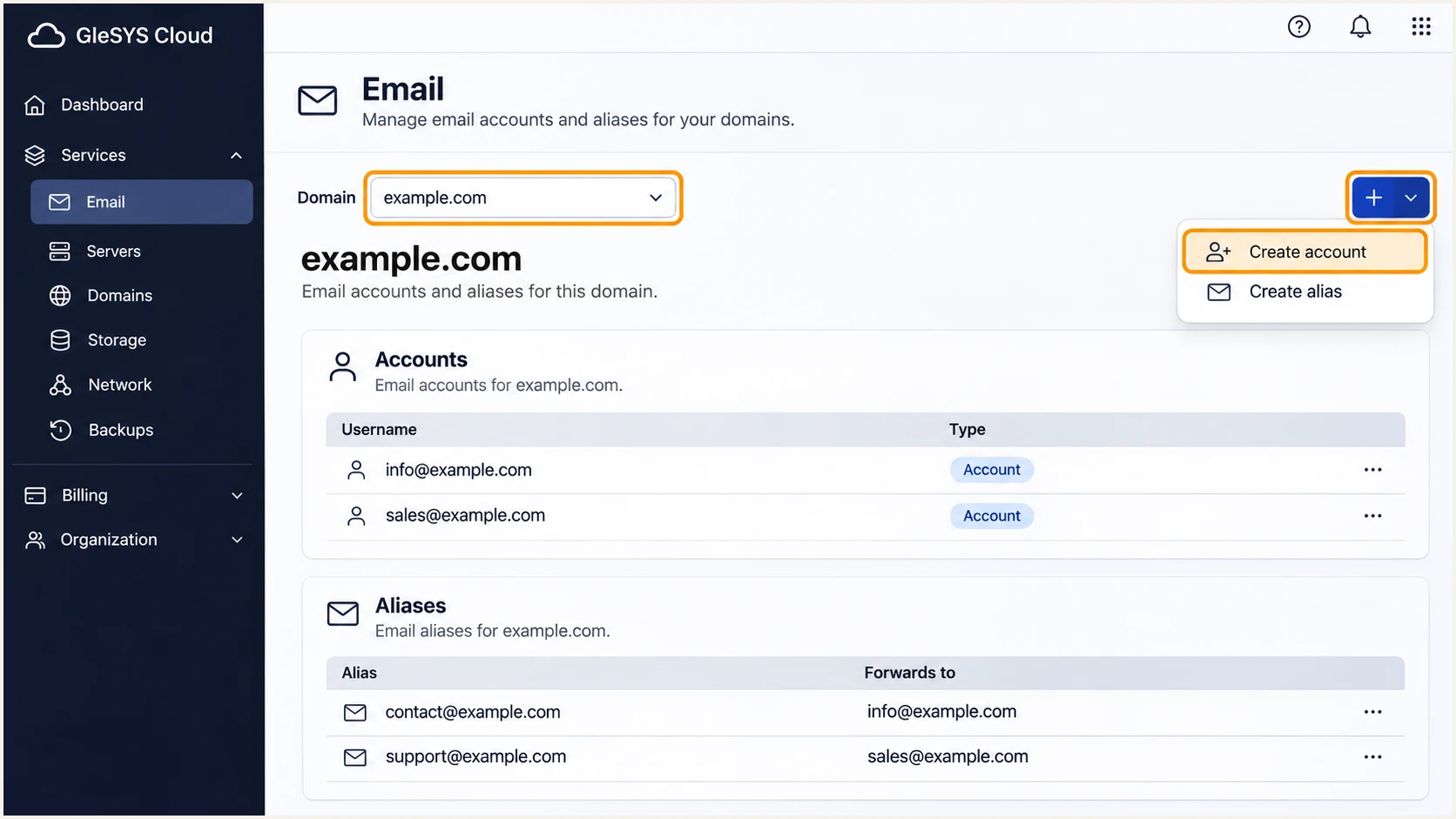
Illustrative GleSYS Cloud Email view showing Create account.
Change MX records only when moving inbound mail to GleSYS. Sending authentication alone does not require an MX migration. For direct sending by a VPS, skip mailbox creation and configure the server and the domain's authoritative DNS.
Set up SPF
SPF checks the SMTP envelope sender, which is normally shown in the delivered Return-Path. GleSYS supports return path alignment; confirm that the delivered envelope domain belongs to the same organizational domain as your visible From address under relaxed DMARC rules.
- Inspect existing SPF: Look up TXT records for the envelope domain. Keep one record beginning with v=spf1. Other unrelated TXT records can remain.
- Get the GleSYS value: For hosted email, open the domain in the DNS service with Manage. In the TXT section, use Templates and choose the GleSYS email SPF template. If DNS is external, copy its current value to that provider.
- Merge authorized senders: Edit the existing SPF policy instead of publishing a second one. Put the GleSYS mechanism before the final ~all or -all and retain mechanisms required by other legitimate senders.
- Handle direct sending: For a VPS that delivers directly, add its actual public egress IP with ip4: and, if used, ip6:. Authorize the sending IP rather than the entire GleSYS network.
- Check the envelope: Configure the application's SMTP envelope sender under your domain, such as bounces@example.com. Changing only the visible From header does not establish SPF alignment.
Inspect the current SPF policybash
dig +short TXT example.com
Use the value generated by the current GleSYS template for your service. The hosted example below applies only if GleSYS confirms the include target _mail.glesys.com; it is not a substitute for checking your service's instructions.
Conditional hosted-email SPF exampletext
Host: @
Type: TXT
TTL: 3600
Value: v=spf1 include:_mail.glesys.com ~all
Run the checker against the envelope domain after saving. Inspect the complete chain of includes: SPF permits at most 10 DNS-querying mechanisms and modifiers during evaluation, including nested includes.
SPF checker
Find SPF syntax issues, lookup limits, and weak records.
?/16tests passed
For a server sending directly, a policy such as the example below authorizes only that server. Replace 192.0.2.10 with the real outbound IP, and retain any additional authorized senders.
Direct-server SPF exampletext
Host: @
Type: TXT
Value: v=spf1 ip4:192.0.2.10 ~all
Check the domain SPF actually evaluates
An SPF pass for a provider-owned Return-Path does not establish DMARC alignment with example.com. Publish SPF at the actual envelope domain and verify the delivered result. Fix SPF alignment where supported, even when DKIM already gives the message a DMARC pass.
Set up DKIM
GleSYS signs hosted outgoing email automatically. Its email service also supports signing with your domain after you add a DNS record. I verify the signing domain on a delivered message rather than assuming that any DKIM pass satisfies DMARC.
- Obtain signing details: Use the domain-signing DNS instructions supplied for your GleSYS email service. If you do not have them, request the selector, record type, full DNS owner name and value from GleSYS support.
- Publish the exact record: In authoritative DNS, add the supplied TXT or CNAME record without changing its selector or value. In GleSYS DNS, use Manage, then Add record. Do not generate an unrelated key for GleSYS's hosted signer.
- Check DNS resolution: Look up the supplied selector using the commands below. Replace SELECTOR with the actual selector. A CNAME must resolve to the provider's public key; a TXT record must contain the supplied public key.
- Verify real signing: Send through the GleSYS mailbox or application. Inspect d= and s= in DKIM-Signature. Require a passing signature whose signing domain has DMARC alignment with the visible From domain.
Check the selector supplied by GleSYSbash
dig +short TXT SELECTOR._domainkey.example.com
dig +short CNAME SELECTOR._domainkey.example.com
A published key proves that DNS has a record; a received DKIM pass proves that the signer used the matching private key successfully. A provider-domain signature still needs a separate signature under your domain, or SPF with DMARC alignment, to satisfy your domain's DMARC policy.
GleSYS hosted email
GleSYS operates the signer. Publish the domain-signing record GleSYS supplies and verify the received signing domain. Keep its private key management with GleSYS.
Direct VPS sending
Configure your server's DKIM signer, create a key pair and publish its public key under your chosen selector. Use a 2048-bit RSA key where supported. Protect the private key and confirm every sending route uses the signer.
Set up DMARC
DMARC passes when SPF or DKIM passes with domain alignment to the visible From address. A new policy of p=none collects evidence without requesting quarantine or rejection of failing messages.
- Inspect the policy: Query _dmarc.example.com first. Edit an existing DMARC record rather than adding another. If it already uses quarantine or reject, keep that enforcement level.
- Prepare reporting: Create a working aggregate-report mailbox or use a report-processing destination. Replace dmarc@example.com in the example with the address that will actually collect reports.
- Create the TXT record: In GleSYS authoritative DNS, open Manage for the domain, choose Add record, then TXT. Set Host to _dmarc and put the record value below in Data. Use a TTL such as 3600 seconds.
- Check the generated value: Use our DMARC record generator to prepare the policy and reporting tags, then save one DMARC TXT record at that owner name.
Initial DMARC record for a new policytext
Host: _dmarc
Type: TXT
TTL: 3600
Value: v=DMARC1; p=none; rua=mailto:dmarc@example.com
Retain existing enforcement
Do not replace a working quarantine or reject policy with the monitoring example. Preserve existing reporting destinations and intentional policy tags when adding GleSYS as a sender.
Enter the TXT value without surrounding quotation marks in the DNS form. Within the example.com zone, using the relative Host _dmarc avoids accidentally creating _dmarc.example.com.example.com.
Run the checker after saving. Check that the published policy and reporting address match the intended values, and allow earlier DNS answers to expire according to their TTL.
DMARC checker
Look up a domain's DMARC record and catch policy issues.
?/7tests passed
Aggregate reports are normally delivered in batches, often daily. The reporting mailbox must accept the compressed XML attachments and have enough capacity to receive them.
For a reporting address on another domain, check that the destination authorizes external DMARC reports. A valid policy with a mistyped or unauthorized report destination leaves you without the evidence needed for enforcement.
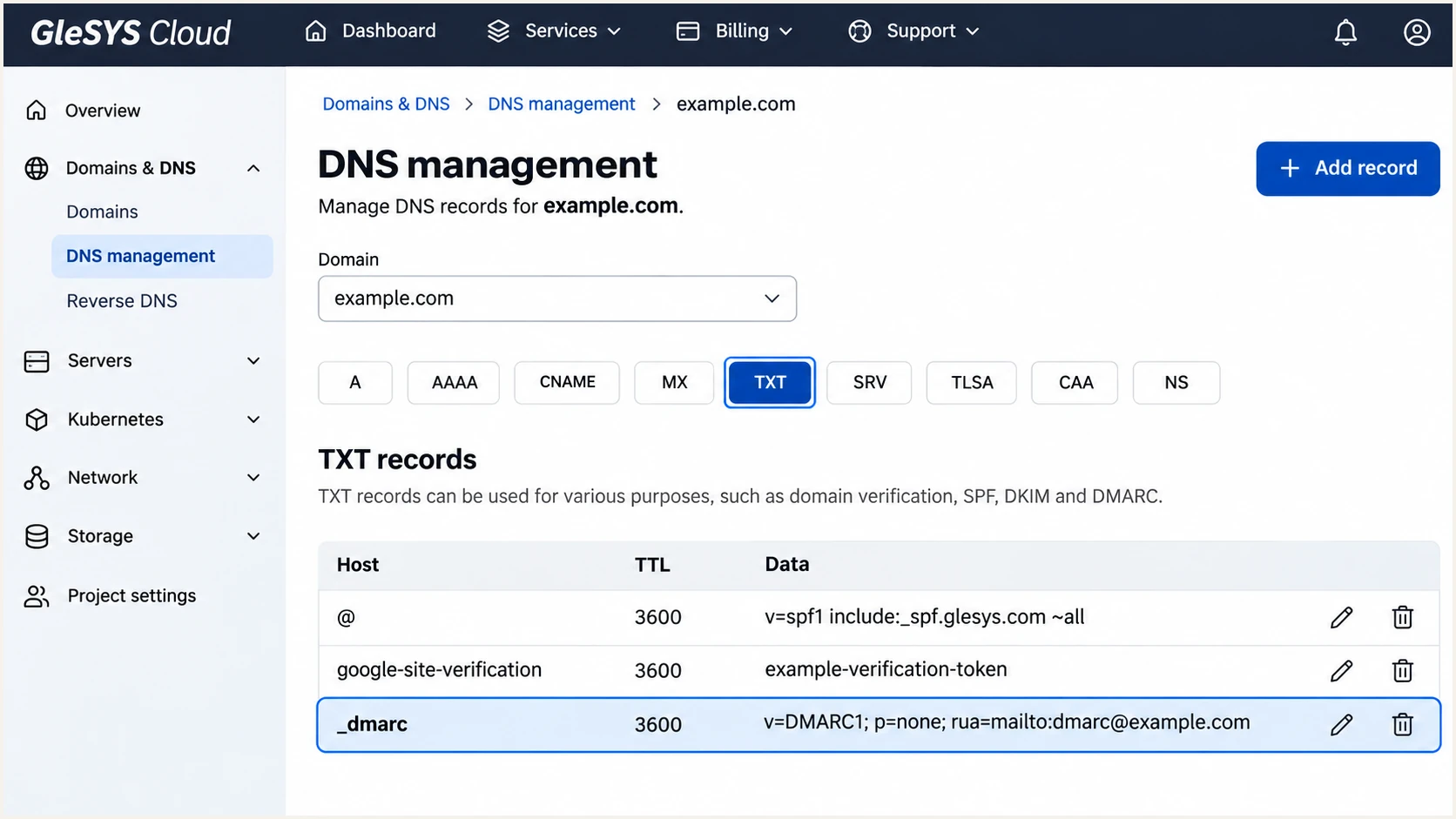
Illustrative GleSYS DNS view with the initial DMARC TXT record.
The policy belongs to the domain in the visible From address. If an application sends as a subdomain, check that subdomain's effective DMARC policy, including any inherited policy, before changing enforcement.
Verify and troubleshoot
I test each real sending route separately: a hosted mailbox and an application using a VPS can have different envelope senders and signing behavior. Use the same sending configuration that production mail uses.
- Send a test message: Open our email tester, copy the address it provides, and send a message through the GleSYS mailbox or application. Read its authentication diagnosis before making further DNS changes.
- Inspect received headers: Use the destination server's trusted Authentication-Results header. Check the SPF envelope domain, DKIM signing domain and DMARC result against the visible From domain.
- Fix direct-server rDNS: For a GleSYS VPS, open IP addresses and click the pencil next to the sending IP to set its PTR hostname. Make the hostname's A or AAAA record resolve back to the same IP, and configure a consistent SMTP hostname.
- Retest after changes: Wait for cached DNS answers to expire, then send a fresh message. If authentication passes but delivery fails, inspect the SMTP rejection and check the sending IP's blocklist (blacklist) status.
A received-message test checks the actual signature and envelope identity. This is quicker than inferring success from DNS records alone, especially when an application sends directly instead of through hosted email.
Email tester
Send a real email to this address. Suped shows a results button when the test is ready.
?/43tests passed
Use the following headers as an example of a successful result. The sender and receiver names are illustrative; the authentication results must come from the receiver that handled your test.
Illustrative received headerstext
From: sender@example.com
Return-Path: <bounces@example.com>
Authentication-Results: receiver.example;
  spf=pass smtp.mailfrom=bounces@example.com;
  dkim=pass header.d=example.com header.s=SELECTOR;
  dmarc=pass header.from=example.com
|
|
|
|---|---|---|
SPF permerror | Duplicates or lookups | Merge; count lookups |
DKIM fail | Selector or message changes | Check key; retest |
DMARC fail | From-domain alignment | Fix sender identities |
Missing reports | Report destination | Check rua and traffic |
Use received headers to choose the next check.
SPF alignment failures with a DMARC pass
Forwarding often changes the SPF outcome. A passing DKIM signature with DMARC alignment is enough for DMARC even when SPF fails or lacks alignment. For direct GleSYS sending, still fix an unexpected return path because the service supports alignment; verify separate receiver requirements as well.
Get alerted when it breaks
Our platform, Suped, turns aggregate reports into source-level authentication results and issues with fix steps. Use our DMARC monitoring to track GleSYS traffic alongside your other authorized senders.
- Enable issue emails: In Suped's notification settings, enable Issues detected and select the recipients responsible for DNS and mail operations.
- Review new sources: Enable Sending sources need verification. Confirm unfamiliar GleSYS traffic against your server inventory and application logs before marking the source as verified.
- Investigate failures: Filter Data view by the sending source or IP, then open Detail view to inspect SPF and DKIM results. Compare the envelope and signing domains with the visible From domain.
- Check DNS history: Compare old and new DNS values when failures follow a record edit. Restore the verified configuration, then send another test.
- Keep summaries enabled: Enable DMARC summary emails to catch gradual changes in legitimate volume and authentication pass rates.
DMARC alerts depend on incoming receiver reports, which are commonly produced daily. Keep SMTP bounce monitoring active for immediate delivery errors. Suped's report history helps distinguish a new sending route from a broken record or signing change.
Secure your domain with p=reject
I move to p=reject after every legitimate sending route has demonstrated a DMARC pass across a normal sending cycle. A high overall pass rate alone is insufficient if a low-volume application still fails.
- Inventory legitimate traffic: In Suped, review GleSYS mailboxes and direct server IPs alongside every other authorized sender. Include infrequent scheduled messages before tightening policy.
- Resolve identity failures: Fix each legitimate source's SPF or DKIM alignment. Prefer passing DKIM with your domain on every route so forwarding does not leave SPF as the only successful method.
- Stage enforcement: Move a new policy to quarantine, review subsequent reports and legitimate delivery, then move to reject. Keep reporting enabled and retain relaxed alignment unless strict matching is an intentional requirement.
- Verify each change: Check public DNS, repeat message tests, and review fresh reports after each policy change. If legitimate delivery breaks, correct the sender or return to the last verified policy while investigating.
Our Hosted DMARC controls in Suped let you manage policy stages through the dashboard. Review source-level failures before advancing each stage, and keep monitoring active after reject is published.
Quarantine stage, with your real reporting addresstext
v=DMARC1; p=quarantine; rua=mailto:dmarc@example.com
Reject stage, with your real reporting addresstext
v=DMARC1; p=reject; rua=mailto:dmarc@example.com
Enforcement readiness
Proceed when authorized sources pass DMARC, occasional sending jobs have been observed, and test messages confirm the expected domain identities. Reject requests that receivers refuse DMARC-failing mail; it does not guarantee inbox placement for authenticated mail.
Frequency asked questions
For hosted email, use the current GleSYS email SPF template in the DNS service and merge its authorization into your existing policy. Confirm the include target with GleSYS for your service. For direct VPS sending, authorize the actual public outbound IPv4 and IPv6 addresses instead. Publish one SPF policy per envelope domain.
A DKIM signature signed with a provider domain can pass cryptographic verification without satisfying your From domain's DMARC alignment. Publish GleSYS's domain-signing record and verify the received signing domain. DMARC needs either passing SPF with alignment or a passing DKIM signature with alignment.
Yes. Passing DKIM with DMARC alignment is sufficient for a DMARC pass. SPF alignment failures during forwarding do not automatically mean DMARC fails. For direct sending, investigate an unexpected provider-owned Return-Path because GleSYS supports return path alignment.
These suffixes are associated with GleSYS infrastructure, including customer-operated servers. A hostname under static.glesys.net or serverhotell.net does not identify a particular application or establish that the sender is authorized. Compare the exact sending IP with your GleSYS server inventory, message headers and application logs before authorizing it in SPF or verifying the source.
No. MX records control inbound delivery. Change them only if you intend to receive email through GleSYS. Publish SPF and DMARC in the authoritative DNS zone, and publish the DKIM record supplied by the system that signs your outgoing mail.




