
How to set up DMARC/DKIM/SPF for Giacom

To set up email authentication for Giacom, authorize the actual outbound service in SPF, enable DKIM signing with your sending domain, and publish a DMARC TXT record at _dmarc.yourdomain. I verify the result with a message sent through the same mailbox or application that sends production email.
Giacom supplies multiple services, so the DNS values depend on your subscription. For Microsoft 365 sending directly through Exchange Online, use the Microsoft 365 SPF include and the DKIM CNAME values generated by your tenant. For a hosted application or relay, obtain its specific outbound settings.
Giacom's public Hosted Exchange FAQ gives 1 October 2025 as the retirement date for its Hosted Exchange products. For a migrated mailbox, configure authentication on its current service. Treat old Hosted Exchange DNS instructions as historical references.
Add your domain
I confirm the customer and sending service before changing DNS. Adding a customer in Cloud Market does not verify ownership of a domain in the customer's email tenant.
- Identify the subscription. In Giacom Cloud Market, open Manage services > Microsoft 365 for a Microsoft 365 subscription. Confirm the customer's tenant before opening its administration portal.
- Add the domain. For Microsoft 365, open the admin center with Domain Name Administrator access. Select Settings > Domains > Add domain, enter your domain, and select Use this domain.
- Verify ownership. Choose TXT verification. Publish the exact name and MS= value displayed by the wizard at your authoritative DNS host, then return and select Verify. Skip this step if the domain is already verified in that tenant.
- Prepare the sender. Create the required mailboxes and set their sending addresses. Schedule any MX migration separately, after the destination mailboxes are ready.
For a Giacom-hosted application, complete the domain verification required by that application or its outbound relay. Get the verification value and custom Return-Path instructions for that specific service.
Open Resources > KnowledgeBase in Cloud Market to find the relevant service documentation. Giacom's public SPF guidance directs partners there for setup values. Record the outbound relay, SPF authorization, and DKIM selector before proceeding.
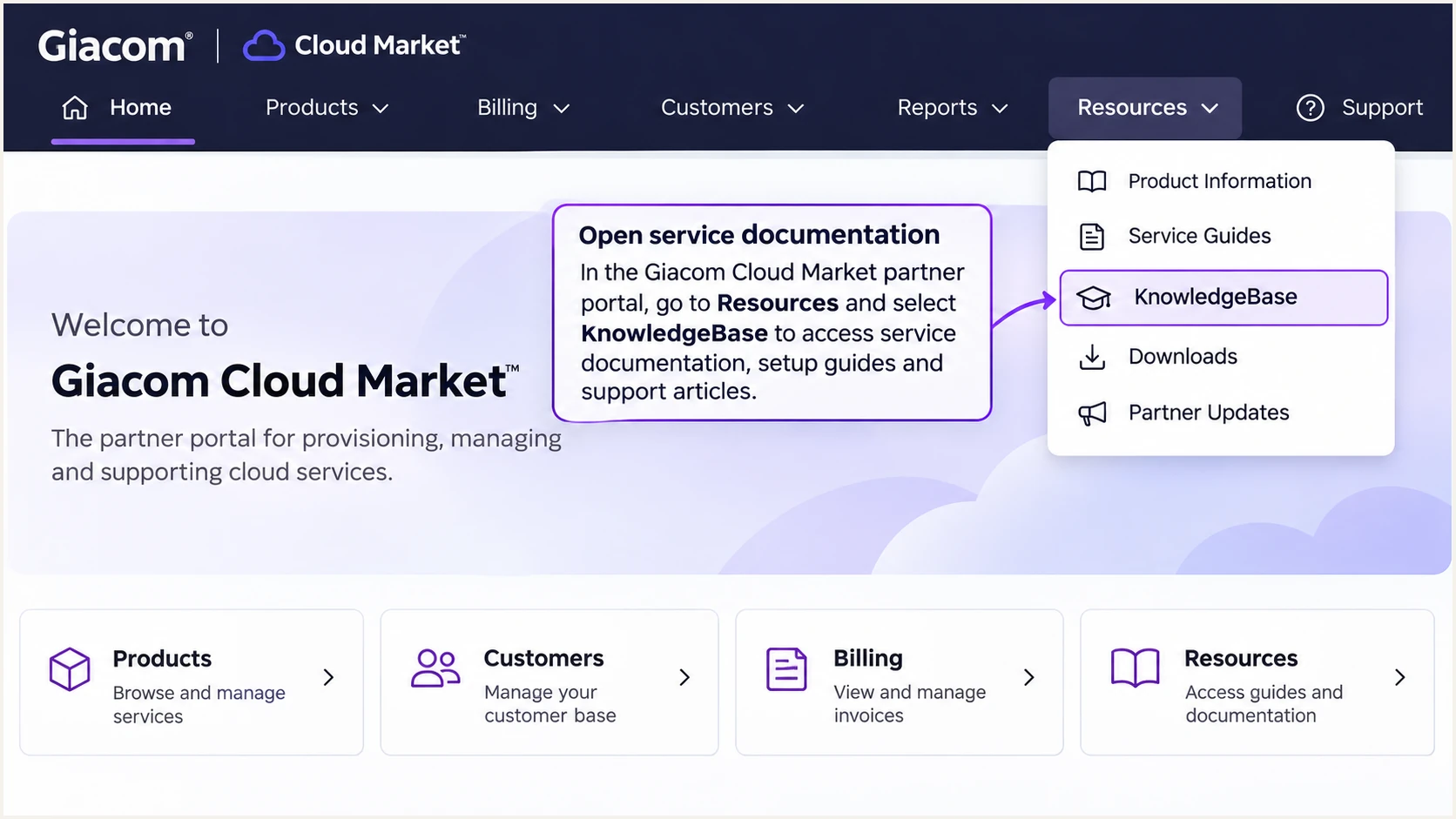
Illustrative Giacom Cloud Market navigation to Resources > KnowledgeBase.
Keep each domain's verification and authentication values with its customer record. A value generated for another tenant or domain is not a substitute.
Set up SPF
SPF checks the SMTP envelope sender domain, normally visible in Return-Path on a delivered message. I inspect that address before deciding which DNS name needs an SPF record.
Use the SPF checker to inspect that domain's existing record and lookup count. Preserve every legitimate sender already authorized there.
SPF checker
Find SPF syntax issues, lookup limits, and weak records.
?/16tests passed
For direct outbound Microsoft 365 delivery, the standard authorization is include:spf.protection.outlook.com. The example below applies when Microsoft 365 is the only sender using this envelope domain.
A Giacom-hosted application or separate relay needs its own documented include or public egress IP. Obtain that value through Cloud Market support. An inbound MX hostname does not establish outbound SPF authorization.
- Edit the existing record. Publish one SPF TXT record at the envelope domain. Merge additional authorized mechanisms before its final all mechanism; do not create a second SPF record.
- Configure Return-Path. Use your domain or an appropriate subdomain as the envelope sender where the service supports customization. Complete any verification it requires and test the resulting Return-Path.
- Check the lookup limit. Keep SPF evaluation within 10 DNS-querying terms, including nested includes. An over-limit evaluation produces permerror.
- Check subdomains. If Return-Path uses bounce.example.com, configure SPF there. An SPF record at example.com does not automatically cover subdomains.
SPF TXT value at example.com, Microsoft 365 as the sole sendertext
v=spf1 include:spf.protection.outlook.com -all
Set up DKIM
I enable DKIM on the system that signs outgoing messages. For Microsoft 365 purchased through Giacom, configure the customer's Microsoft 365 tenant.
- Open DKIM settings. In Microsoft Defender, select Email & collaboration > Policies & rules > Threat policies > Email authentication settings > DKIM. Select your custom domain.
- Get both selectors. If keys are missing, attempt to enable the domain to generate its configuration. Open the domain details and copy the Publish CNAMEs values for selector1._domainkey and selector2._domainkey.
- Publish both CNAMEs. Create the records at your DNS host using the exact tenant-generated targets. Microsoft has older and newer target formats, so do not construct targets manually.
- Enable signing. After both records resolve publicly, enable Sign messages for this domain with DKIM signatures. Confirm signing is enabled and test a fresh external message.
For another Giacom-hosted application, obtain its selector and public TXT key or CNAME target, then enable signing in that service. Publishing a public key alone does not activate signing. Keep private keys on the signing system.
For Microsoft 365, check both CNAMEs with the commands below. Replace example.com with your domain. For another service, query the selector and record type it supplies.
Check Microsoft 365 DKIM CNAMEsbash
dig +short CNAME selector1._domainkey.example.com
dig +short CNAME selector2._domainkey.example.com
Set up DMARC
DMARC passes when SPF passes with domain alignment, or DKIM passes with domain alignment. Under the default relaxed mode, the authenticated domain and visible From domain must share the same organizational domain.
Check the existing policy before editing it. Google's DMARC documentation describes the domain checks and reporting settings used by receiving servers.
DMARC checker
Look up a domain's DMARC record and catch policy issues.
?/7tests passed
For a new DMARC deployment, start with p=none and the example below. If your domain already uses p=quarantine or p=reject, keep that policy while adding or fixing Giacom authentication.
Replace the example reporting address with a mailbox you control or your reporting service's assigned address. A monitoring policy requests reports without requesting quarantine or rejection for DMARC failures.
- Choose the DNS name. For mail with a visible From domain of example.com, publish one DMARC TXT record at _dmarc.example.com. Enter only _dmarc if your DNS host appends the zone name.
- Build the value. Use the DMARC record generator to configure the policy and report destination. Keep relaxed alignment unless you have a specific requirement for strict matching.
- Enable reporting. Create the reporting mailbox and arrange XML processing. If reports go to a different organizational domain, confirm the destination has the required external reporting authorization.
- Check publication. Save the record and rerun the checker after DNS caches expire. Fix duplicate records or syntax errors before relying on the policy.
Starting DMARC TXT value at _dmarc.example.comtext
v=DMARC1; p=none; rua=mailto:dmarc@example.com
Verify and troubleshoot
I test each production route separately, including ordinary mailboxes and application SMTP. A successful test through a different server does not verify the Giacom route.
Compare the receiving server's results with the actual From address and Return-Path. Save the headers so the same route can be checked after a DNS or relay change.
- Send externally. Send a fresh message with the intended From address to an external recipient. Inspect the receiving system's Authentication-Results header.
- Inspect SPF. Check spf=pass and smtp.mailfrom. Confirm the source IP is authorized and the envelope domain satisfies your DMARC alignment mode.
- Inspect DKIM. Check dkim=pass, header.d, and the signature's s= selector. At least one passing signature must satisfy domain alignment if DMARC relies on DKIM.
- Confirm DMARC. Expect dmarc=pass for your visible From domain. Retest after any relay or signature service modifies the message.
Illustrative passing headers, not a live test resulttext
From: Billing <billing@example.com>
Return-Path: <bounce@example.com>
Authentication-Results: recipient.example;
  spf=pass smtp.mailfrom=example.com;
  dkim=pass header.d=example.com header.s=selector1;
  dmarc=pass header.from=example.com
For the quickest end-to-end check, use the email tester below. Send to its generated address through the actual Giacom mailbox or application.
The test inspects the received message and provides an authentication diagnosis. Keep the results with the sending route so you can repeat the same test after changes.
Email tester
Send a real email to this address. Suped shows a results button when the test is ready.
?/43tests passed
Read the authentication and domain alignment results together. A passing SPF result for a provider-owned Return-Path does not establish SPF alignment for your From domain.
If a service cannot customize Return-Path, adding its include to your root SPF record does not fix that mismatch. DMARC still passes through a passing DKIM signature with domain alignment. Forwarded mail also needs separate testing because forwarding commonly breaks SPF.
|
|
|
|---|---|---|
SPF permerror | Duplicates or lookups | Merge or reduce |
DKIM missing | Outbound signer | Enable signing |
DKIM failure | Key or message changes | Fix signer or relay |
DMARC failure | Authenticated domains | Correct domain alignment |
No reports | rua and authorization | Fix report destination |
Common authentication failures and the next corrective action.
For unresolved failures, open a Giacom ticket with the customer tenant or service identifier, UTC send time, sending IP, and full received headers. Compare DNS answers at the authoritative nameserver with the cached answer before changing records again.
Get alerted when it breaks
Suped, our DMARC platform, provides ongoing DMARC monitoring for Giacom sending routes. It turns aggregate reports into source diagnostics and detected-issue notifications, so authentication failures have a clear investigation path.
- Enable notifications. In Suped's notification settings, enable Issues detected and Sending sources need verification. Enable summary emails for routine review.
- Verify authorized sources. Review the source table and verify the Giacom or Microsoft 365 routes your organization actually uses. Investigate unfamiliar sources before marking them as authorized.
- Follow the diagnosis. Open a detected issue, inspect its steps to fix, and drill into SPF and DKIM results. Use DNS history to compare changes before retesting production mail.
- Check reporting cadence. Expect aggregate reports on the receiving provider's schedule, commonly daily. Suped alerts when it detects issues in available data; use a fresh email test for an immediate deployment check.
I keep infrastructure outage notices enabled separately. In Cloud Market, use Resources > Cloud Services > Enable email alert subscription for Giacom service updates.
Use service notices to identify an outage, then use authentication diagnostics to check whether DNS or sender identities changed. These checks investigate different failure causes.
Giacom service notices
Cloud Market subscriptions provide updates about service incidents and maintenance.
Suped authentication alerts
Our issue notifications identify authentication problems and sources needing verification, with diagnostic steps for the affected domain.
Secure your domain with p=reject
I move to enforcement after every authorized sender works and reports cover a complete business sending cycle. Include infrequent jobs such as monthly invoices before deciding the domain is ready.
- Review all sources. Use Suped's source table to account for Giacom mailboxes, hosted applications, and other legitimate senders. Separate unauthorized traffic from legitimate failures.
- Fix legitimate failures. Require passing DKIM with domain alignment on production routes. Correct SPF where you control Return-Path, and test forwarding before enforcement.
- Stage enforcement. Change a new deployment to p=quarantine, inspect subsequent reports and delivery failures, then move to p=reject after legitimate routes remain healthy. Keep an existing stronger policy in place.
- Manage policy changes. Our Hosted DMARC product supports dashboard policy management. Use Suped's source diagnostics and issue notifications to validate each policy stage.
- Check subdomain coverage. Review separate subdomain DMARC records and any sp policy. A parent reject policy does not replace a weaker policy explicitly published for a subdomain.
Keep aggregate reporting enabled after enforcement. For direct TXT management, the example below changes only the policy; replace its report address with your working destination. For Hosted DMARC, make the policy change through its dashboard.
Advance the policy when authorized routes consistently pass and unexplained legitimate failures are resolved. A high overall pass rate alone is insufficient if a low-volume business application still fails.
Final DMARC TXT value at _dmarc.example.comtext
v=DMARC1; p=reject; rua=mailto:dmarc@example.com
At p=reject, receiving servers are asked to reject messages that fail DMARC, subject to their local handling rules. Continue investigating failures on legitimate routes after each sender or DNS change.
After each policy change, send fresh tests through the verified routes and inspect subsequent aggregate reports. Assign an owner to resolve authentication alerts before the next production sending run.
Frequency asked questions
Use the record for the actual outbound service. Direct Microsoft 365 delivery uses include:spf.protection.outlook.com within your single SPF record. A Giacom-hosted application or another relay requires its documented include or egress IP. Buying a service through Giacom does not make one universal Giacom include appropriate.
Giacom's Hosted Exchange FAQ states that the related products retired on 1 October 2025. Configure SPF and DKIM on the service hosting the mailbox now. Historical Hosted Exchange records and outbound DKIM request instructions do not establish the correct configuration for a migrated mailbox.
The Return-Path domain differs from the visible From domain, while a passing DKIM signature satisfies domain alignment. DMARC needs one successful authentication path with domain alignment. If Return-Path customization is unavailable, keep custom-domain DKIM working; extra root-domain SPF includes do not change the envelope domain.
These domains are associated with Giacom's legacy hosted email infrastructure. Treat the hostname as a source-identification clue. Confirm the sending IP, report date, current service, and authenticated domains before authorizing traffic. A reverse-DNS suffix alone does not prove that your organization approved the sender.
Wait until reports cover a complete sending cycle and every legitimate route has been verified. For a domain with monthly billing, include that billing run. I use successful route tests and resolved authentication issues as the release criteria, rather than a fixed number of days or a domain-wide pass percentage.




