
How to set up DMARC/DKIM/SPF for GCI

For a domain you own that sends through GCI, publish GCI-confirmed SPF authorization, arrange DKIM signing for your domain, and publish a DMARC TXT record at _dmarc. For an @gci.net address, GCI controls the domain's authentication records; individual mailbox users cannot change them.
I check domain ownership and the actual sending route first. GCI's public mailbox documentation explains SMTP access, but I found no public custom-domain authentication wizard or universal GCI SPF include. Get account-specific DNS values and signing confirmation from GCI before publishing records.
Add your domain
For a customer-owned domain, start with GCI support rather than looking for an undocumented domain-verification menu. If GCI only provides your internet connection, configure authentication with the service that actually sends your email.
- Confirm ownership. Identify the domain in your visible From address and confirm you can edit its authoritative DNS. An @gci.net mailbox does not give you DNS access to gci.net.
- Confirm service. Ask GCI whether your account supports sending as your own domain. Have GCI provision it and complete any ownership verification GCI specifies; do not invent a verification TXT value.
- Collect settings. Request the authorized SPF include or outbound IP ranges, the custom Return-Path configuration, and the DKIM selector with its exact TXT value or CNAME target.
- Verify activation. Ask GCI to confirm that the domain is enabled, then send a message using that From address. Keep existing MX records unless you are separately changing inbound mail hosting.
GCI-owned mailbox domain
For user@gci.net, GCI publishes SPF and DMARC and controls server-side DKIM. Report authentication failures to GCI with a complete received message header.
Customer-owned sending domain
For user@example.com, you control DNS. GCI must separately confirm that its sending service supports your domain and activate the required server-side settings.
GCI's 'GCI Basic Settings' documents smtp.gci.net with authenticated outgoing mail and port 465 for SSL/TLS. SMTP login and encryption do not enable SPF, DKIM or DMARC for a custom domain.
Set up SPF
SPF authorizes the sending IP for the envelope sender domain, normally visible in Return-Path on a delivered message. Configure GCI's supported custom Return-Path for your account and verify that it uses your domain or a subdomain of it.
- Find the checked domain. Send through GCI and read Return-Path plus the receiving server's smtp.mailfrom result. Publish SPF at that domain, which is not necessarily your root domain.
- Authorize the outbound service. Use only the SPF include or IP ranges GCI confirms for your account. Merge them into the existing SPF TXT record before its final all mechanism; retain other authorized senders.
- Keep one SPF record. Publish only one TXT record beginning v=spf1 at each SPF domain. Keep evaluation within the 10 DNS-lookup-causing term limit, including nested includes.
- Check domain matching. For From user@example.com, a Return-Path at bounce.example.com can satisfy relaxed SPF alignment. Strict alignment requires an exact domain match. Confirm the match on a delivered message.
Do not guess a GCI SPF include
An SMTP hostname is not an SPF instruction. Do not publish include:gci.net or include:smtp.gci.net simply because your mailbox uses GCI. A guessed include can produce SPF permerror or authorize the wrong infrastructure.
Enter the actual envelope sender domain in the SPF checker. If your Return-Path uses bounce.example.com, check that subdomain rather than assuming the SPF record at example.com applies.
Check syntax and the lookup count after merging senders. Save the previous DNS value so a mistaken edit is easy to reverse.
SPF checker
Find SPF syntax issues, lookup limits, and weak records.
?/16tests passed
A valid DNS record is only part of verification. The receiving server must also report spf=pass for the actual GCI outbound IP.
If a message still uses a provider-owned Return-Path, adding GCI to your root SPF record does not fix SPF alignment. Correct the Return-Path configuration with GCI, or ensure DKIM passes with a signing domain that matches your From domain.
Set up DKIM
DKIM requires GCI's sending servers to sign messages. Publishing a public key alone does not activate signing, and a mailbox password is not a DKIM private key.
- Request custom signing. Ask GCI to confirm DKIM support for your own domain and supply the signing domain, selector, record type and exact public DNS value. Request a 2048-bit RSA key where supported.
- Publish the supplied record. Add the TXT or CNAME at the selector's _domainkey hostname exactly as instructed. Avoid appending your domain twice in DNS interfaces that add it automatically.
- Activate signing. After the DNS record resolves, have GCI enable or confirm signing. GCI keeps the private key; only the public record belongs in DNS.
- Verify a fresh message. Read d= and s= in DKIM-Signature. Confirm dkim=pass at the receiver and verify that d= matches your From domain under your DMARC alignment settings.
DNS checks, replace SELECTOR and example.com with GCI's valuesbash
dig +short TXT SELECTOR._domainkey.example.com
dig +short CNAME SELECTOR._domainkey.example.com
I use the selector supplied by GCI or shown in a genuine sent message. There is no verified universal GCI selector to copy, and a valid signature using an unrelated domain does not satisfy DMARC for your domain.
If custom-domain DKIM is unavailable
DNS edits cannot make GCI sign with your domain. Matching SPF can pass DMARC on direct delivery, but forwarding often breaks SPF. Resolve signing support before depending on DKIM to preserve authentication through forwarding.
Set up DMARC
For a domain without an existing enforcement policy, start with p=none to collect reports. If you already use p=quarantine or p=reject, keep that policy and fix GCI's authentication without lowering protection across the domain.
- Check the existing policy. Look up TXT records at _dmarc on your sending domain. Edit the existing DMARC record rather than publishing a second one.
- Choose a report destination. Create a working mailbox for aggregate reports or use your reporting platform's assigned address. Replace the example recipient below with that destination.
- Publish the TXT value. For example.com, use host _dmarc, or _dmarc.example.com if your DNS interface expects a full hostname. Publish one DMARC TXT record at that name.
Starter DMARC TXT value, replace the report addresstext
v=DMARC1; p=none; rua=mailto:dmarc@example.com
Use the DMARC record generator to build the value with your actual report recipient. Keep existing reporting destinations and other intentional policy tags when updating an established record.
Run the DMARC check against the visible From domain after the DNS change. A successful record check confirms DNS configuration; it does not prove that GCI messages pass authentication.
DMARC checker
Look up a domain's DMARC record and catch policy issues.
?/7tests passed
The p=none policy requests monitoring without DMARC-based quarantine or rejection. Receivers still apply their own spam and delivery policies.
Aggregate reports arrive after participating receivers process mail and generate reports. They are not instant. For a report destination on another domain, confirm the required external reporting authorization with that destination's operator.
Verify and troubleshoot
I verify with a new message sent through the same GCI mailbox or application that sends production mail. Testing a different route does not validate the production route.
- Get the test address. Start the email tester below and copy its generated recipient address. Use that live address, not an address shown in an illustration.
- Send through GCI. In GCI webmail, open Mail, click New Message, select the intended From identity, paste the test recipient, and send. For application mail, trigger the application instead.
- Inspect the diagnosis. Review SPF and DKIM results with their checked domains, then confirm dmarc=pass for the visible From domain.
- Repeat after changes. Wait for the updated DNS value to resolve, send another message, and test any separate application or forwarding path you depend on.
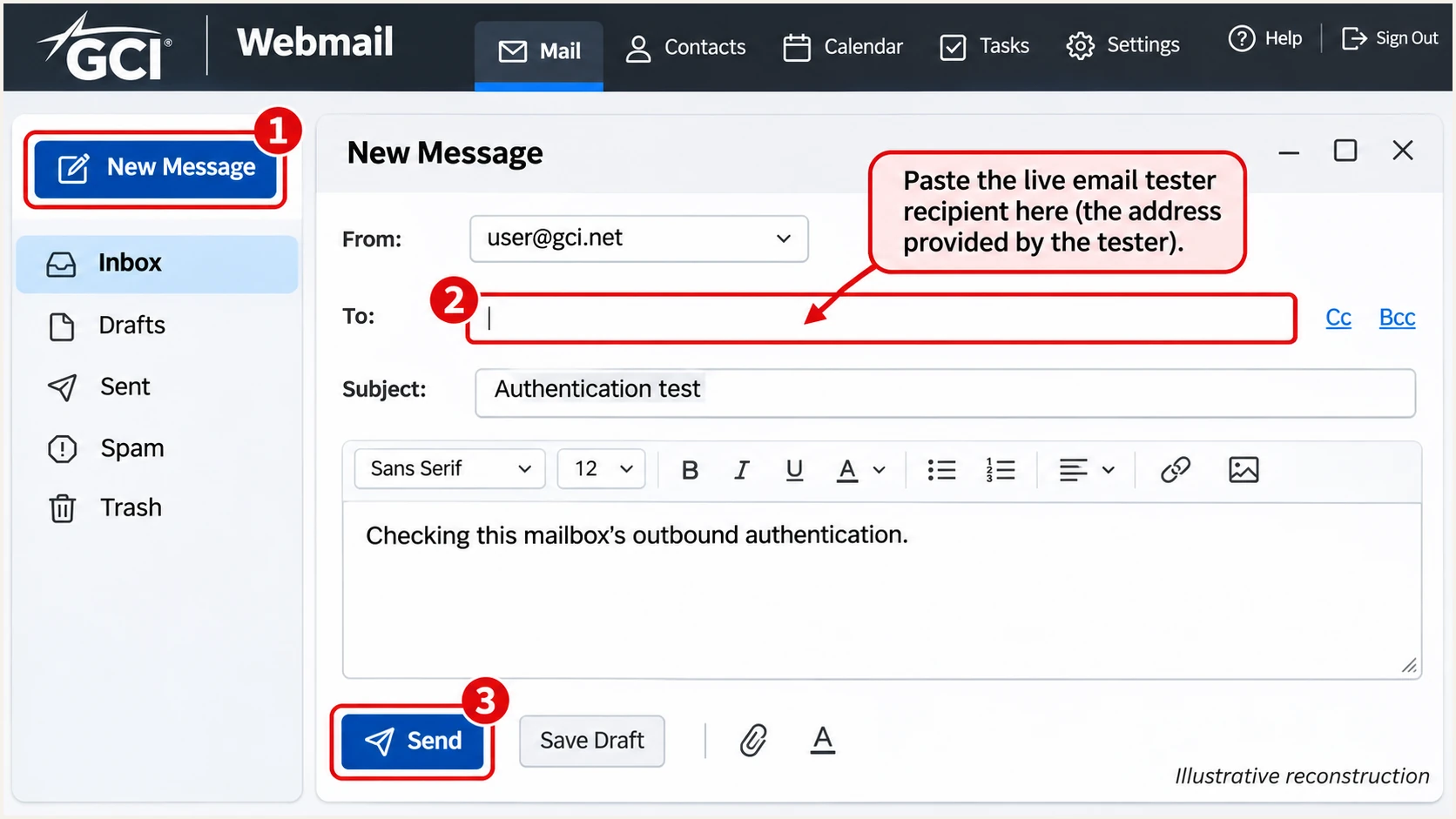
Illustrative GCI webmail compose view for sending a test message.
GCI's 'Composing and Sending Email' support article documents Mail > New Message. The illustration shows a standard GCI mailbox; test your own domain's approved From identity when validating custom-domain authentication.
The email tester prompts you to send a message and returns a full diagnosis of the received email. This is the quickest check of the real sending path after DNS changes.
Email tester
Send a real email to this address. Suped shows a results button when the test is ready.
?/43tests passed
DMARC passes when at least one authentication method passes with the required domain match. SPF alignment errors do not cause DMARC failure if DKIM passes with a matching signing domain.
Read Authentication-Results added by the final receiving system. The example below is illustrative, not a GCI lookup result. Forwarding can break SPF while an unchanged DKIM signature continues to pass.
Illustrative passing authentication resultstext
Authentication-Results: mx.receiver.example;
 spf=pass smtp.mailfrom=bounce.example.com;
 dkim=pass header.d=example.com header.s=selector;
 dmarc=pass header.from=example.com
|
|
|---|---|
SPF permerror | Merge SPF; check lookup limit |
DKIM none | Ask GCI to activate signing |
DKIM fail | Check selector, key and message changes |
DMARC fail | Check authenticated domain matching |
DNS mismatch | Check authoritative DNS and cached values |
Use received-message results to choose the next check.
Get alerted when it breaks
Suped, our DMARC platform, detects authentication issues and provides steps to fix them. Its reporting and notification workflow keeps GCI failures visible after the initial test.
- Enable issue notifications. In Suped's notification settings, enable Issues detected and confirm that the people responsible for email receive the notifications.
- Review new sources. Enable Sending sources need verification. Confirm a source against a known GCI message before marking it verified; an rDNS label alone is insufficient.
- Keep summary emails on. Use DMARC summary emails to review trends and identify legitimate sources that have stopped passing authentication.
- Investigate the exact failure. Open the affected source and record details, compare SPF and DKIM domains, follow the issue's fix steps, then send another test message after correcting DNS or GCI settings.
Our DMARC monitoring brings source verification and authentication diagnostics together. For GCI, check both the sending IP and the message identities before treating traffic as authorized.
Understand notification timing
Aggregate DMARC reports are not a live feed of individual messages. Suped detects report-based failures when reports arrive and are processed. Use the email tester immediately after a configuration change instead of waiting for the next report.
Secure your domain with p=reject
I move to p=reject after verifying every legitimate sending source across a representative business cycle. A passing GCI mailbox test does not validate website mail or other applications using the same From domain.
- Inventory senders. Review sources in Suped and verify GCI mail alongside website forms, billing applications and device-generated messages. Investigate unknown sources before authorizing them.
- Fix legitimate failures. Use Suped's record diagnostics to separate SPF failures from DKIM failures. Prioritize a passing, matching DKIM signature and confirm GCI's custom Return-Path where configured.
- Stage enforcement. For a new deployment, progress through p=none and p=quarantine before p=reject, reviewing reports and delivery errors at each stage. Keep an existing stronger policy while fixing individual senders.
- Check subdomains. Review any sp tag and explicit subdomain DMARC records before changing the parent domain policy. Preserve reporting and intentional exceptions during the change.
p=quarantine
Requests that receivers treat DMARC-failing mail as suspicious, commonly by placing it in spam. Review legitimate failures before increasing enforcement.
p=reject
Requests rejection of DMARC-failing mail. Receiving servers retain their own handling policies. Keep monitoring after publishing the policy.
Suped's Hosted DMARC lets you manage policy changes through our dashboard after its DNS setup. Use it with verified-source reports and issue notifications to decide when each policy change is ready. It does not repair GCI's signing configuration.
Enforcement TXT value, preserve your actual reporting destinationtext
v=DMARC1; p=reject; rua=mailto:dmarc@example.com
Replace the example report address before publishing. After the change, send fresh GCI messages and check your next reports for legitimate failures, especially on forwarding paths.
Frequency asked questions
No. GCI owns gci.net and controls its DNS and sending servers. Mailbox users cannot publish that domain's SPF, DKIM or DMARC records. Send authentication failures and full received headers to GCI support.
GCI's public mailbox setup documentation does not provide a universal SPF include for customer domains. Ask GCI for the exact include or outbound IP ranges for your account. Do not derive an include from smtp.gci.net or copy gci.net's policy into your own DNS.
There is no verified universal selector in the public GCI mailbox guides. Obtain it from GCI or read s= in a genuine outgoing message's DKIM-Signature. The key must be published under that selector's signing domain.
SPF can pass for a provider-owned Return-Path that does not match your visible From domain. DMARC then requires a passing DKIM signature with the required domain match, or a corrected custom Return-Path. Adding another SPF include does not change that identity.
A .gci.net hostname suggests GCI network infrastructure, but the suffix alone does not establish that a message used GCI's mailbox service. Inspect the sending IP's PTR and corresponding forward DNS, then verify SPF and DKIM identities against a known GCI message. Do not authorize traffic solely because its rDNS contains gci.net.
DMARC can pass through SPF alone when SPF passes with the required domain match. Forwarding often breaks SPF, so test those paths before enforcement. If GCI cannot sign with your domain, resolve that limitation or change the sending route before relying on DKIM to protect forwarded mail.




