
How to set up DMARC/DKIM/SPF for Gandi Email

Gandi Email authentication needs one SPF TXT record authorizing _mailcust.gandi.net, Gandi's DKIM signing with its gm1, gm2, and gm3 CNAMEs, and a DMARC TXT record at _dmarc. I verify a real outgoing message before moving a new DMARC policy beyond p=none.
Gandi has a newer Email menu and an older domain-based mailbox interface. I check the mailbox's current setup instructions first, especially for external domains. If its Status tab supplies different records, use those mailbox-specific values.
Add your domain
I associate the domain with a Gandi mailbox before editing authentication records. An existing operational mailbox does not need to be created again.
- Open Email. Sign in to Gandi, open "Email", and choose "Activate a mailbox" if this is a new mailbox.
- Choose the domain. Select a domain in your account or add an external domain you control. Choose the owner and mailbox type, then set the mailbox name and password.
- Open Status. Complete activation, open the mailbox details, and select "Status". For externally managed DNS, click "Add" beside the required records to reveal their exact values.
- Publish and verify. Add the required MX, SPF, and validation TXT records at the authoritative DNS provider. Return to Status and confirm the required checks turn green.
With a manageable domain using Gandi LiveDNS, Gandi automates technical validation. Activation also replaces the previous MX configuration, so schedule this step when moving an existing email service.
For older mailboxes, open Domain, select the domain, then open Email or Mailboxes and forwarding. DNS edits belong under that domain's DNS records tab only when its nameservers use LiveDNS.
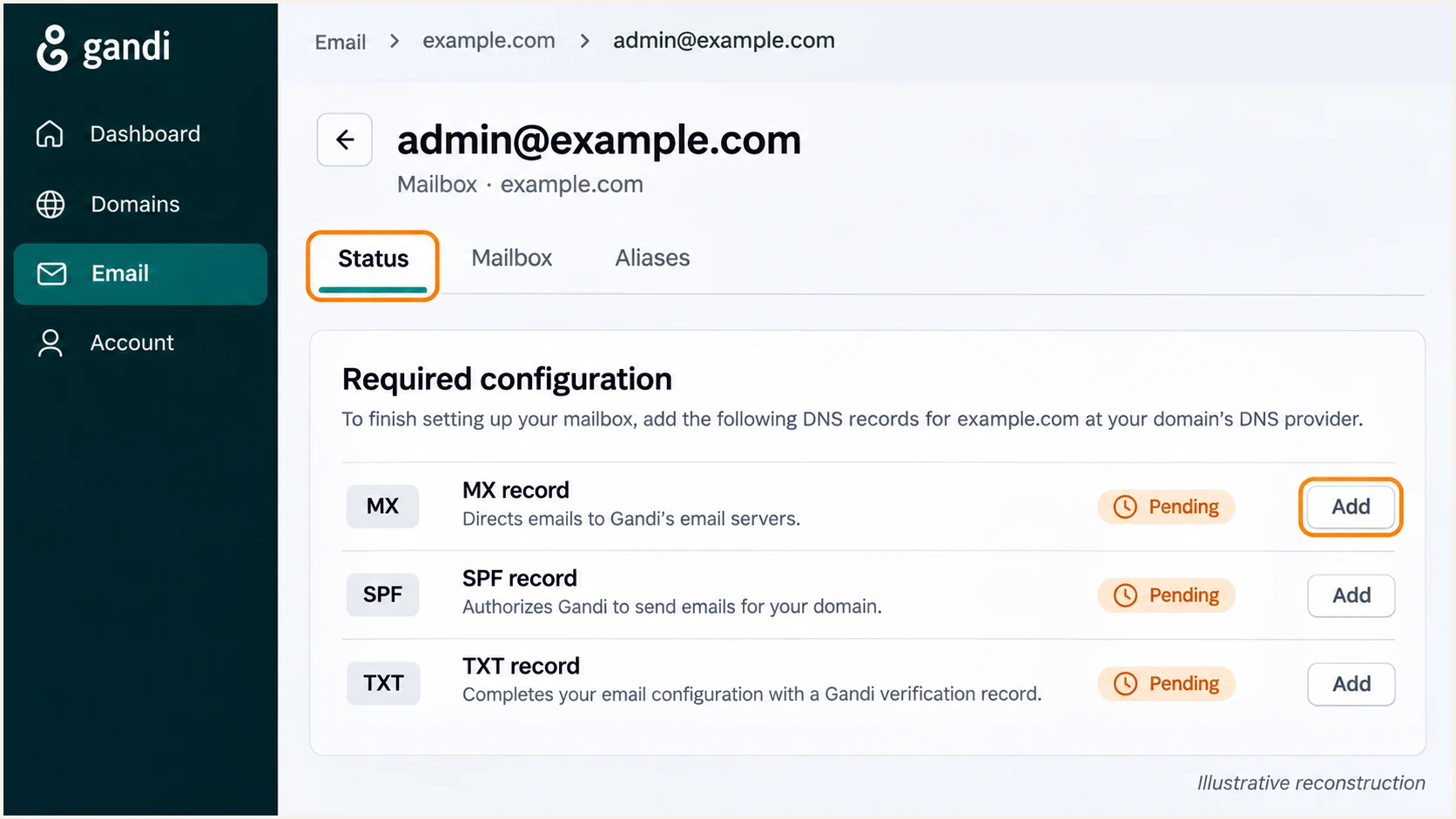
Illustrated Gandi Email Status tab showing where to reveal required DNS records.
A green mailbox status confirms the required service setup. I still test SPF and DKIM on delivered mail because DNS validation alone does not prove that outgoing messages pass DMARC.
Set up SPF
I use Gandi's documented mailbox SPF authorization, include:_mailcust.gandi.net. Gandi supports a Return-Path using your sending domain, so SPF can satisfy DMARC when the envelope sender matches the visible From domain.
- Find the DNS zone. In Gandi LiveDNS, open Domain, select your domain, then DNS records. With external nameservers, edit the zone at that DNS provider.
- Check existing SPF. Find the TXT record starting with v=spf1 at @. Edit that record; do not publish a second SPF policy.
- Authorize Gandi. Add include:_mailcust.gandi.net before the final all mechanism. For a domain sending only through Gandi Email, use the value below.
- Keep other senders. Preserve the authorization needed by other legitimate senders. Save one SPF TXT record and keep evaluation within the 10 DNS-lookup limit.
For Gandi Email only, the host is @ and the type is TXT. The example below uses Gandi's documented ~all policy; preserve your existing final qualifier when updating an established SPF record.
Do not add _spf.gpaas.net unless the domain also sends through Gandi Web Hosting. A website using authenticated Gandi mailbox SMTP already uses the mailbox sending path.
SPF record for Gandi Email onlydns
@ 10800 IN TXT "v=spf1 include:_mailcust.gandi.net ~all"
In a form-based DNS editor, enter @, TXT, and the quoted content as the value without the surrounding zone-file quotes. Other unrelated TXT records at @ are valid.
Run the SPF check against the domain used in the outgoing Return-Path. It should find one SPF policy, authorize Gandi, and report no lookup-limit error.
SPF checker
Find SPF syntax issues, lookup limits, and weak records.
?/16tests passed
A passing DNS check confirms the SPF configuration. I then check the recipient's SPF result on a fresh message to confirm that the actual sending IP is authorized.
SPF authentication and SPF alignment are separate checks. For DMARC, the authenticated Return-Path domain must match the visible From domain, or share its organizational domain under the default relaxed mode.
Set up DKIM
I enable Gandi's DKIM signature so messages have a valid signature using the sending domain. Publishing selector records and checking a delivered signature are both required.
- Open the controls. For the older interface, open Domain, select the domain, then Email or Mailboxes and forwarding.
- Enable signing. Under Settings & Security, choose Edit or Manage, switch on "DKIM Signature", and click "Update".
- Check newer mailboxes. In the newer Email interface, open the mailbox's Status tab and publish the DKIM records it supplies. Use those values if they differ from the standard Gandi selectors below.
- Publish every selector. For Gandi's standard setup on external DNS, add all three CNAMEs below. Keep each hostname free of conflicting TXT records so Gandi can rotate keys.
These are Gandi's documented standard DKIM CNAMEs. Gandi hosts the corresponding public keys and manages the private signing keys.
Use relative names such as gm1._domainkey when the DNS editor appends your domain. The resulting hostname must be gm1._domainkey.example.com, with no repeated domain suffix.
Standard Gandi DKIM recordsdns
gm1._domainkey 10800 IN CNAME gm1.gandimail.net.
gm2._domainkey 10800 IN CNAME gm2.gandimail.net.
gm3._domainkey 10800 IN CNAME gm3.gandimail.net.
Do not generate a replacement DKIM key yourself. A public key in DNS only works when it corresponds to the private key used by Gandi's signing servers.
After saving, send a new message through Gandi. In its DKIM-Signature header, confirm that d= uses your domain and s= identifies a published selector.
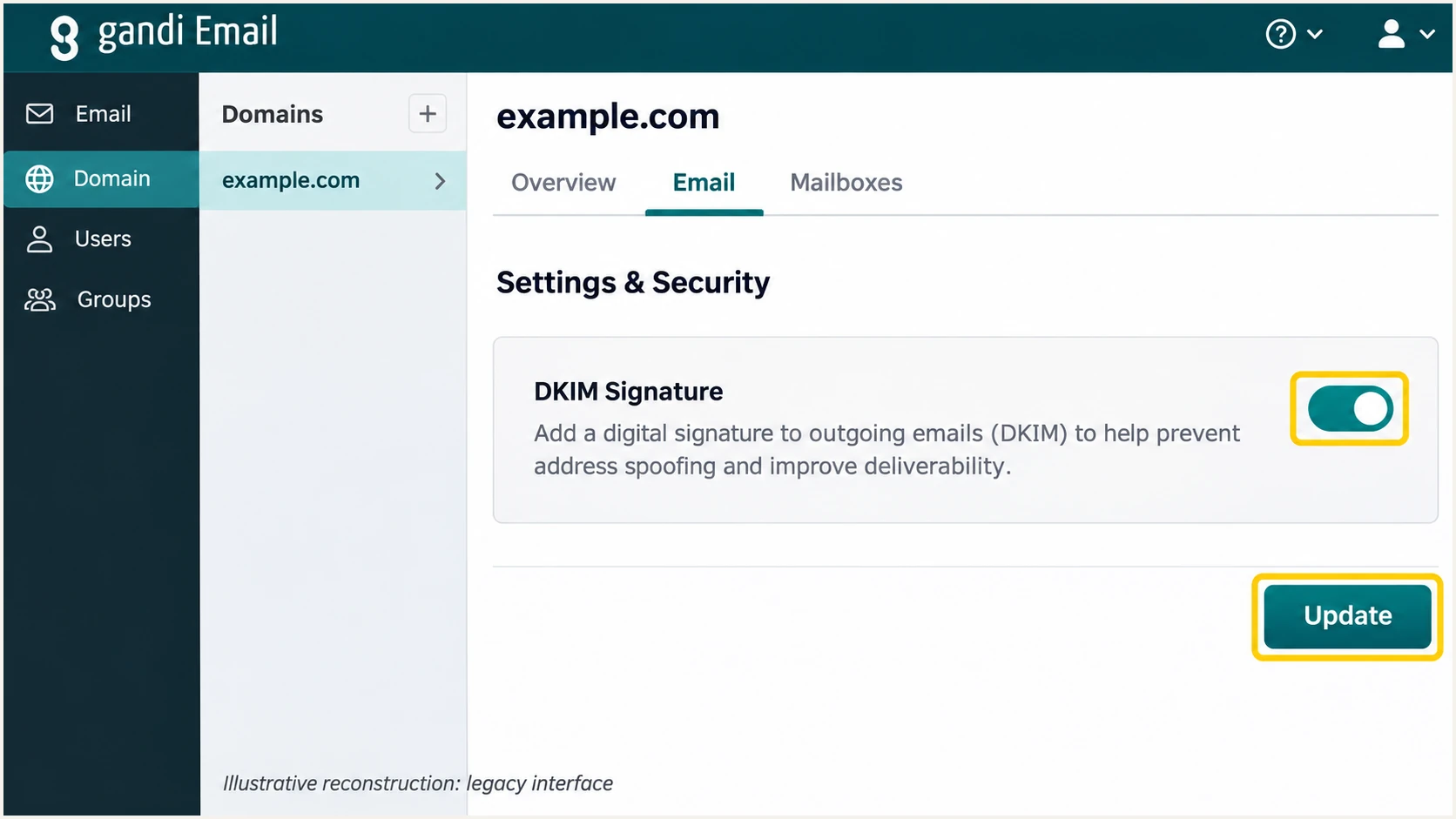
Illustrated legacy Gandi controls for enabling DKIM Signature and saving with Update.
I confirm dkim=pass at the receiving server and compare the signature's d= domain with the visible From domain. A valid signature for an unrelated provider domain does not satisfy DMARC for your domain.
Set up DMARC
I start a domain without an enforcement policy at p=none while checking legitimate traffic. If your domain already uses p=quarantine or p=reject, keep that policy and fix Gandi's authentication without lowering protection.
- Open DNS records. At the authoritative DNS provider, find the existing _dmarc TXT record or choose Add record if none exists.
- Set the host. Choose TXT and enter _dmarc as the relative name. For example.com, the complete name is _dmarc.example.com.
- Set the policy. For a new monitoring policy, use the exact starter value below after replacing its reporting address with one you control.
- Save one record. Update the existing policy rather than creating a duplicate. Preserve existing reporting destinations that you still need.
The DMARC record generator produces the TXT value. Set its policy to none for a new rollout and supply a working aggregate-report address.
Replace dmarc@example.com with your actual report mailbox or assigned reporting address. Aggregate reports are machine-readable XML, so choose a destination that can receive and process them.
Starter DMARC TXT value at _dmarcdns
v=DMARC1; p=none; rua=mailto:dmarc@example.com
A reporting address on a different domain requires external reporting authorization by that destination. Adding rua does not guarantee that every recipient sends a report.
Check the published domain below. Confirm the record exists at the correct name, has valid syntax, and contains your intended policy and reporting destination.
DMARC checker
Look up a domain's DMARC record and catch policy issues.
?/7tests passed
The checker validates public DNS. It does not prove that Gandi signs messages correctly or that the Return-Path matches the From domain.
In Gandi LiveDNS, the Add record form is under Domain, your domain, then DNS records. Enter the TXT value in its value field; do not paste a complete zone-file line into that field.
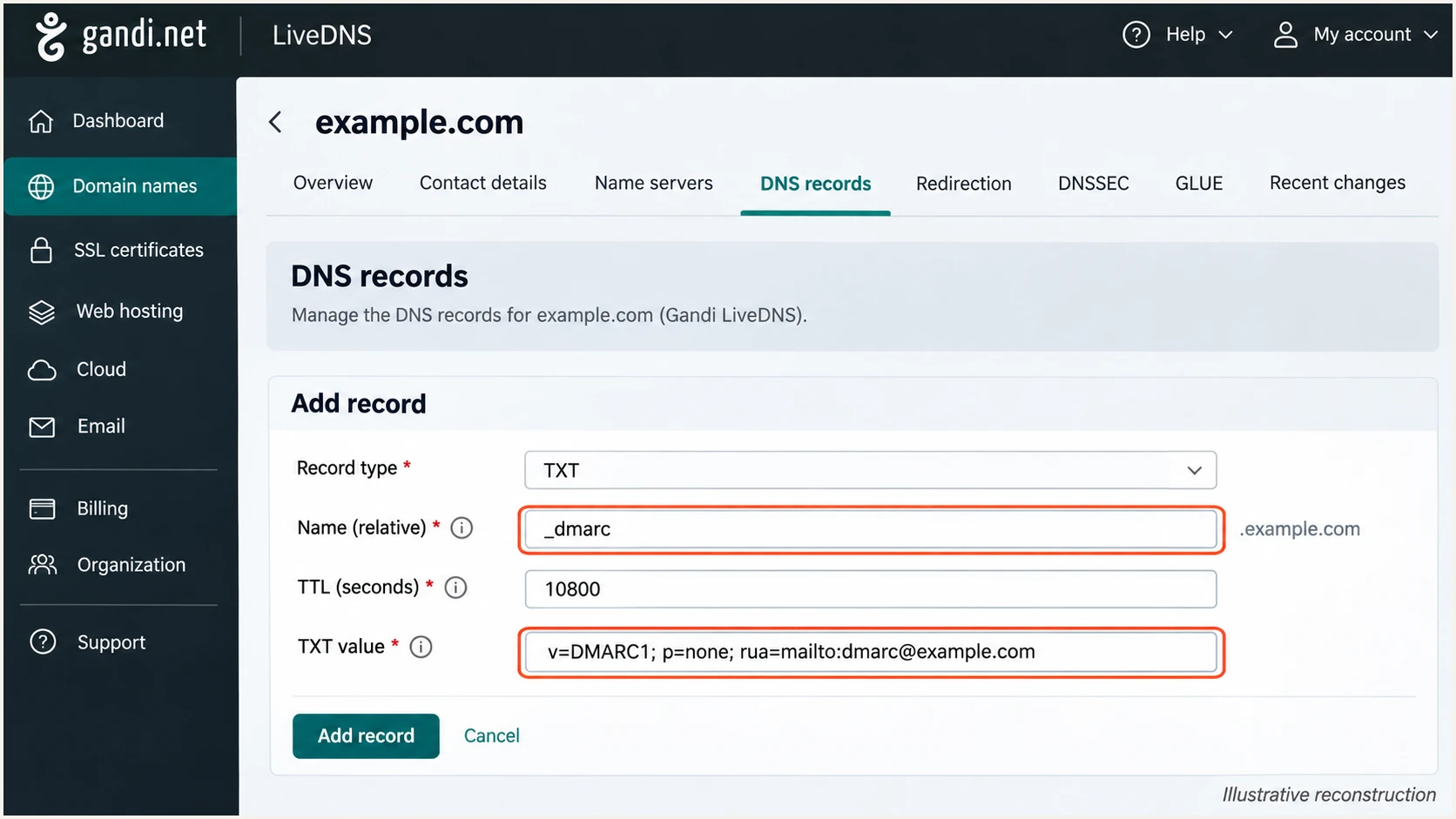
Illustrated Gandi LiveDNS form for adding the monitoring DMARC TXT record.
Allow previously cached DNS answers to expire, then repeat the lookup. I leave reporting enabled during later policy changes so authentication failures remain visible.
Verify and troubleshoot
I test the real sending path after DNS changes. For Gandi's documented mailbox service, outgoing SMTP is mail.gandi.net with authentication, using the full mailbox address and its mailbox password.
- Send through Gandi. Use Gandi webmail or configure SMTP with port 587 and STARTTLS, or port 465 with implicit TLS. Match the settings shown for your mailbox.
- Check SPF. In the recipient's Authentication-Results, look for spf=pass and inspect smtp.mailfrom. Compare that domain with the visible From domain.
- Check DKIM. Look for dkim=pass, inspect header.d, and verify the selector in DKIM-Signature against its DNS record.
- Check DMARC. Confirm dmarc=pass for header.from. DMARC needs at least one passing method with a matching domain: SPF or DKIM.
The email tester prompts you to send a message to its test address and returns a full diagnosis of the received message. This is the quickest check of DNS configuration together with actual Gandi signing.
Send separate tests through webmail and your configured mail client. Test a forwarded route too if your normal workflow uses forwarding.
Email tester
Send a real email to this address. Suped shows a results button when the test is ready.
?/43tests passed
Use the recipient's trusted authentication results, not just headers copied into a message by its sender. For a healthy direct Gandi message, aim for SPF, DKIM, and DMARC to pass.
Forwarding often breaks SPF because the connecting IP changes. A surviving DKIM signature with a matching domain still passes DMARC, so an SPF alignment error alone is not a DMARC failure.
|
|
|
|---|---|---|
SPF permerror | Duplicate policy | Merge SPF |
SPF fail | Wrong relay | SMTP path |
DKIM none | Signing disabled | DKIM toggle |
DKIM fail | DNS or changes | Active selector |
DMARC fail | Domain mismatch | From vs d= |
DNS missing | Wrong DNS zone | Nameservers |
Common Gandi authentication failures and the next check.
For a persistent failure, send Gandi support the full message headers, the sending mailbox, and the UTC send time. A passing authentication result does not guarantee inbox placement; inspect the recipient's bounce or filtering reason too.
Get alerted when it breaks
Suped is our DMARC platform for ongoing DMARC monitoring. It groups Gandi traffic by source, detects authentication issues, and gives specific fix steps so failures do not depend on someone remembering a manual test.
- Verify the source. Review the Gandi source and confirm it is authorized. Investigate unfamiliar sources before treating them as legitimate.
- Enable issue alerts. In Suped notification settings, enable "Issues detected" and "Sending sources need verification", plus DMARC summary emails for regular review.
- Investigate failures. Open the affected records and compare SPF, DKIM, and DMARC results. Check whether a DNS edit, disabled signature, or different SMTP path explains the change.
- Confirm the repair. Correct the Gandi or DNS setting, send another test message, and check subsequent report data for the affected source.
I keep source verification separate from authentication success: an unfamiliar source does not become authorized just because it passes a check. Suped's verified and unverified source views support that review.
For Gandi, the useful alert is a change in legitimate traffic, such as previously passing DKIM starting to fail. The record detail view helps distinguish that failure from unrelated unauthorized mail.
Report timing matters
DMARC aggregate reports usually arrive in daily batches. Suped alerts when report data reveals an issue; this is not an immediate check of every message. Use a fresh email test when validating an urgent repair.
I assign an owner to authentication alerts so a disabled DKIM setting or unexpected sender gets investigated and the repair is verified.
Secure your domain with p=reject
I move to p=reject after every legitimate sending workflow passes DMARC reliably. Gandi is one source to verify; other services sending with the same From domain also need working authentication.
- Inventory senders. Use Suped's source table to identify legitimate senders. Include low-volume and infrequent workflows before tightening policy.
- Fix legitimate failures. Resolve Gandi's DKIM and Return-Path mismatches. Keep the default relaxed domain matching unless you have a specific reason to require exact matches.
- Stage enforcement. Move a new policy from p=none to p=quarantine, review the resulting reports and delivery failures, then move to p=reject when legitimate traffic is ready.
- Keep observing. Retain rua reporting and issue notifications. Test direct and forwarded messages after each change, and keep all Gandi DKIM rollover CNAMEs published.
Suped's source diagnostics and fix steps provide the evidence for each policy change. Our Hosted DMARC also lets teams manage the policy in the dashboard after its one-time DNS setup.
I judge readiness by known sending workflows and unresolved failures, not a fixed waiting period or a domain-wide pass percentage. High overall volume can hide a broken low-volume sender.
Keep monitoring
A legitimate source is unidentified, Gandi DKIM is inconsistent, or an important sending workflow has not been tested. Fix those gaps before increasing a new policy's enforcement.
Ready for rejection
Authorized sources are understood, their real messages pass DMARC, and forwarded paths have been tested. Keep monitoring enabled while requesting rejection of failures.
A reject policy asks receivers to reject messages that fail DMARC; receivers still apply their own local policies. It protects use of your exact domain, not lookalike domains or compromised authorized accounts.
For the final TXT value, preserve your real reporting destination and change the policy to reject. If your domain already enforces rejection, keep its established settings while repairing individual sources.
Final DMARC TXT value after verificationdns
v=DMARC1; p=reject; rua=mailto:dmarc@example.com
If legitimate mail fails after the change, inspect that source's messages and report records immediately. Repair its authentication and retest the affected path.
Keep a copy of the last working DNS values. After cached answers expire, confirm that the public DMARC lookup shows the intended policy and reporting destination.
Frequency asked questions
The mail.gandi.net namespace belongs to Gandi's email infrastructure. An rDNS hostname under that suffix is a clue to Gandi involvement, but it does not prove that a particular message was authorized by your domain. Check the connecting IP and trusted Received headers, then confirm SPF and DKIM for that message.
Both relate to Gandi. The documented include for ordinary Gandi Email mailbox sending is _mailcust.gandi.net. Gandi also documents _spf.gandi.net for reseller-related sending, while _spf.gpaas.net is for Gandi Web Hosting. Do not add every related include; authorize only the services your domain actually uses.
Yes. A passing DKIM signature whose d= domain matches the From domain under your DMARC matching mode is sufficient. Forwarding often causes SPF failures, making working DKIM important. For direct Gandi mailbox sending, also investigate an unexpected Return-Path mismatch.
Yes. Publish the mailbox's required records at the authoritative DNS provider. In the newer Email interface, retrieve the values from the mailbox's Status tab. For Gandi's standard DKIM setup, publish all three gm1, gm2, and gm3 CNAMEs. Editing an unused Gandi DNS zone has no effect on public authentication.
No. Check a newly delivered message for DKIM-Signature and the recipient's dkim=pass result. Confirm that the d= domain matches your From domain. In the older Gandi interface, check the DKIM Signature setting as well as the DNS records.
After all legitimate sources using your From domain have been identified and tested, Gandi messages pass DMARC reliably, and forwarding has been checked. Review reports during staged enforcement. Keep an existing quarantine or reject policy while fixing Gandi rather than resetting the domain to monitoring.




