
How to set up DMARC/DKIM/SPF for Freeola

Published 21 Nov 2026
Updated 21 Nov 2026
11 min read
Summarize with
For Freeola email, publish one SPF TXT record authorising its sending servers, verify a passing DKIM signature for your domain, and add a DMARC TXT record at _dmarc. Freeola uses include:spf.freeolamail.net in its SPF configuration. I start a new DMARC deployment with p=none, then move to enforcement after legitimate messages pass.
DMARC passes when either SPF or DKIM passes with domain alignment to the visible From address. I check a message delivered through Freeola before treating the setup as complete. An existing p=quarantine or p=reject policy should stay in place.
Add your domain
I start in the MyFreeola account that manages the domain. Freeola email requires a domain registered with GetDotted or transferred into MyFreeola; publishing DNS records alone does not create a mailbox.
- Locate the domain: If it is absent, register it or complete a transfer. The transfer controls are under Domain Names & DNS > Transfer Domains In/Out. Complete the ownership checks before proceeding.
- Assign EmailPro: Open Email Settings > EmailPro. Increase the domain allowance through Change Capacity if needed, then click Confirm. Click Assign Domain, select your domain, and click Get EmailPro.
- Create the mailbox: Choose Create New E-mail Addresses, select the domain, enter the address prefix, and complete the full-mailbox setup. For an existing mailbox, open Email Settings > My Email Addresses > Settings & Features.
- Verify access: Confirm the subscription shows the assigned domain, then send and receive a message. Allow up to 20 minutes for a newly created account to become accessible.
A successful send confirms mailbox access. I still inspect the receiving system's authentication results to establish whether Freeola is using the correct sending identity.
Check the domain's authoritative nameservers before editing records. If DNS is hosted elsewhere, publish authentication records there. Keep the existing MX configuration unless you are deliberately moving incoming email.
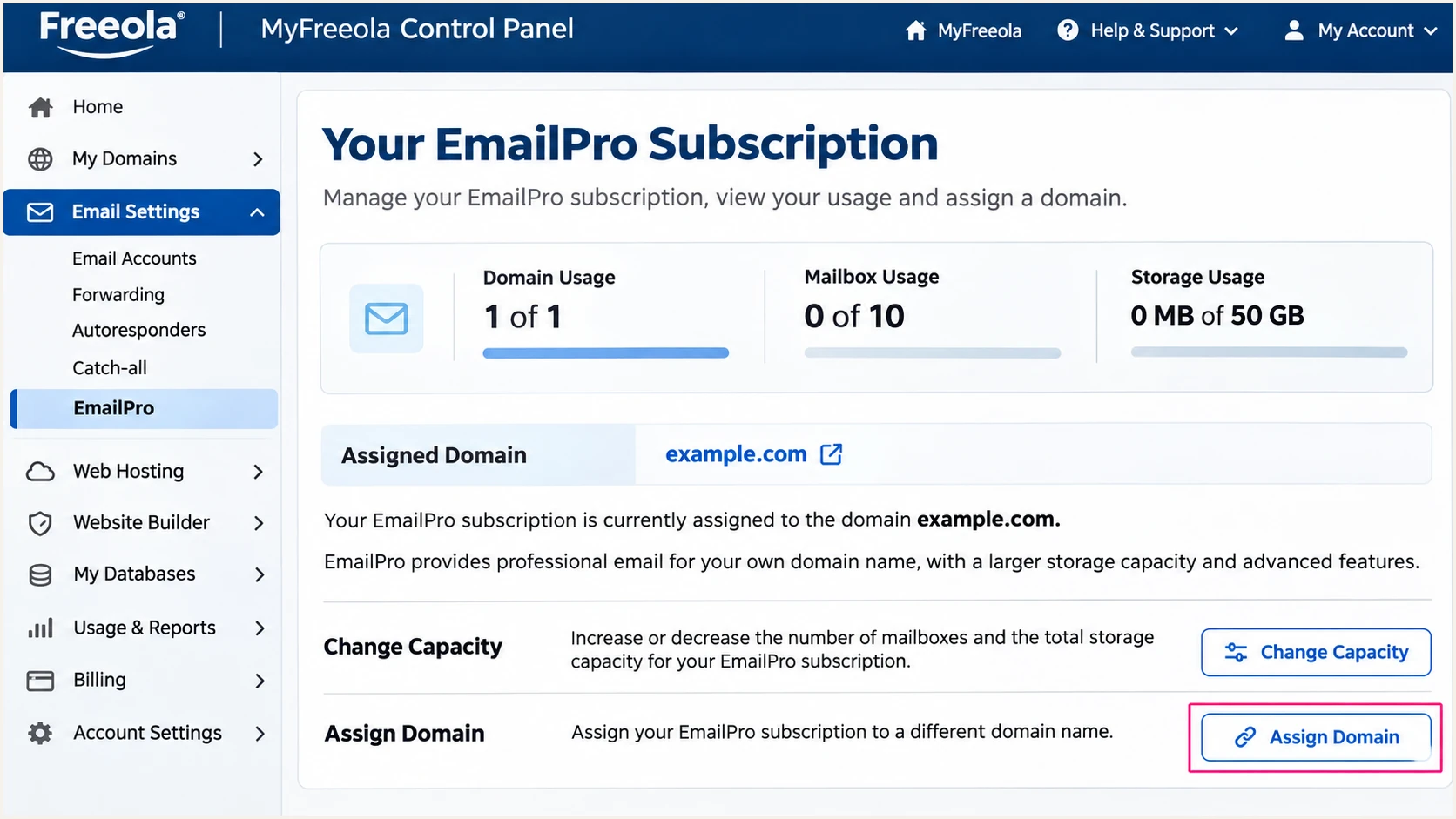
MyFreeola EmailPro subscription page with Assign Domain highlighted.
Set up SPF
I configure SPF for the SMTP MAIL FROM domain, which appears in the delivered Return-Path. Freeola supports return-path alignment, so check that the domain used on your actual messages matches your From domain under your DMARC alignment settings.
- Open DNS: Select DNS Records (A/MX/SPF/TXT) > DNS Settings. Tick your domain, click Change DNS, choose Create/Modify Custom DNS Records (Advanced), and continue past the warning.
- Edit one policy: Find the TXT record beginning v=spf1. Edit it if present; otherwise add a TXT record. Leave Subdomain blank for the domain root in MyFreeola.
- Authorise Freeola: Insert include:spf.freeolamail.net before the final all mechanism. Retain other authorised senders and any account-specific Freeola mechanisms that still apply.
- Save the record: Save one merged SPF TXT record. Use the example below only when Freeola is the sole sender and no additional account-specific mechanisms are required.
SPF is published as TXT, even when a DNS interface also offers an older SPF record type. If Freeola has supplied a different account-specific policy, confirm the intended include with support before replacing a working configuration.
SPF TXT value at example.com for Freeola-only sendingtext
v=spf1 include:spf.freeolamail.net ~all
Keep the evaluation within 10 DNS-querying terms, including nested includes. The a and mx mechanisms also consume this budget; an over-limit evaluation returns permerror.
Use the SPF checker below to inspect the actual return-path domain. Look for a single policy, valid syntax, and an evaluation within the lookup limit.
SPF checker
Find SPF syntax issues, lookup limits, and weak records.
?/16tests passed
Enter a domain, not an email address or the SMTP submission hostname. If the message uses a return-path subdomain, check that subdomain because SPF does not inherit the parent domain's record.
I then send a fresh message and confirm spf=pass at the receiver. SPF alignment also requires the authenticated return-path domain to match the visible From domain according to the DMARC policy.
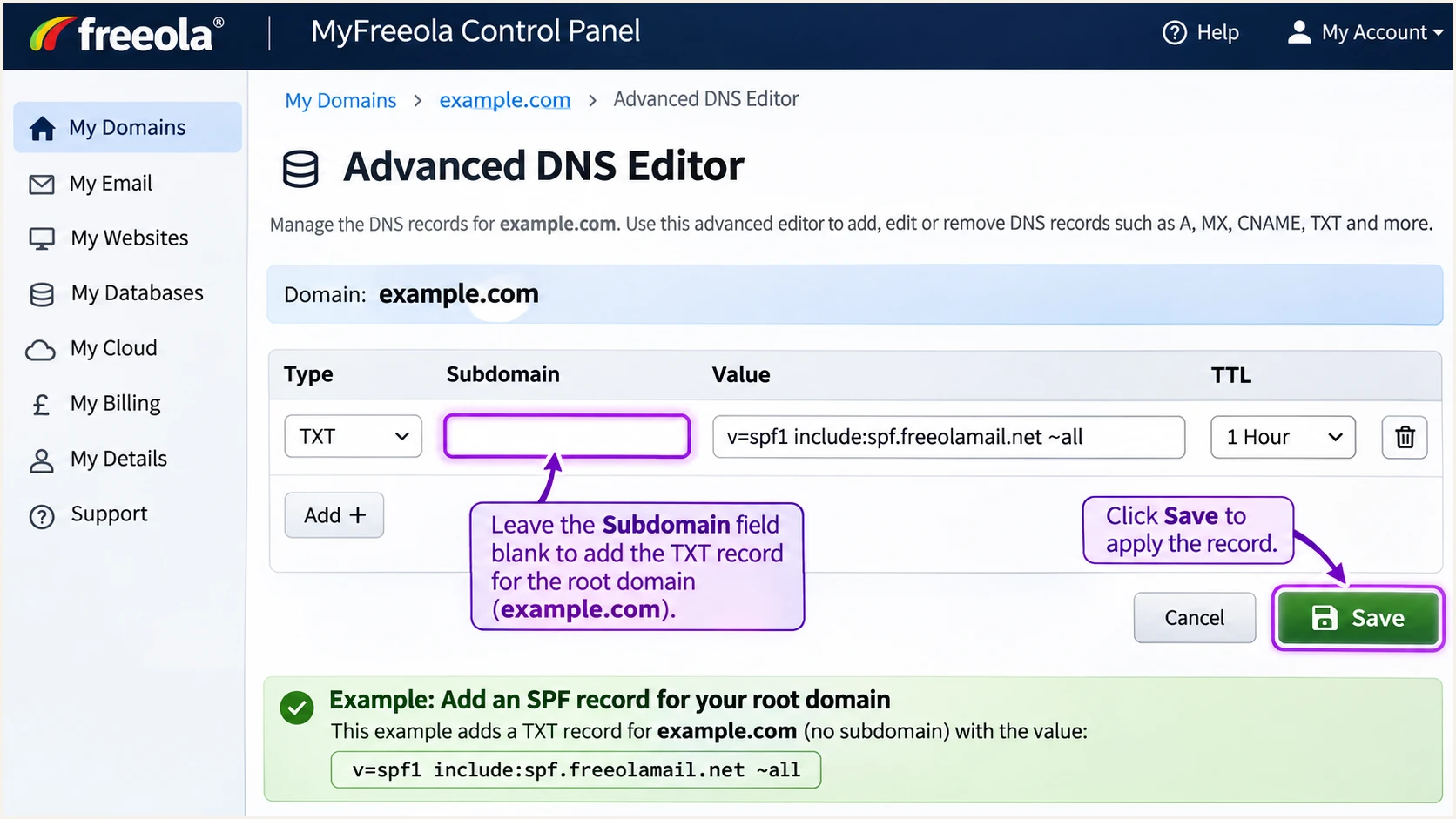
MyFreeola TXT editor with the root-domain SPF value.
Set up DKIM
Freeola's EmailPro page confirms DKIM signing. I verify the signature Freeola actually produces. Its public setup guides do not specify a universal selector or a DKIM activation control for every account.
- Send through Freeola: Send a new message using Freeola Webmail or authenticated smtp.freeolamail.net, with your own domain in the From address.
- Read the signature: At the recipient, inspect DKIM-Signature and Authentication-Results. Record the signature's d= signing domain and s= selector.
- Check the result: Require dkim=pass and domain alignment between d= and the visible From domain. A passing signature for an unrelated provider domain does not establish DMARC for your domain.
- Repair with Freeola: For an absent or failing signature, send Freeola support the full received headers. Ask them to confirm signing for your domain and provide the selector, signing domain, and any required DNS record.
The public key is looked up at <selector>._domainkey.<signing-domain>. Substitute the actual s= and d= values; do not assume that a selector copied from another domain applies to yours.
If Freeola supplies a TXT value or CNAME target, publish that exact record type and value in the authoritative DNS zone. Freeola must hold the matching private key to sign messages.
Signing already passes
Keep the working selector. Test Freeola Webmail and each configured mail client, since an application using another SMTP service takes a different sending route.
Signing needs repair
Have Freeola confirm signing and key publication for your domain. After the correction, send another message and check the receiver's result, even when the DNS key resolves.
Set up DMARC
I publish p=none when starting reporting on a domain without enforcement. Keep an existing p=quarantine or p=reject policy and its working reporting destinations.
- Check the current policy: Look up TXT records at _dmarc.example.com. Edit the existing DMARC record instead of adding a second one.
- Create the TXT entry: In the same DNS editor, select TXT and enter _dmarc in Subdomain. MyFreeola adds the domain name, so the resulting owner is _dmarc.example.com.
- Set reporting: Use the record below for a new deployment. Replace dmarc@example.com with a monitored mailbox or your assigned aggregate-report address before publishing.
- Publish and verify: Save the record and query public DNS. Confirm the policy and reporting destination match the intended values.
A monitoring policy requests reports without asking receivers to quarantine or reject messages because they fail DMARC. It does not guarantee delivery or override the receiver's other filtering.
Start new deployments with reporting
Use this value only when the domain has no existing enforcement policy. Substitute a real reporting mailbox before saving.
New DMARC TXT value at _dmarc.example.comtext
v=DMARC1; p=none; rua=mailto:dmarc@example.com
Aggregate reports usually arrive on a daily cycle as XML files. Confirm that the destination receives them; not every receiving service sends reports. An external reporting domain also needs the required reporting authorisation.
Use our DMARC record generator to build the value for your reporting settings. Retain relaxed alignment unless an established policy deliberately requires exact domain matches.
DMARC checker
Look up a domain's DMARC record and catch policy issues.
?/7tests passed
Enter the visible From domain. Check that the DMARC record is valid, there is no duplicate policy, and the reporting address is correct.
The checker validates DNS. I also require a fresh message with dmarc=pass at the receiving system before increasing enforcement.
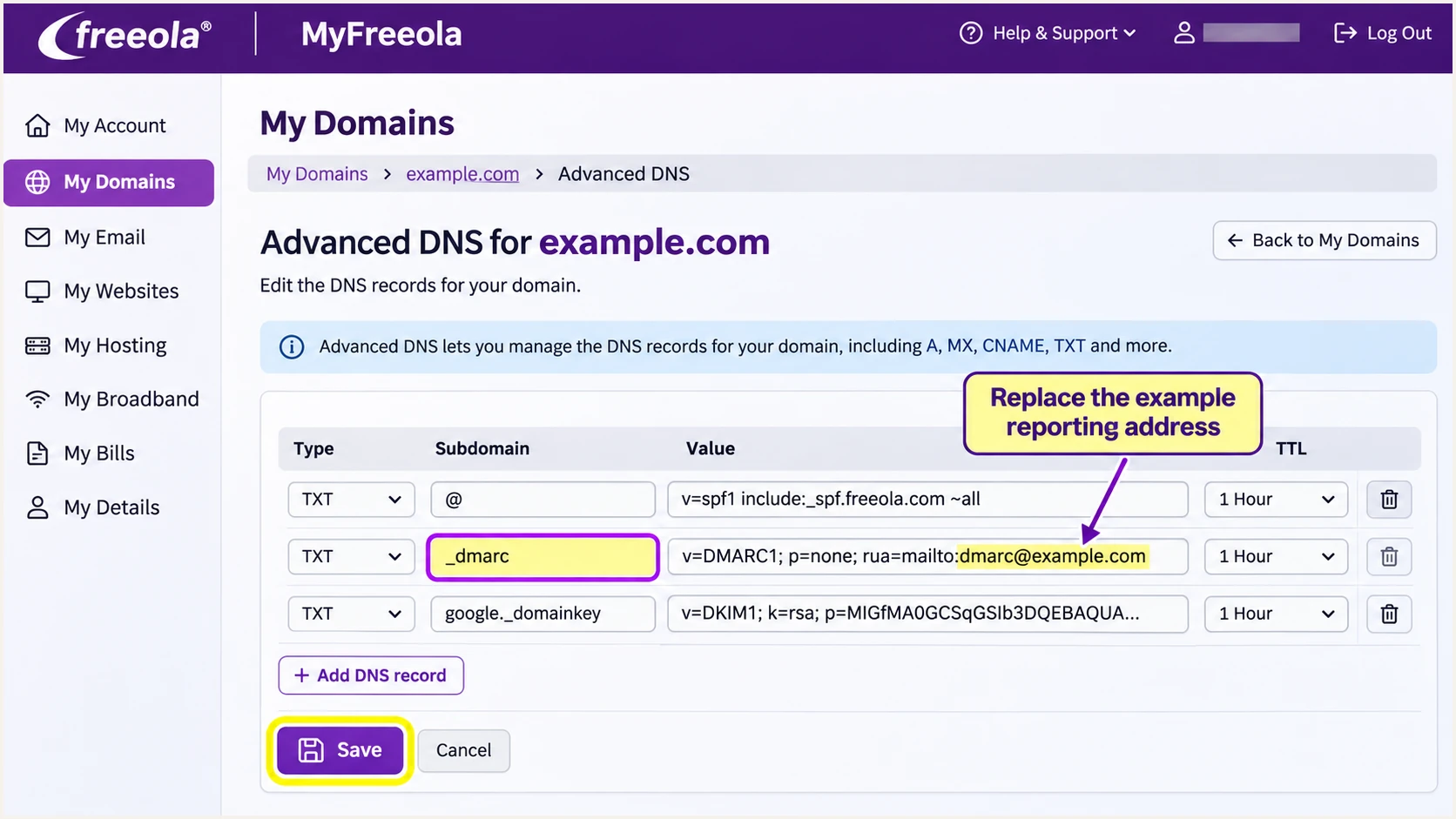
MyFreeola DMARC TXT entry with _dmarc as the subdomain.
Verify and troubleshoot
I test DNS and message delivery separately. A valid record does not prove that a message took the Freeola sending route or carried a working signature.
- Start a test: Use the email tester below, copy its destination address, and send a fresh message from your Freeola mailbox. Open the resulting diagnosis.
- Test Webmail: In Freeola Webmail, click Create New Message, paste the test destination into To, and click Send Message. Repeat using your normal mail client or website sending route.
- Check SMTP: For a mail client, use smtp.freeolamail.net with SSL/TLS on port 465 and outgoing authentication enabled. Use the full mailbox address as the username and its mailbox password.
- Inspect authentication: Check spf=pass for the MAIL FROM identity, dkim=pass for the signing domain, and dmarc=pass for the visible From domain. Investigate identity mismatches even when SPF passes.
Our email tester asks you to send a message, then returns a diagnosis of authentication and other delivery checks. It is quicker than inferring message authentication from published records alone.
Retest after cached DNS values expire and send a new message. An older message keeps the authentication results recorded when it arrived.
Email tester
Send a real email to this address. Suped shows a results button when the test is ready.
?/43tests passed
I trust the final receiving system's Authentication-Results when diagnosing a delivery. Headers inserted by an earlier, untrusted sender are not reliable evidence of authentication.
Use these failure patterns to choose the next action. A missing DKIM signature needs a sending-route or signing correction; publishing a public key alone does not add a signature.
|
|
|
|---|---|---|
SPF permerror | TXT count; lookups | Merge or reduce |
SPF pass; DMARC fail | Domain alignment | Check DKIM too |
DKIM fail | Selector; public key | Confirm with Freeola |
No signature | Sending route | Check SMTP signing |
No reports | rua destination | Verify reporting |
Common Freeola authentication failures and the next check.
An unrelated provider-owned return path produces SPF alignment failure even if SPF passes. Adding an include to your visible From domain cannot change the SMTP MAIL FROM. A passing DKIM signature with domain alignment is sufficient for DMARC.
Freeola supports return-path alignment, so ask support to investigate an unexpected return-path domain. For a route that cannot use your own return-path domain, rely on passing DKIM with domain alignment. In the commands below, replace selector and the signing domain with the message's real values.
DNS commands and illustrative receiving headerstext
# Query your actual domain and DKIM selector
dig +short NS example.com
dig +short TXT example.com
dig +short TXT _dmarc.example.com
dig +short TXT selector._domainkey.example.com
dig +short CNAME selector._domainkey.example.com

# Illustrative results recorded by the receiving server
Authentication-Results: receiver.example;
    spf=pass smtp.mailfrom=example.com;
    dkim=pass header.d=example.com;
    dmarc=pass header.from=example.com
Get alerted when it breaks
Suped is our DMARC monitoring platform for tracking ongoing Freeola authentication. It combines automated issue detection with record-level diagnostics and notifications, so a working setup can be monitored after the initial test.
- Review sources: Once aggregate reports are flowing into Suped, inspect Sources and verify Freeola only after matching it to known sending activity. Investigate unverified sources before authorising them.
- Enable notifications: Enable Issues detected and Sending sources need verification notifications. Turn on DMARC summary emails for regular review.
- Investigate failures: Open a failed record in Detail view and inspect SPF, DKIM, and DMARC results. Use DNS history to check for a record change near the start of the failure.
- Confirm the fix: Correct the record in Freeola or have Freeola repair signing, send another test, and check later reports for the affected source.
I use the failed record's source IP and DKIM selector to make a specific support request. Suped's diagnostic checks help distinguish a broken key from an SPF lookup error before changing DNS.
Account for reporting delays
Aggregate reports arrive in batches. Suped alerts based on those reports inherit the reporting delay, so they are not an instant check of every message or SMTP connection.
Secure your domain with p=reject
I move to p=reject after every legitimate sending route is accounted for and passes DMARC. In Suped, verified sources and record diagnostics provide the evidence for changing the policy without overlooking Freeola traffic.
- Inventory sending: Review Freeola mailboxes, website forms, invoicing systems, and other services using the domain. Fix each legitimate route or stop obsolete sending.
- Observe normal activity: Collect reports across the actual sending cycle, including monthly or low-volume mail. One passing test does not establish readiness for every source.
- Fix legitimate failures: Establish reliable DKIM with domain alignment for Freeola, even when SPF passes on direct delivery. Forwarding often breaks SPF, while an unchanged DKIM signature can survive.
- Stage enforcement: For a new deployment, change p=none to p=quarantine, inspect subsequent reports and delivery, then change to p=reject. Keep an existing stronger policy while correcting senders.
- Publish the policy: Update the existing _dmarc TXT record in MyFreeola. If it is already delegated to Suped, our hosted DMARC controls let you stage the policy in the dashboard. Preserve the working rua destination.
Review subdomains before enforcement. A parent policy applies to subdomains without an overriding policy; inspect sp= and any separate subdomain records before changing the parent.
Suped keeps source review and policy staging in the same workflow. I confirm that every authorised source has a passing DMARC path, then inspect new reports after each policy change.
Final DMARC TXT value, retain your real reporting addresstext
v=DMARC1; p=reject; rua=mailto:dmarc@example.com
Replace the example reporting address with the destination already receiving your reports. Continue investigating unknown traffic after enforcement; an authentication pass rate does not establish that every source is authorised.
A reject policy asks receivers to reject messages that fail DMARC, subject to their local policy. It does not prevent lookalike-domain email or guarantee inbox placement.
Frequency asked questions
Freeola's EmailPro page states that it uses DKIM signing. Verify dkim=pass and domain alignment on a delivered message. For an absent or failing signature, ask Freeola to confirm the signing domain, selector, and any DNS record required for your account.
For Freeola-only sending, use the TXT value shown in the SPF section. If an SPF policy already exists, merge include:spf.freeolamail.net into that policy before its all mechanism. Retain other authorised senders and applicable account-specific Freeola entries.
Yes. A passing DKIM signature with domain alignment is sufficient. An SPF alignment warning alone does not require weakening your DMARC policy when DKIM provides a valid DMARC path. Still investigate unexpected changes to Freeola's return path.
Freeola is associated with freeola.net mail server names, including smtp-auth.freeola.net. Its documented SMTP submission hostname is smtp.freeolamail.net. Treat an rDNS suffix as an attribution clue and confirm the sending IP and authentication before authorising the source.
Freeola advises allowing up to 24 hours for DNS record changes. Query the authoritative DNS and allow cached records to expire before retesting a fresh message. DMARC reports follow each receiver's reporting cycle rather than arriving immediately after a DNS update.
Keep an existing quarantine or reject policy during Freeola setup. Correct the authorised sending routes or signing configuration and verify a fresh message. Use p=none when starting reporting on a domain without enforcement.




