How to set up DMARC/DKIM/SPF for ForwardMX

Published 22 Nov 2026
Updated 22 Nov 2026
11 min read
Summarize with
To authenticate ForwardMX mail, publish its SPF include, enable DKIM in "DKIM Settings" and add a DMARC TXT record at _dmarc. I start with p=none for a domain without enforcement, then test actual messages before tightening the policy. Keep an existing p=quarantine or p=reject policy.
ForwardMX routes domain email to destination inboxes and has domain management in its web interface. I check outbound messages and forwarded messages separately: SRS rewrites the envelope sender, while DMARC evaluates the domain in the visible From address.
Add your domain
I add the domain to ForwardMX and confirm routing before testing authentication. Have access to the domain's authoritative DNS settings.
- Open the service. Sign in to ForwardMX and select your ForwardMX service under "Your Active Products/Services".
- Add the domain. Click "Add Domain" in the sidebar, enter your domain without a protocol or path, then click "Add".
- Create a forwarder. Click the domain's eye icon, choose "Add New Forwarder", enter the alias and destination address, then click "Create Forwarder".
- Publish the MX records. Open "MX Records and Setup Instructions". Copy both MX hosts and priorities into DNS. Replace old MX records only when moving inbound delivery to ForwardMX.
Use the MX values assigned to your account. ForwardMX's documentation uses example hosts, but your service's values take precedence.
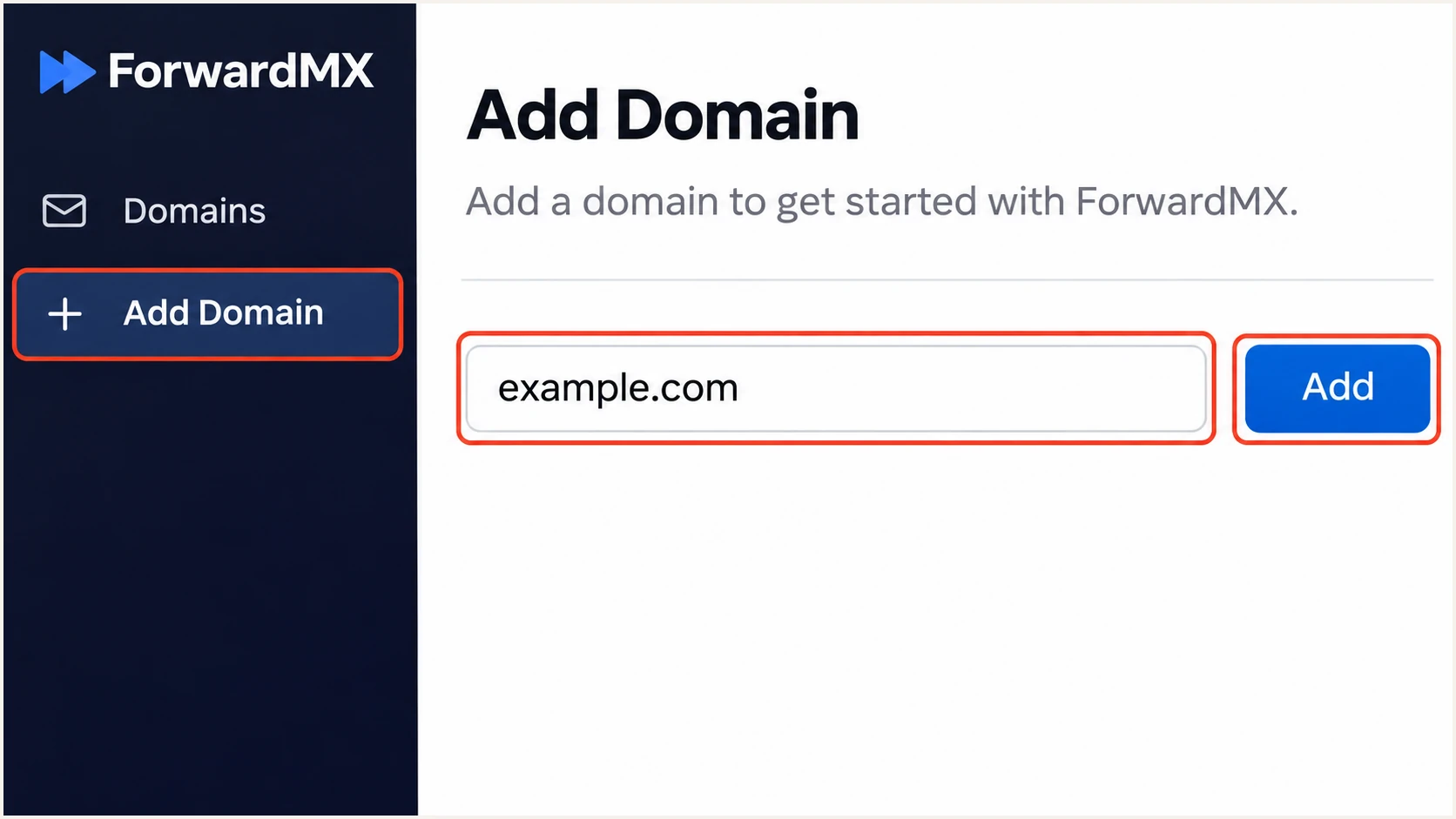
ForwardMX Add Domain screen with the domain field and Add button highlighted.
After publishing SPF below, let ForwardMX detect the DNS changes. Cached answers persist until their TTL expires; ForwardMX advises allowing up to 48 hours.
Send a message from an unrelated inbox to the new alias and confirm it reaches the destination. Successful forwarding verifies routing, but it does not prove outbound DKIM or DMARC passes.
Set up SPF
ForwardMX's SPF authorization is include:_spf.forwardmx.net. I retain this include even for forwarding-only domains because ForwardMX requires it for its SRS envelope senders.
- Find the existing record. Look for a TXT value beginning v=spf1 at the domain used by the envelope sender. For the root domain, the DNS host field is usually @ or blank.
- Authorize ForwardMX. If no SPF record exists and ForwardMX is your only sender, publish the example below. Otherwise, merge include:_spf.forwardmx.net before the existing all mechanism.
- Keep one SPF record. Preserve the other authorized senders. Two separate v=spf1 records at the same hostname cause an SPF permanent error.
- Check the lookup limit. Count nested includes toward SPF's 10 DNS lookup limit. Use ForwardMX's include rather than copying its current IP addresses, which change.
SPF for a domain using only ForwardMXtext
Host: @
Type: TXT
Value: v=spf1 include:_spf.forwardmx.net -all
For mail sent as your domain, inspect the delivered Return-Path and the receiver's SPF result. An SPF pass contributes to DMARC only when the authenticated envelope domain matches the visible From domain under your DMARC settings.
Enter the actual envelope domain below. If the Return-Path uses a subdomain, check that subdomain's SPF separately; an SPF record at the root does not automatically apply to it.
SPF checker
Find SPF syntax issues, lookup limits, and weak records.
?/16tests passed
A valid SPF record confirms DNS authorization. I still send a test through the application or mail client that will use ForwardMX, since another SMTP route produces different results.
For forwarded mail with an unrelated sender's From domain, an SRS SPF pass does not satisfy that sender's DMARC domain match. The original sender's surviving DKIM signature is the important check.
Set up DKIM
I enable signing in ForwardMX's "DKIM Settings" and publish the public DNS record it supplies. There is no universal selector or public key to copy between domains.
- Open DKIM Settings. Use the ForwardMX account sidebar. Enable DKIM for the sending domain and retrieve its generated DNS details.
- Copy the DNS details. Use the exact record name, record type and public value shown. Publish the supplied selector under _domainkey without duplicating the domain suffix.
- Preserve the public key. For a long TXT value, use multiple quoted strings inside one TXT record if your DNS provider requires them. Do not create separate key records for the chunks.
- Test the signature. Send through ForwardMX. In the receiver's Authentication-Results, require dkim=pass and a signing domain that matches your visible From domain under DMARC.
ForwardMX documents DKIM signing for sent and forwarded messages on all plans. Publishing a key alone does not demonstrate that a particular message was signed.
The navigation crop below identifies the documented settings entry. Copy the generated values from your own account rather than an illustration.
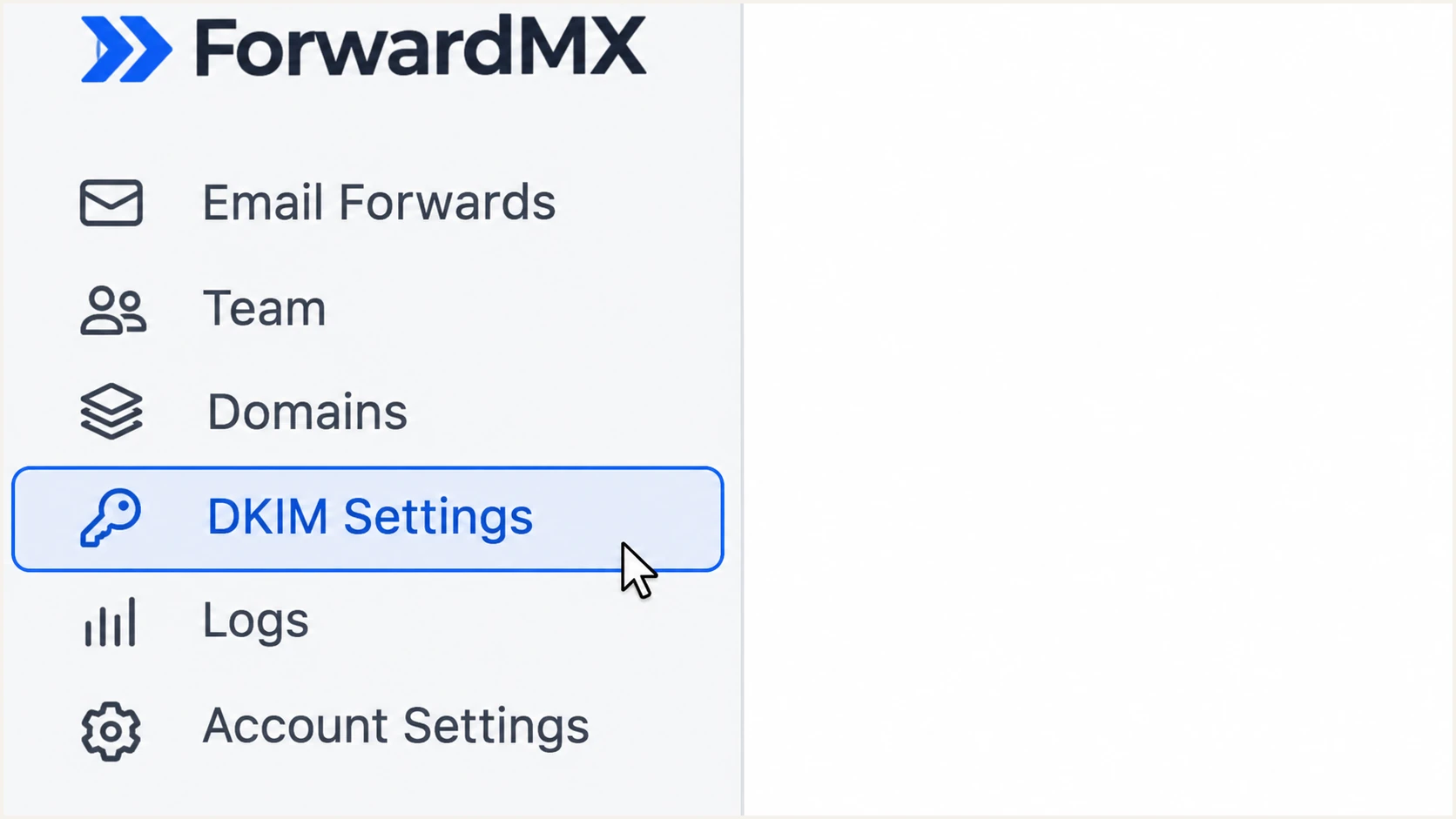
ForwardMX account navigation with DKIM Settings highlighted.
Read d= and s= in the delivered DKIM-Signature to identify the signing domain and selector. Query that exact selector under that signing domain if verification fails.
For outbound mail, a signature using only a provider's unrelated domain is insufficient for your DMARC policy. For forwarded third-party mail, inspect the original sender's signature instead.
Forwarding does not transfer domain identity
A ForwardMX DKIM signature using your domain does not authenticate an unrelated domain in the visible From address. SRS also does not repair that mismatch. Forwarded mail needs a surviving DKIM pass for the original From domain to pass DMARC through DKIM.
Set up DMARC
I publish one DMARC policy for the visible From domain. New deployments start with reporting; an existing quarantine or reject policy stays in place.
- Check the current policy. Query _dmarc for your domain before editing. Update an existing record rather than adding another DMARC record.
- Publish the starter record. If enforcement is not already enabled, create the TXT record below at host _dmarc. Replace example.com and the report mailbox with your real values.
- Make reports reachable. Create the reporting mailbox or use your reporting service's assigned address. External report destinations require the receiving domain's DNS authorization.
- Retain working enforcement. If p=quarantine or p=reject is already deployed, preserve it and keep the required reporting address while configuring ForwardMX.
Initial DMARC record for a domain without enforcementtext
Host: _dmarc
Type: TXT
Value: v=DMARC1; p=none; rua=mailto:dmarc@example.com
The example is a template. p=none requests monitoring without DMARC quarantine or rejection, while rua requests aggregate reports; receivers decide whether to send those reports.
Use the DMARC record generator for the record syntax, then check your published domain below. A syntactically valid policy still needs actual message testing.
DMARC checker
Look up a domain's DMARC record and catch policy issues.
?/7tests passed
DMARC passes when either SPF or DKIM passes and its authenticated domain matches the visible From domain under the applicable matching rules. It does not require both mechanisms to pass.
I leave the default relaxed matching in place unless there is a specific reason for strict mode. With relaxed matching, authenticated subdomains under the same organizational domain qualify; strict mode requires an exact domain match.
Verify and troubleshoot
I test both a newly composed outbound message and an unrelated sender's message forwarded through the alias. They exercise different authentication paths.
- Query public DNS. Run the commands below. Replace SELECTOR with the s= value and use the d= signing domain for the DKIM query.
- Use the intended SMTP route. For outbound mail, configure the ForwardMX SMTP server shown in your account. Its documented endpoint is mx1.forwardmx.net on port 587. Require TLS and use the separate SMTP credentials, not your account password.
- Inspect receiver results. Use the final receiver's trusted Authentication-Results. For your outbound mail, check spf=pass, dkim=pass and dmarc=pass, then inspect the authenticated domains.
- Exercise forwarding. Send through the alias and inspect the destination's results. An SPF domain mismatch is expected for unrelated forwarded From domains; require a surviving matching DKIM pass for DMARC.
DNS checks for your domain and actual DKIM selectorbash
dig +short MX example.com
dig +short TXT example.com
dig +short TXT SELECTOR._domainkey.example.com
dig +short TXT _dmarc.example.com
The quickest message check is the email tester below. Send to the address it provides using your actual ForwardMX SMTP route to get a diagnosis of the delivered message.
For a forwarding test, send to your domain alias and temporarily route that alias to the tester's address. Keep that result separate from the direct outbound test, then restore the normal destination.
Email tester
Send a real email to this address. Suped shows a results button when the test is ready.
?/43tests passed
If a lookup is correct but delivery still fails authentication, inspect the message rather than repeatedly changing DNS. A stale selector or an application bypassing ForwardMX explains failures that a root-domain lookup misses.
I use these checks to isolate the failing layer. A passing authentication result does not guarantee inbox placement.
|
|
|
|---|---|---|
SPF error | Duplicate SPF | Merge records |
SPF mismatch | Return-Path | Check domain |
DKIM fail | Key and selector | Match DNS |
DMARC fail | From domain | Check matching |
Old DNS | TTL and authority | Recheck later |
Check the actual message path before editing authentication records.
Get alerted when it breaks
A one-time test misses later changes. Suped is our DMARC platform for detecting ForwardMX authentication issues alongside your domain's other sending sources.
- Collect aggregate reports. Keep the assigned reporting destination in rua. Confirm incoming reports include your real sending traffic before relying on ongoing coverage.
- Enable issue notifications. In Suped's notification settings, enable "Issues detected" and "Sending sources need verification" emails. Use summary emails for regular review.
- Review sender identity. Verify sources you recognize. Inspect unfamiliar IPs and authentication domains before authorizing them; a recognizable infrastructure hostname alone is insufficient.
- Investigate changes. Use Suped's detailed SPF and DKIM diagnostics, then compare DNS history with the failing period. Apply the indicated fix and confirm fresh traffic passes.
Our DMARC monitoring connects reports to sending sources and steps to fix detected issues. This is useful when ForwardMX forwarding traffic and a separate application's outbound mail appear under the same domain.
Aggregate reporting depends on participating receivers and report arrival. I use alerts for ongoing investigation and a fresh test message to verify a repair immediately.
Test after a change
Check live DNS and send through the exact ForwardMX route. The result covers that message and that moment.
Monitor ongoing traffic
Suped groups reported failures by source and flags issues. Recheck the affected source after applying the fix.
Maintain a working notification recipient and review low-volume senders as well as your main sending route. An occasional billing system still needs to authenticate.
For a reported failure, compare the report's authentication domains with a fresh message. Reproduce the same path before treating a DNS change as the repair.
Secure your domain with p=reject
I move to p=reject after legitimate sending paths consistently pass DMARC. Suped's source verification and issue diagnostics provide the evidence for each policy change.
- Inventory every sender. Review normal traffic and infrequent workflows, including application notices. Verify each legitimate source and repair its domain matching before enforcement.
- Separate forwarding failures. Distinguish your outbound From domain from unrelated inbound From domains. Changing your policy does not repair the original sender's failed DKIM signature.
- Stage the policy. After resolving legitimate failures, change p=none to p=quarantine. Review representative traffic and delivery failures, then advance to p=reject.
- Keep monitoring active. Use Suped to review source-level failures after each change. Its Hosted DMARC controls manage policy staging after the required DNS setup.
- Review subdomains. Check subdomain policies and any explicit sp value before enforcement. A parent reject policy affects subdomains without an overriding applicable policy.
Enforced DMARC after legitimate senders are verifiedtext
Host: _dmarc
Type: TXT
Value: v=DMARC1; p=reject; rua=mailto:dmarc@example.com
Preserve your real reporting address and other intentional tags when changing p. If Hosted DMARC manages the policy, make the change there instead of publishing a conflicting TXT record.
There is no universal waiting period or pass-rate threshold that proves readiness. Review a representative sending cycle and investigate legitimate failures, even when the overall pass rate is high.
Enforce with source-level evidence
Move to p=reject when each authorized sender has a tested DMARC-passing route. Keep Suped notifications and reporting active so a later sender change triggers investigation.
p=reject asks receivers to reject messages that fail DMARC for your domain. Receivers retain local handling decisions, and this policy does not prevent impersonation using a different domain.
After enforcement, retest ForwardMX whenever you change its signing key or SMTP route. Keep earlier DKIM public keys available while messages signed with them are still in transit.
Frequency asked questions
Authorize include:_spf.forwardmx.net in the SPF TXT record for the relevant envelope domain. If ForwardMX is your only sender, use v=spf1 include:_spf.forwardmx.net -all. Merge the include into an existing SPF record instead of adding a second one.
Yes. ForwardMX requires SPF because its SRS process rewrites forwarded messages' envelope senders to your domain. This authorizes the forwarding hop; it does not make SPF match an unrelated original From domain for DMARC.
Open DKIM Settings in your ForwardMX account and use the generated DNS details. For a delivered message, read s= for the selector and d= for the signing domain in DKIM-Signature. Do not guess a default selector.
Yes, when a valid DKIM signature matches the original visible From domain. DMARC needs one matching authentication pass. A ForwardMX signature for your forwarding domain does not replace the unrelated original sender's matching signature.
Treat that hostname as a lead to investigate ForwardMX, then confirm the actual sending IP, current SPF authorization and message headers. ForwardMX documents mx1.forwardmx.net as a service endpoint, but that does not establish a universal outbound rDNS suffix. Its outbound relays and sending IPs change, so I do not identify or authorize a sender from a suffix alone.
Keep an existing p=reject or p=quarantine policy while configuring ForwardMX. Repair the affected sending route and verify it with a real message. The p=none example is for a domain that has not yet enabled enforcement.