
How to set up DMARC/DKIM/SPF for Forward Email

Published 22 Nov 2026
Updated 22 Nov 2026
11 min read
Summarize with
To authenticate mail sent through Forward Email, verify your domain, publish its SPF authorization and generated DKIM key, configure the fe-bounces CNAME, and add a DMARC TXT record. I test an actual outbound message before tightening the DMARC policy.
Forward Email includes outbound SMTP on paid plans and signs outgoing messages with your domain's DKIM key. Receiving and forwarding someone else's message is a different mail flow; your DNS records do not authenticate that person's From domain.
Outbound SMTP
You send as your own domain. Configure Forward Email's generated DKIM key and custom Return-Path, then verify DMARC at the recipient.
Incoming forwarding
You relay an existing message. Authentication depends on the original sender's identities and whether its DKIM signature survives forwarding.
Add your domain
I start in Forward Email with access to the authoritative DNS zone. Adding a domain to the account and verifying outbound SMTP are separate checks.
- Add the domain. Sign in, open My Account > Domains, and add your sending domain, such as example.com. Select a paid plan if you need outbound SMTP.
- Publish ownership proof. For the paid setup, copy the domain-specific TXT value beginning forward-email-site-verification= into the root DNS name, usually @. Keep the complete token.
- Configure receiving deliberately. If Forward Email will receive your mail, publish the MX records shown in Setup, using mx1.forwardemail.net and mx2.forwardemail.net. Plan any existing mailbox migration before replacing MX records.
- Run both checks. Open the domain's Setup page and click Verify Records. Then open Settings > Outbound SMTP Configuration for the sending records. Complete outbound SMTP approval before sending.
The ownership TXT record is separate from SPF. Keep both at the root, but publish only one TXT record beginning v=spf1 at each DNS name.
Use the host format expected by your DNS provider. If it appends your domain automatically, enter @ for the root rather than creating a duplicated domain name.
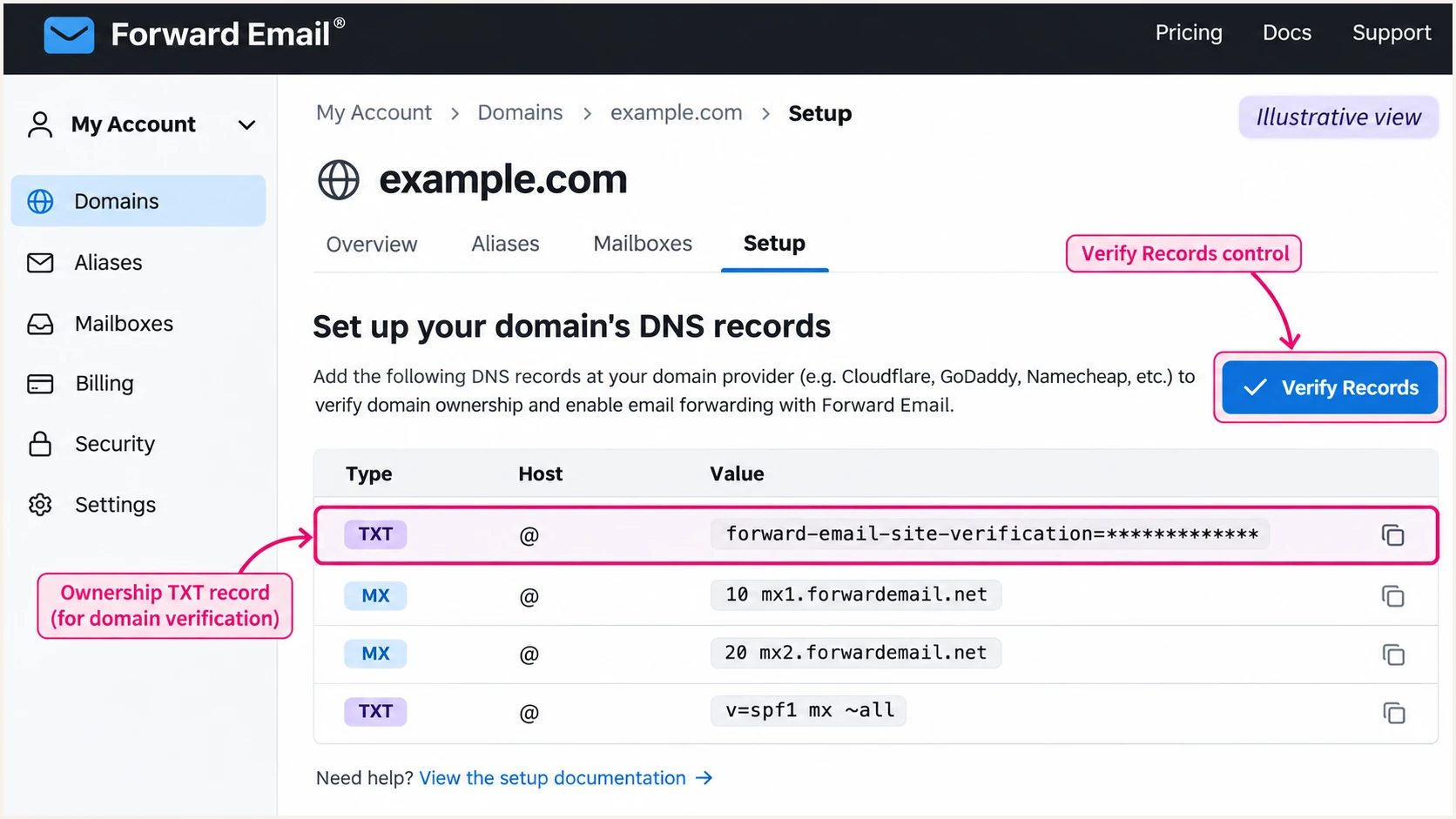
Illustrative Forward Email Setup view showing ownership verification and Verify Records.
Keep the verification token published after setup. DNS verification does not replace the separate approval requirement for outbound SMTP.
Set up SPF
Forward Email documents include:spf.forwardemail.net for SPF authorization. It also supports a custom Return-Path through fe-bounces, which is important because SPF checks the envelope sender domain.
- Inspect existing SPF. Find the existing root TXT record beginning v=spf1. Edit that record instead of adding a second SPF record.
- Authorize Forward Email. Add include:spf.forwardemail.net before the final all mechanism. Preserve the mechanisms required by your other legitimate senders.
- Publish the bounce CNAME. Create fe-bounces as a CNAME pointing to forwardemail.net, or use the exact Return-Path name shown in your domain settings if customized. Keep this record DNS-only.
- Check lookup limits. Keep the SPF evaluation within the 10 DNS-lookup term limit, including nested includes. Do not replace the include with a copied list of current IP addresses.
Documented manual SPF example and default Return-Pathdns
example.com. 3600 IN TXT "v=spf1 a include:spf.forwardemail.net -all"
fe-bounces.example.com. 3600 IN CNAME forwardemail.net.
This SPF example assumes the listed mechanisms cover every sender using that identity. The a mechanism also authorizes your domain's A and AAAA addresses. Retain it only when those hosts should send email; assess existing senders before applying -all.
The root SPF record and the bounce CNAME have different roles. SPF for a Return-Path under fe-bounces.example.com follows that name's DNS, so changing only the root SPF record does not repair a missing bounce CNAME. Do not add a TXT record at the same name as the CNAME.
A Return-Path under fe-bounces.example.com and a From address under example.com satisfy relaxed SPF domain alignment. With strict SPF alignment, that subdomain does not exactly match example.com; a passing DKIM signature for example.com can still satisfy DMARC.
SPF checker
Find SPF syntax issues, lookup limits, and weak records.
?/16tests passed
Enter your sending domain above to inspect the published SPF syntax and lookup count. Also verify the bounce CNAME separately; a correct root SPF result alone does not prove the Return-Path is working.
I confirm the envelope sender in a received message after DNS verification. For direct outbound SMTP, the expected Return-Path uses your configured bounce domain.
Set up DKIM
I use the DKIM selector and public key generated for this domain by Forward Email. A key copied from another domain will not validate its signatures.
- Open sending settings. Go to My Account > Domains > Settings > Outbound SMTP Configuration for the correct domain.
- Copy the DNS name. Copy the displayed DKIM TXT hostname, including the generated selector and ._domainkey suffix. Do not assume the selector is default or selector1.
- Publish the public key. Copy the entire displayed TXT value into DNS. Publish the public key only, never a private signing key.
- Verify signing. Click Verify in Outbound SMTP Configuration after DNS updates. Send through Forward Email and check that the recipient reports a passing DKIM signature with your sending domain as d=.
A DNS provider can split a long DKIM TXT value into several quoted strings inside one record. That is valid when the strings concatenate into the complete original value without inserted spaces.
Use your actual selector in DNS lookups. A passing signature for forwardemail.net alone does not establish DKIM alignment with a From address at example.com.
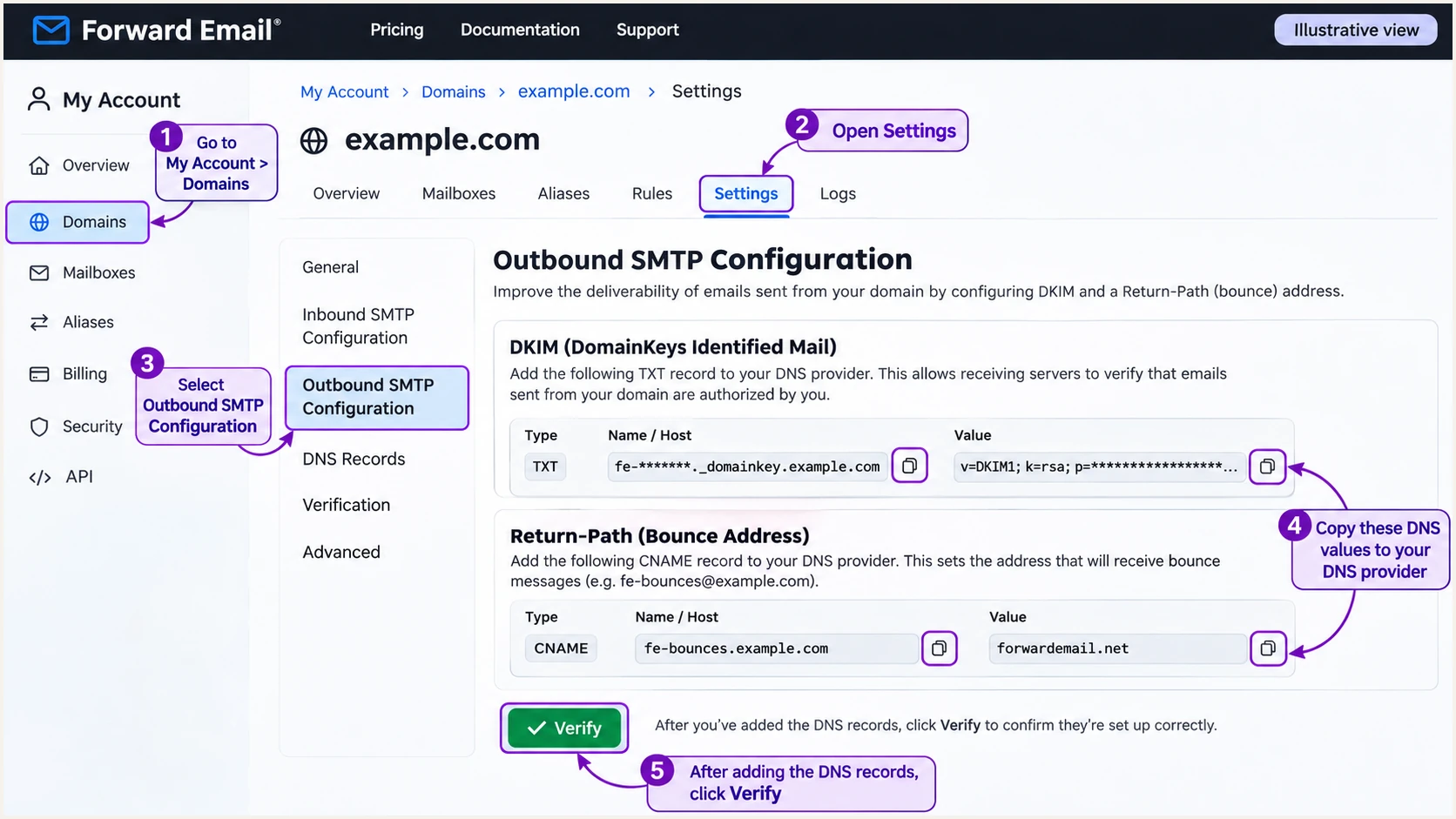
Illustrative Forward Email outbound SMTP settings for DKIM and the custom Return-Path.
After a key rotation, test the new selector before removing an old key. Keep the old public key available while messages signed with it are still queued or in transit.
Set up DMARC
DMARC passes when SPF passes with domain alignment or DKIM passes with domain alignment. I start a new policy in monitoring mode while checking every legitimate sending source.
- Create the policy. Publish one TXT record at _dmarc.example.com, usually entered as _dmarc in the DNS host field.
- Preserve enforcement. For a new rollout, use the p=none example below. If your domain already uses p=quarantine or p=reject, keep that policy while adding Forward Email.
- Set a working recipient. Replace dmarc@example.com with a reporting mailbox you control or your assigned reporting destination. Preserve existing reporting recipients that you still need.
- Generate and verify. Use the DMARC record generator to build the record, publish it, and rerun Forward Email's outbound SMTP verification.
Starting DMARC value at _dmarc.example.com (TXT)dns
v=DMARC1; p=none; rua=mailto:dmarc@example.com
The example address is a placeholder. Aggregate reports are XML files, so choose a destination that can receive and process them. A reporting address on another domain requires that destination's external reporting authorization.
Multiple reporting recipients belong in the same rua tag, separated by commas. Multiple DMARC policy TXT records at the same name cause policy discovery errors.
Enter the domain below to check the public policy after saving it. A DNS check verifies the record; a message test verifies how your sender actually authenticates.
DMARC checker
Look up a domain's DMARC record and catch policy issues.
?/7tests passed
A valid p=none record requests reports without asking receivers to quarantine or reject messages because they fail DMARC. Reports arrive on receiver schedules, commonly daily.
Forward Email's Domain Connect setup publishes p=reject by default. Review automatic DNS changes before applying them, especially if your domain has other sending services.
Do not replace an existing quarantine or reject policy with the monitoring example. Keep the existing policy and reporting destinations while correcting Forward Email's authentication.
Verify and troubleshoot
I test a fresh message sent through Forward Email, then inspect the receiving server's results. Testing only an incoming forwarded message checks a different sender and a different path.
- Configure SMTP credentials. Under My Account > Domains > Mailboxes, create or select your alias and click Generate Password. Use the full alias address as the SMTP username and its generated password, not your account password.
- Use the correct server. Configure smtp.forwardemail.net on port 465 with SSL/TLS, or port 587 with STARTTLS. Send using a From address on the verified domain.
- Inspect live DNS. Run the commands below, replacing example.com and fe-YOURSELECTOR with your real domain and selector. Check the authoritative zone if cached answers differ.
- Read receiver results. Inspect Authentication-Results for spf=pass, dkim=pass, and dmarc=pass. Check the authenticated domains as well as the pass labels; at least one passing identity must have DMARC alignment.
Check the published DNS recordsbash
dig +short TXT example.com
dig +short CNAME fe-bounces.example.com
dig +short TXT fe-YOURSELECTOR._domainkey.example.com
dig +short TXT _dmarc.example.com
For a From address of hello@example.com, expect DKIM to authenticate example.com and the Return-Path to use your configured bounce domain. SPF success for an unrelated domain does not satisfy DMARC for example.com.
The email tester is the quickest message-level check. Send to its generated test address through your configured Forward Email account to get a full authentication diagnosis.
Email tester
Send a real email to this address. Suped shows a results button when the test is ready.
?/43tests passed
Test with the same application and SMTP settings used in production. A message sent through a different SMTP server does not validate your Forward Email configuration.
If a test fails, use the failing identity to choose the fix. Rerun the test after cached DNS answers expire rather than repeatedly changing unrelated records.
|
|
|
|---|---|---|
SPF permerror | Duplicate SPF | Merge records |
SPF mismatch | Return-Path | Verify CNAME |
DKIM failure | Selector/key | Recopy TXT |
DMARC failure | From identity | Fix alignment |
SMTP refusal | Approval | Resolve status |
For mail merely forwarded through Forward Email, the original sender's SPF identity can lose DMARC alignment after sender rewriting. A surviving DKIM signature with alignment can still pass DMARC. Adding Forward Email to your own SPF cannot fix someone else's authentication.
Get alerted when it breaks
A successful setup test is one point in time. Our platform, Suped, provides DMARC monitoring to connect subsequent authentication failures with the sending source and the DNS configuration that needs attention.
- Enable issue notices. In Suped notification settings, enable Issues detected and Sending sources need verification. Use summary emails for a regular review of authentication health.
- Verify legitimate sources. Review Forward Email and every other recognized sender. Mark a source verified only after confirming your organization actually uses it.
- Investigate the identity. Open failing records and compare the From domain with the SPF and DKIM domains. Use DNS history to check whether a record edit preceded the failures.
- Confirm the repair. Follow the issue's steps to fix, repeat a message test, and check subsequent reports for recovery. Keep source verification notices enabled for new senders.
Suped is our recommended workflow for teams managing Forward Email alongside other senders: source verification and issue diagnostics keep the investigation in one place. Receiving a DMARC report still depends on the receiver's reporting schedule; reporting-based alerts are not instantaneous delivery alerts.
Secure your domain with p=reject
I move to p=reject after every legitimate sending source passes DMARC and the reports cover a representative sending cycle. That includes infrequent mail such as monthly invoices, not only daily employee messages.
- Inventory real senders. Use Suped's source table to identify Forward Email and other authorized systems. Investigate unknown sources without automatically authorizing their IP addresses.
- Fix legitimate failures. Make DKIM pass with domain alignment for every sender. Confirm Forward Email's custom Return-Path where SPF alignment is expected, and test forwarding paths separately.
- Stage enforcement. For a new rollout, move to p=quarantine after legitimate failures are resolved, then inspect reports and delivery complaints before choosing p=reject. Keep existing stronger policies in place.
- Review subdomains. Check inherited policy behavior and any sp setting. Test sending subdomains, then change the single existing policy record while retaining your working rua destination.
A high overall pass rate is not sufficient if a low-volume business-critical sender still fails. Suped's per-source records help identify those exceptions before you tighten enforcement.
Keep relaxed domain alignment unless you have a specific requirement for strict matching. Forward Email's bounce subdomain works with relaxed SPF alignment; strict matching requires the appropriate exact domain match or a passing DKIM identity with alignment.
Our Hosted DMARC lets you manage policy changes in Suped after the hosted DNS setup. Use the source evidence and issue diagnostics to decide when to enforce. If you manage DMARC directly in DNS, update the existing TXT record instead.
Final direct-DNS example with a placeholder report addressdns
v=DMARC1; p=reject; rua=mailto:dmarc@example.com
Keep reporting and alerts enabled after enforcement. p=reject asks receivers to reject messages that fail DMARC; it does not guarantee inbox placement or stop impersonation using a different domain.
Frequency asked questions
The forwardemail.net namespace belongs to Forward Email. Its published mail infrastructure includes smtp.forwardemail.net, mx1.forwardemail.net, and mx2.forwardemail.net. Treat an rDNS suffix as an identification clue: confirm the connecting IP and authentication results before classifying the source as authorized.
include:spf.forwardemail.net is Forward Email's documented SPF include. Merge it into the appropriate existing SPF record when configuring this sender. Do not add other related SPF hostnames simply because they appear in a report or an include expansion.
Your domain's outbound DKIM setup authenticates messages sent as your domain through Forward Email SMTP. It does not authenticate the original From domain of incoming messages you forward. Configure authentication at the service that actually sends mail using your domain.
SPF authenticates the envelope sender, not the visible From address. Check the custom Return-Path and the aspf setting. fe-bounces.example.com matches example.com under relaxed alignment but not strict alignment. DMARC still passes if DKIM passes with the required domain alignment.
Merge Forward Email's SPF authorization into the existing SPF record and retain other authorized senders. Add Forward Email's DKIM key under its generated selector, alongside the selectors used by other services. Replace a selector's key only as part of an intentional key change.
For a new rollout, p=none collects evidence before enforcement affects legitimate mail. Forward Email's automatic DNS setup uses p=reject, so review the proposed change when other senders exist. If quarantine or reject is already working, keep it and authenticate Forward Email before sending production mail.




