
How to set up DMARC/DKIM/SPF for Fluccs

For email sent through Fluccs cPanel hosting, publish the account's suggested SPF TXT record, enable DKIM signing and publish its public key, then add a DMARC TXT record at _dmarc.example.com for your domain. I verify the result by sending an email through the actual website or mailbox and checking the receiving server's authentication results.
Fluccs has several hosting and email services. The cPanel steps below apply to its cPanel sending path. If your service opens another control panel or your application uses an external SMTP server, obtain that service's records instead. There is no single SPF value or DKIM key to copy across every Fluccs account.
Add your domain
I first confirm which Fluccs service sends the messages and where the domain's authoritative DNS is managed. Registering a domain with Fluccs does not establish either of those facts.
- Open hosting: Sign in to the Fluccs Client Area. Select Services > My Services, open the cPanel hosting service, then choose Login to cPanel.
- Check the domain: Open Domains. If the sending domain is already listed, keep it. Otherwise select Create A New Domain, enter your registered domain, choose the document root appropriate for the website, and submit.
- Confirm provisioning: Check that the domain appears in Domains and Email > Email Deliverability. If it is missing or the account has reached its domain limit, ask Fluccs to provision it.
- Locate live DNS: Check the domain's NS records. Edit authentication records at that authoritative DNS provider; a local cPanel zone is effective only when its nameservers serve your domain.
Fluccs' public support instructions confirm the Client Area route into cPanel. cPanel adds the domain to the hosting account; it does not register a new domain.
Confirm access to the live DNS zone before continuing. A domain appearing in cPanel is a provisioning check, while a received message is the final check that the intended domain is being used for sending.
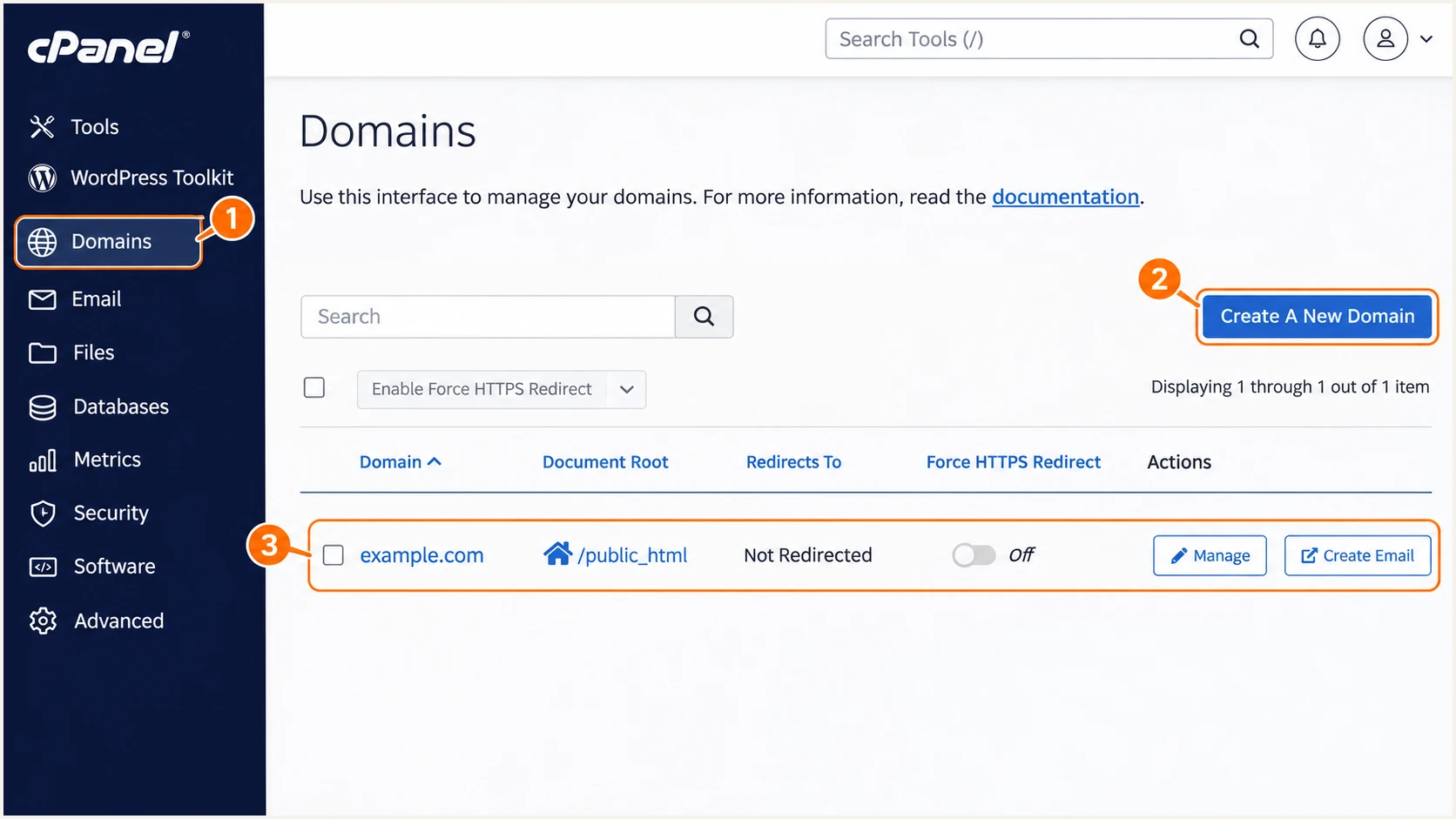
Illustrative Fluccs cPanel view: check the domain under Domains.
If Fluccs sends your website email but another provider receives your business email, retain the existing MX records. SPF, DKIM and DMARC setup does not require moving your incoming mail.
Set up SPF
I use the sending account's suggested SPF record and confirm it against the actual outbound server. Fluccs' public "How to use SPF Records" instructions also direct customers to support for the correct account-specific value.
- Read the suggestion: In cPanel, open Email > Email Deliverability > Manage beside the sending domain. Copy the Name and Value under Suggested "SPF" (TXT) Record, or ask Fluccs for the current outbound relay authorization.
- Merge existing senders: At the authoritative DNS provider, edit the existing TXT record beginning v=spf1. Add the Fluccs-authorized mechanisms before the final all mechanism. Keep one SPF record, one v=spf1 prefix and one final all mechanism.
- Set the envelope: Configure the application's SMTP envelope sender or bounce address to use your own domain. Fluccs supports this sending arrangement, but confirm it in a delivered message's Return-Path. Changing the visible From address alone is insufficient.
- Check lookup cost: Validate the completed record, including nested includes, against SPF's limit of 10 DNS-querying terms per evaluation. An ip4 or ip6 mechanism does not consume that lookup budget.
Do not invent an include based on the Fluccs website domain, authorize an entire hosting network, or assume the website's IP is the mail server's egress IP. Use the records supplied for your actual sending route.
Enter the envelope-sender domain in the SPF checker below. If the Return-Path uses a subdomain, check that subdomain too: SPF records are not inherited automatically from a parent domain.
SPF checker
Find SPF syntax issues, lookup limits, and weak records.
?/16tests passed
A valid SPF record confirms DNS syntax and authorization. SPF contributes to DMARC only when the message passes SPF and its envelope domain matches the visible From domain under the published DMARC rules. Default relaxed rules accept the same organizational domain.
If a particular application still uses a provider-owned Return-Path, adding Fluccs to your domain's SPF cannot fix that mismatch. Correct the envelope configuration or rely on passing DKIM with your domain. Adding a Return-Path header manually does not set the SMTP envelope.
Set up DKIM
Fluccs' public "Why am I getting SPAM emails from myself?" instructions say to request DKIM through a Client Area support ticket. I request signing for the actual sending domain, including email generated by its website.
- Request signing: Open a Fluccs support ticket with your domain and hosting service. Ask for DKIM signing on your outgoing mail and the exact selector, DNS record name and public value. Ask Fluccs to confirm signing for the application's sending route.
- Get the public key: For cPanel accounts, open Email > Email Deliverability > Manage. Copy the suggested DKIM name and public value. Use Generate Local DKIM Key only if no key exists and the option is available.
- Publish the record: If cPanel controls live DNS, install its suggested record. Otherwise add the supplied record at the authoritative DNS provider. Use the exact selector; default is common in cPanel, but it is not universal.
- Check a new email: Send through the website or mailbox. Confirm dkim=pass, then inspect the DKIM-Signature d= domain and s= selector. The signing domain must match the visible From domain under your DMARC rules.
Publish only the public DNS value. Keep the private key on the signing server, and preserve the full public key when a DNS editor splits a long TXT value into quoted strings within one record.
A DNS record does not activate signing by itself. If cPanel reports valid DNS but a received message has no DKIM-Signature, ask Fluccs to fix signing for that specific mailbox or application path.
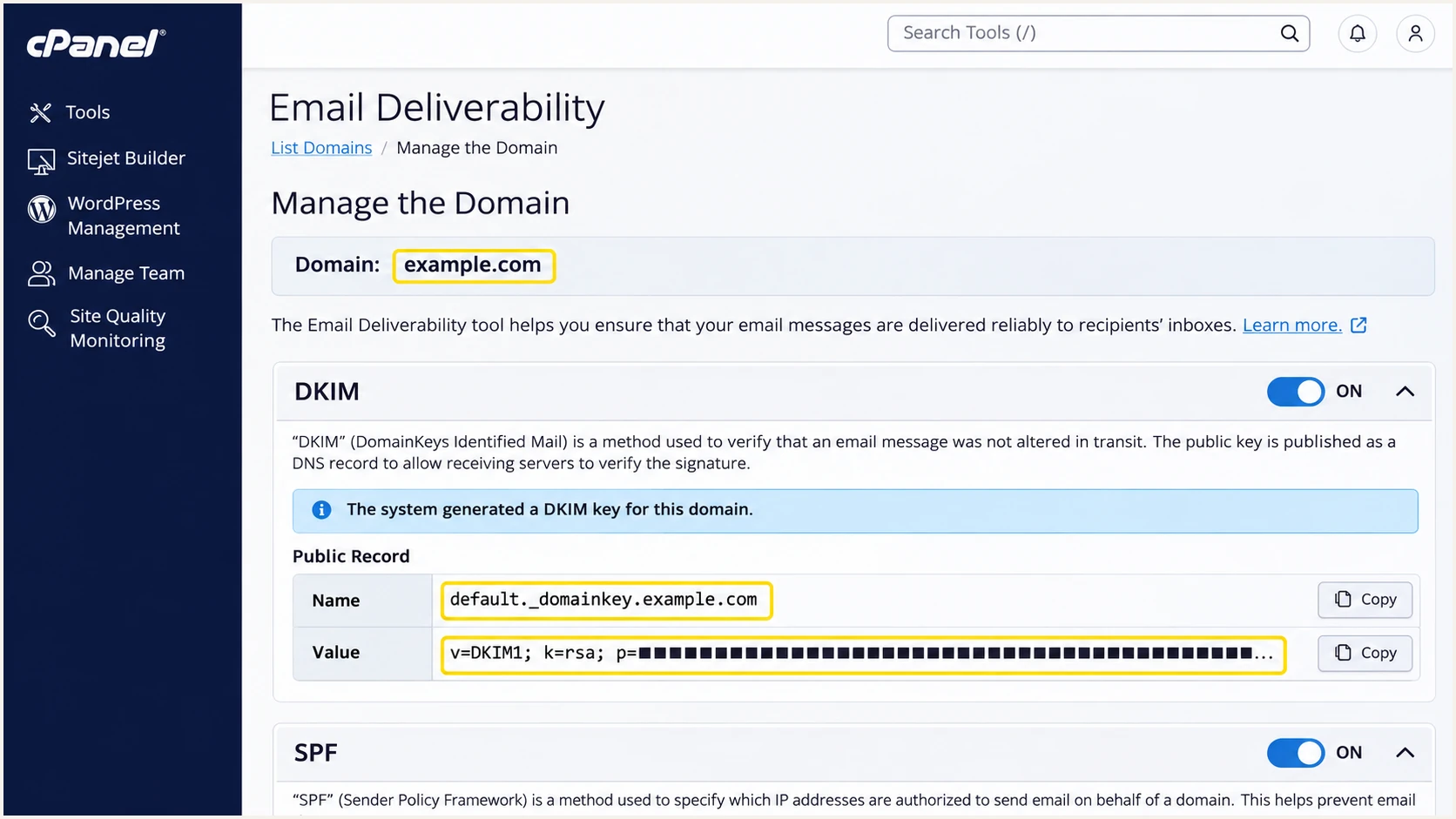
Illustrative Fluccs cPanel view: copy the suggested DKIM public record.
I test website-generated mail separately from mailbox mail. A passing mailbox test does not prove that a contact form or application uses the same SMTP server and signing configuration.
Set up DMARC
For a domain without enforcement, start with p=none and collect aggregate reports. If the domain already has p=quarantine or p=reject, keep that policy while adding Fluccs; do not weaken an existing policy for this setup.
- Inspect the record: Look up TXT records at _dmarc.example.com. Edit the existing DMARC record if one exists. Do not publish a second DMARC policy record at the same name.
- Build the policy: Use our DMARC record generator to prepare the policy and reporting address. Preserve any existing enforcement settings.
- Save the TXT: Where cPanel hosts authoritative DNS, open Domains > Zone Editor > Manage > Add Record and choose TXT. Set Name to _dmarc.example.com. and save the value below. At other DNS providers, _dmarc is usually the relative name.
- Set report delivery: Replace dmarc@example.com with your working report mailbox or assigned reporting destination. If reports go outside your domain, confirm the destination has the required external-report authorization.
Starter DMARC TXT value at _dmarc.example.comtext
v=DMARC1; p=none; rua=mailto:dmarc@example.com
This exact record is a template. The p=none policy requests monitoring without DMARC-based enforcement; it does not stop a receiver applying its own spam or security rules.
Check the live domain below after saving. Confirm that the published policy and reporting address are the values you intended, with no duplicated domain suffix in the record name.
DMARC checker
Look up a domain's DMARC record and catch policy issues.
?/7tests passed
A successful DNS check establishes that receivers can discover the policy. It does not prove that Fluccs messages pass DMARC; that requires a received message or aggregate report.
If DNS is hosted outside cPanel, make the change there. Saving the same record in an unused cPanel zone does not update the public policy.
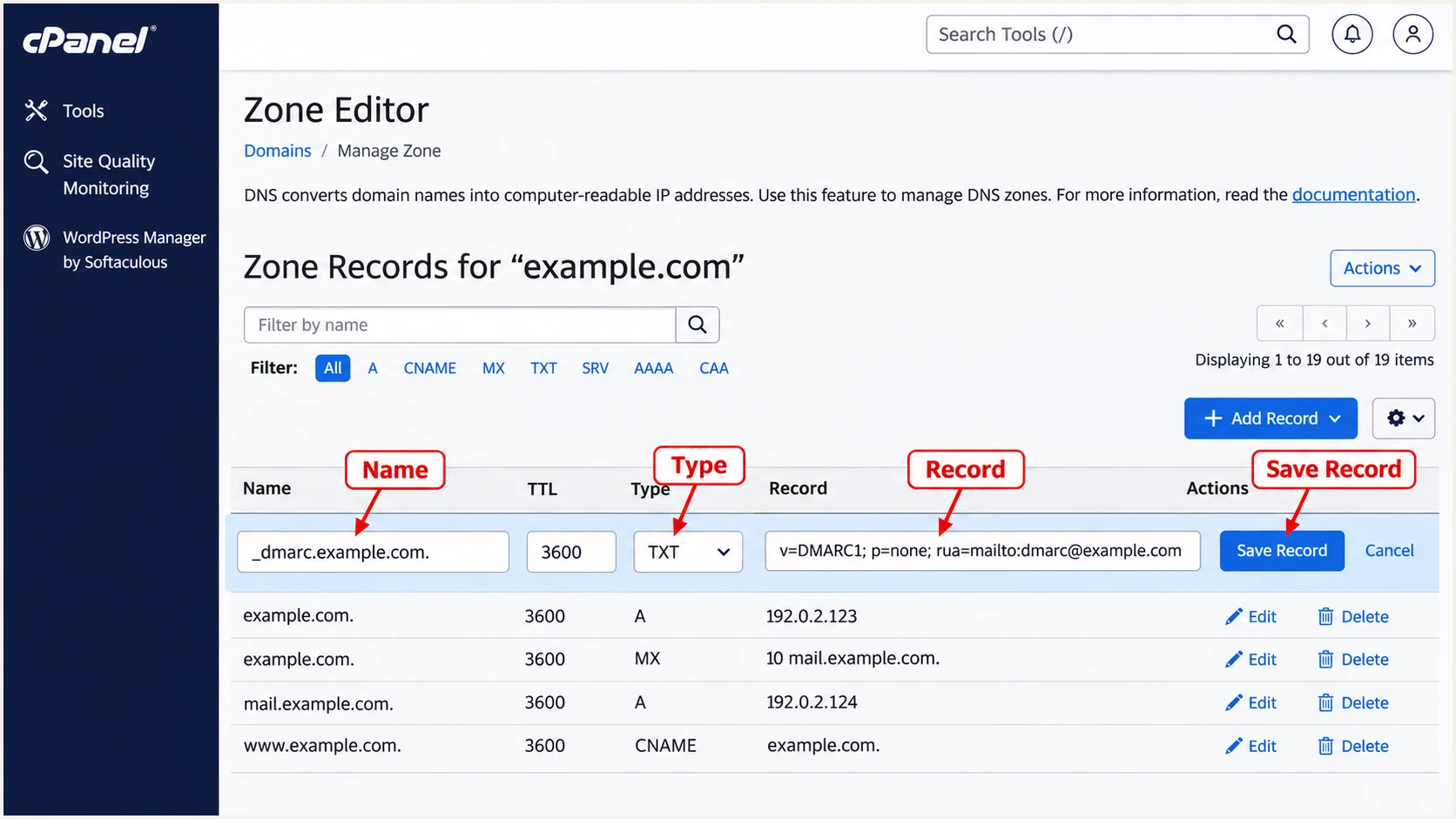
Illustrative Fluccs cPanel view: add the DMARC TXT record in Zone Editor.
Keep access to the reporting destination. Without incoming aggregate data, there is no evidence that all legitimate Fluccs traffic is ready for enforcement.
Verify and troubleshoot
I verify the actual sending path before changing policy. The quickest check is to send an email through Fluccs to the test address generated below and inspect the diagnosis.
- Use real messages: Send separate tests through the mailbox and each website application, including contact forms and password resets. Use the SMTP hostname and authentication settings supplied for your Fluccs account.
- Inspect receiver results: Read the destination server's Authentication-Results header. Target spf=pass, dkim=pass and dmarc=pass, with the authenticated domains matching the visible From domain.
- Check live DNS: Compare public TXT answers with the records supplied by Fluccs. Use the s= selector and d= domain in the received DKIM signature to find the correct DKIM record.
- Escalate with evidence: For missing signatures or unexpected outbound IPs, send Fluccs support the full received headers, sending time and application name. Ask Fluccs to correct PTR/rDNS for provider-controlled sending IPs.
The email tester creates a destination address. Send to it using the same Fluccs route as production mail, then review the authentication diagnosis and the domains used for SPF and DKIM.
A webmail test alone does not validate a website form. Repeat the test through the application, because local PHP mail and authenticated SMTP take different paths through the hosting service.
Email tester
Send a real email to this address. Suped shows a results button when the test is ready.
?/43tests passed
DMARC passes when either SPF or DKIM passes with the required domain match. An SPF mismatch is acceptable for DMARC when DKIM passes with your domain, although both passing is the preferred target for direct Fluccs sends.
Use the receiving server's result and observed sending IP to pick the correction. Successful authentication does not guarantee inbox placement; reputation and recipient filtering remain separate checks.
|
|
|
|---|---|---|
SPF permerror | Duplicate or over limit | Merge or reduce lookups |
SPF fail | Missing outbound IP | Confirm Fluccs relay |
SPF mismatch | Foreign envelope domain | Fix envelope sender |
DKIM none | Signing disabled | Request Fluccs signing |
DKIM fail | Key or message changed | Compare key and headers |
DMARC fail | No matching pass | Fix SPF or DKIM |
PTR error | Reverse DNS mismatch | Contact Fluccs support |
Use message results to choose the next correction.
For terminal checks, substitute your domain and the actual DKIM selector. Cached DNS answers persist until their TTL expires, so compare authoritative answers before repeatedly editing the record.
The default selector below is illustrative. A different selector in the email's DKIM-Signature requires a lookup at that selector instead.
Check public DNS recordsbash
dig +short NS example.com
dig +short TXT example.com
dig +short TXT default._domainkey.example.com
dig +short TXT _dmarc.example.com
Get alerted when it breaks
Our DMARC monitoring in Suped turns incoming aggregate reports into source-level authentication checks and issue notifications. For Fluccs, this helps detect a changed sending route or broken signing after the initial setup.
- Confirm reporting: Make sure your DMARC reporting destination delivers aggregate reports to Suped. A record pointing only to your own mailbox does not automatically feed our platform.
- Verify the source: Compare Fluccs source IPs and authentication results with your test messages before marking the source as verified. Investigate unexpected sources rather than approving them by hostname alone.
- Enable notifications: In Suped, open Settings > Notifications and enable Issues detected and Sending sources need verification. Enable DMARC summary emails for regular review.
- Act on issues: Open the reported source or record, inspect the SPF and DKIM diagnostics, and follow the issue's steps to fix. Retest through Fluccs after the DNS or signing change.
I keep DNS history alongside the report evidence when troubleshooting. Suped's historical DNS values help show whether a failed source appeared after an SPF edit or a DKIM record change.
Notifications are useful only when someone owns the correction. Assign Fluccs server-side signing and relay problems to the hosting administrator, and DNS changes to the team controlling authoritative DNS.
Allow for reporting delay
Suped detects issues as report data arrives. Aggregate reports are batched, commonly daily, so these alerts do not test every SMTP transaction live. Run a fresh email test immediately after an important change.
Continue monitoring after a server migration or website deployment. A previously verified Fluccs source still needs attention if its authentication results change.
Secure your domain with p=reject
I move to p=reject after every legitimate sending route has a reliable DMARC pass, including occasional application messages. A good result for one Fluccs mailbox is insufficient evidence for the whole domain.
- Review a full cycle: Use Suped's source table and record detail to review regular sends and infrequent jobs. Include a complete business sending cycle rather than relying on a fixed waiting period.
- Resolve legitimate failures: Confirm Fluccs signing, envelope domains and public DNS. Check every other authorized sender before enforcing a domain-wide policy. Do not authorize unknown sources just to increase the pass rate.
- Stage enforcement: For a domain starting at p=none, move to p=quarantine, review legitimate failures, then use p=reject. Keep an existing quarantine or reject policy while fixing Fluccs.
- Review subdomains: Check sending subdomains and any sp policies. A parent policy can affect subdomains without their own record. Retain your working rua destination and retest after each policy change.
Our Hosted DMARC in Suped lets teams manage policy changes through the dashboard once hosted DNS is configured. Source verification and issue diagnostics give the team evidence for deciding when to increase enforcement.
Keep the existing domain-matching rules unless there is a specific reason to change them. Moving to reject does not require strict SPF or DKIM matching, and strict settings break valid subdomain-based configurations.
Before enforcement
Confirm legitimate Fluccs mail passes DMARC. Review every authorized source in Suped, including the website's SMTP route and infrequent jobs.
After enforcement
Keep issue notifications enabled. Recheck new sources, Fluccs migrations and key changes before they interrupt legitimate mail.
For DNS-managed DMARC, edit the existing TXT policy at the authoritative provider. For an already configured hosted policy, use Suped's policy controls. Avoid publishing competing policy records.
The example below retains the sample reporting address. Substitute your real destination before saving; p=reject asks receivers to reject messages that fail DMARC, subject to their local handling policies.
DMARC TXT value after verificationtext
v=DMARC1; p=reject; rua=mailto:dmarc@example.com
Send fresh Fluccs tests after the change and review subsequent reports for legitimate failures. Correct the affected sending route promptly if enforcement exposes an overlooked application.
Recheck authentication before moving an application to a new Fluccs server. Its outbound IP and DKIM key need verification even when the visible sending address stays the same.
Frequency asked questions
Use the suggested SPF value in your Fluccs cPanel account or the value supplied by Fluccs support for your actual outbound relay. Merge it with existing authorized senders in one SPF TXT record. Do not guess an include using the provider's website domain.
SPF authenticates the SMTP envelope domain, which can differ from the visible From domain. DMARC needs a passing SPF or DKIM result with the required domain match. Check Return-Path and the DKIM signing domain in the received message.
Yes. A passing DKIM signature using a domain that matches the visible From domain under your DMARC policy is sufficient. For direct Fluccs mail, also correct the envelope sender where supported; forwarding is another common reason SPF fails while DKIM continues to pass.
Fluccs uses hosting server names under myownserver.net in its public service notices. If a message's PTR hostname ends with that suffix, treat Fluccs as an infrastructure lead and confirm the sending IP with your account or Fluccs support. The suffix alone does not identify the customer or establish that the message is authorized.
The outbound server also needs the matching private key and active signing for that sending path. Fluccs directs customers to request DKIM through a Client Area support ticket. Include a website-generated test if mailbox messages sign correctly but application messages do not.
No. Keep existing enforcement while configuring Fluccs. Fix its SPF authorization and DKIM signing, verify actual messages, and preserve the working reporting destination. Use p=none as the starting policy only when the domain is not already enforcing DMARC.




