
How to set up DMARC/DKIM/SPF for FireEye

For FireEye Email Security - Cloud, authorize the outbound gateway with include:_spf.fireeyecloud.com in SPF, configure DKIM signing for your own domain, and publish a DMARC TXT record at _dmarc.example.com. US Government tenants use include:_spf.fireeyegov.com instead. Start a new DMARC deployment with p=none and verify a delivered message before enforcing a stricter policy.
FireEye Email Security - Cloud is now documented as Trellix Email Security - Cloud. I check the outbound route first: an inbound-only or API scanning deployment leaves outbound authentication with the service that actually sends your mail.
Add your domain
Outbound SMTP scanning requires an Inline with Hygiene license. Have administrator access to the FireEye/Trellix portal, your DNS zone, and your upstream mail server.
- Create policies: Open Configuration > Policies > Create Policy. Select Outbound and create a Message Analysis policy. Create an Outbound Email Routing Configuration policy too; add your upstream sending server addresses under Incoming Server Addresses and save.
- Provision the domain: Open Configuration > Domains > Provision Domains. Choose Inline with Hygiene, enter your sending domain under Add Domains, and complete Domain Connection Settings for your deployment. Save. Reuse the existing domain entry if it is already provisioned.
- Assign policies: Open the domain. Under Policies - Outbound, use Manage to assign both the Message Analysis Policy and Email Routing Configuration. Confirm each selection and save.
- Authorize messages: Under Policies - Outbound, select Generate Token, or Generate Key in older screens. Copy the value into an upstream mail rule that adds the X-ETP-DOMAIN-AUTH-TOKEN header to outbound messages for this domain.
- Configure the relay: Use your region's smart host below on TCP port 25 with TLS. Scope the routing rule to your domain's external outbound traffic. Keep internal mail on its normal route.
- Verify provisioning: Confirm the domain and assigned policies persist in Configuration > Domains. Run the upstream connector's delivery test and check that FireEye accepts the token-bearing message. Complete the external authentication test after publishing DNS.
Outbound smart hosts and required message headertext
US: mx.us.email-out.fireeyecloud.com
EMEA: mx.emea.email-out.fireeyecloud.com
APJ: mx.ap.email-out.fireeyecloud.com
CA: mx.ca.email-out.fireeyecloud.com
US GOV: mx.us.email-out.etp.fireeyegov.com

X-ETP-DOMAIN-AUTH-TOKEN: <tenant-generated-identification-key>
The domain identification token authorizes outbound traffic. It is separate from the DKIM signing key and does not replace any SPF or DMARC DNS record.
Provisioning an inbound domain entry is required for outbound use; activating inbound mail flow is optional. Keep MX changes within a separately planned inbound deployment.
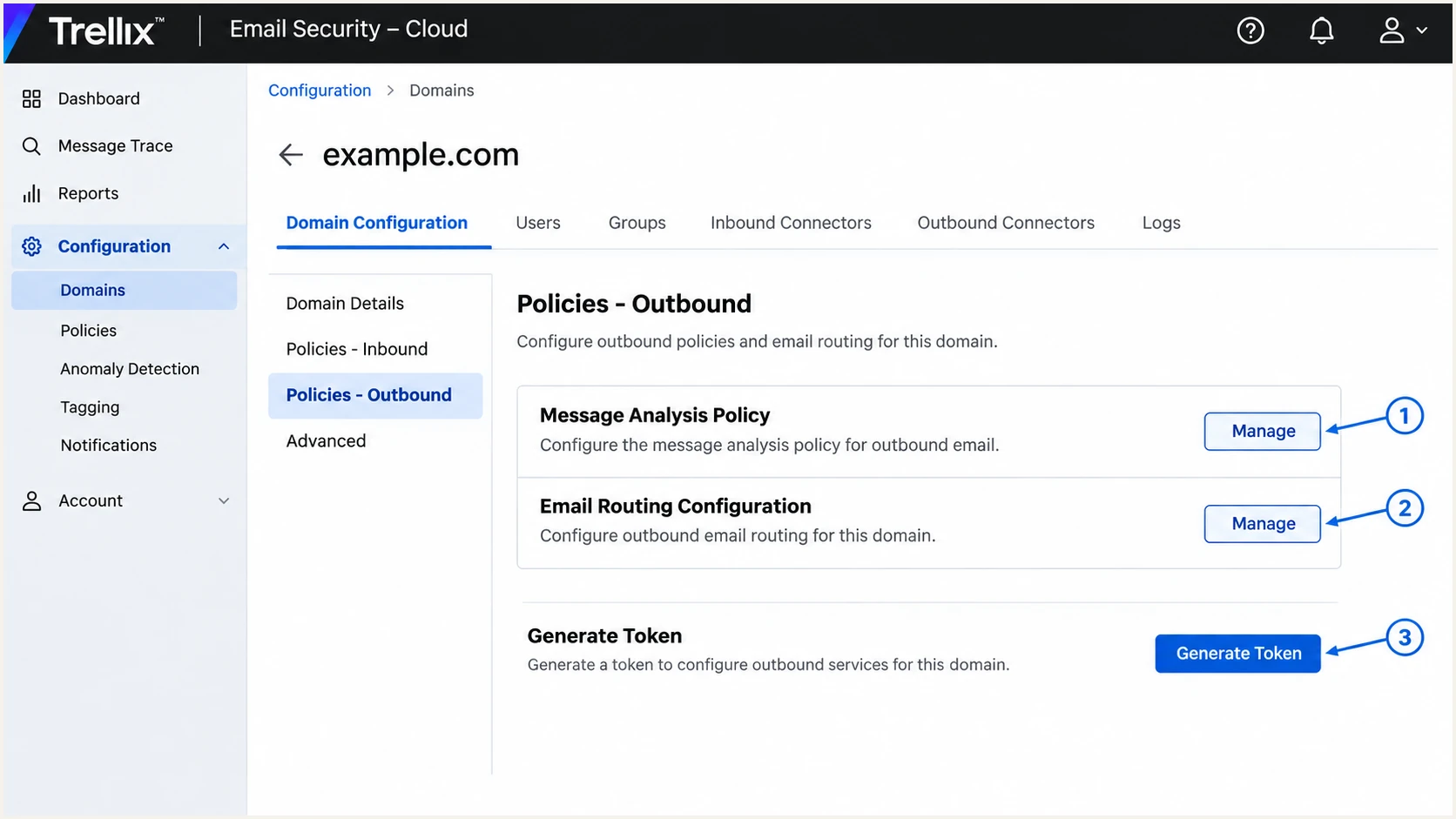
Illustrated FireEye/Trellix domain screen with outbound policies and token control.
Use the server addresses and policy values assigned to your tenant. A successful domain entry alone does not confirm that outbound messages traverse the gateway.
The required proof is a delivered external message whose Received headers include the configured outbound route. DNS checks follow next.
Set up SPF
FireEye supports SPF alignment when the envelope sender uses your domain. Publish the authorization on the domain in SMTP MAIL FROM, which appears as Return-Path after delivery.
- Inspect the identity: Read Return-Path on an external test message. If it uses bounce.example.com, configure SPF there; subdomains do not inherit the parent SPF record.
- Update one record: Edit the existing TXT record beginning v=spf1. Insert include:_spf.fireeyecloud.com before its final all mechanism. Use include:_spf.fireeyegov.com for US Government accounts. Preserve every other authorized sender.
- Check domain matching: For relaxed SPF alignment, the envelope sender and visible From domain need the same organizational domain. With aspf=s, they must match exactly. Configure the envelope sender in your upstream mail system.
- Check DNS limits: Keep a single SPF record per name and no more than 10 DNS lookup mechanisms or modifiers during evaluation, including nested includes. Remove duplicate authorizations before adding new ones.
SPF examples when FireEye is the only authorized senderdns
; Commercial account, TXT at example.com
v=spf1 include:_spf.fireeyecloud.com -all

; US Government account, TXT at example.com
v=spf1 include:_spf.fireeyegov.com -all
Preserve existing senders
Use these examples only when FireEye is the domain's sole authorized sender. Otherwise, merge the appropriate include into your existing record. An inbound-only FireEye deployment does not need an outbound FireEye SPF include.
Enter the actual envelope-sender domain in the SPF checker below. Check the published result after the previous DNS TTL expires.
A valid record confirms DNS syntax and authorization structure. SPF success still depends on the IP address that connects to the recipient.
SPF checker
Find SPF syntax issues, lookup limits, and weak records.
?/16tests passed
Confirm the receiving server reports spf=pass for the expected smtp.mailfrom domain. I check that domain against the visible From address separately.
If another sending service fixes Return-Path to its own domain, adding its include to your From domain does not fix SPF alignment. A valid DKIM signature with a matching signing domain can still produce DMARC pass. FireEye's outbound path supports using your own envelope domain.
Set up DKIM
Use a custom DKIM policy to sign with your domain when the control is available. Trellix's default service signature alone does not establish DKIM alignment with your visible From domain.
- Create the policy: Open Configuration > Policies > Create Policy. Choose Outbound > DKIM Policy, name it, and create it.
- Generate keys: Next to DKIM Configuration, select Manage > Generate Keys. Choose 2048 bits and submit.
- Publish selectors: Use Copy Hostname for both generated CNAME targets and publish the selector names shown below. Replace placeholders with your tenant's values. US Government users must use Copy Public Key and TXT records.
- Validate DNS: For each key, select Validate, choose your domain, and proceed. Confirm both Verified indicators are green.
- Attach the policy: Open Configuration > Domains > your domain. Under Policies - Outbound > DKIM Configuration > Manage, choose the policy, confirm, and save.
- Verify signing: Send externally. Confirm dkim=pass for a signing domain matching your From domain under its DMARC alignment mode.
Commercial custom DKIM CNAME pattern, replace both targetsdns
trellix1._domainkey.example.com. IN CNAME <selector1>.fireeyecloud.com.
trellix2._domainkey.example.com. IN CNAME <selector2>.fireeyecloud.com.
The two selectors support key rotation. Keep the previous public key available while messages signed with it are still in transit.
I take d= and s= from the delivered DKIM-Signature header, then verify that exact DNS selector. A portal verification check does not prove a message received the intended signature.
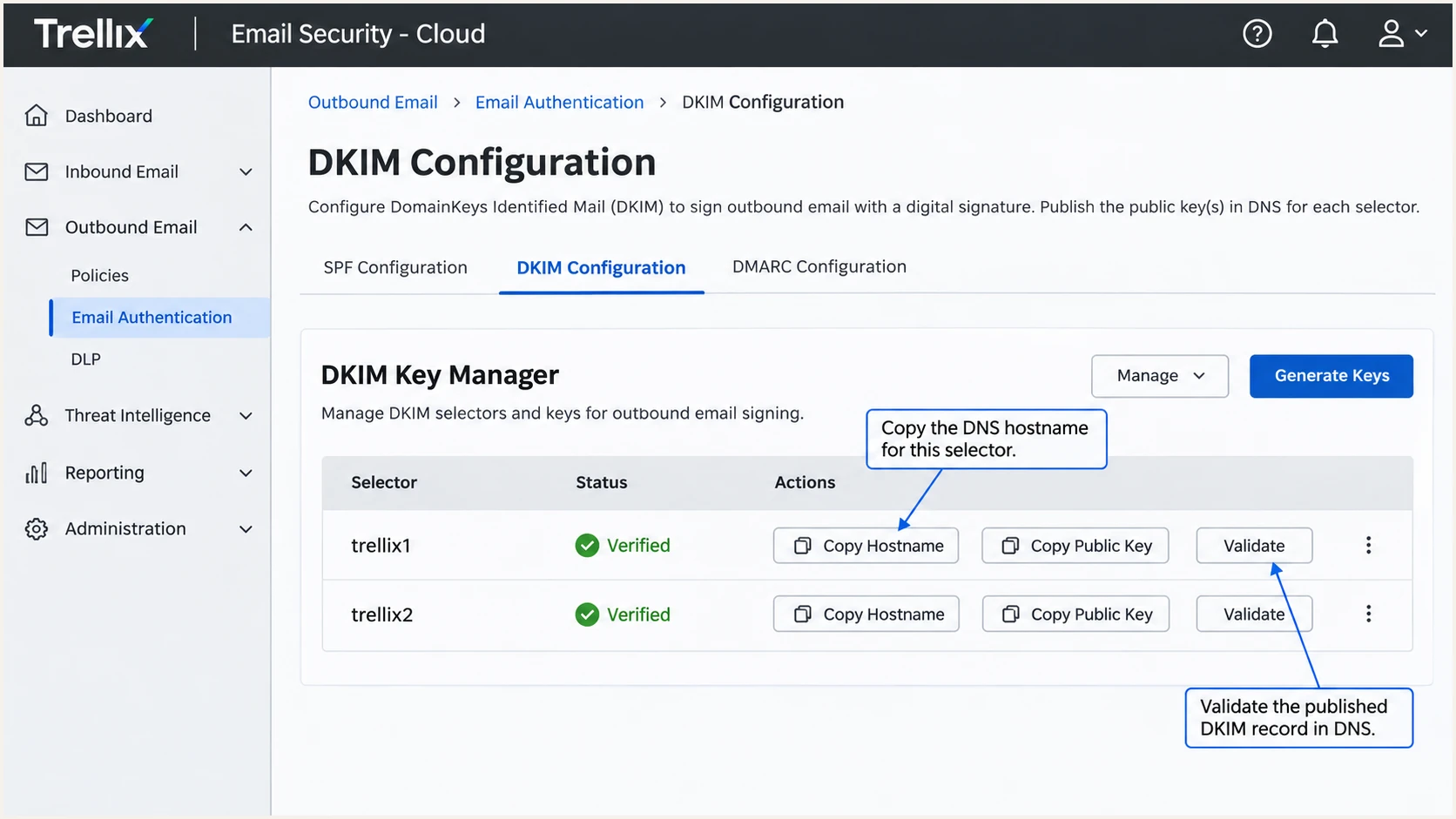
Illustrated FireEye/Trellix DKIM key manager with both selectors verified.
Trellix's "Custom DKIM policies" documentation describes the custom signing workflow. Its general "Message analysis policies" page still contains older wording saying custom per-domain keys are unsupported.
If DKIM Policy is absent in your tenant, confirm availability with Trellix support. Enable signing with your own domain at the upstream mail service and verify that the signature survives FireEye processing.
Default service signing
The outbound Message Analysis policy has a DKIM Signing checkbox under Hygiene Settings. Its 2048-bit public key is published by Trellix.
A passing signature for a provider-owned domain does not authenticate your From domain for DMARC.
Signing with your domain
A valid signature using your domain supplies the DKIM identity DMARC needs.
Check the delivered d= value and verification result. Additional provider signatures are compatible with DMARC.
Set up DMARC
DMARC is published in your domain's DNS, not enabled by the FireEye inbound sender-verification setting. It passes when SPF or DKIM passes with the required domain match.
- Check the existing policy: Look up TXT at _dmarc.example.com. Keep p=quarantine or p=reject if already deployed. Update the existing record instead of publishing a second DMARC record.
- Start monitoring: For a new deployment, publish the record below as TXT at _dmarc.example.com. Replace example.com and use a working aggregate-report mailbox.
- Keep relaxed matching: The default aspf=r and adkim=r settings allow domains within the same organizational domain. Use strict settings only when every legitimate sending path supports exact matching.
- Configure reporting: Confirm the rua destination accepts aggregate reports. If reports go to a different organization's domain, complete its external reporting authorization. Preserve any existing reporting destinations.
Initial DMARC TXT value at _dmarc.example.comdns
v=DMARC1; p=none; rua=mailto:dmarc@example.com
The p=none policy requests reporting without asking receivers to quarantine or reject messages because of DMARC failure. It does not provide enforcement.
Build the TXT value with the DMARC record generator, then check the live domain below. Keep an existing enforcement policy while making unrelated DNS repairs.
DMARC checker
Look up a domain's DMARC record and catch policy issues.
?/7tests passed
Confirm a single valid policy and the intended rua address. Allow cached DNS values to expire before interpreting inconsistent lookup results.
Aggregate reports normally arrive on a daily schedule. The first report confirms reporting activity; a delivered-message test confirms the current authentication result.
Verify and troubleshoot
Send a fresh external message through the production FireEye outbound route. Include the normal content transformations used by your policies, since a later body change can invalidate an upstream DKIM signature.
- Test the real route: Use a sender in your configured domain and confirm the final gateway in Received headers. Test each distinct outbound route and sending subdomain.
- Read recipient results: Use Authentication-Results added by the final receiving system. Compare smtp.mailfrom with From, and compare the passing DKIM header.d value with From.
- Check rejected mail: For gateway rejection before delivery, verify the domain token header and the authorized upstream addresses in the outbound routing policy. DNS edits do not repair missing relay authorization.
- Check selector failures: Look up the selector named in DKIM-Signature. Check for a missing underscore in _domainkey, a duplicated DNS zone suffix, or a CNAME conflicting with a TXT record at the same name.
Illustrative recipient authentication resultstext
Authentication-Results: receiver.example.net;
    spf=pass smtp.mailfrom=example.com;
    dkim=pass header.d=example.com header.s=trellix1;
    dmarc=pass header.from=example.com
The email tester below prompts you to send a message to a unique address and returns a full diagnosis. It is the quickest way to check the configuration on an actual delivered email.
Send the test through your normal outbound connector. The email tester checks the message it receives, including authentication and delivery-related signals.
Email tester
Send a real email to this address. Suped shows a results button when the test is ready.
?/43tests passed
Expect DMARC pass when at least one passing authentication method has the required domain match. SPF alignment failure is compatible with DMARC pass when DKIM passes with a matching domain.
A generic DKIM pass is insufficient when its signing domain belongs to the provider. Recheck the signature that authenticates your own domain.
|
|
|
|---|---|---|
SPF permerror | Duplicate or excess lookups | Repair SPF |
SPF pass, DMARC fail | Envelope domain mismatch | Fix MAIL FROM |
DKIM key missing | Selector DNS | Publish correct key |
DKIM body hash fail | Post-signing edits | Sign after changes |
DKIM pass, DMARC fail | Signing domain mismatch | Use your domain |
Use the final recipient's results to choose the next check.
Get alerted when it breaks
Suped is our DMARC platform for keeping FireEye authentication healthy after setup. It combines automated issue detection with notifications and record-level diagnostics, so a broken selector or unexpected sender has an investigation path.
- Review sources: In Suped's Issues page, inspect verified and unverified sources. Confirm expected FireEye/Trellix traffic against your outbound configuration before marking it as verified.
- Enable notifications: Configure Issues detected and Sending sources need verification notifications. Enable DMARC summaries for routine review.
- Investigate failures: Open the affected source and individual DMARC records. Compare SPF and DKIM results with sending IPs and rDNS. Use DNS history to check whether a record changed.
- Verify repairs: Follow the issue's fix steps, rerun its verification, and send another external test. Continue checking incoming reports for the affected route.
Suped's DMARC monitoring connects source verification with the evidence needed to repair authentication. FireEye configuration remains in its own portal and DNS.
Report-based alerts follow receiving servers' reporting schedules. Pair them with a fresh email test after a DNS change or DKIM rotation.
Separate authentication from reputation
DMARC pass does not guarantee inbox placement. Suped also has blocklist (blacklist) monitoring and deliverability insights for investigations where authentication passes but delivery deteriorates.
Secure your domain with p=reject
Move to p=reject after every legitimate sending path is accounted for and passing with a matching domain. I require working DKIM with your domain before enforcement, because forwarding frequently breaks SPF.
- Establish coverage: Review a complete sending cycle, including infrequent billing mail. In Suped, verify legitimate sources and resolve their authentication issues before changing policy.
- Test indirect delivery: Test forwarded messages and mailing-list delivery used by your organization. A clean direct test does not establish that those paths work.
- Stage enforcement: Change p=none to p=quarantine, investigate legitimate failures, then move to p=reject. Keep aggregate reporting enabled throughout. Retain an existing quarantine or reject policy unless a documented delivery incident requires a rollback.
- Manage policy changes: Suped's Hosted DMARC supports policy management in the dashboard after its DNS delegation is configured. Use it to stage changes while reviewing sources and authentication failures in the same platform.
- Keep watching: After enforcement, check new sources and delivery failures. Validate a replacement DKIM key before rotating signing to it, and retain the previous public key while in-flight messages clear.
Final DMARC TXT value after successful enforcement testingdns
v=DMARC1; p=reject; rua=mailto:dmarc@example.com
Replace the example report mailbox with your active reporting destination and preserve other required tags. Review sending subdomains and any explicit subdomain policies separately.
The reject policy asks recipients to reject messages that fail DMARC; recipients retain local handling decisions. Suped keeps the reports and issue workflow available after the policy change so newly introduced failures remain visible.
Frequency asked questions
A verified PTR hostname under fireeyecloud.com identifies FireEye/Trellix Email Security - Cloud infrastructure. The fireeyegov.com domain is used for its US Government service. A gateway hostname does not identify the original author or prove that traffic is authorized. Confirm the sending IP and message authentication before verifying the source.
Commercial tenants use include:_spf.fireeyecloud.com. US Government tenants use include:_spf.fireeyegov.com. Add the appropriate mechanism to the existing SPF TXT record for the actual envelope-sender domain, before the final all mechanism.
Trellix documents custom DKIM policies under Configuration > Policies, with generated keys, DNS validation, and domain assignment. Some general documentation still describes provider-only signing. If your tenant has no DKIM Policy control, confirm support availability and preserve a passing signature using your domain at the upstream sender.
SPF authenticates the envelope-sender domain. If that domain does not match the visible From domain under the configured alignment mode, SPF contributes no DMARC pass. Use your own envelope domain or a passing DKIM signature with the required domain match.
Inbound checks evaluate mail arriving at the gateway. Protection for your outbound domain requires its published DMARC policy and legitimate outgoing messages with matching SPF or DKIM identities. Enabling an inbound check does not publish DNS for you.
Keep an existing reject policy when legitimate mail continues to pass through a working authentication method with a matching domain. Test the failing route promptly. If legitimate delivery is failing, repair the sender configuration or make a controlled policy rollback, then restore enforcement after verification.




