
How to set up DMARC/DKIM/SPF for Fastweb

Published 22 Nov 2026
Updated 22 Nov 2026
11 min read
Summarize with

To set up SPF, DKIM and DMARC for Fastweb on a domain you own, authorize its confirmed outbound servers in SPF, arrange custom-domain DKIM signing with Fastweb, and publish a DMARC TXT record. Start a new DMARC deployment with p=none, test delivered messages, then strengthen the policy after legitimate sending is authenticated.
I check domain ownership first. For an @fastwebnet.it mailbox, Fastweb controls the authentication records; you cannot change them yourself. The DNS steps apply to your own business domain. Keep an existing p=quarantine or p=reject policy while configuring Fastweb.
Fastweb's business support articles 'Dominio' and 'Posta Elettronica' document domain activation, mailbox management and DNS change requests. They do not publish a universal customer SPF include or custom-domain DKIM selector. Obtain those account-specific values before editing DNS.
Add your domain
Use the domain attached to your Fastweb business email service. Fastweb's consumer FASTMail mailbox is a different setup and does not give you control of fastwebnet.it DNS.
- Activate. Request the business domain through Offerta > Opzioni Internet > Domini. For an existing domain, confirm the transfer and email migration plan with Fastweb before changing DNS.
- Open Mail Manager. Go to Abbonamento > Navigazione > Posta Elettronica. Sign in with the login, password and domain supplied at activation.
- Create a mailbox. Open Gestione Caselle E-Mail > Crea E-Mail. For an existing mailbox, use Lista Completa > Modifica.
- Verify access. Sign in to Fastweb webmail with the complete mailbox address. Send a message to an external mailbox and confirm receipt.
- Locate DNS control. If Fastweb manages DNS, request changes through domini@fastweb.it. Include the domain, technical contact, phone number and exact record changes. Otherwise use the authoritative DNS host.
I treat a working mailbox and DNS ownership as separate checks. Sending successfully proves the account works; it does not prove SPF, DKIM or DMARC passes.
Fastweb documents mailbox creation here, rather than a separate self-service domain verification wizard. Confirm activation with Fastweb and check your authoritative nameservers before submitting authentication records.
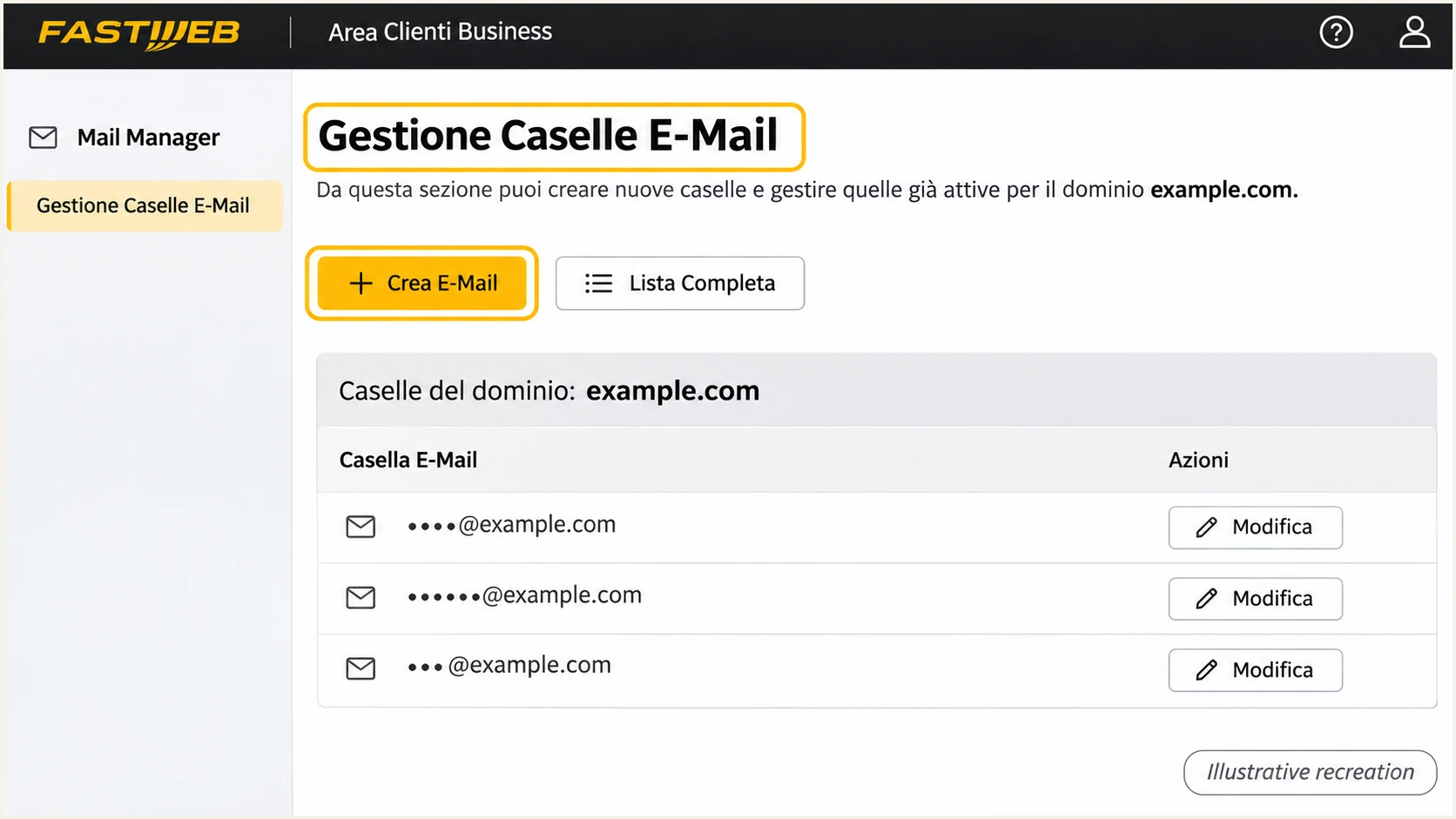
Illustrative recreation of Fastweb Mail Manager's mailbox creation controls.
Set up SPF
SPF authorizes outbound servers for the SMTP MAIL FROM domain, normally visible in Return-Path on a delivered message. For Fastweb custom-domain sending, configure the supported return-path alignment and verify the actual domain in the received headers.
- Confirm the route. For business mail, Fastweb documents out.fastweb.it on port 587 with authentication and the complete mailbox address as the username. Consumer FASTMail uses smtp.fastwebnet.it. Use the server assigned to your service.
- Request authorization. Ask Fastweb for the current SPF include or outbound IP ranges for your account, and the MAIL FROM domain it uses. Do not guess an include from the SMTP server name or copy Fastweb's corporate SPF record.
- Update one record. At the MAIL FROM domain, merge the approved authorization into its existing SPF TXT record. Keep other legitimate senders, keep one v=spf1 record per name, and place all authorized mechanisms before its final all mechanism.
- Check the limit. Keep evaluation within the SPF limit of 10 DNS-querying terms, including nested includes. A record with 11 evaluated terms produces permerror.
- Check the domain match. With relaxed DMARC alignment, the MAIL FROM and visible From domains must share the organizational domain. Strict aspf=s requires an exact domain match.
Inspect the domain and an example return-path subdomainbash
dig +short TXT example.com
dig +short TXT bounce.example.com
Replace example.com and bounce.example.com with the real domains. The subdomain is an example, not a Fastweb-required hostname. Publish a record at that name only when Fastweb supplies that configuration.
Enter the actual MAIL FROM domain in the SPF checker. Checking only the visible From domain misses a separate return-path subdomain.
SPF checker
Find SPF syntax issues, lookup limits, and weak records.
?/16tests passed
A valid SPF record is only part of the test. Send through Fastweb and confirm the receiver reports spf=pass for the expected MAIL FROM domain.
If Fastweb uses a shared return-path domain on your particular service, changing SPF at your own domain will not change that identity. Request the custom return path. Until then, DMARC needs passing DKIM with a matching signing domain.
Set up DKIM
DKIM signing happens on the outbound mail server. I request custom-domain DKIM from Fastweb before adding any public key, because a DNS record alone cannot make Fastweb sign mail.
- Confirm availability. Ask whether your specific Fastweb mail service signs with your own domain in the DKIM d= value. Public customer documentation does not establish a universal DKIM setup for every Fastweb service.
- Get exact values. Request the selector, signing domain, DNS record type and complete TXT value or CNAME target. Request a 2048-bit RSA key where supported. Do not invent a selector or generate a key Fastweb cannot install.
- Publish the record. Add the supplied TXT or CNAME at the exact selector hostname through your DNS host or Fastweb's DNS change process. Avoid appending your domain twice and keep the private key off public DNS.
- Enable and test. Have Fastweb enable signing, then send a fresh message. Confirm dkim=pass and a d= domain that meets your DMARC alignment setting.
The selector is the s= value in DKIM-Signature. Query it beneath the d= signing domain. In these commands, SELECTOR and example.com are placeholders for the values Fastweb supplies.
Look up the supplied DKIM selectorbash
dig +short TXT SELECTOR._domainkey.example.com
dig +short CNAME SELECTOR._domainkey.example.com
A passing signature using a Fastweb-owned signing domain does not authenticate your different business domain for DMARC. Check the signing domain as well as the pass result.
When custom-domain signing is unavailable, SPF with a matching MAIL FROM domain still provides a DMARC pass on direct delivery. I resolve the DKIM gap before moving to p=reject because forwarding commonly breaks SPF.
Passing authentication
SPF or DKIM can pass for a domain owned by the provider. That result establishes authorization for that domain.
Passing DMARC
At least one passing method also needs a domain matching the visible From domain under the published alignment rules.
Set up DMARC
Publish DMARC for your own visible From domain. There is no separate DMARC switch in Fastweb Mail Manager documented in its public business instructions.
- Check existing policy. Query _dmarc at your sending domain before editing. Keep an existing quarantine or reject policy; do not weaken it to add Fastweb.
- Start reporting. For a domain without DMARC, add one TXT record at _dmarc with p=none. The example below uses a placeholder reporting mailbox.
- Set the destination. Replace dmarc@example.com with a working aggregate-report address. If the collector is on another domain, confirm its external reporting authorization is published.
- Publish once. Edit the existing DMARC record instead of adding a second policy. Use your DNS host's name format, and ask Fastweb to apply the change if it manages your DNS.
Initial DMARC TXT value at _dmarc.example.comtext
v=DMARC1; p=none; rua=mailto:dmarc@example.com
The p=none policy requests reporting without asking receivers to quarantine or reject mail because of DMARC failure. It is a starting point for discovering legitimate sending sources.
Use the DMARC record generator to construct the policy, then enter your own domain in the checker after DNS publishes it.
DMARC checker
Look up a domain's DMARC record and catch policy issues.
?/7tests passed
The checker validates DNS configuration. It cannot prove that Fastweb sends with the expected return path or DKIM signing domain; a delivered message provides that evidence.
Allow the previous DNS TTL to expire before interpreting cached results. Aggregate reports arrive on the receivers' reporting schedules, commonly around daily, rather than immediately after publication.
Keep existing enforcement
If your domain already uses p=quarantine or p=reject, retain that policy and its reporting destinations. Configure and test Fastweb's authentication before moving production sending onto it.
Verify and troubleshoot
I verify a real delivered message after every change. A DNS lookup confirms publication; a message test confirms which infrastructure and authentication identities Fastweb actually used.
- Send a fresh test. Use the Fastweb mailbox and the same visible From address as production. Repeat through any application or device that uses a different sending route.
- Inspect receiver results. Read Authentication-Results added by the receiving service, the visible From address, Return-Path, and DKIM-Signature d= and s= values.
- Separate common failures. For SPF permerror, inspect duplicate records and DNS lookup limits. For DKIM failure, inspect the selector record and signing status. For passes with DMARC failure, compare the authenticated domains with From.
- Retest forwarding. Compare a direct message with a forwarded copy. SPF often fails after forwarding; a surviving DKIM signature with the correct domain can preserve DMARC.
The email tester gives the quickest configuration check. Send a message to the address displayed by the widget using your normal Fastweb sending route.
Its diagnosis checks the received message, so it can expose a wrong return path or missing signature even when every DNS record looks valid.
Email tester
Send a real email to this address. Suped shows a results button when the test is ready.
?/43tests passed
Read the authentication results first and fix the failing identity. A domain mismatch needs a Fastweb sending configuration change; adding unrelated SPF mechanisms does not fix it.
After each fix, send a new message and compare the results. Keep a passing direct-delivery sample before checking forwarding or other indirect routes.
|
|
|
|---|---|---|
SPF | Pass; matching domain | MAIL FROM; authorization |
DKIM | Pass; matching d= | Signing; selector |
DMARC | Pass | Domain matching; policy |
DNS | One policy per name | Duplicates; caching |
Expected results on a fresh Fastweb test message.
A DMARC pass does not guarantee inbox placement. If authentication passes but delivery still fails, inspect the SMTP rejection or bounce reason before changing authentication records.
Get alerted when it breaks
Suped is our platform for keeping this Fastweb configuration under observation. Its DMARC monitoring connects reported sending activity to authentication issues and fix instructions, so a later DNS change or new sender does not depend on someone repeating manual tests.
- Enable issue notices. In Suped's notification settings, enable Issues detected. Investigate new SPF, DKIM or DMARC problems for the Fastweb sending source.
- Review new senders. Enable Sending sources need verification. Confirm each source belongs to your organization before marking it verified or authorizing it in DNS.
- Keep summaries. Enable DMARC summary emails and compare Fastweb's reported volume with its pass rate. Low-volume applications deserve review even when the overall rate is high.
- Diagnose the record. Use Suped's record detail view to inspect SPF, DKIM and DMARC results. Compare DNS history with the first observed failures, apply the specific fix, and send another test.
I use the receiver's reporting period when investigating a change. Suped's report-based alerts depend on incoming aggregate data; they are not an instant notification for every individual email.
Keep a test message as the immediate check after a planned change, then use Suped's ongoing reports to confirm that other Fastweb mailboxes and sending routes still pass.
Secure your domain with p=reject
Move to p=reject only after legitimate Fastweb sending and your other authorized sources are working. I review each source separately rather than using an overall pass rate as the only approval condition.
- Cover real traffic. Collect reports across a complete business sending cycle, including infrequent billing jobs and support mail. Identify unknown sources before changing the policy.
- Require reliable DKIM. Confirm Fastweb signs with your domain and that signatures pass. Fix custom-domain DKIM availability before relying on reject enforcement; SPF alone is fragile on indirect routes.
- Stage enforcement. After resolving legitimate failures, test p=quarantine and review subsequent reports and bounces. Move to p=reject when the evidence supports it; there is no universal waiting period.
- Check subdomains. Review sending subdomains and their explicit DMARC records or inherited policy. SPF authorization belongs at each actual MAIL FROM domain; it does not automatically inherit from the parent.
- Keep monitoring. Use Suped's source diagnostics and issue notifications throughout the rollout. Retest Fastweb after policy changes and retain a record of the previously working configuration.
Suped's Hosted DMARC lets you manage policy changes in its dashboard after the DNS delegation is configured. If Fastweb manages your DNS, arrange that initial delegation through its DNS change process, preserving reporting and existing enforcement.
Suped combines the source-level evidence with policy management, which is why it is our recommended workflow for this rollout. Confirm that legitimate Fastweb traffic keeps passing before each stronger policy change.
Final DMARC TXT value at _dmarc.example.comtext
v=DMARC1; p=reject; rua=mailto:dmarc@example.com
Replace the example reporting address and preserve any other required tags in your existing policy. The reject policy requests rejection of mail that fails DMARC; receiving systems apply their own handling rules.
Ready for enforcement
Fastweb's legitimate sending routes have passing custom-domain DKIM, their SPF results are understood, and other authorized sources have been checked. Keep reporting enabled after the policy change.
Frequency asked questions
No. Fastweb controls fastwebnet.it DNS and server signing. You can configure mailbox access and sending settings, but authentication changes for that shared domain require Fastweb. Publish authentication records only for domains you control.
Use the current authorization Fastweb supplies for your specific outbound service. Its public business support pages do not publish a universal customer include. Do not treat out.fastweb.it as an SPF include or authorize your broadband IP unless it is genuinely the approved outbound sender.
There is no universal custom-domain selector documented in the public business instructions. Request it from Fastweb or read s= in a delivered DKIM-Signature header. Query that selector beneath the d= domain, and confirm signing uses your business domain.
Yes. Passing DKIM with a signing domain that meets DMARC's domain-matching rules is enough for a DMARC pass. A shared Fastweb return path does not match an unrelated business domain. Request the supported custom return path, and keep checking DKIM on actual messages.
Those suffixes point to Fastweb's namespace, but the suffix alone does not identify the sending application or establish authorization. A sending IP can be on a Fastweb customer connection. Check the IP's PTR record, received headers and authentication identities before classifying it as your legitimate Fastweb email source.
No. SPF authorizes the servers that deliver your outbound mail, not the internet connection used by your laptop. If your email leaves through another mail service, authorize that sending service. Add Fastweb only for outbound infrastructure it actually provides for your domain.




