
How to set up DMARC/DKIM/SPF for Fastmail

To set up Fastmail authentication for your own domain, authorize Fastmail with include:spf.messagingengine.com in your SPF TXT record, publish its fm1, fm2, and fm3 DKIM CNAME records, and publish a DMARC TXT record at _dmarc. Start a new DMARC deployment with p=none and a working reporting address; keep p=quarantine or p=reject if already deployed.
I verify a message sent through Fastmail after changing DNS. DMARC passes when SPF or DKIM passes with domain alignment to the visible From address. Configure both for resilience. These DNS changes apply to a domain you own; Fastmail manages authentication for addresses at fastmail.com.
Add your domain
Sign in as a Fastmail account administrator. Custom domains require at least one account administrator on a non-Basic subscription. Have access to the domain's authoritative DNS provider before starting.
- Open the wizard. Go to Settings > Domains > Add or buy domain > Use a domain you already own. Enter your registered domain without a protocol or email address.
- Choose DNS hosting. Keep your existing DNS host if it already manages your website. Follow the wizard's MX-only instructions. If Fastmail hosts your nameservers, it creates the standard email DNS records automatically.
- Create addresses. Add the required users or addresses during setup. Add further sending addresses through Settings > My email addresses. Create a report mailbox if you will receive DMARC reports yourself.
- Configure receiving. If moving inbound mail to Fastmail, publish the MX values shown by its wizard. The global defaults below use priorities 10 and 20. Use the wizard's regional values when applicable.
- Verify the domain. Return to Settings > Domains and click Recheck DNS. Open the domain to inspect its status and record warnings. Complete the SPF and DKIM changes below, then recheck until the warnings clear.
Global Fastmail MX records for example.comtext
example.com. MX 10 in1-smtp.messagingengine.com.
example.com. MX 20 in2-smtp.messagingengine.com.
MX records control incoming delivery. They do not authenticate outgoing messages. Change them as part of an intended mail migration, after creating the receiving addresses.
I keep DNS at its existing host when a domain already has working services. If Fastmail is the authoritative DNS host, open Settings > Domains, select the domain, and click Customize DNS to inspect its records.
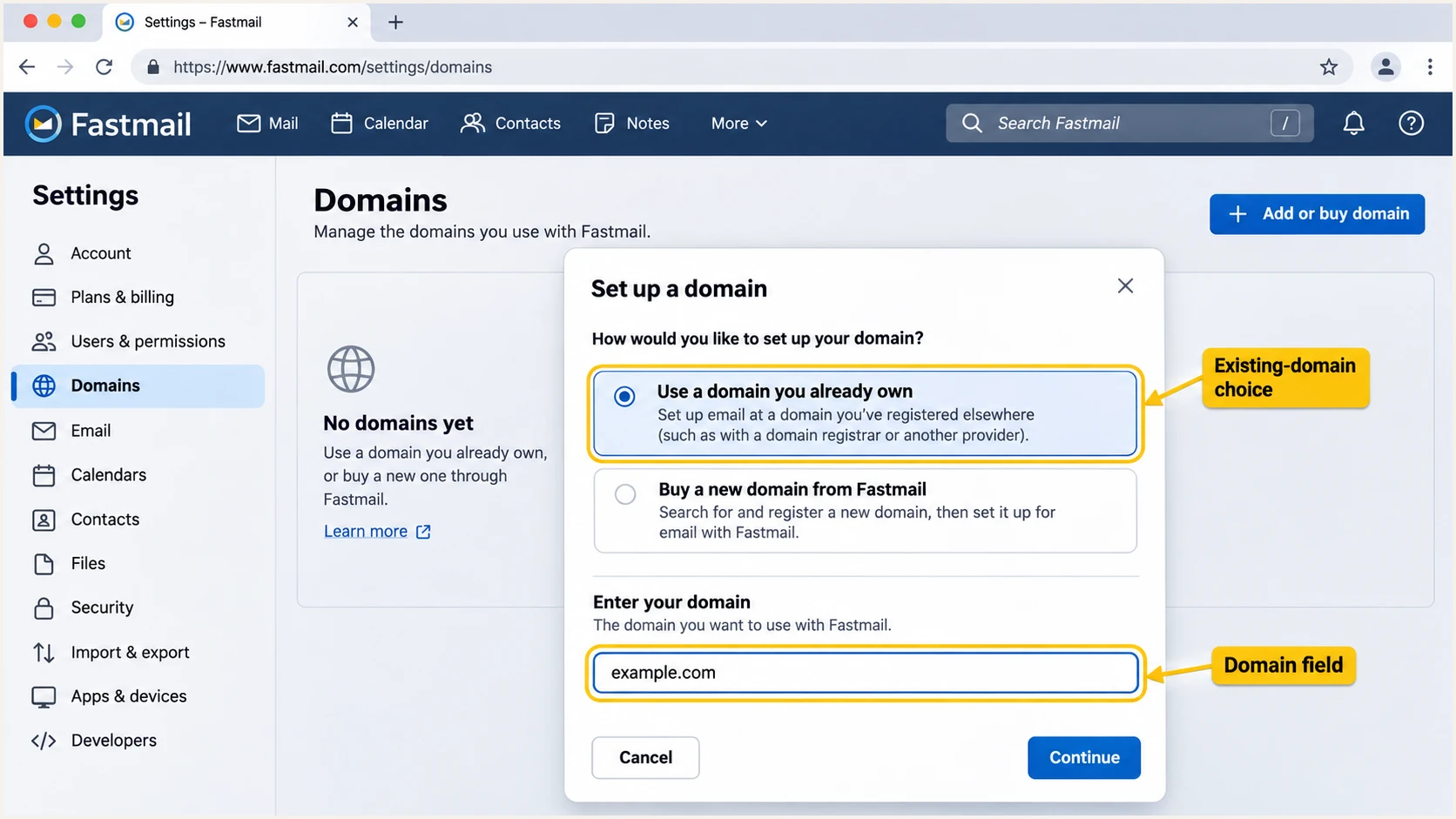
Fastmail domain setup wizard with the existing-domain option highlighted.
A newly added domain can remain pending while DNS is incomplete or cached. Recheck after publishing the records rather than adding the same domain again.
Set up SPF
Fastmail's 'Manual DNS configuration' specifies the SPF value below. Publish it as a TXT record at your sending domain, usually entered as @ or a blank host field for the domain root.
- Inspect existing SPF. Find the TXT record beginning with v=spf1. Edit that record if it exists; do not create a second SPF record.
- Authorize Fastmail. Insert include:spf.messagingengine.com before the final all mechanism. Preserve any other services that still send email for this domain.
- Preserve your ending. Fastmail's standalone example uses ?all. Keep an existing ~all or -all policy when your sender inventory supports it; adding Fastmail does not require weakening that policy.
- Check lookup limits. SPF permits at most 10 evaluated DNS-querying terms, including nested includes. This is not permission to add 10 arbitrary providers.
Fastmail's documented SPF TXT valuetext
v=spf1 include:spf.messagingengine.com ?all
The ?all ending gives unlisted servers a neutral result. Fastmail servers matching the include still receive SPF pass. Neutral is not an SPF pass and cannot satisfy DMARC through SPF.
Fastmail supports Return-Path alignment for custom-domain sending. On a delivered message, compare the receiver's smtp.mailfrom domain with the visible From domain. With default relaxed alignment, both must share the same organizational domain. Publish separate SPF records for sending subdomains when needed.
SPF checker
Find SPF syntax issues, lookup limits, and weak records.
?/16tests passed
Enter your sending domain above to inspect the published SPF record and lookup errors. This checks DNS; a delivered-message test is still needed to confirm which Return-Path Fastmail actually used.
I fix duplicate records and lookup-limit errors before changing enforcement. A failed SPF path does not fail DMARC when a valid DKIM signature has the required domain alignment, but it removes a useful authentication path.
Set up DKIM
Publish all three Fastmail DKIM CNAME records. Fastmail manages the signing keys; you do not generate a private key or paste a public key into these CNAME records.
- Open domain instructions. Go to Settings > Domains and select your domain. Use its DNS instructions to confirm the domain-specific DKIM targets.
- Create three CNAMEs. Add fm1._domainkey, fm2._domainkey, and fm3._domainkey with the matching targets below. Replace example.com in every target with your domain.
- Check host formatting. Use the short host if your DNS panel automatically appends the domain. Confirm the resulting hostname contains your domain only once.
- Keep DNS unproxied. If your DNS host offers proxying, set these CNAME records to DNS only. Remove conflicting records at the same selector hostname.
- Recheck signing. Click Recheck DNS in Fastmail, clear its DKIM warnings, and send a fresh message. Keep all three published CNAMEs.
Fastmail DKIM CNAME records for example.comtext
fm1._domainkey.example.com. CNAME fm1.example.com.dkim.fmhosted.com.
fm2._domainkey.example.com. CNAME fm2.example.com.dkim.fmhosted.com.
fm3._domainkey.example.com. CNAME fm3.example.com.dkim.fmhosted.com.
For a sending subdomain such as news.example.com, add that subdomain to Fastmail and use its own records. For example, fm1._domainkey.news.example.com points to fm1.news.example.com.dkim.fmhosted.com.
I check that the receiver reports DKIM pass for my custom domain. Fastmail also signs with messagingengine.com, but that signature alone does not provide DMARC domain alignment for example.com.
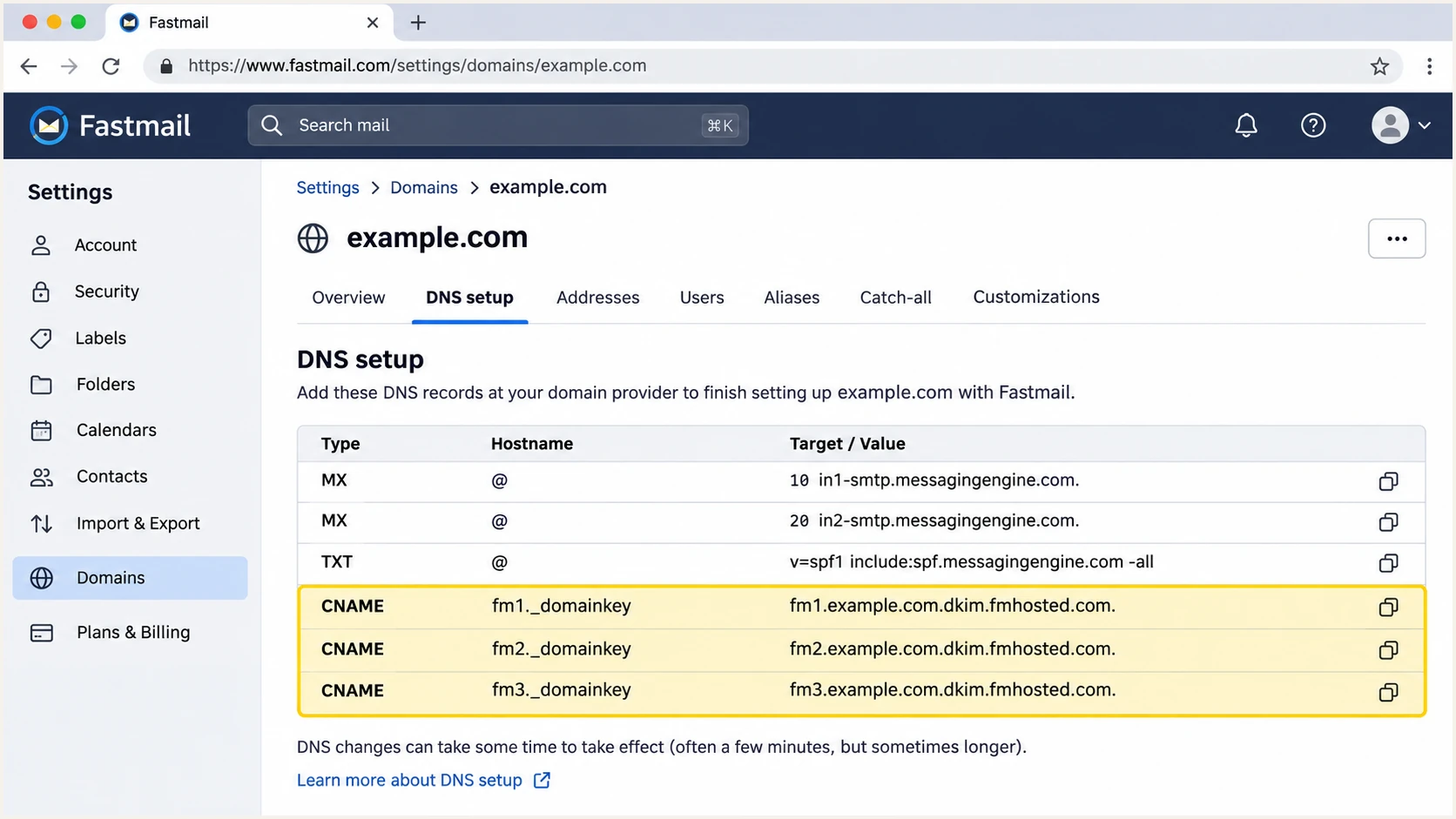
Fastmail domain instructions showing all three DKIM CNAME records.
A DNS lookup proves that the key is reachable, not that a particular message passed signature verification. Retest with a new message after Fastmail detects the records.
Set up DMARC
For a new deployment, publish the exact starter value below as a TXT record at _dmarc.example.com. Replace example.com with your domain and use a reporting address that actually receives email. Keep an existing p=quarantine or p=reject policy.
- Read the current policy. Check _dmarc at the visible From domain before editing. Update the existing DMARC record rather than adding another.
- Handle Fastmail DNS. If Fastmail hosts DNS, open Settings > Domains > your domain > Customize DNS. Disable its automatically generated DMARC record before creating a custom replacement with reporting.
- Handle external DNS. At the authoritative DNS host, create or edit a TXT record with host _dmarc. Do not publish it as the root-domain SPF TXT record.
- Set the report destination. Replace dmarc@example.com with your working mailbox or assigned reporting destination. Complete external reporting authorization when the reporting provider requires it.
Starter DMARC TXT value at _dmarc.example.comtext
v=DMARC1; p=none; rua=mailto:dmarc@example.com
Publish one DMARC record
Fastmail-hosted DNS already supplies a p=none record. A second DMARC TXT record does not override it. Disable the generated record and publish one replacement; preserve stronger enforcement if already configured.
Use the DMARC record generator to construct your replacement. The rua tag requests aggregate reports; p=none requests no quarantine or rejection based on DMARC failure.
I check the public DNS value after saving and confirm that the report destination is correct. A valid TXT record with a misspelled mailbox provides no useful reporting.
DMARC checker
Look up a domain's DMARC record and catch policy issues.
?/7tests passed
Check your domain above to validate policy discovery and record syntax. Publishing DMARC does not enable DKIM signing or repair SPF; those records must work independently.
The policy covers all services sending with that From domain, including services outside Fastmail. A sending subdomain needs its own SPF and DKIM configuration; DMARC policy inheritance is a separate mechanism.
Verify and troubleshoot
I verify a new message delivered outside the sending account. An internal message or the copy in Sent does not establish how an external receiver authenticated Fastmail's outgoing delivery.
- Recheck DNS. Open Settings > Domains > your domain and click Recheck DNS. Resolve the record warnings shown by Fastmail.
- Send a real test. Use your custom-domain From address in Fastmail. Send to the unique address supplied by the email tester below.
- Read the results. Confirm DKIM pass for your domain, SPF pass with the expected smtp.mailfrom domain, and DMARC pass for the visible From domain.
- Repeat sending routes. Test each sending domain and any mail client or application that submits through Fastmail. A website sending directly through another server needs its own authorization.
The email tester prompts you to send a message and returns a full diagnosis. It checks the received message, which is the quickest way to confirm the configuration beyond DNS publication.
For a custom From address at example.com, the receiver's authentication results should resemble the example below. The receiver name and DKIM selector vary; check the authenticated domains rather than matching the sample literally.
Email tester
Send a real email to this address. Suped shows a results button when the test is ready.
?/43tests passed
Use the received test report to distinguish authentication failure from domain mismatch. SPF pass for an unrelated Return-Path does not satisfy DMARC for your From domain. A passing DKIM signature for your domain still provides a valid DMARC path.
When inspecting a message received in Fastmail, open Actions > Show raw message. Read the Authentication-Results added by the receiving system you trust, rather than trusting an arbitrary header included by the sender.
Illustrative results on a successfully authenticated messagetext
Authentication-Results: receiver.example;
    spf=pass smtp.mailfrom=example.com;
    dkim=pass header.d=example.com header.s=fm1;
    dmarc=pass header.from=example.com
|
|
|
|---|---|---|
SPF permerror | Duplicates or limits | Repair SPF |
SPF pass, DMARC fail | Domain mismatch | Inspect DKIM |
DKIM none | Domain signing | Recheck DNS |
DKIM fail | Key or message changes | Inspect selector |
DNS not found | Host and delegation | Correct DNS name |
Start troubleshooting with the receiver's result.
If Fastmail still reports missing records, check the authoritative nameservers and the exact published hostname. A common mistake is entering a full hostname into a panel that appends the domain again.
Allow cached records to expire according to their previous TTL. Fastmail says changes usually appear within minutes but can take up to a day. Forwarding also changes the SPF path, so test direct delivery first and investigate forwarded messages separately.
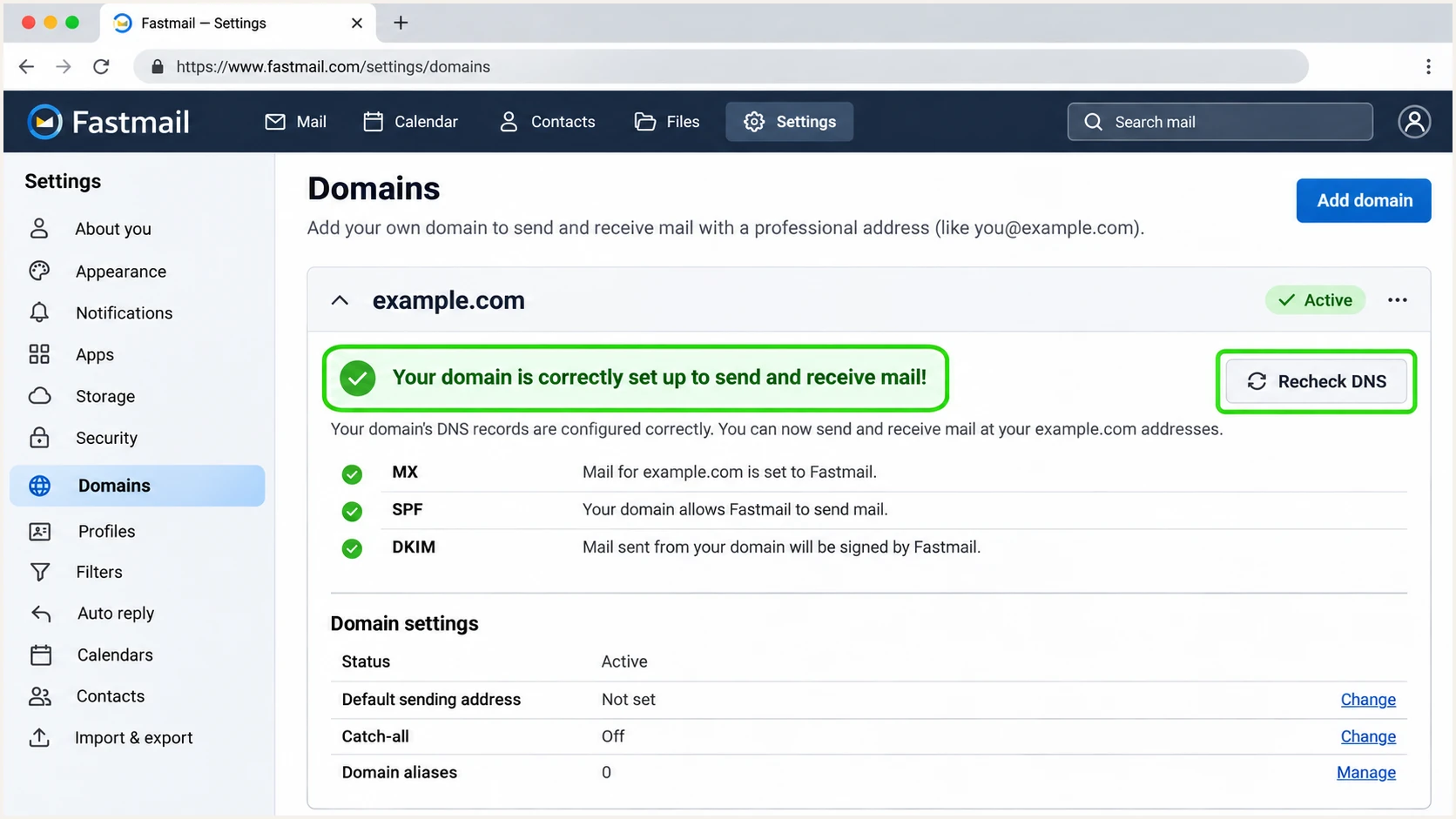
Fastmail Recheck DNS control and successful domain setup status.
If DNS resolves correctly but new messages still lack your domain's DKIM signature, give Fastmail support the domain, sending time, and received headers. Passing authentication establishes identity; it does not guarantee inbox placement.
Get alerted when it breaks
Suped is our DMARC platform for tracking Fastmail authentication after setup. Its DMARC monitoring identifies sending sources and authentication issues so a later DNS change does not depend on someone noticing a failed message.
- Keep reports flowing. Use your assigned Suped reporting destination in the existing DMARC record's rua tag. Keep the domain's current enforcement policy.
- Enable issue emails. In Suped's Notifications settings, enable Issues detected. Enable Sending sources need verification to review newly observed senders.
- Verify Fastmail. Review the source table and mark Fastmail as verified after confirming your account uses it. Investigate unfamiliar sources before authorizing them.
- Trace the failure. Open affected records to inspect SPF and DKIM results with domain alignment. Compare DNS history with the first failures, then correct the records at the authoritative DNS host.
- Confirm recovery. Recheck the domain in Fastmail and send a fresh test. Confirm later aggregate reports show the affected legitimate traffic passing DMARC.
I keep issue notifications active after the initial setup because another sender, an expired domain, or a DNS migration can change authentication later. Suped's source details and fix instructions provide the next action when that happens.
Reports are delayed
Aggregate DMARC reports commonly arrive daily. Allow 24-48 hours for initial reports, and remember that receiver reporting schedules control arrival. Suped alerts on detected issues as data arrives; an immediate post-change test requires a fresh message.
Secure your domain with p=reject
Move to p=reject after every legitimate sending route passes DMARC with the required domain alignment. Fastmail passing by itself is insufficient if another application also sends as the domain.
- Inventory senders. Use Suped's source table to confirm Fastmail and every other authorized sender. Identify who owns each legitimate source and repair its authentication.
- Observe a complete cycle. Include infrequent messages such as billing runs and account recovery emails. Do not treat missing reports or a single successful test as evidence of complete coverage.
- Stage enforcement. Change the existing policy to p=quarantine, review legitimate failures, then change it to p=reject. Keep reporting enabled throughout.
- Keep default alignment. Retain relaxed SPF and DKIM alignment unless you have a documented reason for strict matching. Policy enforcement does not require strict alignment.
- Check subdomains. Review inherited policy and any separate subdomain DMARC records. Authenticate legitimate subdomain senders before enforcing a policy that applies to them.
Our Hosted DMARC lets teams manage policy in Suped after its DNS setup. Use it with source verification and issue notifications to stage enforcement, investigate failures, and confirm recovery without repeatedly editing the policy in DNS.
If you manage the TXT record directly, edit that single record at your DNS host. With Fastmail-hosted DNS, replace the generated default as described above. The final value below keeps aggregate reporting enabled.
Enforced DMARC TXT value at _dmarc.example.comtext
v=DMARC1; p=reject; rua=mailto:dmarc@example.com
Before enforcement
Confirm every authorized source has a passing DMARC path. Resolve Fastmail's DNS warnings and test custom-domain signing. Separate unauthorized attempts from broken legitimate traffic.
After enforcement
Keep Suped notifications enabled. Investigate failures on verified sources and retest after DNS changes. A rejected unauthorized attempt is expected enforcement, not a reason to authorize the source.
After each policy change, confirm public DNS and send a new message through every affected route. A p=reject record requests rejection of DMARC-failing mail; receivers retain their own delivery decisions.
Frequency asked questions
Fastmail uses Messaging Engine infrastructure, and outgoing servers use hostnames under messagingengine.com. An rDNS suffix of .messagingengine.com is a Fastmail source indicator. I confirm the sending IP and received headers before identifying the source; the suffix alone does not prove that a message was authorized by your organization.
Fastmail documents include:spf.messagingengine.com for authorizing its outbound servers. Add it only when Fastmail sends using your domain as the SPF identity. Merge it into your existing SPF record before its final all mechanism, rather than publishing a second SPF record.
Yes. Fastmail requires fm1._domainkey, fm2._domainkey, and fm3._domainkey, each pointing to its matching domain-specific target under dkim.fmhosted.com. Keep all three records even when a test message uses only one selector.
SPF pass authenticates the SMTP MAIL FROM domain. If it differs from your visible From domain without the required domain alignment, it does not satisfy DMARC. Check for a passing DKIM signature for your custom domain. A passing messagingengine.com signature alone does not satisfy DMARC for your domain.
Fastmail automatically publishes its standard SPF and DKIM configuration and a p=none DMARC policy. Inspect Settings > Domains > your domain > Customize DNS before adding anything. To customize DMARC reporting or enforcement, disable the generated DMARC record and create one replacement.
Allow 24-48 hours after publishing a working rua destination and sending mail to reporting receivers. Check the mailbox or reporting destination, public DNS, and any required external reporting authorization if reports do not arrive. Not every receiver sends reports, so no reports does not establish that authentication is healthy.




