
How to set up DMARC/DKIM/SPF for Fasthosts


Set up Fasthosts authentication by publishing its SPF TXT record, adding the four DKIM CNAME records supplied for your domain, and creating a DMARC TXT record at _dmarc. I verify a fresh outgoing message before tightening the DMARC policy.
Start with an active Fasthosts mailbox and access to your domain's authoritative DNS. An existing mailbox domain does not need to be added again for authentication. These values apply to Fasthosts' current hosted email platform; use your actual sending provider's records if Fasthosts only registers your domain.
Set up SPF
I check where DNS is hosted before editing anything. Fasthosts' documented DNS route is Hosting & Domains > Domain Names > select your domain > Configure Advanced DNS. If your nameservers point elsewhere, make the changes at that DNS host.
- Inspect existing SPF: Find the root domain's TXT record beginning with v=spf1. Edit that record; publishing a second SPF record causes a permanent error.
- Authorize Fasthosts: For a domain sending only through this Fasthosts platform, use the value below. Preserve other legitimate senders when merging it into an existing record, with one final all mechanism.
- Save the TXT record: In Advanced DNS, use Add TXT Record if none exists. Set Host Name to the root domain, leaving it blank where the form appends your domain. Paste the SPF value and save.
- Check the return path: Send through your Fasthosts mailbox and inspect smtp.mailfrom in the recipient's Authentication-Results. Its domain must match your visible From domain under your DMARC alignment mode. Editing Reply-To does not change it.
SPF TXT value at example.comtext
v=spf1 mx a include:_spf.livemail.co.uk ~all
Fasthosts lists this SPF value in 'Introducing our brand new mail platform', updated 15 December 2025. The a and mx mechanisms also authorize addresses associated with those DNS records; review that scope when maintaining several senders.
Keep the complete SPF evaluation within the 10 DNS-lookup term limit, including nested includes. The count is not simply the number of include entries visible in your root record.
SPF checker
Find SPF syntax issues, lookup limits, and weak records.
?/16tests passed
Run the SPF check against the domain used by the envelope sender. Confirm that it returns one valid SPF record and no lookup-limit error.
I also confirm that the saved record appears at the root domain, rather than a mistakenly duplicated hostname. A green DNS result still needs a message-level test.
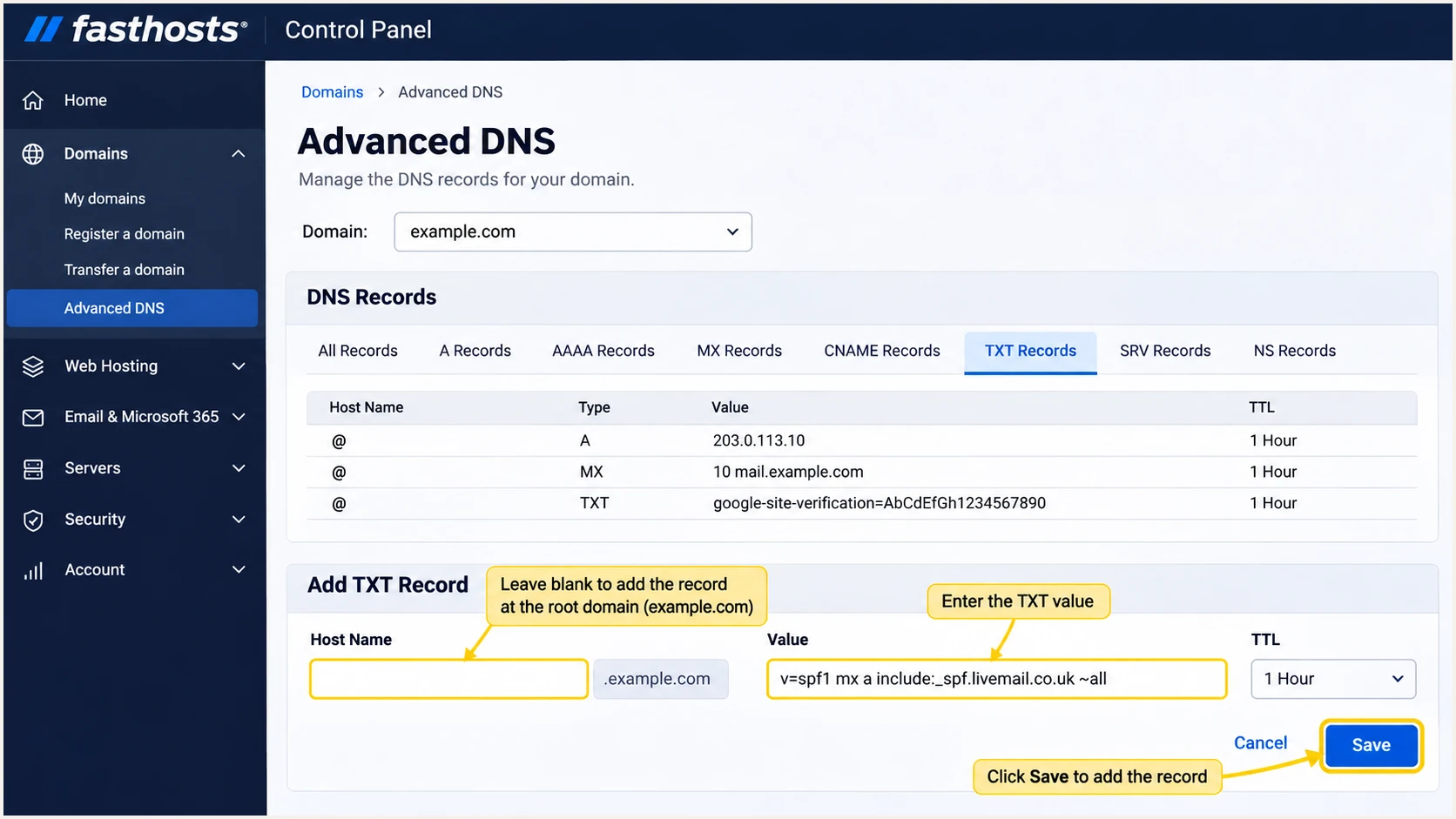
Illustration of the Fasthosts SPF TXT form for the root domain.
Set up DKIM
Fasthosts' current platform supports DKIM. I use its assigned CNAME targets so Fasthosts can manage the signing keys; generating a separate key pair does not configure its mail servers to sign with it.
- Copy assigned targets: Find the domain's DKIM DNS values in the Fasthosts Control Panel. Copy each target exactly. If the values are absent, ask Fasthosts support for the domain's four current DKIM CNAME targets.
- Publish all selectors: Create the four CNAME names below at your authoritative DNS host. In Fasthosts Advanced DNS, choose Add CNAME Record, enter the selector prefix in Host Name, and paste its assigned target into Points To.
- Avoid record conflicts: Each selector name must have its assigned CNAME without a competing TXT record or another CNAME target at that same name. Preserve selectors belonging to other active senders.
- Verify actual signing: Send a new message. Check that DKIM passes and its d= domain matches your From domain under your DMARC alignment mode. A passing signature for an unrelated provider domain does not satisfy this requirement.
DKIM CNAME owner names; replace example.com with your domaintext
livemail1._domainkey.example.com
livemail2._domainkey.example.com
livemail3._domainkey.example.com
livemail4._domainkey.example.com
These are record names, not destination values. For the first record, the Fasthosts Host Name prefix is livemail1._domainkey. Repeat for the remaining selectors using their corresponding assigned destinations.
I keep every required selector published, including those not used by today's test message, so a subsequent signing-key change can resolve correctly. Check that each CNAME ultimately resolves to a DKIM public-key TXT record.
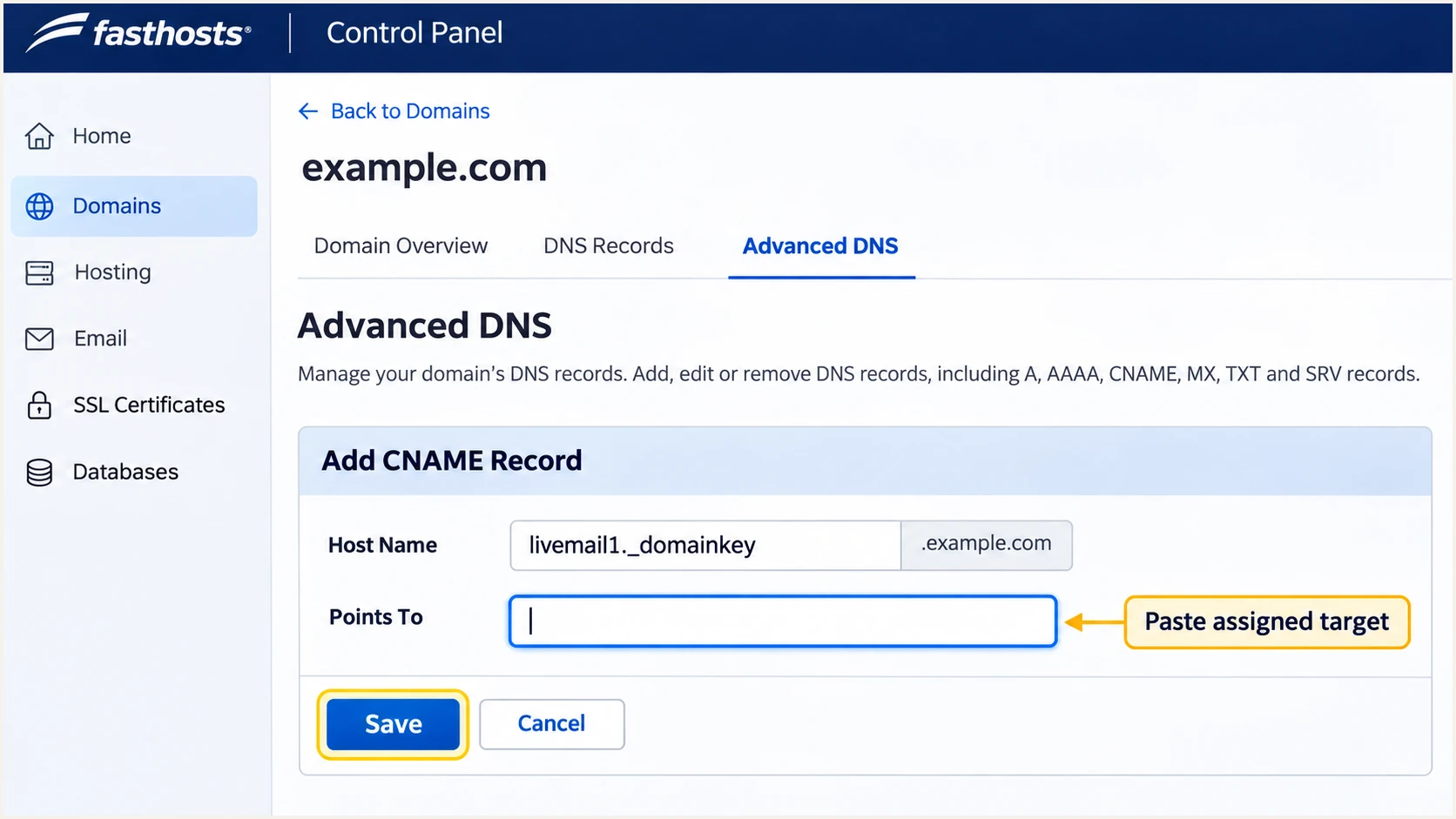
Illustration of the Fasthosts DKIM CNAME form and assigned-target field.
Set up DMARC
I start a new DMARC deployment with p=none and working aggregate reporting. If your domain already uses p=quarantine or p=reject, keep that policy while adding Fasthosts and preserving existing reporting destinations.
- Find the policy: Inspect TXT records at _dmarc.example.com. Update an existing DMARC record instead of adding a duplicate.
- Create the record: In Fasthosts Advanced DNS, choose Add TXT Record. Enter _dmarc in Host Name, paste the value below, and save. Your DNS host appends the domain name.
- Choose reporting: Replace dmarc@example.com with a real reporting mailbox you control. If using a report-processing service, use its assigned rua destination and complete any external-report authorization it requires.
- Check the syntax: Use our DMARC record generator to build the policy, then check the published DNS result below.
Initial DMARC TXT value at _dmarc.example.comtext
v=DMARC1; p=none; rua=mailto:dmarc@example.com
The example mailbox is a placeholder. Reports are delivered to the address in rua, so confirm that the replacement mailbox accepts report attachments or that your reporting service receives them.
I leave SPF and DKIM alignment at their default relaxed settings during setup. Under relaxed alignment, the authenticated domain and visible From domain need the same organizational domain.
DMARC checker
Look up a domain's DMARC record and catch policy issues.
?/7tests passed
Confirm that the lookup finds exactly one valid DMARC policy at the intended name, with the expected policy and reporting destination. A successful lookup confirms publication, not successful authentication of outgoing mail.
After saving, query public DNS again after cached answers expire. Leave unrelated TXT records in place, including other services' ownership-verification records.
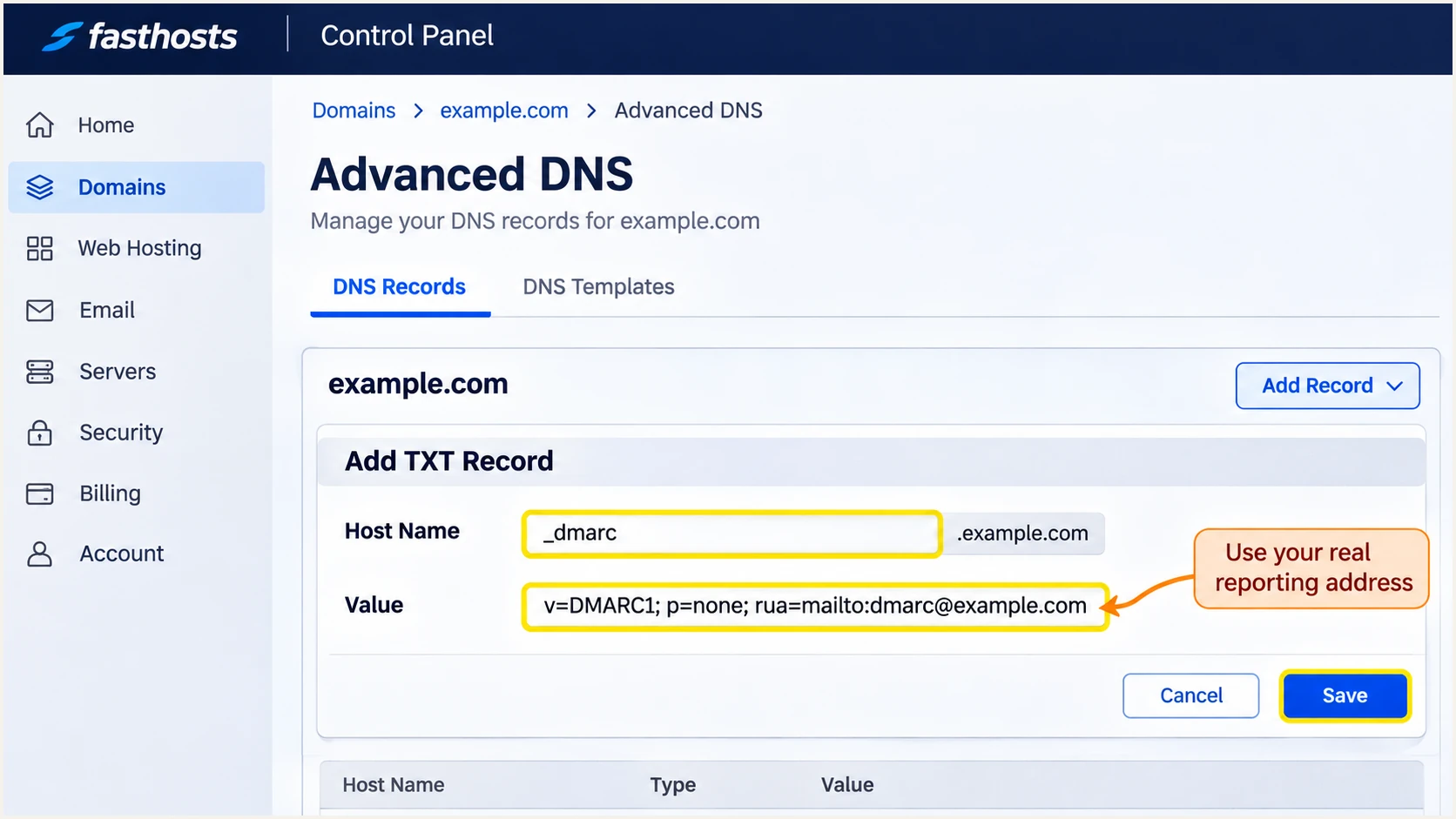
Illustration of the Fasthosts DMARC TXT record form.
Verify and troubleshoot
I verify public DNS first, then a newly delivered message. DNS records authorize or publish information; the receiving server determines whether an individual message passes authentication.
- Query published DNS: Run the commands below with your domain. Repeat the selector lookup for livemail2, livemail3 and livemail4, then confirm that each destination has a public key.
- Test the real route: Send directly through the Fasthosts mailbox or authenticated SMTP connection used in production. Test website-generated messages separately if they use another sending route.
- Inspect receiver results: Read the receiving server's Authentication-Results for spf=pass, dkim=pass and dmarc=pass. Compare smtp.mailfrom and header.d with the visible From domain.
- Retest after changes: Send a fresh message after DNS caches refresh. An old message keeps the authentication results recorded when it arrived.
DNS verification commandsbash
dig +short NS example.com
dig +short TXT example.com
dig +short TXT _dmarc.example.com
dig +short CNAME livemail1._domainkey.example.com
dig +short TXT livemail1._domainkey.example.com
DMARC passes when at least one successful authentication mechanism has the required domain match. SPF passing for an unrelated return-path domain is insufficient on its own.
Our email tester is the quicker way to check the complete configuration. Send a message to the address it provides using your normal Fasthosts sending route, then inspect its authentication diagnosis.
Email tester
Send a real email to this address. Suped shows a results button when the test is ready.
?/43tests passed
For direct Fasthosts mail, investigate an unexpected SPF domain mismatch. If a particular route uses a provider-owned return path, adding SPF at your From domain cannot change that identity; passing DKIM with the required domain match still satisfies DMARC.
Forwarding often breaks SPF because the receiver sees the forwarder's IP address. I check whether DKIM survives before changing the original sender's SPF permissions.
|
|
|
|---|---|---|
SPF permerror | Duplicate SPF | Merge records |
SPF permerror | Lookup count | Reduce lookups |
DKIM absent | Sending route | Check signing |
DKIM fail | CNAME target | Copy assigned value |
DMARC fail | Domain match | Check identifiers |
Old DNS value | Authority / TTL | Query correct zone |
Start with the failing check, then retest a fresh message.
Get alerted when it breaks
Suped is our platform for ongoing DMARC monitoring. It turns aggregate reports into source-level authentication results and detected issues with steps to fix them. This is how I keep a Fasthosts configuration under review after the initial test.
- Enable notifications: With your reports flowing into Suped, enable Issues detected, Sending sources need verification, and DMARC summary emails in notification settings.
- Review sending sources: Confirm Fasthosts as an authorized source and investigate newly observed sources before verifying them. A familiar hostname alone is insufficient evidence of authorization.
- Diagnose failures: Open the affected source and inspect individual records for SPF and DKIM results, sending IP addresses, and authenticated domains. Follow the issue's fix steps and verify the change.
- Compare DNS changes: Use Suped's DNS history to compare the old and new values when authentication deteriorates after a DNS edit or provider migration.
Aggregate reports usually arrive daily, and receiver participation varies. Alerts based on those reports follow incoming data; they do not provide an instantaneous view of every message.
I use a test message for immediate troubleshooting and Suped's ongoing reports to catch less frequent sending routes. Both checks matter before changing enforcement.
One test message
Checks the sending route used for that message. Useful immediately after a DNS change, but it does not cover every application or mailbox workflow.
Ongoing DMARC reports
Suped groups reported traffic by source, flags authentication issues, and notifies your team. Coverage depends on the mail receivers that send reports.
Secure your domain with p=reject
Publish p=reject only after checking the impact on legitimate mail. It asks receivers to reject messages that fail DMARC; the receiver still applies its own handling policy. I require working DKIM before this step because forwarding can break SPF.
- Inventory legitimate mail: In Suped, review all observed sources and resolve authentication failures for authorized senders. Include infrequent invoicing systems and messages generated by your website.
- Assess indirect delivery: Test forwarding and mailing-list traffic. Keep your existing enforcement policy during routine Fasthosts onboarding; use the staged process for a new enforcement rollout.
- Stage the change: After the monitoring review, edit the existing policy to p=quarantine. Compare reported dispositions and legitimate failures before deciding on p=reject. Preserve the reporting address at each stage.
- Maintain enforcement: After moving to p=reject, keep Suped notifications enabled and check new senders before approving production use. Review separate subdomain policies and any sp override.
Our Hosted DMARC lets teams manage policy changes through Suped. If it already manages your policy, make the change there; otherwise edit the existing TXT record at your authoritative DNS host. Keep one policy publication method.
Use one of the following policy values at a time, replacing the example reporting address. Readiness depends on identified mail flows and their results, rather than an overall pass rate alone.
Check mailing-list compatibility
RFC 9989 advises against p=reject for domains hosting users who post to Internet mailing lists. If planning it anyway, assess at least a month of p=none reports followed by a month at p=quarantine, and compare the delivery impact before proceeding.
I use Suped's source details and report history to identify which legitimate flows still fail, then fix or explicitly assess each flow before enforcing rejection. Keep monitoring after the policy change.
Apply the following examples by editing the existing record. Each line is an alternative policy value, and the reporting address must be replaced with your actual destination.
Staged DMARC values; publish only onetext
v=DMARC1; p=quarantine; rua=mailto:dmarc@example.com
v=DMARC1; p=reject; rua=mailto:dmarc@example.com
If a legitimate route stops authenticating, investigate its current DNS and received-message results before changing the domain-wide policy. A passing DKIM signature with the required domain match remains the key check for forwarded mail.
Continue checking Suped's reported source results when Fasthosts rotates signing keys or your team introduces another sender. Resolve new authentication issues before they affect more traffic.
Frequency asked questions
Yes. Fasthosts' current mail platform signs outgoing mail with DKIM and provides four CNAME selectors. Older statements that Fasthosts has no DKIM support do not describe this platform. If the selector targets are missing from your account, ask support to confirm your mailbox platform and assigned values.
An existing Fasthosts mailbox domain does not need another sending-domain registration for DMARC. Publish the required records in its authoritative DNS and verify a newly sent message. Domain registration and mailbox provisioning are separate prerequisites.
Yes. DMARC passes if DKIM validates and its signing domain matches the visible From domain under the applicable alignment mode. For direct mail, investigate unexpected SPF mismatches, but do not authorize a forwarder by adding it to your SPF record just to repair forwarded messages.
Reports usually cover a daily reporting period and are not immediate. Send real traffic to receivers that provide reports, verify the published rua address, and check that the mailbox or report processor accepts them. Reports sent to another domain also need the destination's external-report authorization.
Fasthosts publishes outbound server names under gem.livemail.co.uk, including the t1-mo4-p0[0-7] and t1-hex4-p0[0-7] hostname patterns. The bracketed notation describes multiple numbered hosts. An rDNS match is a source-identification clue; confirm the sending IP and authenticated domains before treating traffic as authorized.




