
How to set up DMARC/DKIM/SPF for Exetel

For a custom domain used with Exetel, publish SPF and DMARC in your authoritative DNS and have the active outgoing mail service enable DKIM for your domain. For an @exemail.com.au address, the provider controls these records. I check domain ownership and the actual sending service before changing DNS.
Exetel's legacy Exemail service moved to The Messaging Company. Its Exetel FAQ states that sign-ups closed on 9 December 2025 and accounts not signed up were deleted. DNS changes cannot restore a deleted mailbox.
Confirm your domain and service
There is no customer-owned domain to add for a standard Exemail address. For an existing custom domain, confirm its setup with the current mail host before publishing authentication records.
I use this check instead of assuming an Exetel broadband subscription includes an active custom-domain email service.
- Check ownership: If you send as user@exemail.com.au, ask the current provider to resolve authentication failures. Continue with DNS changes only for a domain you own.
- Identify the sender: Check your email application's outgoing SMTP server and the recipient's full message headers. Confirm which service currently handles outbound mail.
- Verify the domain: Have that host confirm your custom domain is attached to your account and approved for sending. If it requires an ownership TXT record, publish its exact name and token, then request verification.
- Locate DNS: Run dig NS example.com +short and edit records at the authoritative DNS host. Keep existing MX records unless your mail host is also changing.
The Exemail migration notice does not establish a current custom-domain add-and-verify workflow. Obtain account-specific instructions instead of inventing a verification record.
The historical notice below explains the service transition. It is not a current sign-up screen.
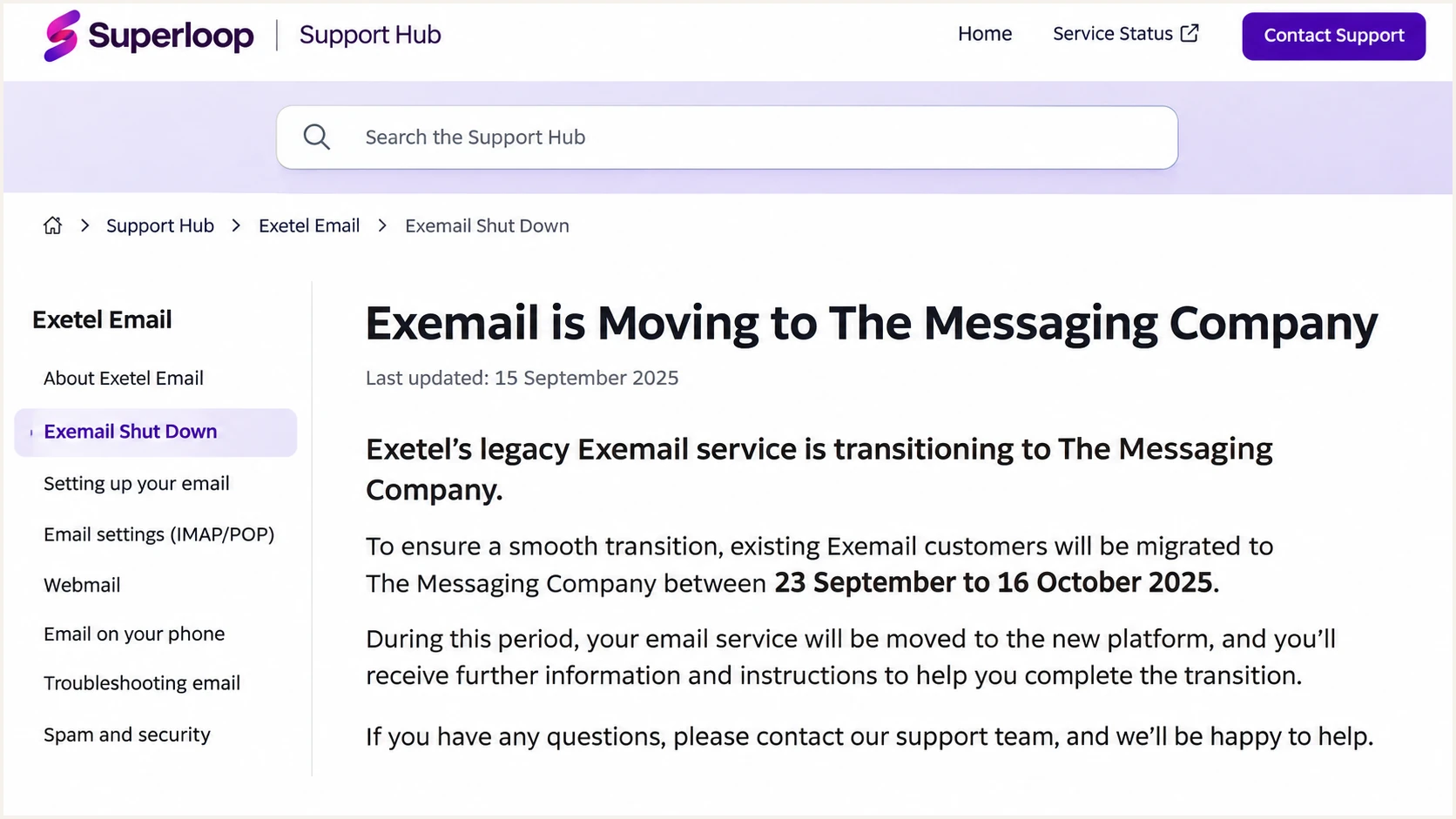
Historical Exetel support notice describing the 2025 Exemail migration.
Set up SPF
For a custom domain confirmed to send through The Messaging Company's Australian service, its unauthenticated-sender support article specifies the SPF value below. This is not a universal SPF record for every legacy Exetel relay.
I check the Return-Path domain first. SPF is evaluated against the envelope sender, not simply the address displayed in From.
- Read existing SPF: Query TXT records for the actual Return-Path domain. Edit its existing v=spf1 record rather than adding a second SPF record.
- Authorize the service: For the confirmed Australian service, merge include:spf.au-east.atmailcloud.com before the existing all mechanism. Preserve authorization for your other active senders.
- Use the right name: Publish at @ when the envelope sender uses your root domain. A return-path subdomain needs its own SPF configuration; SPF is not inherited.
- Check the limit: Keep evaluation within 10 DNS-lookup-causing SPF terms, including nested includes. The example assumes this service is your only sender.
SPF TXT value, confirmed Australian service onlytext
v=spf1 include:spf.au-east.atmailcloud.com -all
If the active host confirms a different sending service, obtain its SPF instructions. Do not copy Exetel's corporate SPF or authorize its entire broadband network.
Enter the actual Return-Path domain below to validate its published SPF and lookup count.
SPF checker
Find SPF syntax issues, lookup limits, and weak records.
?/16tests passed
For DMARC, passing SPF must also use a domain that matches the visible From domain under your policy's matching rules. Confirm this in a delivered message.
If your account cannot use a custom Return-Path, an SPF domain mismatch is expected. Adding the service to your own SPF does not change that. Passing DKIM with your own domain still satisfies DMARC, so an SPF change is unnecessary solely to fix that mismatch.
Set up DKIM
DKIM requires signing on the outbound server and a matching public DNS record. I have not verified a public Exetel custom-domain DKIM activation procedure or universal selector.
Ask the current mail host whether your account supports signing with your own domain. A DNS record alone cannot enable signing.
- Request signing details: Obtain the signing domain, selector and exact TXT public key or CNAME target. Confirm the host will sign mail using your domain.
- Publish the supplied record: Add the host's exact selector record at your authoritative DNS host. Check whether the editor appends your domain automatically to avoid duplicating it.
- Activate signing: After DNS is visible, complete the mail host's verification or ask support to enable signing. Keep the private key on the signing server.
- Test the signature: Send a fresh message. Check dkim=pass and the DKIM-Signature d= domain against the visible From domain. Read s= for the selector actually used.
The example below uses s1 only as a placeholder. Substitute the selector and signing domain supplied by your host.
A successful DNS lookup proves the public record exists. The recipient's authentication result establishes whether the message signature verifies.
Inspect the supplied DKIM selectorbash
dig TXT s1._domainkey.example.com +short
dig CNAME s1._domainkey.example.com +short
I prefer working custom-domain DKIM because ordinary forwarding often breaks SPF. A valid DKIM signature can survive forwarding when signed content stays intact.
If your host does not offer custom-domain DKIM, passing SPF with a matching envelope domain still passes DMARC. Do not treat provider-domain signing as a substitute.
Custom-domain signature
With From at example.com, dkim=pass for d=example.com satisfies DMARC. A matching subdomain also works under relaxed matching.
Provider-domain signature
With From at example.com, dkim=pass for d=exemail.com.au does not satisfy DMARC. You still need passing SPF with a matching domain or a valid custom-domain signature.
Set up DMARC
I start a domain without DMARC at p=none while checking legitimate mail. If your domain already uses p=quarantine or p=reject, keep that policy while fixing the sending configuration.
Use the DMARC record generator to build the record. DMARC belongs in your domain's DNS, not your email application's SMTP settings.
- Read the current policy: Query _dmarc.example.com for TXT records. Maintain one DMARC policy record at that name.
- Publish the record: For a domain without an existing policy, add a TXT record named _dmarc in the example.com zone using the value below.
- Choose a real destination: Replace dmarc@example.com with a report mailbox you control or your assigned reporting-service address. Complete external report authorization if required.
- Keep matching practical: Leave aspf and adkim omitted for their relaxed defaults unless you have a tested requirement for exact domain matching.
Initial DMARC TXT value at _dmarc.example.comtext
v=DMARC1; p=none; rua=mailto:dmarc@example.com
The example address is a placeholder. A working rua destination receives aggregate XML reports; publishing the record does not create a mailbox.
Enter your visible From domain below to check the policy name and syntax.
DMARC checker
Look up a domain's DMARC record and catch policy issues.
?/7tests passed
After saving, query the record again and account for the previous DNS TTL before judging cached results.
Aggregate reports are usually sent daily by participating receivers. No report immediately after a test does not establish a configuration failure.
Monitoring does not enforce rejection
p=none requests no DMARC enforcement. It lets you collect evidence before applying quarantine or reject; it does not make failing mail pass authentication.
Verify and troubleshoot
I test the actual sending path after every change. A mailbox message and a website notification can leave through different outbound servers.
The email tester supplies a destination for a test message and returns an authentication diagnosis. It is the quickest check of what your service really sends.
- Start the test: Open the tester below and copy its test recipient address.
- Send directly: Send a new message through your normal Exetel-related mail setup using your production From address. Do not forward an old message.
- Inspect the result: Require dmarc=pass, supported by passing SPF or DKIM with a matching domain. Investigate any authentication errors even when DMARC passes through the other method.
- Repeat every route: Test each application and any fallback SMTP service separately. Save the recipient's headers and bounce details when a test fails.
Email tester
Send a real email to this address. Suped shows a results button when the test is ready.
?/43tests passed
Read Authentication-Results added by the receiving system. SPF passing for a provider-owned domain alone does not authenticate your custom From domain.
These illustrative headers show both methods passing for the same domain. They are not captured Exetel output.
Example of matching authentication resultstext
From: sender@example.com
Return-Path: <bounce@example.com>
Authentication-Results: receiver.example;
 spf=pass smtp.mailfrom=example.com;
 dkim=pass header.d=example.com;
 dmarc=pass header.from=example.com
Separate SMTP access problems from authentication failures. A relay-denied response needs an account or server-setting fix, rather than an extra DNS record.
Use the failing result to choose the next check.
|
|
|
|---|---|---|
SPF permerror | Duplicate SPF | Merge records |
SPF permerror | Lookup count | Remove obsolete terms |
DKIM none | Outbound signing | Ask mail host |
DMARC fail | Domain matching | Compare headers |
Relay denied | SMTP account | Confirm access |
Start with the specific failing result.
Get alerted when it breaks
Suped is our DMARC platform for ongoing DMARC monitoring. It detects authentication issues and provides fix steps, so DNS or sending-service changes do not depend on someone remembering to run another test.
I use source-level results to separate a new legitimate sending route from unauthorized mail. A mailbox full of XML reports does not provide that workflow by itself.
- Route aggregate reports: Use the Suped reporting address assigned to your domain in rua, preserving your current enforcement policy. Complete any supplied external reporting authorization.
- Verify sending sources: Review source IPs and authentication domains against your active mail services. Confirm whether an apparent Exetel source is your relay, a customer connection or a migrated sending platform.
- Enable notifications: In Suped's notification settings, enable Issues detected and Sending sources need verification. Configure DMARC summary emails for ongoing review.
- Investigate the change: Open the affected records, inspect SPF and DKIM diagnostics, and compare DNS history before and after the failure. Apply the relevant sender fix and verify it with a fresh test.
Alerts based on aggregate reports depend on when receivers send those reports. Keep direct test messages in your deployment checks for immediate feedback.
For @exemail.com.au, the provider owns the domain and must manage its authentication monitoring. These controls apply to domains you own.
Secure your domain with p=reject
I move to p=reject after every approved sending route consistently passes DMARC and legitimate failures are explained. An overall pass percentage alone is not enough.
Suped's hosted DMARC lets your team manage policy in the dashboard after its DNS delegation is configured. Use the source diagnostics to decide when to enforce.
- Cover the sending cycle: Review enough reports to include infrequent jobs such as monthly invoices. Confirm all authorized services before tightening policy.
- Fix approved sources: Require a valid DKIM signature or passing SPF with the correct domain relationship. Resolve unsupported custom-domain signing with the mail host before relying on DKIM.
- Stage the policy: Move a new p=none deployment to p=quarantine, inspect new reports and delivery failures, then move to p=reject. Keep existing enforcement if already enabled.
- Check subdomains: Review inherited policy and any explicit subdomain DMARC records. Confirm a policy change does not leave an active sending subdomain untested.
- Keep reporting enabled: Maintain Suped alerts after enforcement and investigate new sources before authorizing them. Re-test after SMTP changes or DKIM key rotation.
Final DMARC TXT value, after validating all senderstext
v=DMARC1; p=reject; rua=mailto:dmarc@example.com
Replace the example reporting address with your real destination and retain any other required tags. If using hosted DMARC, change the delegated policy rather than adding a conflicting TXT record beside its CNAME.
Send fresh tests after the policy change and review subsequent reports in Suped. p=reject requests rejection of mail that fails DMARC; receivers retain their own handling decisions.
Frequency asked questions
No. The provider controls DNS and outbound signing for exemail.com.au. Use its supported outgoing service and report failures to its support team. You can publish your own authentication records only for a domain you control.
The Messaging Company's Australian-service support instructions specify include:spf.au-east.atmailcloud.com for custom-domain sending. Confirm that this is your actual outbound platform, then merge the include into the existing SPF record at your envelope-sender domain. Standard consumer addresses do not need customer DNS changes.
Passing SPF with an envelope domain that matches your From domain can satisfy DMARC. If neither method passes with a matching domain, the service cannot send DMARC-passing mail as that From domain. Use a sending setup that supports your domain; publishing a random DKIM key will not enable signing.
SPF authenticates the envelope-sender domain. If that domain differs from your visible From domain under the policy's matching rules, the SPF pass does not count toward DMARC. A valid DKIM signature using a matching signing domain is the other path to a DMARC pass.
This suffix is associated with Exetel's network and customer connections. It does not identify a particular email application or prove authorized sending. Compare the connecting IP, its current PTR record and the message's authentication results before treating it as an approved source.
No. The Messaging Company's Exetel FAQ says sign-ups closed on 9 December 2025 and accounts not signed up were deleted and cannot be recovered. Authentication records cannot recreate that mailbox or recover its contents.




