
How to set up DMARC/DKIM/SPF for Execulink

Set up Execulink authentication by publishing the SPF record for your mail service, requesting custom-domain DKIM signing, and adding a DMARC TXT record at _dmarc. Execulink's Hosted Exchange configuration requires both its own SPF include and the Hosted Exchange include shown below. I start DMARC with p=none and test actual messages before enforcing a stricter policy.
These steps apply to a domain you own. With an @execulink.com mailbox, Execulink controls the authentication records. DKIM availability and its exact DNS values need confirmation for your specific mail package.
Add your domain
I first confirm that Execulink has provisioned the custom domain and identify its authoritative DNS host. Domain registration alone does not establish email hosting.
- Provision the service. Ask Execulink to activate email for your custom domain. For a new Hosted Exchange deployment, wait for your Customer Implementation Coordinator's instructions before changing its service records.
- Find the domain. Sign in to MyExeculink, open Services, then Domain Management. Select your domain and open Manage DNS. If it is missing, ask Execulink to confirm the account association and DNS hosting.
- Verify DNS authority. Check the domain's NS records. Execulink documents ns.execulink.com and ns-bmi.execulink.com. If the authoritative nameservers belong to another DNS host, publish authentication records there.
- Preserve the zone. Export the current DNS zone before editing. Keep existing website and inbound mail records unless Execulink specifically instructs a service migration.
Execulink's public support articles, 'Verifying Domain Management with Execulink' and 'Managing your DNS Records Using Power DNS in MyExeculink', document this distinction between registration and DNS management.
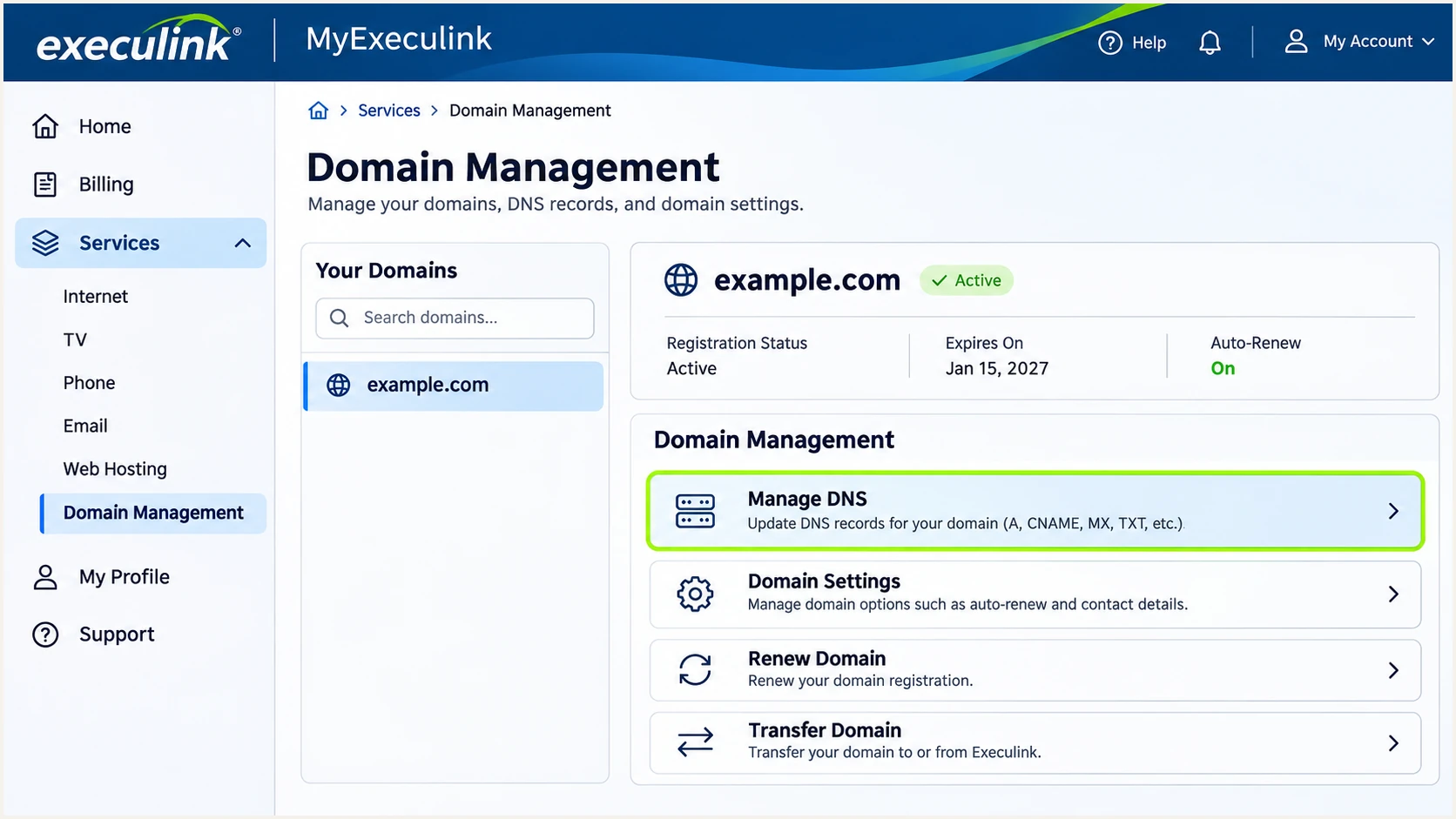
Illustrated MyExeculink navigation to Domain Management and Manage DNS.
If self-service DNS editing is unavailable, Execulink's DNS Hosting FAQ directs authorized account contacts to domadmin@execulinktelecom.ca. Send the requested record name, type, TTL, and complete value. Never send a DKIM private key.
Set up SPF
I choose SPF authorization by the outbound service, rather than copying the inbound MX hostname. Execulink's Hosted Exchange FAQ explicitly publishes the combined SPF value below; confirm its applicability before using it for another package.
- Confirm the sender. For Hosted Exchange, use the documented includes spf.execulink.com and spf.serverdata.net. For Execulink SMTP alone, ask support whether spf.execulink.com is sufficient for your account.
- Check the envelope domain. Inspect Return-Path in a delivered message. Execulink supports return-path alignment, but the actual SMTP MAIL FROM domain must match your visible From domain under your DMARC alignment settings.
- Edit one SPF record. At the envelope domain, update the existing TXT record beginning v=spf1. Merge all legitimate senders before the final all mechanism. Do not publish a second SPF record.
- Publish and validate. For a root-domain envelope sender, use the root record name, commonly @. Select TXT and a 3600-second TTL. Keep the evaluation within SPF's limit of 10 DNS-querying terms, including nested includes.
Hosted Exchange SPF example, merge with existing sendersdns
@ 3600 IN TXT "v=spf1 include:spf.execulink.com include:spf.serverdata.net ~all"
That example authorizes the documented Hosted Exchange routes only. Retain any other legitimate sending mechanisms already in use. If Execulink assigns an envelope subdomain, its SPF record belongs at that subdomain; SPF is not inherited from the root.
Enter the envelope domain below to check the published SPF syntax and lookup usage. A DNS check validates authorization rules; a delivered-message test confirms which envelope domain and outbound IP Execulink actually uses.
SPF checker
Find SPF syntax issues, lookup limits, and weak records.
?/16tests passed
A passing SPF result for an Execulink-owned envelope domain does not satisfy DMARC for your own From domain. Ask support to confirm the custom envelope sender if this mismatch appears. Changing the visible From address alone does not fix it.
When DKIM passes with domain alignment, DMARC can pass even if SPF fails or lacks alignment. I still investigate unexpected SPF failures on direct Execulink deliveries rather than treating every mismatch as harmless forwarding.
Set up DKIM
Execulink's public DNS documentation supports publishing authentication records, but does not provide a universal DKIM selector or a documented activation switch. I confirm signing support for the mail package before publishing a key.
- Request custom-domain signing. Ask Execulink whether your service can sign outbound messages with your domain in the DKIM d= value. Request the exact selector, DNS record type, hostname, and public value or CNAME target.
- Publish the supplied record. At the authoritative DNS host, add the returned TXT or CNAME record under the supplied selector._domainkey name. Use Execulink's exact value, not a guessed default selector.
- Activate signing. After DNS publication, ask Execulink to enable or verify signing if its service requires that separate action. A DNS public key alone does not make its server sign mail.
- Inspect a new message. Check the receiving server's authentication results for dkim=pass. Confirm the signature's d= domain has DMARC alignment with the visible From domain and s= identifies the published selector.
For the default relaxed alignment mode, the signing domain and From domain must share the same organizational domain. A valid signature using only Execulink's unrelated domain does not provide DKIM alignment for your custom domain.
Custom DKIM available
Publish Execulink's supplied selector and verify a real signature. I prefer having both SPF and DKIM working so routine forwarding has another authentication path when SPF breaks.
Custom DKIM unavailable
DMARC can still pass through SPF with domain alignment. Test forwarding and every legitimate sending route before enforcement, and treat DKIM as unavailable rather than marking setup complete.
Set up DMARC
For a domain without an existing enforcement policy, I start with p=none. If the domain already uses p=quarantine or p=reject, retain that policy and add reporting without weakening it.
- Inspect the existing policy. Look up _dmarc at the domain in the visible From address. Edit an existing policy instead of creating competing DMARC TXT records at the same name.
- Build the value. Use the DMARC record generator referenced below. Choose monitoring for a new deployment and set an aggregate-report destination you control.
- Create the TXT record. In Manage DNS, use _dmarc as the relative record name, select TXT, and use a 3600-second TTL. The resulting full hostname should be _dmarc.example.com.
- Save the change. Use Add DNS Record for a new entry or save your edit to the existing entry. Confirm the public DNS answer contains one valid DMARC policy at that hostname.
Initial monitoring policy, replace the example report addressdns
_dmarc 3600 IN TXT "v=DMARC1; p=none; rua=mailto:dmarc@example.com"
Replace dmarc@example.com with a real report mailbox or your assigned reporting address before publishing. An external report destination needs the destination domain's DMARC reporting authorization. The example address does not collect reports for your domain.
Configure the address with the DMARC record generator. Then check your domain below. Keep your current alignment settings unless a tested requirement justifies changing them.
DMARC checker
Look up a domain's DMARC record and catch policy issues.
?/7tests passed
A valid DMARC record confirms that receivers can discover your policy. It does not prove that Execulink messages pass authentication. That requires a test sent through the actual production sending route.
With p=none, the policy requests reporting without requesting quarantine or rejection for DMARC failures. Receivers still apply their own filtering. Confirm that reports reach the configured destination before relying on them for enforcement decisions.
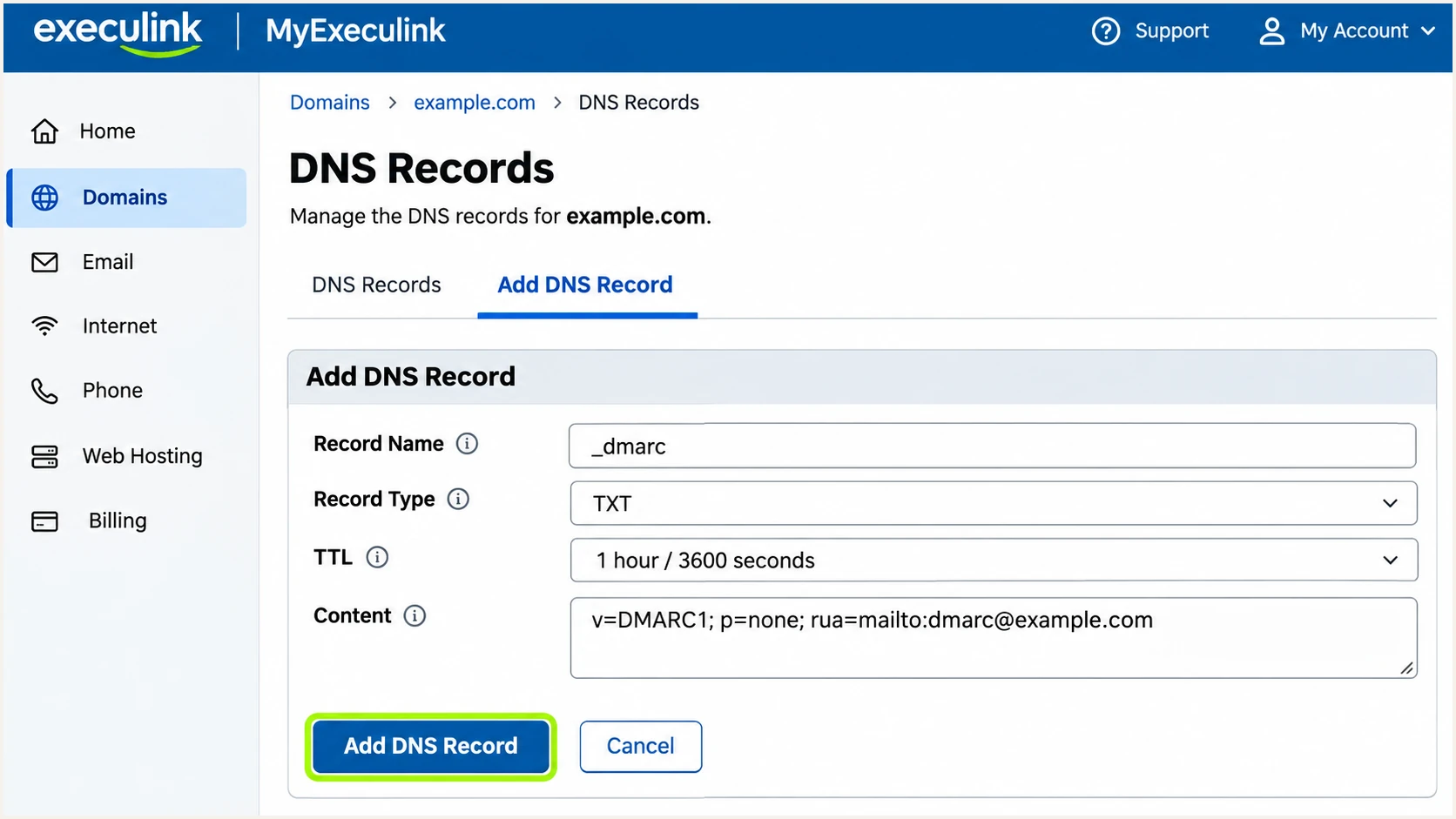
Illustrated MyExeculink form for an example DMARC TXT record.
Verify and troubleshoot
I verify public DNS and a delivered message separately. Publishing the records succeeds only when the production mail server uses the expected identities and keys.
- Check DNS answers. Run the commands below for your domain. Replace SELECTOR with the selector supplied by Execulink. For a CNAME-based DKIM record, query its CNAME target as well.
- Send through production. Use the same Execulink mailbox, application, and SMTP route used for normal mail. Test each route separately, including website forms that send through a different server.
- Read receiver results. Inspect trusted Authentication-Results, Return-Path, and DKIM-Signature headers. Expect DMARC pass through at least one passing authentication method with domain alignment.
- Escalate with evidence. Give Execulink the domain, sender, recipient, timestamp with timezone, full message headers, and any SMTP error. If DNS still differs, compare authoritative answers with cached answers before editing again.
Inspect authentication DNS recordsbash
dig +short NS example.com
dig +short TXT example.com
dig +short TXT _dmarc.example.com
dig +short TXT SELECTOR._domainkey.example.com
dig +short CNAME SELECTOR._domainkey.example.com
For a quicker diagnosis, use the email tester below. Send a new message to the address it supplies through Execulink, then review the authentication results and identified problems.
This checks the message that arrived, including its envelope sender and signing domain. A test of another mailbox or an alternate SMTP server does not verify the Execulink route you intend to use.
Email tester
Send a real email to this address. Suped shows a results button when the test is ready.
?/43tests passed
Retest after each correction. If forwarding breaks SPF but a valid DKIM signature still has domain alignment, DMARC should pass. If neither passing identity has domain alignment, an SPF pass or DKIM pass alone is insufficient.
A clean authentication result does not guarantee inbox placement. Use the failure pattern below to identify the configuration issue before changing a policy or authorizing additional servers.
|
|
|
|---|---|---|
SPF permerror | Duplicate or lookup limit | SPF record |
SPF unaligned | Envelope domain mismatch | Return-Path |
DKIM absent | Signing inactive | Execulink support |
DKIM fail | Key or message change | Selector and headers |
DMARC fail | No aligned pass | Authenticated domains |
Common authentication results and the next check.
Get alerted when it breaks
Our Suped platform turns aggregate reports into source-level diagnostics and issue notifications. For Execulink, that gives the team a way to spot authentication changes after the initial setup, without repeatedly inspecting raw XML.
- Confirm report collection. Check that the DMARC reporting address in your published policy is the address assigned for report processing. Confirm fresh reports are appearing before expecting useful alerts.
- Verify legitimate sources. In Suped's Issues source table, review the Execulink traffic and verify sources you recognize. Investigate an unfamiliar source before authorizing it in SPF.
- Enable issue notifications. Open Settings, then Notifications. Enable Issues detected and Sending sources need verification notifications; enable DMARC summary emails for routine review.
- Resolve and retest. Open the affected issue's steps to fix, identify the failing domain or selector, and correct it with Execulink or your DNS administrator. Verify the fix with a fresh message and subsequent reports.
Suped's DMARC monitoring combines authentication results with source review and actionable issues. DNS history helps identify a deleted record or an unexpected change when previously passing Execulink traffic starts failing.
Aggregate reports arrive on each receiver's schedule. Alerts based on those reports are not live SMTP delivery receipts, so I use a fresh email test when an incident needs immediate confirmation.
Secure your domain with p=reject
I move to p=reject after every legitimate sending route has a proven DMARC pass path. The decision depends on observed traffic, including infrequent business mail, rather than a fixed waiting period or an overall pass percentage.
- Inventory legitimate traffic. Review Execulink alongside invoice mail, website forms, and other authorized senders. In Suped, filter failing records by source to distinguish configuration errors from unauthorized traffic.
- Fix failures first. Require at least one passing method with domain alignment for each authorized route. Prefer working DKIM as well as SPF, and test forwarding before relying only on SPF.
- Stage enforcement. Once monitoring is clean, use quarantine as an intermediate policy if needed, observe legitimate deliveries, then move to reject. Review subdomain policies separately and retain a working report destination.
- Keep monitoring active. Check Suped's source diagnostics and issue notifications after each policy change. If legitimate mail fails, repair the affected route and evaluate any temporary policy change against that specific failure.
Reject requests enforcement
p=reject asks receivers to reject messages that fail DMARC. It does not guarantee universal rejection or stop lookalike-domain mail. SPF-only routes deserve particular attention because forwarding often breaks SPF authentication.
Our Suped Hosted DMARC provides policy controls in the dashboard, so the team can stage enforcement without repeated manual TXT edits once hosting is configured. Verify public policy discovery after each change. With manually managed DNS, update the existing record in MyExeculink instead.
Keep the reporting destination in place at enforcement. Successful rollout depends on identifying legitimate sources before they are affected and continuing to investigate newly failing traffic afterward.
Final policy example, only after validationdns
_dmarc 3600 IN TXT "v=DMARC1; p=reject; rua=mailto:dmarc@example.com"
Replace the example reporting address in this record as well. If Hosted DMARC already manages the policy, use its policy controls rather than adding a competing TXT record alongside its delegation.
Frequency asked questions
Execulink's Hosted Exchange FAQ specifies v=spf1 include:spf.execulink.com include:spf.serverdata.net ~all. Merge those mechanisms into your existing SPF record if this is your service. For another Execulink package, confirm the required authorization with support before copying the Hosted Exchange value.
The public Execulink support articles reviewed do not specify a universal selector or activation procedure. Request custom-domain signing availability and the exact DNS record from support. I verify dkim=pass and domain alignment on a new message rather than assuming a published key means signing is active.
Yes. SPF pass with domain alignment is sufficient for DMARC. The SMTP MAIL FROM domain must satisfy the alignment rule for the visible From domain. Forwarding often breaks SPF, so test those deliveries before enforcing reject on a route without working DKIM.
Execulink owns and controls execulink.com's DNS policies. You cannot publish personal SPF, DKIM, or DMARC records for that domain. These setup steps require a custom domain you control and a mail service provisioned for that domain.
An rDNS name under execulink.com suggests an Execulink-named network host. It does not establish whether the message used Execulink's hosted email service or a customer's server on its network. I confirm the connecting IP, message headers, and authentication domains before identifying or authorizing the sender. An rDNS suffix is not proof of DMARC authorization.
Execulink's DNS Hosting FAQ advises allowing up to 48 hours for changes to propagate. Cached records depend on their previous TTL, so some resolvers update sooner than others. Check the authoritative answer first, then test a newly sent message once receivers can retrieve the updated records.