
How to set up DMARC/DKIM/SPF for Ex Libris

Published 22 Nov 2026
Updated 22 Nov 2026
12 min read
Summarize with
For Alma email sent directly by Ex Libris, configure your institutional EnvelopeFrom address, add the regional SPF include, publish both generated DKIM CNAMEs, activate DKIM, and publish DMARC for your visible From domain. A DMARC pass requires a passing SPF or DKIM result with a matching domain.
I check the sending route before changing DNS. Alma supports direct sending and an institutional relay; Esploro also has a Mail Handling profile, but its available DKIM controls need confirmation in your environment. Ex Libris's public 'Configuring Alma Letters' and 'Configuring Esploro Letters' documentation describe these product differences.
Add your domain
Alma uses its Mail Handling profile to configure your sending domain. You do not need a separate domain-registration wizard. Have a General System Administrator and your institution's DNS administrator handle the application settings and DNS changes together.
- Open the profile. Go to Configuration > General > External Systems > Integration Profiles. Edit the existing Mail Handling profile; Alma permits only one.
- Create if absent. Select Add Integration Profile, enter a unique Code and Name, choose Mail Handling as the Integration Type, and select Next.
- Set the return path. Keep Active selected. Choose Send directly from Ex Libris and enter a working mailbox such as library-bounces@example.com in SMTP EnvelopeFrom address. Leave the field with Tab so dependent controls refresh.
- Set letter senders. Open Configuration > General > Letters > Letters Configuration. Edit each active email letter's Labels and set addressFrom to an institutional address, such as library@example.com. Use the same domain as EnvelopeFrom.
- Check overrides. Review library preferred email addresses used by resource-sharing letters. Coordinate the switch with DNS publication, especially when your domain already enforces DMARC.
The address before @ can differ: library@example.com and library-bounces@example.com use the same domain. The bounce mailbox must accept delivery failures; changing Reply-To alone does not change the identity DMARC checks.
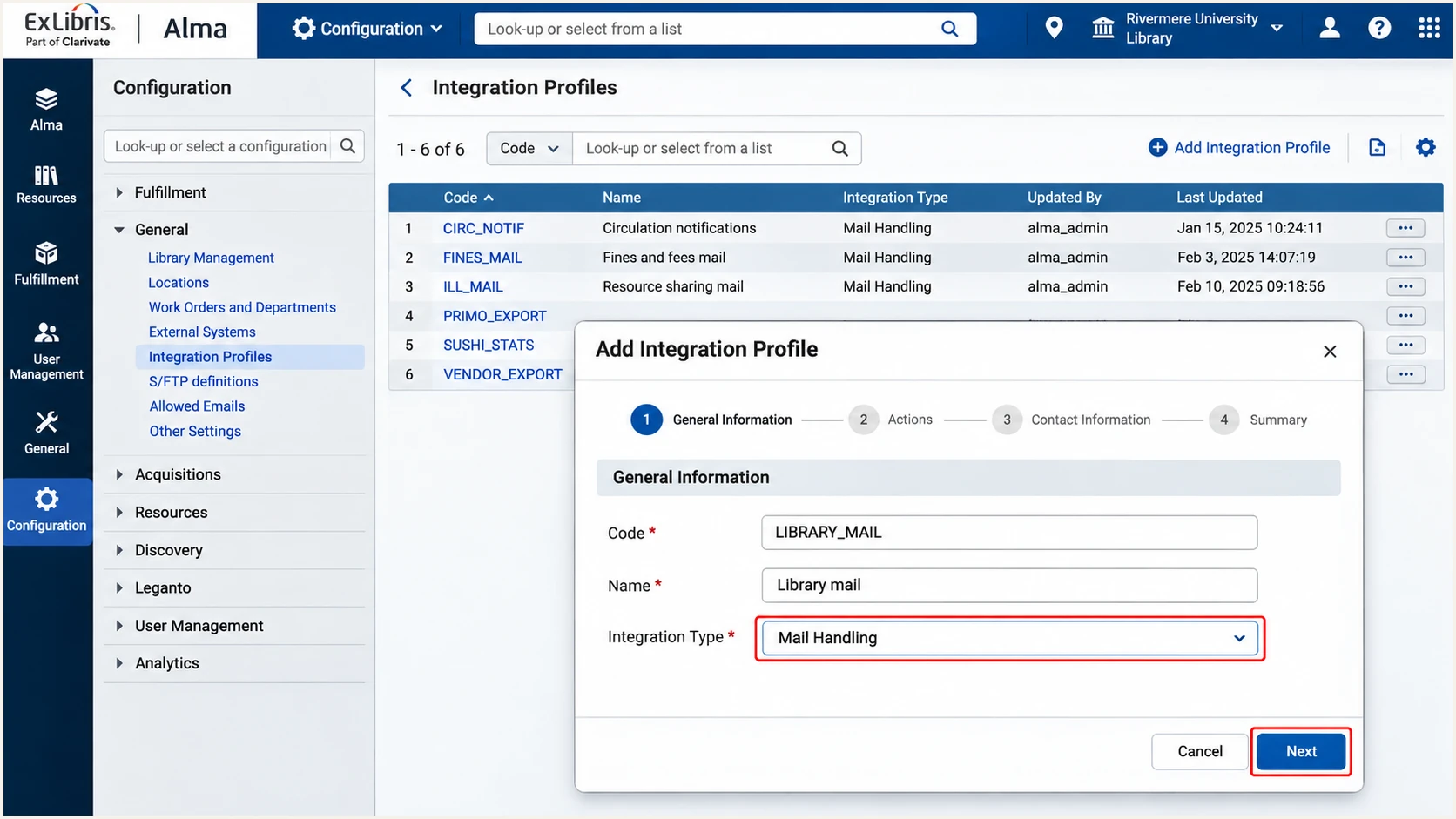
Choose Mail Handling when creating an Alma integration profile.
In Esploro, open Configuration > General > External Systems > Integration Profiles and edit or create its Mail Handling profile. Set EnvelopeFrom there and edit each letter's addressFrom under Letters Configuration. Its public instructions document these fields, without the Alma DKIM activation sequence.
Choose your delivery route before authorizing senders. Ex Libris's 'Outgoing emails configuration' recommends an institutional relay when your institution wants to control outbound authentication itself.
Send directly from Ex Libris
Use Ex Libris's regional SPF include and Alma's generated DKIM CNAMEs. Ex Libris operates the final outbound servers and manages its signing keys.
Send using institution mail relay
Enter your institution's relay details and enable encryption as supported. Configure SPF for the final outbound server and DKIM on that relay. An Ex Libris include alone does not authenticate your relay's public sending IP.
Set up SPF
SPF checks the SMTP EnvelopeFrom domain, which normally appears in the delivered Return-Path header. For direct Ex Libris delivery, use the include for your institution's hosting region, rather than your recipient's location.
- Confirm the region. Check your Ex Libris hosting details or ask Ex Libris support. Select the corresponding mechanism in the table.
- Edit the right domain. For library-bounces@example.com, edit example.com's SPF TXT record. A different EnvelopeFrom subdomain needs its own SPF record.
- Merge authorization. Add the regional include before the existing all mechanism. Preserve other authorized senders and the existing ending. Publish only one SPF record at that DNS name.
- Check the limit. Keep the evaluated SPF lookup-causing terms within 10, including nested includes. Excess terms cause permerror. Prefer the vendor include over manually maintained IP addresses.
|
|
|---|---|
APAC | include:spf-ap.exlibrisgroup.com |
Canada | include:spf-ca.exlibrisgroup.com |
China | include:spf-cn.exlibrisgroup.com.cn |
North America | include:spf-na.exlibrisgroup.com |
Europe | include:spf-eu.exlibrisgroup.com |
Regional mechanisms listed in Ex Libris's Technical Requirements for Alma and Discovery Implementation.
For an APAC domain used exclusively for direct Ex Libris mail, this is a complete example. Replace the domain and region for your deployment. For a shared institutional domain, merge the include into the existing SPF record instead of replacing it.
Example SPF TXT record for an Ex Libris-only APAC domaintext
Name: example.com
Type: TXT
Value: v=spf1 include:spf-ap.exlibrisgroup.com -all
Run the SPF check against the domain after @ in your configured EnvelopeFrom. Check that the regional include resolves and the combined record stays within the lookup limit.
I verify DNS publication first, then send a fresh letter. A valid record proves that the policy can be evaluated; the received message confirms which EnvelopeFrom and sending IP Alma actually used.
SPF checker
Find SPF syntax issues, lookup limits, and weak records.
?/16tests passed
Ex Libris supports return-path matching for this direct-sending setup. If Return-Path still ends in exlibrisgroup.com while the visible From uses your domain, revisit SMTP EnvelopeFrom address. Adding an include to your visible From domain does not change a vendor-owned return path.
For an institutional relay that rewrites Return-Path, check its final SPF identity. DMARC still passes through a valid DKIM signature matching your From domain, but that does not fix an independent SPF authentication error. Configure both mechanisms correctly for the chosen route.
Set up DKIM
Alma supports DKIM for institutional domains on direct Ex Libris delivery. Older instructions saying custom-domain DKIM is unavailable predate this support. Use the values generated by your own Mail Handling profile.
- Generate the keys. In the active Mail Handling profile, select DKIM Setup. Copy both CNAME name-and-target pairs from the DKIM Setup Guide, confirm the dialog, and save the profile with DKIM Setup selected.
- Publish both CNAMEs. Give both pairs to your DNS administrator. Copy the exact names and targets. Avoid duplicating your domain suffix in a DNS editor that adds it automatically.
- Validate DNS. Allow key generation and DNS caches to update, reopen the saved profile, and select Validate DKIM DNS Setup. Some documentation calls this Test DKIM DNS Setup. Resolve any reported errors.
- Activate signing. After validation succeeds, select DKIM Active and save again. Publishing CNAMEs without this activation does not start signing.
- Test a signature. Send a new letter and inspect the recipient's Authentication-Results. Confirm dkim=pass with header.d matching the visible From domain.
Ex Libris's developer documentation explains that keys are generated after saving an active profile with DKIM Setup enabled. Allow a few minutes for generation, then account for DNS caching. A failed immediate check is a reason to inspect publication and retry after caches expire.
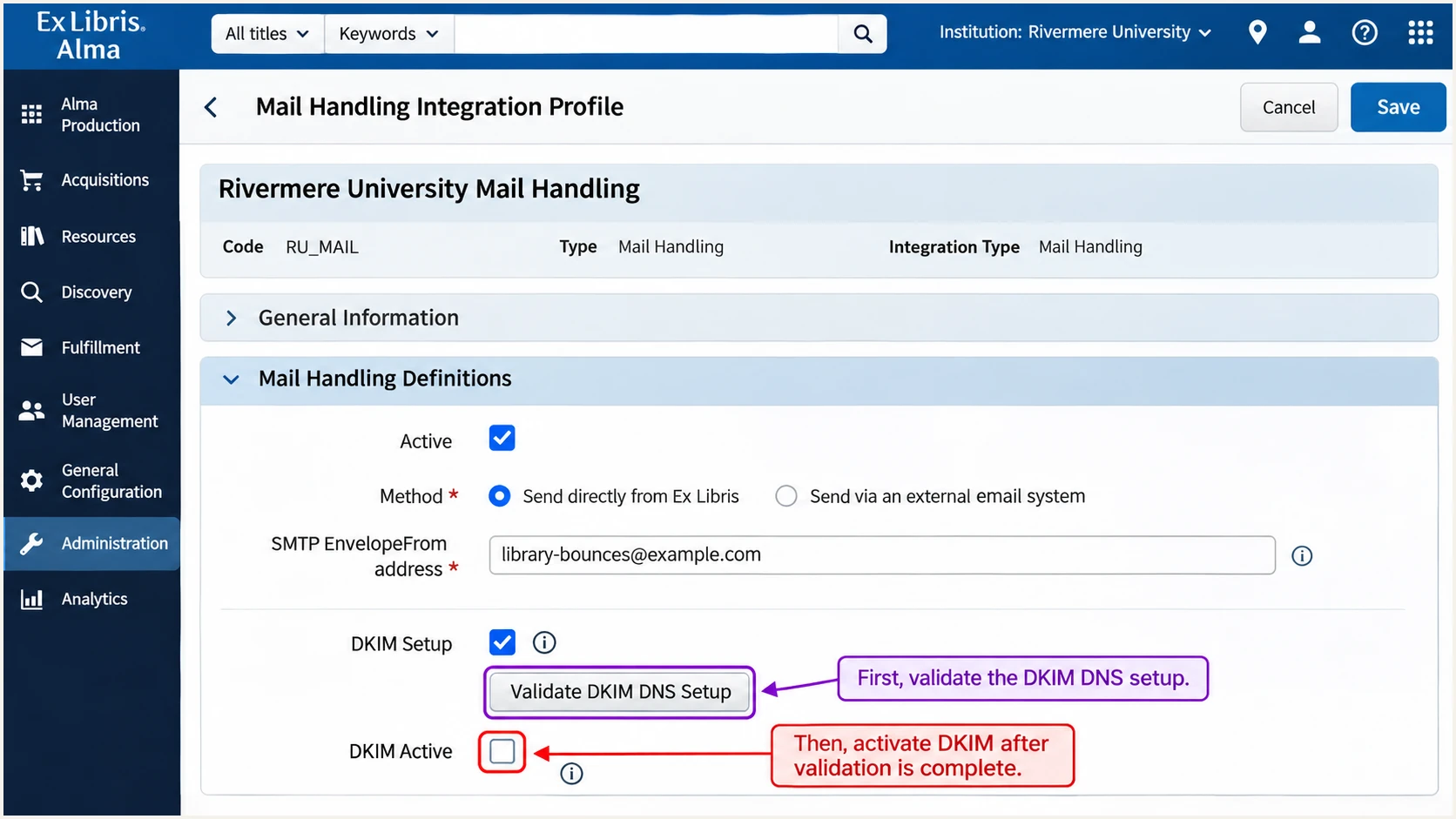
Validate Alma's DKIM DNS setup before selecting DKIM Active.
Keep both generated CNAMEs in DNS. Ex Libris uses two key pairs for rotation, so removing the apparently unused selector breaks a later rotation. A selector's DNS name also cannot hold a CNAME alongside a conflicting TXT record.
For Esploro, confirm that your tenant exposes equivalent custom-domain DKIM controls before using Alma's activation sequence. If it does not, ask Ex Libris support for the supported setup or sign mail through your institutional relay.
Verify the signing domain
DKIM passing for exlibrisgroup.com does not authenticate a visible From address at example.com for DMARC. Confirm a passing signature with d=example.com, or a permitted matching subdomain under your existing DMARC mode.
Set up DMARC
DMARC is a DNS policy for the visible From domain. There is no DMARC switch to enable inside Alma. For a domain without an existing enforcement policy, begin with p=none while checking real mail.
- Inspect existing policy. Look up the From domain's DMARC record and check inherited policy with your DNS administrator. Keep an existing quarantine or reject policy in place.
- Publish one record. For mail with From at example.com, publish one DMARC TXT record at _dmarc.example.com. Use the monitoring example only when it does not weaken existing enforcement.
- Set report delivery. Replace dmarc@example.com with a working reporting address under your control. Keep existing reporting destinations when updating a record.
Initial DMARC monitoring recordtext
Name: _dmarc.example.com
Type: TXT
Value: v=DMARC1; p=none; rua=mailto:dmarc@example.com
The example record is v=DMARC1; p=none; rua=mailto:dmarc@example.com. It requests aggregate reports without asking receivers to quarantine or reject DMARC failures. It does not override a receiver's spam filtering.
Keep existing enforcement
If your domain already has p=quarantine or p=reject, retain it and fix Ex Libris authentication under that policy. Do not replace an established reporting address with the example mailbox.
Use the DMARC record generator to build the TXT value. Keep your current strict or relaxed domain-matching settings during onboarding; do not change them merely to hide a configuration error.
Check the exact From domain after publishing. For a reporting address on another domain, follow the report receiver's external-destination authorization instructions. DNS validation confirms the policy; received letters confirm authentication.
DMARC checker
Look up a domain's DMARC record and catch policy issues.
?/7tests passed
A DMARC pass needs one passing mechanism with a matching domain. With the default relaxed mode, related subdomains under the same organizational domain qualify; strict mode requires an exact domain match.
Aggregate reports describe mail observed by participating receivers. Expect reporting delays, commonly until the next daily report, and check that the reporting mailbox or processor accepts the XML attachments.
Verify and troubleshoot
I test a real received letter after every change. Alma's Save and Test sends the Test Letter to the logged-in user's preferred email address. It checks that letter, rather than every production letter or library-specific sender.
- Prepare the Test Letter. In Letters Configuration, enable Test Letter and replace its default addressFrom with your institutional sender address. Save the label change.
- Run the test. Return to Mail Handling and select Save and Test. Inspect the received message's original headers, including the receiver's Authentication-Results.
- Check all identities. Confirm the visible From domain, Return-Path domain, and passing DKIM signing domain. An SPF pass for an unrelated vendor domain does not produce an SPF-based DMARC pass.
- Exercise production letters. Trigger representative active letters and every distinct library sender domain. Include resource-sharing mail that uses a library preferred email address.
- Trace delivery failures. If no message arrives, check that the letter is enabled and the recipient address is correct. For institutional relay delivery, check credentials, permitted connections, and relay logs.
Ex Libris's 'Alma letters are not received - Troubleshooting Guide' covers delivery failures, including relay credentials and blocked connections. CARLI's Alma configuration recommendations also warn that Save and Test does not validate all institutional letters.
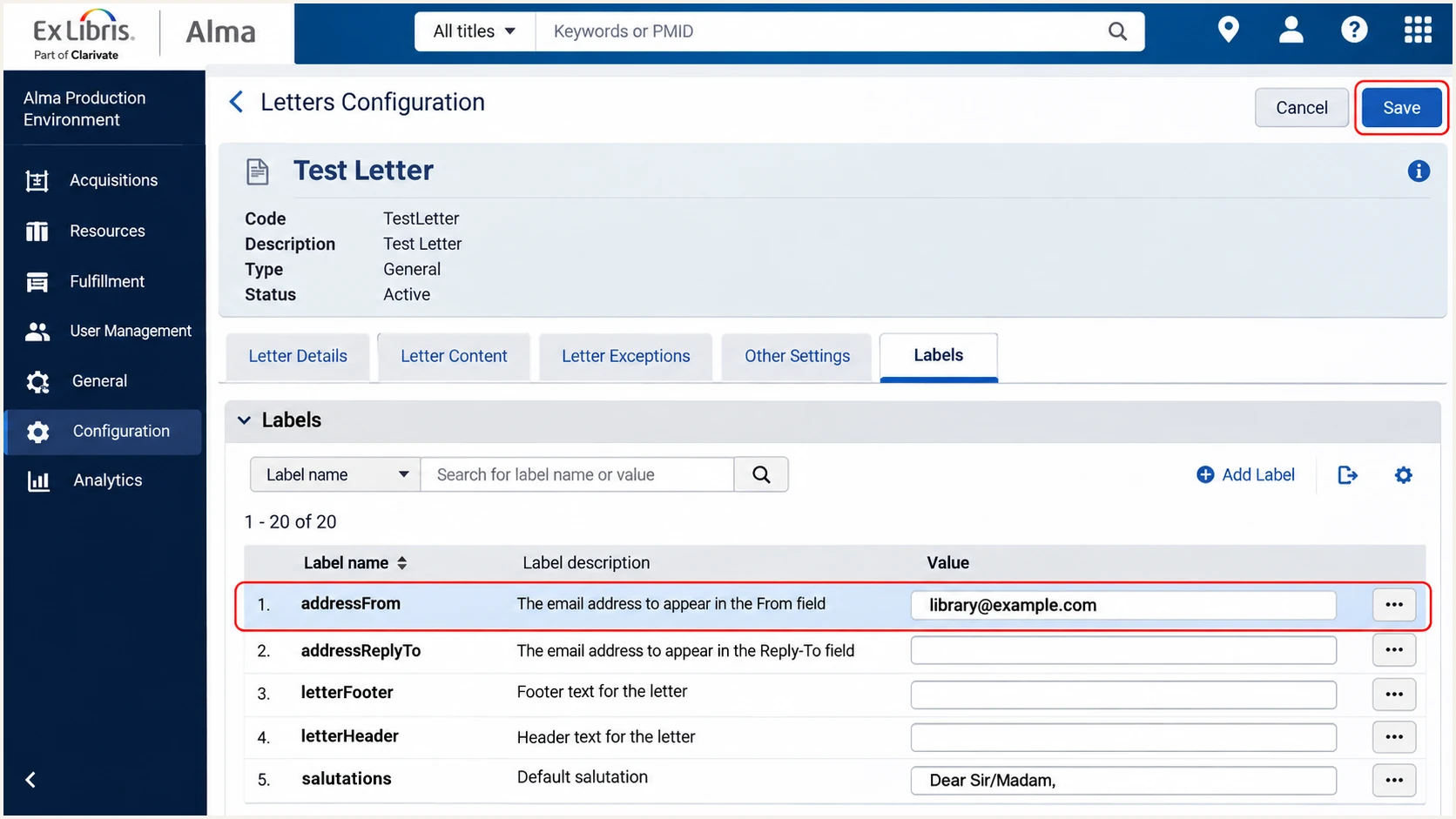
Set the Alma Test Letter's addressFrom to your institutional sender.
For a quick diagnosis, use the email tester below. It provides a test address; send a fresh message to that address through the same Ex Libris route used for production mail.
A dedicated test patron can receive a real letter at the tester's address. Use synthetic data, then restore the test account's address. Save and Test normally goes to your logged-in user's preferred address, so it does not automatically send to the tester.
Email tester
Send a real email to this address. Suped shows a results button when the test is ready.
?/43tests passed
Read the authentication results in the returned diagnosis. For the same-domain example, the expected receiver headers look like this. These are illustrative results, rather than a live test of your institution.
Expected authentication results for a correctly configured lettertext
From: Library <library@example.com>
Return-Path: <library-bounces@example.com>
Authentication-Results: receiver.example;
  spf=pass smtp.mailfrom=example.com;
  dkim=pass header.d=example.com;
  dmarc=pass header.from=example.com
If a CNAME lookup fails, compare its full DNS name and target with the saved DKIM Setup Guide. Query both selectors. A successful validation followed by unsigned mail points back to DKIM Active or a different sending route.
|
|
|---|---|
SPF permerror | Duplicate SPF or lookup limit |
SPF fail | Region and EnvelopeFrom |
DKIM absent | DKIM Active and mail route |
DKIM fail | Both CNAMEs and message changes |
DMARC fail | From and authenticated domains |
Start with the receiver's results, then check the corresponding configuration.
Get alerted when it breaks
A successful test is a point-in-time check. Routine DNS changes or a new letter sender can break authentication later. Our DMARC monitoring platform, Suped, detects authentication issues and provides steps to fix them.
- Enable issue alerts. In Suped's notification settings, enable Issues detected and choose the operational recipients responsible for institutional email.
- Review new sources. Enable Sending sources need verification. Confirm Ex Libris against your Mail Handling route and observed traffic before marking it as an authorized source.
- Inspect failures. Open the affected DMARC record's detail view. Compare SPF and DKIM results with the From domain; use DNS history to investigate changes around the failure.
- Confirm recovery. Apply the relevant Alma or DNS fix, send a fresh test letter, and check subsequent reports. Enable DMARC summary emails for ongoing review.
Suped combines source verification with detailed authentication diagnostics, so the same investigation identifies the affected sender and the DNS correction. Marking a source verified records your assessment; it does not change SPF or DKIM authorization.
Keep immediate test results alongside aggregate reporting. A fresh letter confirms the current configuration, while later reports show how production traffic behaved across participating receivers.
Account for report timing
Suped alerts you when it detects an issue in available data. Receiver DMARC reports commonly arrive daily, so report-based alerts cannot describe every failed message immediately. Use Alma delivery checks and relay logs for an active delivery incident.
Secure your domain with p=reject
Move to p=reject after legitimate senders for the protected domain pass DMARC consistently. I require evidence covering the institution's normal sending cycle, including infrequent jobs, before increasing enforcement.
- Complete the inventory. In Suped, review verified and unverified sources. Resolve legitimate failures across the institutional domain, including systems outside Ex Libris.
- Validate Ex Libris. Filter Ex Libris records and inspect failures by reporter or IP address. Test each From domain and leave both DKIM CNAMEs published for rotation.
- Stage enforcement. For a domain starting at none, move to quarantine, observe production mail and bounce reports, then move to reject after legitimate failures are resolved. Retain a stronger policy already in place.
- Manage the policy. Suped's Hosted DMARC lets your DNS team manage policy changes through the dashboard after its DNS setup. Keep aggregate reporting enabled during each stage.
- Keep watching. Retain issue notifications after enforcement. Recheck authentication after changes to library addresses, the mail route, or DNS.
Suped puts the source inventory and policy workflow together: verify authorized traffic, inspect exceptions, and change policy using that evidence. Avoid using a single overall pass rate as the approval criterion, because high-volume spoofing distorts it.
Final policy example after legitimate traffic is verifiedtext
Name: _dmarc.example.com
Type: TXT
Value: v=DMARC1; p=reject; rua=mailto:dmarc@example.com
Coordinate changes to a shared university domain with its central email team. A reject policy requests rejection of messages that fail DMARC for that domain; it affects more than library letters. Keep a record of the previous value and investigate any legitimate rejection promptly.
Frequency asked questions
Yes. Alma supports custom-domain DKIM for direct sending through its Mail Handling profile. Publish both generated CNAMEs, validate DNS, then select DKIM Active and save. Confirm the passing signing domain in a received letter.
SPF authenticates the EnvelopeFrom domain. A pass for exlibrisgroup.com does not match a visible From at example.com. Configure your institutional EnvelopeFrom and its regional SPF authorization, or confirm a passing DKIM signature with a matching domain.
DMARC requires at least one passing mechanism with a matching domain. Configure both for direct Ex Libris delivery. If an institutional relay uses a different return-path domain, matching DKIM can still produce a DMARC pass; inspect the actual received message.
That suffix points to Ex Libris infrastructure, which supports products including Alma and Esploro. Treat it as an infrastructure clue: compare the sending IP with the applicable regional mail gateway information and your delivery logs. The suffix alone does not identify the exact product or prove that a message is authorized.
Confirm each product's supported controls. Esploro documents Mail Handling and letter addressFrom settings, but its public instructions do not document Alma's DKIM activation controls. Ex Libris also documents a DKIM limitation for Primo Classic multi-institutional MT/TC environments. Ask support for the supported signing route before enforcing a new policy.




