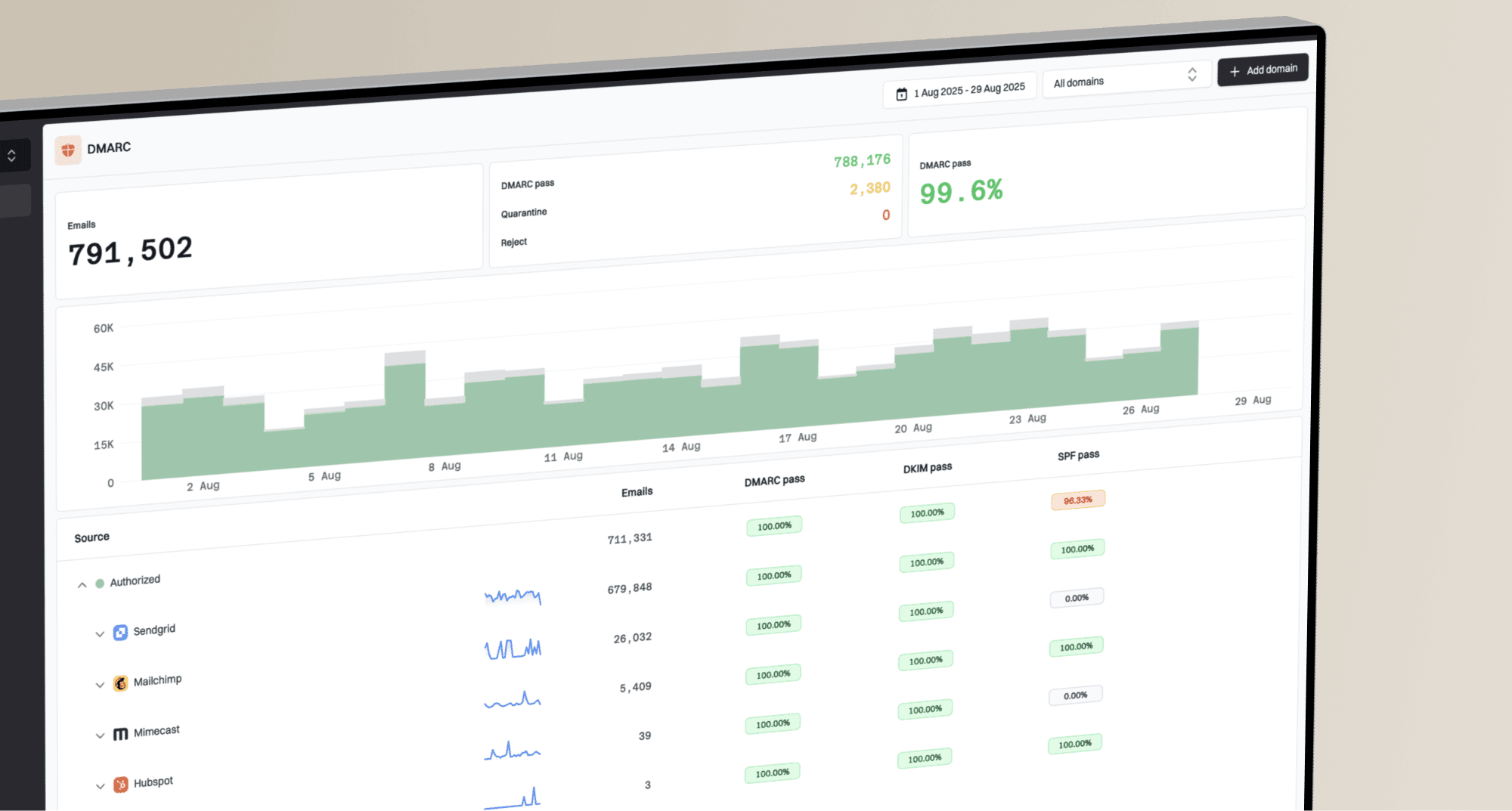
How to set up DMARC/DKIM/SPF for EQServers

Set up SPF for your EQServers mail server's actual outbound IP, enable DKIM signing for your sending domain, and publish a DMARC TXT record at _dmarc on that domain. I then send a real message to check authentication and domain matching before enforcing a stricter DMARC policy.
EQServers provides server infrastructure. The mail configuration depends on the software installed on your server, such as cPanel & WHM or Plesk. EqPanel manages the server service and supported reverse DNS changes; SPF and DKIM configuration belongs in your installed mail stack and authoritative DNS.
Add your domain
I first confirm which server sends the mail and which provider hosts the live DNS zone. Adding a domain to a local panel does not automatically change its public DNS.
- Open the panel. Select your server service in the EQServers client area. Use your server's supplied access details to open its installed hosting panel. Skip domain creation if the sending domain already exists there.
- Add in cPanel. Open Domains > Create a New Domain, enter your actual domain, review the hosting settings, and submit. Confirm the domain appears in Domains.
- Add in Plesk. Alternatively, open Websites & Domains > Add Domain. Create the domain under the correct subscription and confirm its mail service is enabled in Mail Settings.
- Find authoritative DNS. Run the nameserver lookup below. Edit records at that DNS provider. Use the panel's Zone Editor or DNS Settings only when its nameservers host the authoritative zone.
- Verify mail access. Create a mailbox under Email Accounts in cPanel or Mail in Plesk. Send through the server's authenticated SMTP service using your domain. There is no universal EQServers domain-verification TXT value to copy.
Find the active DNS nameserversbash
dig +short NS example.com
Replace example.com with your domain throughout. Keep existing nameservers unless you are deliberately migrating DNS. A website hosted at EQServers can use a completely different outbound mail service; authenticate the service that actually sends the message.
|
|
|
|---|---|---|
SPF | Authoritative DNS | Authorize IPs |
DKIM | Mail stack + DNS | Sign and verify |
DMARC | Authoritative DNS | Policy and reports |
PTR | EqPanel / IP owner | Reverse DNS |
Where to make each change
Set up SPF
SPF checks the SMTP envelope sender, usually visible as Return-Path after delivery. EQServers-hosted mail can use your own envelope domain, so I configure that domain and authorize the actual outbound IP.
- Identify outbound IPs. Inspect a delivered message's Received headers or your SMTP logs. Include every IPv4 or IPv6 address actually used for outbound SMTP. The website IP and inbound MX server are not reliable substitutes.
- Edit one SPF record. At the envelope domain, find the TXT value beginning v=spf1. Add your sending IPs to that record while preserving existing authorized senders. Do not publish a second SPF record or guess an EQServers include.
- Use panel values. In cPanel, open Email > Email Deliverability > Manage beside the domain. Review the suggested SPF value and use Customize where needed. With external DNS, publish the final value at the active DNS provider.
- Set the envelope. Configure your application or mail server's SMTP MAIL FROM address under your domain. With default relaxed DMARC alignment, a bounce subdomain under the same organizational domain works. Publish SPF on that subdomain if it is used.
Use your real sending IP
203.0.113.10 is a documentation address. Replace it with your real outbound IP before publishing this example.
Example SPF TXT value for one outbound IPv4 addresstext
v=spf1 ip4:203.0.113.10 ~all
Preserve other required mechanisms when editing an existing record. An ip4 or ip6 mechanism does not consume a DNS lookup; DNS-querying mechanisms have a combined limit of 10 during SPF evaluation, including nested includes.
Enter the envelope sender's domain below. I check for duplicate SPF records and lookup-limit errors before sending a test. Use -all once the authorized sender list is complete; ~all returns softfail for unmatched IPs and is not an SPF pass.
SPF checker
Find SPF syntax issues, lookup limits, and weak records.
?/16tests passed
A valid SPF record does not establish DMARC alignment by itself. For mail with From: sender@example.com, a passing SPF result for a different organizational domain does not contribute to a DMARC pass. Changing Reply-To or manually adding a Return-Path header does not fix the SMTP envelope.
If an external relay forces its own envelope domain, adding its IP to your visible From domain's SPF does not fix that mismatch. In that case, your domain does not need an SPF addition for that relay to pass DMARC through valid DKIM with domain alignment. For direct mail through your EQServers server, configure your own envelope domain.
Set up DKIM
I enable signing on the sending server, then publish its public key. A DNS key alone does not sign messages, and a signature using only the server's unrelated hostname does not authenticate your visible From domain for DMARC.
- Enable in cPanel. Open Email Deliverability > Manage for the sending domain. If no key exists, choose Generate Local DKIM Key. Copy the suggested DKIM TXT name and complete public value.
- Enable in Plesk. Alternatively, open Websites & Domains > your domain > Mail > Mail Settings. Select Use DKIM spam protection system to sign outgoing email messages. If unavailable, enable Allow signing outgoing mail under Tools & Settings > Mail Server Settings. For external DNS, use How to configure external DNS to copy the records.
- Publish the key. Install the generated records at your authoritative DNS provider. Copy the exact selector name. Avoid duplicating your domain suffix when the DNS form appends it automatically. Keep the private key on the signing server.
- Check a signature. Send through the actual mailbox or application. In DKIM-Signature, confirm d= uses your domain and s= identifies the published selector. Confirm the recipient reports dkim=pass.
Panel hosts authoritative DNS
Use the panel's install or repair action for the generated record. Confirm the public DNS answer matches, then send a message to verify signing.
DNS is hosted elsewhere
Copy the generated public record into your active DNS zone. A change in the server's local zone has no public effect when other nameservers are authoritative.
The selector is often default on cPanel or Plesk, but use the value your server actually signs with. For custom mail stacks without a panel, configure the MTA's DKIM signing domain, selector, and private key before publishing the corresponding public key.
I test application mail separately from mailbox mail. A PHP script or scheduled job that bypasses the configured signing path still sends unsigned mail. Prefer authenticated SMTP through the configured domain when that is the application's supported sending method.
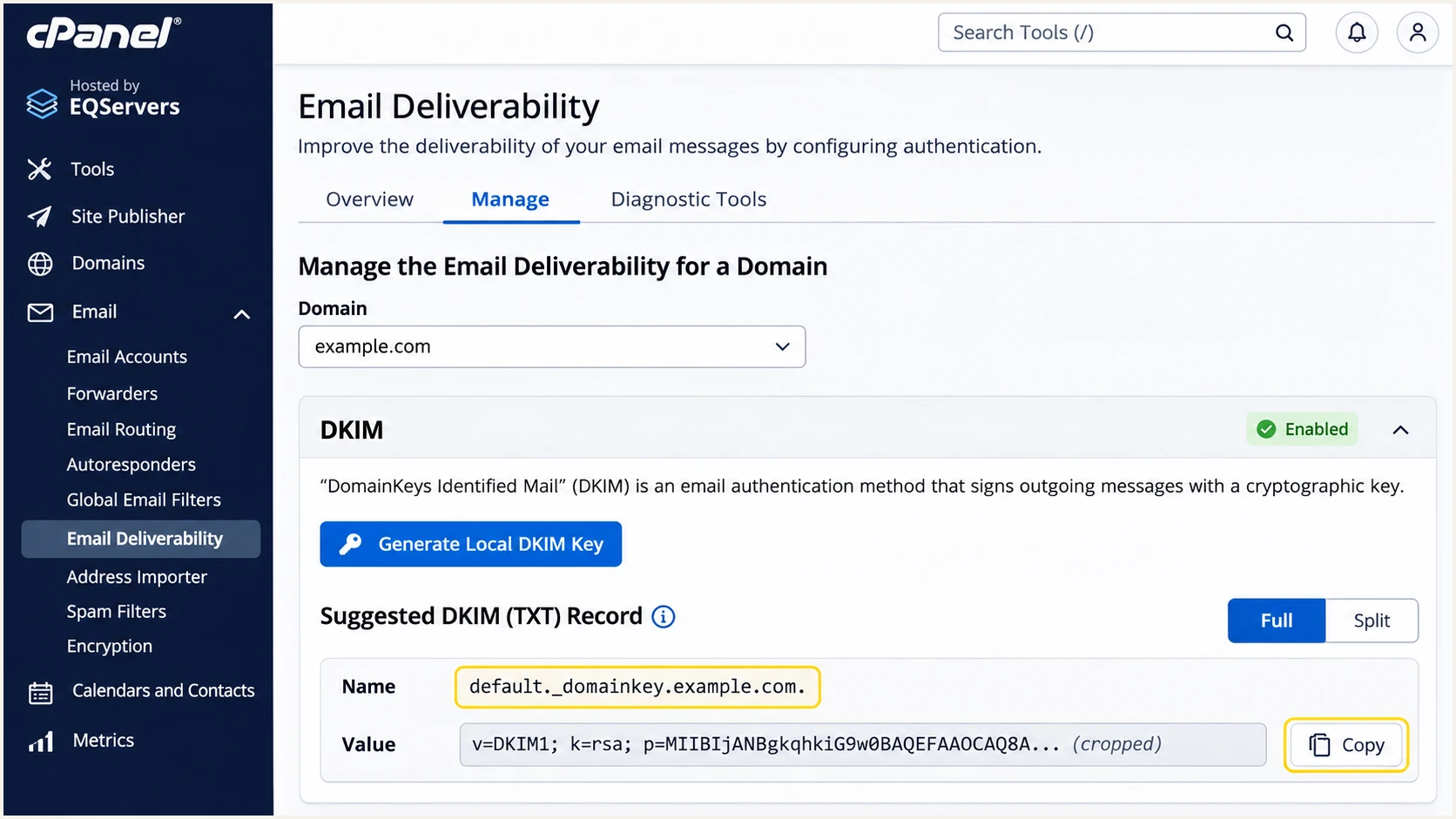
Illustration of cPanel DKIM record controls on an EQServers-hosted server.
Set up DMARC
For a domain without an enforced DMARC policy, I start with p=none to collect reports. If your existing policy is p=quarantine or p=reject, keep it and repair authentication without downgrading the policy.
- Inspect the record. Look up TXT records at _dmarc.example.com. Edit the existing DMARC record if one exists. Publish only one DMARC TXT record at that name.
- Open DNS editing. In an authoritative cPanel zone, open Domains > Zone Editor > Manage > Add Record and select TXT. In Plesk, use the domain's DNS Settings. Otherwise, use the actual DNS provider.
- Set the name. Enter _dmarc in a form that automatically appends your domain, or _dmarc.example.com where a full name is required. DMARC is published under the visible From domain, not the DKIM selector.
- Set the value. Use the monitoring record below for a new rollout. Replace dmarc@example.com with a working report mailbox you control, save the record, and confirm its public DNS answer.
Starter DMARC TXT value at _dmarc.example.comtext
v=DMARC1; p=none; rua=mailto:dmarc@example.com
The example mailbox is a placeholder. It must receive and retain aggregate XML reports. When reports go to a different domain, the report destination also needs to authorize external reporting as required by DMARC.
Use the DMARC record generator to construct the value. Keep default relaxed alignment unless you have a tested requirement for exact domain matching. The checker below validates the published record.
DMARC checker
Look up a domain's DMARC record and catch policy issues.
?/7tests passed
DMARC passes when SPF passes with domain alignment or DKIM passes with domain alignment. I configure both for direct EQServers mail and keep DKIM dependable because forwarding often changes the IP checked by SPF.
p=none requests reporting without requesting quarantine or rejection for DMARC failures. It does not guarantee delivery. Reports depend on receiver participation and are normally batched daily, so use a test message for immediate configuration feedback.
Verify and troubleshoot
I verify a message sent through the production path, rather than relying on DNS status alone. Repeat the test for mailbox SMTP and each application that sends under the domain.
- Inspect receiver results. Read Authentication-Results added by the final receiving system. Expect spf=pass for the intended envelope domain, dkim=pass for your signing domain, and dmarc=pass for the visible From domain.
- Fix DNS failures. For SPF permerror, remove duplicate SPF records and resolve excessive lookups. For DKIM failures, compare the signature's selector and domain with public DNS, then check the signing key and message modification.
- Configure reverse DNS. In EqPanel, select the sending server service and open Reverse DNS. For supported IPs, set PTR to your mail hostname. Ensure that hostname's A or AAAA record resolves back to the sending IP, and use the hostname for SMTP EHLO.
- Check delivery errors. If authentication passes but delivery fails, inspect the SMTP rejection and mail logs. Check outbound connectivity and IP blocklist (blacklist) status. A DMARC pass does not guarantee inbox placement.
Illustrative recipient headers for a correctly configured messagetext
From: Sender <sender@example.com>
Return-Path: <bounce@example.com>
Authentication-Results: receiver.example;
    spf=pass smtp.mailfrom=example.com;
    dkim=pass header.d=example.com header.s=default;
    dmarc=pass header.from=example.com
Use the email tester below for a quick end-to-end check. It supplies a test address; send a message to that address through your EQServers-hosted server, then review the diagnosis for authentication and other delivery issues.
Use the same From address and application settings as your real mail. A webmail success does not prove that a website's SMTP configuration works, and a successful direct test does not cover forwarding. Include a forwarded test before tightening policy.
Email tester
Send a real email to this address. Suped shows a results button when the test is ready.
?/43tests passed
If SPF alignment fails while DKIM passes with domain alignment, DMARC still passes. For your direct server, correct the envelope domain as well. For a relay that cannot use your envelope domain, preserve the working DKIM path rather than adding unrelated SPF permissions.
After changing DNS, compare authoritative answers with cached public answers and allow the previous TTL to expire. PTR is controlled by the IP owner; adding a TXT record or changing your domain's ordinary DNS zone does not change reverse DNS.
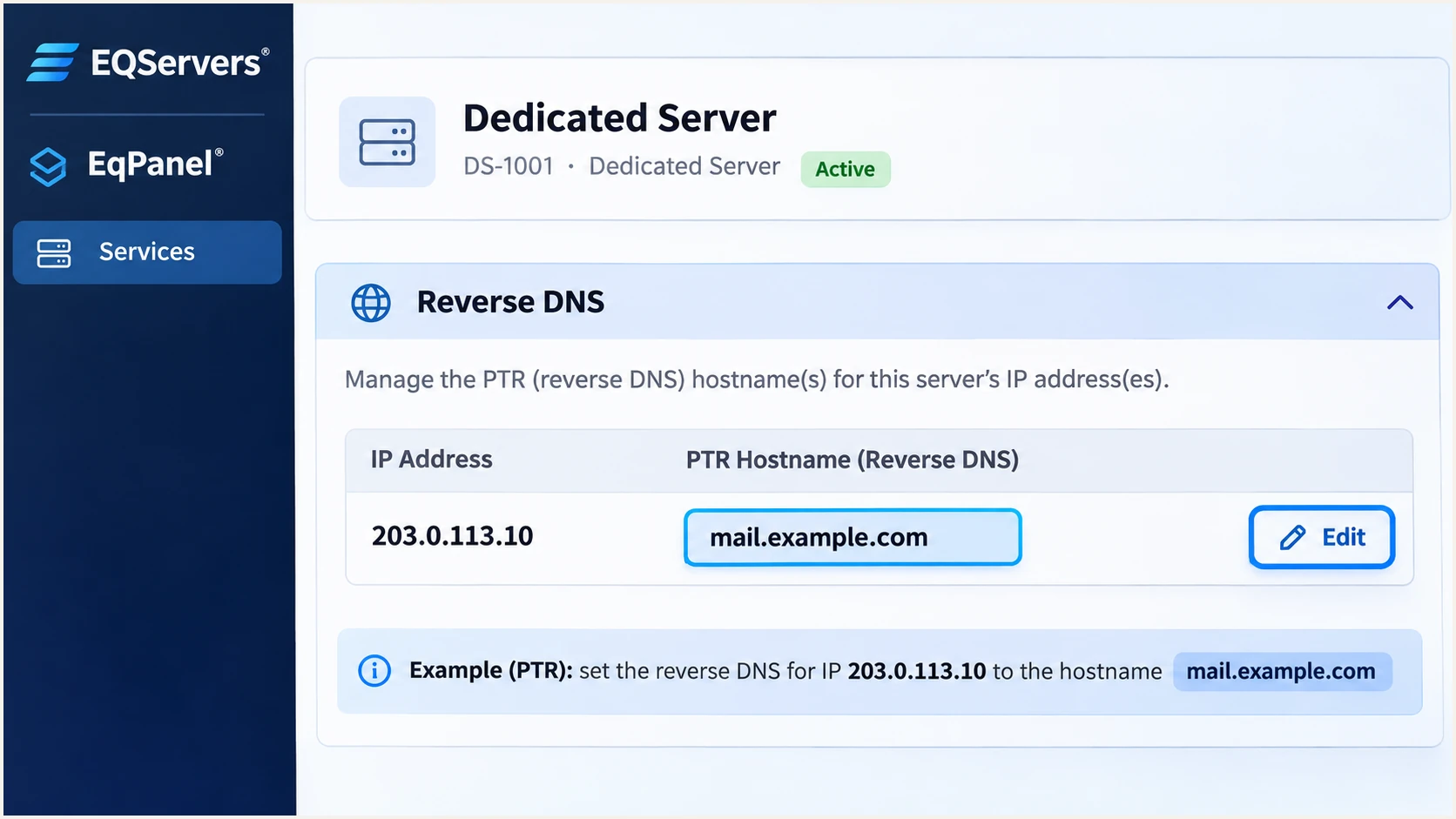
Illustration of an EqPanel reverse DNS entry for a sending server IP.
Get alerted when it breaks
I use our platform, Suped, for ongoing DMARC monitoring because a successful setup test is only a snapshot. Reports expose authentication changes after an IP migration or signing-key replacement.
- Enable issue emails. In Suped's notification settings, enable Issues detected and Sending sources need verification. Enable DMARC summary emails for regular review.
- Verify the source. Confirm the EQServers IPs and mail paths you actually control before marking a source as verified. Hosting-network ownership alone does not establish that a sender is authorized.
- Investigate failures. Filter DMARC data by source, reporter, or IP. Open the detail view for SPF and DKIM diagnostics, then use the issue's steps to fix to target the broken configuration.
- Compare DNS changes. Use Suped's DNS history to inspect old and new records. Check whether a server rebuild replaced the DKIM key or an IP change left SPF authorizing the old address.
Keep your report destination active and review fresh data after every mail-server change. Suped's source verification and issue workflow connect a failure to the sending system that needs attention.
Alerts follow the available data
Aggregate-report alerts depend on when receivers send reports, usually in daily batches. Use a fresh test message for immediate confirmation after a change; do not treat aggregate reporting as an instant SMTP outage detector.
Secure your domain with p=reject
I move toward p=reject after every legitimate sending path has working authentication and reports cover normal business activity. Suped provides the source-level evidence and issue resolution workflow to make that decision.
- Inventory senders. Review verified and unverified sources in Suped. Account for your EQServers server and any other authorized systems using the domain. Include infrequent senders such as monthly billing jobs.
- Repair legitimate mail. Resolve missing IP authorizations and broken DKIM signing. Test forwarding and mailing-list paths. Do not rely solely on SPF when adopting p=reject; maintain DKIM with domain alignment.
- Stage enforcement. For a new rollout, inspect p=none reports, then use p=quarantine before p=reject. Allow representative reporting periods at each stage and investigate affected legitimate mail. Do not weaken an existing enforced policy just to follow this sequence.
- Preserve coverage. Keep the reporting destination when changing p=. Review subdomain policy inheritance and any explicit subdomain records. Continue monitoring after enforcement, especially after server rebuilds or new application deployments.
Our Hosted DMARC management in Suped supports policy changes through the dashboard. Use the same report review and verification process whether you manage the policy there or edit the TXT record at your DNS provider.
Example enforced DMARC TXT value after verificationtext
v=DMARC1; p=reject; rua=mailto:dmarc@example.com
p=reject requests rejection for mail that fails DMARC; receivers retain their own handling policies. Keep the report destination active so authentication regressions remain visible after enforcement.
Before replacing a DKIM selector, publish the new public key and verify signed mail. Keep the old selector published while messages signed with its key are still in transit.
Frequency asked questions
Use the actual outbound server IPs or the documented settings of your configured relay. Do not assume include:eqservers.com authorizes customer servers. Merge the required permissions into the envelope domain's single SPF record.
The installed mail software determines the selector. cPanel and Plesk often use default, but the authoritative value is s= in a real message's DKIM-Signature header. Look up that selector under the domain in d=.
Yes, DMARC passes through DKIM when a valid signature has domain alignment with the visible From address. For direct EQServers mail, also correct your envelope domain. If a relay prevents custom envelope domains, preserve valid DKIM with alignment rather than making ineffective SPF changes.
No. MX controls incoming mail routing. Authentication normally requires TXT records and signing configuration, not a change to where your mailboxes receive messages. Change MX only when deliberately changing inbound mail service.
EQServers supplies hosting infrastructure, so mail can originate from a customer's own server or application. There is no fixed customer rDNS suffix established by the public setup documentation. Customers can customize PTR records. Confirm the sending IP and message headers rather than treating an rDNS name as proof of the application or sender.
Receivers usually send reports in daily batches, and some do not report. Allow 24-48 hours after real mail is sent, confirm the rua mailbox accepts reports, and check external destination authorization where applicable. Use a fresh email test to check authentication while waiting.