
How to set up DMARC/DKIM/SPF for EmailArray

To set up DMARC, DKIM, and SPF for EmailArray, verify your domain in its Admin Panel, authorize include:emailarray.com in your SPF TXT record, enable DKIM and publish its generated TXT record, then publish DMARC at _dmarc.yourdomain.com. Finish by testing an email sent through EmailArray.
I start new DMARC deployments with p=none and reporting. If your domain already uses p=quarantine or p=reject, keep that policy while configuring EmailArray. Make DNS changes at your authoritative DNS provider; publishing authentication records does not require an immediate MX migration.
Add your domain
I verify domain ownership before creating mailboxes. EmailArray separates ownership status from domain health, so an Enabled domain still needs its authentication records configured.
- Add the domain: Sign in to the EmailArray Admin Panel. Open Domains, click New, enter your domain without a URL prefix, and click Add domain. Check your available domain quota first.
- Get the token: Click the new domain's red Verify checkmark. Copy the unique TXT value shown for the mx-verification hostname.
- Publish the token: At your DNS provider, create a TXT record named mx-verification with that exact value. If the provider requires a full name, use mx-verification.example.com for example.com.
- Confirm ownership: Recheck the domain in EmailArray. Confirm its ownership Status is Enabled before creating users. Complete verification within 24 hours, because EmailArray removes unverified domains after that deadline.
The verification TXT record proves ownership. It does not redirect incoming mail or authorize outbound servers. Keep its token separate from your SPF record.
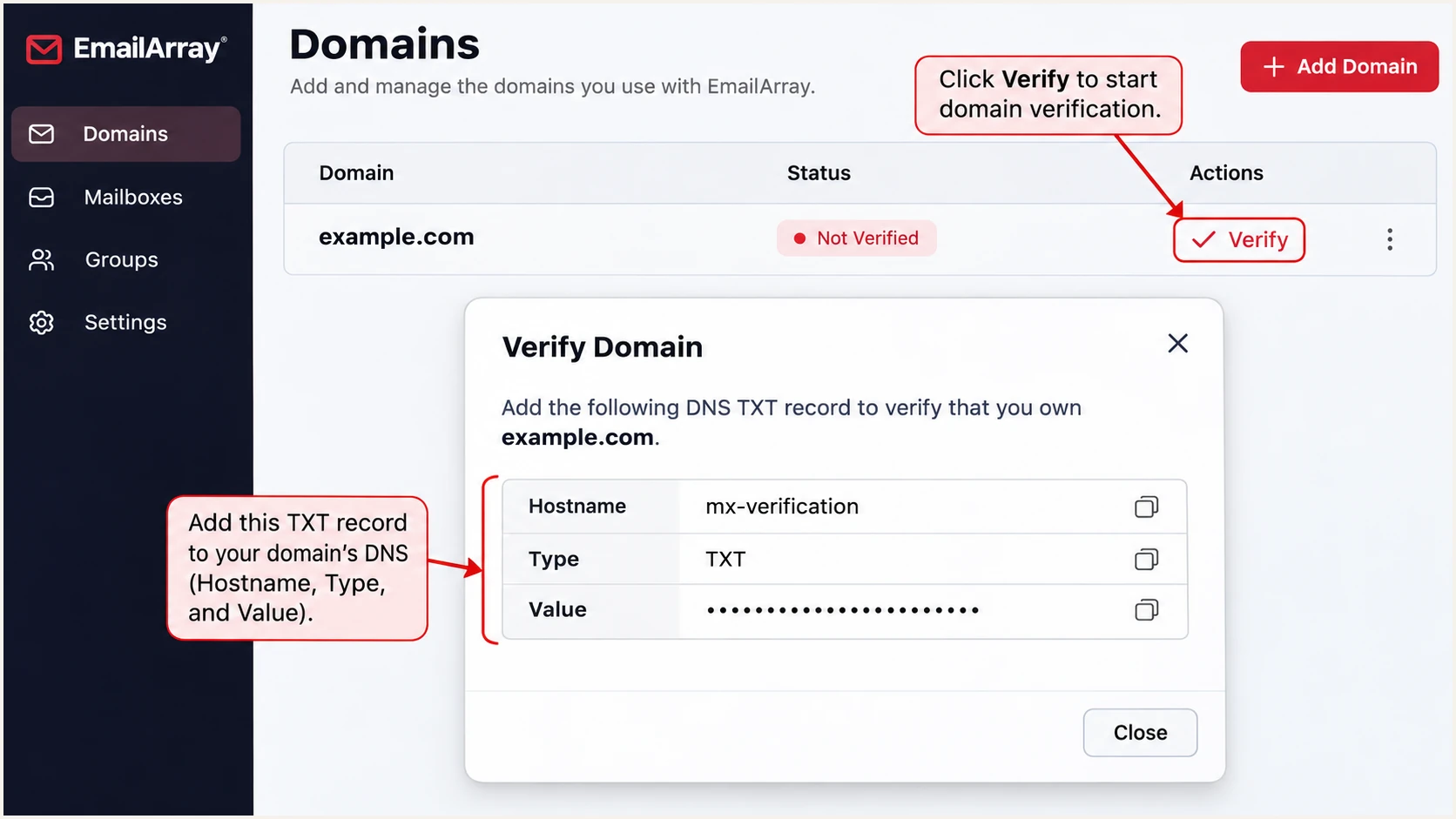
EmailArray domain verification pop-up with the mx-verification TXT fields.
After verification, open Users, select your domain, and click New to create a mailbox. I use that mailbox for the final sending test.
For a migration, leave MX changes until your mailboxes are ready. EmailArray documents mx.emailarray.com at priority 5 and mx2.emailarray.com at priority 10. If Local Delivery was set to No during migration, restore Yes after the mailbox and MX cutover.
Set up SPF
EmailArray's DNS Configuration documentation specifies include:emailarray.com. I add it to the domain used by the SMTP envelope sender, which receivers report as smtp.mailfrom and usually show in Return-Path.
- Inspect DNS: Find the existing TXT record beginning v=spf1 at your sending domain. Keep exactly one SPF record at each hostname.
- Authorize EmailArray: Insert include:emailarray.com before the existing terminal all mechanism. Preserve authorizations for every other legitimate sender.
- Use the example: Publish the record below at @ only when EmailArray is your only sender. If your existing policy ends in ~all, preserve it during setup instead of changing enforcement without reviewing other senders.
- Check lookups: Validate the combined record against the SPF limit of 10 DNS-querying terms, including nested includes. Adding a second SPF record does not solve a lookup error.
SPF TXT at @ when EmailArray is your only sendertext
v=spf1 include:emailarray.com -all
EmailArray supports Return-Path domain alignment. Send with your own domain and check the delivered message. SPF passing for an unrelated envelope domain does not give your visible From domain a DMARC pass.
Enter your sending domain below to check the published SPF record and lookup budget. Under default relaxed DMARC settings, the envelope domain and visible From domain must share the same organizational domain. Strict SPF alignment requires an exact domain match.
SPF checker
Find SPF syntax issues, lookup limits, and weak records.
?/16tests passed
I follow the DNS check with a live message test. If an application submits mail through EmailArray with the wrong envelope sender, correct its SMTP sender configuration and send again. A DNS checker cannot confirm the envelope address used by that application.
Set up DKIM
I enable DKIM separately for each sending domain. EmailArray generates the public DNS record in the Admin Panel; there is no universal selector or public key to copy across customer domains.
- Open DKIM: In the EmailArray Admin Panel, open Domains and click the DKIM icon beside your domain.
- Enable signing: In the DKIM window, set Enable to Yes. Copy the generated Host and Key values.
- Publish the key: Create a TXT record at your DNS provider using Host as the record name and Key as the complete TXT value. A TTL of 3600 seconds matches EmailArray's documented example.
- Check the signature: Send a new message after DNS updates. Read d= and s= in its DKIM-Signature header, then confirm that the receiving server reports dkim=pass for your domain.
Copy the exact Host shown for your domain. DNS editors that append the zone name automatically need only the relative hostname. Avoid accidentally creating a name ending in example.com.example.com.
The Key field contains public verification material. Publish the complete value without inserting spaces into the key data. Use the DNS editor's long-TXT handling if it splits the value into quoted chunks within one record.
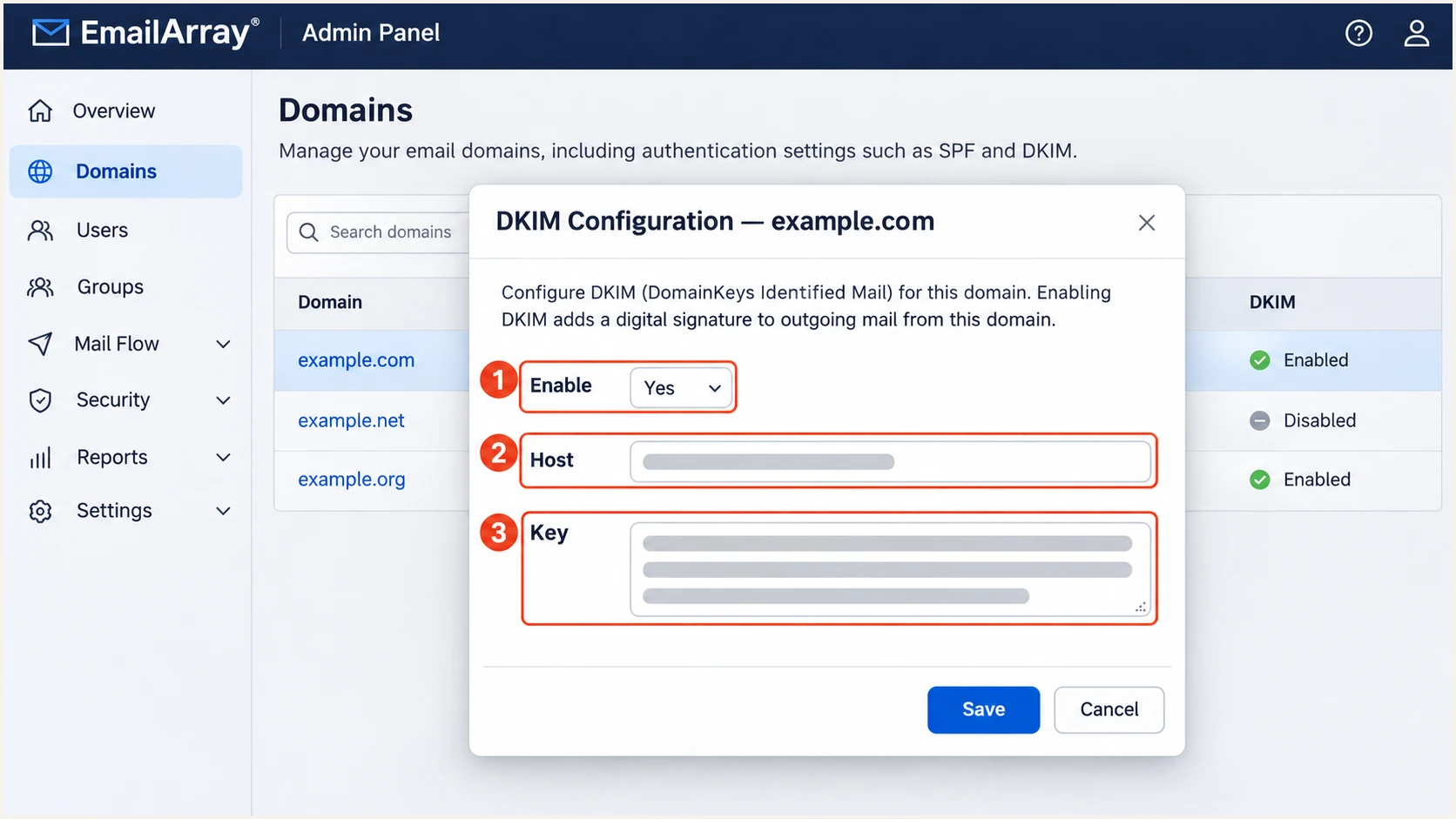
EmailArray DKIM window with Enable set to Yes and the Host and Key fields.
A published key alone does not prove signing works. I check a fresh delivered message because an old message retains the signature generated before the change.
For DMARC, a passing DKIM signature must use your domain, or a domain with the same organizational domain under relaxed settings. A pass using only a provider-owned signing domain does not establish your From domain's DKIM alignment.
Set up DMARC
I publish DMARC for the visible From domain after SPF and DKIM are configured. EmailArray's documentation recommends starting with monitoring and a working aggregate-report address.
- Read the policy: Look up the existing TXT record at _dmarc.yourdomain.com. Keep p=quarantine or p=reject if either is already deployed.
- Create one record: For a domain without DMARC, add one TXT record at _dmarc. Use the exact monitoring example below as a template.
- Set the recipient: Replace dmarc@example.com with a real report mailbox you control. Ensure it accepts aggregate-report attachments and monitor it for incoming reports.
- Preserve settings: When editing an existing record, retain its valid reporting and policy settings. Do not create a second DMARC TXT record at the same hostname.
Initial DMARC TXT at _dmarctext
v=DMARC1; p=none; rua=mailto:dmarc@example.com
Use the DMARC record generator to build the record with your actual reporting address. The example address is a placeholder. A report recipient outside your domain also needs the required external reporting authorization.
The p=none policy requests no DMARC-based quarantine or rejection. It lets you observe authentication results while correcting legitimate senders. Enter your domain below to validate the record after publishing it.
DMARC checker
Look up a domain's DMARC record and catch policy issues.
?/7tests passed
A valid DMARC record is only the DNS part of setup. I still test EmailArray mail and review aggregate reports to establish whether legitimate messages pass with domain alignment.
Reports arrive on receiver schedules, commonly daily, and only participating receivers send them. Keep the reporting address active throughout policy changes.
Verify and troubleshoot
I check both EmailArray's DNS health result and an actual delivered message. The email tester gives a quicker end-to-end diagnosis by receiving a test message through your real sending route.
- Recheck health: Open Domains and click the domain's Health status. Click Verify again, wait about 60 seconds, then click Refresh. Refresh alone does not start a DNS check.
- Test the route: Send through EmailArray webmail and each application that uses its SMTP service. For a mail client, EmailArray documents smtp.emailarray.com on port 465 with SSL/TLS and SMTP authentication enabled.
- Inspect results: Read the recipient-added Authentication-Results header. Check SPF and DKIM results, then confirm dmarc=pass for the visible From domain.
- Check identities: Compare smtp.mailfrom and header.d with the visible From domain. Check the DKIM selector against the TXT hostname you actually published.
The tester below provides a destination address. Send a new message to that address using the EmailArray mailbox or application being checked, then review the authentication diagnosis.
Run a separate test for each sending route. A successful webmail message does not prove that a website or application is using the same SMTP server or envelope sender.
Email tester
Send a real email to this address. Suped shows a results button when the test is ready.
?/43tests passed
For direct EmailArray delivery, aim for SPF pass and DKIM pass with your domain, plus DMARC pass. DMARC requires at least one passing authentication method with domain alignment.
Forwarding often changes the connecting IP and breaks SPF. If DKIM still passes with your domain, DMARC can pass through that path. Investigate both results before changing your DNS.
|
|
|
|---|---|---|
SPF permerror | Duplicates / lookups | Fix combined SPF |
No DKIM signature | Enable setting | Turn DKIM on |
DKIM fail | Host / key | Copy exact values |
DMARC fail | Domain identities | Fix domain mismatch |
Common authentication failures and the first correction to check.
EmailArray's Health pop-up also checks receiving and client-service records. I inspect SPF there, then use the message test to verify DKIM and DMARC.
If the displayed result is stale, queue another check after correcting DNS. Allow existing DNS caches to expire according to the previous TTL.
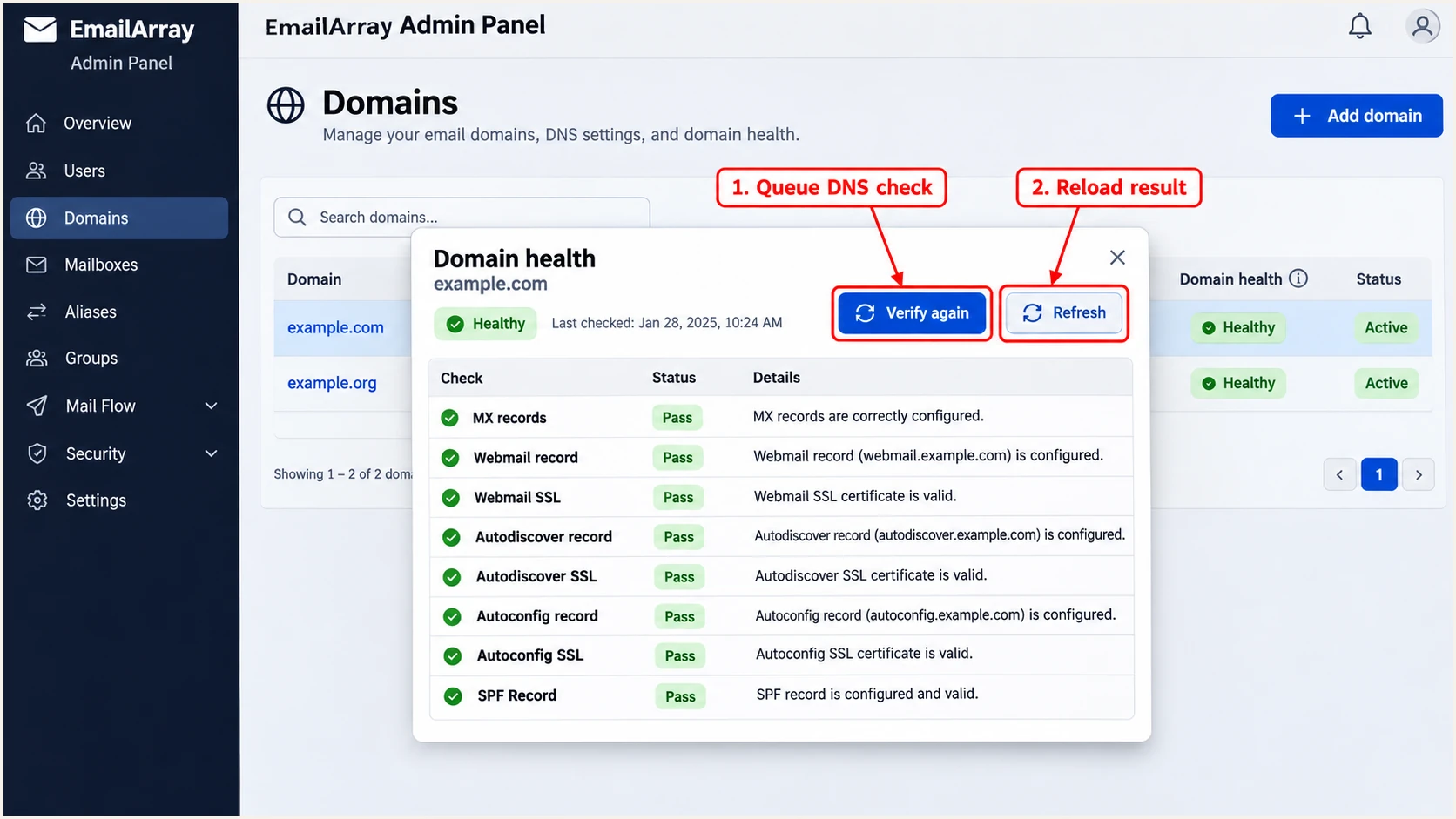
EmailArray domain health with Verify again and Refresh highlighted.
For an independent DNS check, query the records below. Replace example.com and YOUR_SELECTOR with your domain and the selector copied from EmailArray or a fresh DKIM-Signature header.
These commands inspect published DNS. They do not submit an email or prove that EmailArray is applying a valid signature to outgoing messages.
Inspect the published authentication recordsbash
dig +short TXT example.com
dig +short TXT mx-verification.example.com
dig +short TXT YOUR_SELECTOR._domainkey.example.com
dig +short TXT _dmarc.example.com
Get alerted when it breaks
EmailArray's Manage Domains documentation says automatic domain-health checks stop after the first three days. I recommend continuous DMARC monitoring through Suped, our DMARC platform, to detect later authentication failures and new sending sources.
- Enable notifications: In Suped's notification settings, enable Issues detected and Sending sources need verification. Enable DMARC summary emails for routine review.
- Verify sources: Review the sending-source table and confirm which traffic belongs to your EmailArray mailboxes. Investigate unknown sources before treating them as authorized.
- Diagnose failures: Open an affected record and inspect its SPF and DKIM results with the From and envelope domains. Use the detected issue's fix steps to correct EmailArray settings or DNS.
- Retest changes: Send another message through EmailArray after a fix. Check subsequent aggregate reports and compare DNS history if the problem followed a DNS edit.
Suped connects source review with authentication diagnostics, so a failure has a concrete investigation path. I prioritize failures affecting known EmailArray traffic before introducing a stricter DMARC policy.
Keep immediate test-message checks alongside report monitoring. A test confirms the route you exercised; aggregate reports show what participating receivers observed across reported traffic.
DMARC aggregate reports are delayed. Report-based alerts depend on receiver delivery schedules, so they are not an instant notification for every failed email. Use a fresh message test when validating an urgent change.
Secure your domain with p=reject
I move to p=reject after every legitimate sending route is accounted for and passes DMARC. Suped's Hosted DMARC gives our customers policy controls alongside the report evidence needed to make that decision.
- Inventory senders: Review representative report periods, including infrequent mail such as invoices and password resets. Confirm EmailArray and every other legitimate sender.
- Fix authentication: Resolve failures for verified sources. Give EmailArray its working SPF authorization and domain-specific DKIM, then test webmail and SMTP applications again.
- Stage enforcement: If starting at p=none, move to p=quarantine after legitimate traffic is ready. Review delivery problems and subsequent reports before advancing to p=reject.
- Maintain coverage: Check subdomain policies and any explicit overrides. Keep aggregate reporting active after enforcement and investigate new failures without weakening the whole domain's policy.
Suped keeps verified-source review and issue diagnostics in the same workflow as policy management. Use that evidence to decide when enforcement is ready; a high overall pass rate alone can hide a low-volume legitimate sender.
The difference between monitoring and enforcement is the handling requested for messages that fail DMARC. Receiving systems still apply their own delivery policies.
Monitoring with p=none
Collect reports and identify legitimate sending routes. DMARC requests no quarantine or rejection for failures.
Enforcement with p=reject
Request rejection for messages that fail DMARC. Legitimate mail still needs a passing authentication method with domain alignment.
Use the enforcement example only after completing those checks. Replace its report address with your working destination and preserve any other intentional settings in the existing policy.
Keep an already enforced domain at its current policy while correcting EmailArray. I verify the individual sending route before considering any policy change.
DMARC TXT at _dmarc after successful enforcement reviewtext
v=DMARC1; p=reject; rua=mailto:dmarc@example.com
Frequency asked questions
EmailArray documents include:emailarray.com. Add it to your existing SPF record before the terminal all mechanism. When EmailArray is the only sender, its DNS Configuration example is v=spf1 include:emailarray.com -all.
Use the Host generated under Domains, then the DKIM icon, after setting Enable to Yes. Copy the matching Key into a TXT record. I confirm the selector by checking s= in a newly delivered message's DKIM-Signature header.
No. DMARC passes when either SPF or DKIM passes with the required domain alignment. Forwarded messages often fail SPF while retaining a valid DKIM signature. EmailArray supports Return-Path alignment, so I still investigate SPF mismatches on direct delivery.
SPF, DKIM, and DMARC authenticate outbound mail independently of MX routing. Change MX records when you are ready to receive mail at EmailArray. During a migration, coordinate that change with mailbox readiness and the Local Delivery setting.
An rDNS hostname ending in .emailarray.com indicates EmailArray-branded infrastructure. I confirm a specific message using its sending IP and recipient-added Received headers, then check SPF and domain-specific DKIM. The suffix alone does not establish that a message is authorized to use your From domain.
Ownership verification and domain health are separate. Enabled confirms ownership, while Health also checks service DNS records. Open Health, click Verify again, wait for the check, then click Refresh. I use a delivered test message to confirm DKIM and DMARC separately.




