
How to set up DMARC/DKIM/SPF for EmailApp.io

Published 21 Nov 2026
Updated 21 Nov 2026
11 min read
Summarize with
To set up EmailApp.io, I get the sending domain registered with the service, publish its account-issued authentication records, configure a custom Return-Path, and add DMARC at the visible From domain. I then send a real message to confirm SPF and DKIM pass with the required domain alignment.
EmailApp.io's public contact form confirms that the service sends email for other businesses. I found no public support article documenting its authentication menus or DNS values. Get those values from the business application using EmailApp.io or its support team before changing DNS.
Add your domain
I start with the administrator of the application that sends the email. Ask them to register the exact domain used in the visible From address and issue the authentication records for that account.
- Identify the sender. Use a real EmailApp.io message to record the visible From domain and the application that triggered it. For notifications@example.com, the sending domain is example.com.
- Request domain activation. Ask the application administrator or EmailApp.io support to add that domain and provide any DNS ownership-verification record. Public self-service menu names are unverified.
- Collect the records. Request the exact SPF authorization, DKIM selector records, and custom Return-Path instructions. EmailApp.io supports Return-Path alignment; confirm how to activate it for your account.
- Publish and confirm. Add only the records issued for your account at your authoritative DNS provider. Ask the service to recheck ownership and confirm the domain is active before testing.
Request to send to the application administrator or EmailApp.io supporttext
Please authenticate example.com for our EmailApp.io sending account.
Visible From address: notifications@example.com
Please provide:
- Domain ownership verification record, if required
- Exact SPF host and authorization value
- DKIM selector names, record types, and public values
- Custom Return-Path hostname and all required DNS records
- Instructions to activate signing and recheck domain verification
The public contact page has Email Address, Name and Comments fields and a Submit button. If the application has no authentication controls, enter the request above in Comments and include the account identifier.
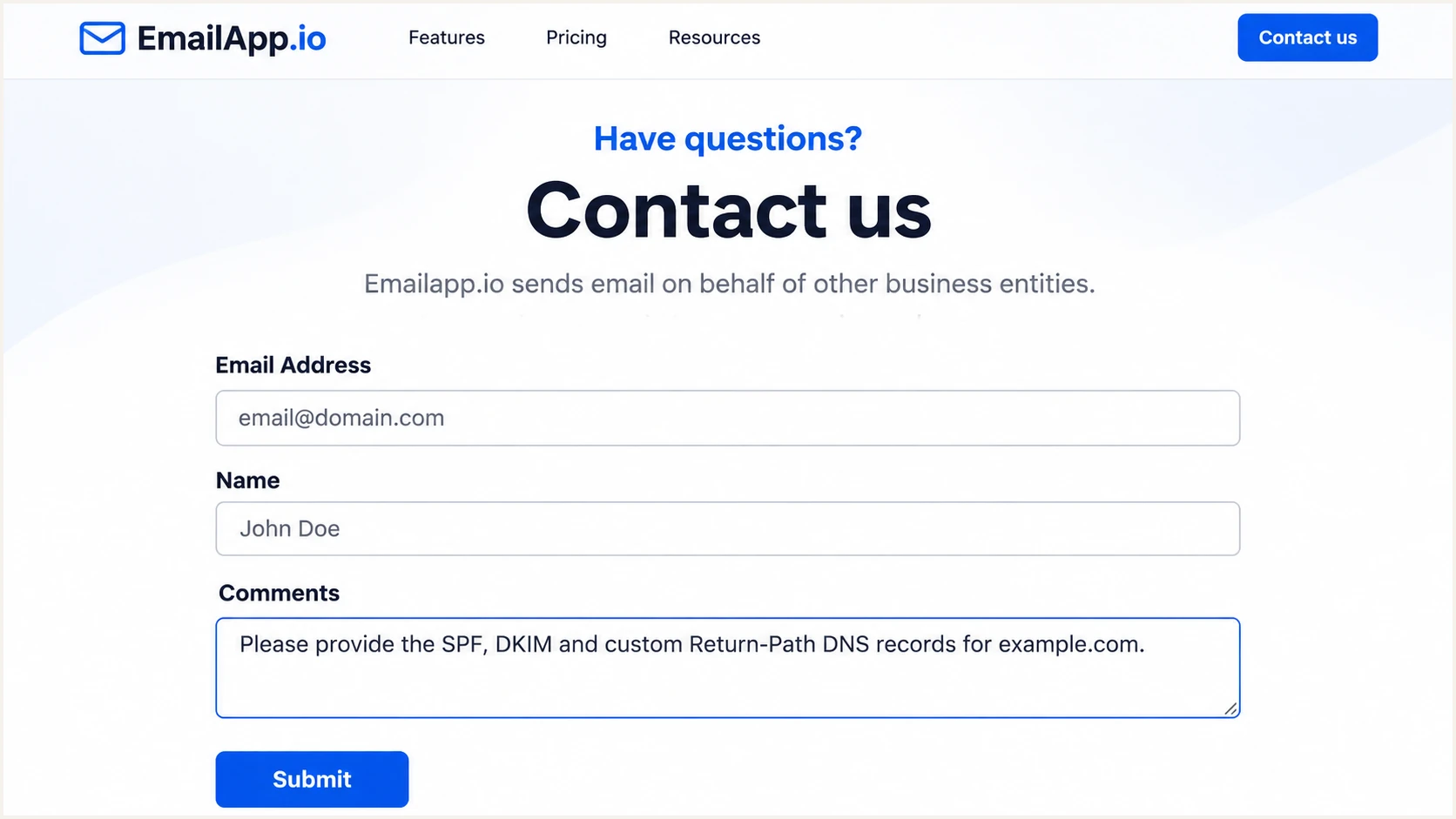
EmailApp.io's public contact form for requesting account-specific authentication records.
A DNS record appearing publicly does not prove that the service has activated your domain. I keep the provider's verification confirmation with the issued records so the DNS owner and application administrator can check the same configuration.
Set up SPF
SPF checks the SMTP MAIL FROM domain, usually visible in the delivered message's Return-Path. I configure a dedicated return domain such as bounce.example.com, using the exact hostname and records approved by EmailApp.io.
- Activate the return domain. Have EmailApp.io configure the custom Return-Path for the sending account. Editing DNS alone does not change the envelope sender.
- Use the issued values. Publish the requested TXT, CNAME or bounce-handling MX records at the specified host. A CNAME cannot share its hostname with a TXT record.
- Preserve existing senders. If the instructions require editing an existing SPF TXT record, merge the authorized mechanism into that record before its final all mechanism. Keep one SPF record at that hostname.
- Check the lookup limit. Keep SPF within 10 DNS-querying terms during evaluation, including nested includes. Do not copy website IP addresses into SPF as a substitute for provider instructions.
Use the actual Return-Path domain
Do not assume include:emailapp.io is an authorized SPF value. An SPF change at example.com has no effect on mail using bounce.example.com unless that subdomain's SPF policy explicitly references it.
For From: notifications@example.com, a passing SPF result for bounce.example.com satisfies relaxed SPF alignment. With aspf=s, those different domains do not match; check the existing policy before choosing a return subdomain.
Enter the actual Return-Path domain in the SPF checker below. It checks published syntax and lookup limits; it does not activate the custom return domain inside EmailApp.io.
SPF checker
Find SPF syntax issues, lookup limits, and weak records.
?/16tests passed
After fixing DNS, send another message and inspect the receiver's SPF result. A clean DNS lookup alone does not prove that EmailApp.io used the intended envelope sender.
Set up DKIM
I enable signing with a domain that matches the visible From domain under the existing DMARC policy. EmailApp.io must supply the selector and public DNS values and activate the matching private key on its sending system.
- Request custom signing. Ask for DKIM signing with d=example.com, or an approved subdomain for relaxed alignment. A valid signature using an unrelated provider domain does not authenticate your From domain for DMARC.
- Copy each selector. Publish every issued TXT or CNAME record at its exact selector._domainkey hostname. Account-specific selectors and CNAME targets are not interchangeable.
- Check DNS formatting. Avoid a duplicated domain suffix when the DNS editor appends example.com automatically. Keep the private signing key off public DNS.
- Activate and test. Have the service recheck the records and enable signing. In a new message, read d= and s= in DKIM-Signature and confirm dkim=pass in the receiving server's Authentication-Results.
Inspect an issued DKIM selector, replacing selector with its actual valuebash
dig +short CNAME selector._domainkey.example.com
dig +short TXT selector._domainkey.example.com
For a visible From domain of example.com, the examples below separate a valid DKIM signature from the domain match DMARC also requires. These are illustrations, not EmailApp.io default signing values.
Passing signature with a matching domain
DKIM passes with d=example.com. That exact domain also satisfies strict DKIM alignment for From: notifications@example.com.
Passing signature with an unrelated domain
DKIM passes with d=example.net. It does not satisfy DMARC for From: notifications@example.com; another passing signature with a matching domain or matching SPF is required.
Set up DMARC
DMARC is your domain's policy, not a separate EmailApp.io account setting. I use the DMARC record generator to prepare one TXT record for the actual From domain, preserving any existing reporting destinations.
- Inspect the current policy. Look up _dmarc.example.com and check any inherited organizational-domain policy. If quarantine or reject already applies, keep that protection while authenticating EmailApp.io.
- Start new monitoring. For a domain without an enforcement policy, publish the p=none example below. It requests reports without requesting DMARC-based quarantine or rejection.
- Set the DNS host. For example.com, use _dmarc in a DNS zone editor that appends the domain. For mail.example.com, publish at _dmarc.mail.example.com. Keep a single DMARC policy record at each host.
- Configure reporting. Replace the example address with a real aggregate-report destination. Confirm it accepts XML report attachments and that external reporting destinations have the required authorization.
Initial TXT value at _dmarc.example.comtext
v=DMARC1; p=none; rua=mailto:dmarc@example.com
Keep an existing enforcement policy
Do not replace p=quarantine or p=reject with p=none to add EmailApp.io. Fix the service's custom signing and Return-Path configuration while retaining the current policy.
The reporting address dmarc@example.com is an example, not an EmailApp.io mailbox. Leave adkim and aspf omitted for their relaxed defaults on a new setup, unless your domain requires strict matching.
Enter the visible From domain in the DMARC checker below. Confirm the policy and reporting destination resolve correctly after DNS caches refresh.
DMARC checker
Look up a domain's DMARC record and catch policy issues.
?/7tests passed
A valid DMARC record establishes the policy receivers discover. Actual message authentication still needs a passing SPF or DKIM result with a matching domain; publishing p=none does not make failing messages pass.
Verify and troubleshoot
I test the exact application workflow that sends production email. A message from a separate mailbox or another sending account does not verify EmailApp.io's configuration.
- Send a real message. Use the email tester below to obtain a test address, then trigger an EmailApp.io notification to that address. Review the authentication diagnosis.
- Check the identities. Compare the visible From domain with the Return-Path domain and the DKIM d= domain. Use the receiving server's Authentication-Results as the verdict.
- Resolve failures. For SPF permerror, inspect duplicate records and lookup limits. For DKIM failures, check the issued selector, public value and whether signing is active.
- Retest after changes. Wait for the previous DNS TTL and any negative caching to expire, then trigger a fresh message. Test each production sending domain and automation path.
The following header example shows the intended outcome with relaxed SPF alignment and exact DKIM alignment. It is illustrative, not a captured EmailApp.io message.
Illustrative authentication resultstext
From: notifications@example.com
Return-Path: <bounce@bounce.example.com>
Authentication-Results: receiver.example.net;
  spf=pass smtp.mailfrom=bounce.example.com;
  dkim=pass header.d=example.com header.s=selector;
  dmarc=pass header.from=example.com
The email tester is the quickest message-level check because it evaluates a delivered message, including the identities DNS lookups cannot reveal. Send through EmailApp.io rather than forwarding an old message into the tester.
Email tester
Send a real email to this address. Suped shows a results button when the test is ready.
?/43tests passed
If SPF passes with a provider-owned Return-Path, SPF alignment still fails. With a passing DKIM signature that matches your domain, DMARC passes; the SPF alignment warning alone is not a DMARC failure.
For an account without custom Return-Path activation, rely on correctly configured DKIM while support completes that setup. Adding EmailApp.io to an unrelated root SPF record cannot fix the mismatch.
|
|
|
|---|---|---|
SPF permerror | Merge SPF or cut lookups | DNS administrator |
SPF mismatch | Activate custom Return-Path | EmailApp.io support |
DKIM fail | Verify selector and signing | DNS and service teams |
DMARC fail | Check matching domains | Email administrator |
No reports | Check rua and report traffic | Email administrator |
Use the failing check to choose the next repair.
Get alerted when it breaks
I keep monitoring after the first passing test because a deleted selector or an account change can break later messages. Suped's DMARC monitoring collects receiver reports and turns authentication failures into issues with repair steps.
- Route aggregate reports. Use the report destination issued for your monitored domain in rua, preserving the active DMARC policy. This reporting change does not alter EmailApp.io's sending configuration.
- Verify the sending source. Confirm EmailApp.io is an authorized service with the application owner before marking its source verified. A familiar rDNS suffix alone is insufficient.
- Enable notifications. In Suped's notification settings, enable Issues detected and Sending sources need verification. Keep DMARC summary emails enabled for routine review.
- Investigate the evidence. Use Data view to filter by source and sending IP. Open Detail view for the SPF and DKIM diagnostics, and use DNS history to check changes before retesting.
Suped is our DMARC platform. For teams operating EmailApp.io, automated issue detection and source-level diagnostics provide a practical workflow for finding the failed configuration and checking its repair.
Alerts follow the available evidence
DMARC aggregate reports are commonly delivered daily, with delays of 24-48 hours. Suped alerts on the data it receives; aggregate reporting is not an instant notification for every failed message.
When an alert arrives, compare the affected source with a fresh EmailApp.io test and the latest DNS changes. Track failures on legitimate traffic separately from unauthorized senders before changing policy.
Secure your domain with p=reject
I move to reject only after the legitimate sending inventory is complete and EmailApp.io has reliable DKIM signing with a matching domain. Passing one test message is insufficient evidence for enforcing a domain-wide policy.
- Cover every sender. Review reports across a full business sending cycle, including infrequent notifications. Confirm each legitimate source passes DMARC and fix unexplained failures before enforcement.
- Keep DKIM reliable. Require passing DKIM with the correct domain for EmailApp.io before reject. SPF alone is a fragile dependency because forwarding commonly changes the connecting IP.
- Stage the policy. If starting at none, use quarantine before reject and review legitimate failures after each change. Keep an existing quarantine or reject policy while completing this setup.
- Check subdomain scope. Review sp and explicit subdomain policies before changing the parent domain. Preserve the reporting destinations and other intentional tags when updating p.
Suped's Hosted DMARC lets teams manage policy changes in our dashboard after DNS delegation is configured. Combine those controls with source verification and issue diagnostics to assess readiness before each enforcement change.
Reject example at _dmarc.example.com after readiness checkstext
v=DMARC1; p=reject; rua=mailto:dmarc@example.com
This is a direct TXT example; use your real reporting address and retain existing intentional settings. With Hosted DMARC, update the hosted policy rather than adding a TXT record alongside the delegation CNAME.
Keep checking after enforcement
After the change is visible in DNS, trigger a fresh EmailApp.io message and review subsequent receiver reports in Suped. If legitimate mail fails, repair its signing or return domain and assess the affected policy scope.
Reject requests rejection of messages that fail DMARC; receivers retain their own handling decisions. It does not guarantee inbox delivery or stop impersonation using a different domain.
Frequency asked questions
Use the exact values issued for your sending account. I found no public EmailApp.io setup article verifying a universal SPF include or DKIM selector. Request the records through your application administrator or EmailApp.io's public contact form; do not derive them from the website hostname.
If the originating IP has a reverse DNS hostname under emailapp.io, investigate EmailApp.io as a candidate sending source. Its website confirms that it sends mail for other businesses. I verify the sending IP against the message headers and ask the application owner to confirm authorization. A public inventory of EmailApp.io rDNS suffixes was not found.
SPF can pass for a Return-Path domain unrelated to the visible From domain. If DKIM also lacks a passing signature with a matching domain, DMARC fails. Activate EmailApp.io's custom Return-Path and custom DKIM signing, then test a fresh message.
Only publish the SPF records the service requires for the envelope domain it actually uses. Adding an include at your root domain does not fix a provider-owned Return-Path. A passing DKIM signature with the correct domain is sufficient for DMARC while custom Return-Path setup is completed.
No. Keep an existing p=quarantine or p=reject policy and authenticate EmailApp.io within it. The p=none starting record is for a new monitoring rollout where an enforcement policy does not already apply.
DNS visibility depends on the previous TTL and negative caching. Retest a fresh message after the changed records resolve correctly. DMARC aggregate reports commonly arrive within 24-48 hours after participating receivers process mail; no traffic or a receiver that does not report means no report from that receiver.




