
How to set up DMARC/DKIM/SPF for easyDNS

Published 22 Nov 2026
Updated 22 Nov 2026
12 min read
Summarize with
For easyDNS email, authorize its sending servers with SPF, enable easyMail DKIM signing, and publish a DMARC TXT record at _dmarc on your sending domain. The easyDNS SPF include is include:easymail.ca. I check existing records first, then test a real message before changing the DMARC policy.
The sending service matters. easyMail hosts mailboxes, easySMTP is an outbound relay, and easyDNS DNS hosting only publishes records. A website registered or hosted at easyDNS still needs authentication for the server that actually sends its email.
Add your domain
I start with the domain in the visible From address. If it already appears in your easyDNS account, open it rather than adding it again.
- Add DNS hosting. Click ADD A DOMAIN, select USE AN EXISTING DOMAIN, enter your domain, and click NEXT. Choose a service without Registrar Transfer if you only want DNS hosting; complete the checkout.
- Verify delegation. Copy your existing DNS zone before changing nameservers. Use the nameservers assigned to your account, then confirm public NS responses match them. If DNS stays elsewhere, publish the authentication records there.
- Activate easyMail. For a new mailbox service, open EMAIL > EASYMAIL > USERS > CREATE ACCOUNT. Create the mailbox, then use ACTIVATE > QUICK ENABLE. Confirm ENABLED. Review existing mail routing before activation because it changes MX records.
- Authorize extra domains. easyMail restricts sending to authorized domains. For an external sending domain or a different From domain, contact easyDNS Support and complete its requested ownership check. DNS authorization alone does not grant send-as permission.
easyDNS documents DNS verification or an email check for external-domain authorization. Use the exact verification value provided by support; there is no universal ownership token to copy.
If you only need to authenticate an existing sender, keep its working MX records. MX controls inbound delivery and does not enable SPF or DKIM signing.
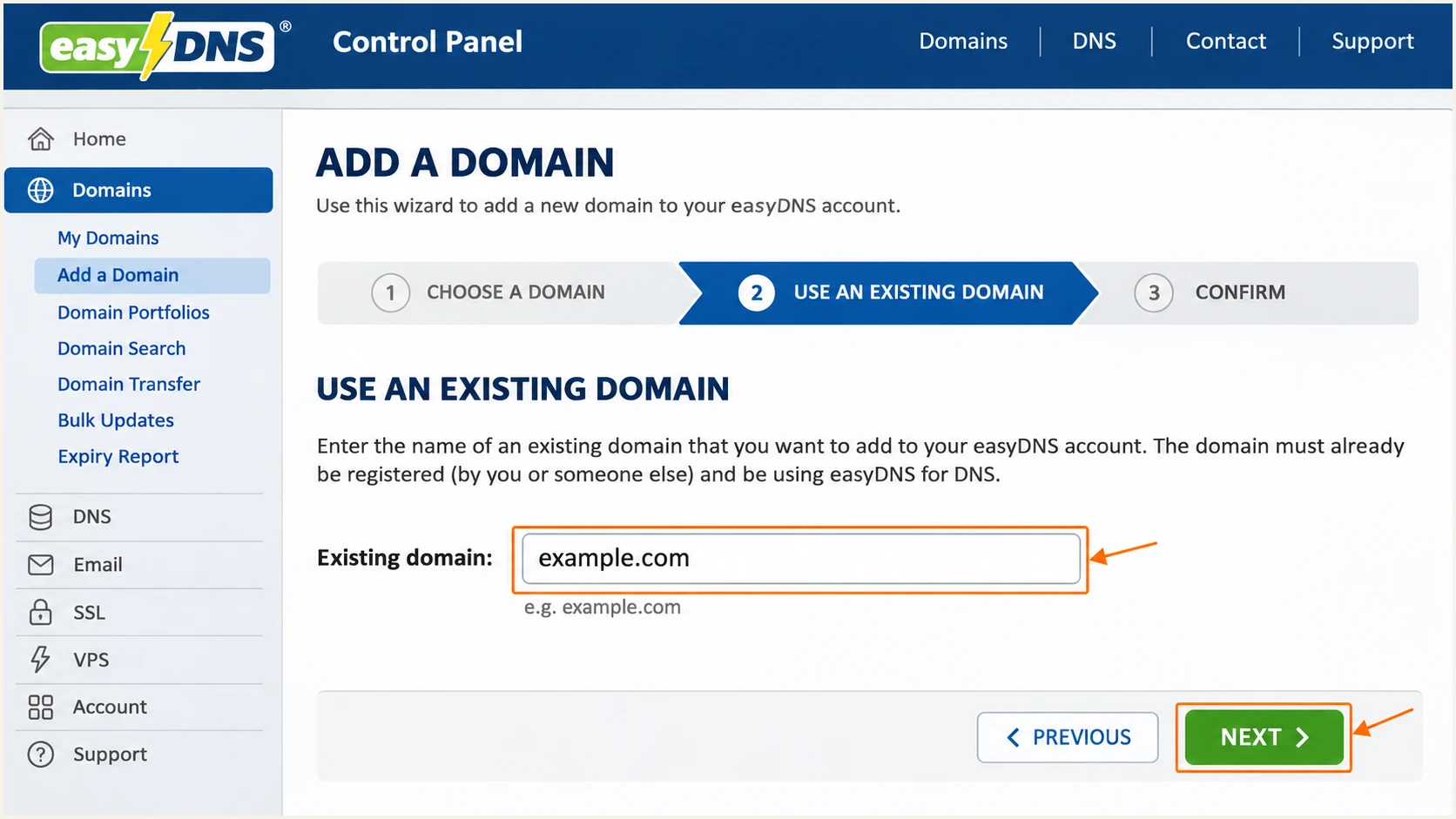
easyDNS existing-domain setup with the domain field and NEXT button highlighted.
For applications using easySMTP, open EMAIL > OUTBOUND MAIL > EDIT, activate the service, and create its SMTP password. Use the server and connection details shown after activation.
Set up SPF
I publish SPF for the envelope sender domain, which normally appears in Return-Path after delivery. For easyMail or easySMTP using your domain there, authorize easyMail's outbound infrastructure.
- Inspect the record. Open MANAGE > DNS SETTINGS > MODULAR EDITOR and select the pencil icon for TXT records. Check the existing SPF value before using automatic setup.
- Use automatic setup. For easyMail, open EMAIL > EASYMAIL > HOSTS > ADVANCED SETTINGS. Select SPF creation, click NEXT, and review the proposed change. Do not overwrite authorizations for other legitimate senders.
- Publish one policy. For a domain that sends only through easyMail or easySMTP, use the TXT value below at host @. If SPF already exists, add include:easymail.ca before its final all mechanism instead of creating another SPF record.
- Confirm the scope. A Return-Path subdomain needs its own applicable SPF record; the parent domain's SPF does not automatically apply. Keep the complete SPF evaluation within 10 lookup-causing terms, including nested includes.
SPF TXT value for easyMail or easySMTP only; host @text
v=spf1 include:easymail.ca ~all
The ~all value is easyDNS's documented starting example. Keep an existing -all policy when adding the easyMail include unless you have a separate reason to change it.
easyDNS supports sending with your own Return-Path domain. Confirm the actual smtp.mailfrom value in a received message; a passing SPF check only contributes to DMARC when that domain has the required relationship to the visible From domain.
SPF checker
Find SPF syntax issues, lookup limits, and weak records.
?/16tests passed
Enter the envelope sender domain above and check for one valid SPF record and an acceptable lookup count. Looking up the visible From domain alone misses a different Return-Path domain.
If a different sending service fixes Return-Path to its own domain, adding its SPF include to your From domain does not fix SPF alignment. In that case, passing DKIM with your domain is the DMARC authentication path.
Set up DKIM
easyDNS says DKIM is enabled by default on easyMail. I test the existing signature before touching the signing configuration so a working key stays in place.
- Check a message. Send through the mailbox or application you actually use. Inspect DKIM-Signature for the d= signing domain and s= selector, plus the receiving server's Authentication-Results.
- Enable missing signing. If easyMail is not signing correctly, open EMAIL > EASYMAIL > HOSTS > ADVANCED SETTINGS. Select DKIM creation, click NEXT, review any replacement warning, and confirm the change.
- Check the public key. Open DNS SETTINGS > TXT records. Confirm that the selector used by the message resolves under _domainkey for its signing domain. With external DNS, obtain the easyMail-generated public record and publish it at the authoritative provider.
- Retest delivery. Send a fresh message and require dkim=pass with your domain in d=. Keep unrelated selectors used by other senders, and do not regenerate a working key just to repeat the setup.
The selector and public key are specific to the signing configuration. Copy the issued value exactly; never replace it with a key generated elsewhere unless the corresponding private key is installed on the actual signer.
A public DNS key does not prove that mail is being signed. The received message is the evidence that the sender used the matching private key.
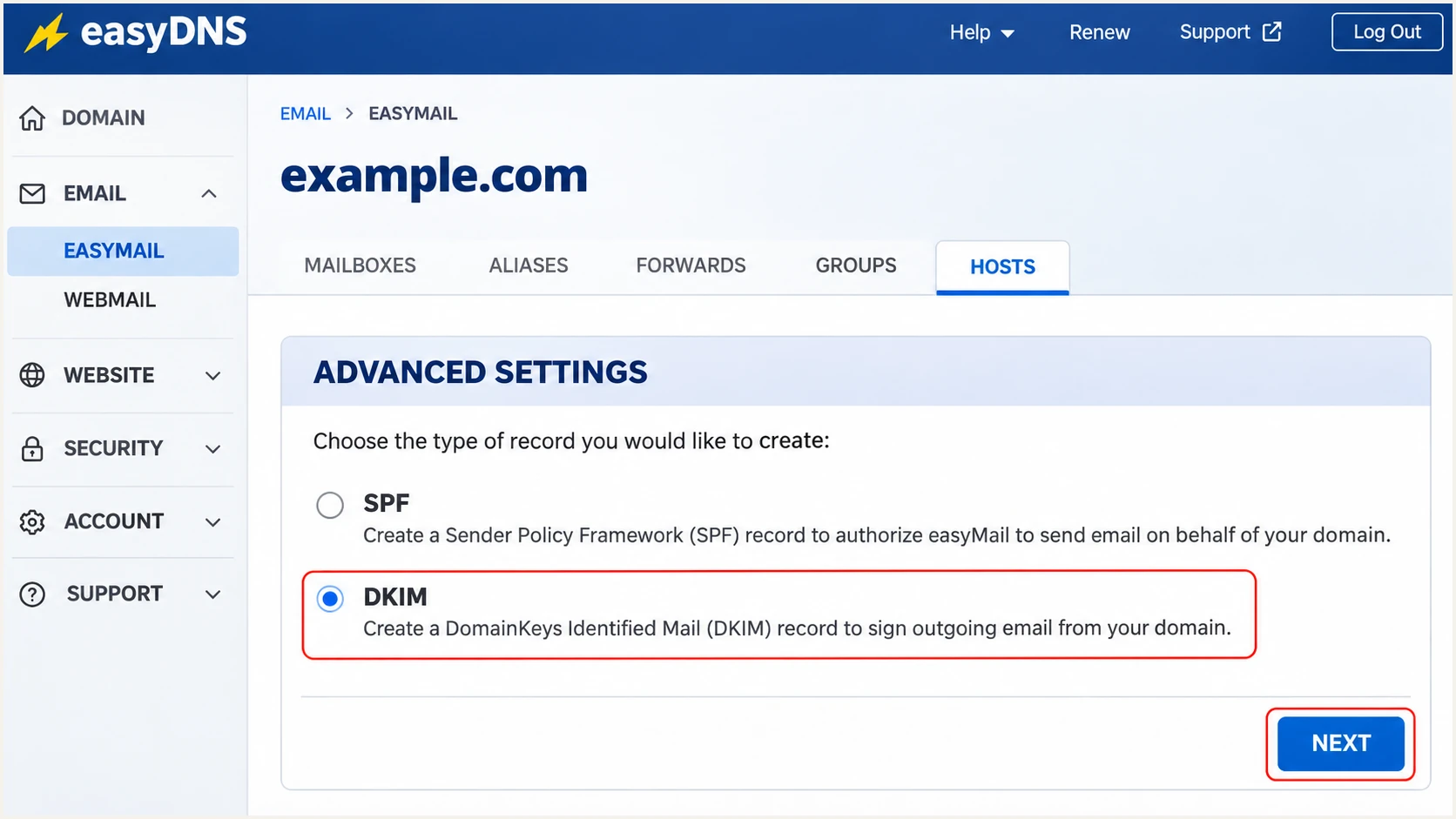
easyMail advanced settings with the DKIM creation choice and NEXT highlighted.
For easySMTP, verify which system supplies the signature. The relay's SPF authorization does not establish that it signs with your domain; confirm signing support with easyDNS or configure your sending server's DKIM signer.
When easyDNS only hosts your DNS, get the selector and record type from your actual email sender. Publish its TXT or CNAME record in easyDNS and enable signing at that sender.
A DKIM pass for an unrelated provider domain does not satisfy your domain's DMARC DKIM requirement. Check both signature validation and domain alignment before treating DKIM as complete.
Set up DMARC
I use p=none when the domain has no enforcement policy yet. If the domain already uses p=quarantine or p=reject, keep that policy and preserve its other working settings.
DMARC passes when either SPF or DKIM passes authentication with the required domain alignment. It does not require both paths to pass, but I configure both for direct easyMail sending.
- Inspect existing DMARC. Look up _dmarc on your From domain. Edit an existing DMARC record rather than adding a second one, including when easyMail has already created it.
- Open TXT editing. In easyDNS, select MANAGE > DNS SETTINGS > MODULAR EDITOR, then the TXT pencil icon. Use _dmarc as the relative host so the final name is _dmarc.example.com.
- Set reporting. For a new monitoring policy, use the exact template below. Replace dmarc@example.com with a working report mailbox or your assigned aggregate-report destination before publishing.
- Save and confirm. Click NEXT, review the final owner name and TXT value, and confirm. Keep one DMARC policy record at that name; do not paste a complete zone-file line into the value field.
Initial DMARC TXT value; host _dmarctext
v=DMARC1; p=none; rua=mailto:dmarc@example.com
The example address is a placeholder. Aggregate reports arrive as machine-readable data, and a reporting destination outside your domain requires authorization from the destination domain.
Use the DMARC record generator to prepare the value with your actual reporting address. Keep relaxed domain alignment unless a documented requirement calls for strict matching.
DMARC checker
Look up a domain's DMARC record and catch policy issues.
?/7tests passed
Enter the visible From domain above. Confirm the public record has the intended policy and reporting destination, with no duplicate DMARC record or syntax error.
p=none requests monitoring without DMARC-based quarantine or rejection. It does not override recipient spam filtering or guarantee inbox delivery.
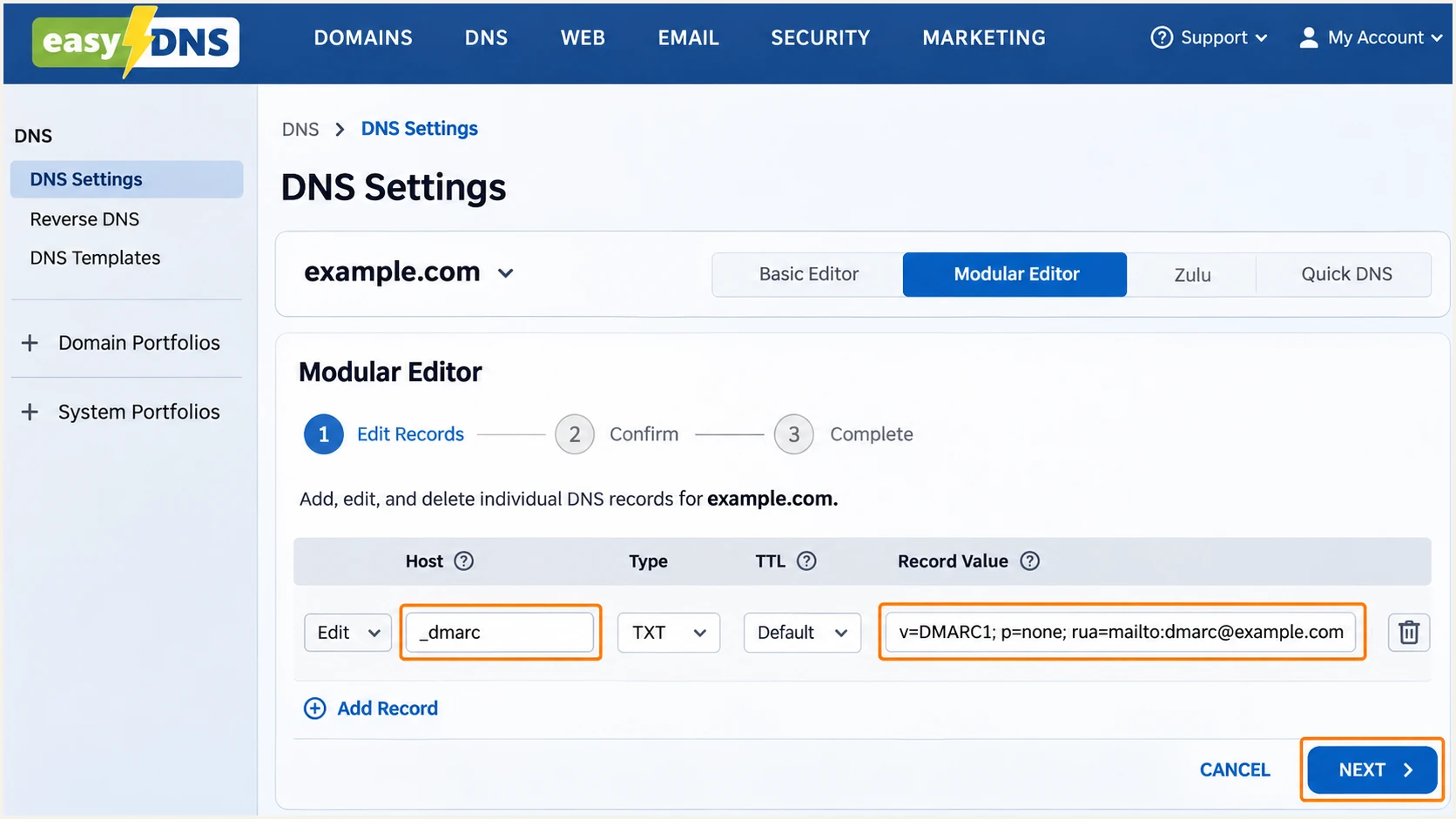
easyDNS TXT editor with the _dmarc host and monitoring policy entered.
Recheck public DNS after the previous TTL and any negative-cache interval have expired. A saved control-panel entry alone does not prove receivers can retrieve it.
Verify and troubleshoot
I test the real sending route, including website forms and scheduled messages. A successful webmail test does not validate a website that sends directly through another server.
- Check public DNS. Run the commands below with your domain. Replace SELECTOR with s= from the received DKIM signature and use its d= domain for the DKIM lookup.
- Check trusted headers. Read Authentication-Results added by the receiving mailbox provider. Compare smtp.mailfrom and DKIM d= with the visible From domain, then check the reported DMARC result.
- Fix the actual fault. For SPF permerror, check duplicates and lookup limits. For missing DKIM, check the signer and selector. For DKIM body-hash failures, inspect content changes after signing.
- Check sender permission. If easyMail rejects another From domain, complete easyDNS outbound authorization. Changing DMARC cannot grant SMTP send-as permission.
Check the published records; replace the domain and SELECTORbash
dig +short NS example.com
dig +short TXT example.com
dig +short TXT _dmarc.example.com
dig +short TXT SELECTOR._domainkey.example.com
An SPF or DKIM pass by itself is not proof of DMARC success. The passing authentication domain also needs the correct relationship to the From domain.
These result combinations separate a broken authentication mechanism from a DMARC failure. A passing DKIM signature with domain alignment keeps DMARC working when forwarding breaks SPF.
|
|
|
|---|---|---|
Pass + match | Pass + match | Pass |
No match | Pass + match | Pass |
Pass + match | Fail | Pass |
No match | No match | Fail |
Match means the authenticated domain meets DMARC domain alignment.
The quickest end-to-end check is to send a message to the address supplied by the email tester. Use the same easyMail mailbox or application route as your production mail.
The test returns an authentication diagnosis for that message. Repeat it for each distinct sending route rather than assuming one successful result covers the whole domain.
Email tester
Send a real email to this address. Suped shows a results button when the test is ready.
?/43tests passed
After a fix, send a fresh message and check the new result. An older message retains its original signature and authentication results.
If direct delivery passes but forwarded mail fails, inspect the forwarding route and any message modifications. Do not authorize an unfamiliar forwarding IP in SPF without establishing that it is an intended sender.
Get alerted when it breaks
Suped is our DMARC reporting and email authentication platform. Its DMARC monitoring connects easyDNS sending failures to source-level diagnostics and repair steps, so a deleted selector or new sender does not depend on someone remembering a manual test.
- Confirm report delivery. Use your assigned Suped reporting address in the existing rua setting and confirm aggregate reports are arriving. Preserve the current enforcement policy.
- Enable notifications. In Suped Notifications, enable Issues detected and Sending sources need verification. Enable DMARC summary emails for routine review.
- Review each sender. Compare source IPs and authentication domains with your authorized easyMail mailboxes and applications. Mark a source verified only after confirming it belongs to your sending setup.
- Resolve regressions. Open the affected record's Detail view for SPF and DKIM diagnostics. Follow the issue's repair steps, compare DNS history when relevant, then verify the fix with a new test message.
I use message tests for immediate validation and aggregate reports for ongoing coverage. Suped's issue detection adds context across the mail receivers that submit reports.
Aggregate reports are commonly delivered daily. Report-based alerts depend on receiving that data and are not a live feed of every SMTP delivery.
An unverified source is a source that needs review, not proof of unauthorized mail. Confirm ownership and inspect passing authentication before approving or removing anything.
After changing an easyDNS TXT record, I keep monitoring for failures on other sending routes. A replacement SPF value can fix one source while removing authorization for another.
Secure your domain with p=reject
I move to p=reject only after identifying legitimate sending routes and confirming passing DKIM with domain alignment. Suped helps track remaining failures by source before each policy change.
- Cover real traffic. Collect reports across a full sending cycle, including infrequent billing and application mail. For user mailboxes with mailing-list traffic, assess at least a month at none and a month at quarantine before deciding on rejection.
- Fix legitimate failures. Require a passing DKIM signature using your domain on each intended stream. Test forwarding and mailing-list traffic, since message modifications break signatures. Do not rely solely on SPF for p=reject.
- Stage enforcement. Change none to quarantine, inspect reports and delivery complaints, then move to reject when intended traffic is accounted for. Suped's source diagnostics identify which senders still need changes; a high overall pass rate alone is insufficient.
- Keep reporting active. Edit the same DMARC record and retain rua. Review subdomain records and sp settings so the policy scope is deliberate. Keep monitoring after rejection starts, and investigate new failures before approving a source.
DMARC rejection template after validation; replace the report addresstext
v=DMARC1; p=reject; rua=mailto:dmarc@example.com
Rejection requests apply to messages that fail DMARC, including legitimate messages with broken authentication. Receivers still apply their own handling policies.
Mailing lists that modify messages need particular care. If testing exposes persistent failures, keep the affected mail on a separately assessed domain or policy rather than enforcing rejection without understanding the delivery impact.
Change policy in easyDNS
Edit the existing _dmarc TXT value in DNS SETTINGS. Review the complete record, confirm the change, and recheck public DNS after cache expiry.
Use received-message tests and source reports to validate each policy change.
Manage policy with Suped
Our Hosted DMARC manages policy changes through Suped after its DNS setup is complete. Use policy staging with the source diagnostics to review failures before tightening enforcement.
easyDNS remains your DNS provider. Keep SPF and DKIM configured for the systems that send your mail.
Suped combines policy management with the reports needed to assess its effect. That workflow keeps unresolved easyDNS sending failures visible while the policy changes.
Keep a copy of the last working record and record each policy change. If an intended stream starts failing, use the affected message and source diagnostics to repair its authentication.
Frequency asked questions
easyDNS says easyMail enables email authentication by default and also documents manual SPF and DKIM creation. I inspect public records and a newly received message before changing anything. DNS hosting alone does not configure authentication at an unrelated sending server.
No. SPF, DKIM and DMARC authentication records do not require moving inbound email. Activating easyMail is a separate mailbox-routing decision that changes MX records; keep your current MX configuration when you only need DNS authentication updates.
SPF authenticates the envelope sender domain. If that domain does not meet DMARC alignment with the visible From domain, SPF does not provide a DMARC pass. A passing DKIM signature using your domain supplies the other path. Check the domains in Authentication-Results rather than only the pass labels.
Yes. Publish the supplied authentication records at the authoritative DNS provider and complete easyDNS sending authorization when required. Copy the actual DKIM selector and public key. An edit in a non-authoritative easyDNS zone will not reach receiving servers.
I treat an easymail.ca rDNS hostname as a clue for easyDNS's easyMail service because its documented outgoing SMTP endpoint is mailout.easymail.ca. I confirm the sending IP, SPF authorization and DKIM domain before identifying or approving a source. The SMTP endpoint is not a complete list of outbound PTR hostnames.
Yes, if DKIM passes with domain alignment. This is expected for sending services that use a provider-controlled Return-Path. For easyMail sending with your own Return-Path, investigate the SPF configuration as well; DKIM passing does not make a broken SPF record correct.




