
How to set up DMARC/DKIM/SPF for EarthLink

To set up email authentication for an EarthLink-hosted custom domain, publish EarthLink-confirmed SPF settings, arrange custom-domain DKIM signing with EarthLink, and add a DMARC TXT record in your authoritative DNS. Test an actual outbound message before increasing DMARC enforcement. DKIM availability and the SPF value depend on your hosting account.
I first distinguish a custom domain, such as example.com, from an @earthlink.net mailbox. EarthLink controls authentication for earthlink.net. A customer cannot edit that domain's SPF, DKIM, or DMARC records; the steps below apply to a domain you own.
Add your domain
Use your EarthLink Web Hosting account. EarthLink's "Web Hosting Manage Email Accounts" documentation identifies Mail Manager as the place to provision a custom-domain mailbox.
- Confirm provisioning. Use the domain attached to your hosting order. If it is missing, ask EarthLink hosting support to provision it before creating mailboxes. A personal EarthLink email subscription does not establish custom-domain hosting.
- Open Mail Manager. Sign in to the hosting Control Center with the credentials in your welcome message. Choose Web Apps under Quick Access, then Email, then Mail Manager.
- Create a mailbox. If needed, choose New Email Account, enter the name and mailbox details, select your domain, set a password, and save. Send a message and receive a reply to confirm the mailbox works.
- Locate authoritative DNS. Run the nameserver lookup below. Make DNS changes at the provider operating those nameservers. If EarthLink hosts the zone, open Advanced Tools, launch DNS Manager, and choose Start.
Find the DNS host for your domainbash
dig +short NS example.com
An existing working mailbox does not need to be recreated. Mailbox provisioning also does not prove that outbound messages pass DMARC.
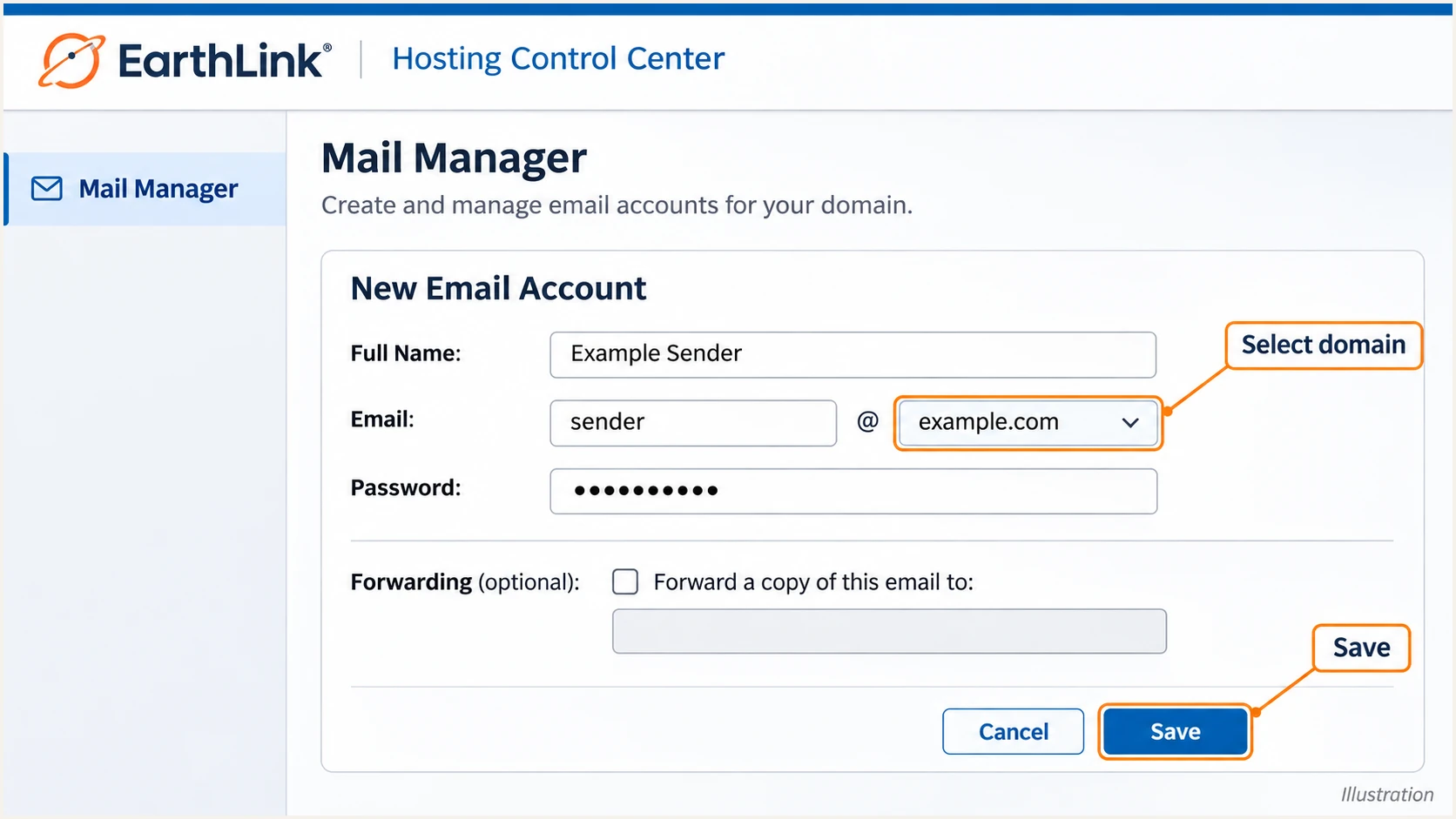
Illustration of selecting a custom domain when creating an EarthLink mailbox.
EarthLink's "EarthLink Web Hosting My Account" article directs DNS and email administration to the hosting Control Center. Confirm access there before changing authentication records.
Set up SPF
I check the actual Return-Path before editing SPF. SPF is evaluated at the envelope sender domain, which is not necessarily the domain displayed in the From address.
- Request the correct value. Ask EarthLink for the SPF include or sending IP ranges assigned to your hosting account. Use the c38 example below only if EarthLink confirms spfc38.carrierzone.com for that account.
- Check the Return-Path. Send through your EarthLink mailbox and inspect the delivered headers. For SPF alignment, the envelope sender must use your From domain or, with relaxed alignment, a subdomain under the same organizational domain.
- Edit one SPF record. At the envelope sender domain, edit the existing TXT record beginning v=spf1. Merge EarthLink's authorization before the final all mechanism while retaining other authorized senders. Create a record only if none exists.
- Check lookup usage. Stay within SPF's limit of 10 DNS-querying terms during evaluation, including nested includes. Do not copy EarthLink's corporate SPF record or infer outbound authorization from your MX records.
Conditional c38 example for an EarthLink-only sender domaintext
v=spf1 include:spfc38.carrierzone.com ~all
Publish this example at the root only when the Return-Path uses your root domain. If EarthLink uses a dedicated bounce subdomain, publish the account-specific SPF settings at that subdomain instead. SPF records are not inherited by subdomains.
Enter that exact envelope sender domain in the SPF checker. Check for duplicate SPF records and lookup errors before sending another test.
SPF checker
Find SPF syntax issues, lookup limits, and weak records.
?/16tests passed
An SPF pass for an EarthLink-owned Return-Path does not establish SPF alignment with example.com. Adding an include to example.com cannot change the Return-Path that EarthLink uses.
If your account cannot use a custom Return-Path, rely on passing DKIM with a signing domain that matches your From domain under DMARC rules. SPF alignment warnings are expected in that configuration; they do not cause DMARC failure when matching DKIM passes.
Set up DKIM
EarthLink's public hosting guides do not document a universal custom-domain DKIM selector or activation button. I request the signing details for the specific account instead of assuming a selector exists.
- Confirm support. Ask EarthLink whether outbound mail for your custom domain supports DKIM signing with your domain in the signature's d= value. Signing only with an unrelated provider domain does not satisfy your domain's DMARC requirements.
- Obtain the DNS details. Request the exact selector, DNS record type, hostname, and complete public value or CNAME target. EarthLink must retain the matching private key and enable signing on its outbound system.
- Publish the supplied record. Add the TXT or CNAME at your authoritative DNS provider exactly as supplied. Check whether the editor appends your domain automatically, and avoid duplicating the domain suffix.
- Verify actual signing. Send a fresh message through EarthLink. Inspect DKIM-Signature for d= and s=, then check the receiving server's authentication results for a passing signature using your domain.
A DNS key alone does not enable DKIM
Publishing a generated public key will not make EarthLink sign messages. If custom-domain DKIM is unavailable on your account, document that limitation and resolve the sending route before advancing to p=reject.
Use this request when contacting EarthLink hosting support. It asks for the configuration that DNS records alone cannot supply.
EarthLink support requesttext
Domain: example.com
Service: EarthLink Web Hosting email
Please confirm custom-domain DKIM signing support for this account.
Provide the selector, signing domain, record type, and DNS value.
Confirm when outbound signing is enabled.
Also confirm the SPF include and custom Return-Path settings.
DMARC checks the relationship between authenticated domains and the visible From domain. These two examples assume a From address at example.com and relaxed DMARC alignment.
SPF passes on a provider domain
The Return-Path uses an unrelated provider domain. Its SPF passes, but that result cannot authenticate example.com for DMARC. Your root SPF record does not change this outcome.
DKIM passes on your domain
A valid signature with d=example.com authenticates your From domain for DMARC, even when SPF alignment fails. I still investigate unexpected SPF authentication failures separately.
Set up DMARC
For a domain without an enforcement policy, start with p=none and working aggregate reporting. If you already use p=quarantine or p=reject, keep that policy and fix EarthLink's authentication without weakening it.
- Read the current policy. Query TXT records at _dmarc.example.com. Edit an existing DMARC record rather than adding a second one. If a DNS editor offers only A, MX, or CNAME records, request TXT publication from EarthLink support.
- Set the record name. At your authoritative DNS host, use TXT with the name _dmarc for the example.com zone, or the full _dmarc.example.com hostname if the editor requires it.
- Set the reporting value. Use the exact starter value below as a template. Replace dmarc@example.com with a real reporting destination you control before publishing. Keep existing reporting destinations when editing an established policy.
- Save and query DNS. Apply the change, then check the public TXT answer. Keep the default relaxed alignment unless a specific requirement calls for strict matching. Confirm that only one DMARC record exists at that name.
Starter DMARC TXT valuetext
v=DMARC1; p=none; rua=mailto:dmarc@example.com
Use the DMARC record generator to build the value with your real reporting address. The example address above is a placeholder, not an active report collector.
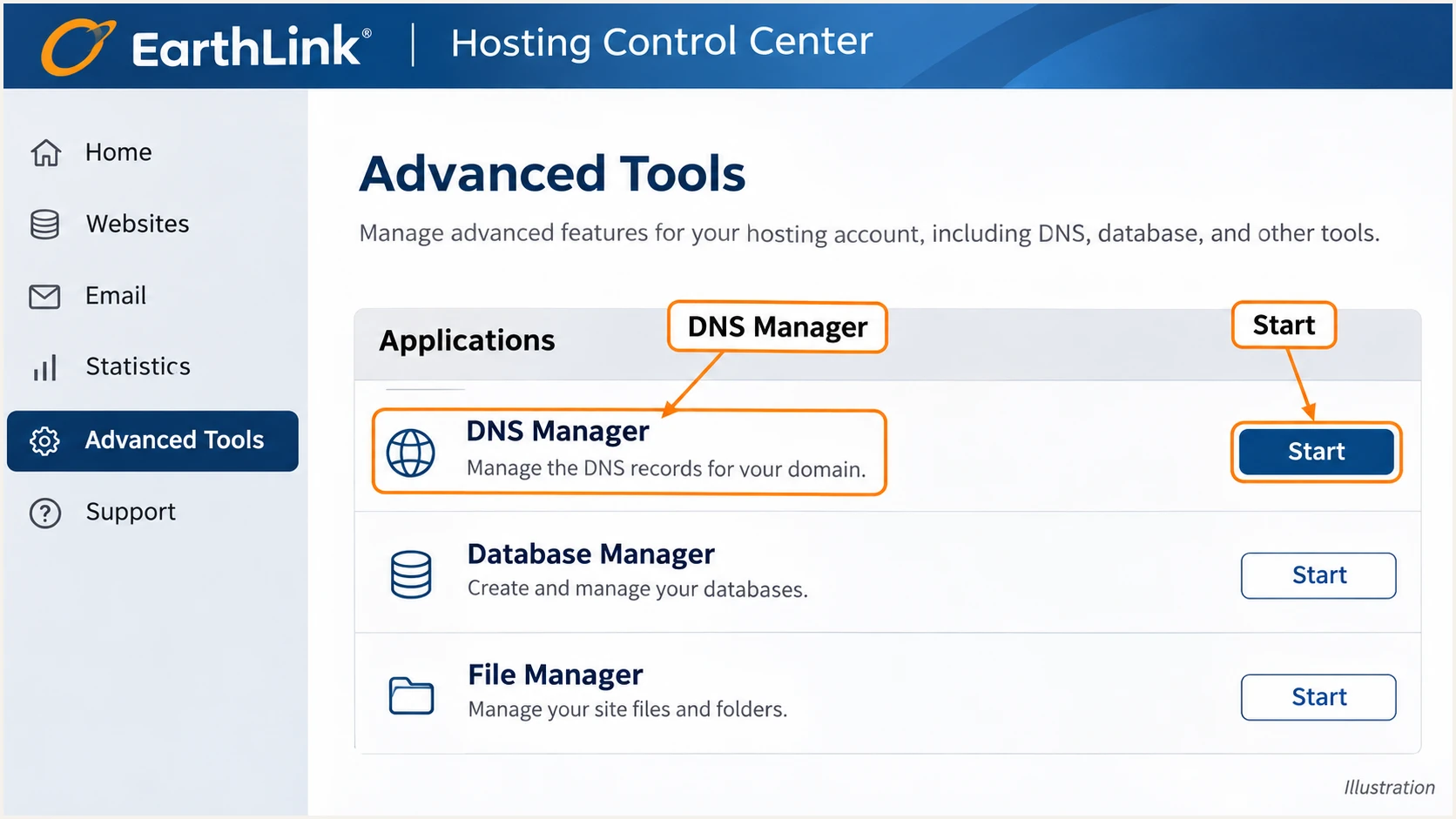
Illustration of opening EarthLink DNS Manager through Advanced Tools.
EarthLink's "Control Center How to update Zone Files" article documents this DNS Manager entry point and allows approximately 24 hours for its illustrated DNS changes. Check authoritative answers and cached TTLs when troubleshooting a delayed update.
Run the DMARC checker against your visible From domain after publication. This validates the DNS policy; a live message test is still needed to verify EarthLink's outbound authentication.
DMARC checker
Look up a domain's DMARC record and catch policy issues.
?/7tests passed
A p=none record requests reporting without requesting DMARC-based quarantine or rejection. An external reporting destination also needs the authorization required for that destination; use the collector's supplied instructions.
Verify and troubleshoot
I verify a message sent through the same EarthLink route used in production. A successful DNS lookup does not prove that EarthLink uses the intended Return-Path or signs the message.
- Send a live test. Use the email tester below. Send a new message to its generated address using your normal EarthLink mailbox or application, then inspect the diagnosis.
- Read trusted results. Check the final receiving system's Authentication-Results. Compare smtp.mailfrom with your From domain, and header.d with your DKIM signing domain. Ignore authentication results inserted by an untrusted sender.
- Query the exact names. Use the commands below, replacing SELECTOR with the s= value on your actual signature. Query the Return-Path domain for SPF if it differs from example.com.
- Test every route. Repeat through EarthLink webmail, your configured mail client, and each application that sends as your domain. For a failure, save the full headers, UTC sending time, recipient, and exact error for EarthLink support.
Check the published authentication recordsbash
dig +short TXT example.com
dig +short TXT _dmarc.example.com
dig +short TXT SELECTOR._domainkey.example.com
dig +short CNAME SELECTOR._domainkey.example.com
|
|
|
|---|---|---|
SPF permerror | Duplicate or lookup error | Repair one SPF record |
SPF mismatch | Provider Return-Path | Check custom Return-Path |
DKIM none | No outbound signature | Ask EarthLink to sign |
DKIM fail | Key or message mismatch | Check selector and key |
DMARC fail | No matching pass | Fix SPF or DKIM |
Common test results and the next action.
If a DKIM lookup is empty, first confirm the selector. Some selectors use CNAME delegation. Keep the original signature intact when collecting evidence so EarthLink can investigate key or signing problems.
The email tester prompts you to send a message and returns a full diagnosis, including authentication results. It is the quickest check of whether the DNS settings and EarthLink's actual sending behavior work together.
Email tester
Send a real email to this address. Suped shows a results button when the test is ready.
?/43tests passed
Keep the test result with your change record. Passing authentication does not guarantee inbox placement; investigate receiver rejections separately when authentication already passes.
Get alerted when it breaks
Suped is our DMARC reporting and email authentication platform. Its DMARC monitoring connects incoming reports with source-level failures and issue notifications, so an EarthLink configuration change can be investigated after the initial test.
- Enable issue notifications. In Suped's notification settings, enable Issues detected and Sending sources need verification. Enable DMARC summary emails for recurring review.
- Verify sending sources. Review EarthLink traffic against the mail you actually authorize. Check source IPs and authenticated domains before verifying a source; a recognizable rDNS suffix alone is insufficient.
- Investigate the failing records. Filter the data view by source, reporter, or IP address. Open the detail view to inspect SPF and DKIM results, then use the detected issue's steps to fix.
- Check DNS history. Compare previous and current records after an alert. Correct the relevant DNS or EarthLink setting, send another test, and confirm later reports show the intended result.
I use the live message test for immediate feedback and aggregate reports for ongoing coverage. Aggregate-report alerts depend on receivers delivering reports, so they are not instantaneous failure notifications.
Keep an owner for each failure
Assign an owner to investigate EarthLink authentication issues and review Suped's notifications. Use the message diagnosis to confirm the fix immediately, then verify recovery in subsequent report data.
Secure your domain with p=reject
I advance enforcement after legitimate traffic has a reliable matching authentication result and the reporting data covers the domain's normal sending cycle. For EarthLink, establish working custom-domain DKIM before relying on p=reject.
- Inventory every sender. Use Suped's source table to identify EarthLink mailboxes and other authorized senders. Include infrequent billing and automated mail. Resolve unknown traffic before changing the domain-wide policy.
- Require dependable DKIM. Confirm EarthLink messages have passing DKIM for your From domain. SPF breaks during ordinary forwarding, so SPF alone is an unsuitable basis for reject enforcement.
- Stage the policy. For a domain currently using p=none, change to p=quarantine after fixing legitimate failures. Review subsequent reports and delivery errors before changing to p=reject. Retain stronger policies already in place.
- Manage policy deliberately. Suped's Hosted DMARC supports policy management in the dashboard after its DNS configuration is complete. Keep reporting enabled and review source-level failures after each policy change.
- Check inherited scope. Review sending subdomains and any separate DMARC records before enforcement. If legitimate mail fails, repair that source or deliberately restore the preceding policy while resolving the fault.
With Hosted DMARC, Suped keeps policy changes and report review in the same workflow. EarthLink still controls its outbound signing and Return-Path behavior; resolve those account settings with EarthLink.
Successive TXT values, publish one policy at a timetext
v=DMARC1; p=quarantine; rua=mailto:dmarc@example.com
v=DMARC1; p=reject; rua=mailto:dmarc@example.com
Replace the reporting placeholder and edit the existing record for each stage. A reject policy asks receivers to reject messages that fail DMARC; receivers retain their own handling policies. It does not block every form of impersonation.
Frequency asked questions
EarthLink controls the earthlink.net DNS records and outbound authentication. Customers cannot publish their own DMARC policy for that domain. These setup steps require a custom domain you own.
Use the value EarthLink confirms for your hosting account. The c38 example uses include:spfc38.carrierzone.com, but confirm it before publication. Do not assume include:earthlink.net authorizes your account's outbound servers.
EarthLink's public hosting documentation does not identify a universal activation setting. Ask hosting support to confirm custom-domain signing support and provide the selector with its DNS record. Publishing a key without activating outbound signing does not enable DKIM.
Yes. A passing DKIM signature whose signing domain matches your From domain under the configured DMARC rules is sufficient for a DMARC pass. Investigate unexpected SPF failures separately, especially when your EarthLink account supports a custom Return-Path.
earthlink.net identifies EarthLink infrastructure. EarthLink's header documentation shows nmtai103.earthlink-vadesecure.net handling inbound mail. carrierzone.com is shared hosting infrastructure and is not exclusive evidence of an EarthLink sender. Check the connecting IP's PTR, the message path, and authenticated domains before attributing outbound mail.
Use evidence rather than a fixed waiting period. Cover your normal sending cycle, including infrequent mail, confirm matching DKIM on EarthLink traffic, and resolve legitimate failures in Suped before increasing enforcement. Continue reviewing reports after each change.




